Create an exceptional shopping experience for your customers. Product options such as text, color, and image allow you to offer flexible choices that match customer preferences. This level of customization makes your store more engaging, easier to browse, and more likely to convert visitors into buyers.
In this guide, you will learn how to add product options, manage their appearance, and control them efficiently from one place.
📌 Article overview
- How to access Categories and Options management
- Adding a new product option
- Setting a default option
- Deleting a product option
How to access Categories and Options management
- From the main menu, click Products.

- Under product sections, click Categories and Options.

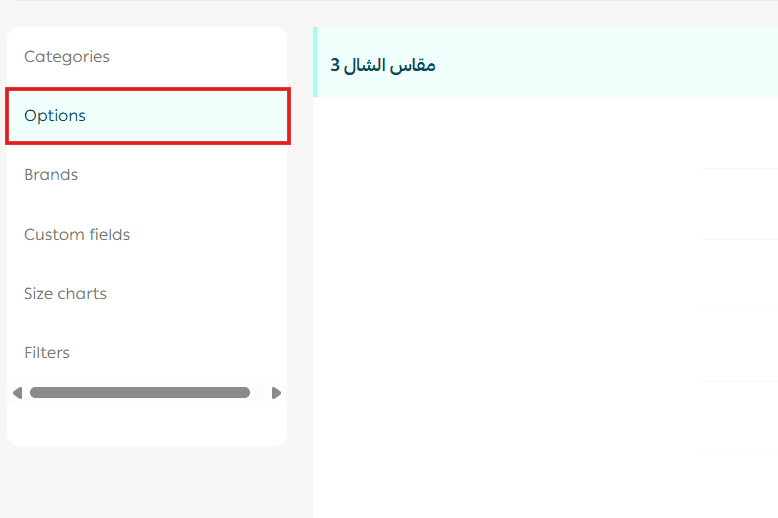
- From the Manage Categories and Options page, click Options to view all existing product options.
Adding a new product option
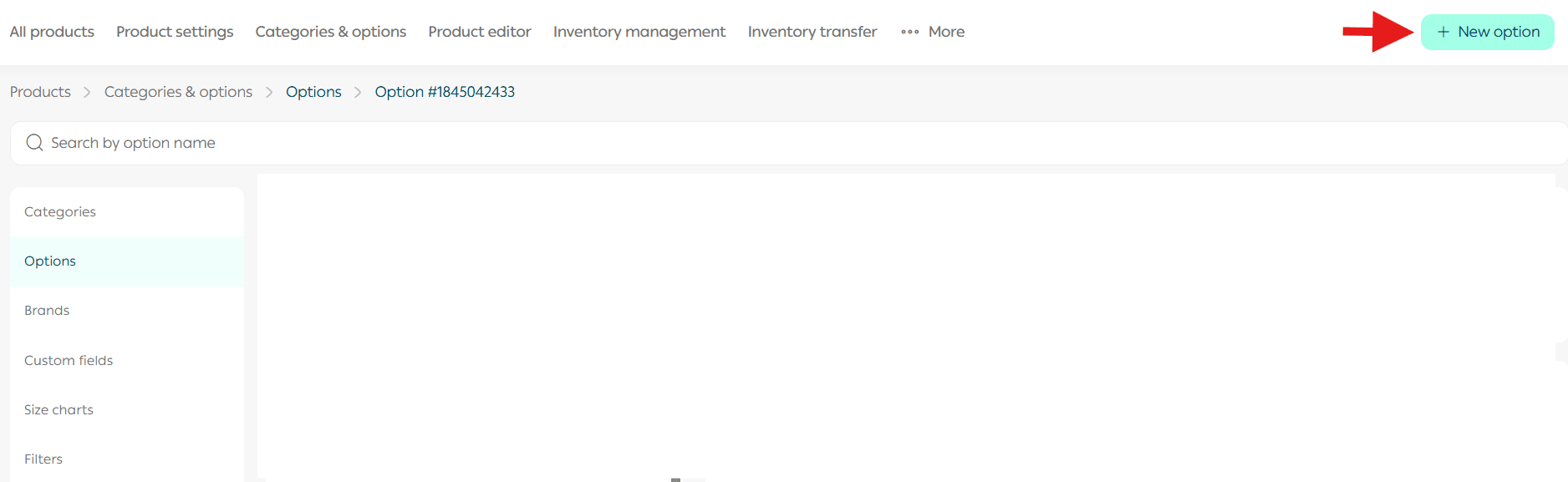
Click +New Option, then enter the option details and its values.
Once completed, click Save.
You can add different types of product options, depending on how you want customers to interact with your products.
1. Text based product options
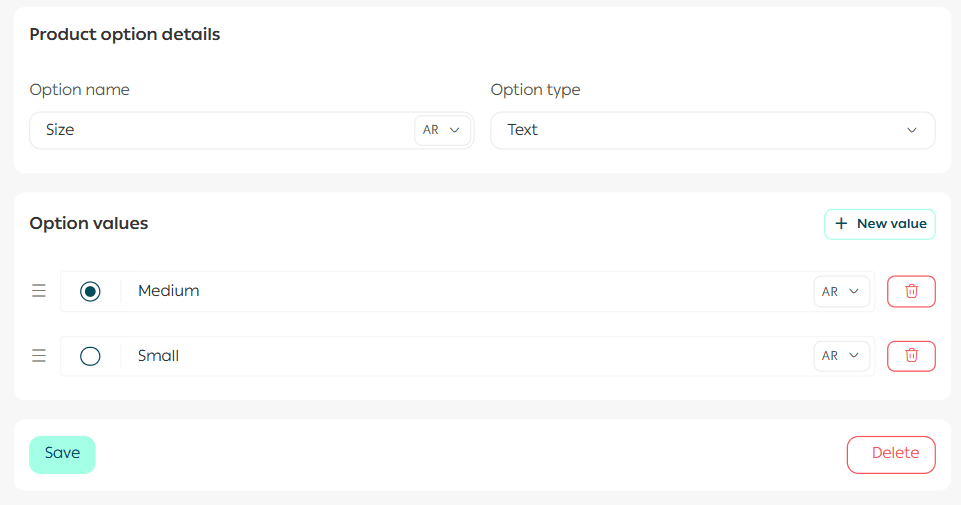
Text options are ideal for sizes, materials, or any descriptive choice.
The options will appear to customers as selectable text values on the product page.
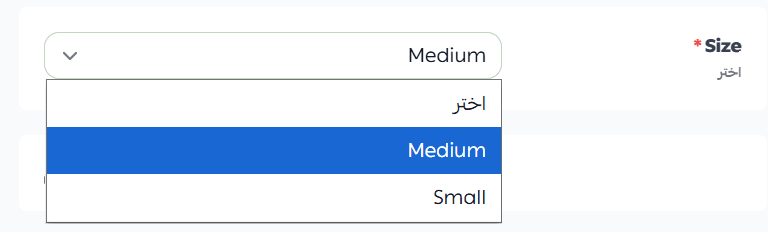
Each option value is entered as text describing the available choices.
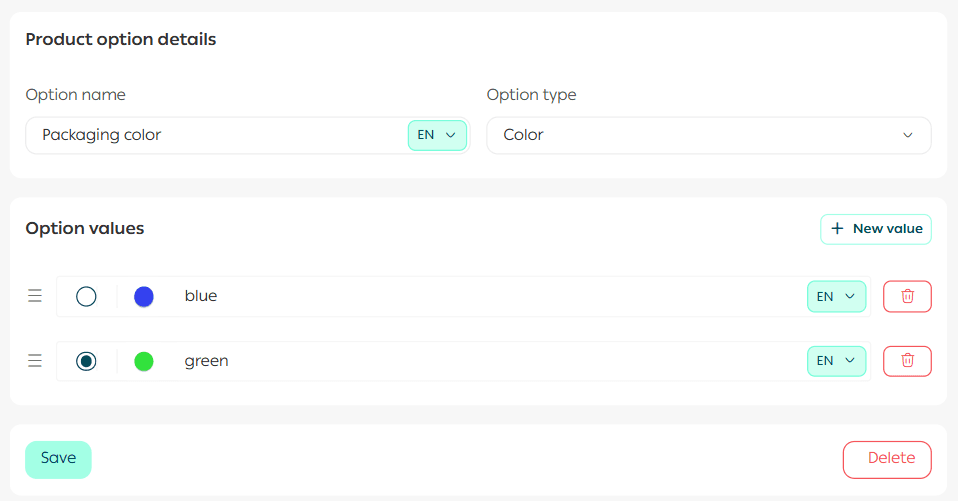
2. Color based product options
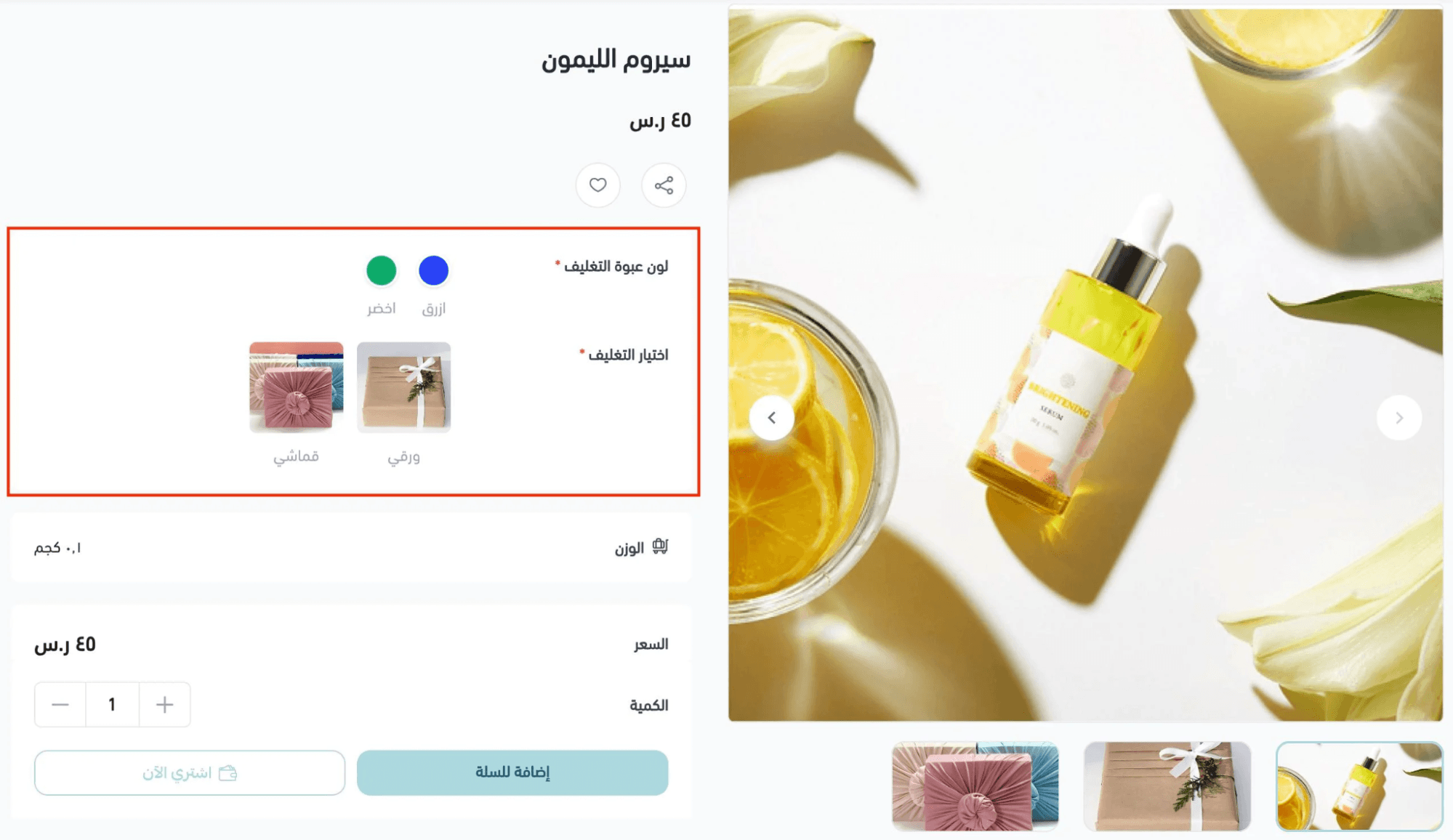
Color options allow customers to visually select their preferred color.

Each option value includes both a text label and a color selection, making the choice clear and intuitive for the customer.
These options appear as color swatches on the product page.
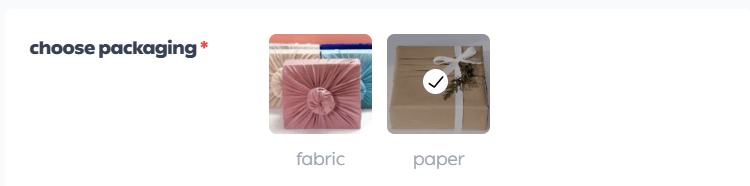
3. Image based product options
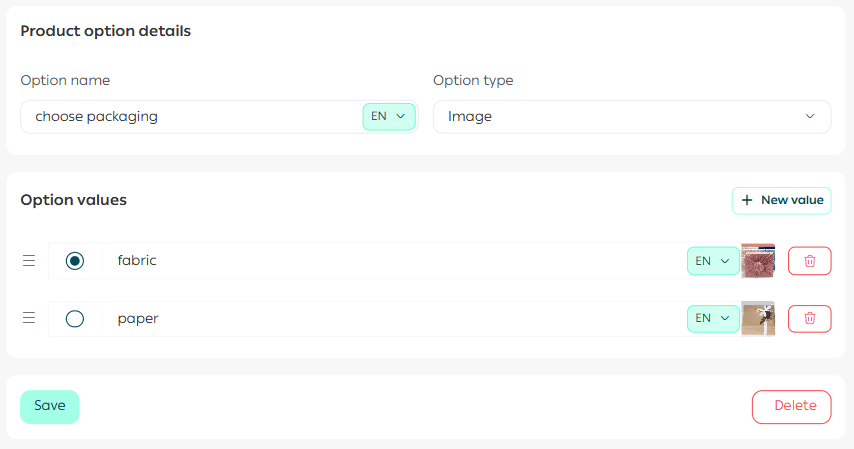
Image options are perfect for showcasing visual differences such as patterns, finishes, or styles.
To assign an image to an option value, click Browse, then select the image file for the desired option.
Customers will see these options as clickable images on the product page, helping them make confident decisions.
Important note
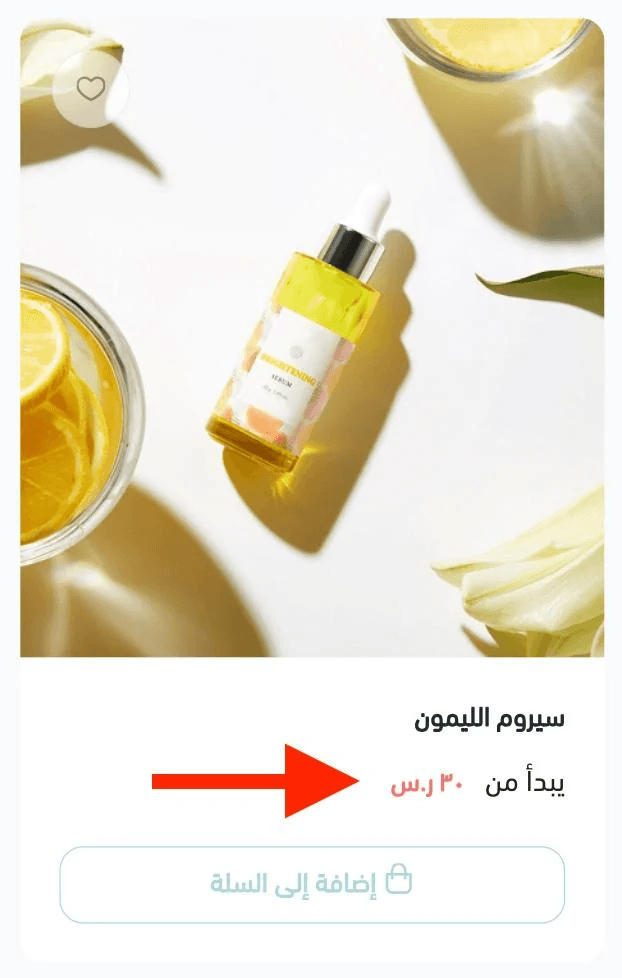
If a product has multiple options with different prices, the product price shown to visitors will start from the lowest available price.
This helps set accurate price expectations while encouraging exploration of available options.
Setting a default product option
For example, to set a default color option, simply select the desired color value as the default.
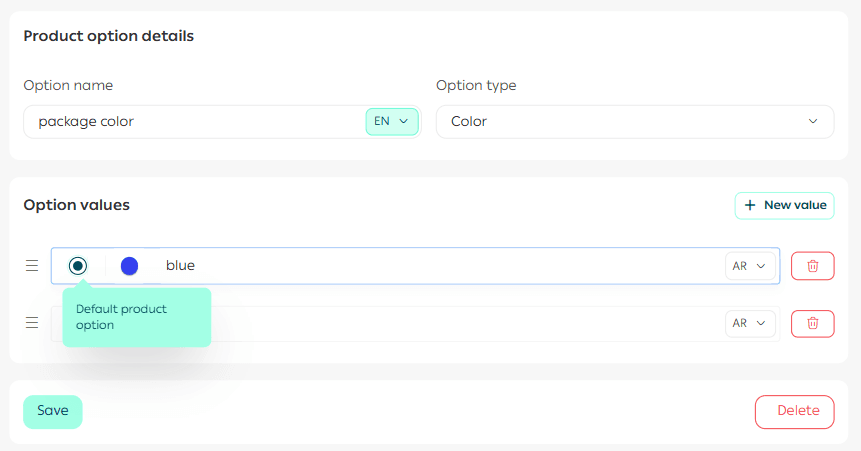
The selected option will appear automatically when the product page loads, while still allowing customers to choose a different option if they wish.
Default options improve usability and reduce friction during the buying process.
Deleting a product option
You can delete either an entire option or a specific option value.
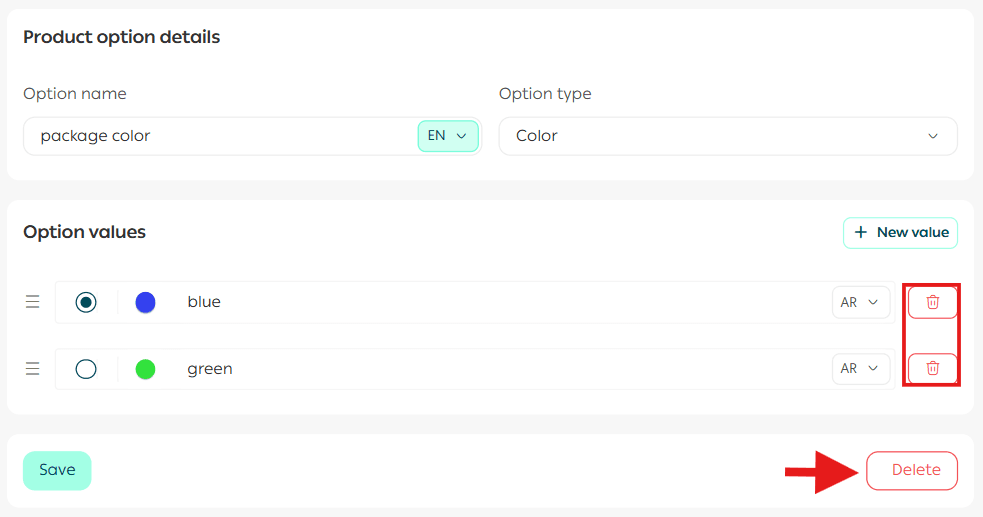
To do so, click Delete next to the option or the value you want to remove.
Frequently asked questions
Why do I see this error message: You have exceeded the maximum limit of 100 product variants?
This message appears when adding new options to ready products and the total number of product variations exceeds the allowed limit of 100.
Explanation
Each combination of option values creates a product variant. When the total number of variants exceeds 100, the system prevents adding more options.
Example
- First option has 20 values
- Second option has 5 values
Total variants are calculated as follows:
20 × 5 = 100 variants
If you attempt to add a sixth value to the second option, the total becomes 120, which exceeds the allowed limit and triggers the error.
Support services
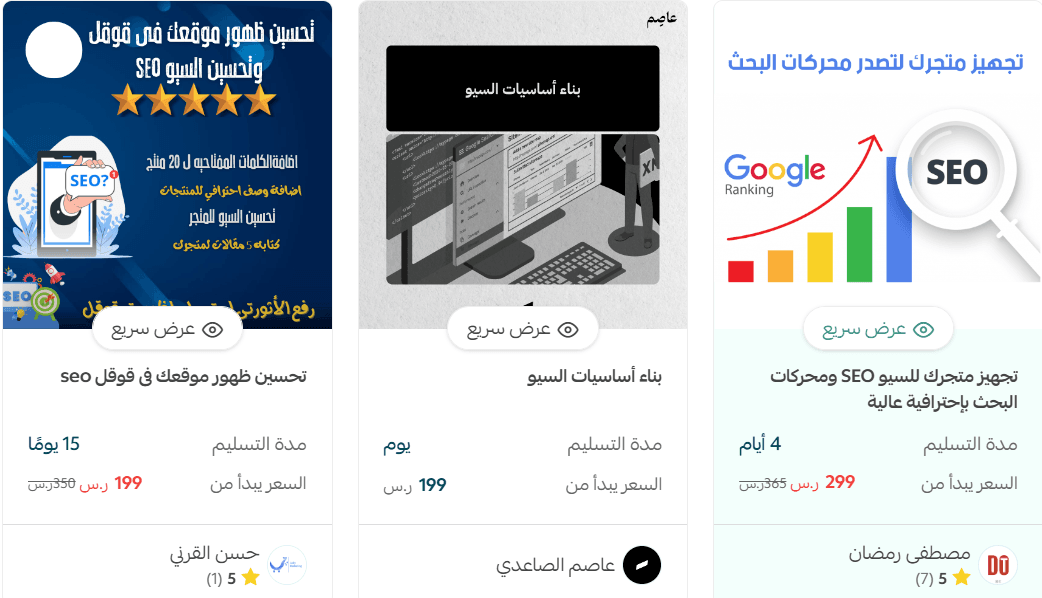
If you need assistance, you can reach out to freelancers though Merchant Services.
They offer professional services such as product setup, product description writing, and SEO optimization to improve search engine visibility and help your store reach more customers.
These services support your store’s growth and strengthen your digital presence.