Payment methods are one of the most important factors behind a successful online store. The easier and safer it is for customers to pay, the more likely they are to complete their purchase.
In this guide, you’ll learn how to manage your store’s payment setup in Salla, from activating electronic payments and digital wallets, to adding bank accounts and configuring checkout settings for a smoother customer experience.
📌 Article overview
- Payment methods page overview
- Customizing electronic payments
- Digital wallets
- Buy Now, Pay Later options
- Bank accounts
- Payment settings
- Frequently asked questions
Payment methods page
To access your payment settings:
- From the main menu, go to All
- Under Settings & Tools, click Payment Methods
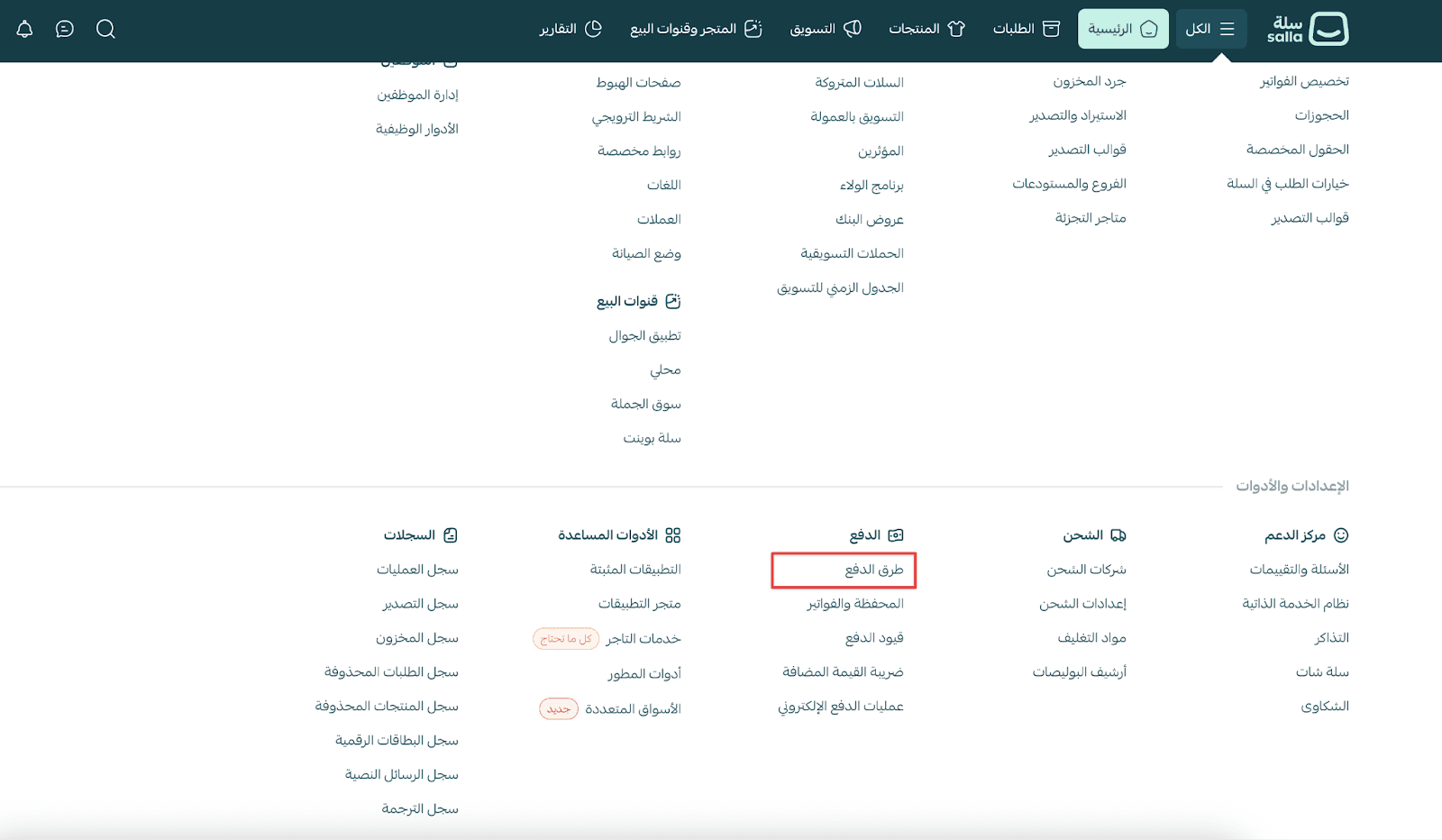
The Payment Methods page includes several key sections:
Store verification
Before activating certain payment services, your store may need to be verified.

For full details, refer to the Store Verification guide.
Electronic payments
Electronic payments are the most secure and easiest option to activate.
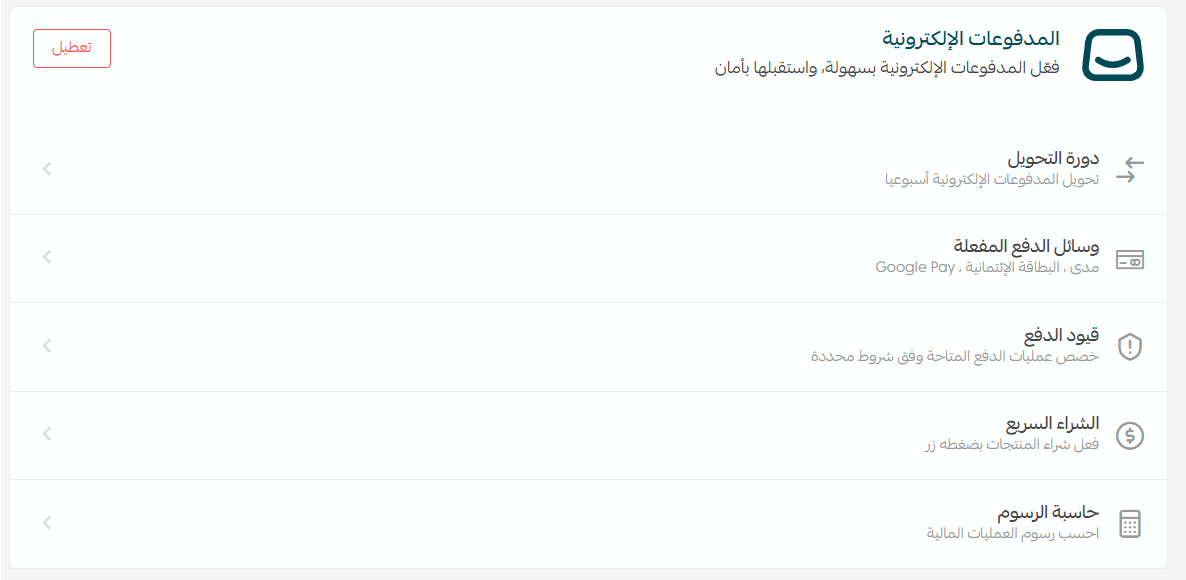
They allow customers to pay instantly online using supported gateways.
For more details, see the Electronic Payments Activation guide.
Digital wallets
Salla supports multiple digital wallet options, such as PayPal.

To activate a wallet:
- Click Activate
- Enter the required account details
- Save your changes
For more information, visit the PayPal Integration guide.
Buy Now, Pay Later options
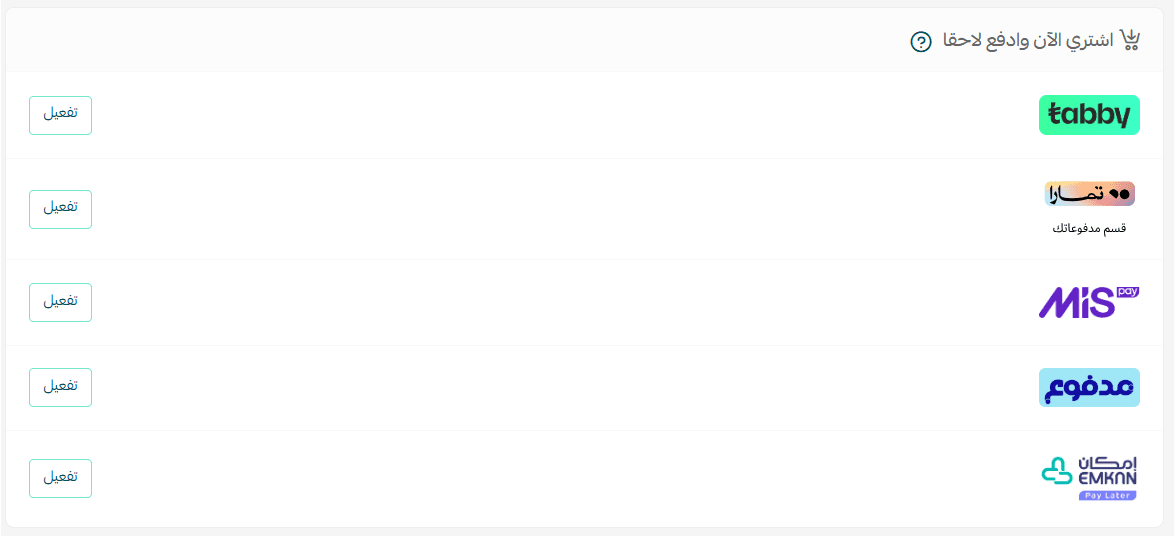
Salla also supports installment and deferred payment services, including:
- Tabby
- Tamara
- Mispay
- Madfu
- Emkan
To enable any provider, simply click Activate next to the service.
Learn more here:
- Activate Tabby
- Activate Tamara
- Activate Madfu
- Activate Mispay
Bank accounts
You can add more than one bank account to your store.

This helps you manage payouts and transfers more efficiently.
For details, refer to the Bank Account & Instant Transfer System guide.
Checkout page settings
Salla allows you to customize important checkout options that improve the buying experience:
Auto-fill customer information
When enabled, Salla will automatically fill in:
- Delivery address
- Shipping provider
Based on the customer’s most recent purchase, making checkout faster and easier.
Show “Purchase as a Company” Option
This allows customers to check out as a business by entering:
- Commercial registration number
- Tax ID
Display donation message
This option lets you show or hide a donation message at checkout, with the ability to add a donation amount to the cart.

📝 Important note: The Donation Message feature is available only for merchants using Salla Payments.
- Enabled by default for most stores
- Hidden by default for Special plan merchants
Merchants can choose to display or hide it anytime.
When enabled, the donation message appears at the bottom of the checkout page.
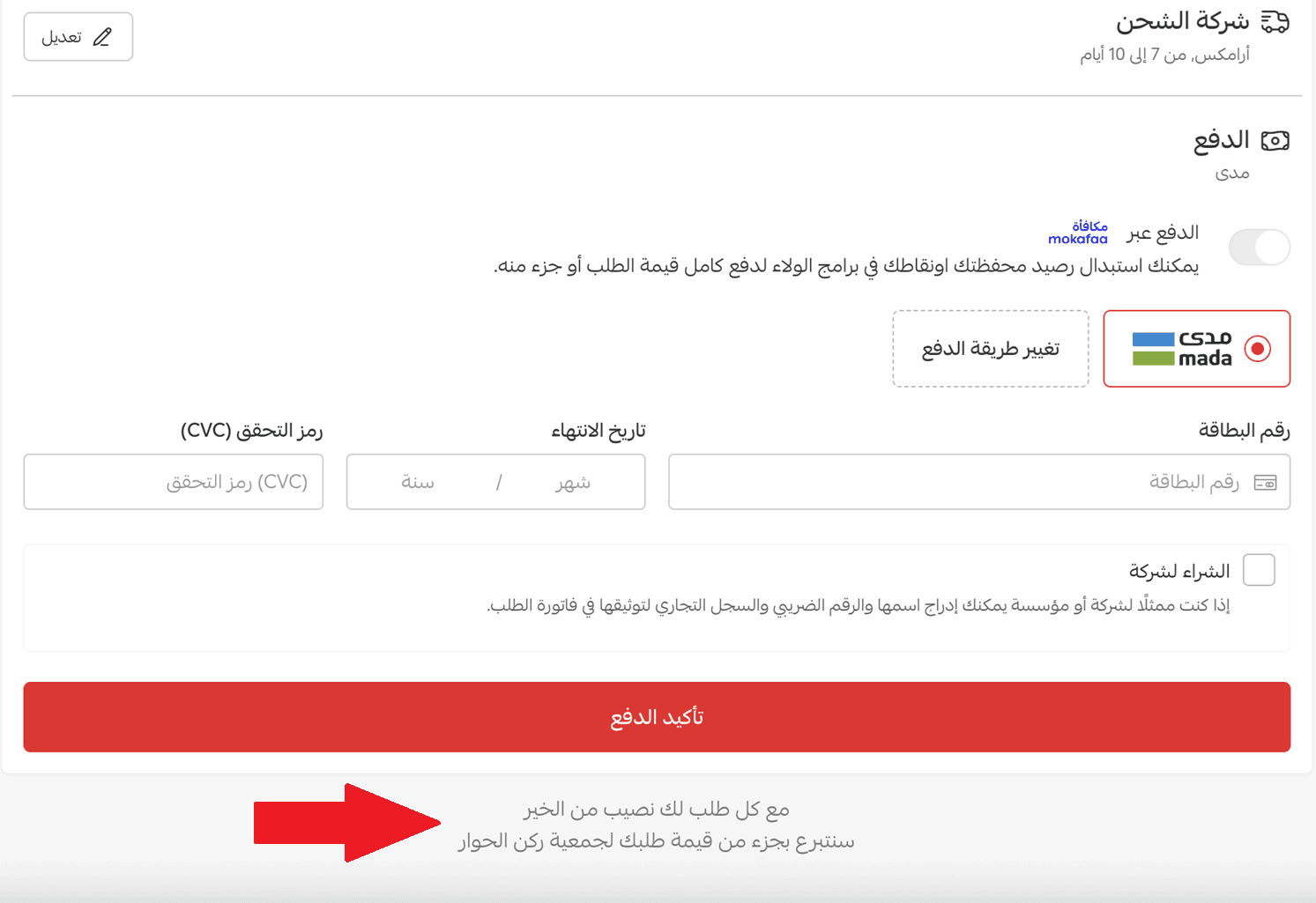
For more details, see the Customer Checkout Page guide.
Frequently asked questions
What payment methods are available on the Basic plan?
On the Basic plan, you can enable:
- Bank transfer (customers transfer payment directly to your account)
- Cash on Delivery (collected by the shipping company or your own courier)
- Electronic payments are available only on paid plans.
Who can use the Donation Message feature?
Only merchants using Salla Payments.
Is the Donation Message enabled automatically?
Yes. It is enabled by default for all stores using Salla Payments, except Special plan merchants.
When does the Donation Message not appear?
It does not appear for:
- Merchants in the UAE
- Registered charities
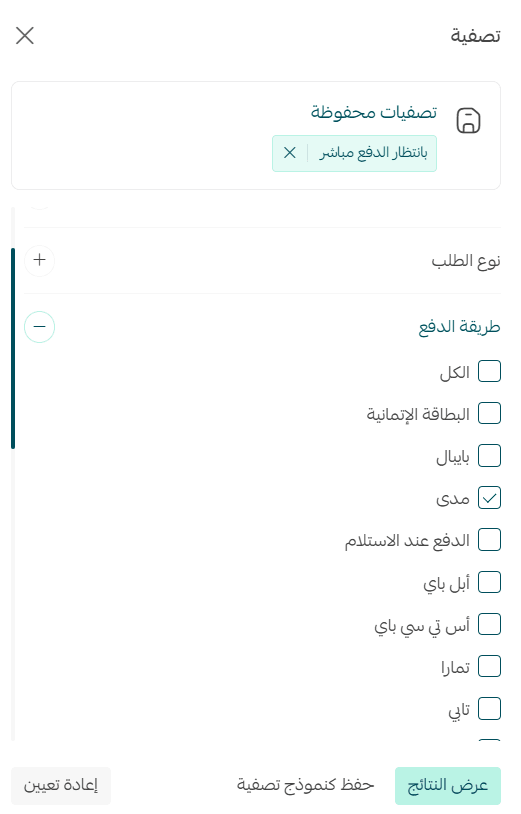
Can I filter orders by payment method?
Yes.
- Go to the Orders page
- Click Filter

Select the payment methods you want to view orders by