Does your business still email customers from a Gmail or Hotmail address?
Email is no longer a side channel — it is how your business looks to the people paying you. Google Workspace puts professional email on your own domain, collaboration tools, cloud storage and user management in one place, with Google's security behind all of it. In this guide, you'll learn how to set up Google Workspace step by step: creating the account, adding your team, and verifying your domain so the service goes live.
Google Workspace is Google's paid suite of business tools: Gmail on your own domain, Drive, Docs, Meet and Calendar, managed from one admin console. To set it up, create an account at workspace.google.com, enter your business details, add your existing domain, create an admin user, choose a plan, then verify your domain with a TXT record.
📌 Article overview
- What Google Workspace is
- When you need Google Workspace
- How to set up Google Workspace step by step
- Frequently asked questions
What is Google Workspace?
Google Workspace (formerly G Suite) is a complete set of Google's cloud tools for running a business professionally: better communication, easier collaboration inside your team, from anywhere and at any time.
It gives you a secure, quick-to-set-up working environment that covers professional email, cloud storage, meeting tools and user management — which is why it suits startups, mid-sized companies and large organizations alike.
Major organizations across every sector rely on it, and millions of professionals use it daily for its reliability and its smooth day-to-day experience.
✅ What you need before you start
To activate Google Workspace you need your own domain name and the ability to verify that you own it. That is what makes professional email and the full connection to your business possible.
🚀 When do you need Google Workspace?
Google Workspace is worth setting up if you want to:
- Create official email addresses on your business domain.
- Organize work across your team collaboratively and efficiently.
- Hold video meetings easily.
- Store your files safely and reach them from any device.
- Manage users and permissions from a single admin console.
🧭 How to set up Google Workspace step by step
Here is the full, up-to-date walkthrough for setting up Google Workspace and connecting it to your domain.
Step one: create your Google Workspace account
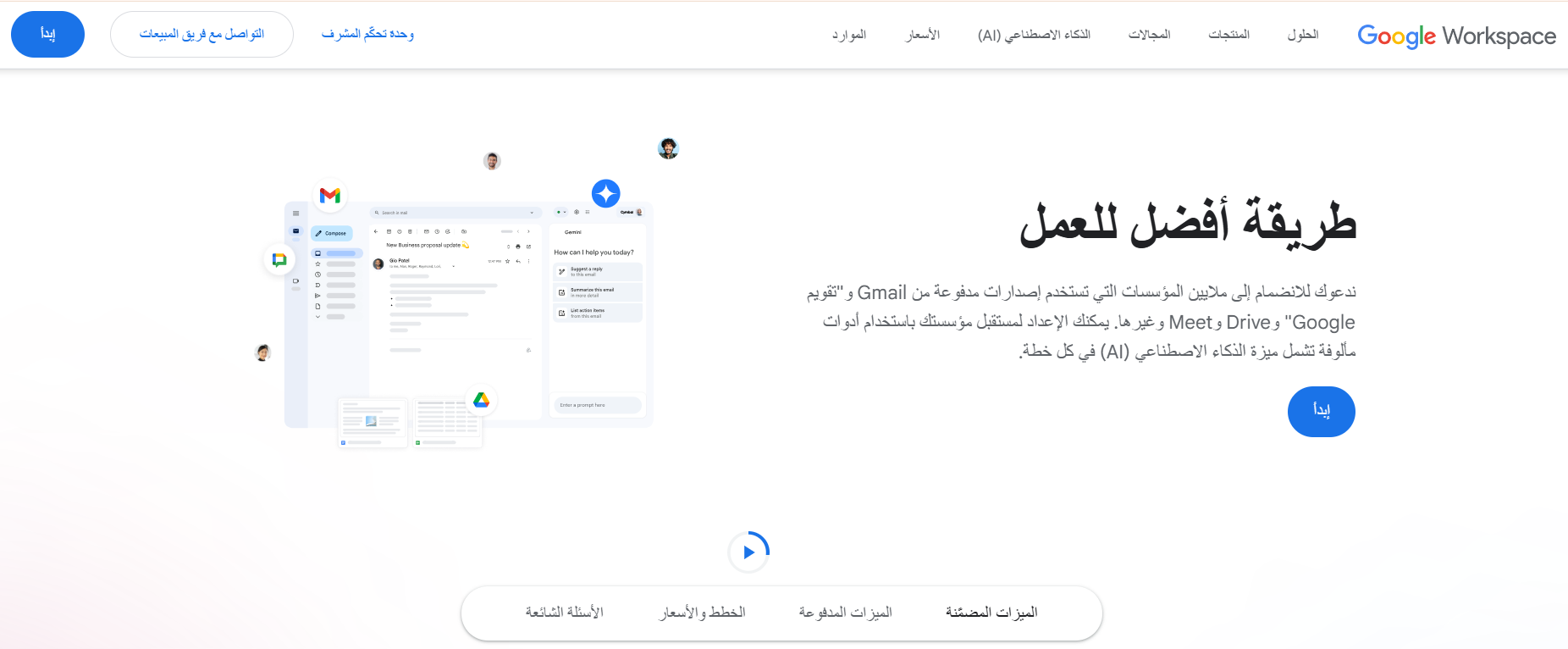
1. Go to the official Google Workspace sign-up page and click (Get started).
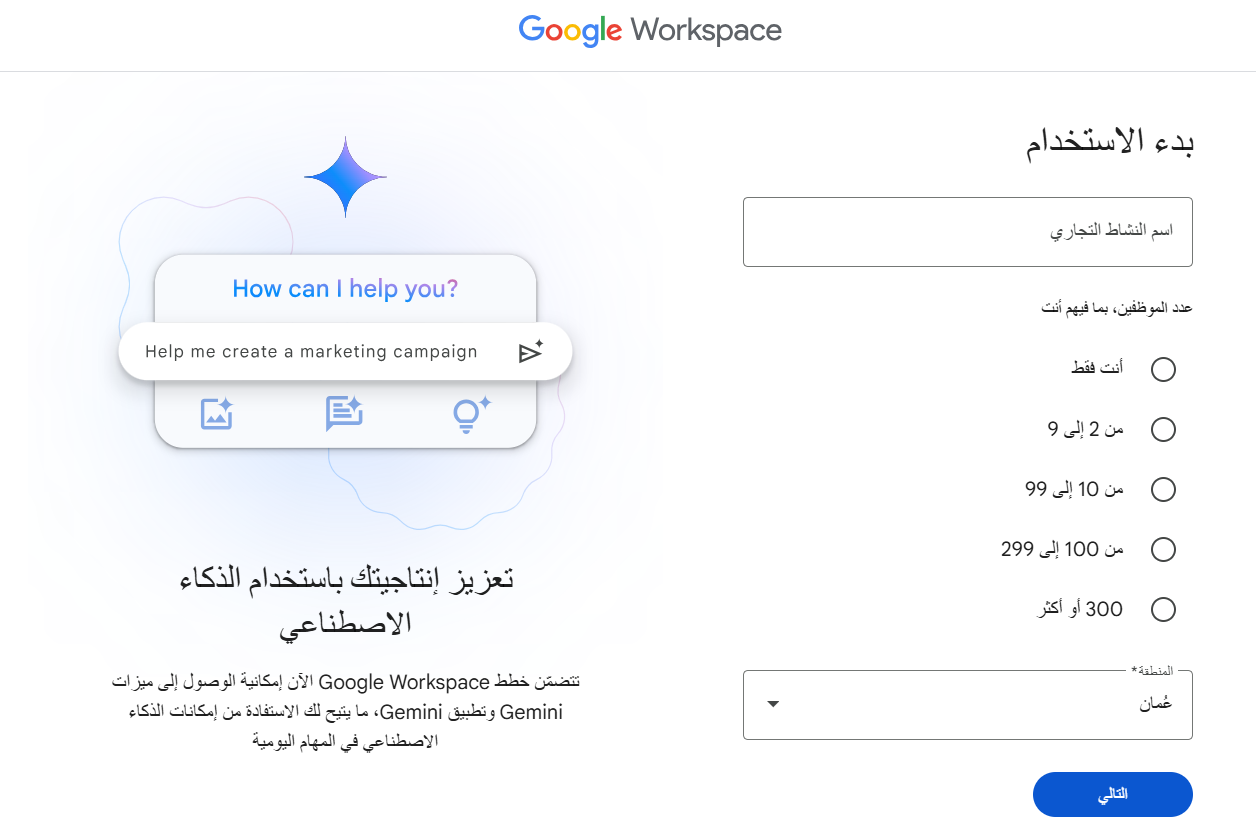
2. Enter your business name, your number of employees and your country.
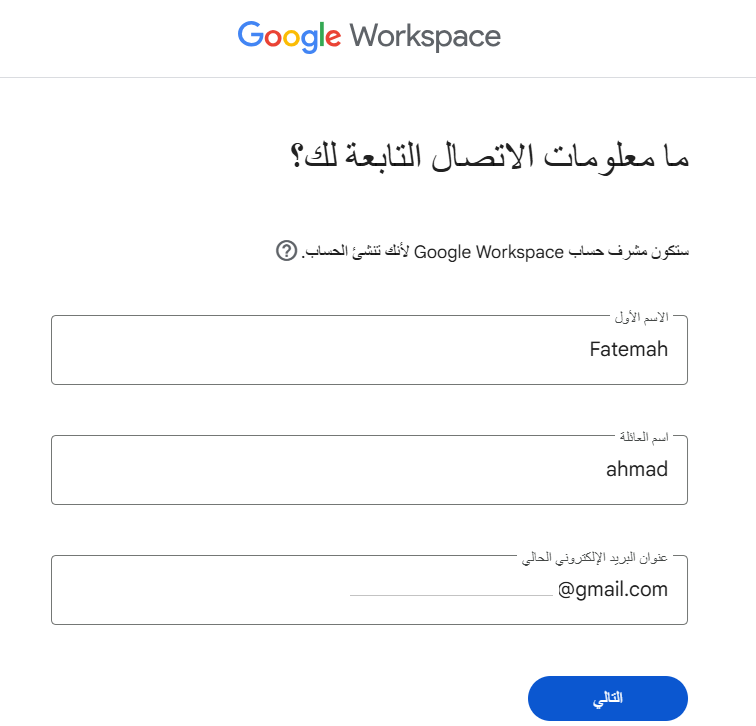
3. Create an admin account by entering:
- First name
- Last name
- A current email address, for contact
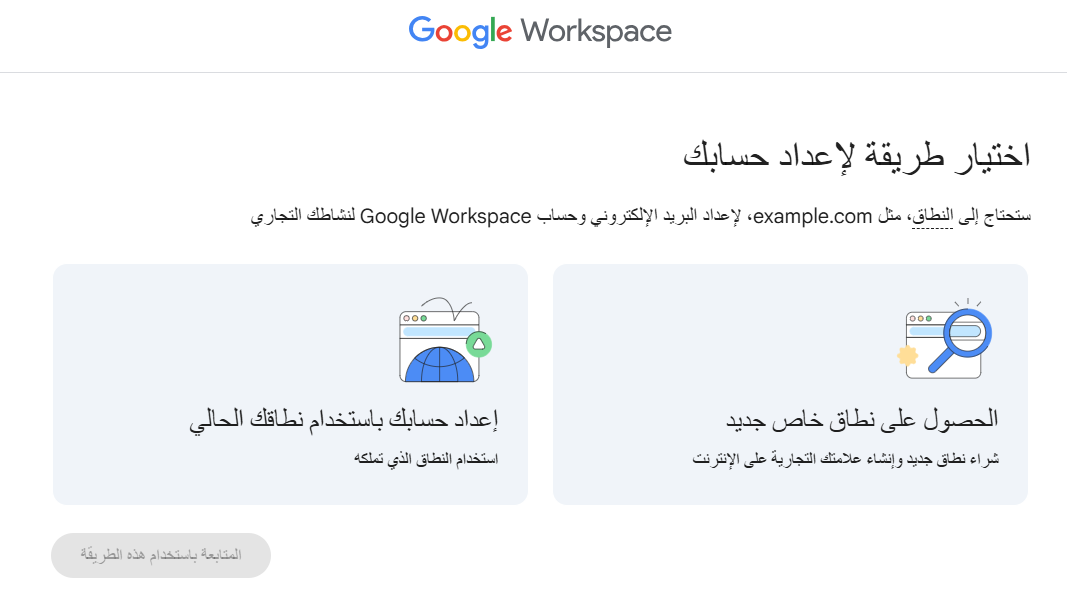
4. Say whether you already have a domain name. If you do, choose (Set up your account using your existing domain), then click (Continue with this method).
5. Enter your domain name and click (Next).
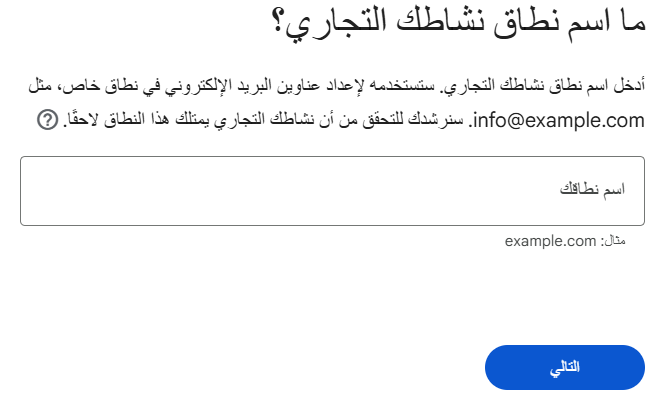
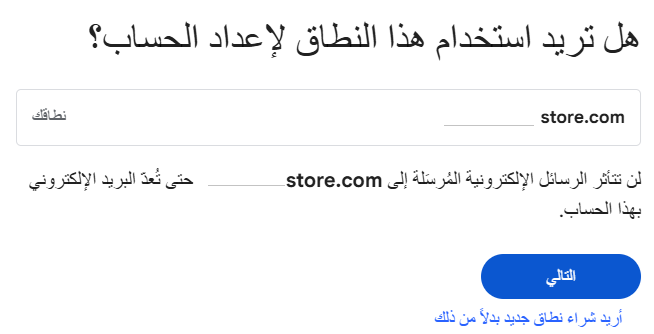
To confirm you want to use this domain for the account, click (Next).
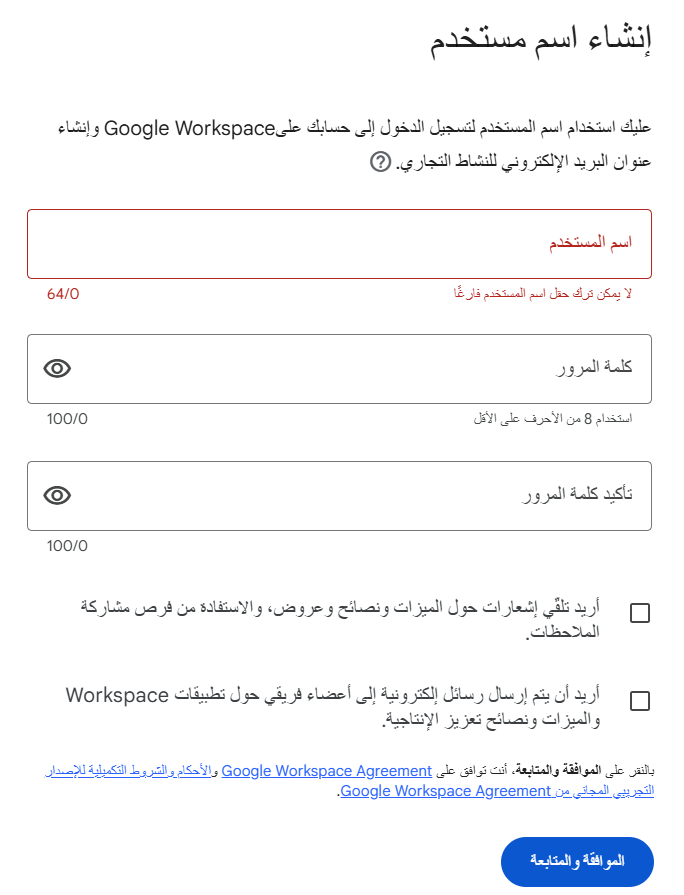
6. Choose the username and password you'll use to sign in to Google Workspace. The username becomes your business email address by default (username@yourdomain.com). Create your admin address — for example admin@yourdomain.com — and set a strong password.
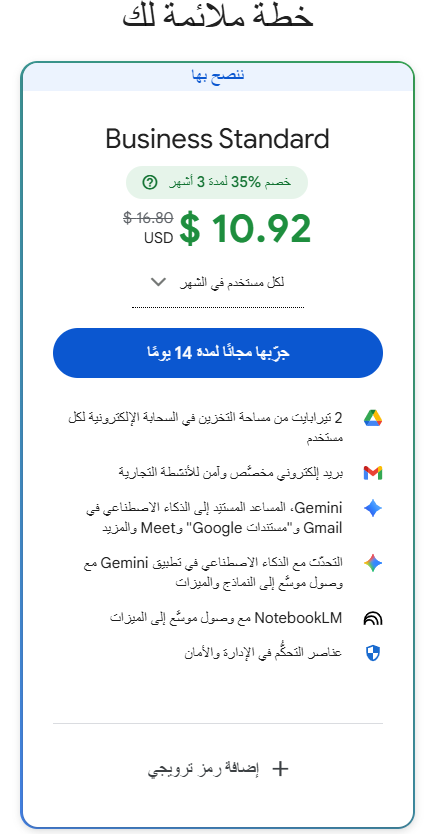
7. Choose the plan that fits your business.
8. Review your details, then click agree and continue to finish creating the account.
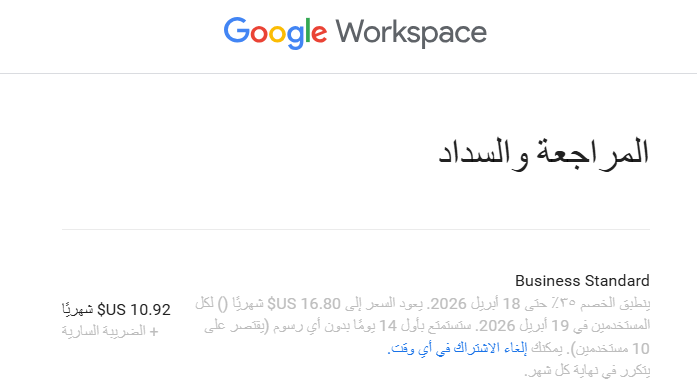
🔔 Important note: you cannot change the country after you complete registration, so check it carefully before you continue.
Step two: add users (optional)
Once the account exists, you can add the rest of your team.
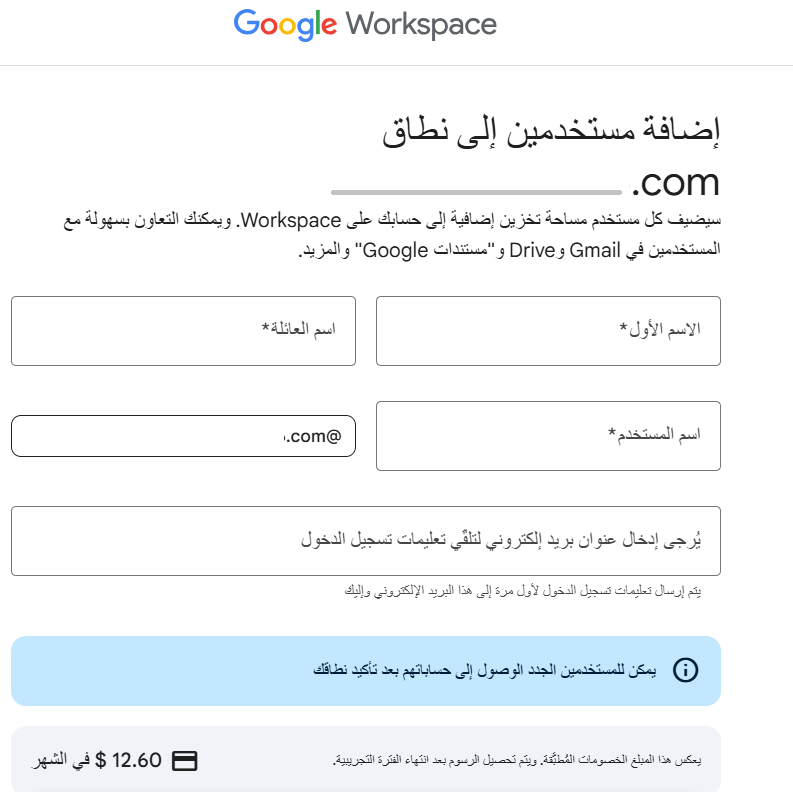
1. Enter these details for each user:
- First name
- Last name
- Username (the email address)
2. Click add.
If you're the only user: turn on the option confirming you've added all users, then click next.
It helps to tell your team in advance when the new email goes live, and to share their sign-in details with them.
Step three: verify your domain
To activate Google Workspace, you need to prove you own the domain through its DNS settings.
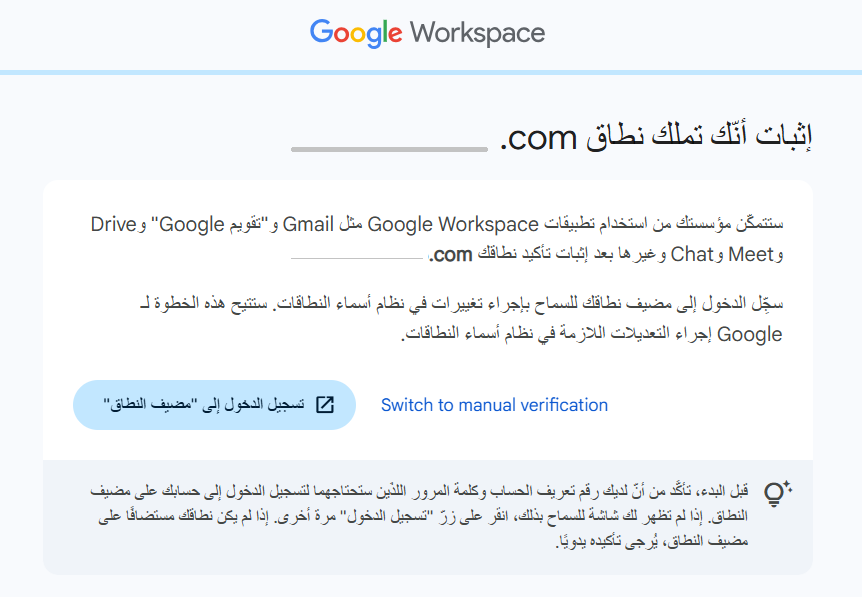
1. In the setup wizard, choose the TXT record verification method.
2. Copy the TXT record value Google gives you.
3. Open your domain provider's control panel.
4. Add a new TXT record with the value you copied.
5. Save the changes, go back to Google, and click verify.
Verification takes anywhere from a few minutes to 48 hours, depending on your domain provider.
🔐 Don't leave your store unverified.
Read the step-by-step guide to verifying your store's domain with Google, and unlock more accurate analytics, better search visibility, and full control over the Google services tied to your store.
❓ Frequently asked questions
Is Google Workspace free?
No, not permanently. It comes with a 14-day free trial, and several paid plans that differ in storage and features.
It is only free in these cases:
- Non-profit organizations
- Educational institutions (Google Workspace for Education)
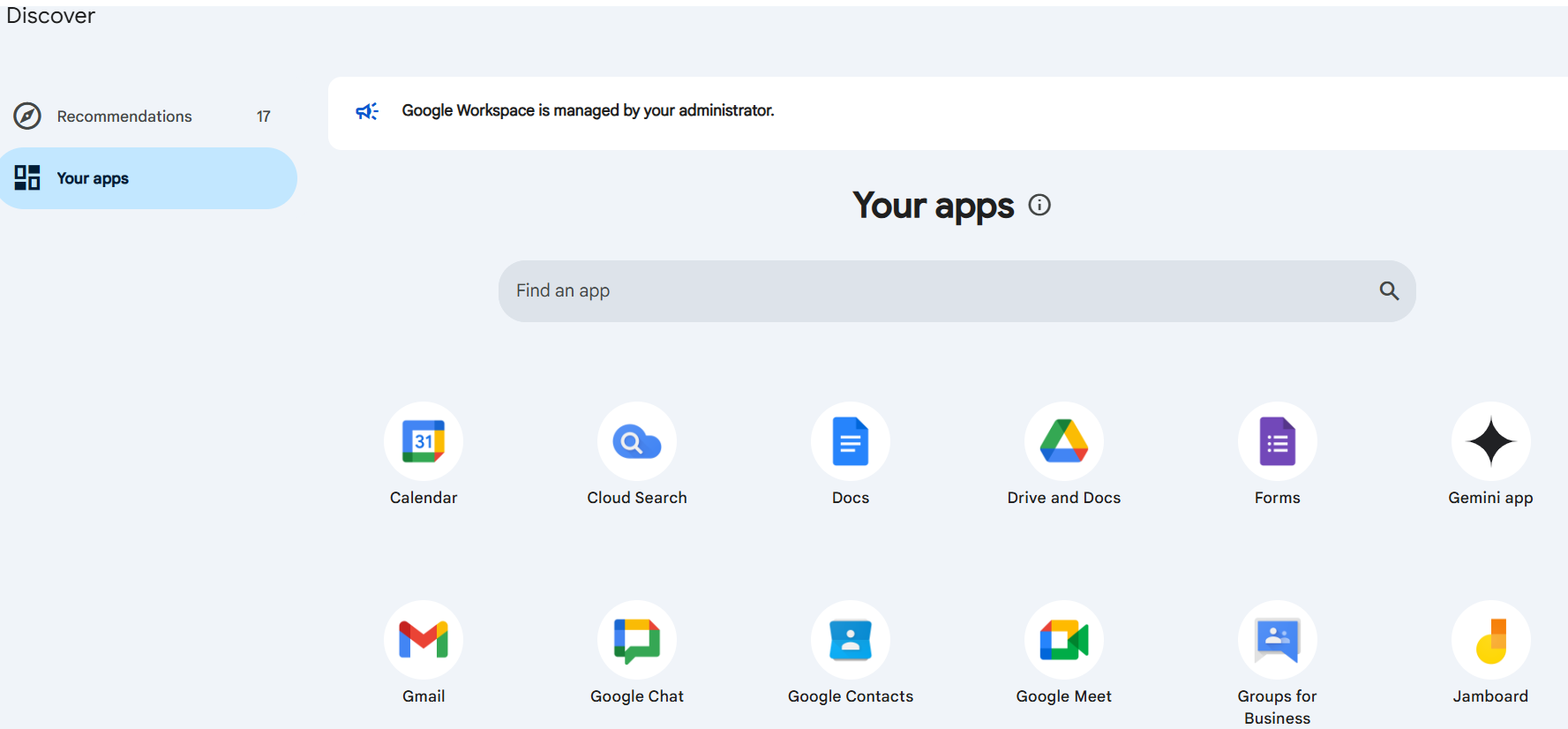
Which services are included in Google Workspace?
- Gmail for professional email
- Google Drive for cloud storage
- Google Docs, Sheets and Slides
- Google Meet for video meetings
- Google Calendar for scheduling
What do I do if I forget my username or password?
1. Go to admin.google.com.
2. Choose forgot password?
3. Follow the instructions to regain access.
Who is the Google Workspace admin?
The admin is responsible for:
- Managing users
- Controlling settings
- Handling billing and security
You can appoint more than one admin, each with different permissions.
Why choose Google Workspace?
- Professional email that builds customer trust
- Collaboration tools that make team work easier
- Strong security and advanced fraud protection
- Access to your files from anywhere
- A capable alternative to Microsoft 365
📝 If something goes wrong
If you hit any difficulty during setup, contact Google Workspace support directly and describe the problem in detail to get the right help.
Google Workspace is a smart investment in a professional, secure working environment. Get the steps right from the start and you save your team a lot of technical trouble later.
Get started now and make your business more organized and more efficient.