Many merchants already have products and product catalogs on other platforms such as Shopify and Zid, and want to move to Salla without manually re-entering products, which can take time and increase the chance of errors. Integration methods may also vary between merchants, especially when dealing with Shopify API settings or Excel files in Zid.
To simplify this process, Salla provides a product import feature from external platforms. This feature allows you to transfer your products, with all their data, from Shopify or Zid directly into your store with just a few steps.
The import can be done either by uploading an Excel file (for Zid) or via a direct API connection (for Shopify). The feature operates in a secure and fast way and shows you the status of each imported item, indicating whether the import succeeded or failed.
Currently supported platforms: Shopify & Zid.
Steps to import products from another platform
- From the main menu, click Products.
- Click Import from platforms.


You will see the import page showing:
- Number of items
- Successfully imported items
- Failed imports
- Option to start a new import
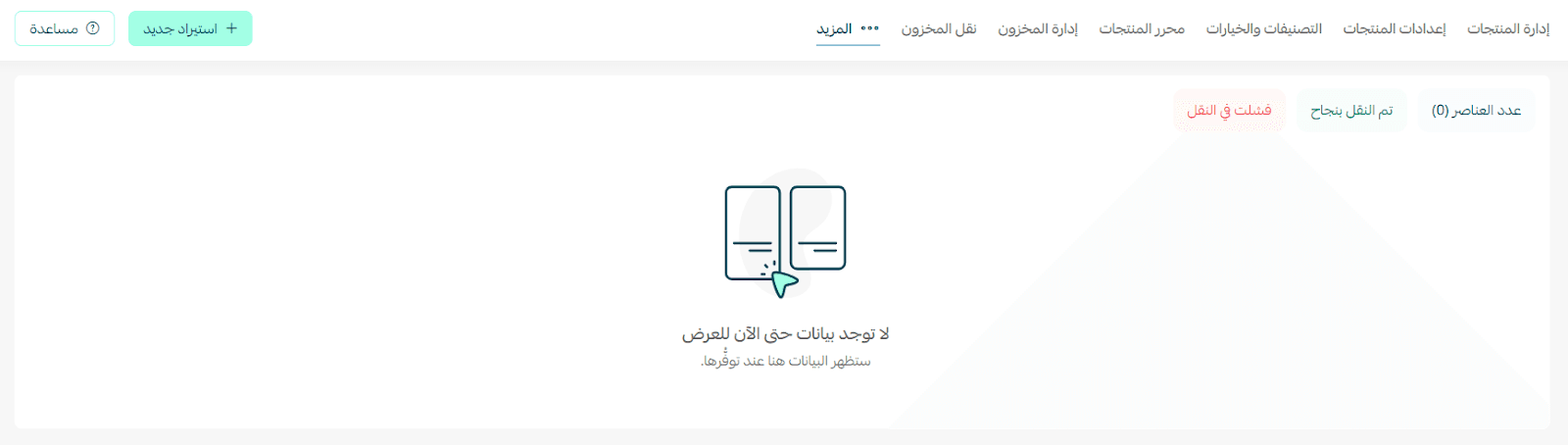
- Click + New Import.
- Select what you want to import into your store.
Currently, importing products from supported platforms is available.


There are two import methods, depending on the source platform.
Method 1: Upload an Excel file from Zid
Stage 1: Export the product file from Zid
- From the Products page, click the (⋮) menu.
- From the Actions menu, click Export All.
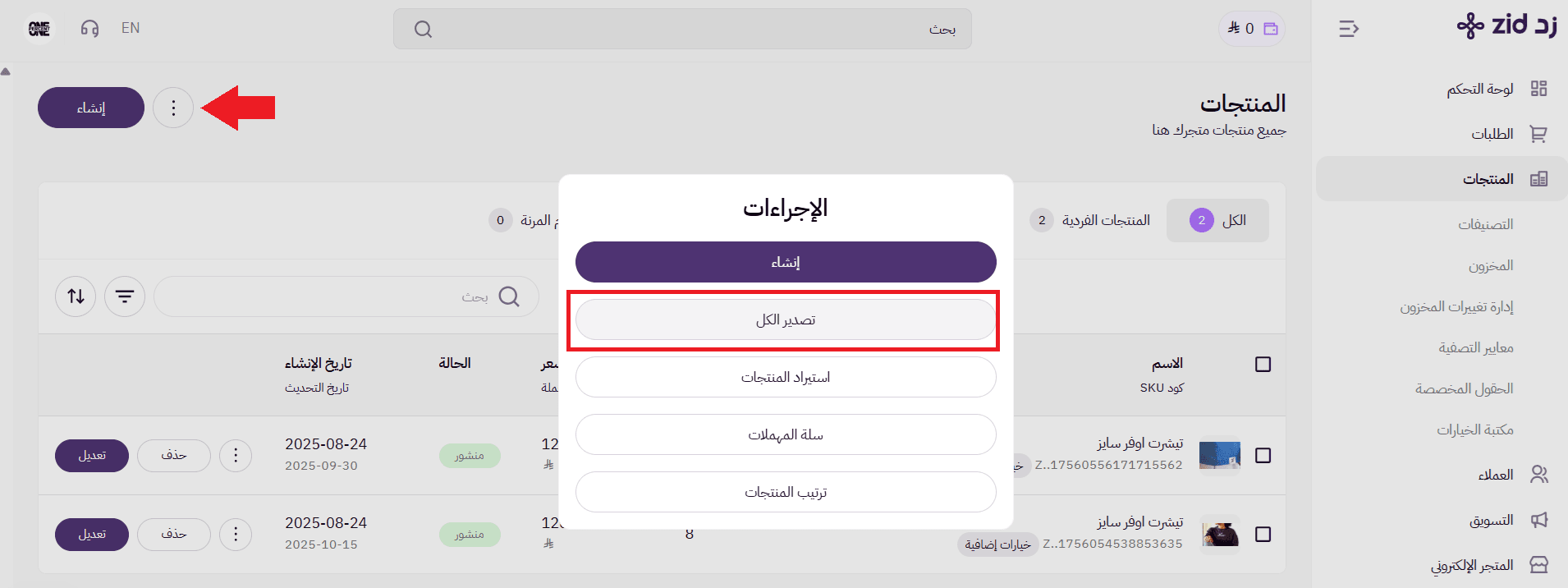
3. From the Export Requests page, click Download to obtain the Zid product file.

Stage 2: Import products using the Excel file
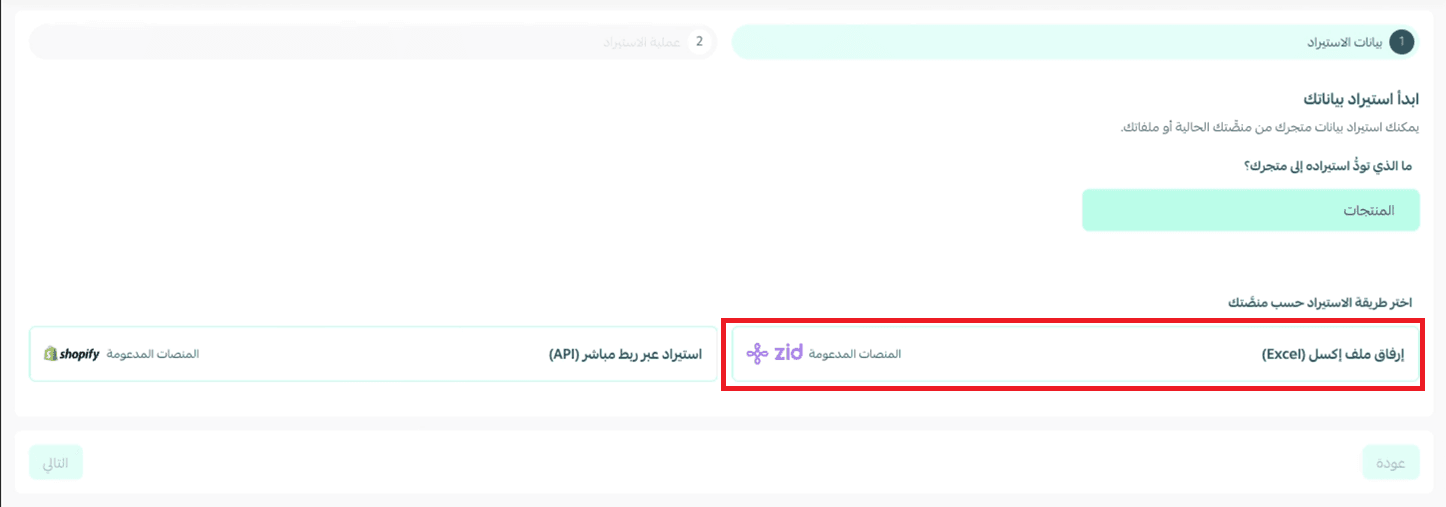
- Click Upload Excel File, then click Next.
2. Enter your Zid store link and upload the product file you exported from Zid without making any changes to it.
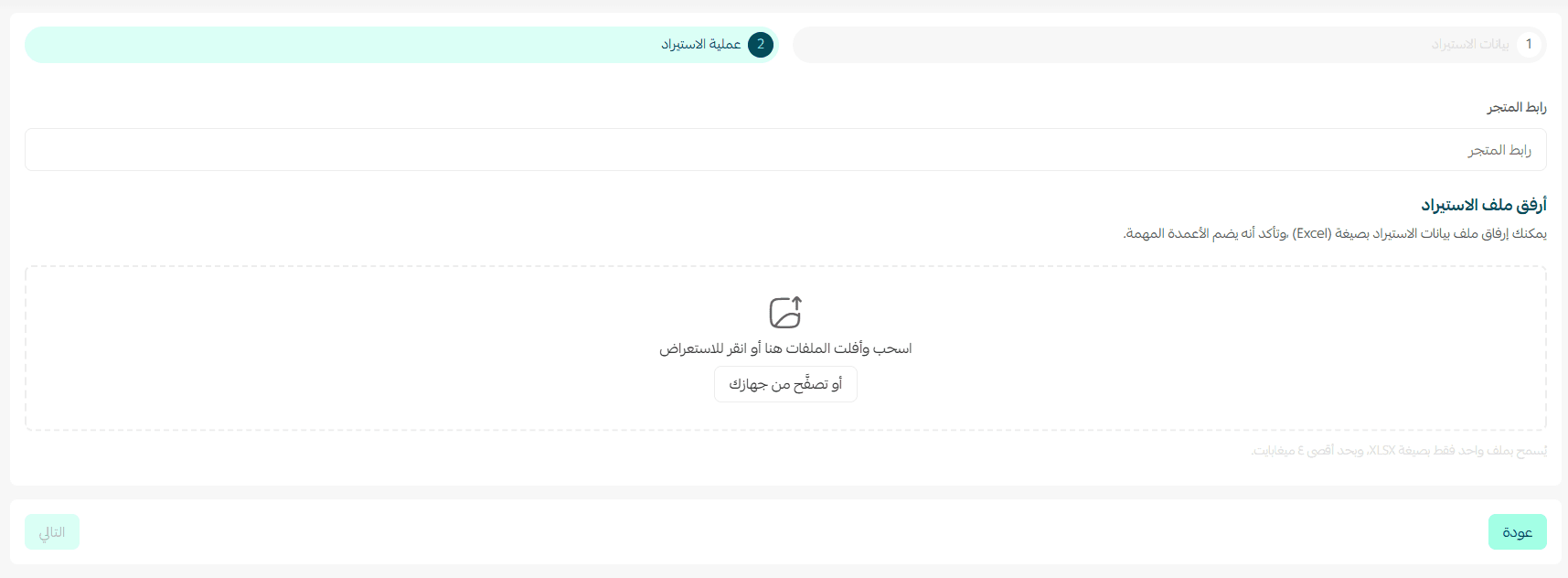
⏳ Please wait until the product import process completes.

You will then see a summary showing:
- Successfully imported items
- Failed items
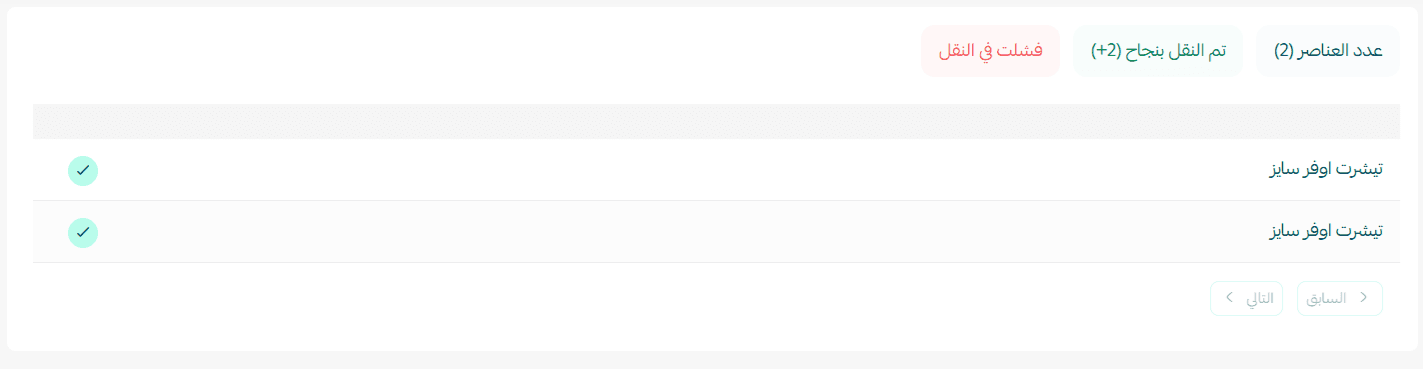
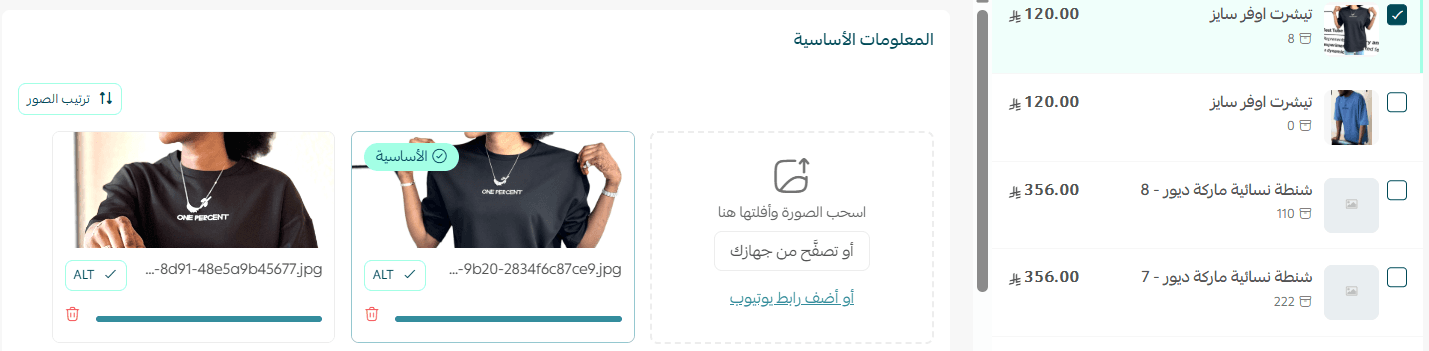
The imported products will appear in the Products page in your Salla store.
Method 2: Import via direct API connection from Shopify
Stage 1: Prepare the required information
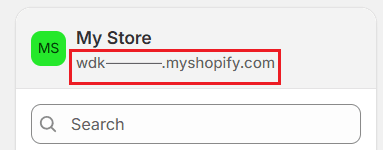
1. Shopify store link
You need the link ending with myshopify.com, not the live storefront URL.
To obtain it: From your Shopify dashboard, copy the store URL shown at the top of the main menu.
2. Account token, Client ID, and Secret Key
To retrieve the account token, you must enable API access permissions.
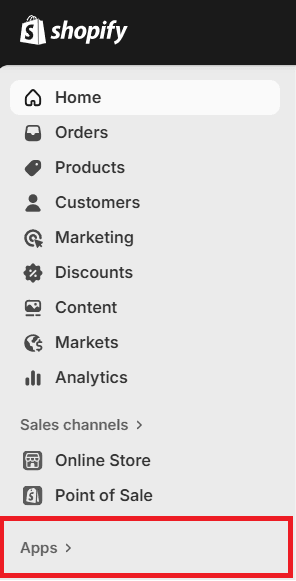
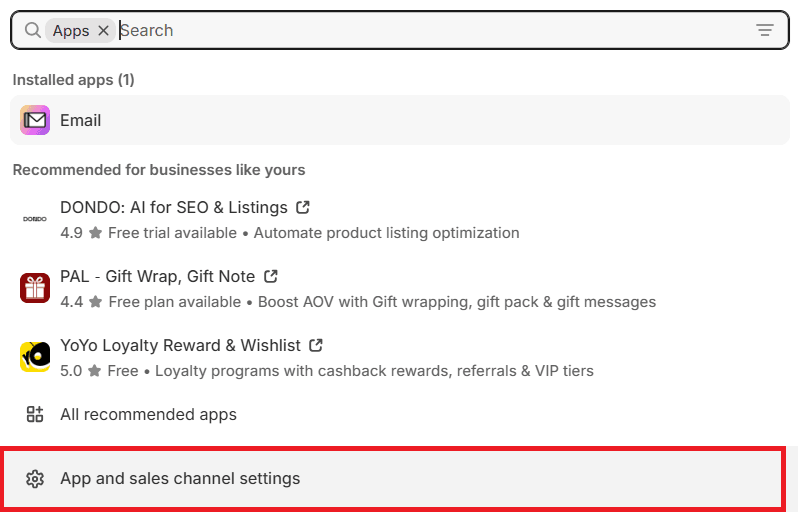
- From the Shopify dashboard, click Apps in the sidebar.
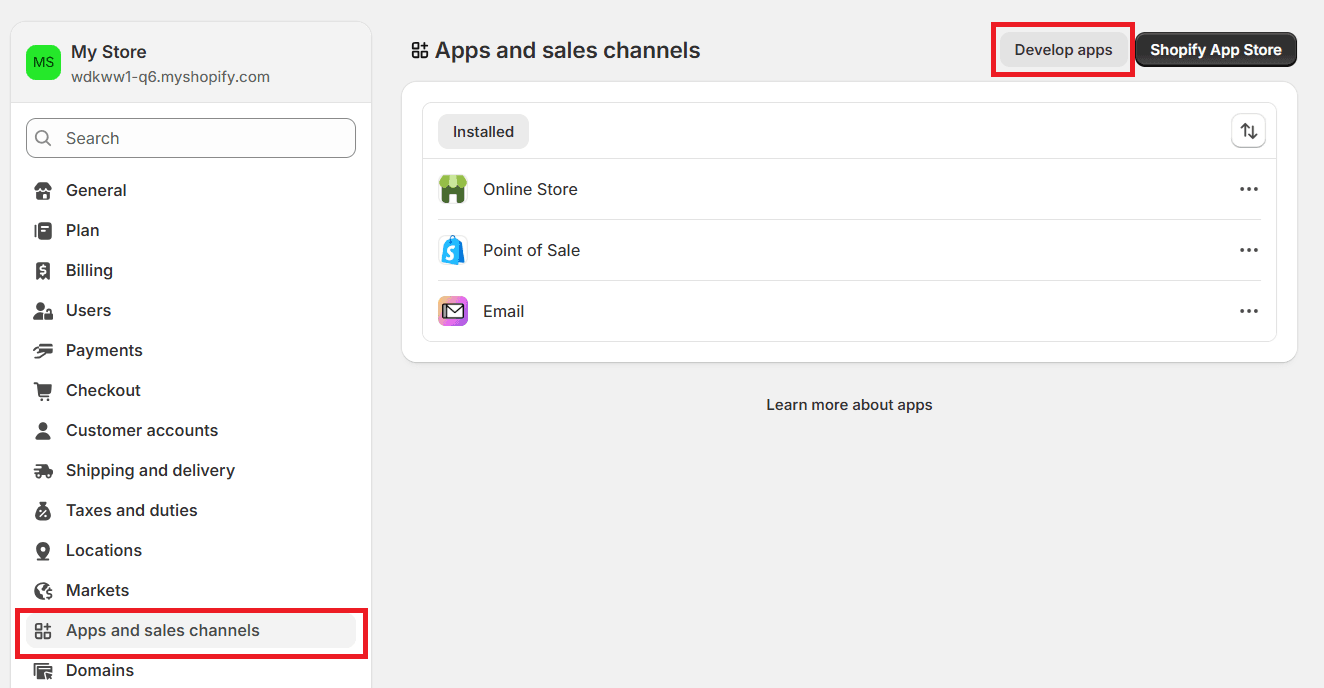
- Click App and sales channel settings.
- From the Apps and sales channels tab, click Develop apps.
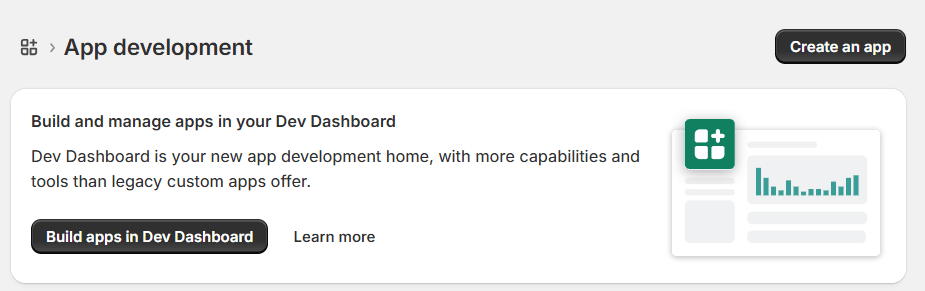
- In the App Development page, click Create an app.
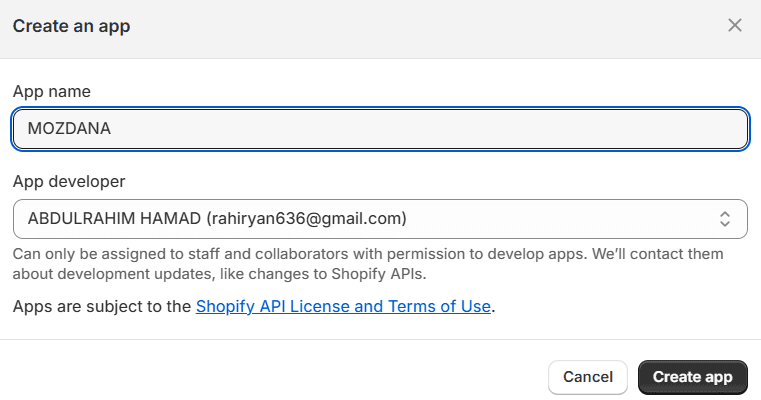
Enter a name for the app and click Create App.
5. Configure API permissions
From the API Credentials tab, click Configure Admin API Scopes to grant access permissions.
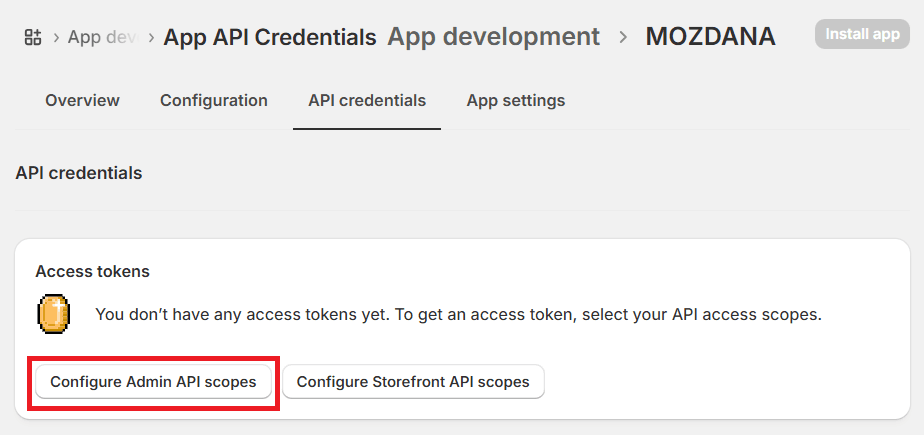
Enable the following permissions and click Save after each one:
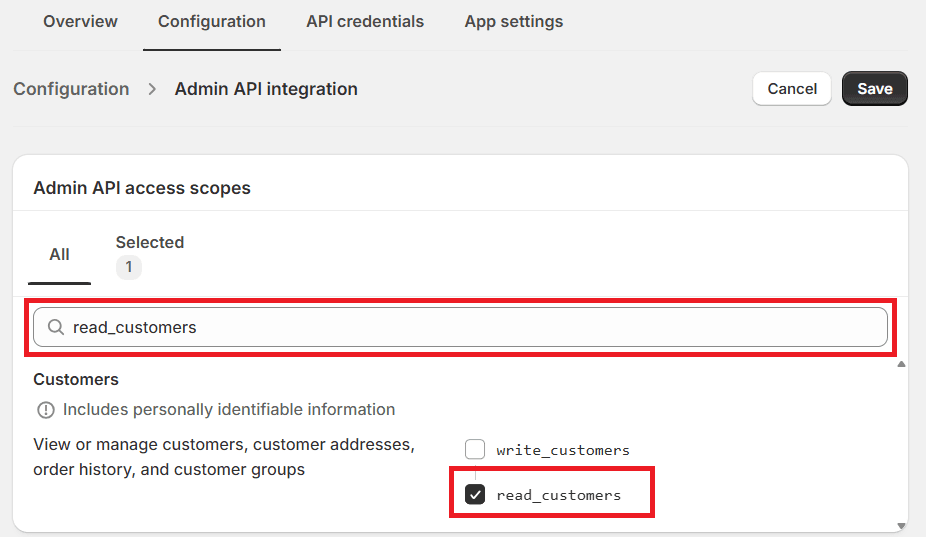
- read_product_feeds – Allows reading product feed data used in advertising or sales channels.
- read_inventory – Allows reading inventory quantities and stock levels.
- read_product_listings – Allows reading product listings displayed on storefronts.
- read_products – Allows reading full product information (title, price, images, attributes).
- read_publications – Allows access to where and when products are published.
- read_locations – Allows reading warehouse or store location data.
read_customers – Allows reading customer data (name, email, order history) without modifying it.
6. Install the app
From the API Credentials tab, click Install app.
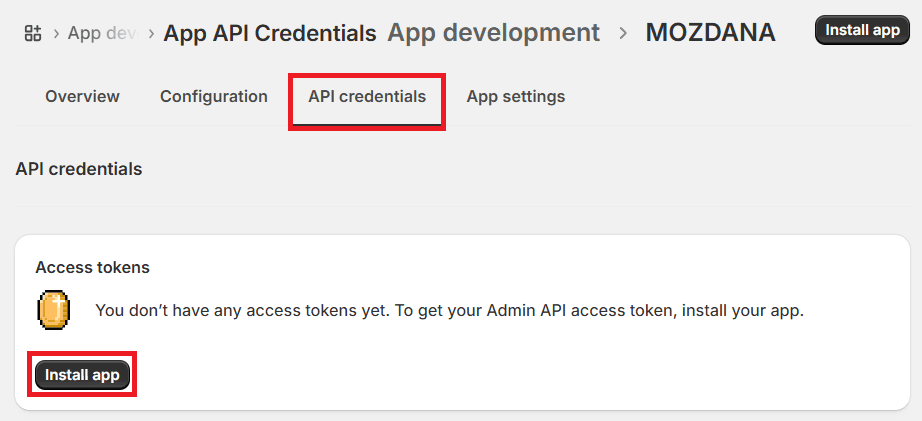
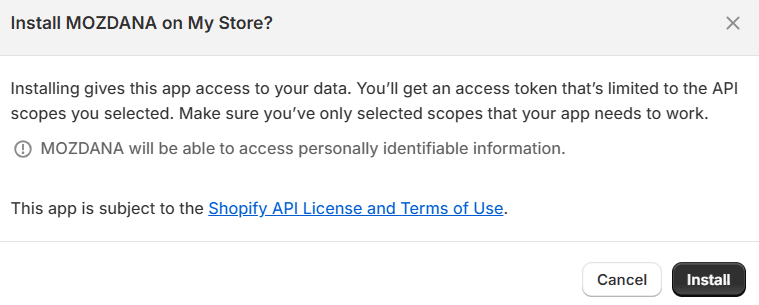
Then confirm by clicking Install.
7. Retrieve the account token
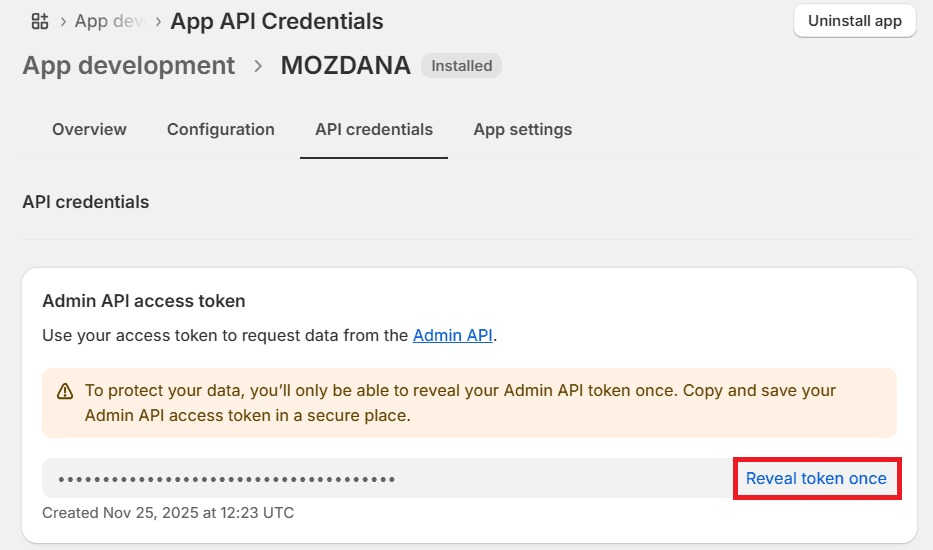
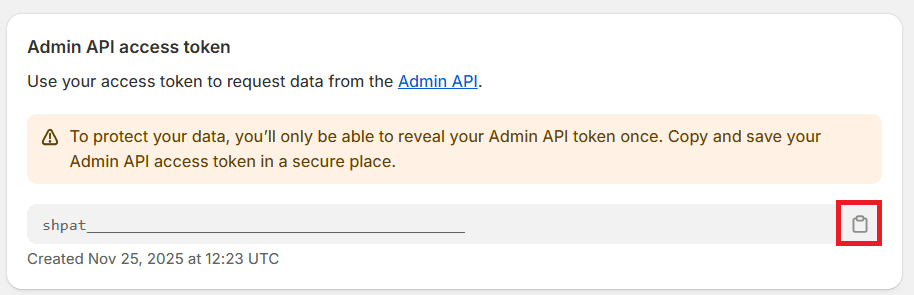
Click Reveal token once to display the Account Token.
Then copy it.
From the same page, you will also find:
- API Key (Client ID)
- Secret Key
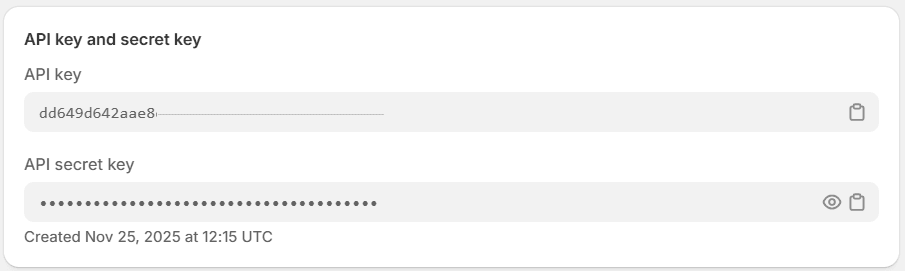
You will need these values to complete the import process in Salla.
Stage 2: Import products from Shopify
- Click Import via Direct API Connection, then click Next.
- Enter the connection details you collected earlier:
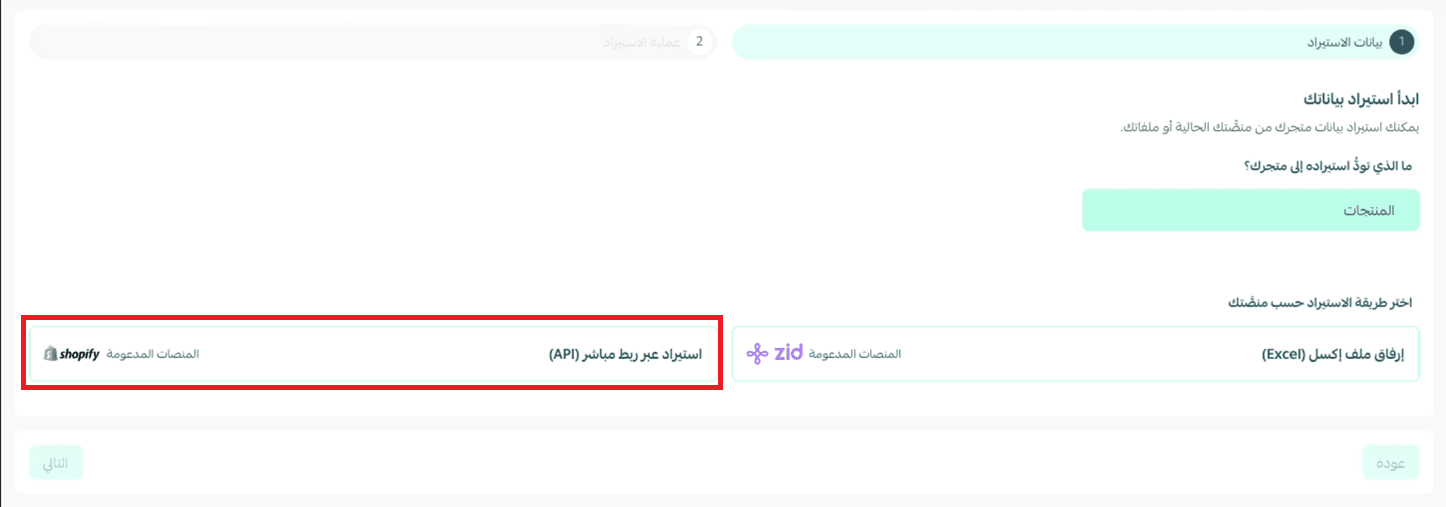
- Store URL
- Account Token
- Client ID
- Secret Key
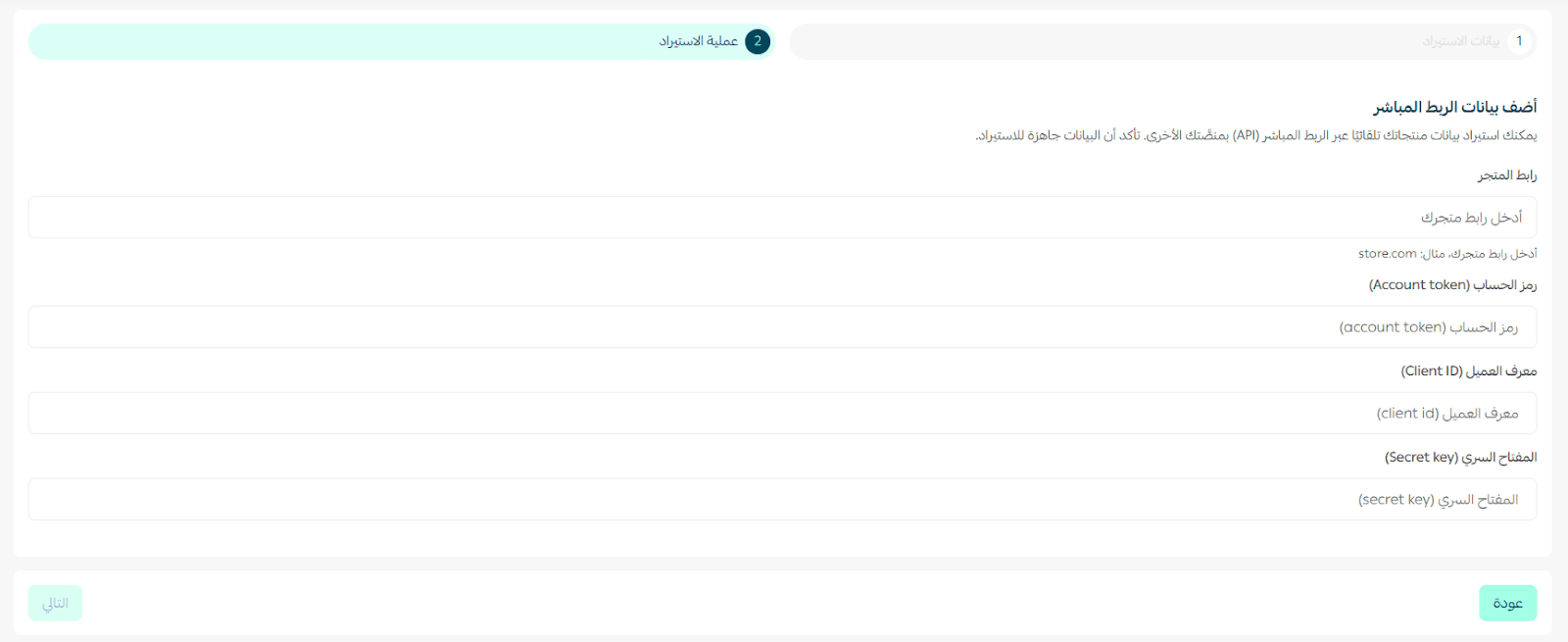
Then click Next.
⏳ Please wait until the product import process completes.

Frequently asked questions
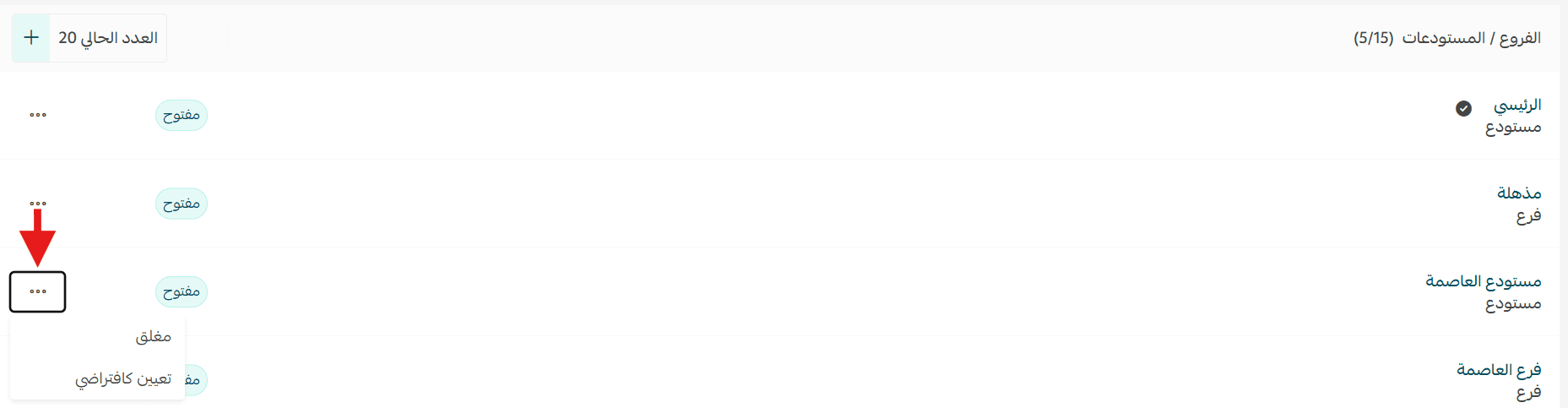
If I have multiple branches or warehouses, where will the imported products appear?
Imported products will be assigned to the default branch.
Therefore, make sure the correct default branch is selected before starting the import process.
Are digital products (such as codes or PDF files) imported?
Currently, the import system only supports physical products from external platforms.
Digital products and other non-physical product types are not supported in the import process.
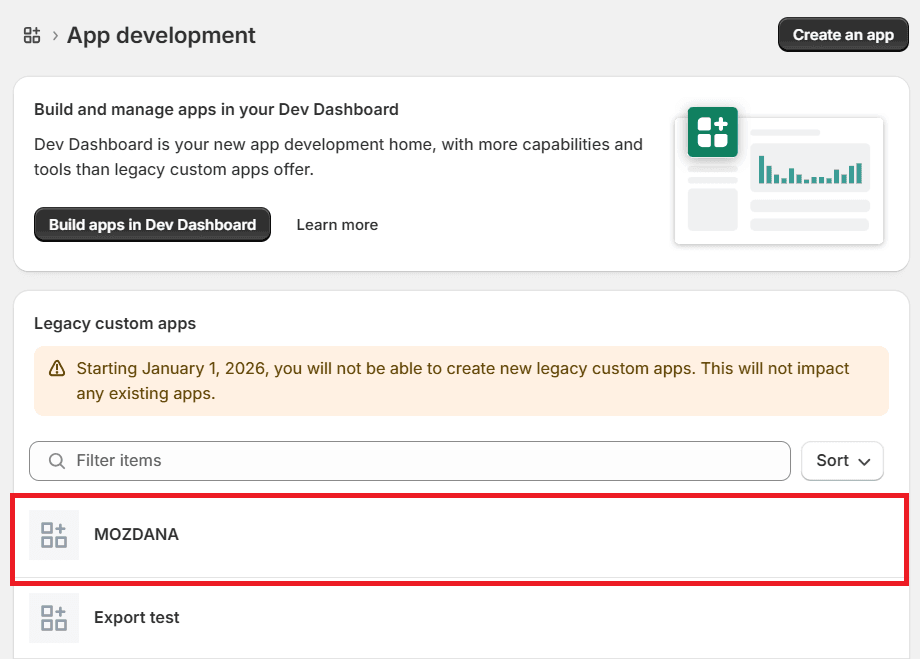
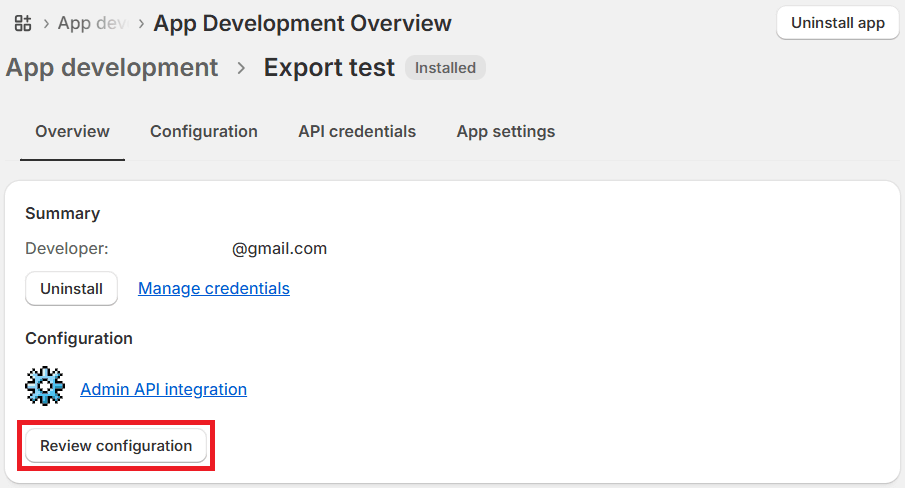
How can I retrieve Shopify import credentials if I already have an existing app?
If you already have a Shopify app, you do not need to create a new one.
- From the App Development page, click the name of your existing app.
- Click Review Configuration.
- From the API Credentials tab, you can obtain:
- Account Token
- Client ID
- Secret Key
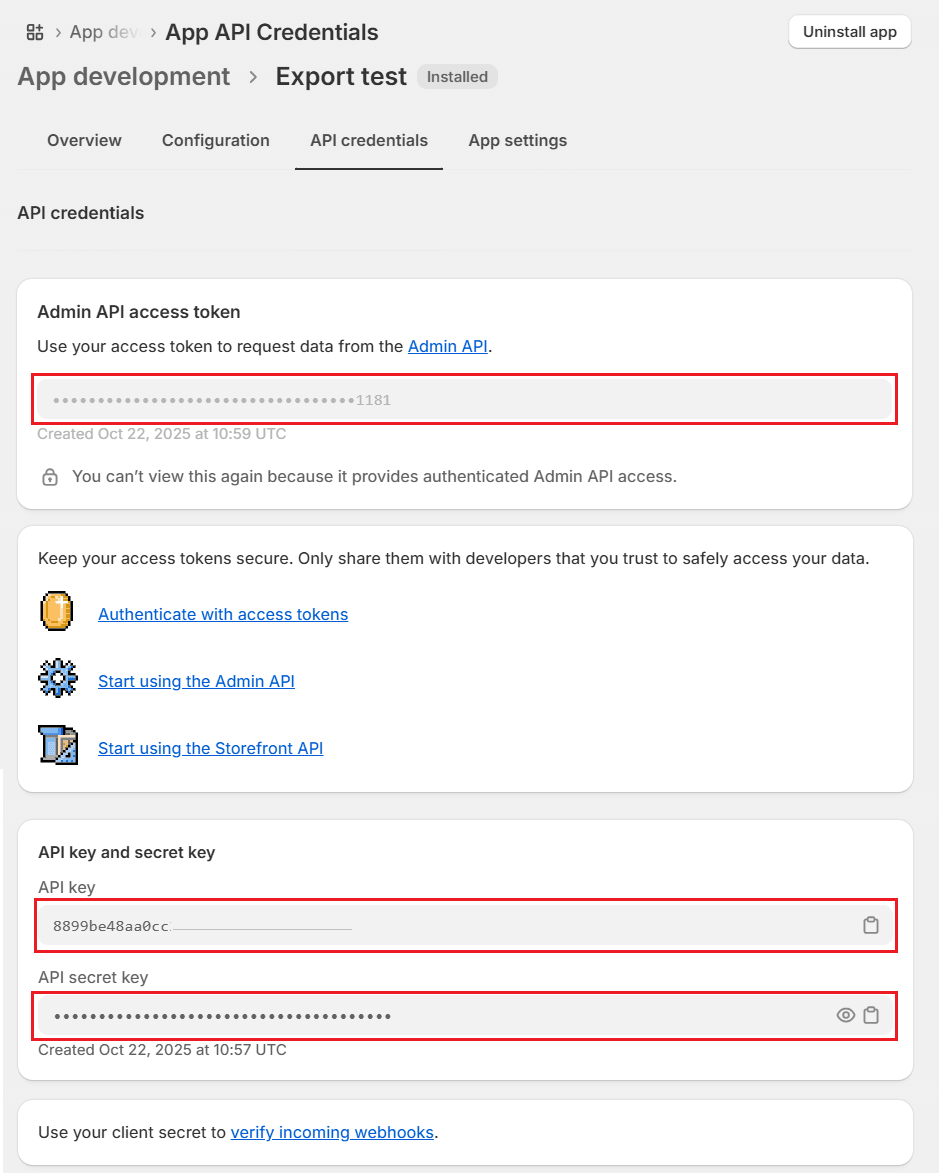
These credentials can then be used in the product import page in Salla.
Import your products easily and migrate your store to Salla without manually rebuilding your product catalog, saving time and reducing errors while launching your store faster.