With multiple campaigns running across different advertising platforms, managing your ads can quickly become challenging.
- How do you stay in control?
- How do you make decisions based on real data?
- And how do you know if your campaigns are actually delivering results?
This guide is your practical reference for answering all of these questions.
We take you step by step through the Salla Ads Management page to show you how to manage advertising campaigns professionally, perform essential actions with ease, and analyze performance data in a way that helps you improve results and maximize return on your advertising budget.
📌 Article overview
- Salla Ads Management page
- Actions available for advertising campaigns
- How to benefit from campaign data
Salla Ads Management page
From the main menu, click Marketing, then select Salla Ads.
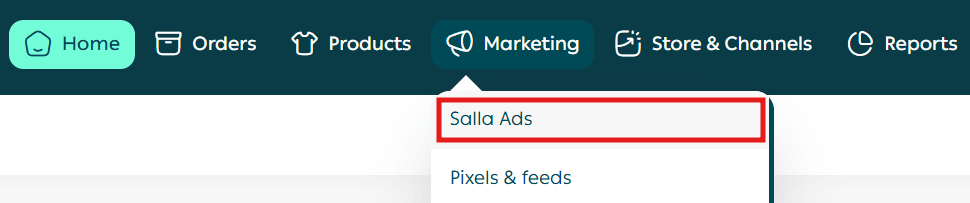
Next, open the Ads Management tab.
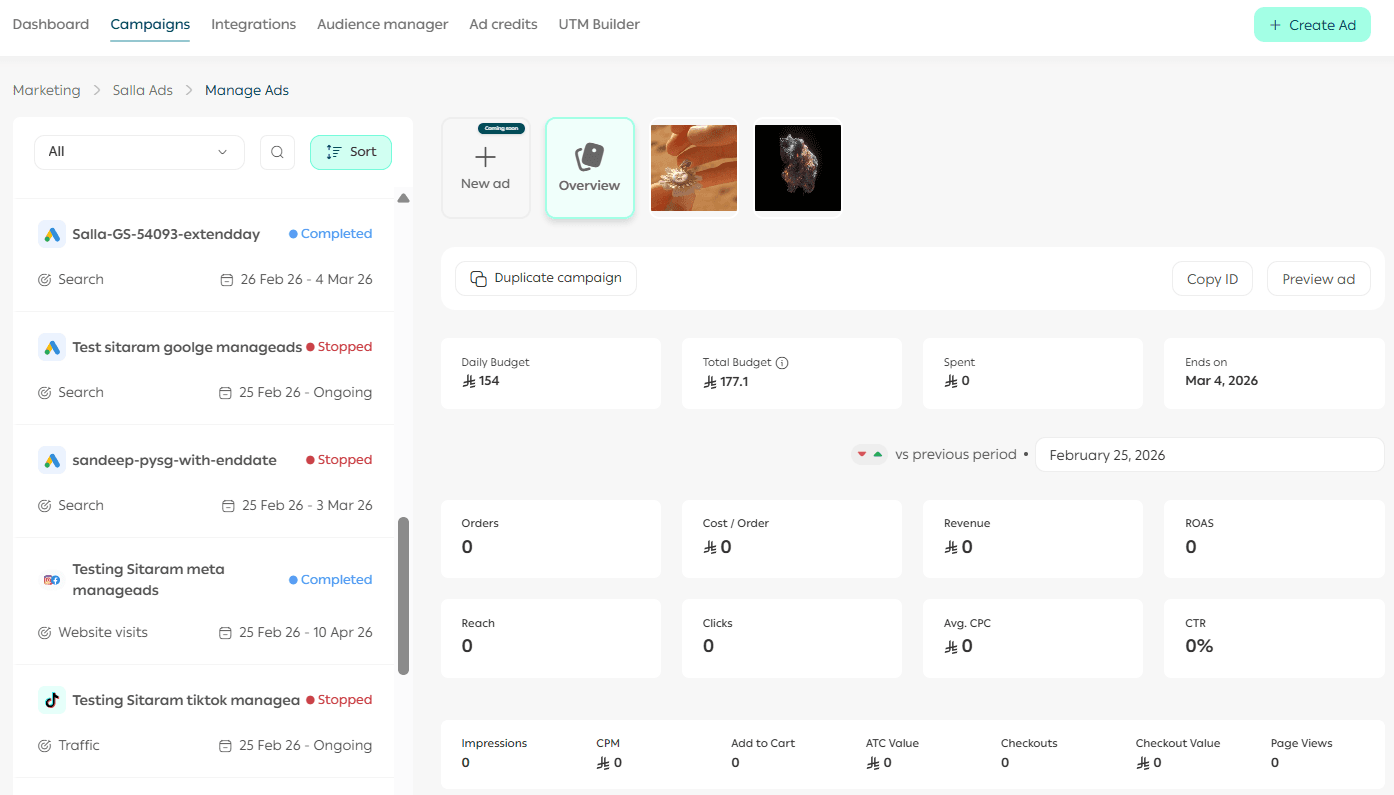
The Ads Management page includes:
- A list of campaign categories
- A list of campaigns under the selected category
- Detailed information about the selected campaign, along with available actions
- A search bar to find campaigns by name
This layout allows you to monitor and control all your advertising campaigns from one centralized place.
Actions available for advertising campaigns
Creating a new advertising campaign
- From the Salla Ads page, click Create Ad.

2. Choose the advertising platform that matches your campaign goals.
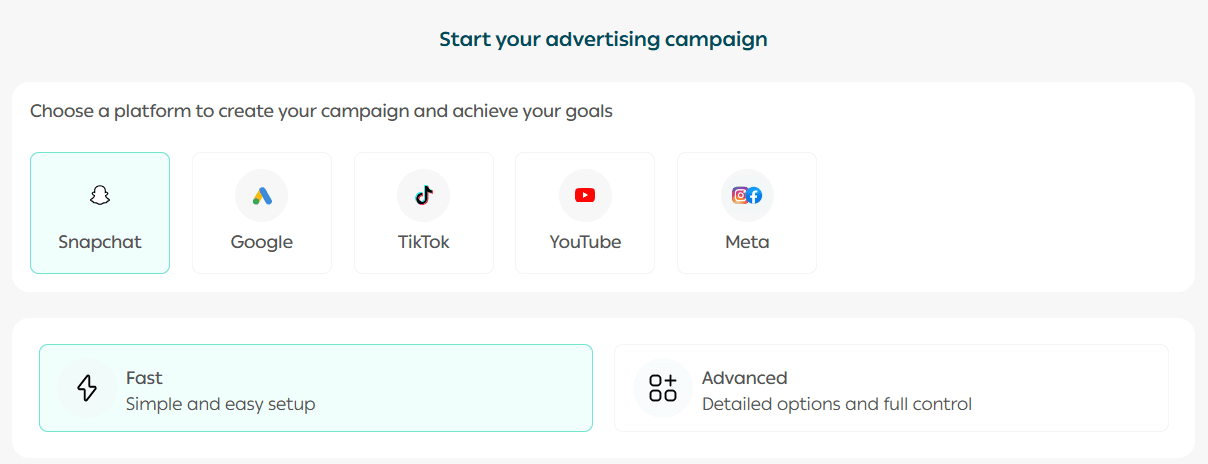
Complete the ad creation steps based on the selected platform. Once published, the campaign will appear in the Ads Management page.
Grow your digital store and achieve measurable results through paid advertising.
Explore our step-by-step guides for creating effective campaigns on:
- Snapchat
- TikTok
- YouTube
- Google Ads Network
Each guide includes clear steps, proven strategies, and actionable tips to help you reach your target audience efficiently.
Searching for an advertising campaign
Use the search bar to quickly find a campaign by its name.
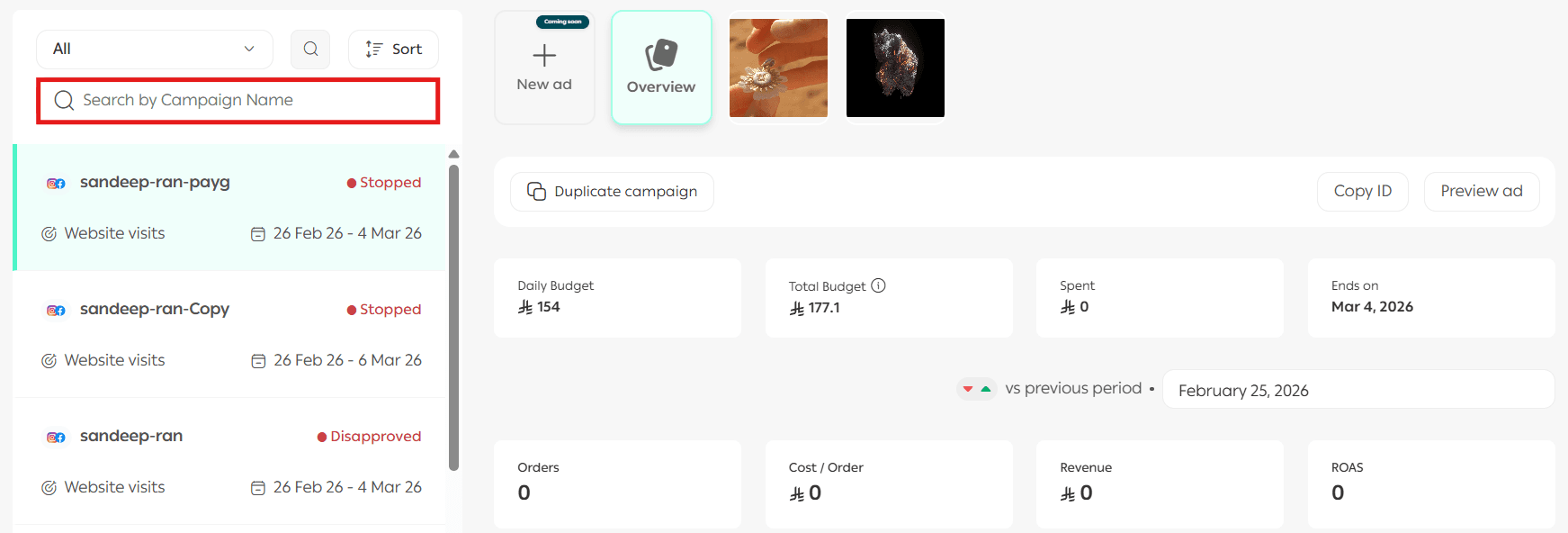
This is especially useful when managing multiple campaigns at once.
Filtering marketing campaigns
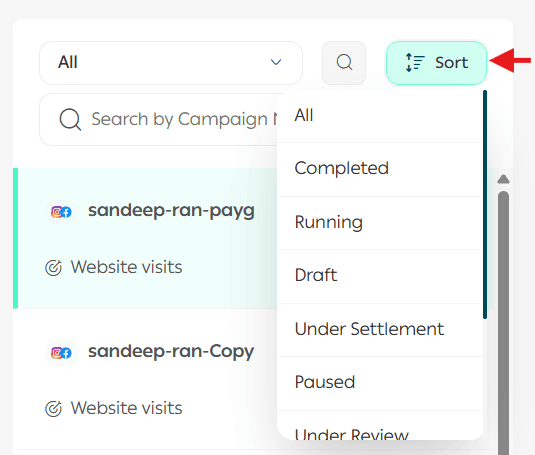
To get a more precise view of your advertising activity, you can filter campaigns by status. From the campaign list, open the filter menu and choose the status you want to display:
- Completed: the campaign has ended, and the full budget was spent
- Active: the campaign is currently running
- Pending settlement: the campaign is awaiting financial settlement
- Paused: the campaign is temporarily stopped, and ads are not displayed
- Under review: the campaign is being reviewed by the advertising platform
- Stopped: the campaign was manually stopped, and ads are no longer displayed
- Rejected: the campaign was rejected by the advertising platform due to policy violations
- Scheduled: the campaign is approved and waiting for its start date
Selecting the right status helps you track campaigns more easily and manage them more effectively.
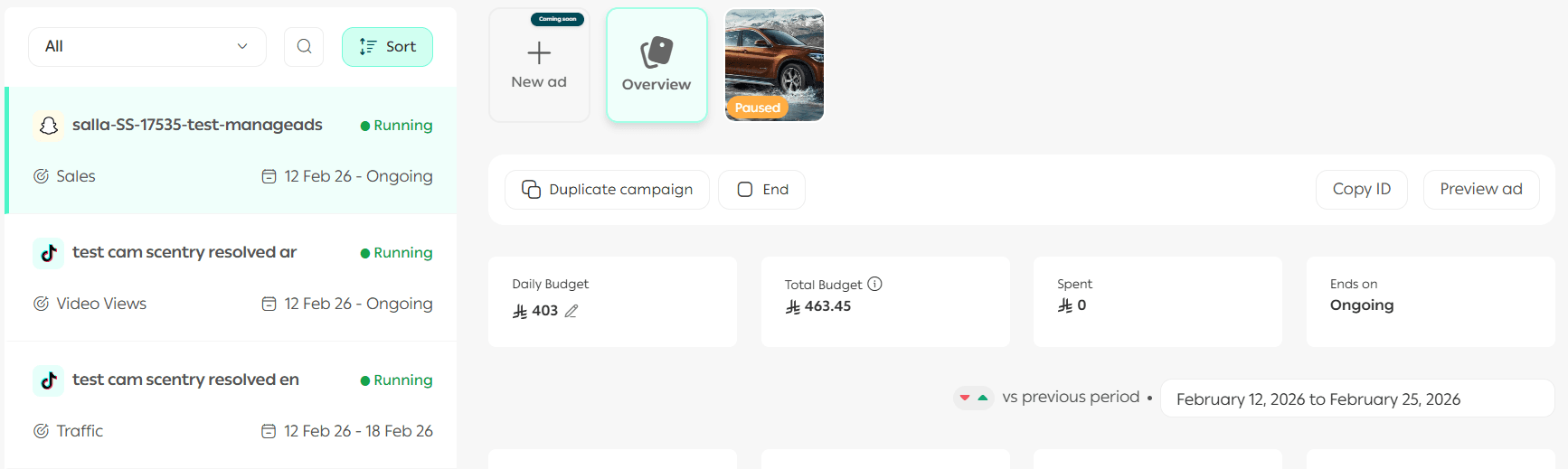
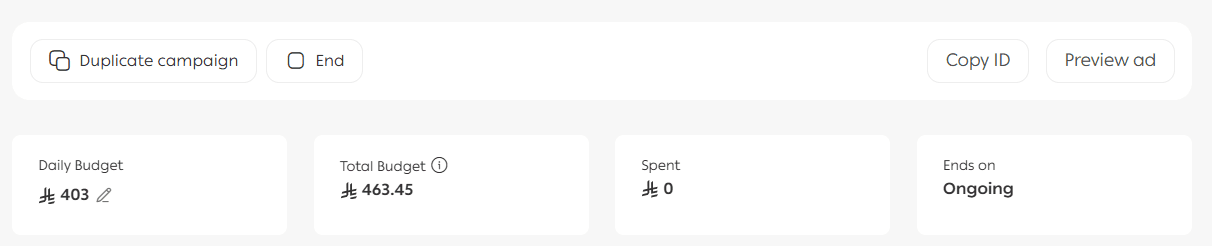
The campaign management section also allows you to preview campaigns, pause them, or create copies.
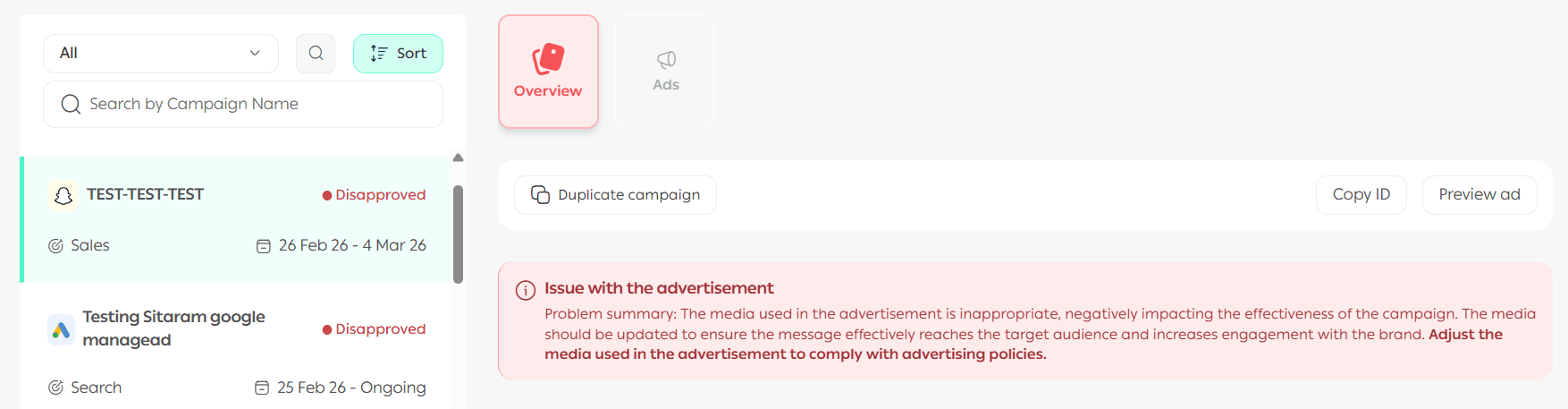
For rejected campaigns, the rejection reason and the recommended solution will be displayed clearly to help you resolve the issue quickly.
Previewing a campaign
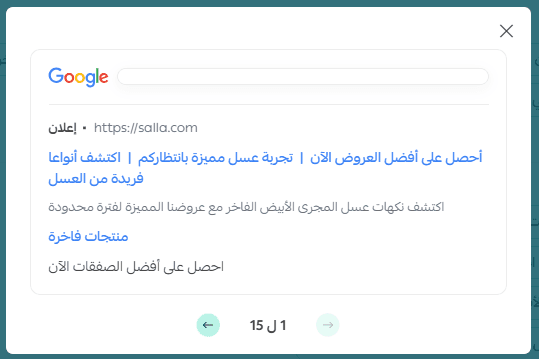
From the campaign management section, click Preview Campaign.
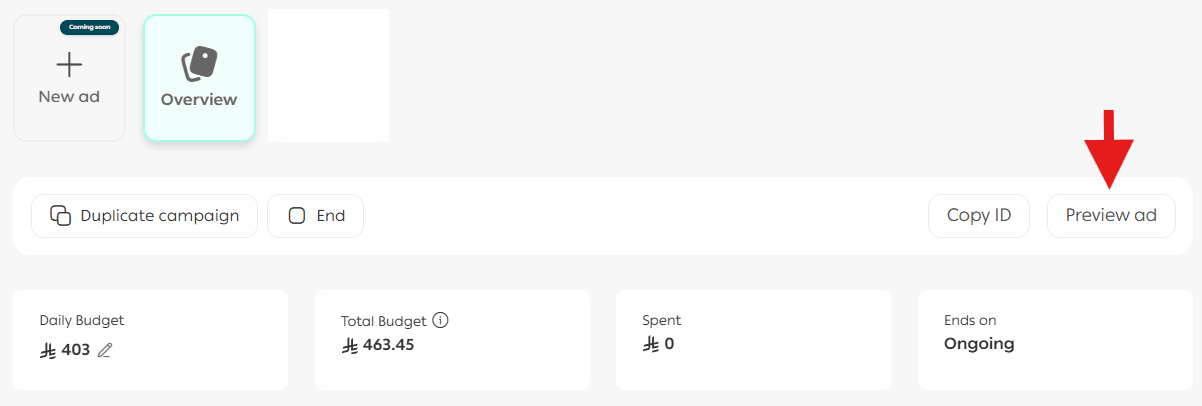
You will be able to review all campaign details and preview how the ads will appear to customers across the selected platform.
Duplicating a campaign
From the campaign management section, click Duplicate Campaign.
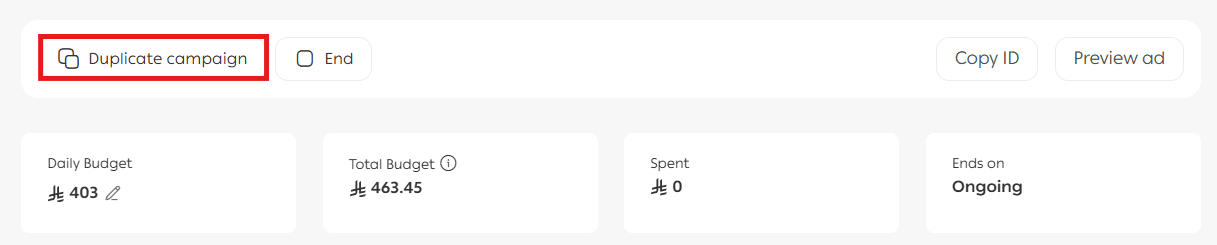
You can then make adjustments to the copied campaign and publish it again, saving time when launching similar campaigns.
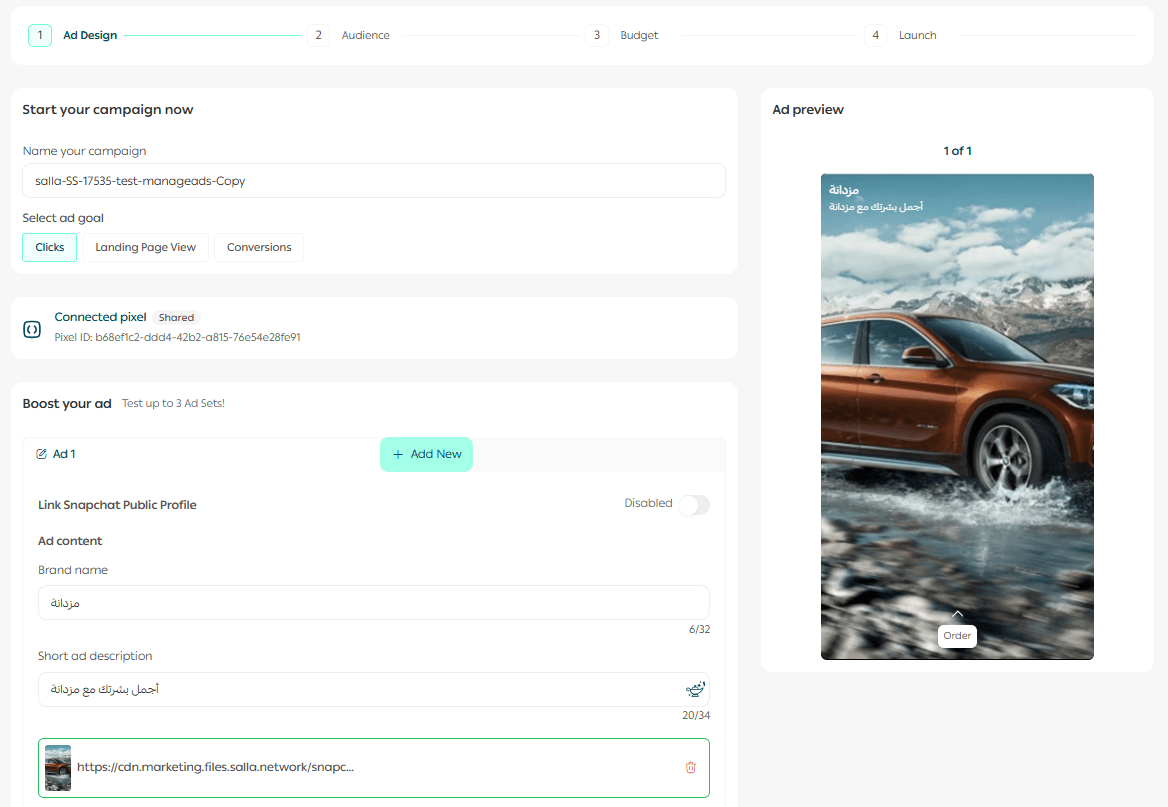
Pausing an active campaign
From the campaign management section, click Pause Campaign.

The campaign status will change to paused, and ads will stop running immediately.
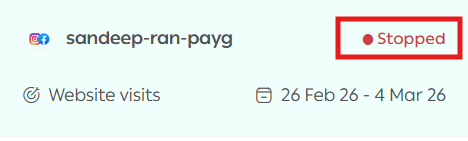
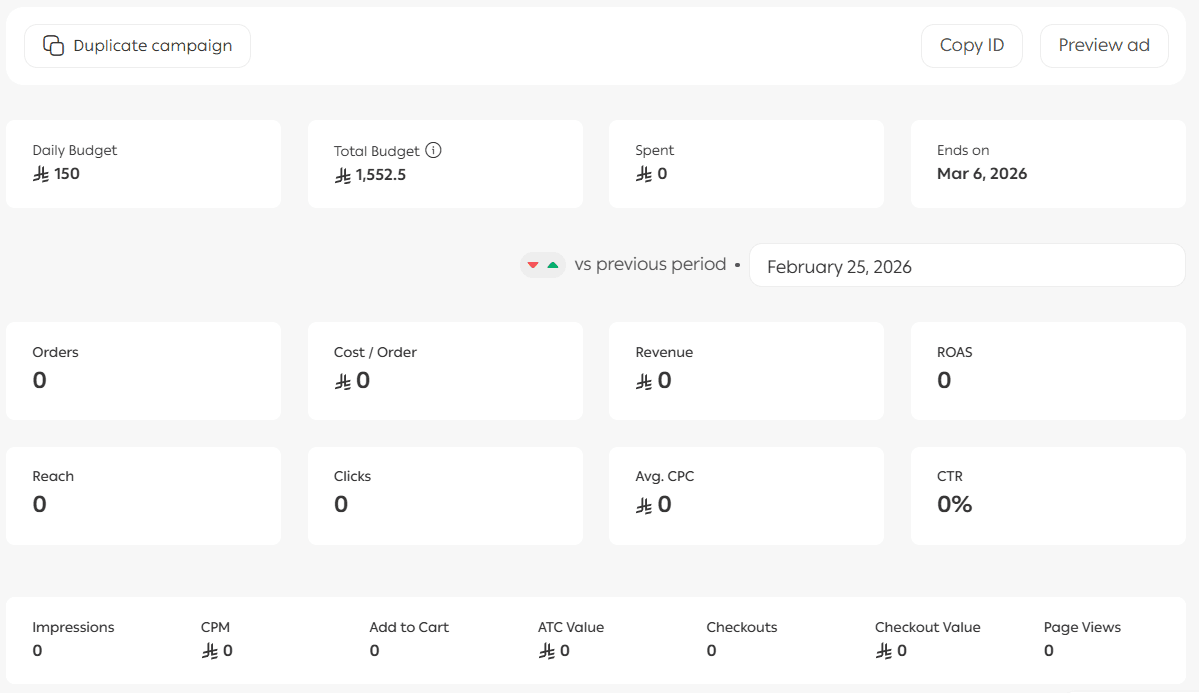
Viewing campaign details
The campaign details section displays essential information such as the campaign name, platform, goal, and other key data.
You can also copy the campaign ID and use it when contacting Salla Support if you have any questions related to the campaign.
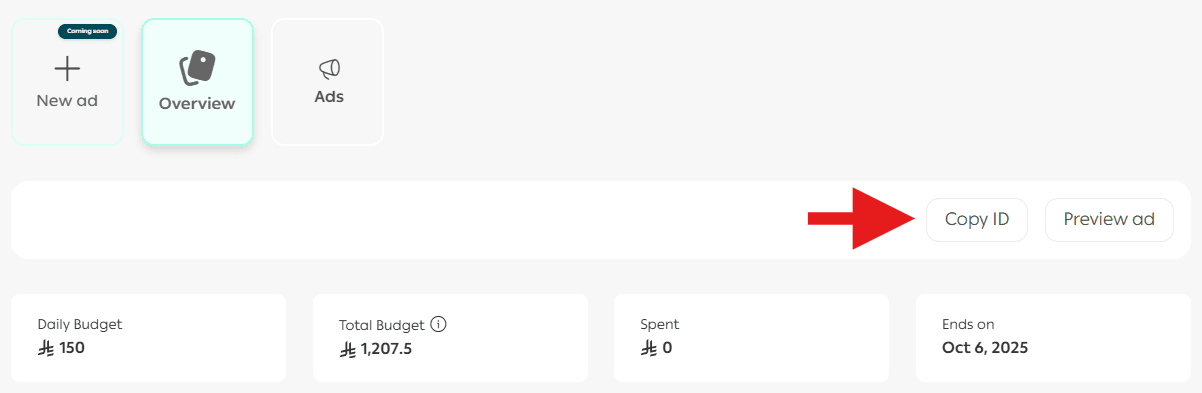
The performance overview provides valuable statistics, including impressions, average cost, and other metrics, along with a summary of conversions generated by the campaign.
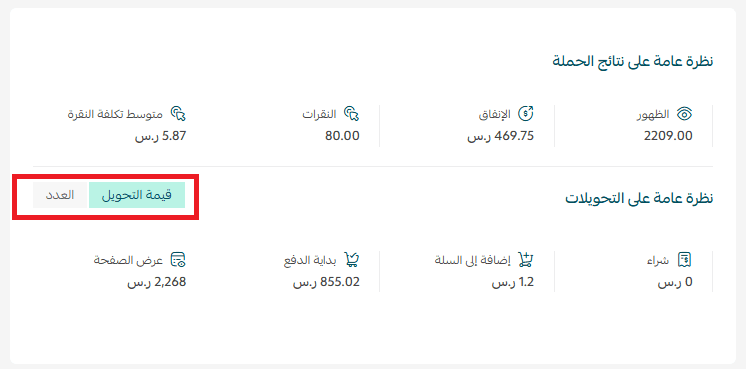
How to benefit from campaign data
The data available on the campaign page reflects actual performance. You can use it effectively by applying the following practical approaches:
1. Analyze impressions versus clicks
If the click-through rate is low, this may indicate that the ad is not attracting enough attention.
What you can do:
- Improve headlines and visuals
- Test more relevant or engaging keywords
- Run multiple ad variations to identify the best-performing version
2. Monitor average cost per click
A high cost per click without strong results may signal issues with targeting or ad content.
What you can do:
- Refine your target audience
- Use Audience Manager tools for retargeting or lookalike audiences
- Focus on high-quality, lower competition keywords
3. Analyze post-click behavior
If users add products to the cart or start checkout without completing the purchase, this indicates strong intent but incomplete conversion.
What you can do:
- Improve the checkout experience
- Launch remarketing or reminder campaigns
- Offer incentives or promotions to encourage order completion
4. Measure conversion efficiency
Comparing ad spend with actual conversions helps you evaluate return on investment.
What you can do:
- Focus on campaigns with the strongest conversion performance
- Adjust budgets based on real results, not assumptions
- Allocate more budget to campaigns that deliver measurable outcomes
5. Use data to improve future campaigns
Every campaign provides insights that help you make smarter decisions moving forward.
What you can do:
- Save successful campaigns as reference models
- Document recurring patterns and behaviors
- Predict the best timing, platform, or audience for future campaigns
Use your campaign data proactively to turn advertising from simple spending into a calculated investment driven by insights, analysis, and smarter marketing decisions.