The cart page is the last stop before checkout — is it doing anything to grow the order?
By the time a shopper reaches the cart, they have already decided to buy. That is the cheapest moment you will ever get to raise the value of the order. Smart cart recommendations take that moment for you: Salla suggests products that suit each shopper automatically, so average order value rises without any extra configuration on your side. In this guide, you'll learn how to turn the feature on, how it decides what to suggest, and how to get more out of it.
Smart cart recommendations suggest related products on the cart page automatically, using AI. Turn them on from your store settings under Marketing: enable suggest products bought together, suggest products to add to the cart, or both. No manual product linking or rules are needed, and shoppers can add a suggestion in one click.
📌 Article overview
- How to turn on smart cart recommendations
- How the feature decides what to suggest
- Ways to get better recommendations
- Frequently asked questions
🚀 How to turn on smart cart recommendations
There are two independent options. You can enable one or both.
Suggest products bought together
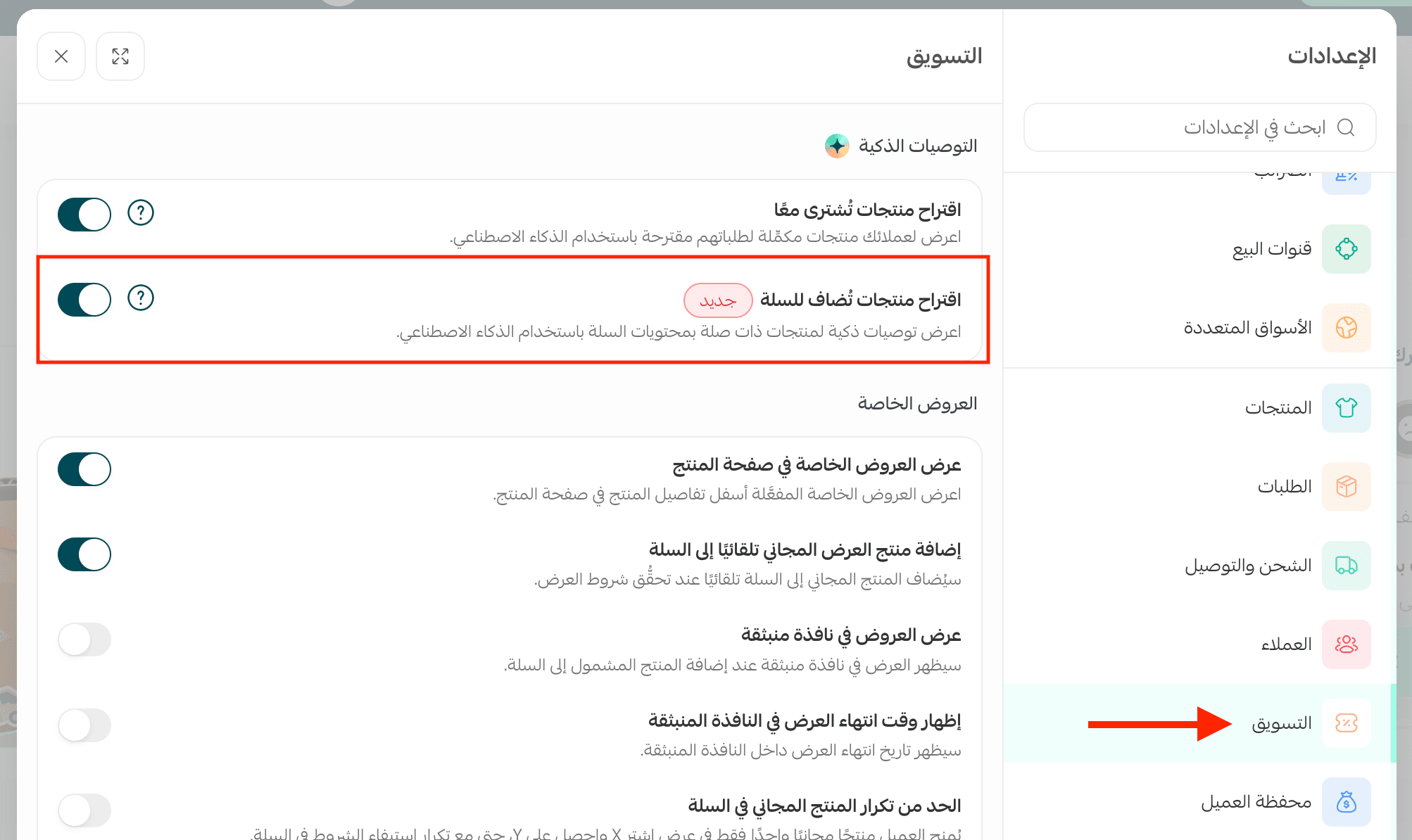
1. From your store settings, click (Marketing), then enable (Suggest products bought together).

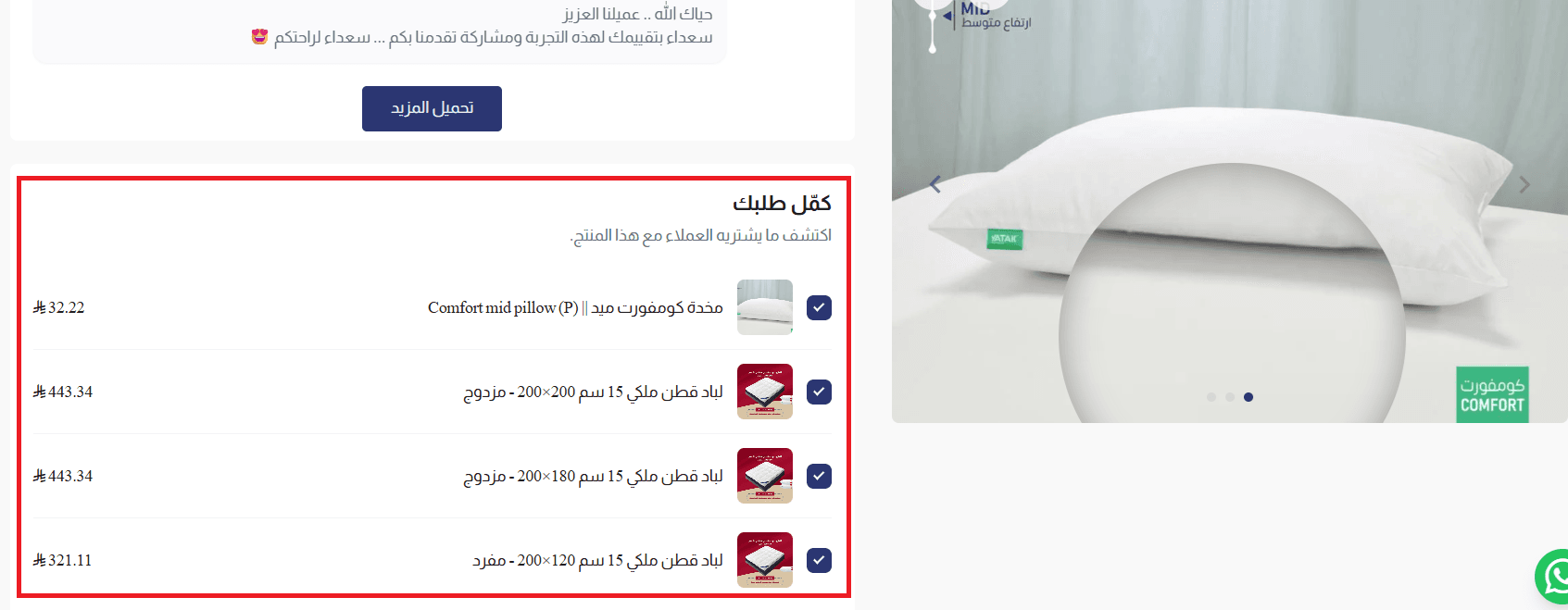
Shoppers then see a (Complete your order) block with related items beside the product, such as a pillow and a mat. They can tick the ones they want and add them all to the cart in a single step.
Suggest products to add to the cart
1. From your store settings, click (Marketing), then enable (Suggest products to add to the cart).
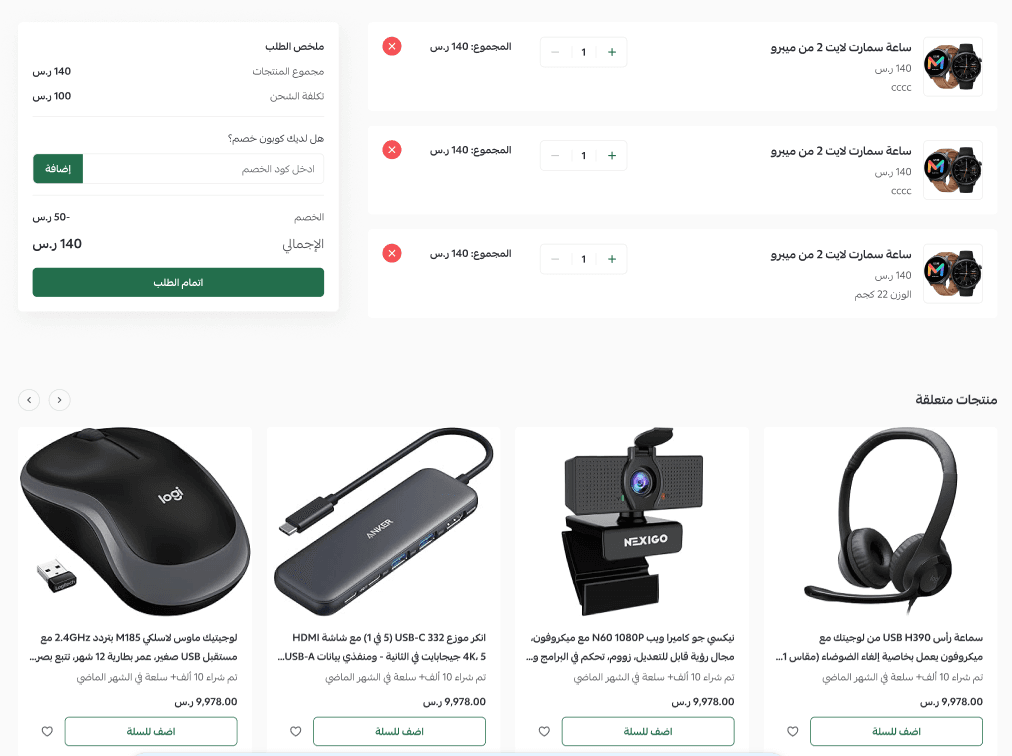
That is all the setup there is. The suggestions now appear inside the customer's cart as products related to what they are already buying, like this:
🎯 How the feature decides what to suggest
- It only suggests products related to what is currently in the cart.
- It never suggests a product that is already in the cart.
- Out-of-stock and hidden products are excluded.
- The shopper can add a suggested product straight to the cart, and both the cart and the order summary update immediately.
✅ Ways to get better recommendations
The quality of the suggestions depends on the quality of your product data. A few habits make a visible difference:
🌟 Write a clear, accurate description for every product.
🌟 Keep your categories tidy, so similar products are easy to connect.
🌟 Keep stock levels current, so available products stay eligible to appear.
🌟 Widen your range with complementary products a customer might need alongside their purchase.
🌟 Watch your average order value (AOV) after you enable the feature to see what it is doing for the store.
📝 Important notes
Nothing needs to be linked by hand. The suggestions are generated automatically, so you never build product-pairing rules yourself.
Because hidden and out-of-stock products are filtered out, a store with stale inventory data will see fewer suggestions than one that keeps stock accurate.
❓ Frequently asked questions
Do I need to set the recommendations up manually?
No. Smart recommendations run automatically using AI. You do not link products to each other or write any rules.
Do all of my products appear in the recommendations?
No. Only products related to what the shopper already has in the cart are shown, and anything already in the cart, out of stock, or hidden is excluded.
What is the difference between the two options?
Suggest products bought together shows a (Complete your order) block where the shopper can select several related items and add them in one step. Suggest products to add to the cart shows related products inside the cart itself. You can enable either one, or both.
How do I tell whether the feature is helping?
Compare your average order value (AOV) before and after you turn it on. That is the number the feature is designed to move.
The cart is the shortest distance between a customer who is already buying and a customer who buys a little more. Turning on smart recommendations costs you one click and keeps working on every order after that.