Featuring well-known and clearly presented brands in your store increases credibility, trust, and visual appeal. However, managing brands without the right tools can quickly become confusing.
In this guide, you will learn how to add new brands, improve their visibility in search engines, and manage them professionally to keep your store organized and attractive to customers.
📌 Article overview
- Brands page
- Adding a new brand
- Managing brands
- Frequently asked questions
Brands page
- From the main menu, click Products.

2. From the Products page, open the Manage Categories and Options tab, then click Brands.
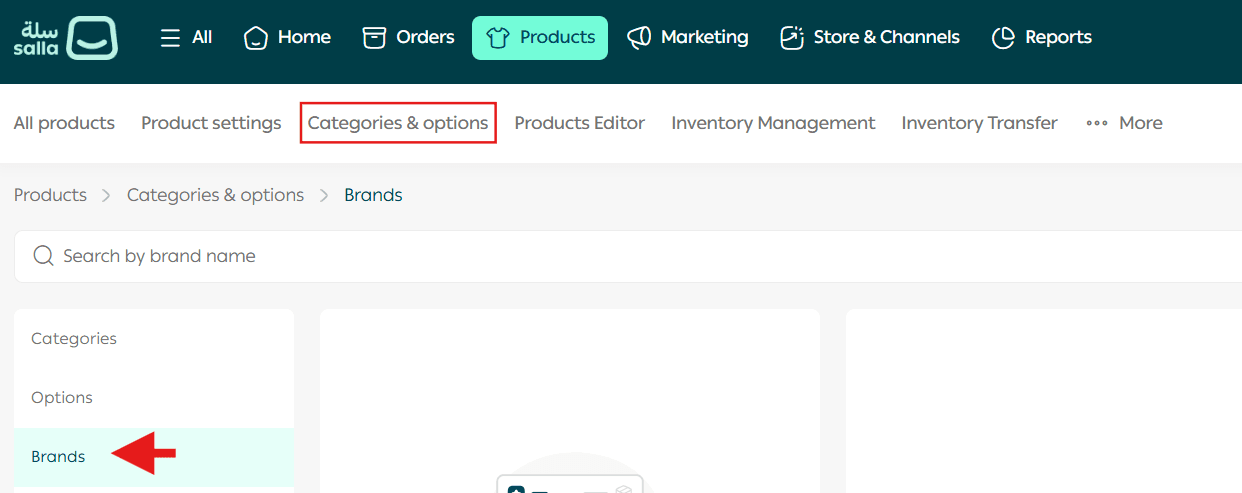
This page displays all brands added to your store and allows you to manage them from one place.
Add a new brand
- From the Brands tab, click + New Brand.
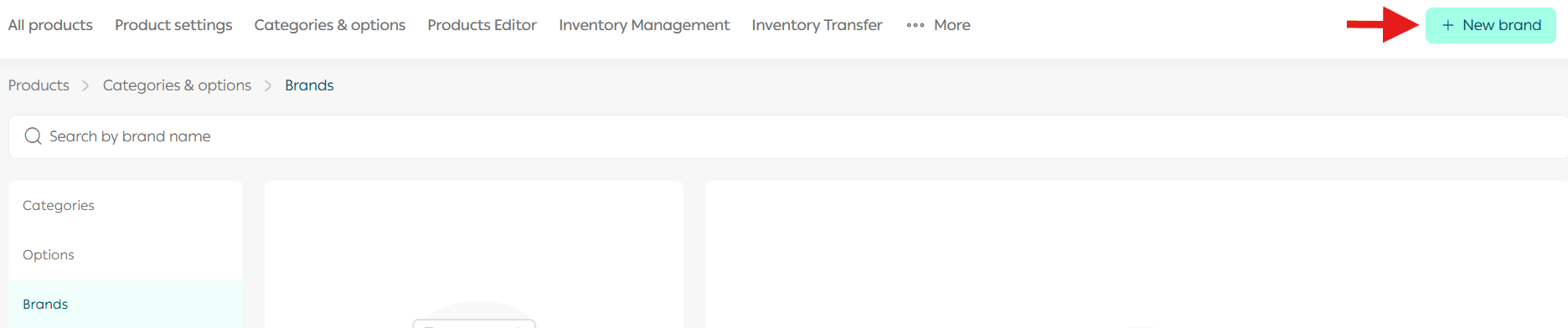
2. Enter the required brand details, then click Save.
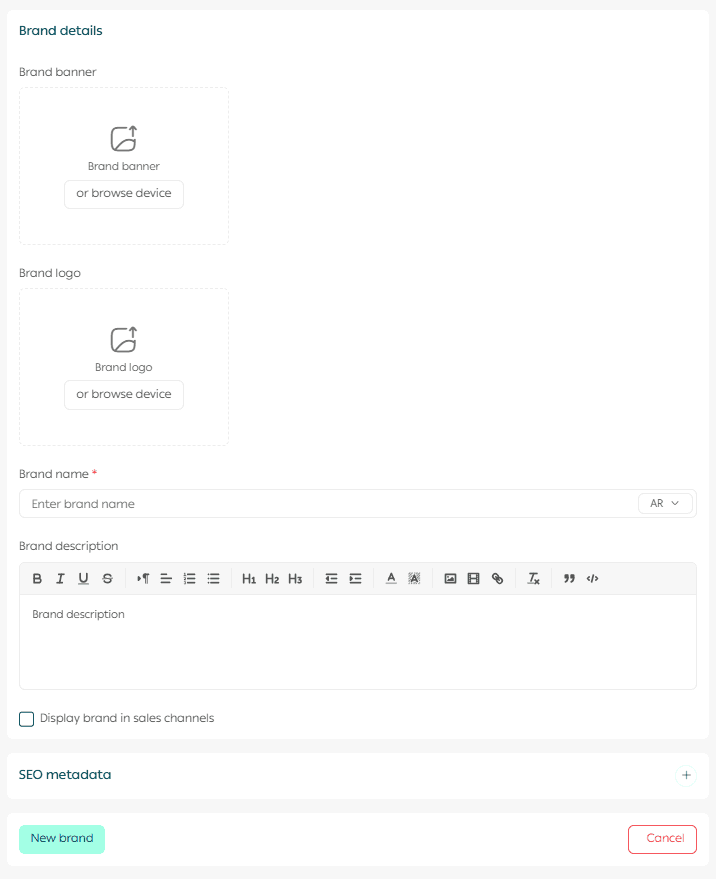
When adding a brand, you can include the following:
- Brand logo
It is recommended to use dimensions of 80 × 100 pixels for optimal display.
- Brand banner image (optional)
This banner can appear on the store homepage and brand pages to enhance visual presence.
Managing brands
1. Hide or show a brand in sales channels
You can disable a brand’s visibility across sales channels if you do not want it to appear in the store.
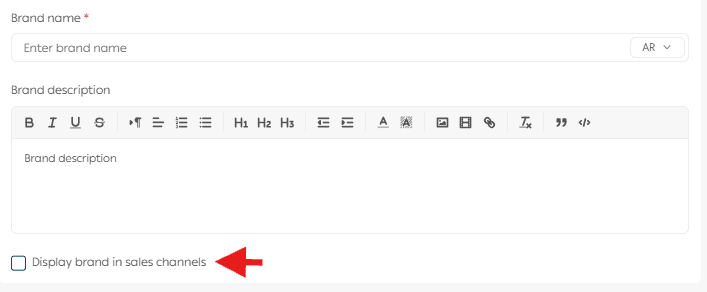
To make the brand visible again, simply re-enable the option.
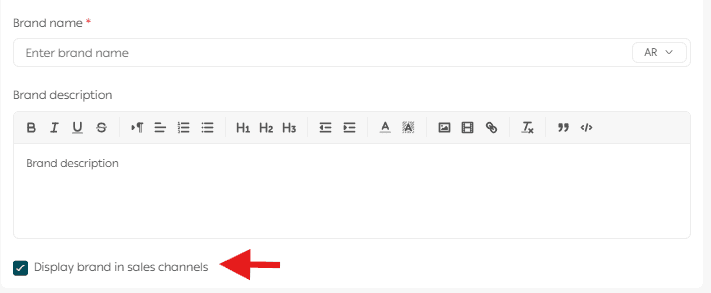
Once enabled, the brand will appear to customers across all active sales channels.

2. Search for a brand
Use the brand search field to quickly find a specific brand by typing its name.
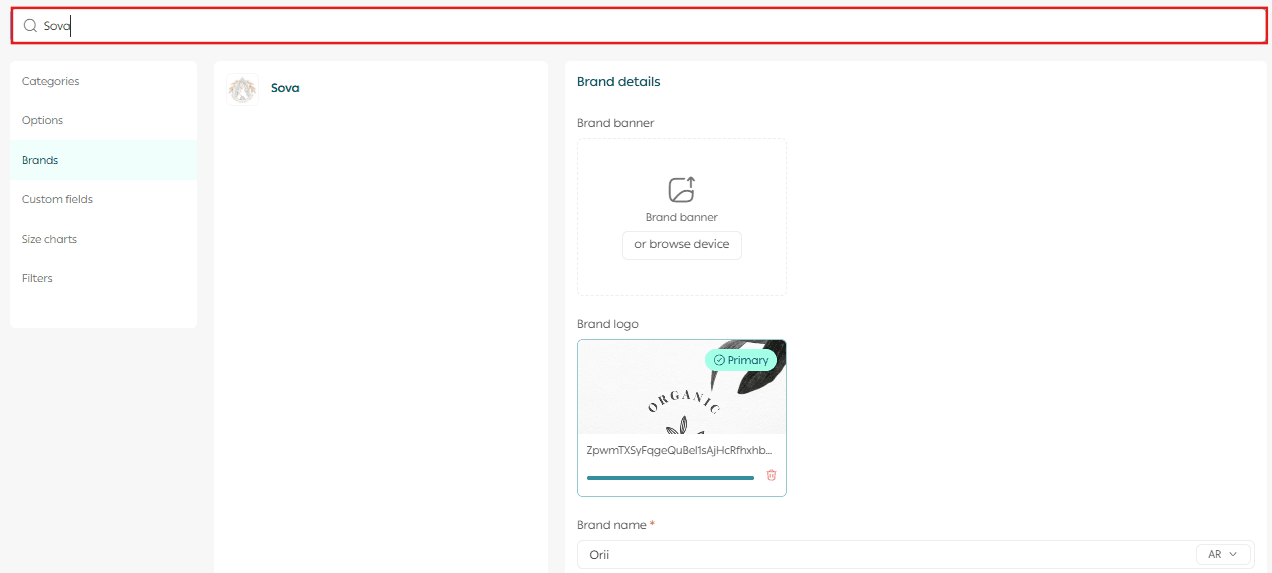
This is especially useful when managing stores with a large number of brands.
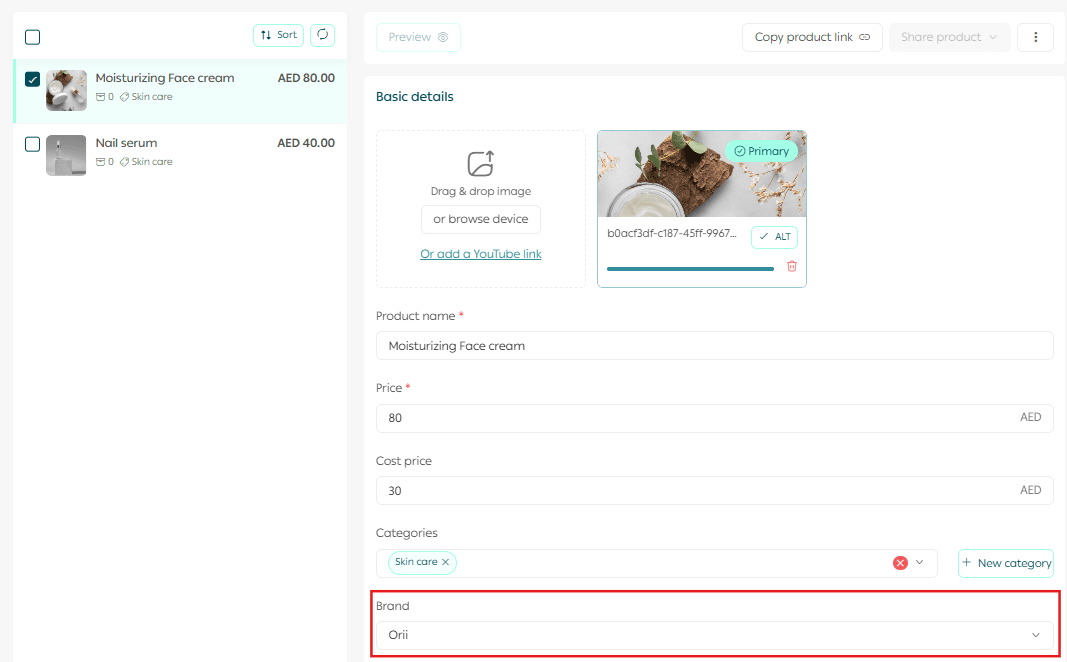
3. Assign products to a brand
- From the main menu, click Products.
2. Open the All Products tab.

3. From the product’s basic information section, select the brand the product belongs to, then click Save.
🔔 Important note: Mahally is currently available only for stores in Saudi Arabia.
Frequently asked questions
How can I use brand SEO to improve visibility and reach?
Optimizing brand pages for search engines helps attract more organic traffic and strengthens brand recognition.
Follow these best practices:
- Page title
Use the brand name in the title and make it compelling, such as:
Shop {Brand Name} products at the best prices
- Custom URL
Create a clean and simple URL that includes the brand name, for example:
yourstore.com/brand/{brand-name}
- Page description
Write a clear description with relevant keywords, such as:
Discover {Brand Name} products with high quality and exclusive offers.
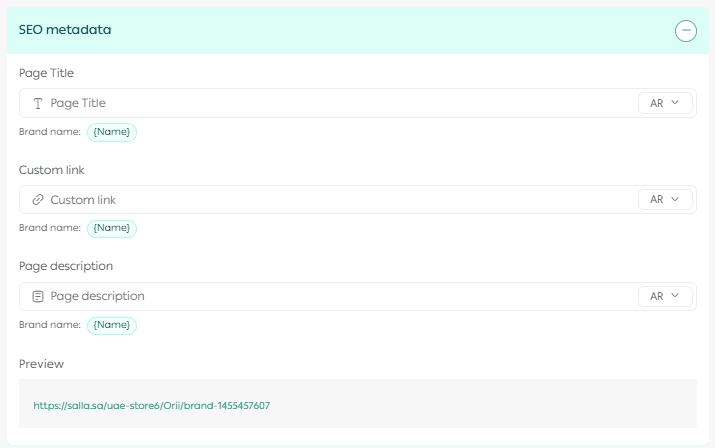
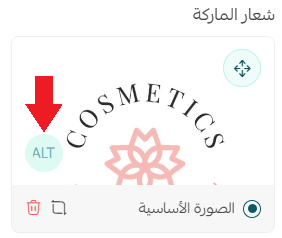
Additionally, enhance your content by adding descriptive text and images with Alt Text that includes the brand name. This improves accessibility and search engine indexing.
Well-managed brands not only organize your catalog but also improve SEO performance, strengthen trust, and make it easier for customers to explore and shop with confidence.