Would you like a snapshot of yesterday's sales waiting in your inbox every morning?
Checking your dashboard several times a day is fine when you are starting out, but it stops being practical once orders pick up. The Daily Report app handles that for you: once it is installed, it emails you a daily report of your store's sales and orders, with no setup screens to configure and nothing to switch on. In this guide, you'll learn how to install the app, what the daily email contains, how to buy a subscription, and how to remove the app if you no longer need it.
The Daily Report app emails you an automatic summary of your store's performance every day at midnight. Each report covers total sales, the number of orders, and the status of those orders, so you can track how your store is doing without signing in to your dashboard.
📌 Article overview
- How to install the Daily Report app
- Manage your Daily Report app options
- Frequently asked questions
🚀 How to install the Daily Report app
1. From the main menu, click (All), then under the helper tools section, click (App Store).

2. Search for the app using the search field.

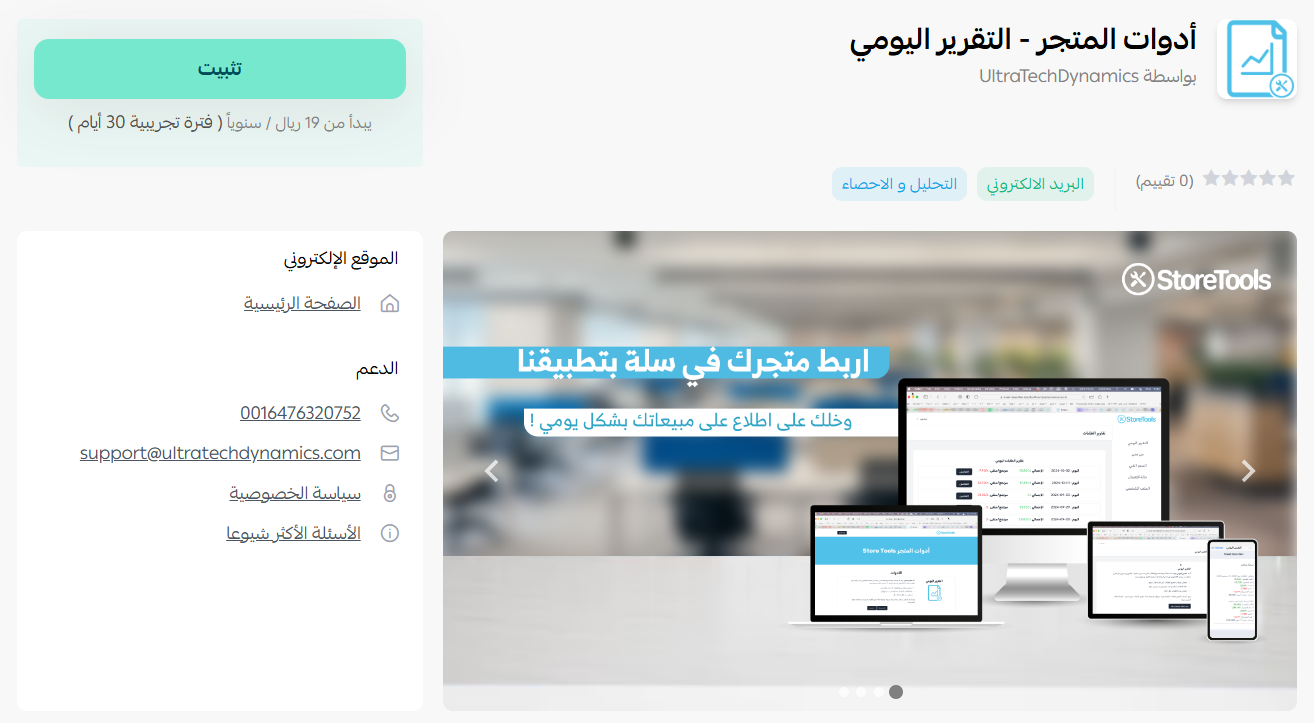
3. On the Daily Report app page, click (Install).
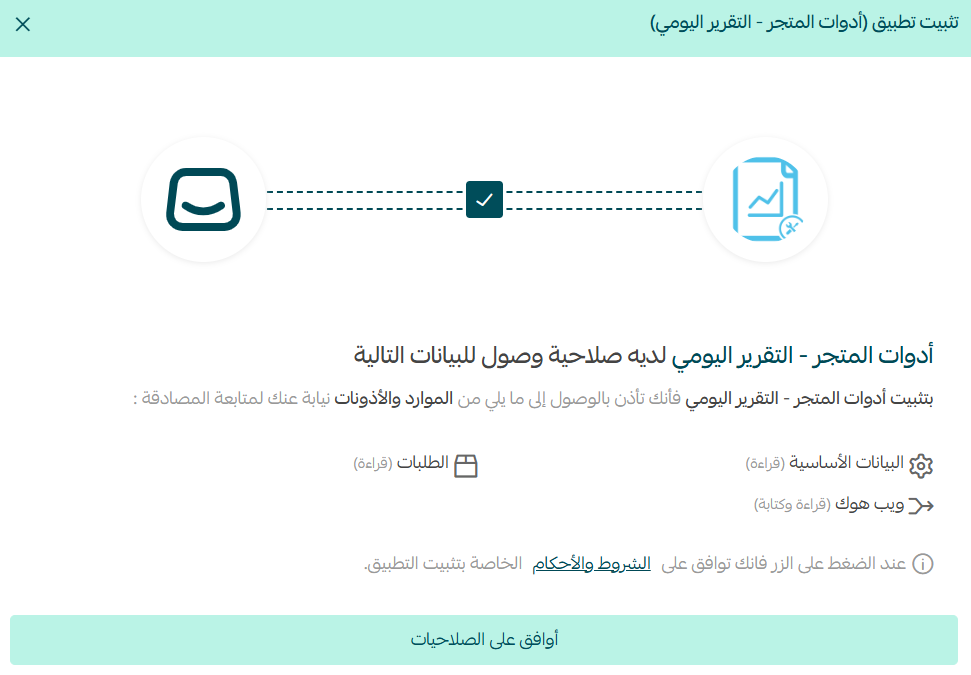
4. Review the permissions the app requests, then click (I agree to the permissions).
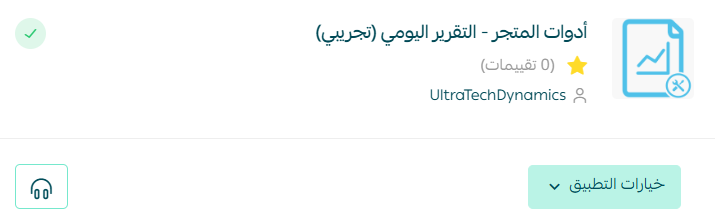
The app is now installed on your store.
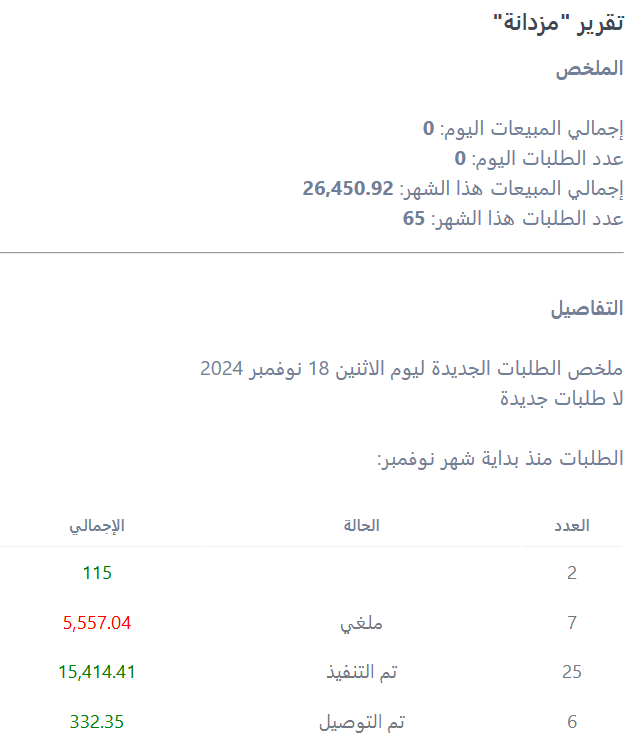
5. Watch your inbox for the first email from the Daily Report app, showing your total sales and your order details.
📝 Important notes
- There is nothing to configure after installation. The summary is sent to your email automatically every day at 12:00 midnight.
🚀 Manage your Daily Report app options
1. Buy a subscription
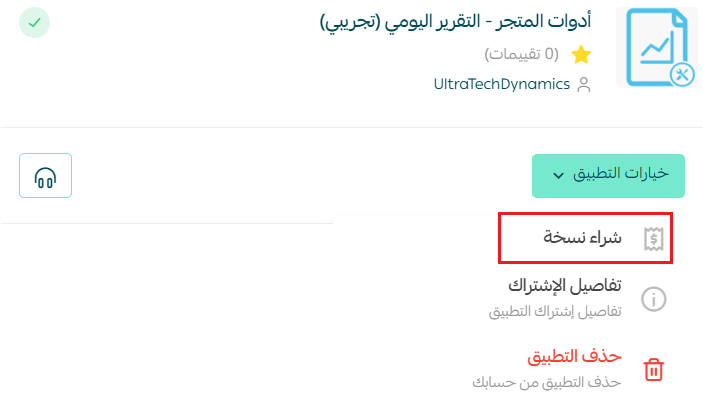
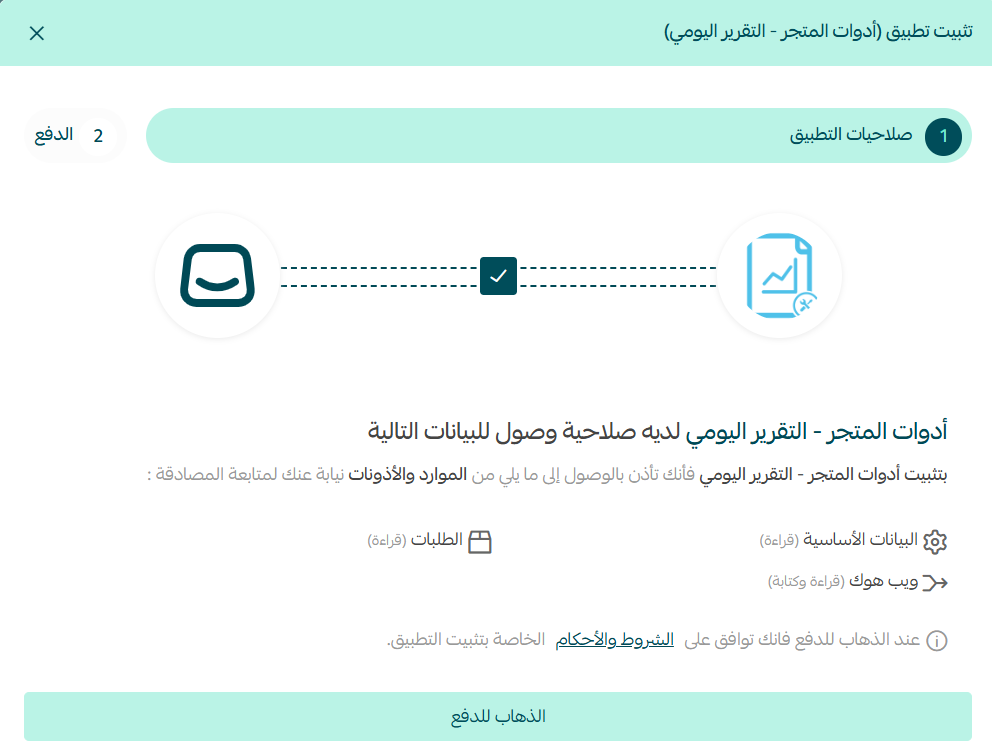
Review the subscription details, then click (Go to payment).
Enter your card details, then click (Confirm payment).
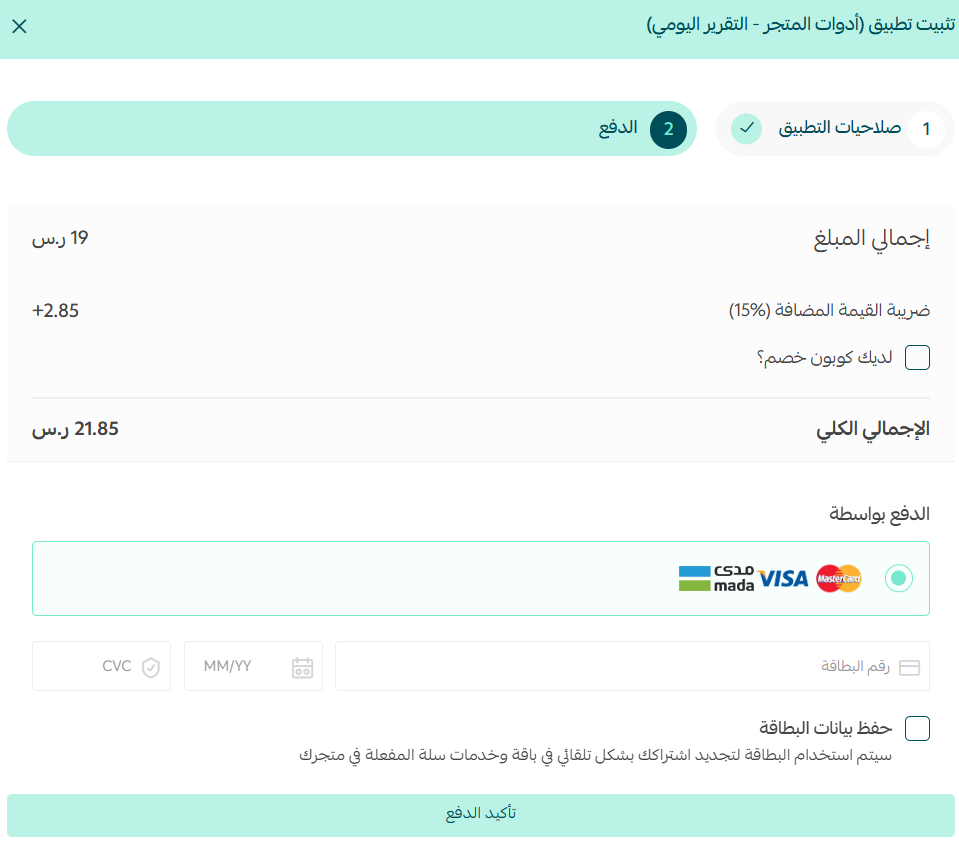
Complete the payment to activate the available plan and start using the app's services.
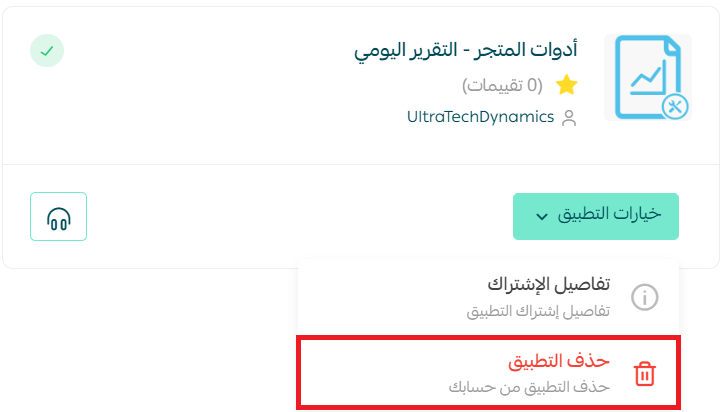
2. Delete the app
From the Daily Report app, click (App options), then click (Delete app).
❓ Frequently asked questions
When is the daily report sent?
Every day at 12:00 midnight, automatically.
Do I need to set anything up after installing the app?
No. Once the app is installed and the permissions are approved, the report starts arriving on its own.
What does the daily email include?
Your total sales for the day, the number of orders, and the status of those orders.
Where is the report delivered?
To the email address linked to your store, so you can review performance without opening your dashboard.
How do I stop receiving the reports?
Open the app from your dashboard, click (App options), then click (Delete app).
A daily habit of reading one short email keeps you close to your numbers, and makes a slow sales day something you notice on the same day it happens rather than at the end of the month.