✨ Want to give your store a fresh design touch without switching themes every time?
Add-on components let you update the look of your store in minutes, with no redesign project and no complicated setup.
Instead of installing a whole new theme, you buy a ready-made add-on component — a single design piece or a full design pack — and drop it straight into your homepage. Your branding stays consistent, your existing design stays intact, and the change takes minutes. In this guide, you'll learn how to browse, buy, install, and customize add-on components on Salla.
To buy one, open the Themes store, go to the (Add-on components) section, and pick the component you want. Review its details, then click (Buy now) if it is paid, or install it directly if it is free. The component is then available when you add a new homepage component in (Customize).
📌 Article overview
- What add-on components are
- Why use add-on components
- How to buy a new add-on component
- How to add a component to your homepage and customize it
- Important notes
- Frequently asked questions
What are add-on components?
Add-on components are ready-made design pieces you can add straight to your store without replacing your theme.
A single component: such as (Featured categories), to put your best sellers front and center.
A full design pack: such as (Banner set), to refresh the whole homepage at once.
💡 Used well, these components make browsing more engaging and present your products in a more professional way.
✅ Why use add-on components?
✅ No need to change your entire theme every time you want a new design element.
✅ Every component can be customized to match your store's identity and needs.
✅ A quick homepage refresh keeps your store lively and appealing to customers.
✅ You can preview a component before you buy it, so you know exactly what you are getting.
Every component you add is a chance to improve the customer experience and lift your sales — without a full redesign.
🚀 How to buy a new add-on component
1. From the Themes store, open the (Add-on components) section, choose the component you want, and click (Buy now).
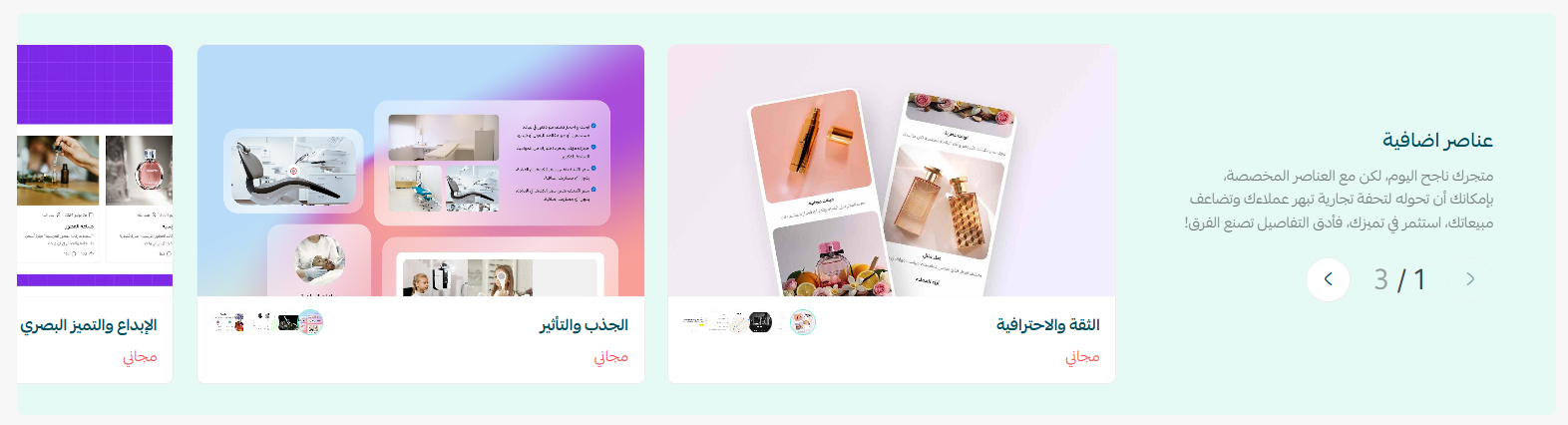
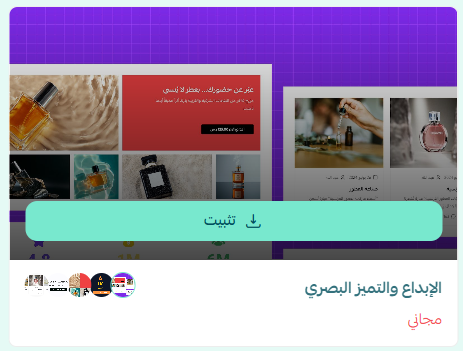
2. Click the component name to open its full details.
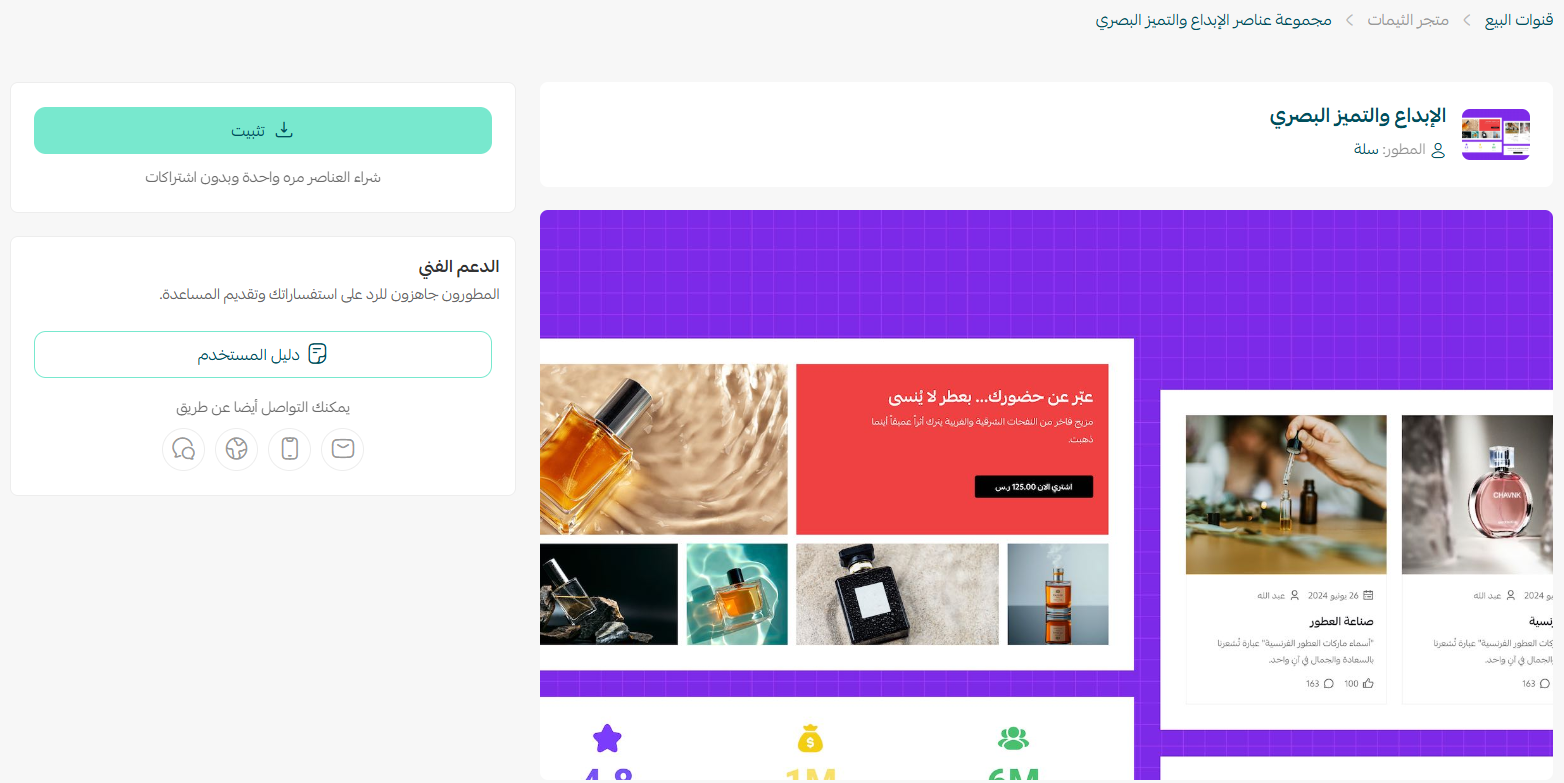
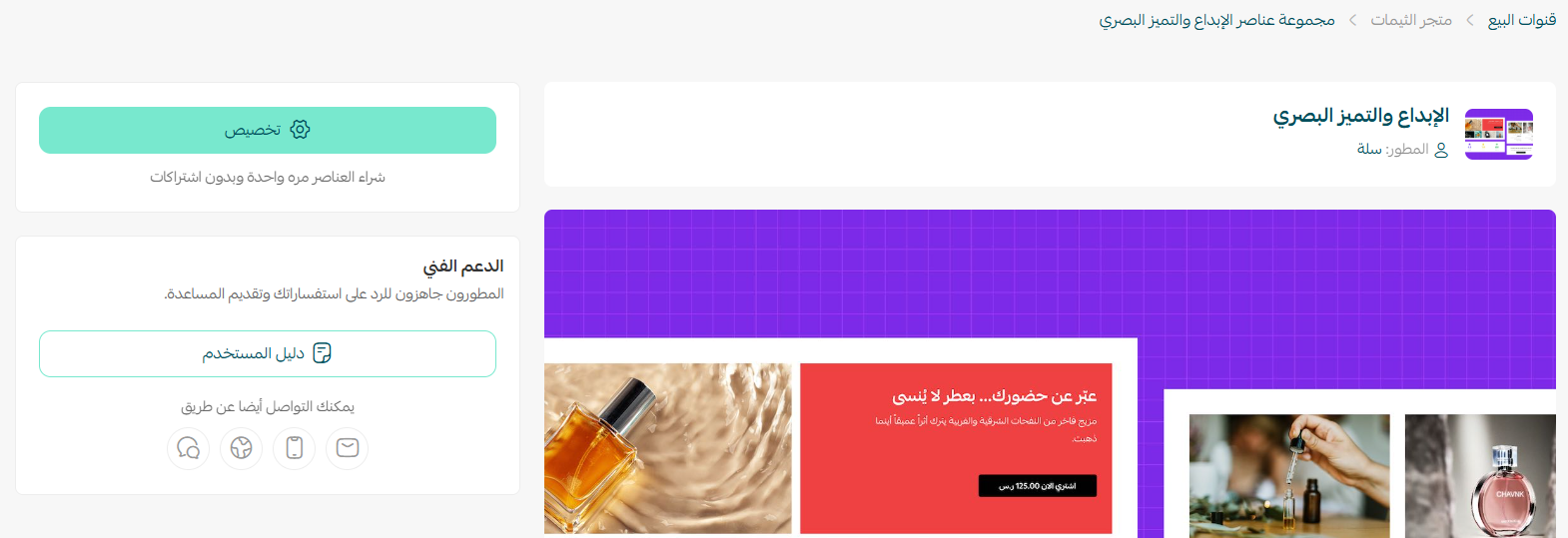
The details page looks like this:
One of the most useful parts is the list of component groups included:
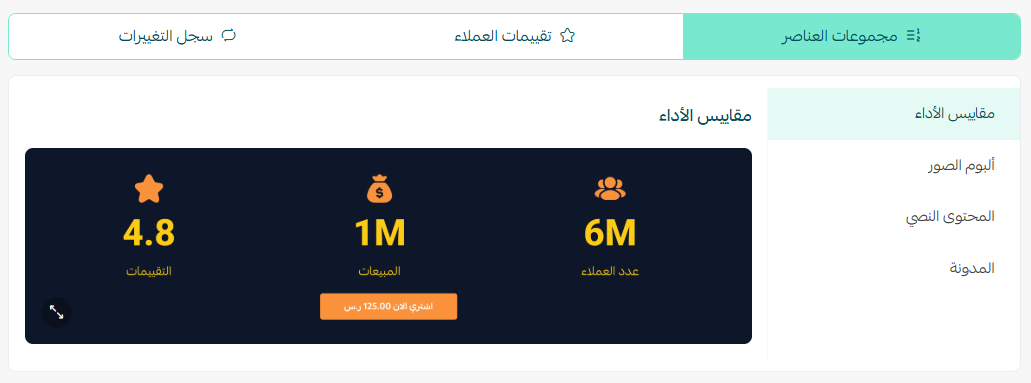
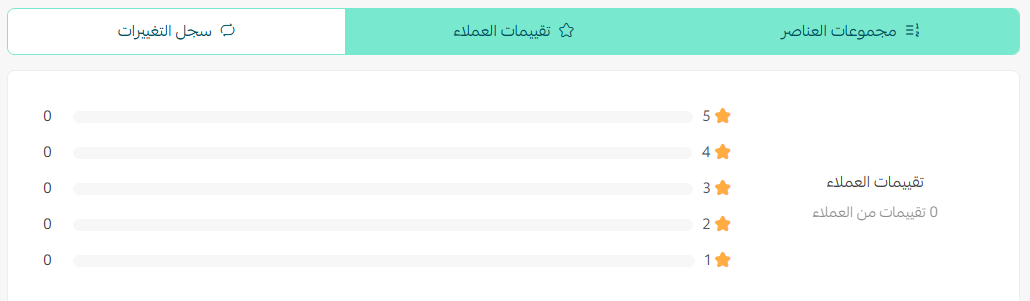
You will also find merchant ratings and reviews for the component:
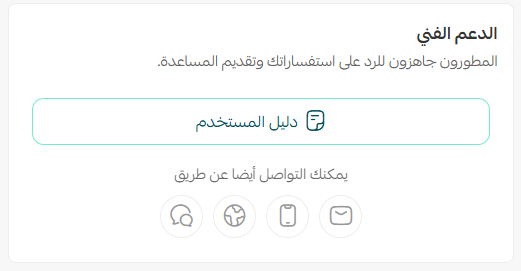
Along with a usage guide and technical support contact details:
3. Buy the component as a one-time purchase with no subscription if it is paid, or install it directly in your store if it is free.

🎉 Congratulations — the component is installed in your store and ready to customize.
👣 How to add a component to your homepage and customize it
Once a component is installed, you can place it on your homepage and shape it around what your store needs:
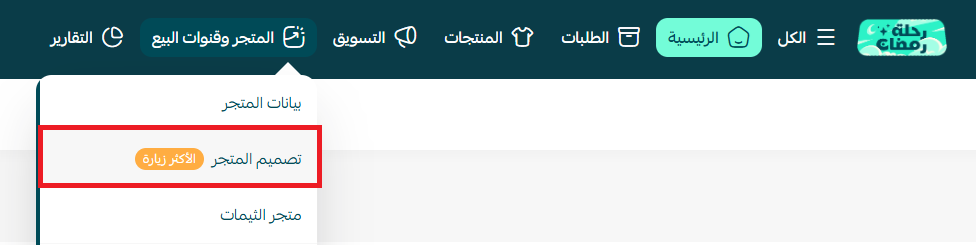
1. From the main menu, click (Sales channels), then click (Store design).
2. On the theme you want to edit, click (Customize).
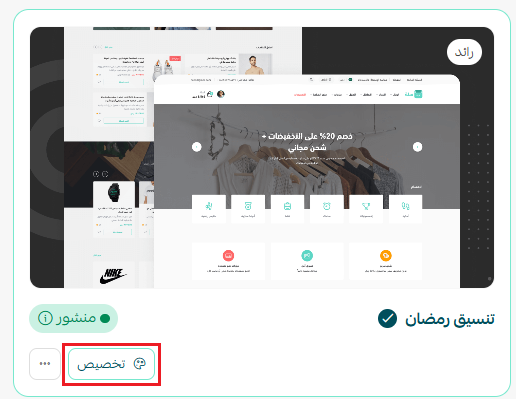
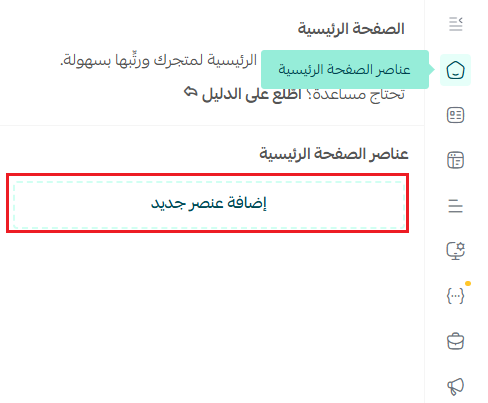
3. Open (Homepage components), then click (Add new component).
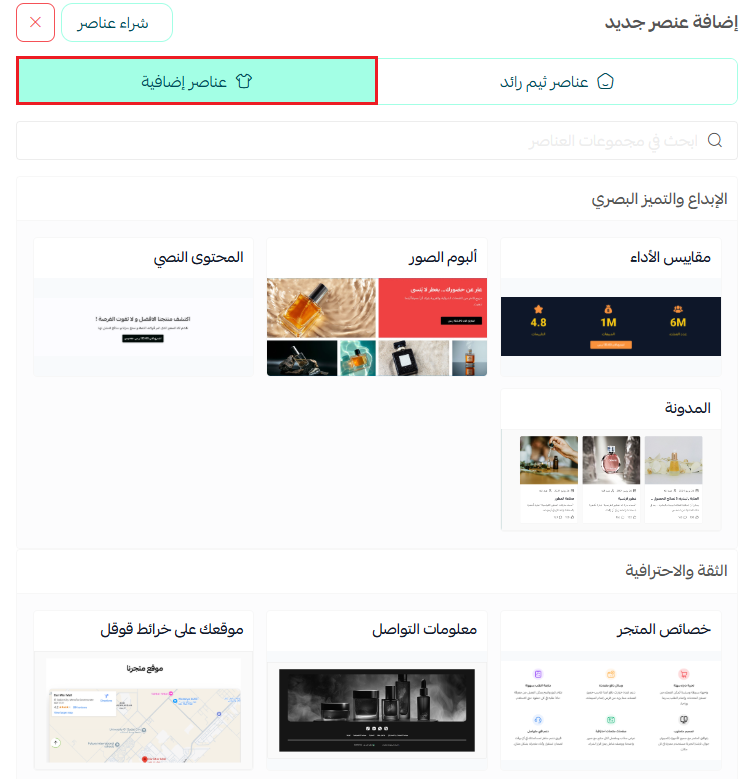
4. The components you have bought appear under the (Add-on components) tab.
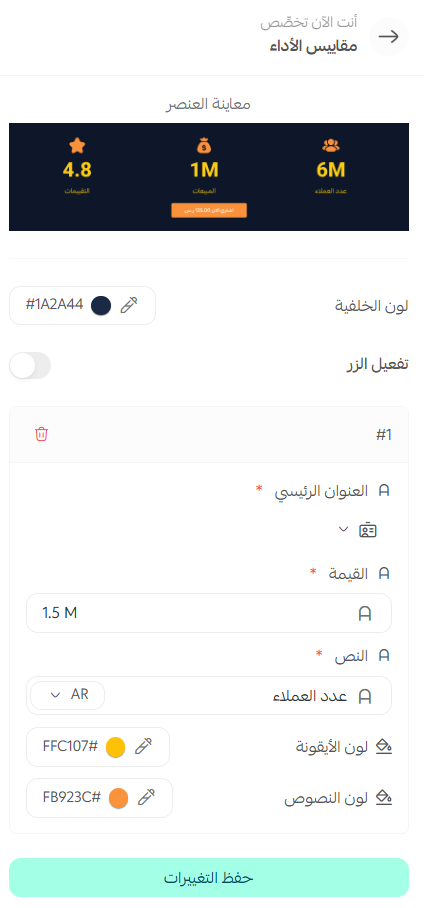
5. Add the component, customize it to match your store design, then click (Save).
The add-on component has been added successfully.

And it appears in your store preview:

📝 Important notes
Paid add-on components are a one-time purchase — there is no recurring subscription.
Free components skip the payment step and install straight into your store.
Read the component's usage guide and note its support contact details before you buy, so you know how it is set up and who to reach if you need help.
❓ Frequently asked questions
Do I have to change my theme to use an add-on component?
No. That is the whole point of add-on components — they sit on top of the theme you already use, so your current design stays exactly as it is.
Are add-on components a subscription?
No. A paid component is bought once, with no recurring fee. Free components cost nothing at all.
Where do I find the components I have already bought?
Open (Customize) on your theme, go to (Homepage components), click (Add new component), then open the (Add-on components) tab. Everything you own is listed there.
Can I see what a component looks like before buying it?
Yes. Click the component name in the Themes store to open its details page, where you can review the included component groups, merchant ratings and reviews, and the usage guide.
Can I edit a component after adding it?
Yes. Every component has its own settings inside (Customize). Adjust them to match your store, then click (Save).
Don't wait — start browsing the add-on components in the Themes store and pick the ones that give your store a more professional look and stronger sales.