What if you could redesign your store directly from the page itself, without opening side menus, hunting for settings, or guessing how changes will look? With Salla’s Interactive Editor, you can build, adjust, and refine your store visually, in real time. Add sections, move them, hide them, duplicate them, or edit their content instantly, all from the live preview.
This interactive experience removes friction from store design and gives you full creative control, while keeping everything simple, fast, and intuitive.
📌 Article overview
- Why interactive customization changes the way you design your store
- How to use the Interactive Editor to build and edit your storefront
Why Use the Interactive Editor?
Think of it like designing with building blocks. Everything is visible. Everything is movable. And every change happens instantly.
The Interactive Editor introduces a new way to customize your store, built to save time and remove complexity, while giving you more freedom than ever before.
Edit directly on the page
Click any element to edit it, move it, hide it, duplicate it, or rename it — all without leaving the preview or opening separate settings pages.
Add elements visually
Browse available elements with visual previews and a built-in search, so you can quickly find and add exactly what your store needs.
Hide sections without deleting them
Temporarily remove any element with one click, and bring it back later whenever you need it.
Duplicate and organize elements easily
Copy any element and rename each version to stay organized, especially when working with repeated sections.
Access design tools and apps instantly
All supported design tools and integrations are available directly inside the editor for a seamless workflow.
Use custom fonts
Apply any Google Font or external font link to match your brand’s style perfectly.
Design from your phone
The editor works smoothly on mobile, so you can customize your store anytime, anywhere.
Learn as you design
Each section includes built-in guidance and helpful resources to explain what it does and how to use it.
Manage menus faster
Header and footer menu settings are easier to access and adjust, making navigation setup quicker and clearer.
How to Start Designing with the Interactive Editor
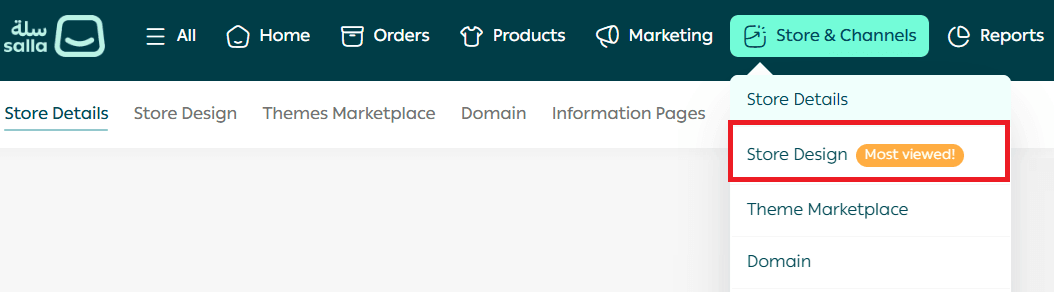
- From the main menu, go to Store & Channels, then select Store Design.
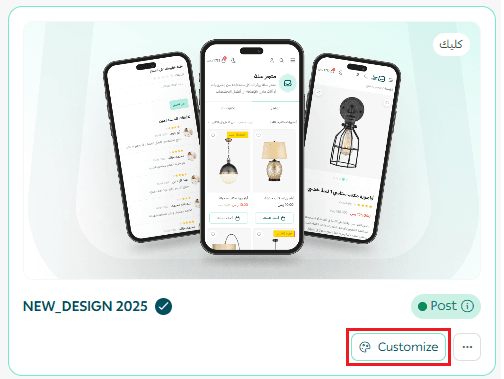
2. Click Customize on your active theme.
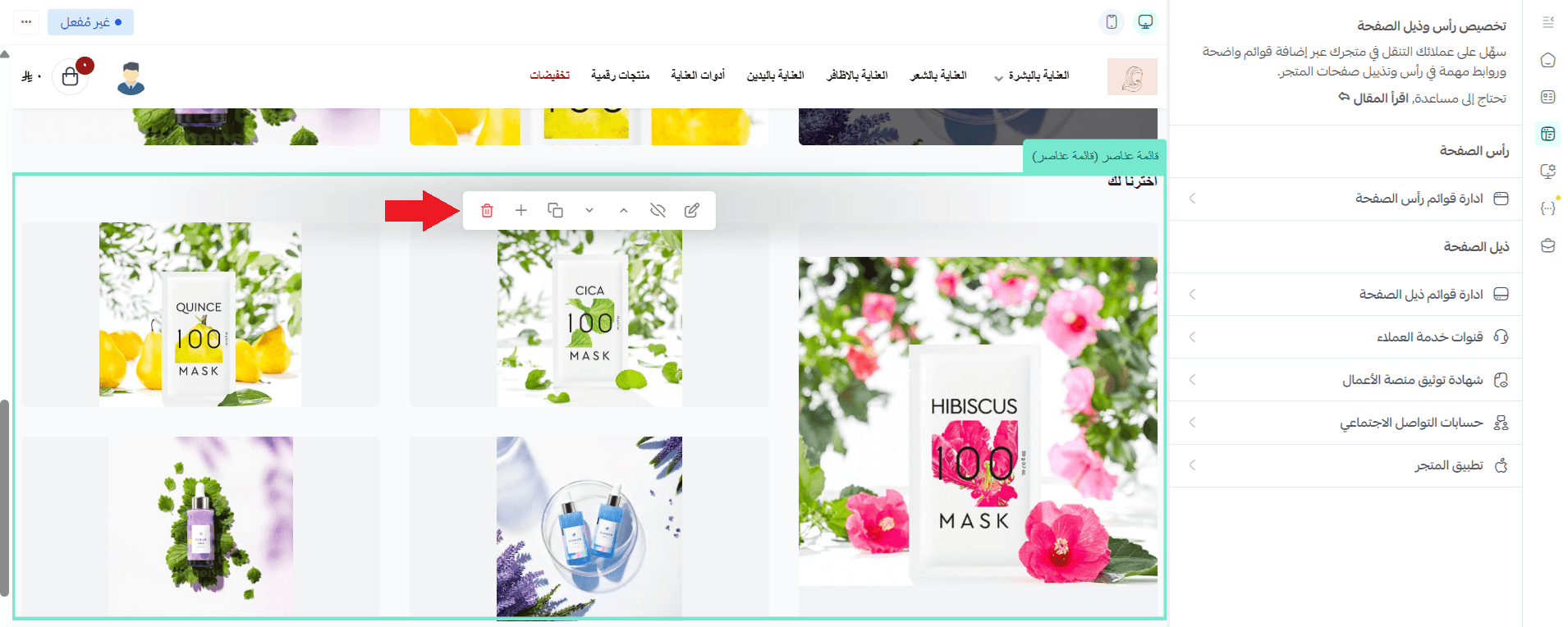
You’ll see a live preview of your store. When you hover over any section, it will be highlighted and labeled, along with a small action bar.
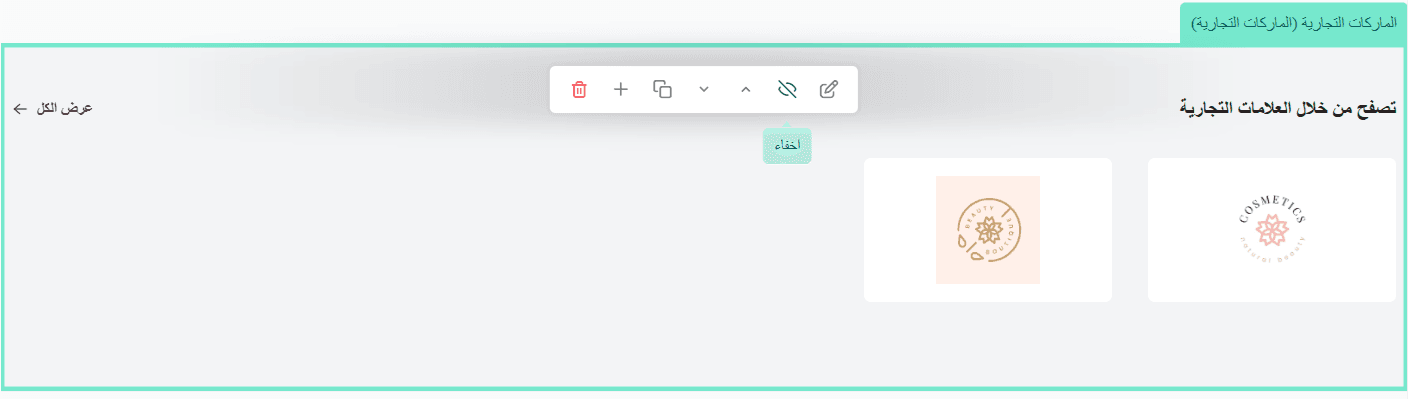
Hover over any action to see a quick explanation of what it does.
Editing Elements in Place
Click Edit on any section to change its content or settings.
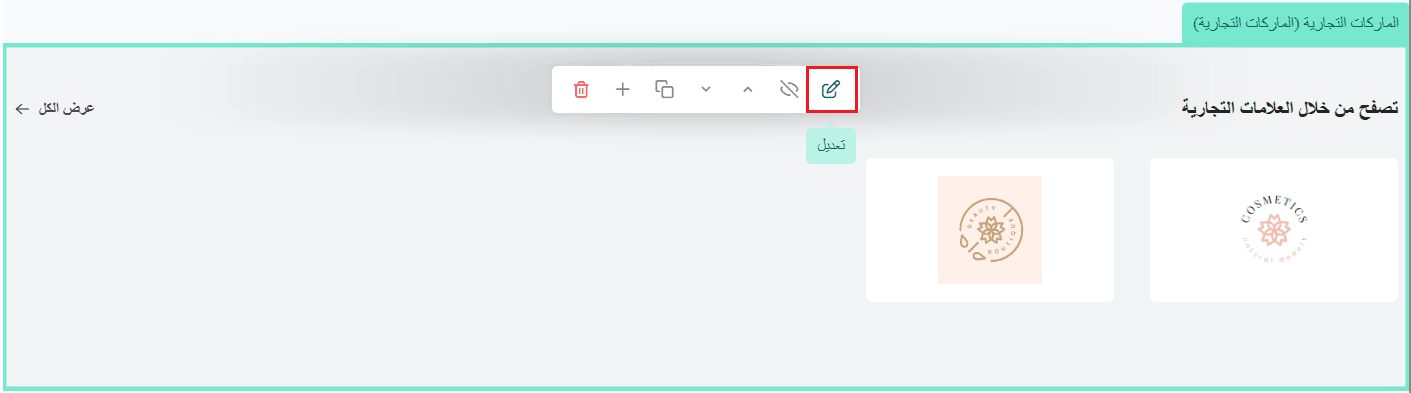
Example: An electronics store still shows old partner logos.
What to do: Hover over the logo section and click Edit to update the images and text.
Result: The store reflects current partnerships instantly, without digging through menus.
Hiding Elements (Without Losing Them)
Click Hide to remove an element from the storefront while keeping it saved.
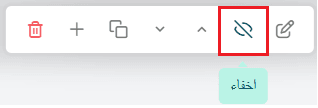
Example: A fashion store wants to remove a “Summer Sale” section after the campaign ends.
What to do: Hover over the section and click Hide.
Result: The section disappears immediately and can be restored later if needed.
Reordering Sections
Use the move up or move down buttons to change the layout of your homepage.
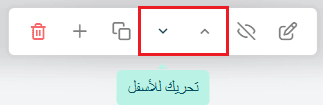
Example: A gift store wants seasonal products to appear higher on the page.
What to do: Move the product section upward until it reaches the desired position.
Result: The layout updates instantly, no extra configuration required.
Duplicating Sections
Click Duplicate to create a copy of any element, then customize it independently.
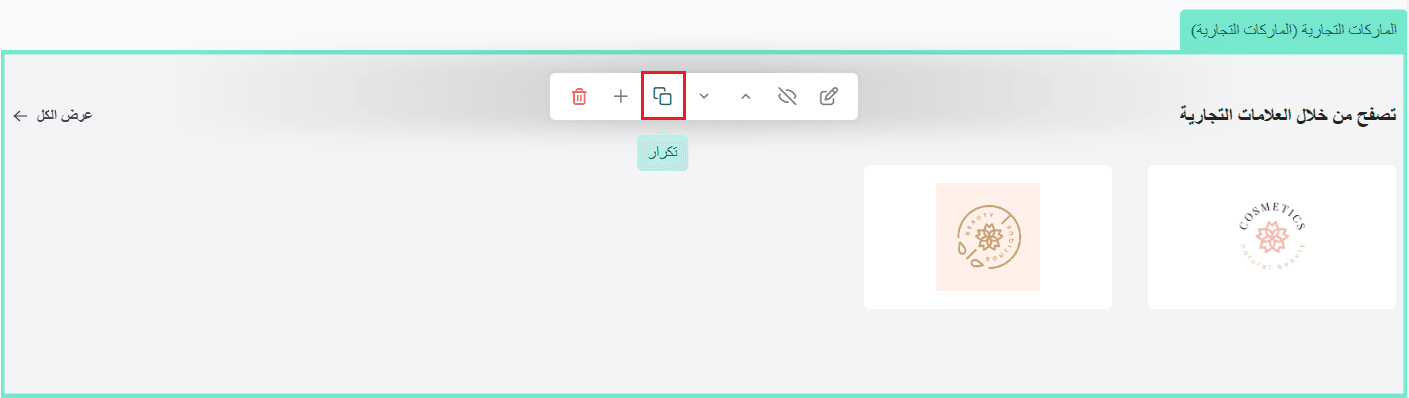
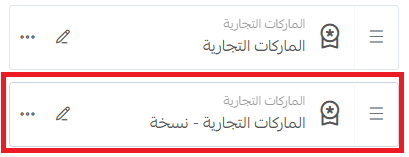
Example: A service-based store offers installation, maintenance, and consultation.
What to do: Duplicate a service section and adjust each version.
Result: Multiple sections created quickly, all with a consistent design.
Adding New Sections Anywhere
Click Add from anywhere inside the editor to insert a new element.
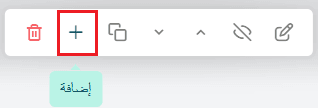
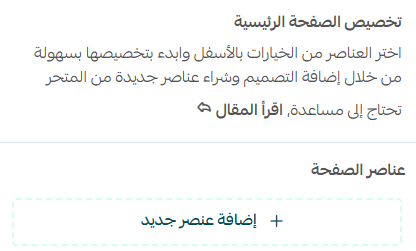
Example: A home goods store wants to showcase customer reviews.
What to do: Click Add and select Customer Reviews.
Result: The section appears immediately and is ready to customize.
Removing Sections Permanently
Click Delete to remove an element completely from your store.
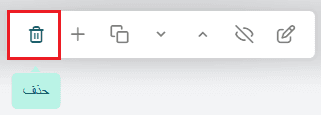
Example: A medical supplies store ends a limited-time countdown offer.
What to do: Hover over the countdown section and click Delete.
Result: The element is removed from both the preview and the live store.
Ready to try it?
Open the Store Customization page and start using the Interactive Editor today.
Design faster, experiment freely, and shape your store exactly the way you want — without friction, guesswork, or limits.