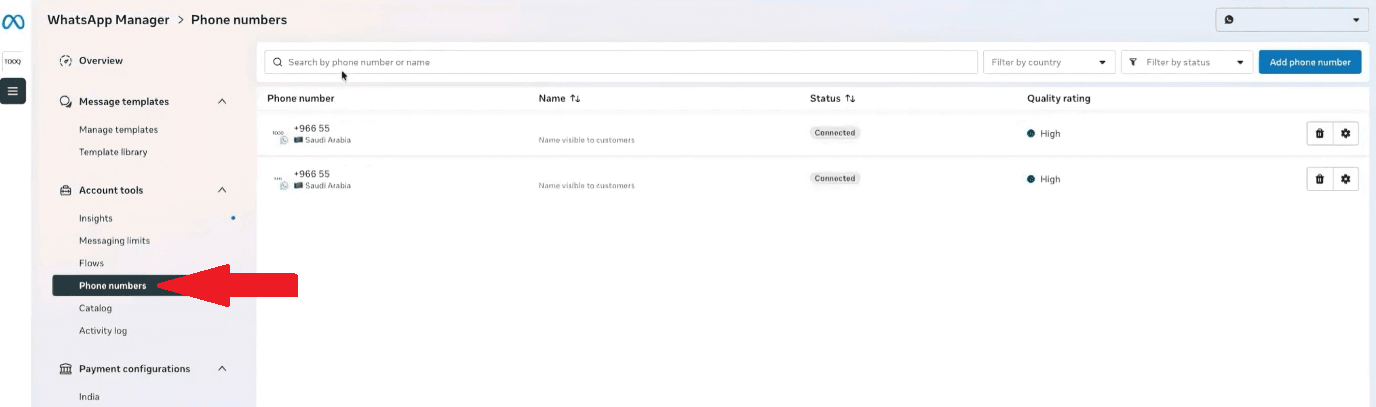
Before starting with the WhatsApp Business Platform, it is important to ensure that the account settings are complete and meet Meta's requirements to ensure the account is ready to send messages and connect with various platforms and services.
In this article, you'll learn how to verify the status of a WhatsApp Business account, understand Business Verification and Account Status, manage phone numbers, and verify the status of message templates to ensure your account is ready for use.
📌 Main topics of the article:
- Verify the status of a WhatsApp Business account
- Manage phone numbers in WhatsApp Manager
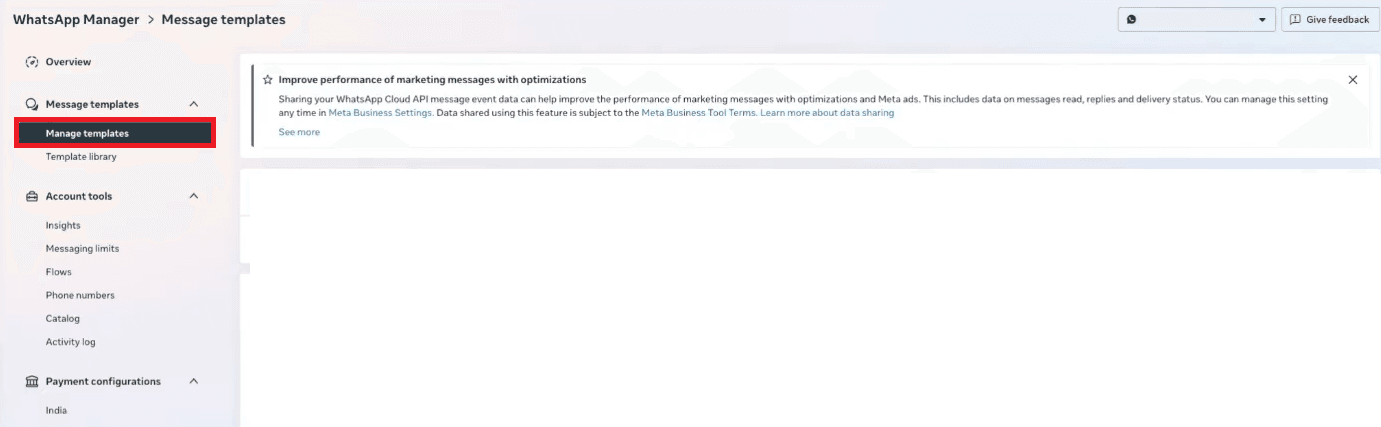
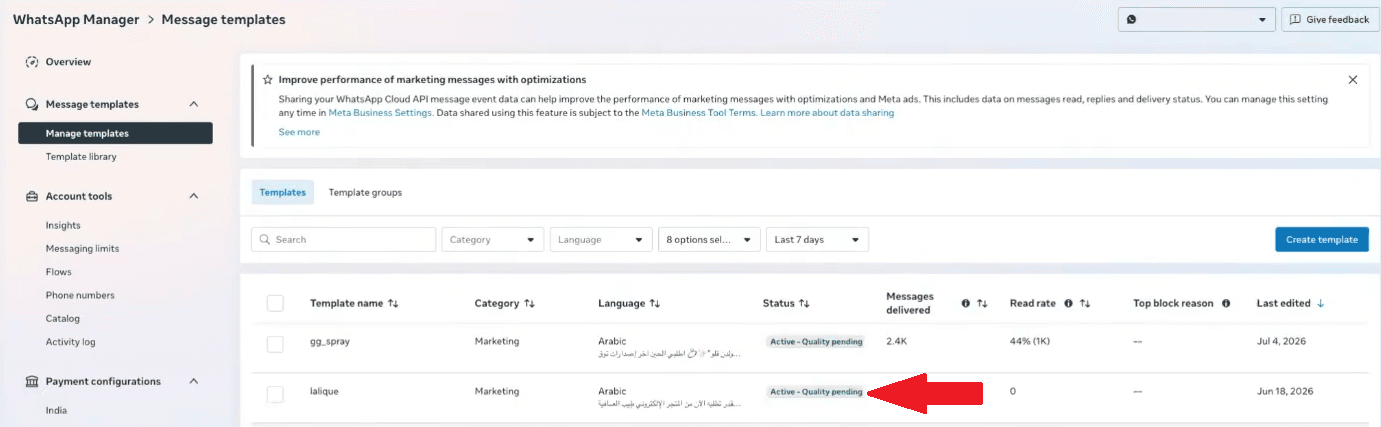
- Verify the status of a message template
⭐Verify the status of a WhatsApp Business account:
When setting up a WhatsApp Business account within Meta Business Manager, you need to verify two main statuses:
Account Status to know if the account is approved for use.
Business Verification to know the status of business verification.
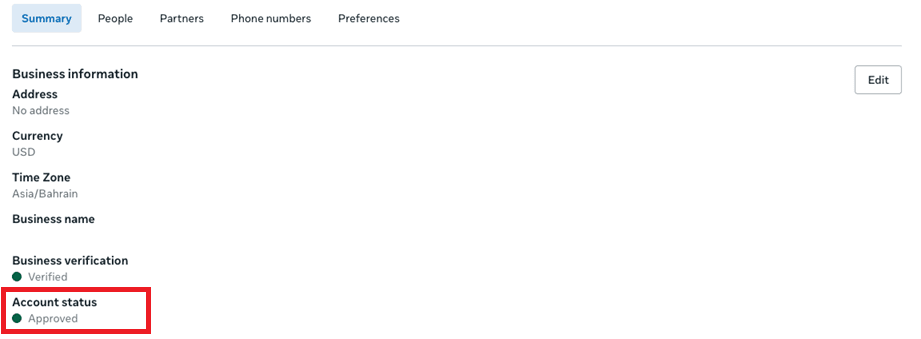
Understanding these statuses helps you know if your account is ready to use WhatsApp Business features and connect with various platforms and services.
How do I verify the account status?
You can check the status of a WhatsApp Business account by:
1. Go to Meta Business Manager, then choose Business Settings
and you will see WhatsApp Accounts
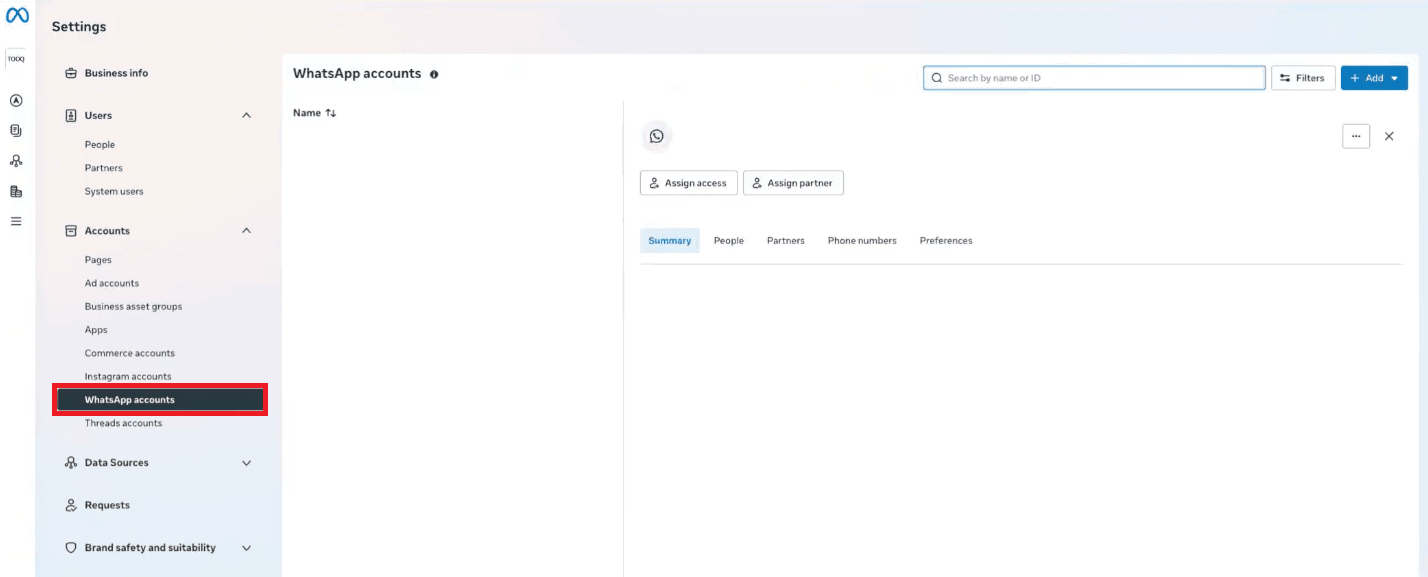
2. Select the account, then check: (Account Status, Business Verification)
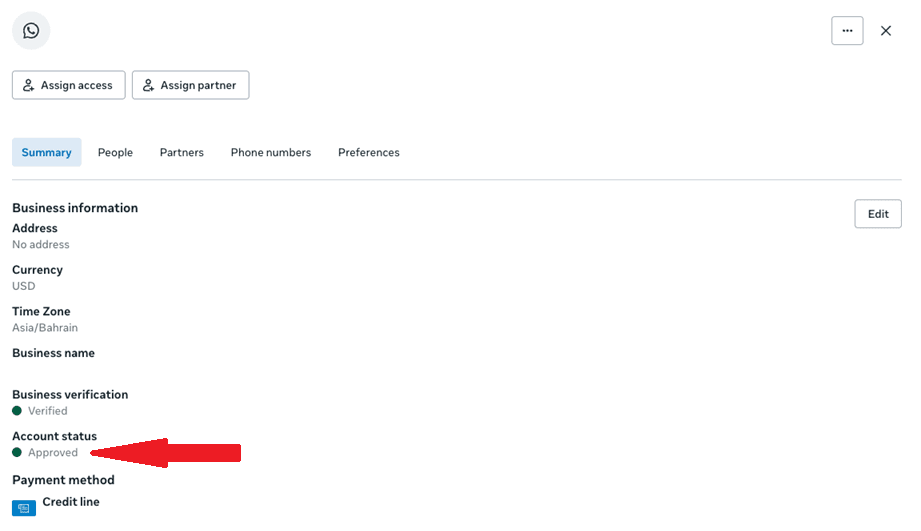
Approved: The account is approved and ready for use.
Rejected: The account is not approved and needs to address the reason for rejection.
First status: Business Verification - Approved
Approved status means that Meta has approved the WhatsApp Business account, and it is ready for use.
When this status appears, you can take advantage of WhatsApp Business features such as:
1. Sending template messages.
2. Using the WhatsApp Business Platform.
3. Connecting the account with platforms and services that support WhatsApp.
4. Managing phone numbers associated with the account without restrictions related to approval status.
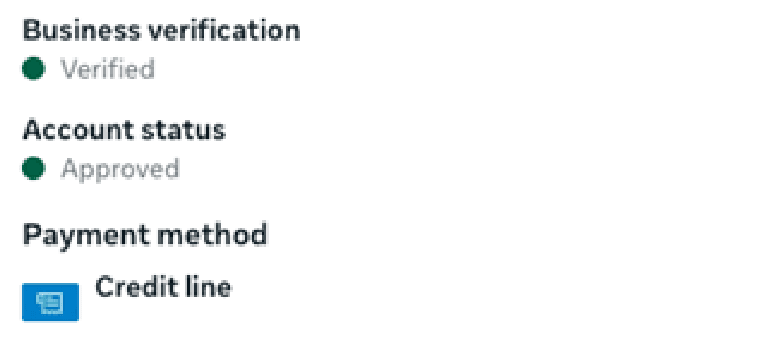
📌Note: Before proceeding with the setup, ensure that the account status matches the following:
Business verification: Must be Verified.
Account status: Must be Approved.
Payment method: Must be Salla.
Second status: Business Verification - In Progress
In Progress status means that the business verification request is still under review by Meta, and the verification process has not yet been completed.
During this stage, Meta reviews the business information and submitted documents to ensure they meet verification requirements.
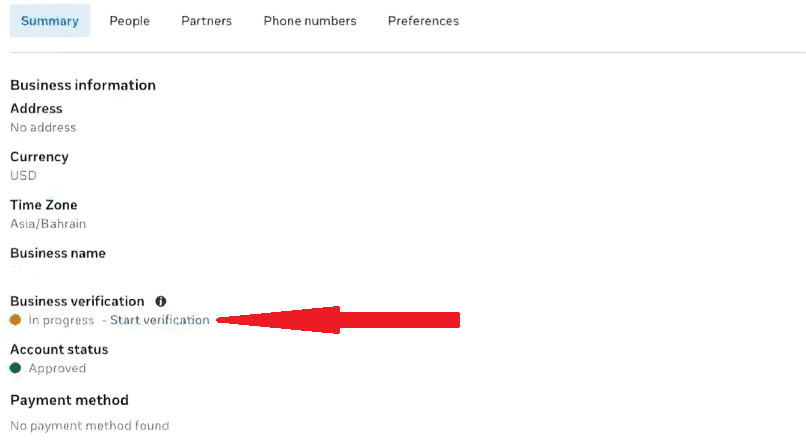
Example: The following image shows that the Business verification status is still In Progress.
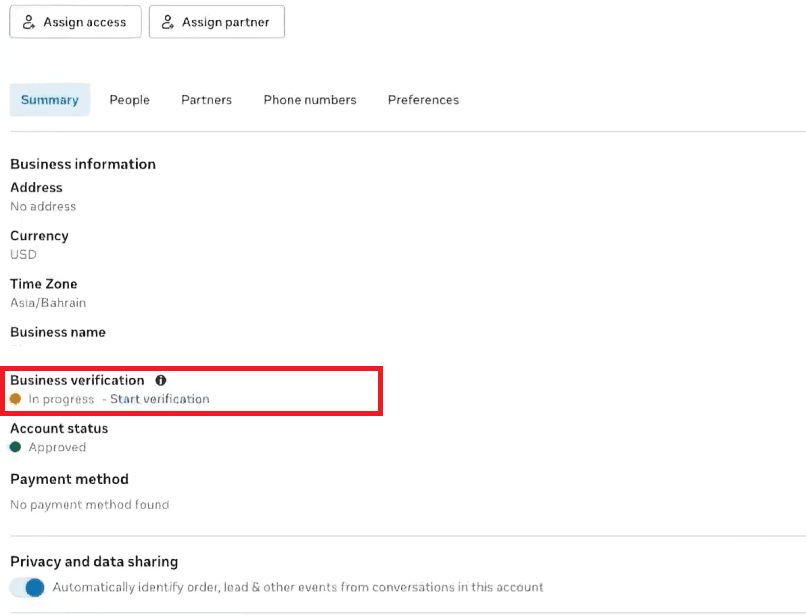
What should I do if the status is In Progress?
If the Business verification status is In Progress, it is recommended to:
1. Click on Start verification
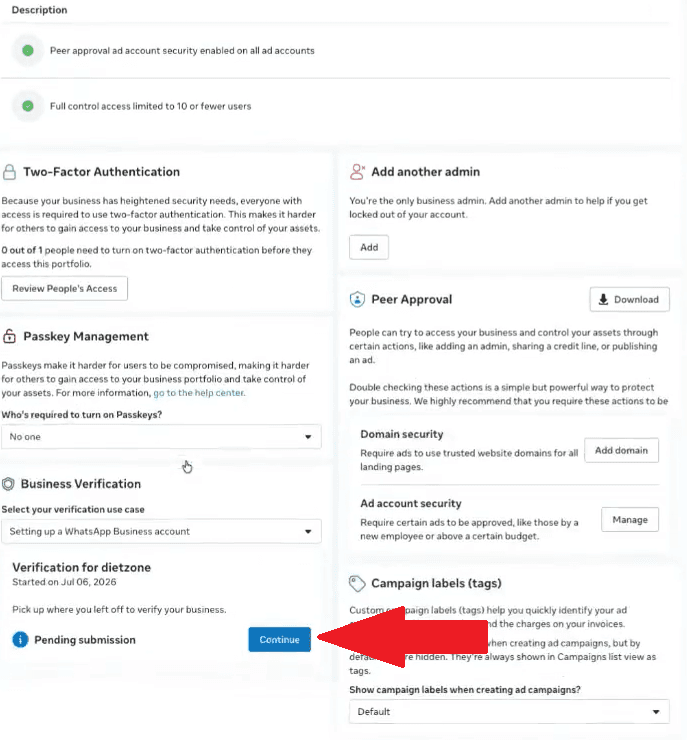
2. Review the description, then from the Business verification section, click continue
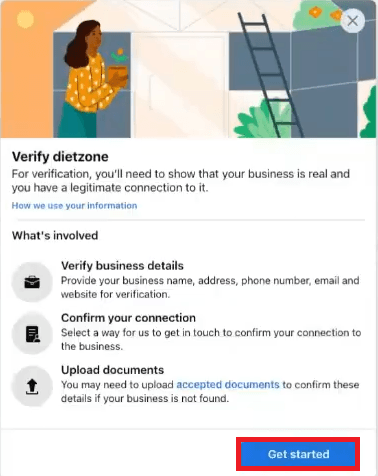
3. Click Get start, then complete the account verification process.
📌Note: If the Business Verification status is In Progress, you just need to wait for Meta's review to be completed, unless you are asked to provide additional information or documents. If the verification request is rejected, you can contact Meta Support to find out the reason for the rejection and complete the required requirements.
When can I proceed?
You can proceed after the Business verification status changes to Verified, ensuring that:
- Account status = Approved
- Payment method = Salla (if this is part of your linking requirements)
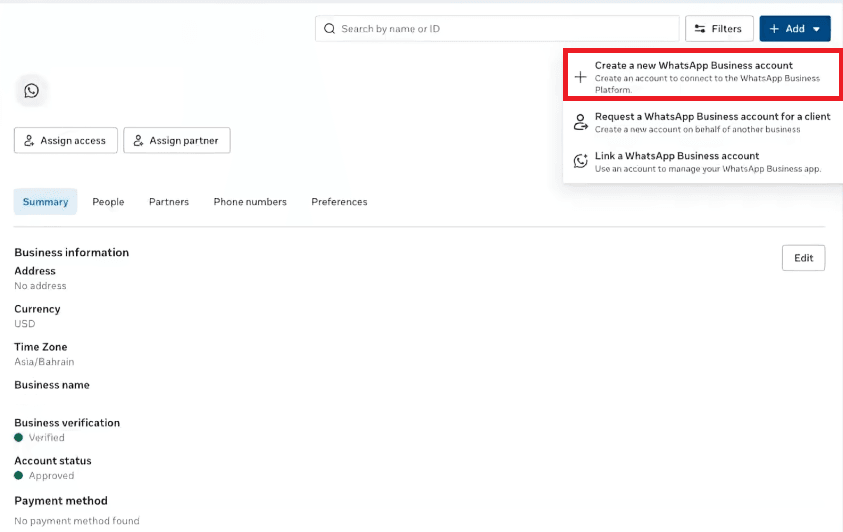
I need to modify my WhatsApp Business account details, but the edit option is not available. What should I do?
In this case, you cannot modify the current WhatsApp Business account details. If you need to use different details, create a new account by clicking Add then Create a new WhatsApp Business account.
📌Note: Some basic details (such as the WhatsApp Business account name) cannot be modified after the account is created, so a new account must be created if changes are needed.