How many times have customers abandoned their carts because their preferred payment method wasn’t available?
With Al Rajhi Rewards, you can turn loyalty points into a flexible payment option, allowing customers to pay partially or fully using their reward balance, and helping you increase completed purchases effortlessly.
This guide explains how to activate Al Rajhi Rewards in your store and manage points smoothly.
📌 Article overview
- What is Al Rajhi Rewards?
- Steps to enable Al Rajhi Rewards
- Managing points and rewards
- Frequently asked questions
Note: This feature is currently available only for stores in Saudi Arabia.
What is Al Rajhi Rewards?
Al Rajhi Rewards is a payment method that allows customers to use their loyalty points as a form of payment when purchasing from your store.
Customers can pay part or all of the order amount using their reward points.
Registration and activation are managed through the Al Rajhi Rewards platform.
Steps to enable Al Rajhi Rewards
- From the main menu, open the All tab.
Under Settings & Tools, click Payment Methods.
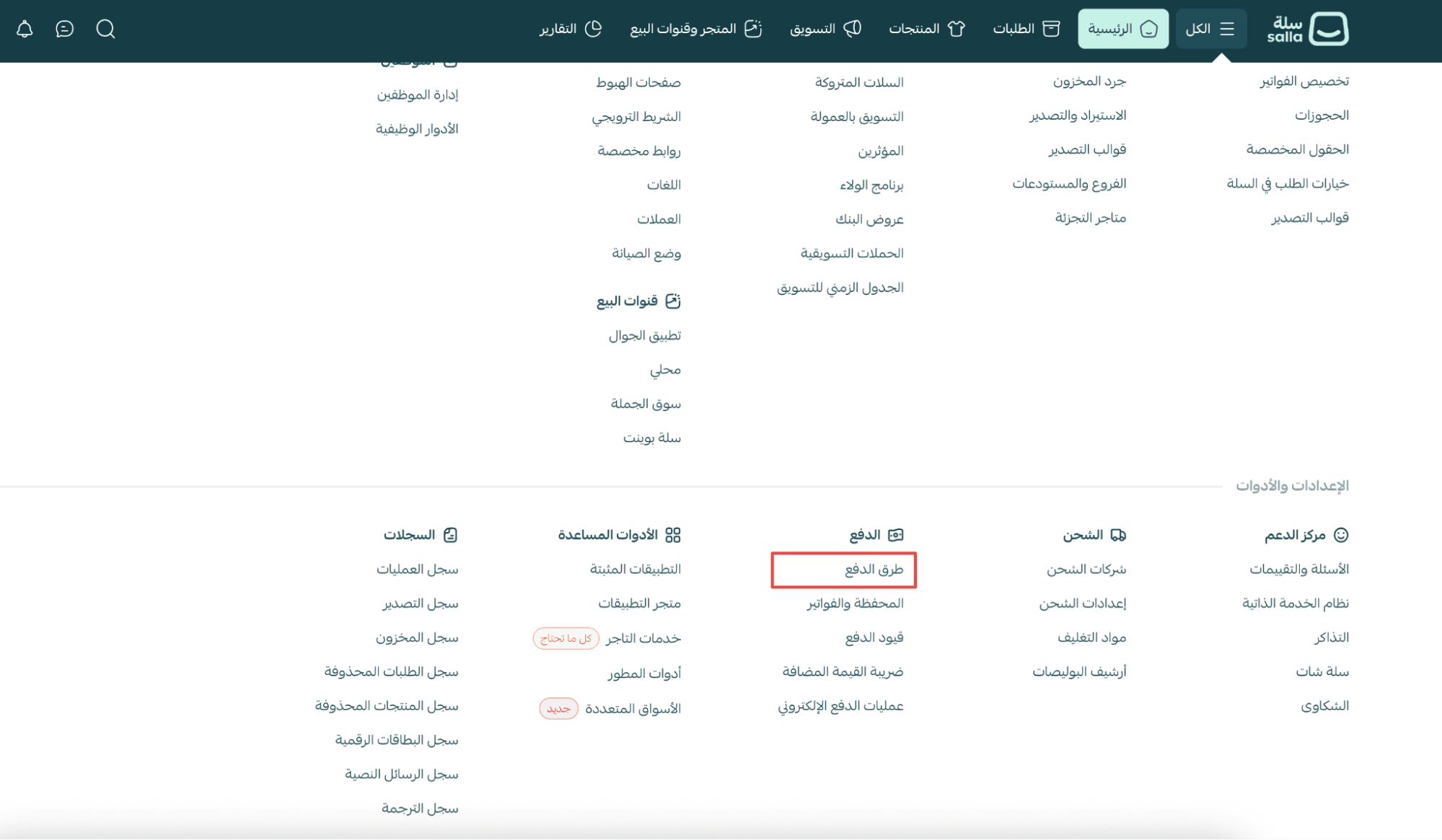
2. In the Loyalty Points Payments section, locate Al Rajhi Rewards and click Enable.

3. Under the Settings tab:
- Enter your Merchant Token in the required field
- Optionally enable showing the Al Rajhi Rewards logo on the product page
- Choose the activation option that fits your store needs
Option 1: Enable point redemption
If you want customers to pay using their reward points:
- Turn on Point Redemption
- Agree to Salla’s sales policy
- Customers will be able to redeem points during checkout
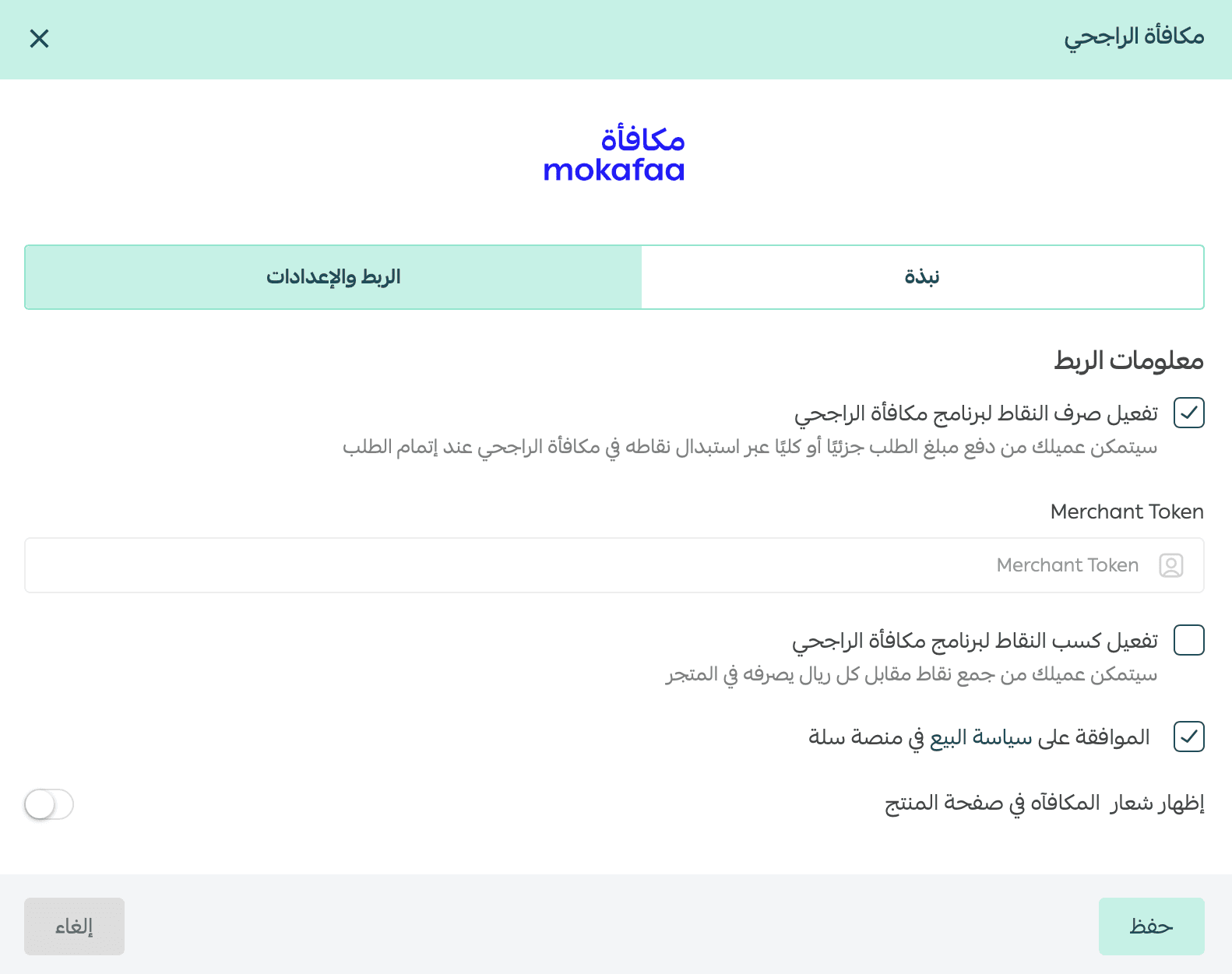
Note: Your merchant token is provided through your Al Rajhi Rewards merchant dashboard.
Option 2: Enable point earning
If you want customers to earn points on purchases:
- Enable Point Earning
- Configure the earning rules based on the agreement with Al Rajhi Rewards
- Enter the required program settings and click Save
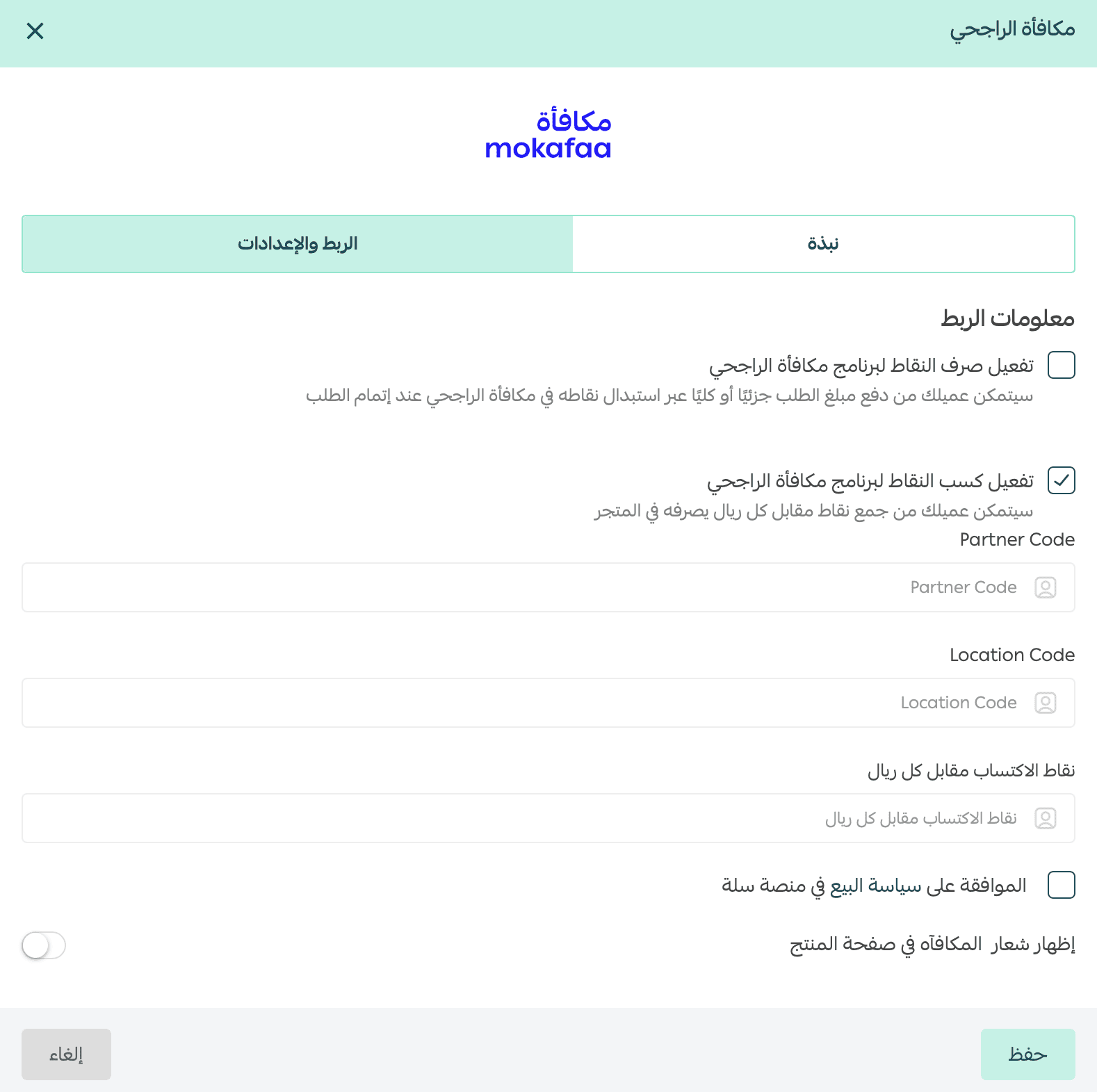
The system will validate the information and activate point earning automatically.
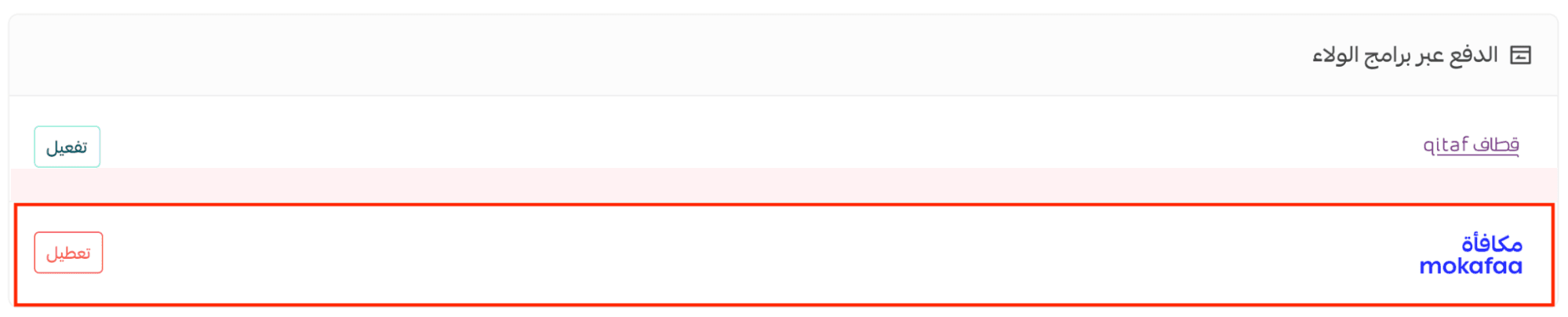
Once completed, Al Rajhi Rewards will be successfully enabled in your store.
Managing points and rewards
Using reward points at checkout
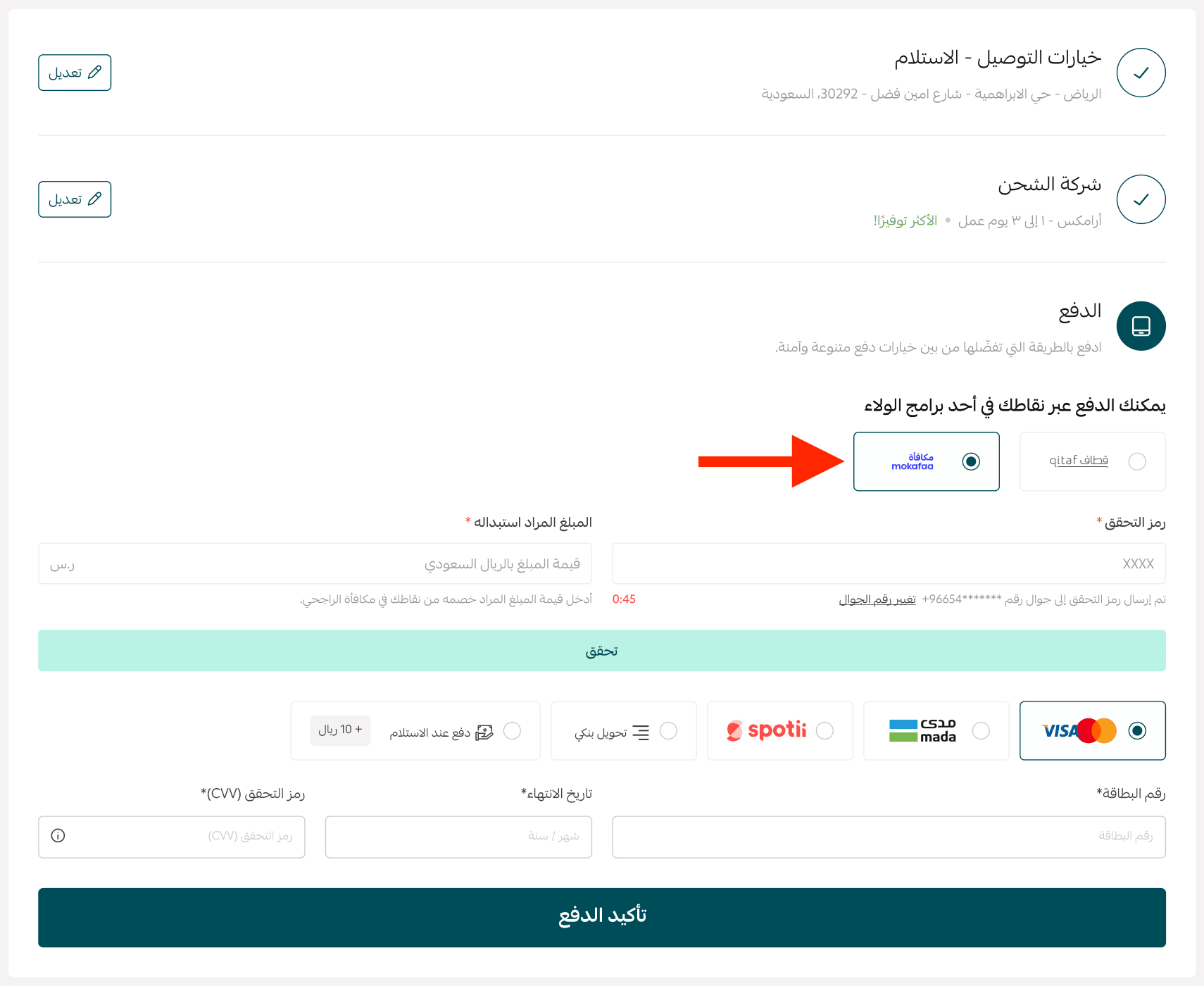
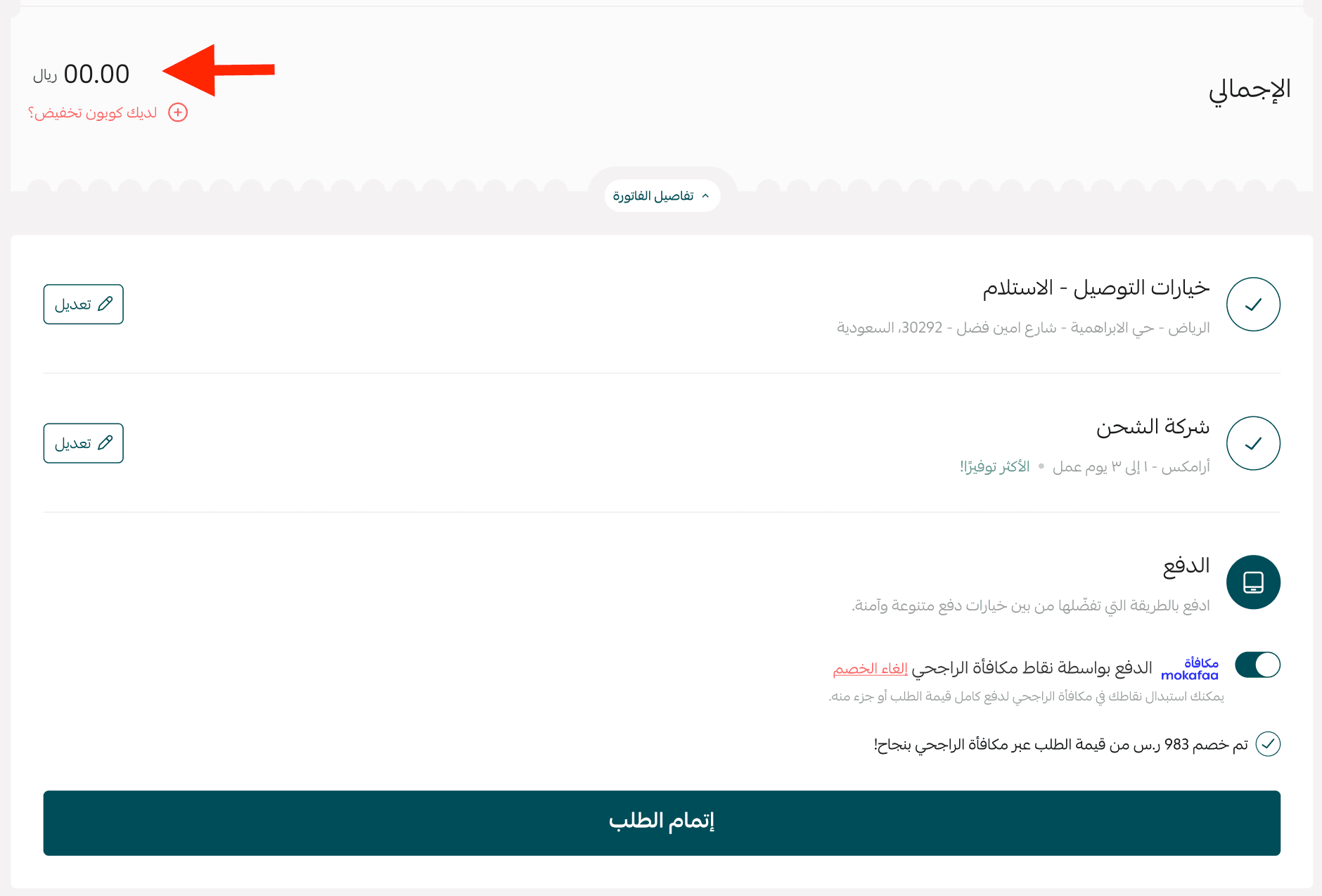
At checkout, the customer can select Al Rajhi Rewards as the payment method.
They will be asked to enter the mobile number registered with Al Rajhi.
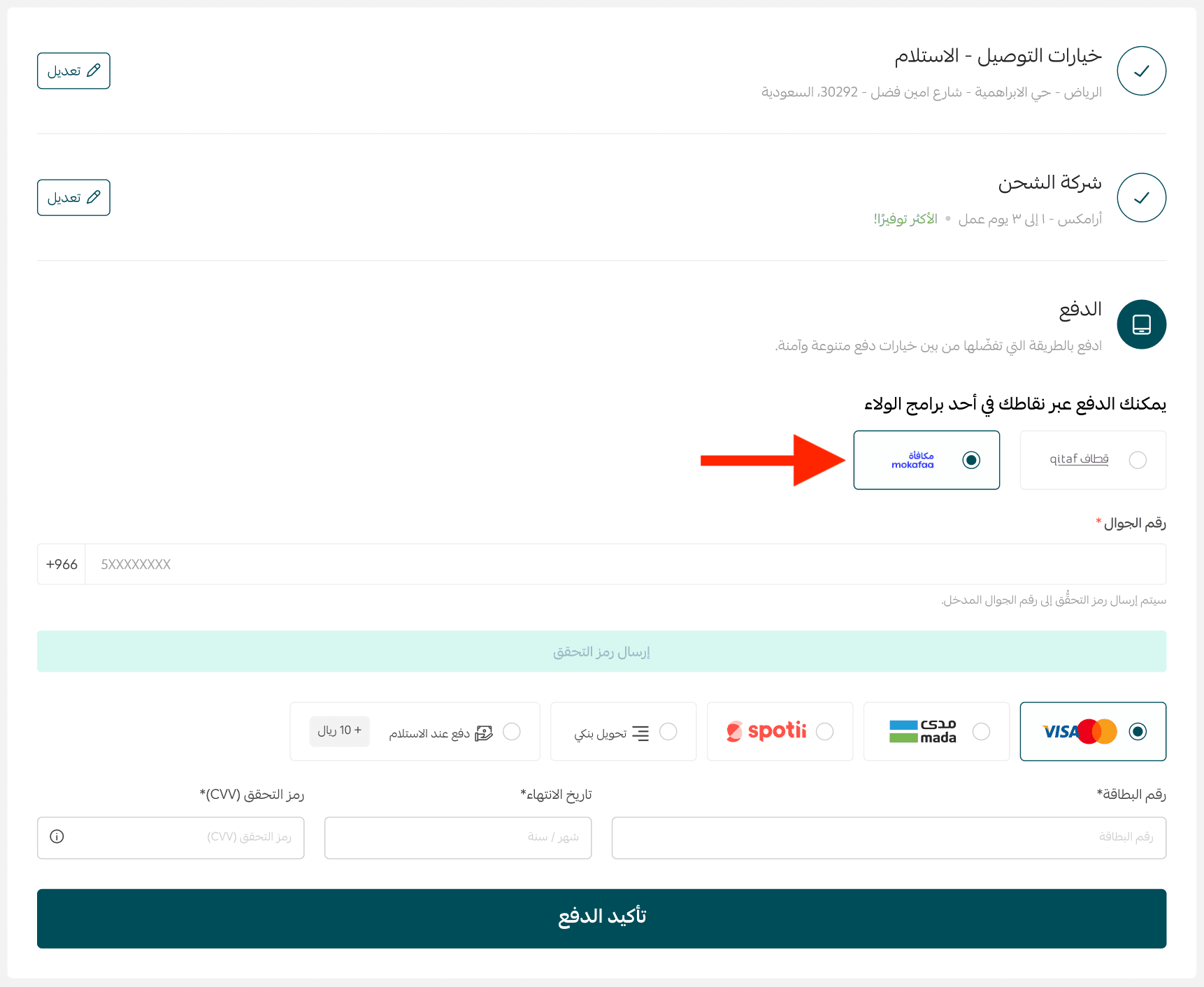
After entering the number:
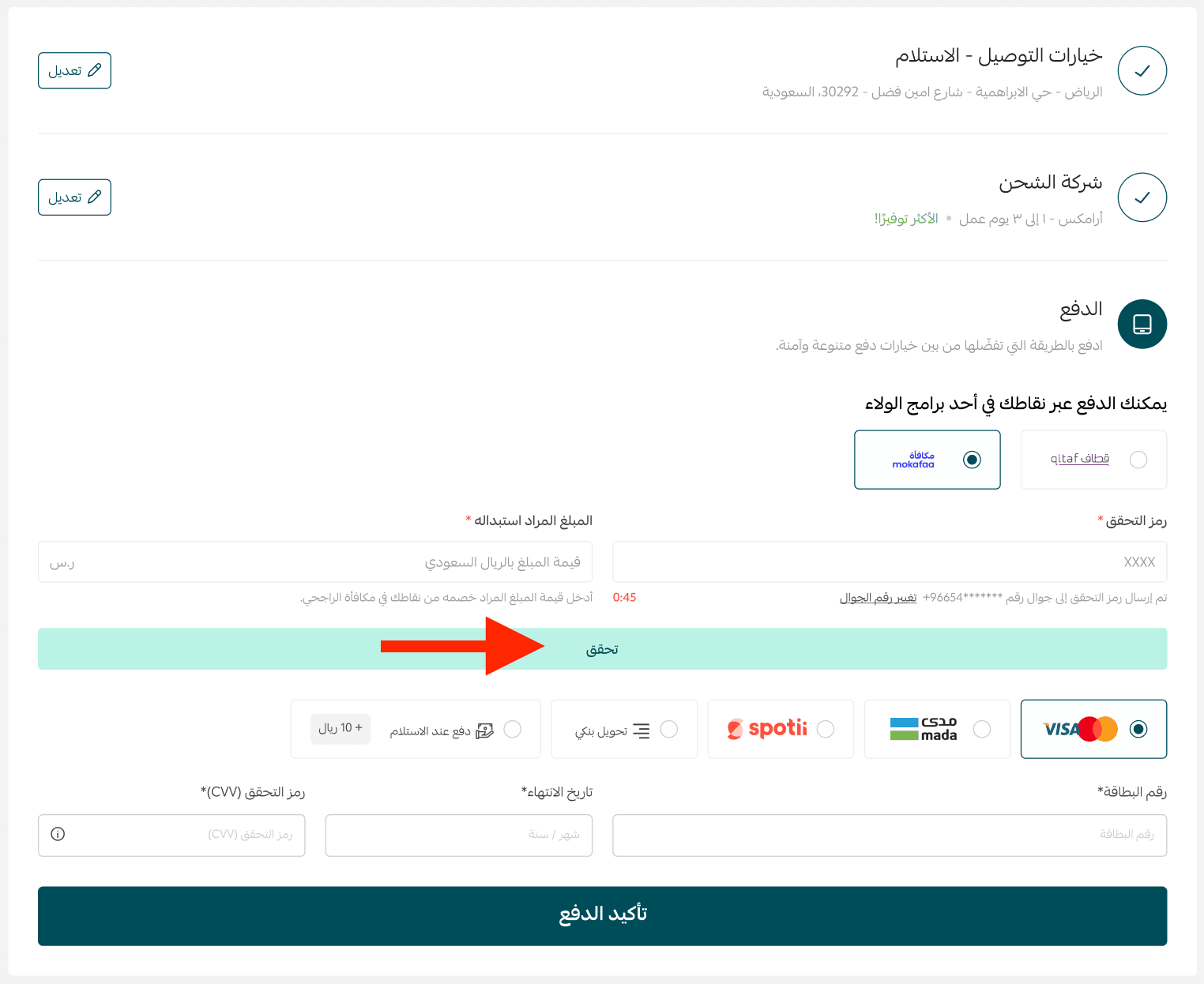
- A verification code will be sent to the customer
- The customer confirms the amount to redeem
- The process is completed by clicking Verify
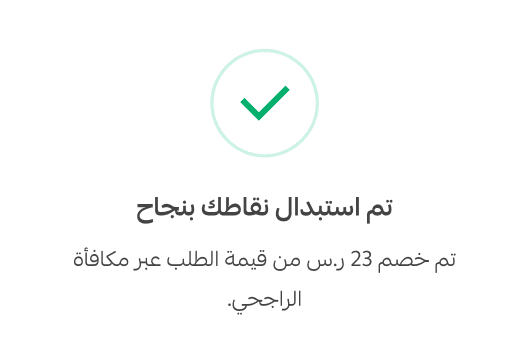
A success message will appear confirming that points were redeemed.
Refunding points when an order is returned
If an order paid with Al Rajhi Rewards is refunded:
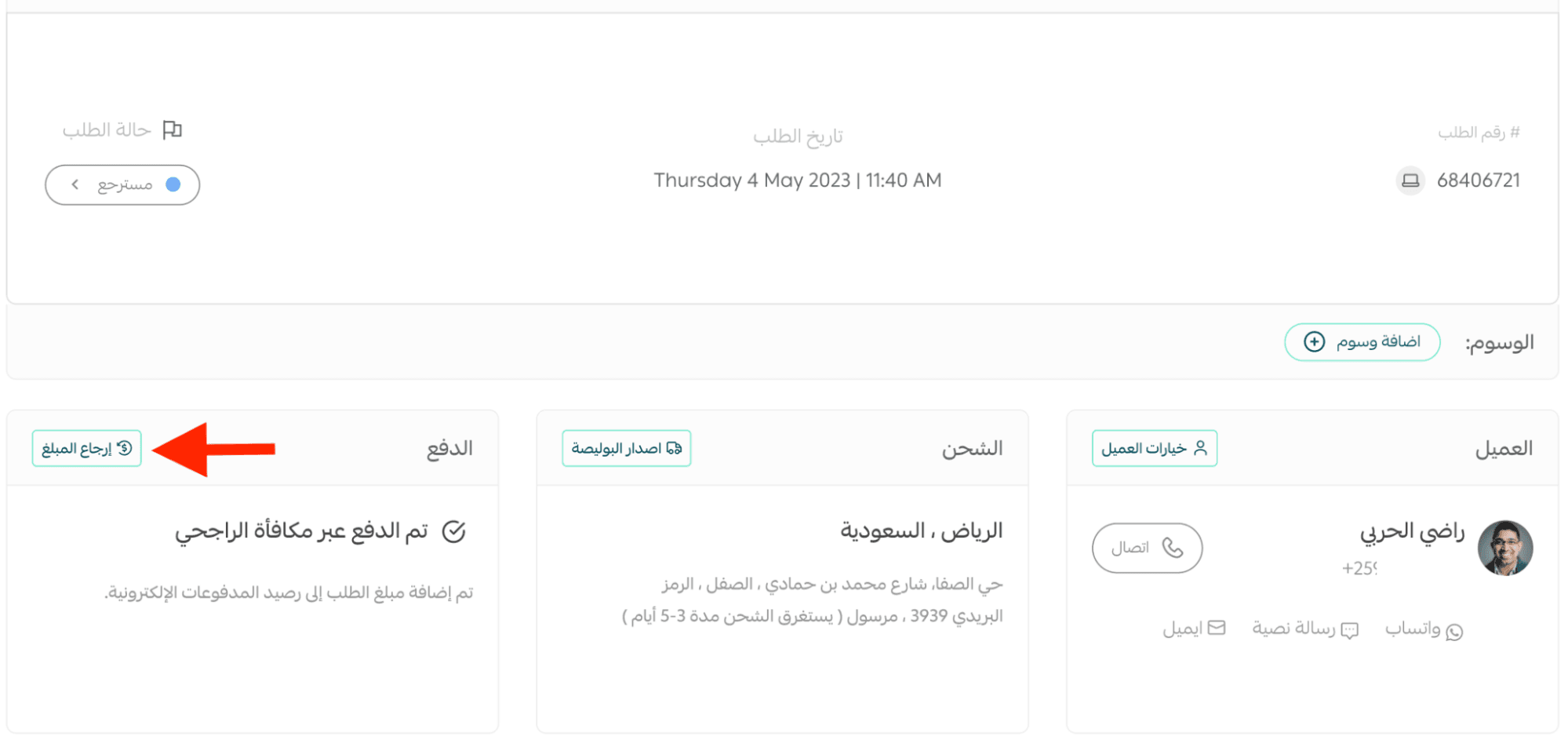
- Change the order status to Refunded
- In the Payment section, click Refund Amount
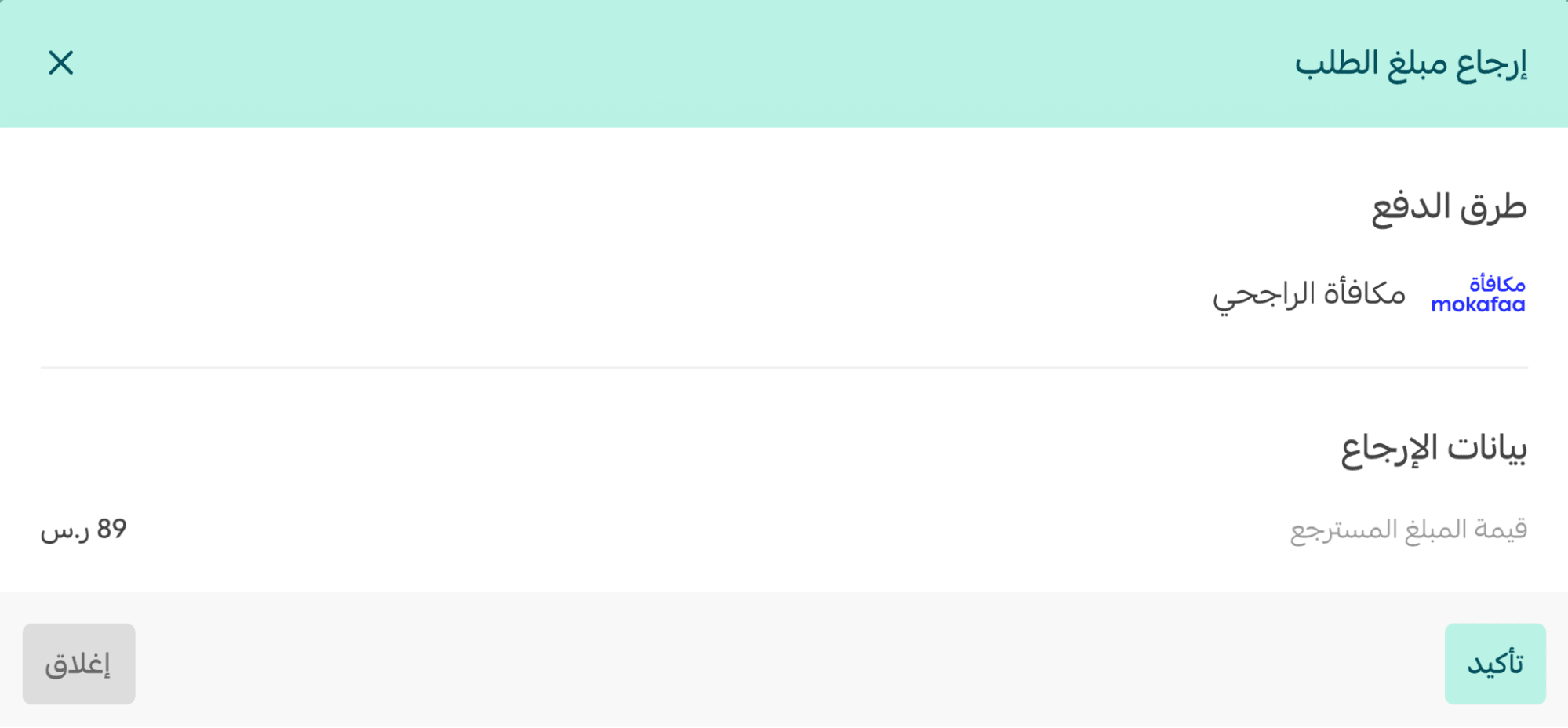
3. Confirm the refunded value and click Confirm
4. A final confirmation message will appear
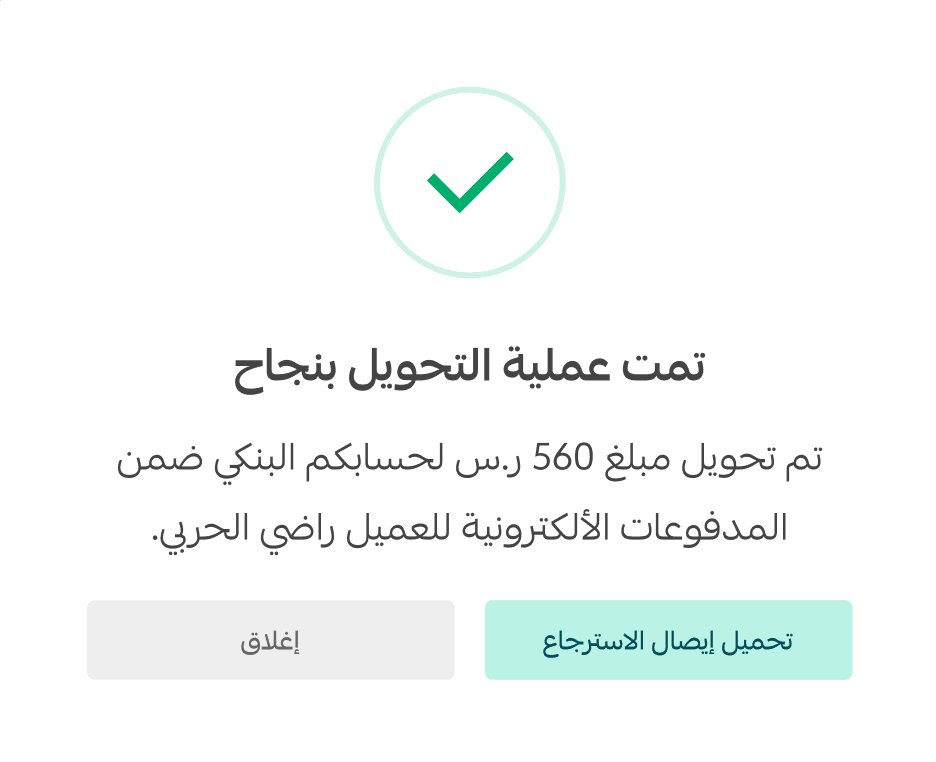
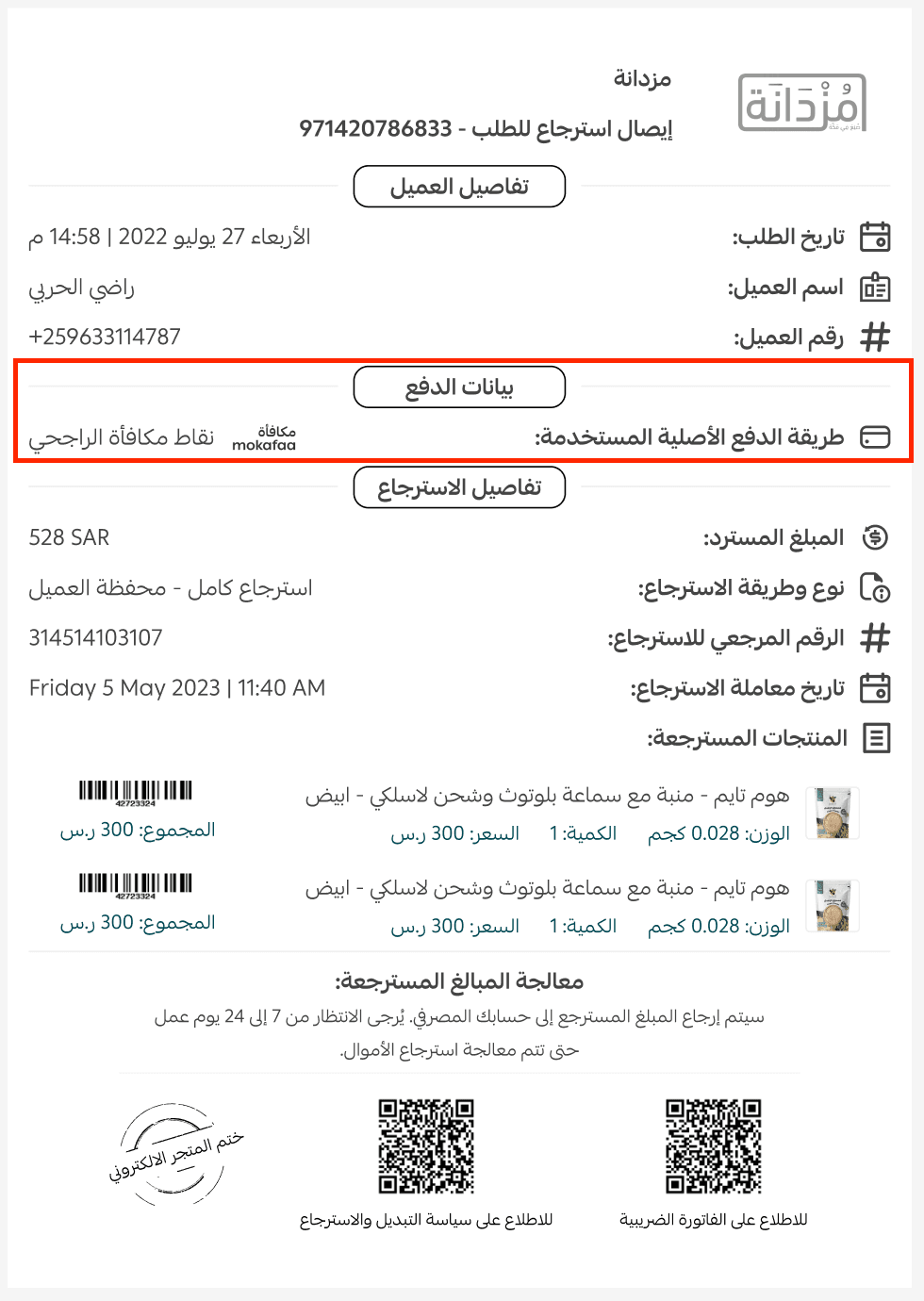
The refund will be processed successfully, and you can download the refund receipt.
Points can also cover the full order amount if the customer has sufficient balance.
Frequently asked questions
What are the requirements to subscribe?
This feature is available only for stores on paid plans, such as:
- Salla Plus
- Salla Pro
- Salla Special
Does Al Rajhi Rewards charge fees?
Yes. Activation requires direct communication with Al Rajhi Rewards and signing an agreement.
Al Rajhi Rewards takes a percentage of the order value based on redeemed or earned points.
How is the payment commission calculated?
Payments are transferred by Al Rajhi Rewards to the merchant account within their platform.
The commission is calculated based on the contract agreement between the merchant and Al Rajhi Rewards.
When do customers receive earned points?
Points are automatically granted only after the order status changes to one of the following:
- Fulfilled
- Delivered
- Out for Delivery
- Shipped
Note: Points are not awarded at the moment the order is created. The order must reach one of the statuses above.
Which payment methods do not qualify for earning points?
Points are not earned on orders paid through Buy Now, Pay Later (BNPL) providers, including but not limited to:
- Tabby
- Tamara
- Emkan
- Madfu
- Mispay