Customer experience starts from the moment users register in your store. With Customer Settings, you can control how customers interact with your store and provide a smooth, secure login experience.
📌 Article overview
- Customer settings page
- Additional customization options
Customer Settings Page
From the main menu: (All) → (Customers) → (Customer Settings)

You’ll see a list of configurable options to tailor the customer experience.
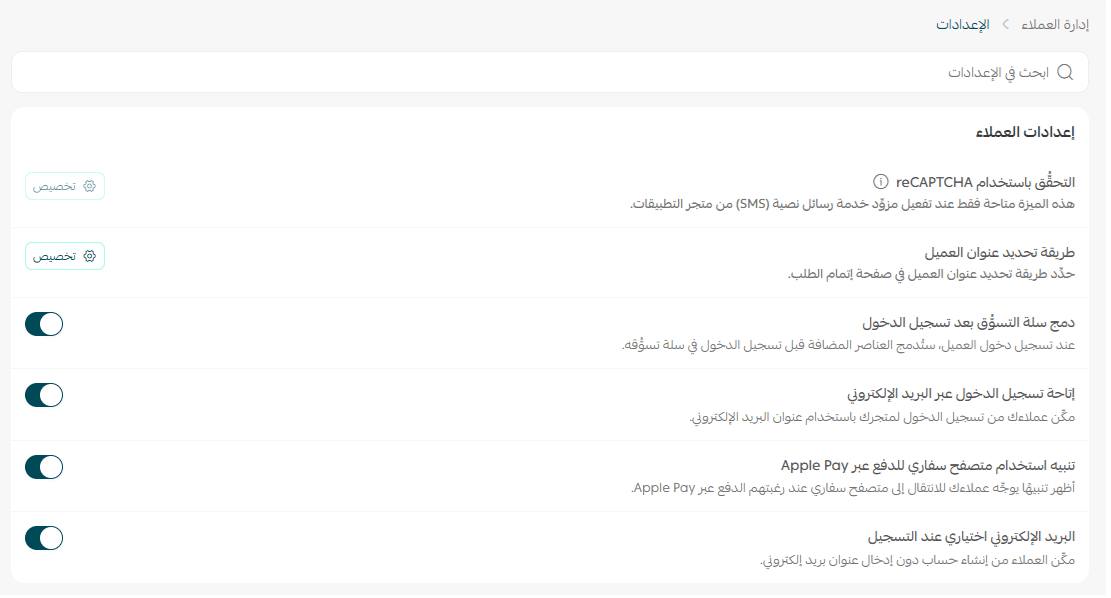
Key settings
- Optional email during registration
Allow customers to create accounts without entering an email - Enable login via email
Let customers sign in quickly and securely using their email - Merge cart after login
Automatically merge previously added items into the cart after login - Safari alert for Apple Pay
Prompt users to switch to Safari when using Apple Pay
Additional customizations
- Customer address method

Choose how customers enter their address during checkout:
- National address
- Geolocation (maps-based)
You can also select your preferred map service provider.
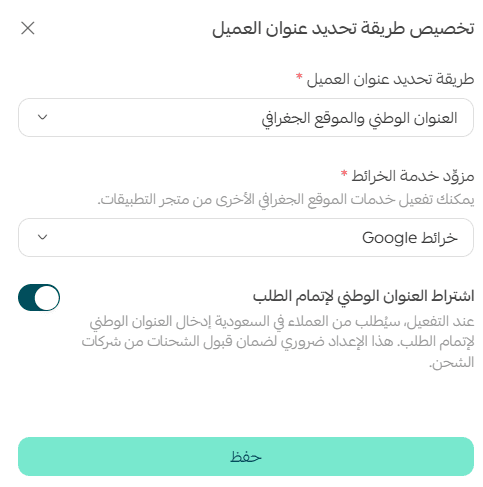
This helps:
- Save customer time
- Improve delivery accuracy
2. Customer verification method
Add an extra verification step before login to prevent bots and fraud.
Ideal for:
- Improving login experience
- Enhancing account security
- Reducing fraudulent activity
- Supporting modern payments (e.g., Apple Pay)
Note: Requires integration with an external SMS provider.
Setup steps:
- Go to Customer Verification Settings → click Customize

2. Select verification options
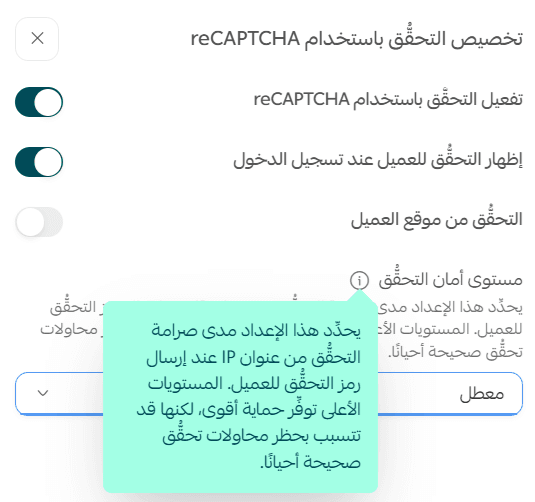
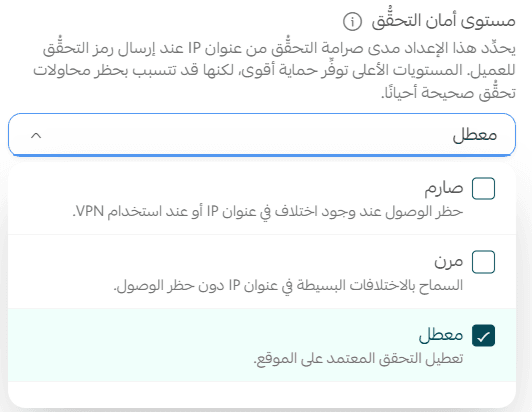
3. Choose verification security level:
- Strict: Blocks access if IP changes or VPN is used
- Flexible: Allows minor IP differences
- Disabled
3. Cookie consent (Legal compliance)
Enable cookie consent to comply with regulations like:
- PDPL (Saudi Arabia)
- GDPR (EU)
Benefits:
- Legal compliance
- Protection when dealing with international users (EU, UK, Switzerland, EEA)
- Transparency and trust
Setup steps:
- Go to Cookie Settings → click Customize

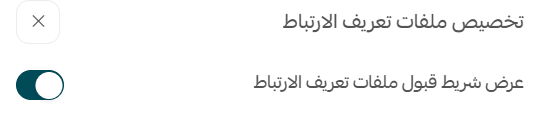
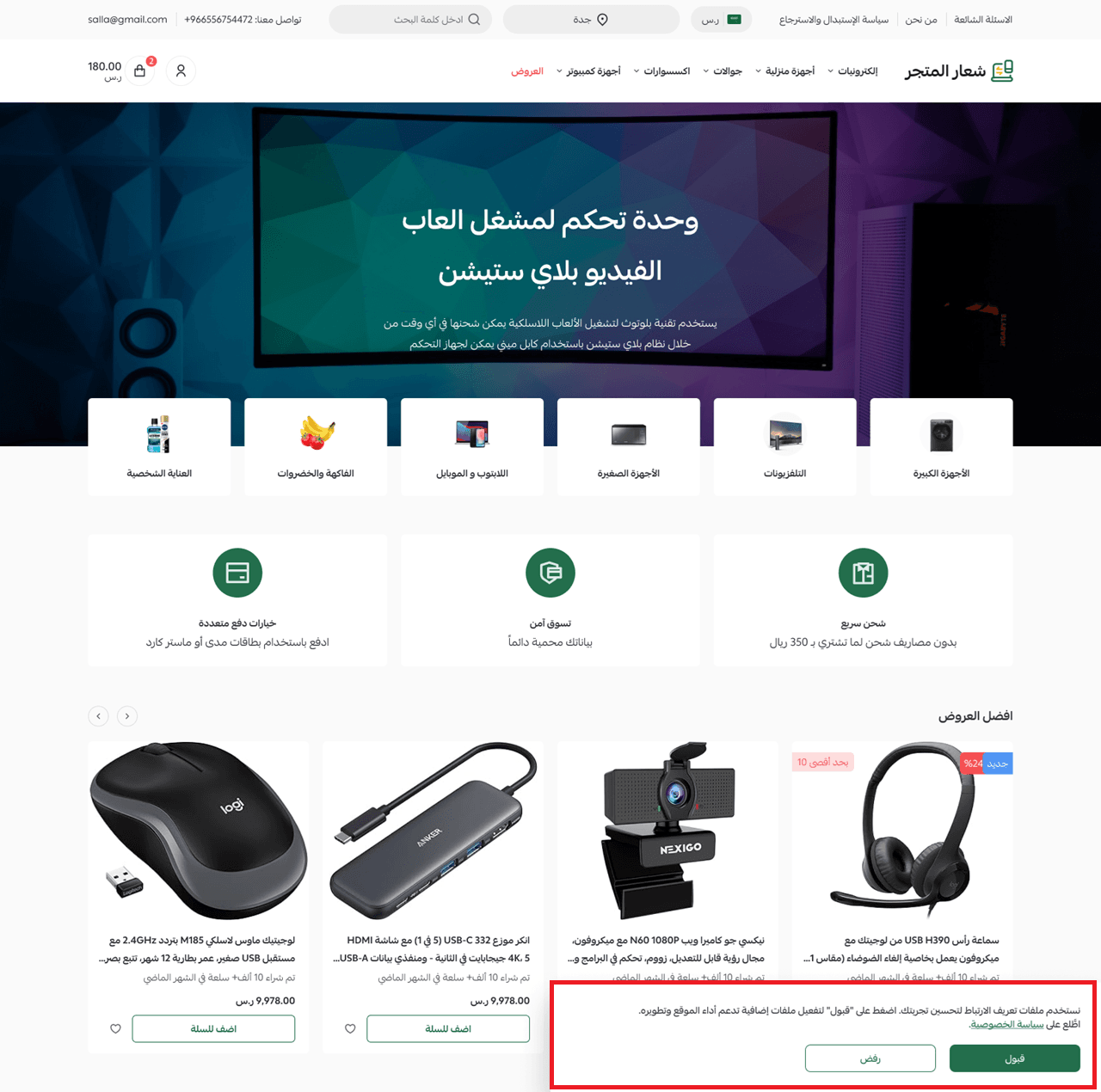
2. Enable consent banner (accept/reject cookies)
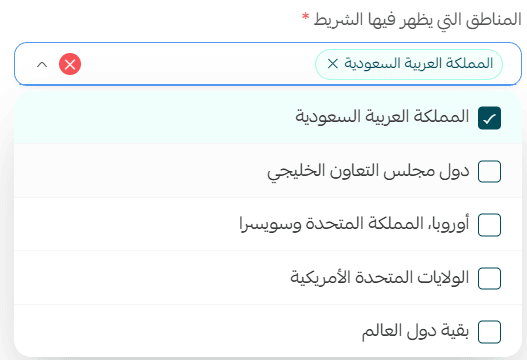
3. Select target regions
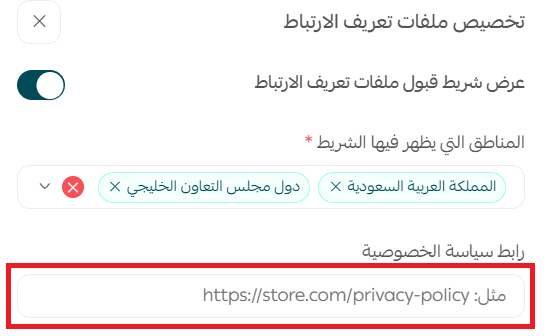
4. Add your Privacy Policy link
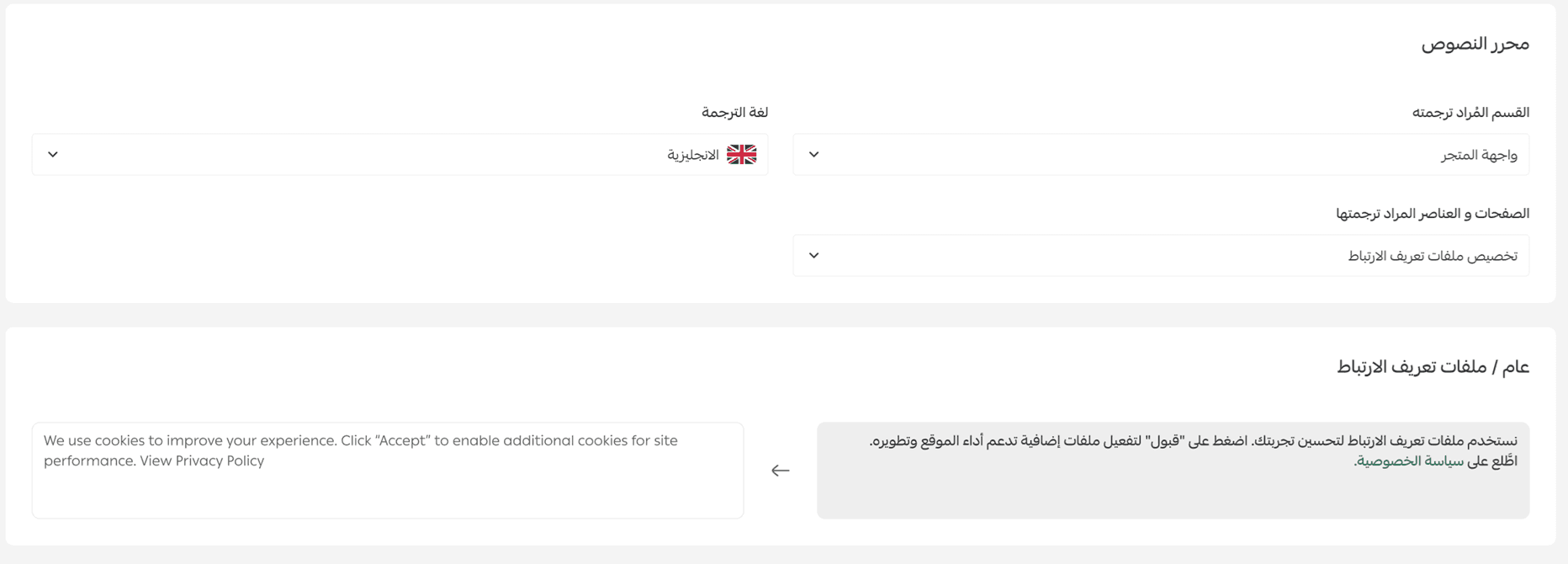
Customizing messages:
- Go to Languages → Text Editor
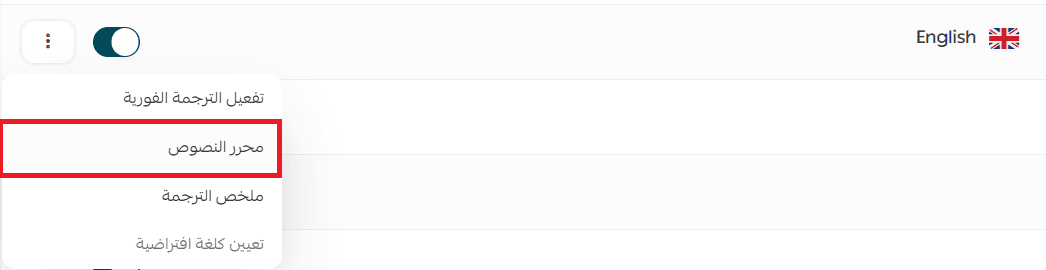
- Select Cookies
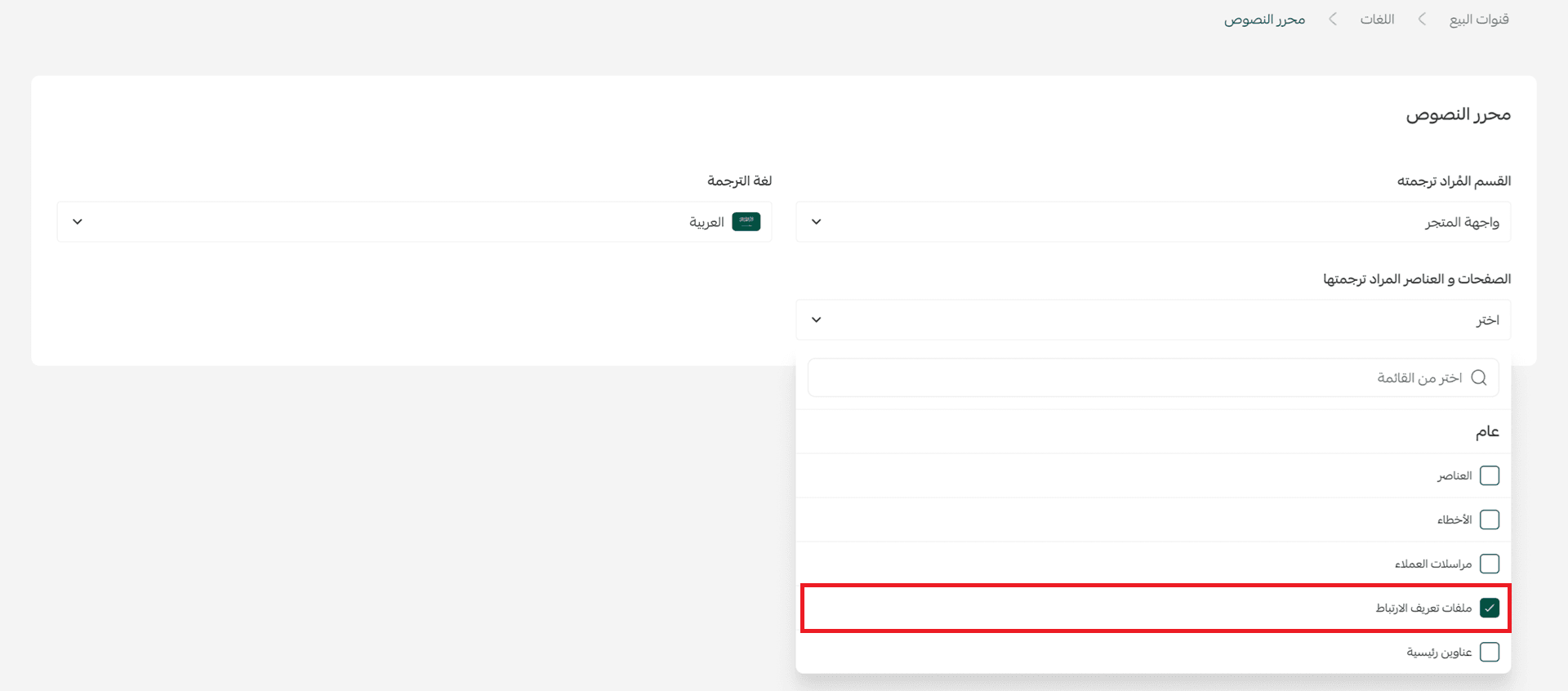
- Customize messages per language
Tip: Enabling cookie consent improves transparency and protects your store legally.
Final tip
Activate customer settings today to deliver a secure, seamless, and personalized shopping experience, and increase customer loyalty and conversions.