Do you find it challenging to manage product quantities accurately across your store’s different branches and markets?
Manual inventory management can lead to products running out of stock or being oversold, which negatively impacts the customer experience and increases operational errors.
In your store, product availability and quantities may vary between branches or markets, and each market may have its own pricing and options.
The Product Quantity Control Across Markets feature allows you to easily manage inventory, control product availability per branch and market, and ensure a smooth and professional shopping experience for your customers.
Using this feature, you can:
- Define which branches a product is available in
- Set product quantities per branch
- Update product quantities across store branches
- Set quantities for each product variant
This helps you avoid stock shortages or overstocking, improve customer experience, and enhance inventory management efficiency.
Define the branches where a product is available
- Go to the (Product Management) tab.

2. From the product action bar, click (Advanced Information).
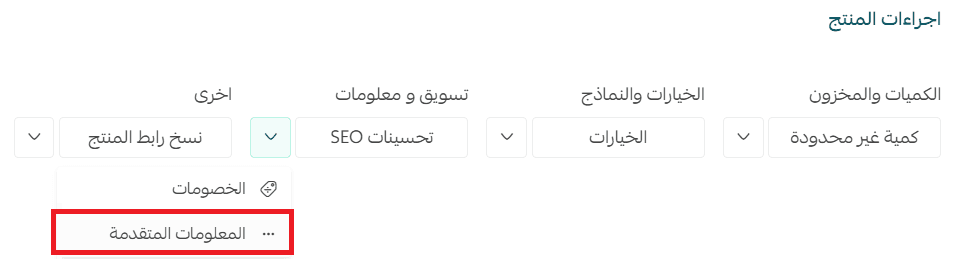
3. Select the markets where the product should appear, then click (Save).

Note: The product will not be displayed to customers unless a market is added under (Product Display in Markets).
Update product quantity for a specific market
- Select the branch where you want to update product quantities.

2. Enter the available product quantity for each branch, then click (Save).
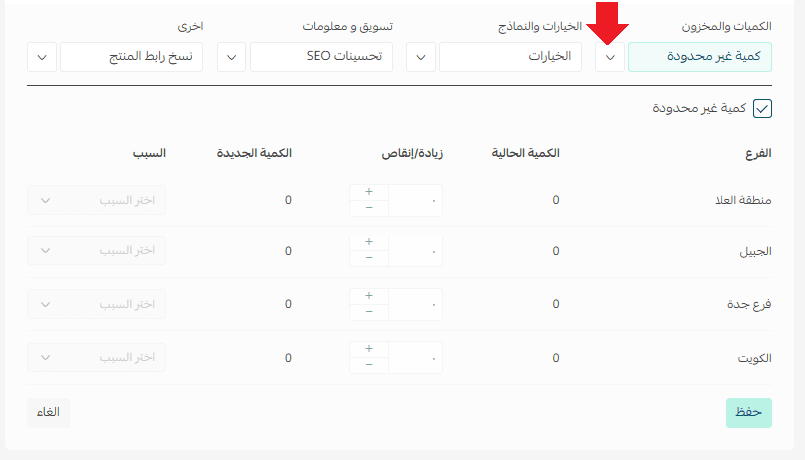
Set quantity for each product variant
If the product has variants, you can define the quantity for each variant across warehouses and store branches as follows:
From the product card, click (Manage Quantity).
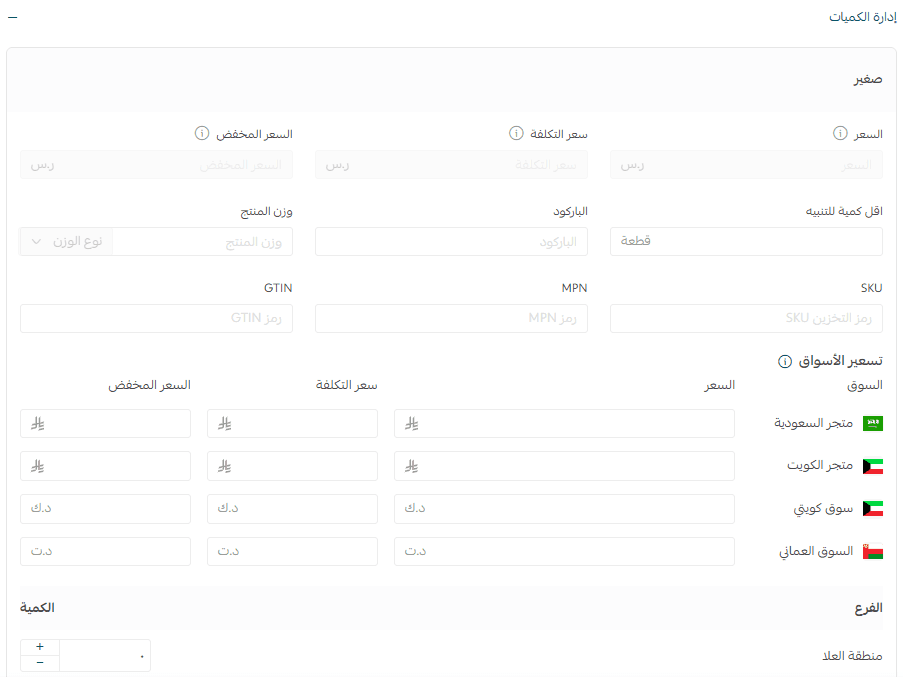
Enter the available quantity for each product variant, then click (Save).
Note: In stores with multi-market enabled, variant prices are adjusted only from the Market Pricing section, as each market has its own pricing.