- Steps to connect with DropCard app
- Managing DropCard app
👣 Steps to connect the DropCard app
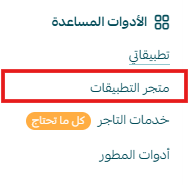
From the main menu, click (All), then from the Utilities section, click (App Store).
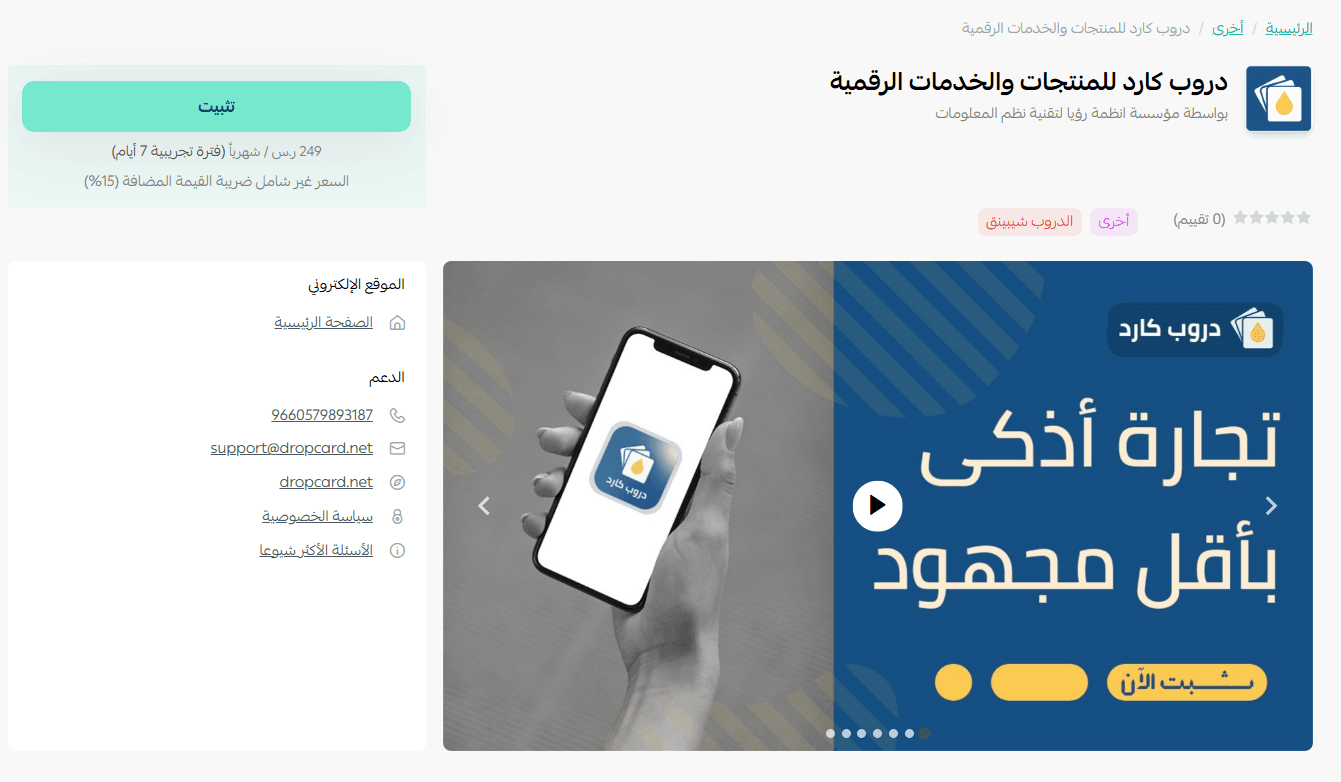
2. From the DropCard app page, click (Install)
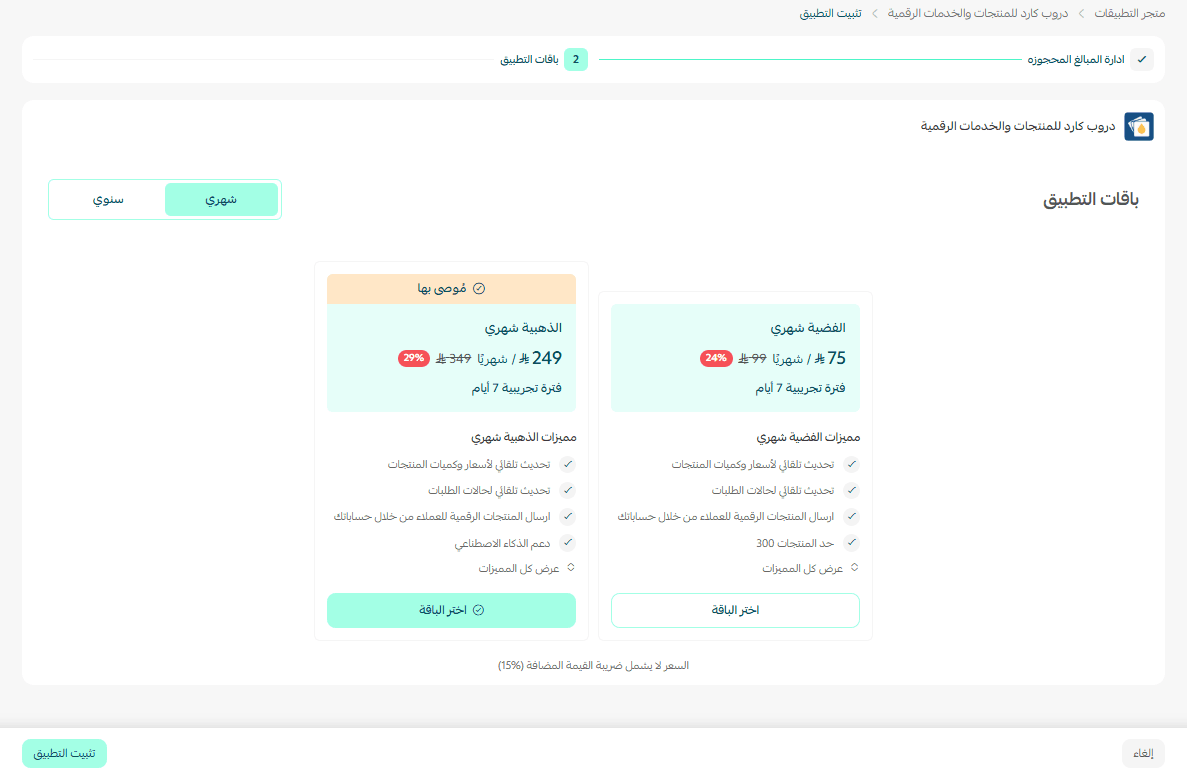
3. Choose the plan that suits you, then click (Install App).
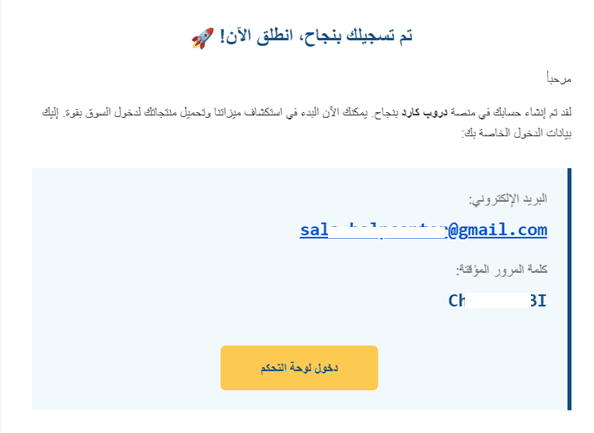
4. You will receive an email with login details for the site, then click (Enter Control Panel).
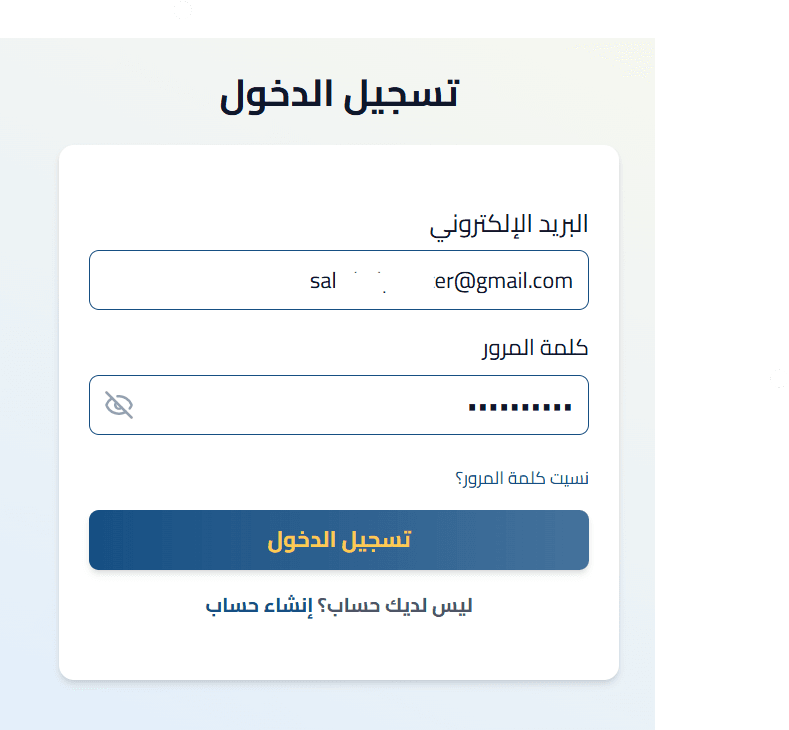
5. Enter the login details sent to you via email, then click (Login).
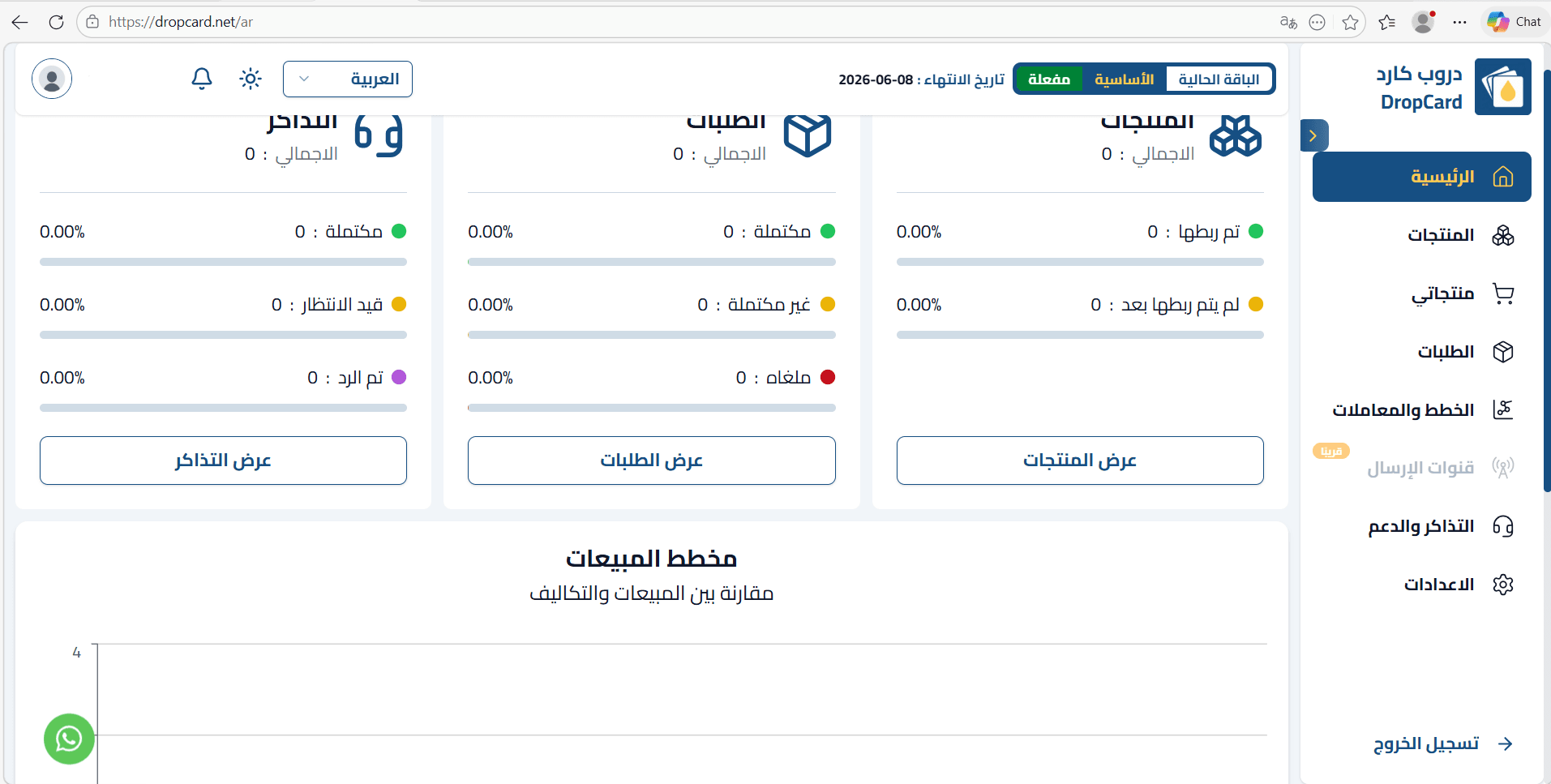
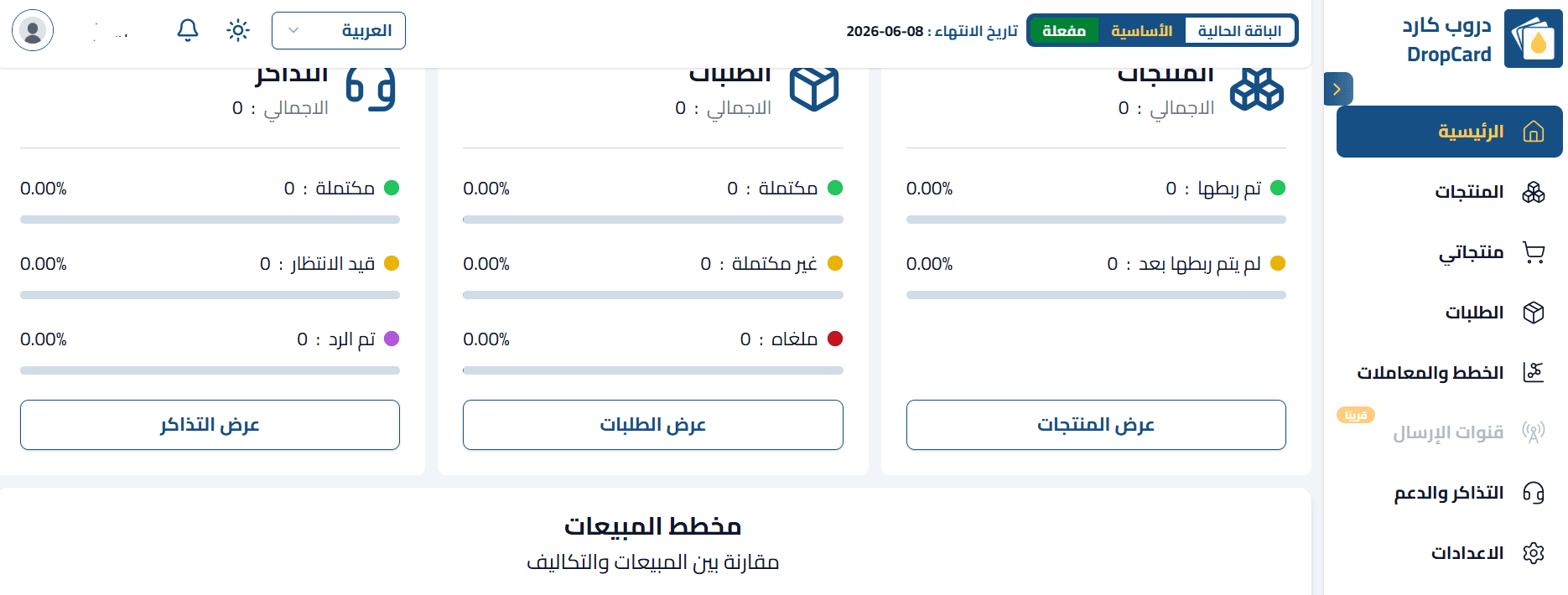
6. The homepage of your account on DropCard will appear.
🚀 Managing DropCard app
Upgrade plan
1. From the app details page in your store, click (Upgrade Plan).

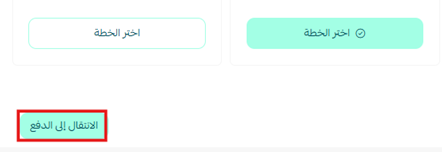
2. Choose the appropriate plan, then click (Proceed to Payment).
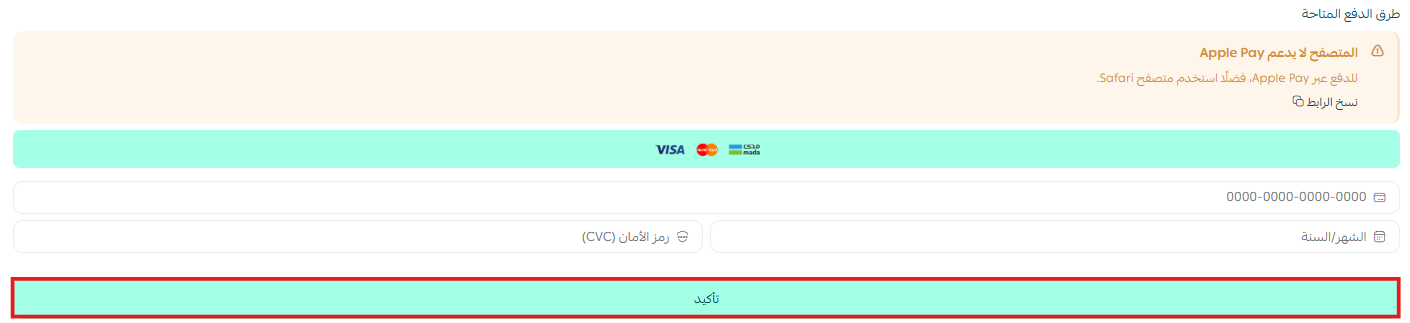
3. Complete the payment details, and click (Confirm) to complete the plan upgrade.
Customize App
🎯 You can manage the app from your account control panel on DropCard.
Delete App
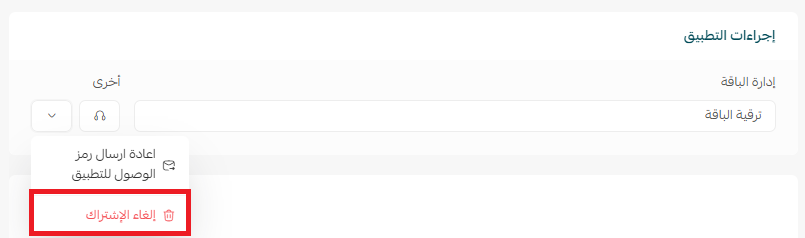
1. From the app options menu, click (Unsubscribe), and choose the reason for cancellation.
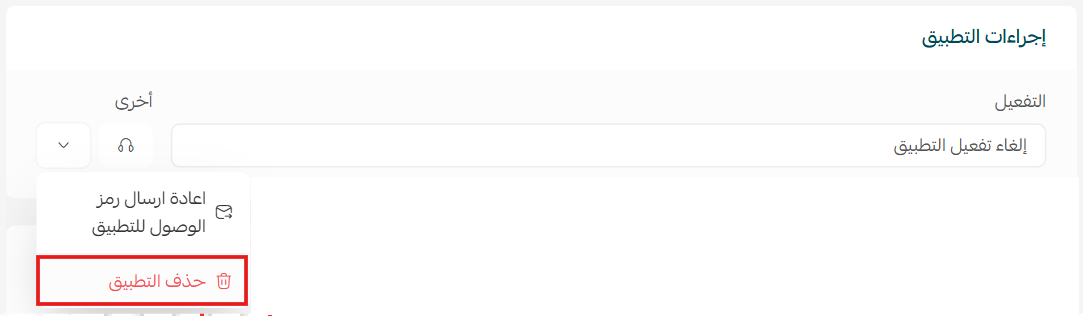
2. From the app options menu, click (Delete App), and choose the reason for deletion.
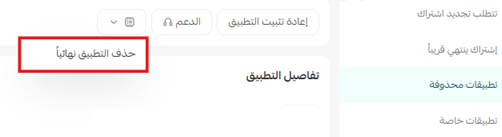
3. From the Deleted Apps page, from the app options menu, click (Permanently Delete App) to remove the app from the store permanently.
For more details about the DropCard.