Is issuing tax-compliant invoices still a manual job in your store?
Every order that leaves your store needs an invoice that matches ZATCA requirements, and doing that by hand does not scale. The Invora e-invoicing app connects your Salla store to an automated invoicing engine that issues invoices and credit and debit notes for you, keeps the data in sync, and handles compliance without any technical work on your side. In this guide, you'll learn how to install Invora, point your store's invoicing at it, and remove the app if you need to.
Invora is an e-invoicing app for Salla stores. Install it from the Salla App Store and pick a plan to start your trial. Then open your invoice settings, set the invoice issuing method to (Custom), and Invora issues ZATCA-compliant invoices and notices for every order automatically.
📌 Article overview
- What the Invora app does
- How to install the Invora app
- How to set up invoicing with Invora
- How to delete the Invora app
- Frequently asked questions
🎯 What the Invora app does
Invora links your store to an e-invoicing service that issues invoices and notices automatically, in the format the Zakat, Tax and Customs Authority (ZATCA) expects.
- Issues invoices and credit and debit notices automatically for your orders.
- Keeps invoice data synced between your store and the invoicing service.
- Handles ZATCA compliance for you, with no manual steps and no developer needed.
🚀 How to install the Invora app
1. From the main menu, click (All), then under helper tools, click (App Store).

2. Search for the app using the search field.

3. On the Invora app page, click (Install).
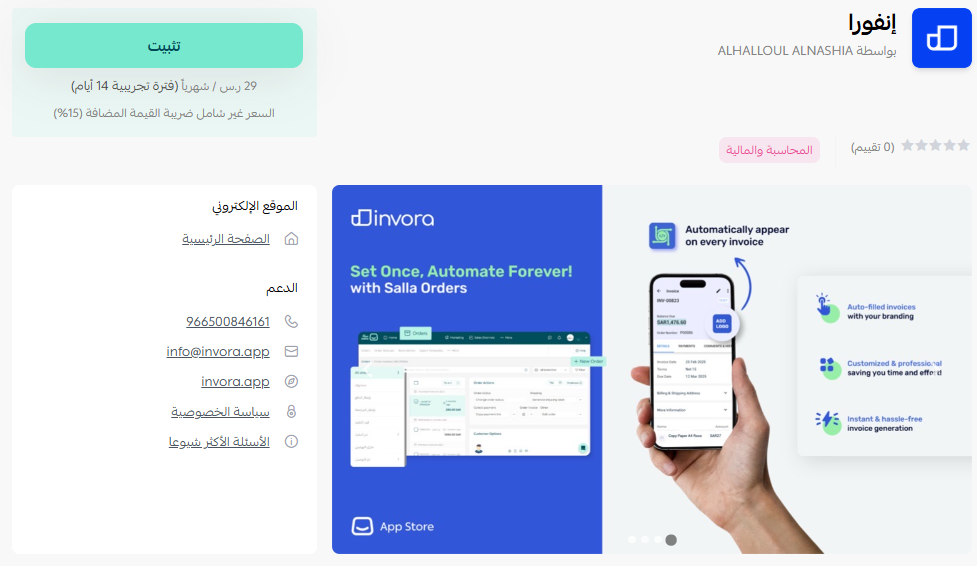
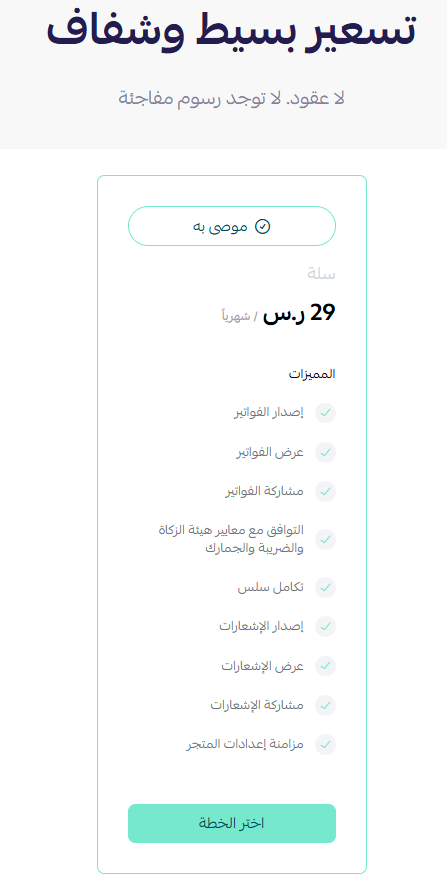
4. Choose the plan that suits your business to continue with the installation.
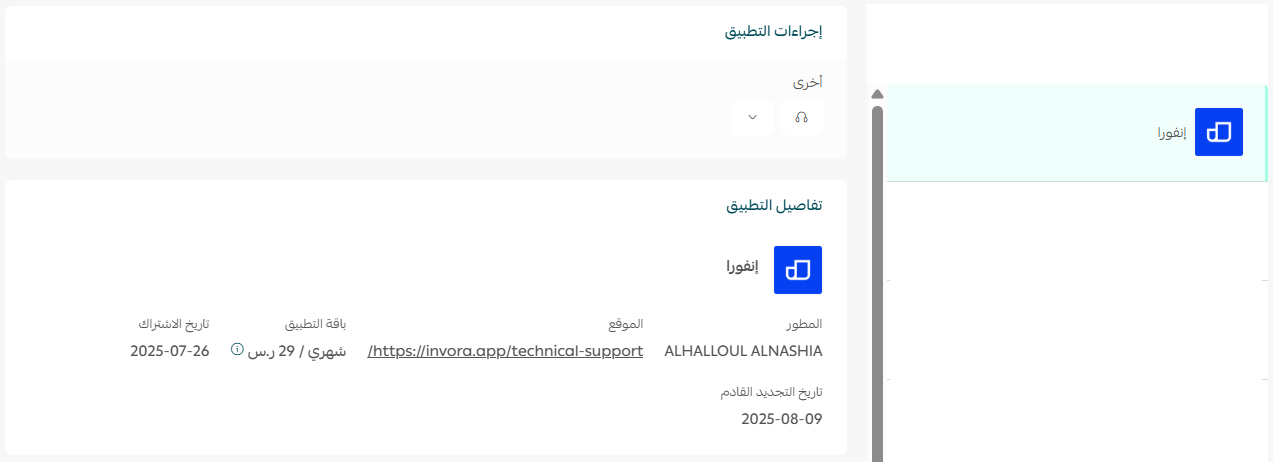
Invora is now installed on your store and your trial period starts.
👣 Manage the Invora app
Set up invoicing
1. From the main menu, click (Orders), then click (Customize invoices).
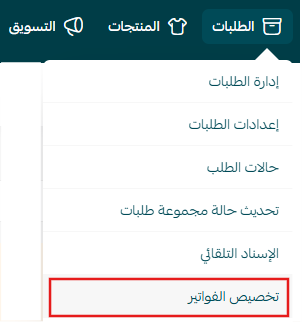
2. Under the invoice issuing method, click (Custom).
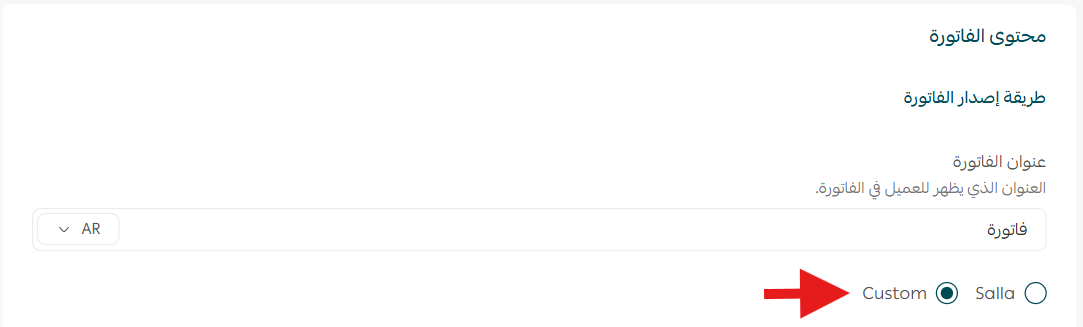
Your store now issues its invoices through Invora instead of the default template.
Delete the Invora app
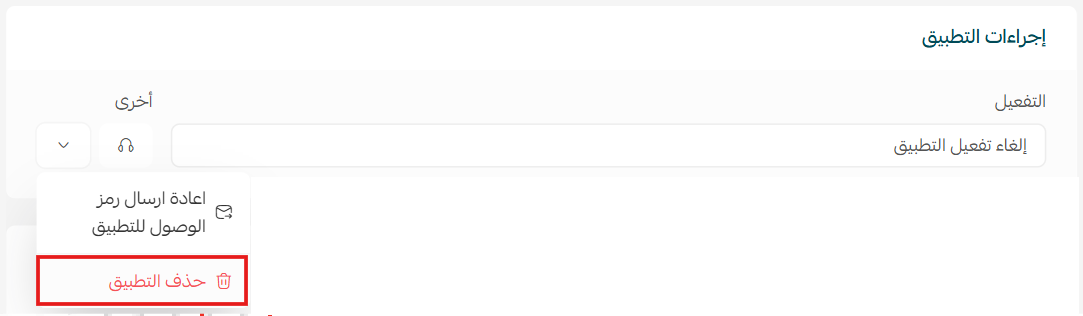
Open the Invora app from your installed apps, click ( ), then click (Delete app).
📝 Important notes
Installing the app is not enough on its own. Invoices only go through Invora once the invoice issuing method is set to (Custom).
The app starts on a trial period, so you can test the invoicing flow before committing to a plan.
❓ Frequently asked questions
Do I need technical skills to use Invora?
No. The app handles the connection and the compliance rules for you, so there is nothing to code and nothing to file manually.
Is there a trial period?
Yes. After you choose a plan, the app is installed on a trial period so you can try it before you pay for a full subscription.
Where do I change the invoice issuing method?
From the main menu, click (Orders), then (Customize invoices). The invoice issuing method is on that page, and (Custom) is the option Invora uses.
How do I remove Invora from my store?
Open the Invora app from your installed apps, click the options icon, then click (Delete app).
For more details, see the Invora help pages.