As daily order volume grows, manually sorting and tracking orders can quickly become time consuming and error prone.
Now imagine your orders being automatically categorized the moment they arrive, each clearly labeled to show their type or status without any extra effort.
This is exactly what Automatic Order Tags provide. A smart and fast way to organize orders, improve efficiency, and deliver a more professional experience to your customers.
📌 Article overview
- What are automatic order tags
- How to create new automatic tags
- Examples of using automatic tags
What Are Automatic Order Tags?
Automatic order tags are labels or keywords created by the merchant and applied automatically to orders based on predefined conditions.
They help you organize orders instantly and understand their status or priority without manually reviewing each order.
Create New Automatic Order Tags
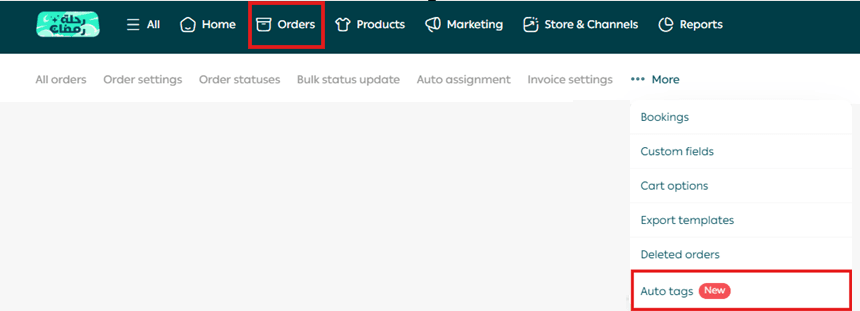
From the main menu, click Orders, then click More, and select Auto tags.
The Automatic Tags page will appear.
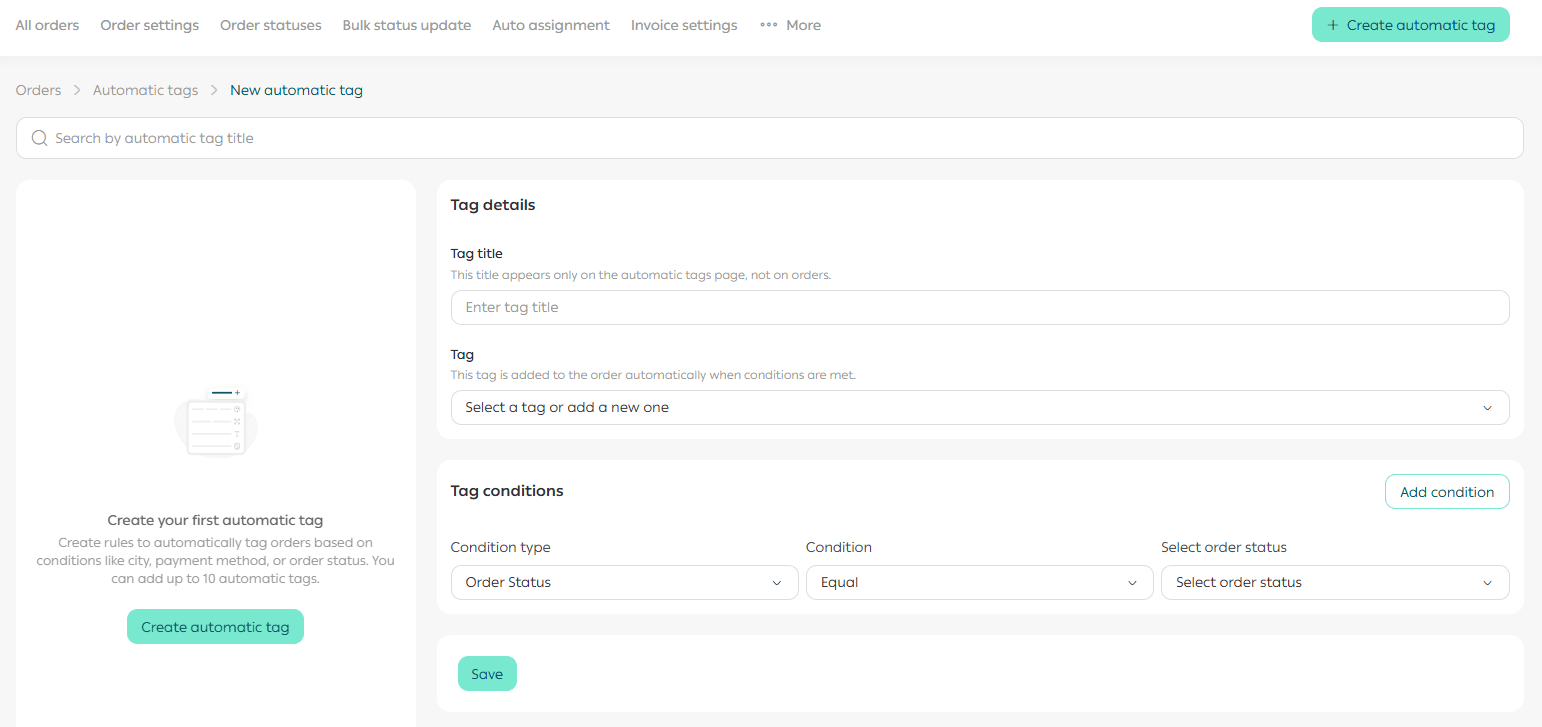
Add an Automatic Tag
1. Add a new tag
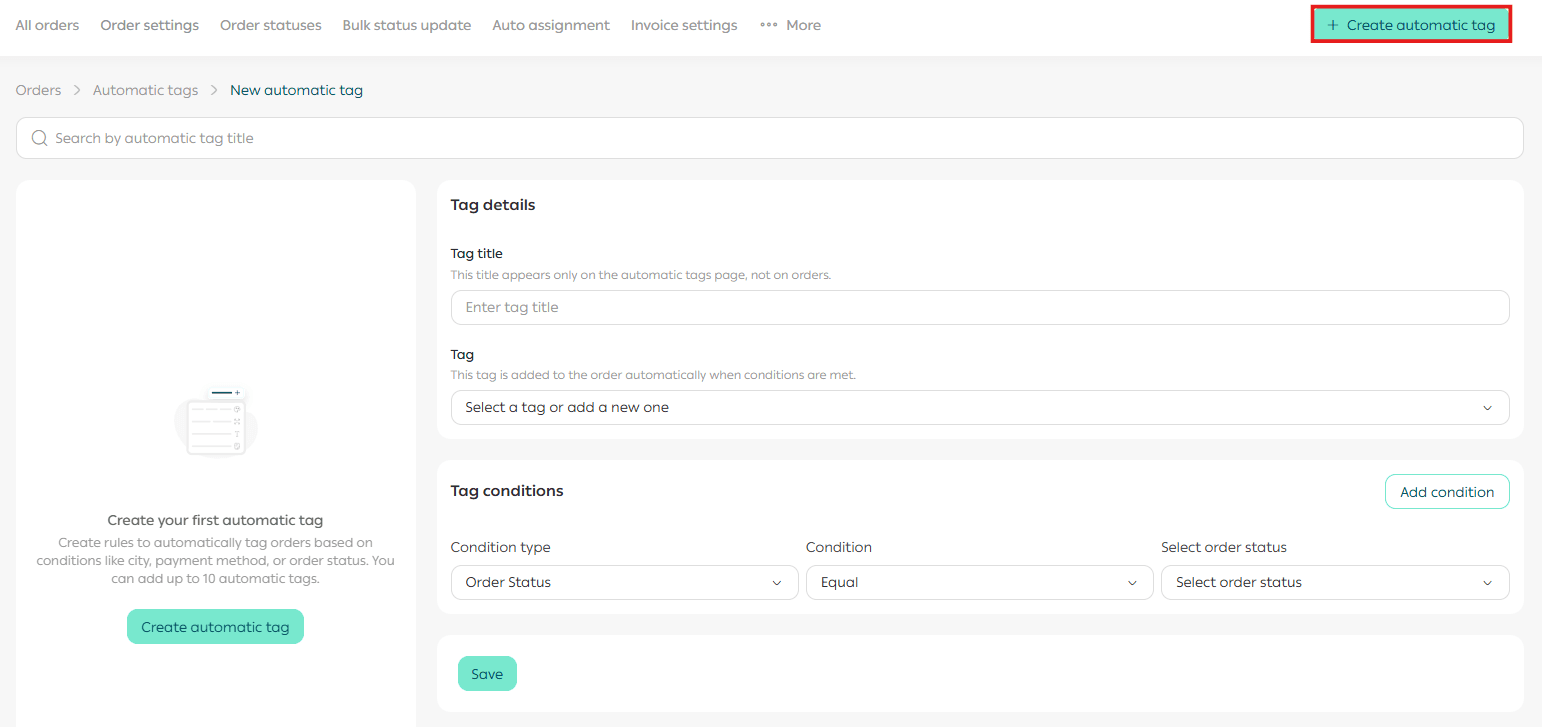
From the Automatic Tags page, click Add Automatic Tag.
2. Enter the tag title
Enter the tag title, which is visible only to you on the automatic tags settings page.
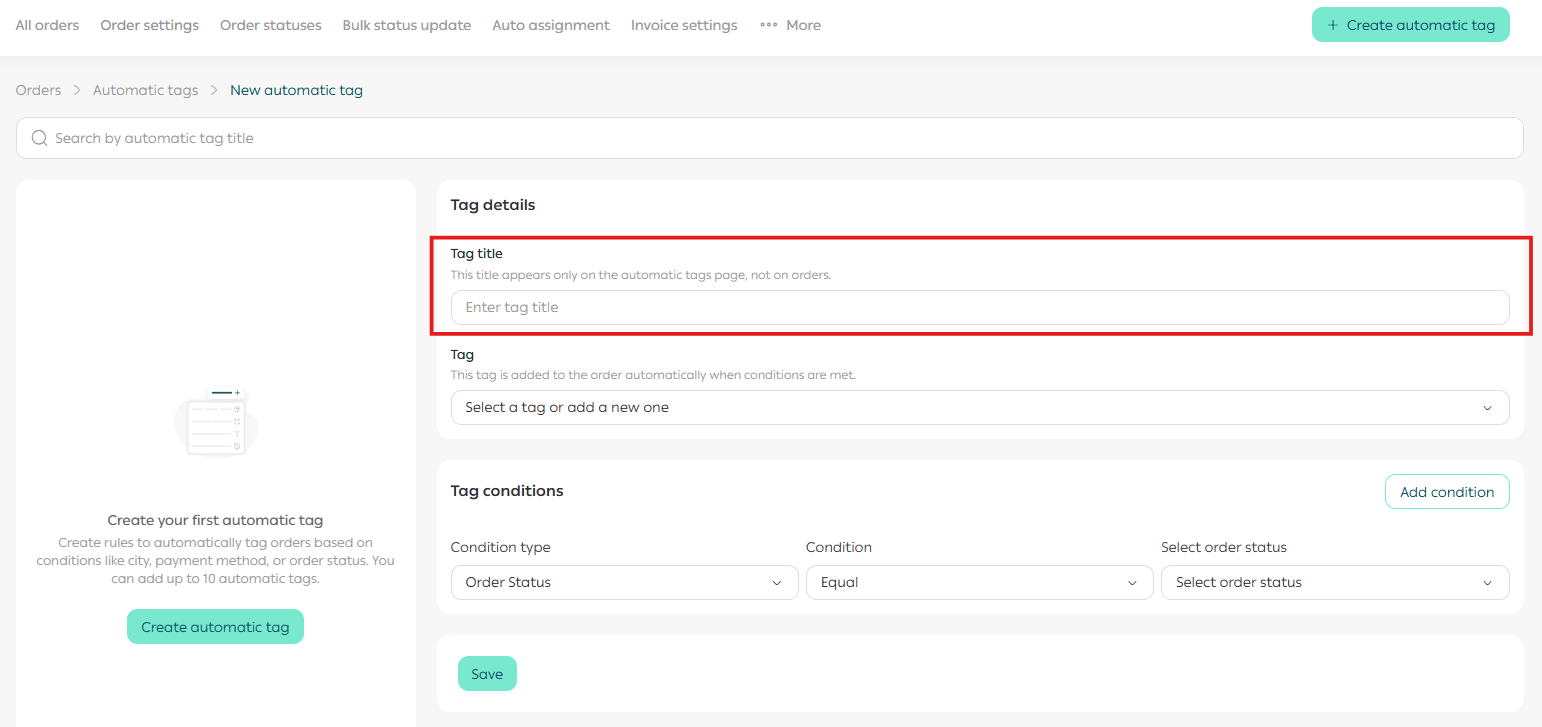
This helps you recognize and manage your tags easily.
3. Enter the tag name
Enter the tag name that will appear on orders in the Orders page.
You can:
- Choose a tag from existing tags
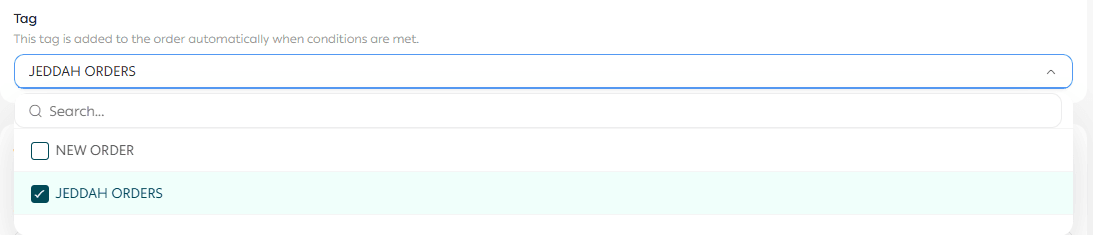
- Create a new tag by typing the name and clicking Add

💡 Note: The title is for internal reference only, while the name is what appears on the order itself.
4. Add tag conditions
Define the conditions that determine when the tag is applied automatically.
Examples of conditions include:
- Order total
- Payment method
- Order status
- City
- Number of items

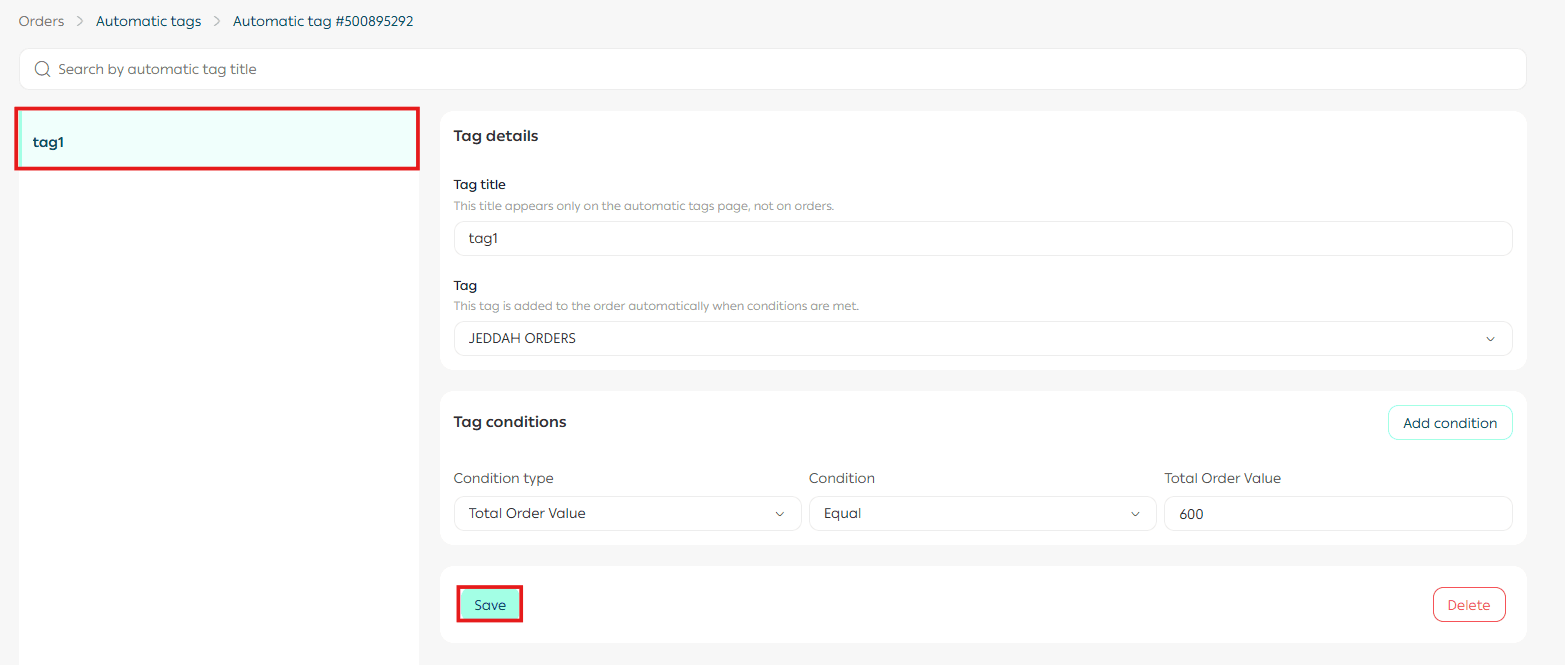
5. Save the tag
After clicking Save, the tag will appear on the Automatic Tags page and will be applied automatically to matching orders.
Delete an Automatic Tag
To delete an automatic tag, click Delete Tag next to the tag you want to remove.
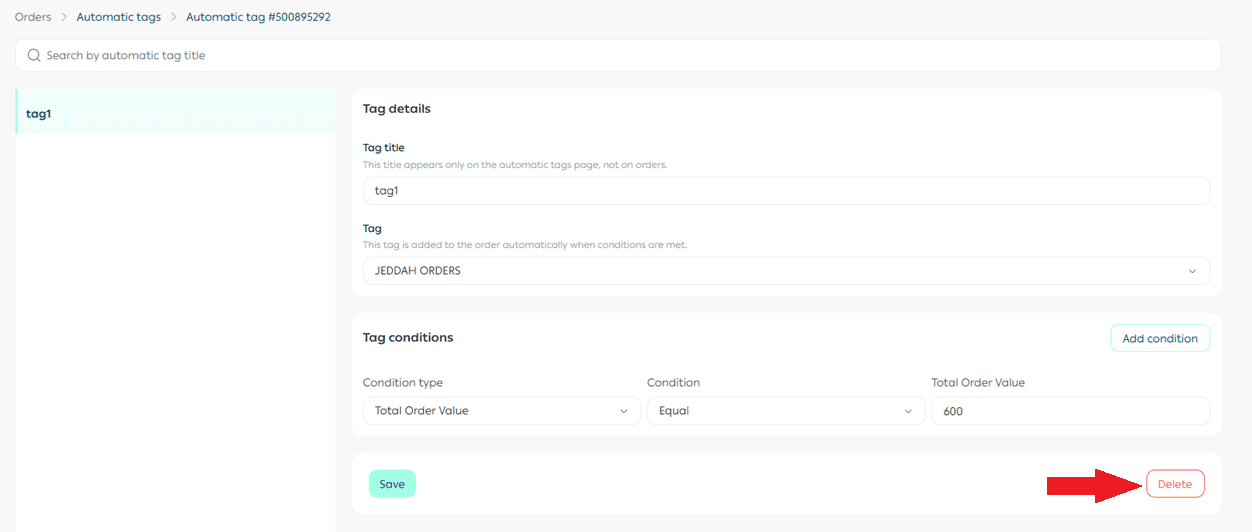
The tag will be removed from the store immediately.
💡 Note: Before deleting a tag, review the orders associated with it to ensure no important classification is lost.
Example: Using Automatic Order Tags
High value orders
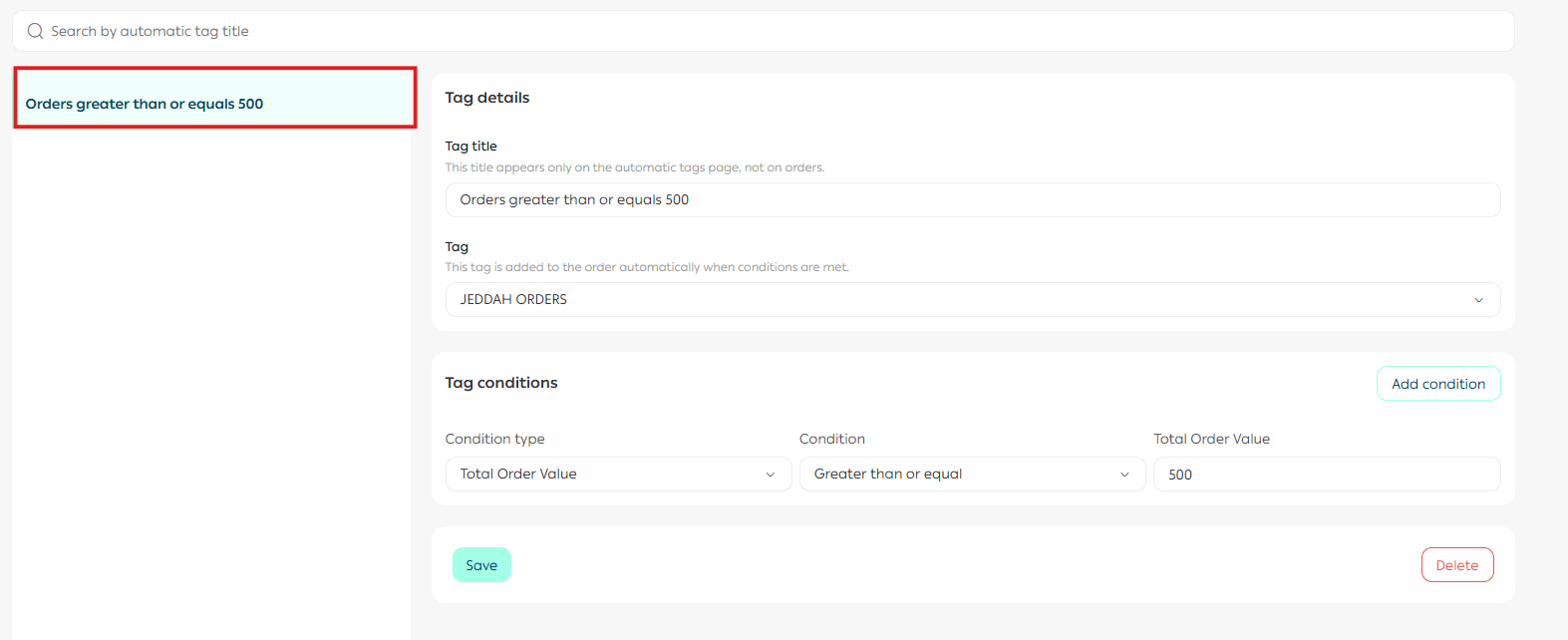
Automatically apply a tag to orders with a total value greater than SAR 500.
This makes it easier to prioritize important orders and take actions such as faster confirmation or premium shipping.
Example setup steps
- Select the field type: Order Total
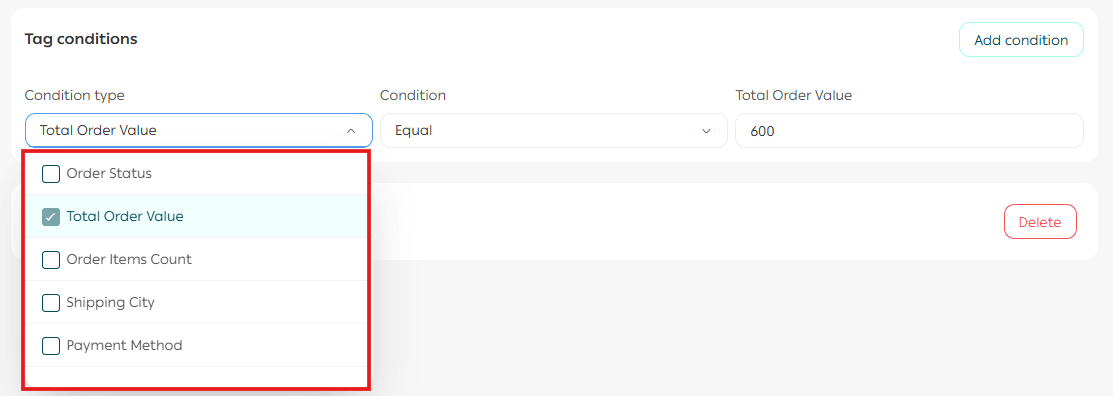
2. Choose the condition: Greater than or equal to
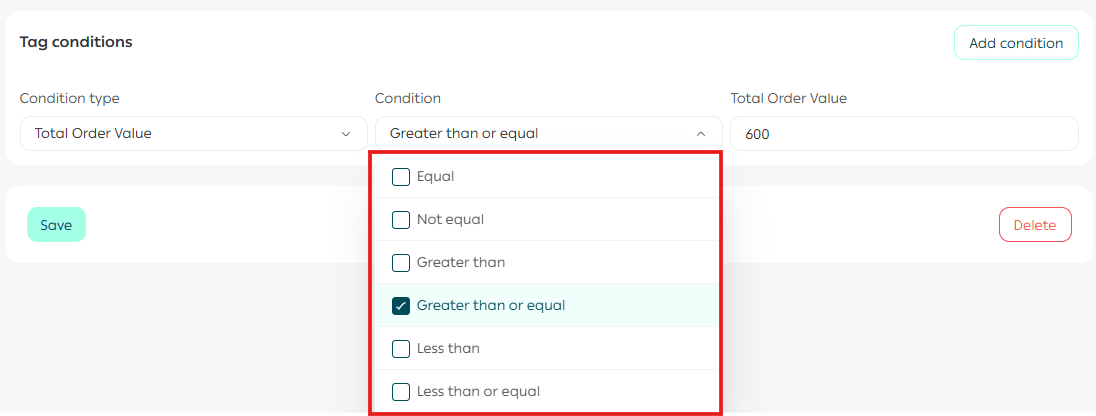
3. Enter the order total value, for example SAR 500

🎉 Congratulations, the automatic tag has been added successfully.
Final Takeaway
Automatic Order Tags turn organization into automation.
By labeling orders instantly and consistently, you reduce manual work, avoid mistakes, and keep your operations running smoothly as your store grows.