Running more than one online store and entering the same product details over and over?
Managing several storefronts usually means several dashboards, several stock counts, and no single view of what is actually selling. Yeseir is a central store management system that brings your online stores into one interface, so you control inventory, sales, and marketing from a single place, with automatic product syncing, performance analytics, and ongoing technical support behind it. In this guide, you'll learn how to connect the Yeseir app to your Salla store, finish registration on the Yeseir platform, add products with their stock details, and remove the app.
To connect Yeseir, install it from the Salla App Store, choose a plan, approve the permissions, and complete the payment. Yeseir then emails you to finish registering on its platform, where you reset your access code and sign in to the dashboard to start adding products and managing stock.
📌 Article overview
- How to connect the Yeseir app to your Salla store
- How to add products on the Yeseir platform
- How to remove the Yeseir app
- Frequently asked questions
🚀 How to connect the Yeseir app to your Salla store
1. From the main menu, click the (More) tab, then click (Installed apps).
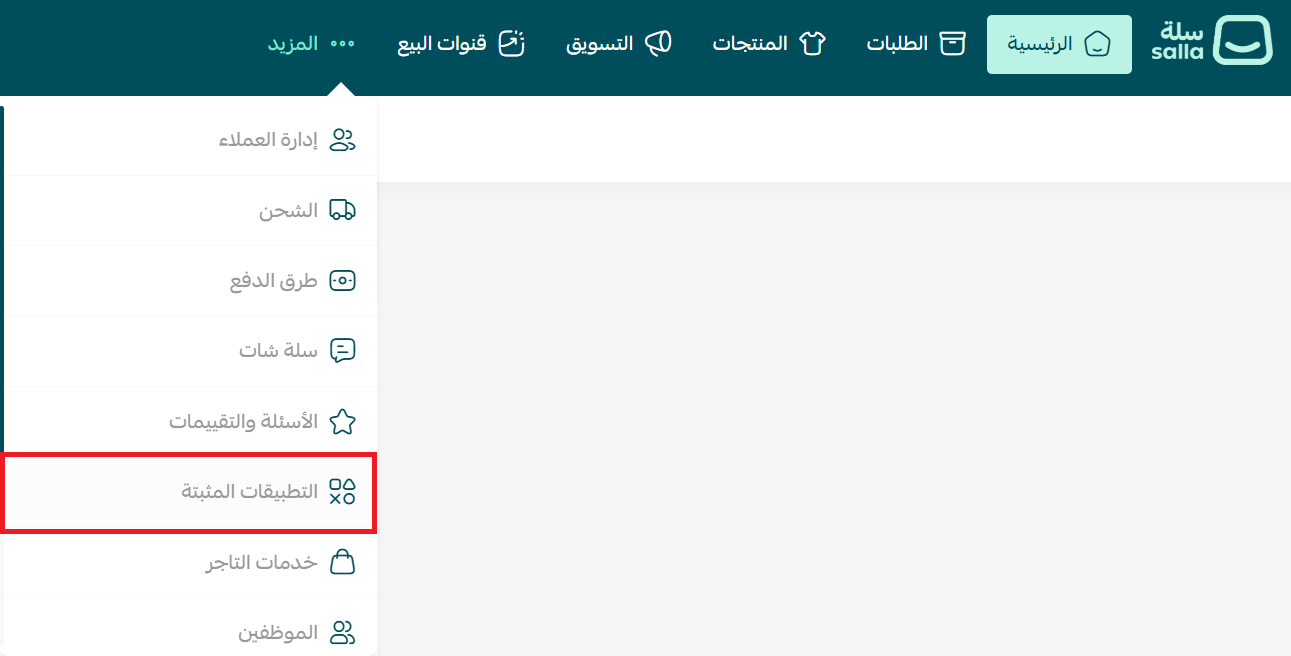
2. On the Salla App Store banner, click (Browse the Salla App Store).

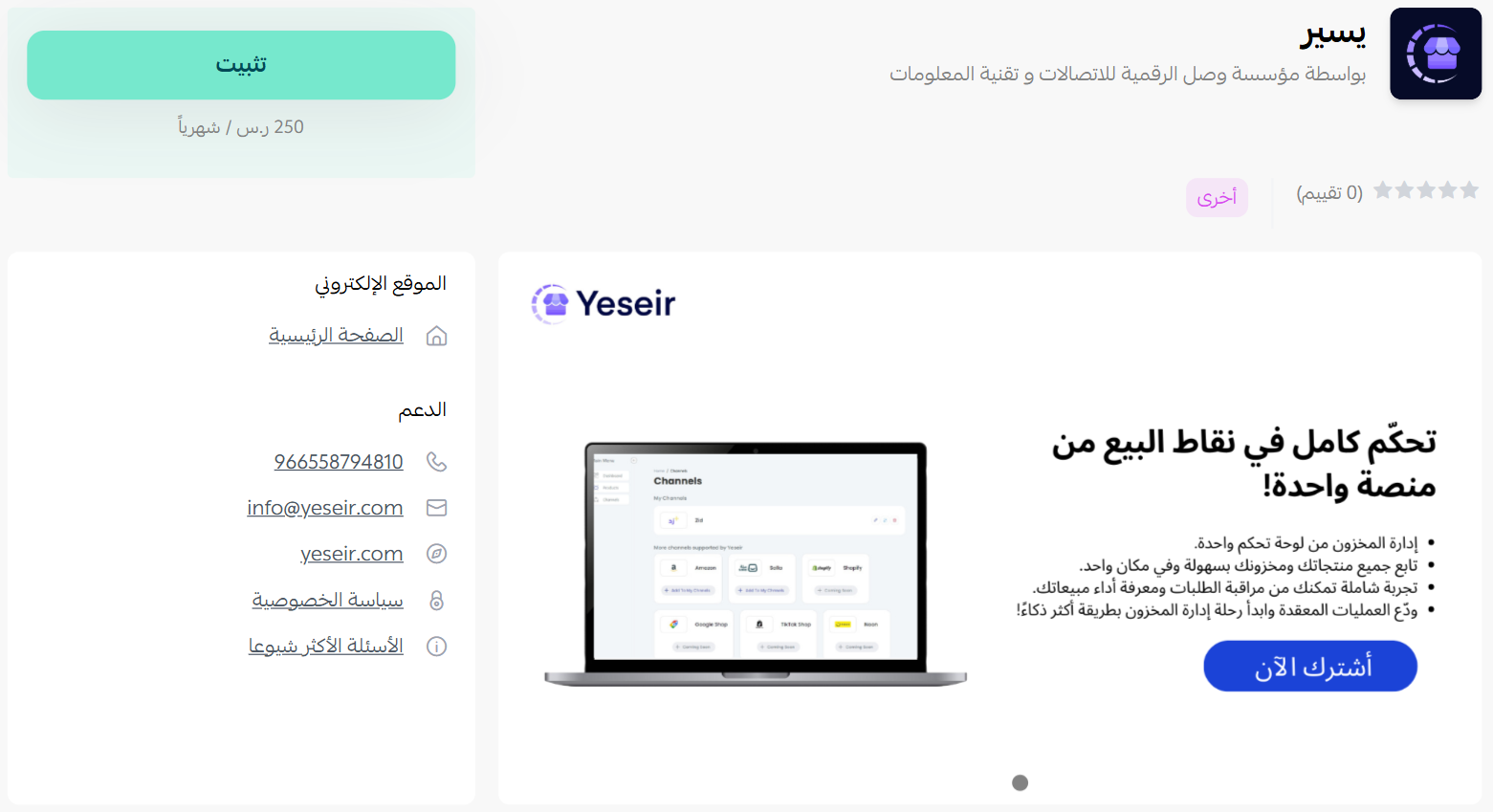
3. On the Yeseir app page, click (Install).
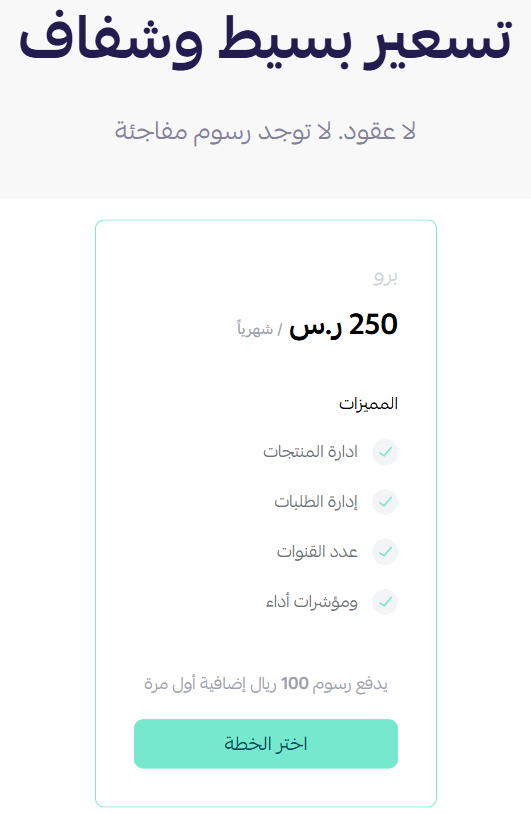
4. Choose the plan that fits your business to continue with the installation.
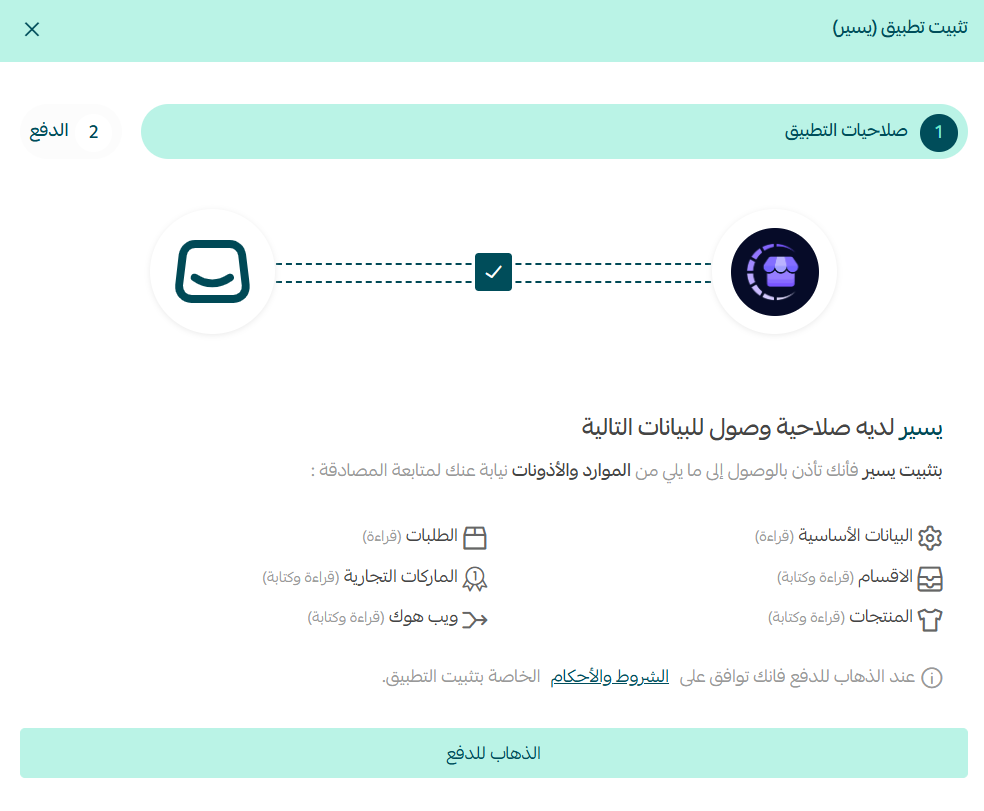
5. Review the permissions the app requests, then click (Go to payment).
Complete the payment to unlock the app's features.
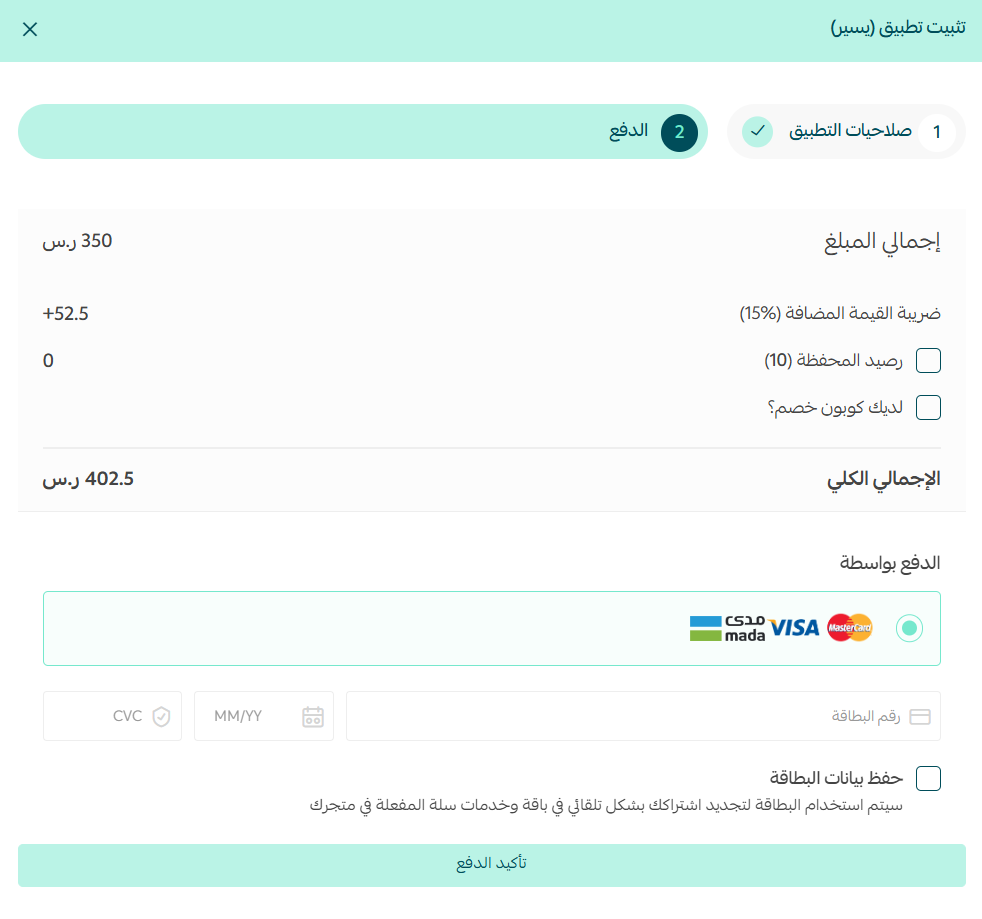
Yeseir is now installed on your store.

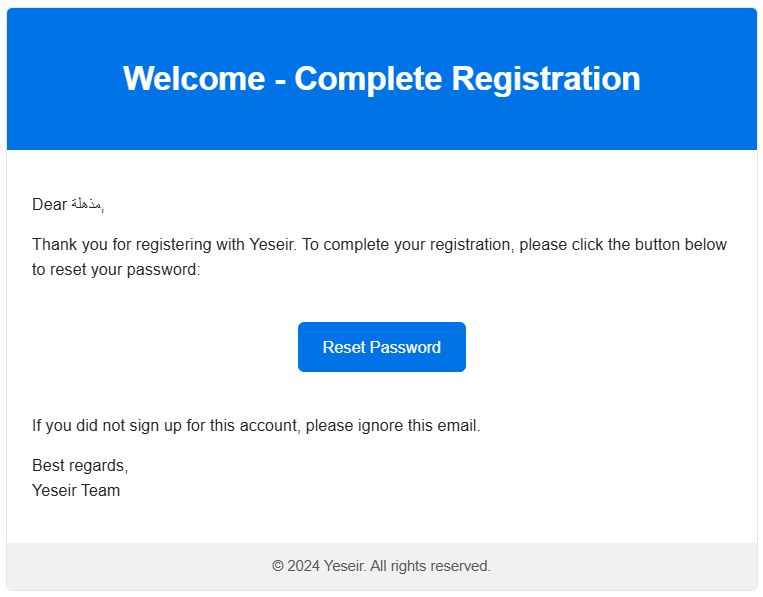
6. Check your inbox. Yeseir sends you an email to complete your registration on the Yeseir platform.
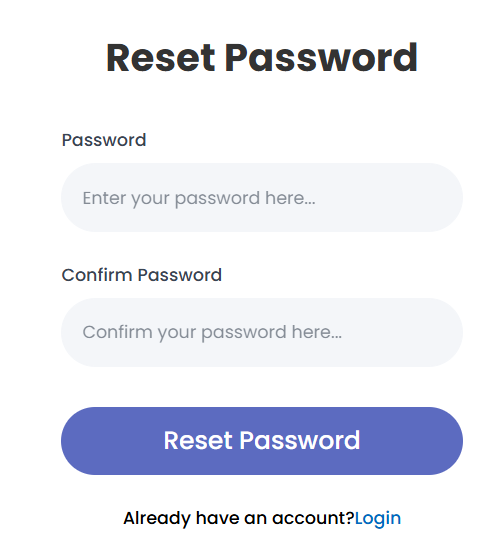
Reset your access code on the Yeseir platform to finish setting up your account.
For more on this, read about managing your store's apps.
👣 How to add products on the Yeseir platform
1. Sign in to the Yeseir platform. You land on the platform dashboard.
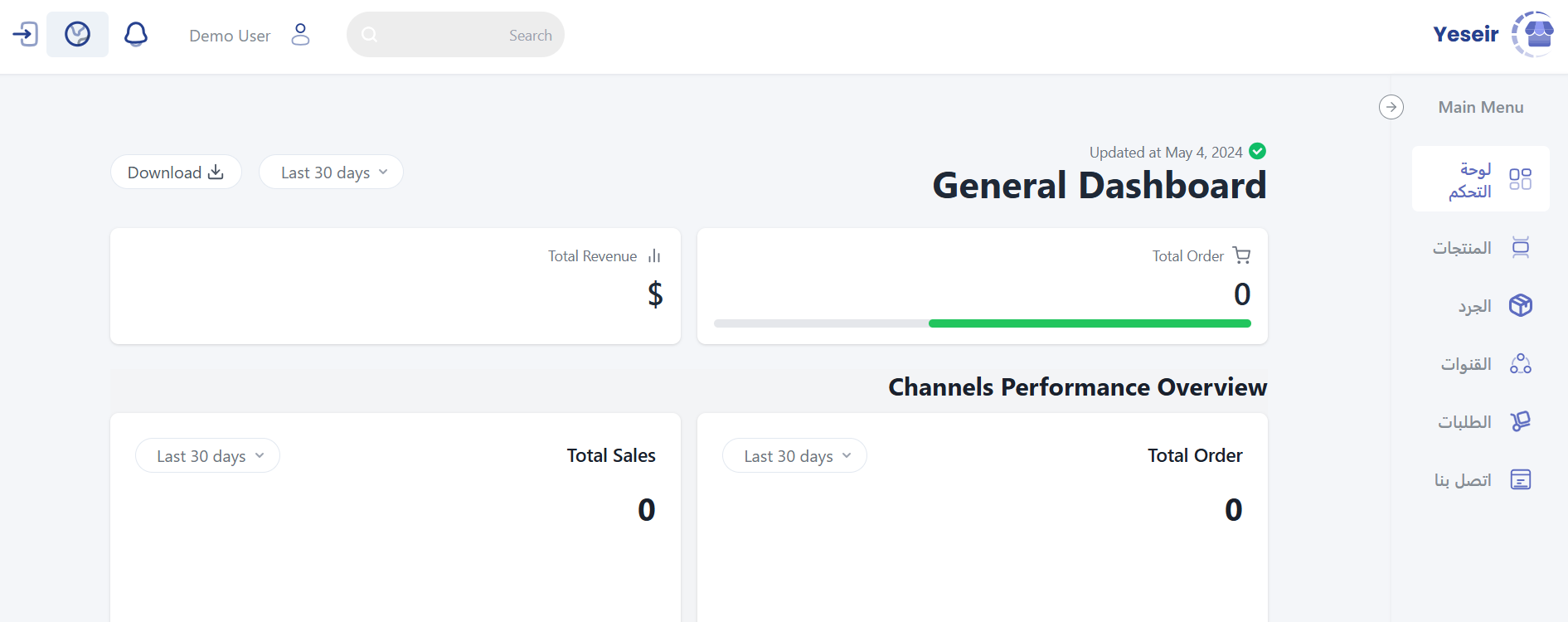
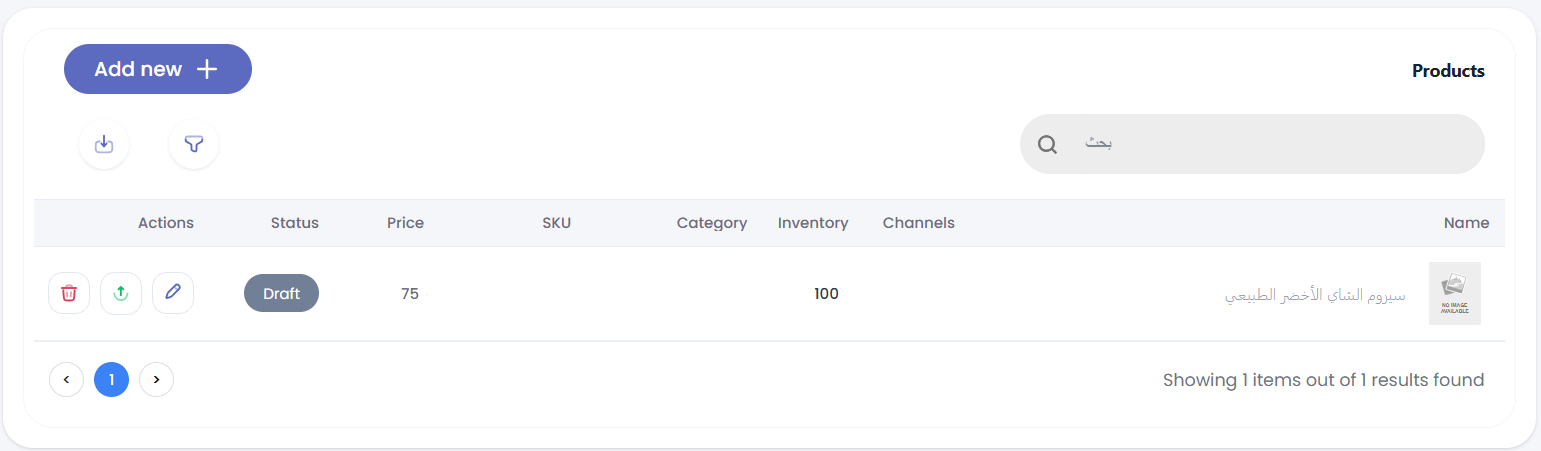
2. From the dashboard side menu, click (Products).
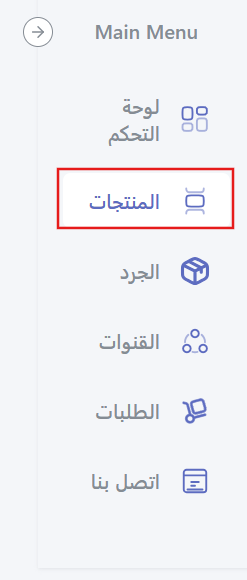
3. Click (Add new) to start a new product.
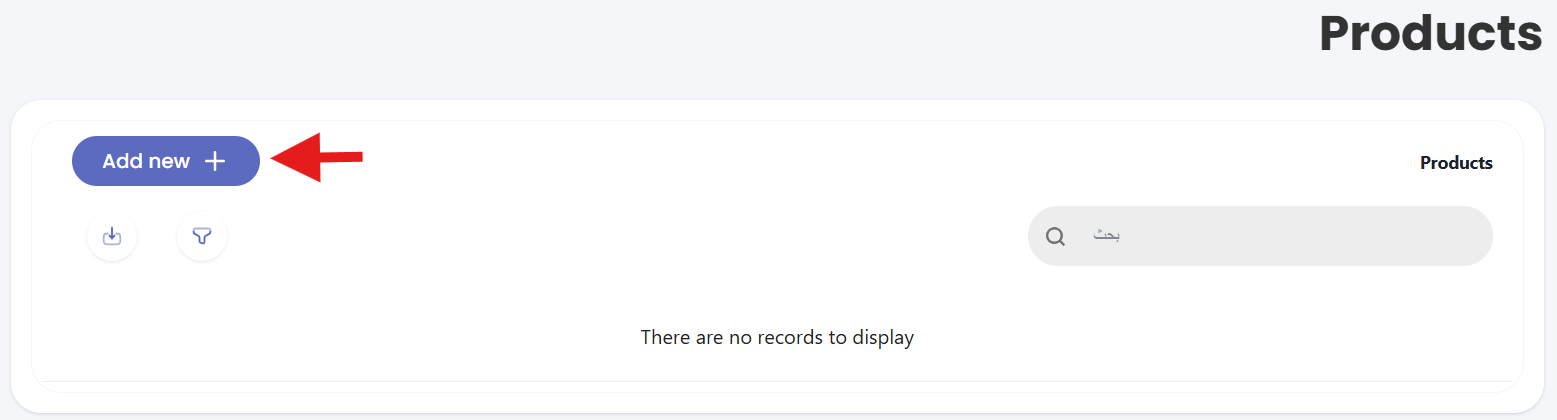
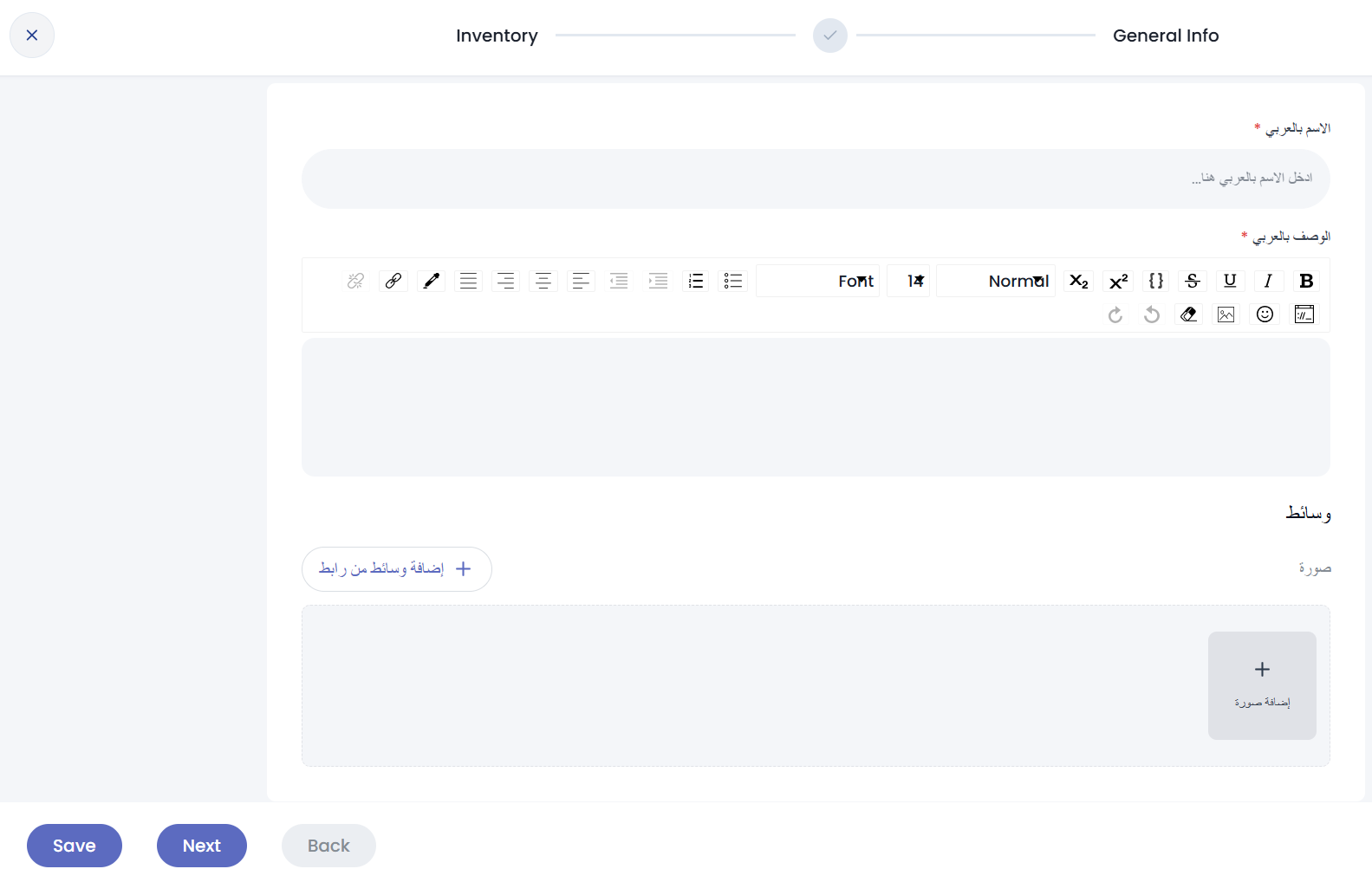
4. Enter the product details so stock is tracked accurately, then click (Next).
5. Add the product's inventory data, then click (Save).
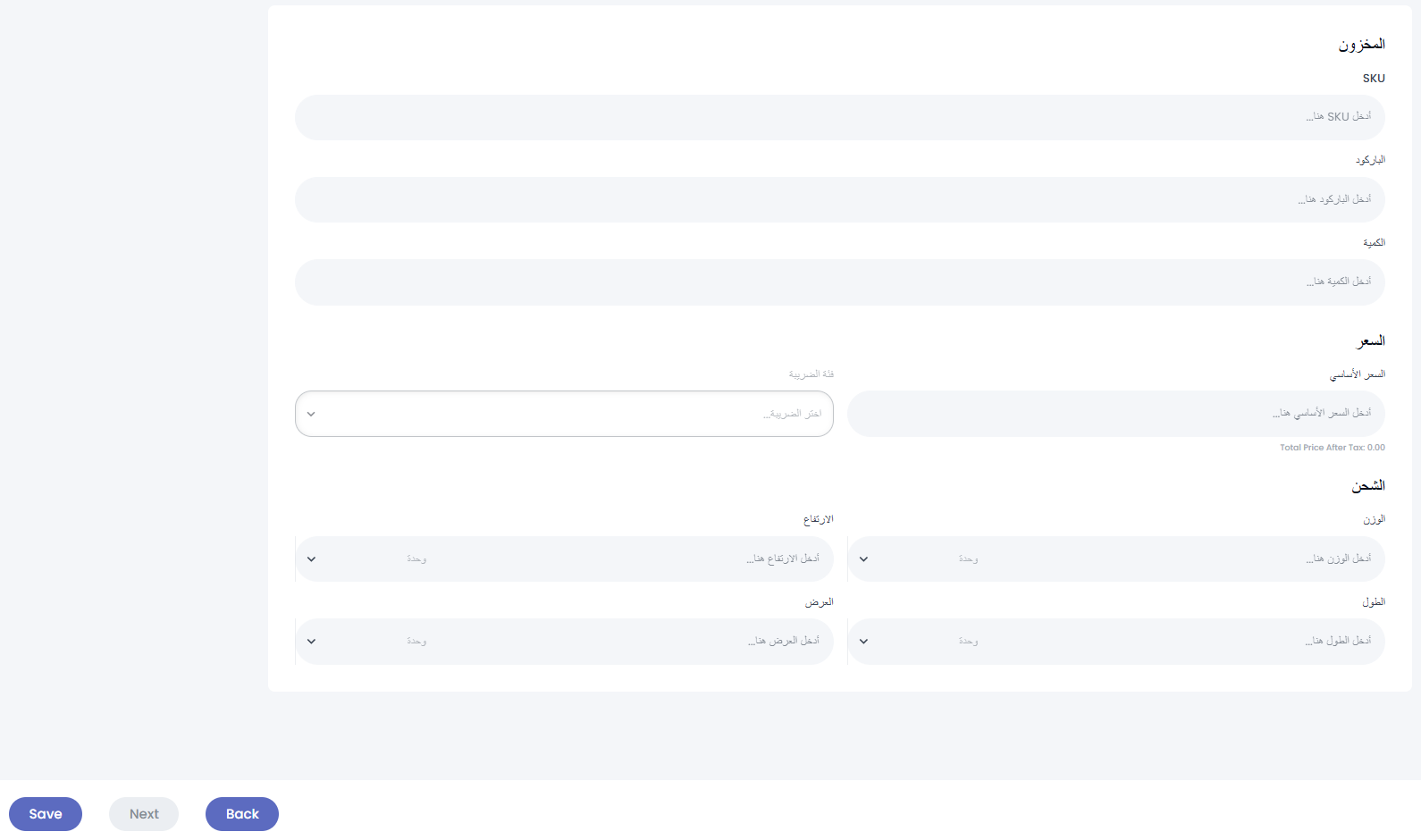
The product is now live on the platform.
How to remove the Yeseir app
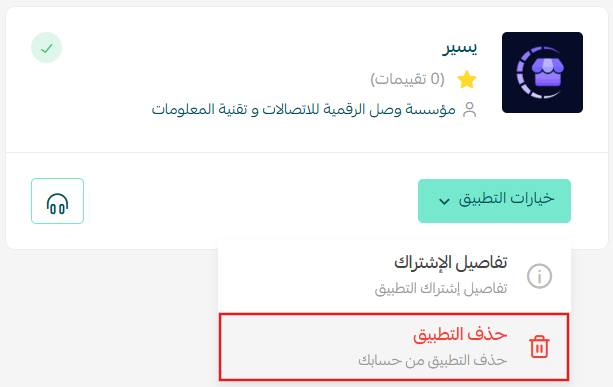
Open the Yeseir app, click (App options), then click (Delete app).
📝 Important notes
- Yeseir is a paid app. You pick a plan and complete the payment as part of the installation.
- Products and stock are managed on the Yeseir platform, not in your Salla dashboard, so keep the login email you receive.
- Deleting the app ends the connection between your store and the Yeseir platform.
- For more details, see the Yeseir FAQ.
❓ Frequently asked questions
What does Yeseir do for my store?
It gives you one interface for managing your online stores: inventory, sales, and marketing together, with products synced automatically and performance analytics on top.
How do I get access to the Yeseir platform?
After installation, Yeseir emails you to complete your registration. Reset your access code from that email, then sign in to the platform dashboard.
Where do I add products, in Salla or in Yeseir?
Products are added on the Yeseir platform, under (Products) in the side menu, where you enter the product details and its stock data.
What happens if I remove the app?
Deleting Yeseir from (App options) ends the connection between your Salla store and the Yeseir platform, so products and stock are no longer managed through it.
Managing several stores only gets harder as you grow. One place to see your stock and your sales is what keeps that growth manageable.