Salla Point POS helps you manage your sales operations with clear permissions and full control, all from one place. From organizing your team to standardizing return policies and setting up payment methods, everything is designed to create a smoother, more professional sales experience.
🚀 A fully free POS system, synced with your store and supporting all payment methods, built to simplify your day-to-day operations.
📌 Article overview
- How your store benefits from Salla Point POS
- Activating Salla Point POS
- Adding and managing employees in Salla Point POS
- Adding payment methods
How your store benefits from Salla Point POS
- Provides an easy-to-use point-of-sale system
- Helps you track sales and analyze store reports
- Enables you to accept payments easily
- Suitable for exhibitions, events, and temporary kiosks
Activating Salla Point POS
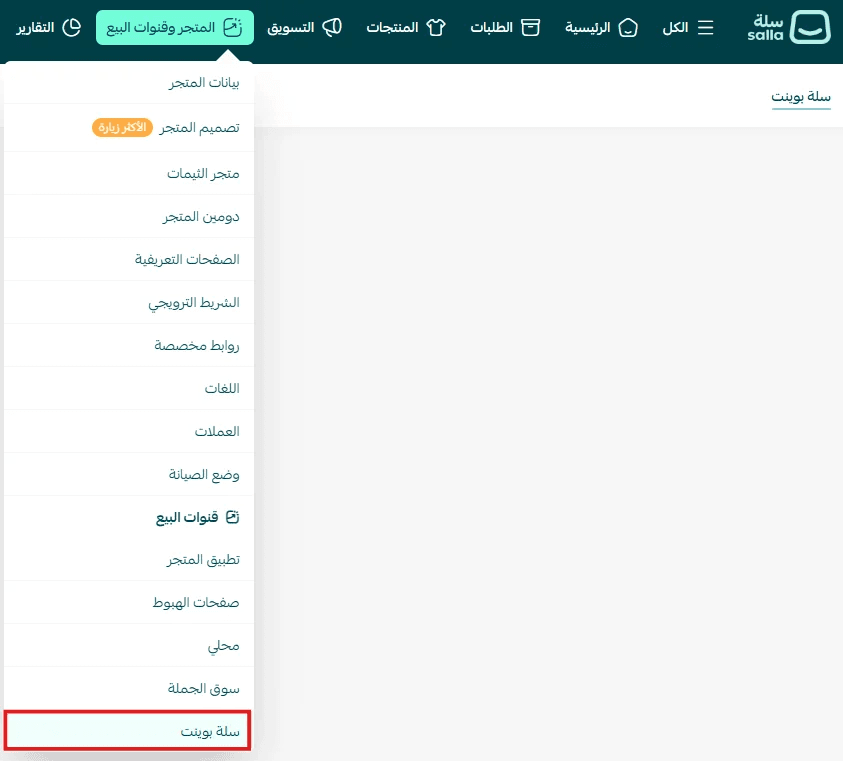
- From the main menu, go to Store & channels, then select Salla Point
- From the Salla Point page, click Activate Salla Point
Note: Before activating Salla Point POS, make sure to assign the appropriate permissions to your employees.
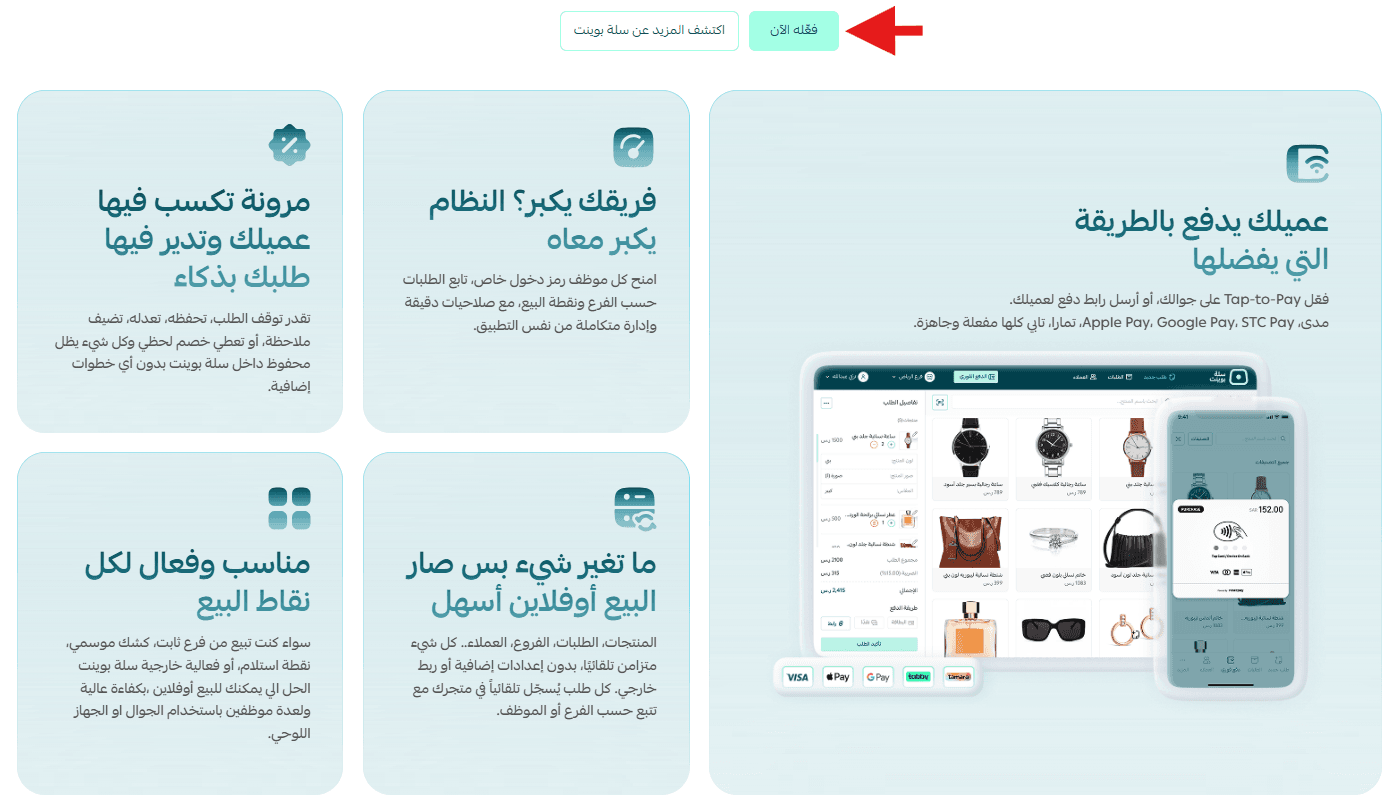
Payment methods in Salla Point POS
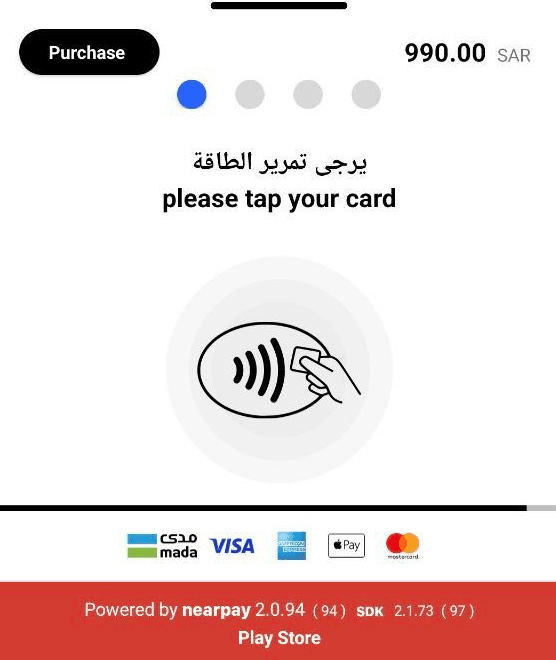
💳 Card Payments via Geidea (SoftPOS)
Accept payments directly by tapping a card or using Apple Pay on your mobile device, powered by Geidea.
- Requires a subscription for Pro and Plus plans
- Available at no additional cost for Special plan merchants
🔗 Payment via Salla Payment Link
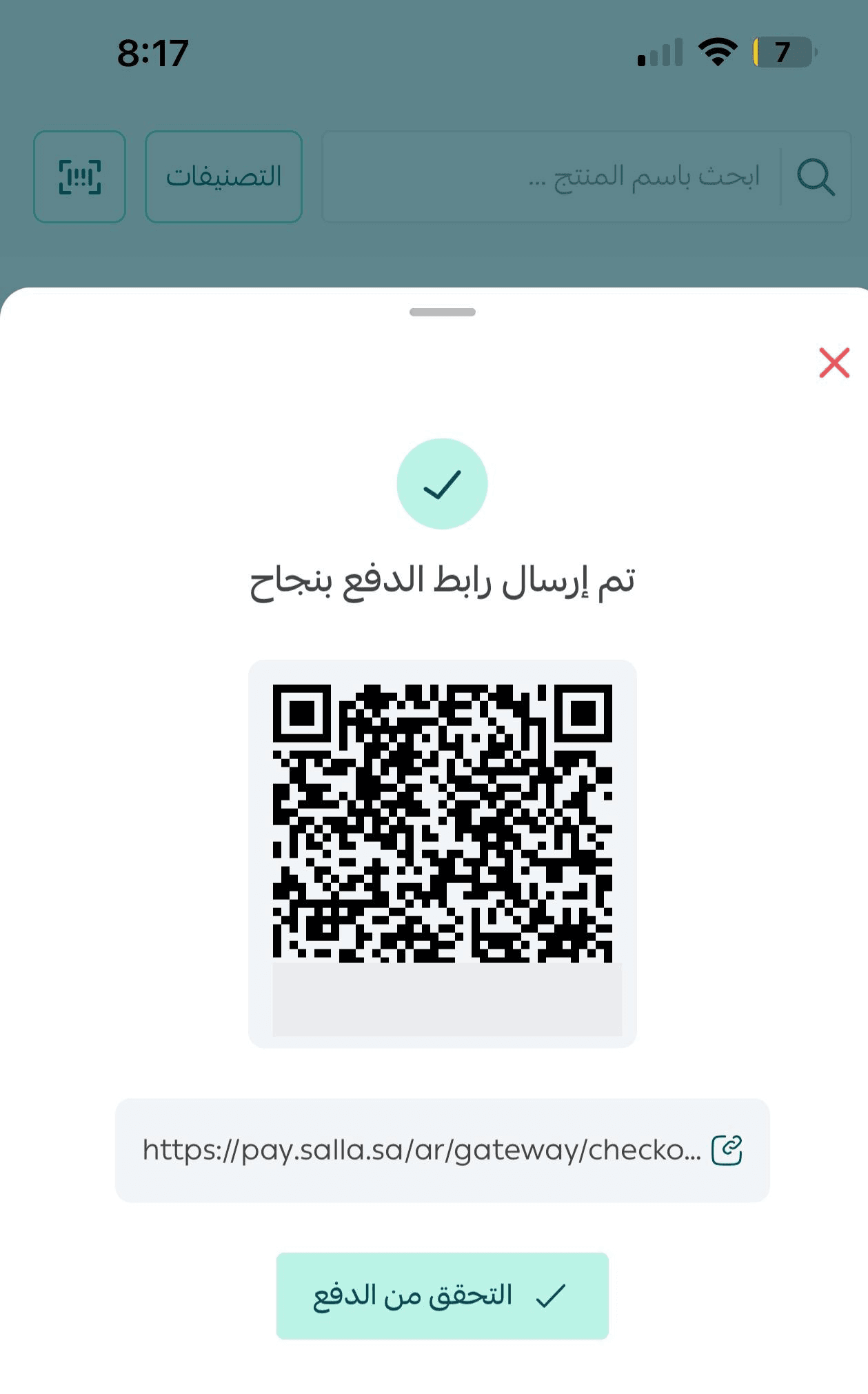
Create a payment link for each order and send it to the customer via SMS or QR code, allowing them to choose their preferred payment method such as Apple Pay, Tabby, Tamara, and more.
Important information:
- Sending via SMS requires an active SMS provider subscription
- If SMS is not available, you can display a QR code for the customer to scan and complete payment
Available automatically after activating Salla Point POS for Pro, Plus, and Special plans
💵 Cash Payment
Receive payments directly from customers in cash.
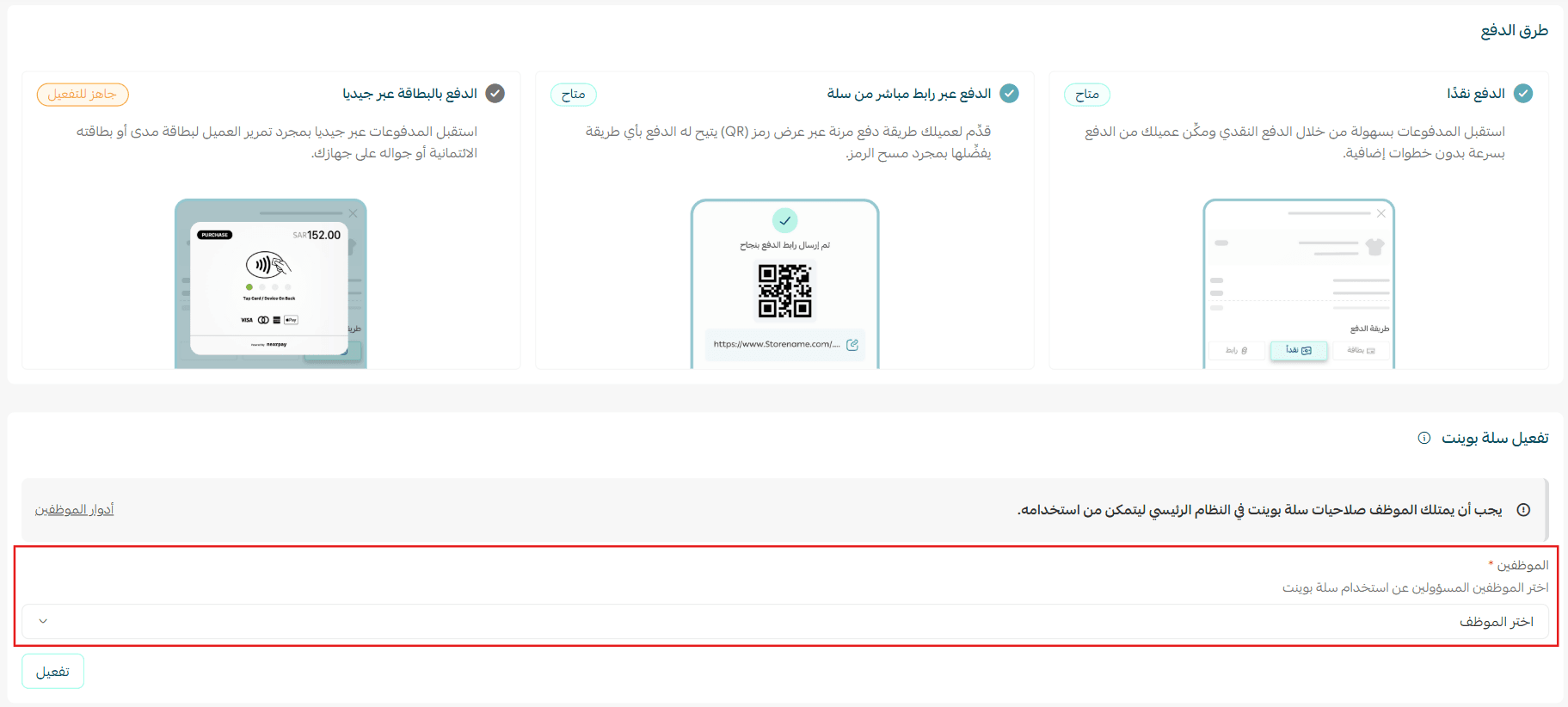
How to activate Salla Point POS
Activate Salla Point POS with a single click!
- Select employees
- Click Activate to enable the service automatically
You can add more employees later at any time.
Note: Make sure employee permissions are configured before activation.
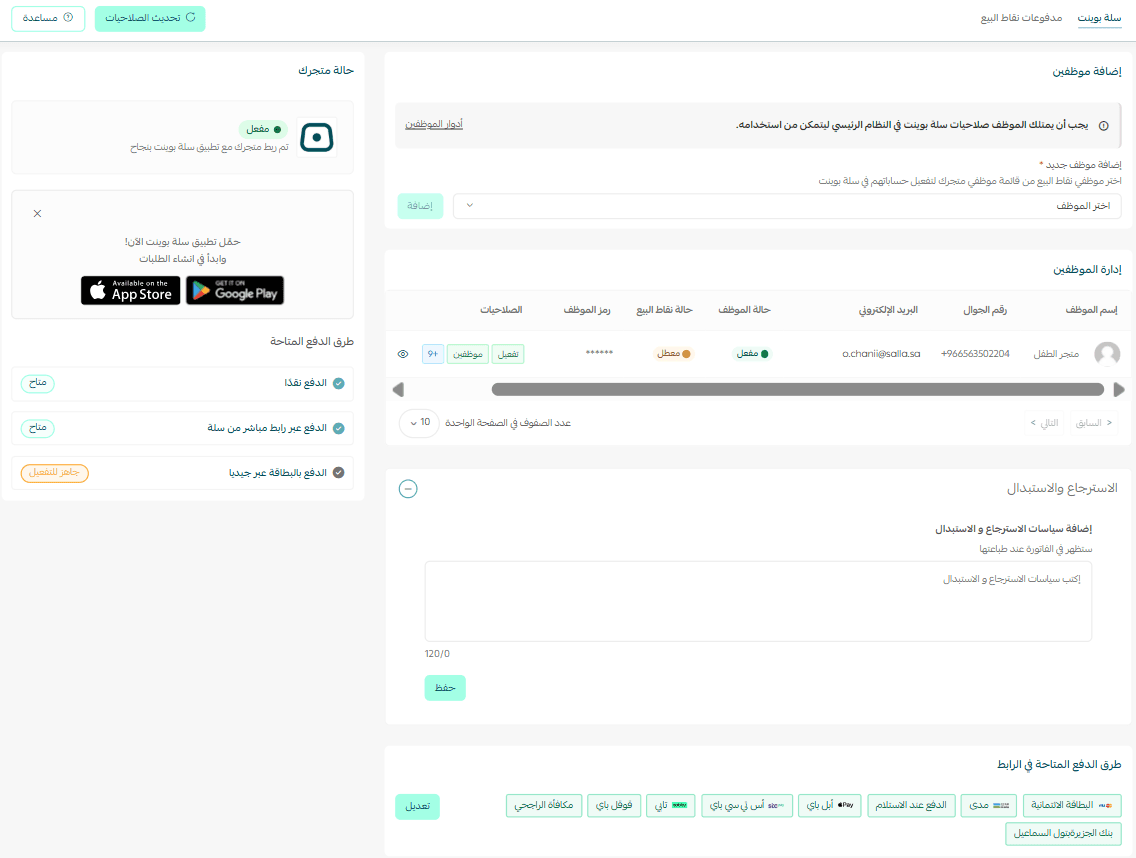
🎉 Salla Point POS has been successfully activated in your store!
You will be redirected to the Salla Point page.
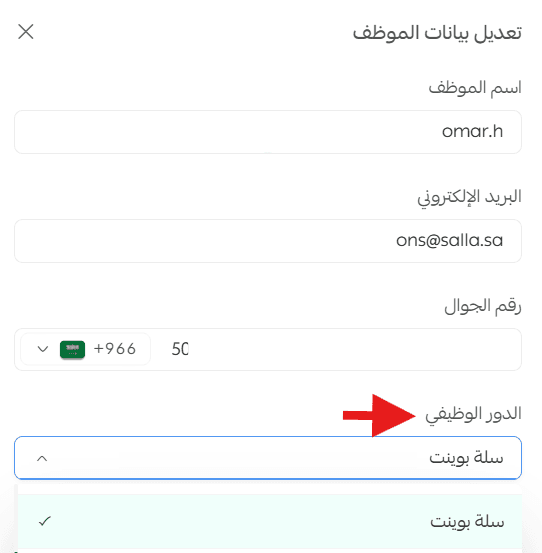
Adding employees to Salla Point POS
- From the Manage employees page, select an employee and assign them the Salla Point role.
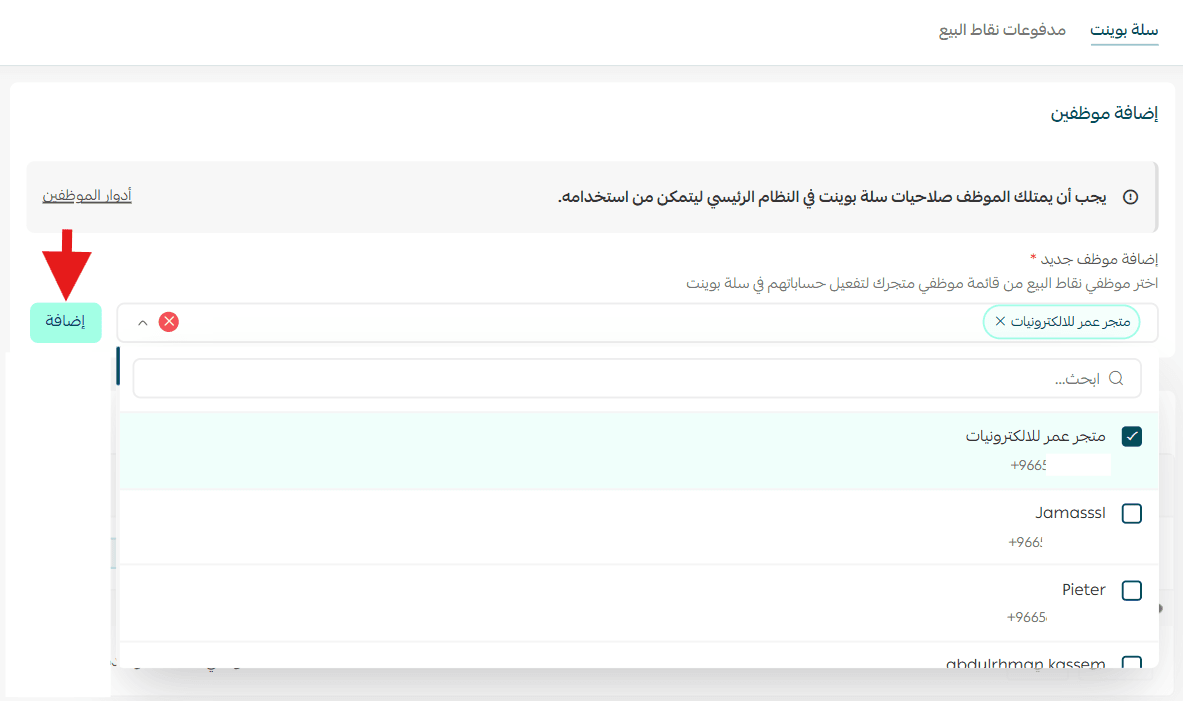
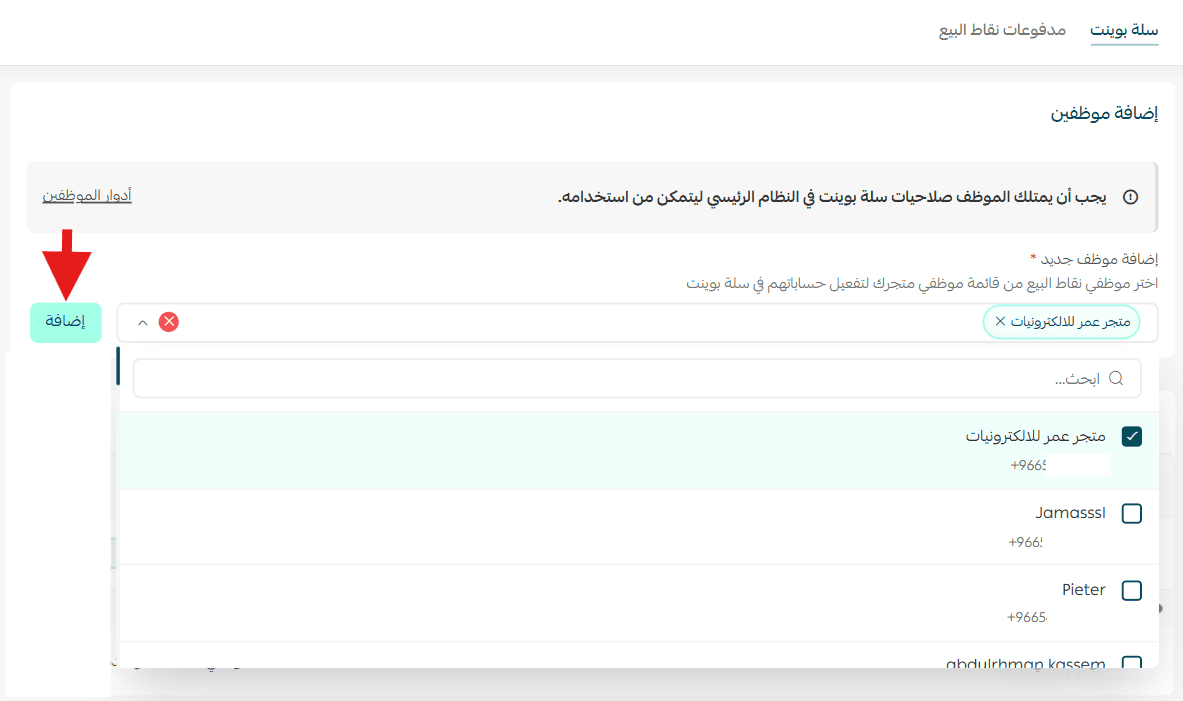
- From the Salla Point page, select employees, then click Add
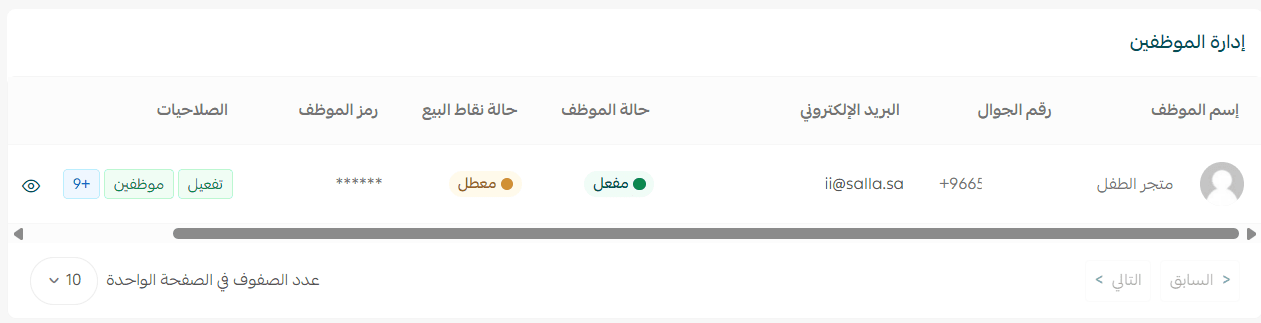
Employee management
From the employee management section, you’ll see a panel displaying each employee’s:
- Details
- Status
- Permissions
- Available actions
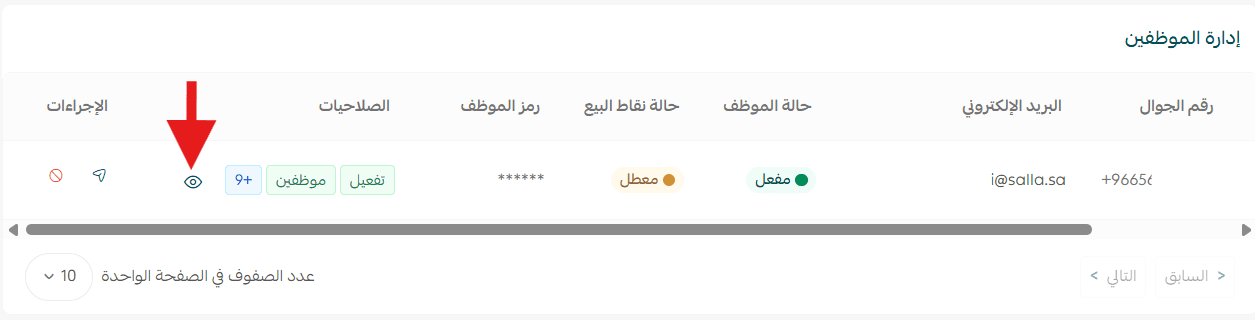
Viewing employee permissions
From the management bar, click the Preview icon to view the employee’s assigned permissions.
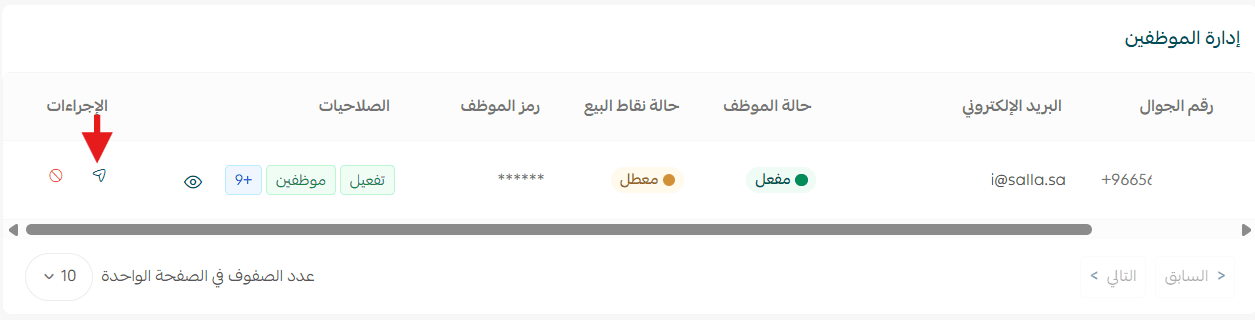
Sending employee code for Salla Point POS
You can send the employee code for use within the Salla Point POS app.
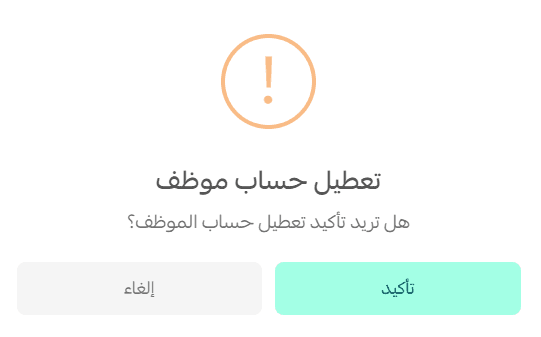
Deactivating an employee account
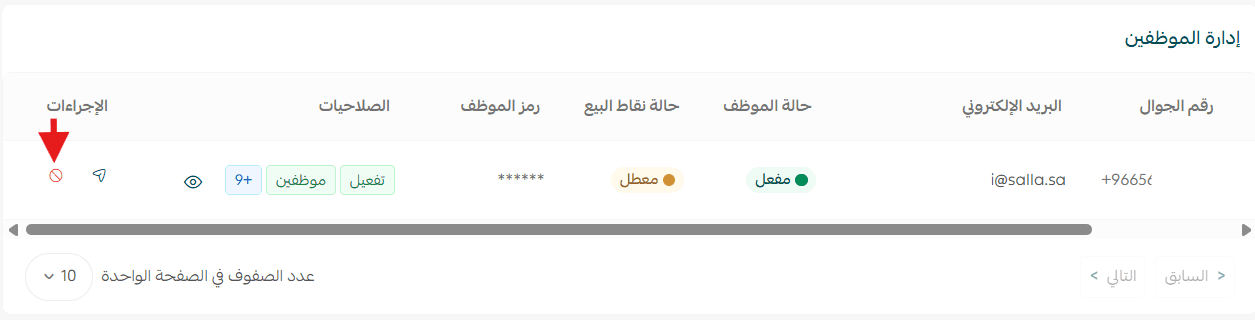
A confirmation message will appear; click Confirm to proceed.
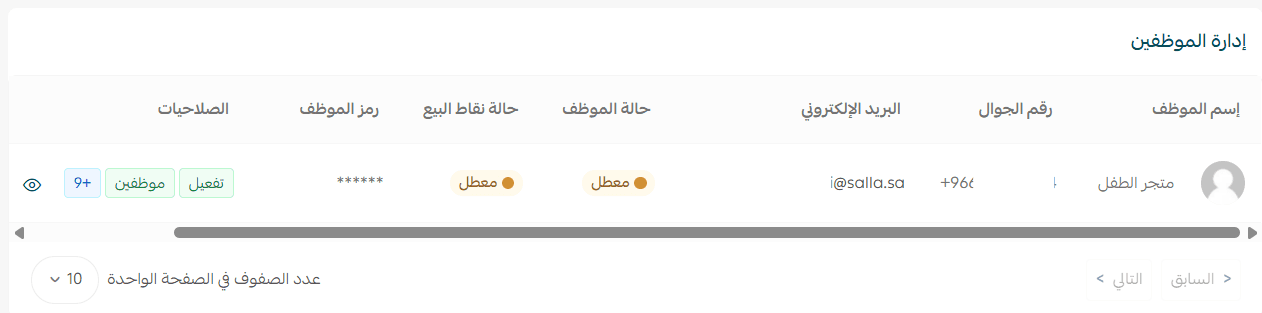
The employee account will be successfully deactivated.
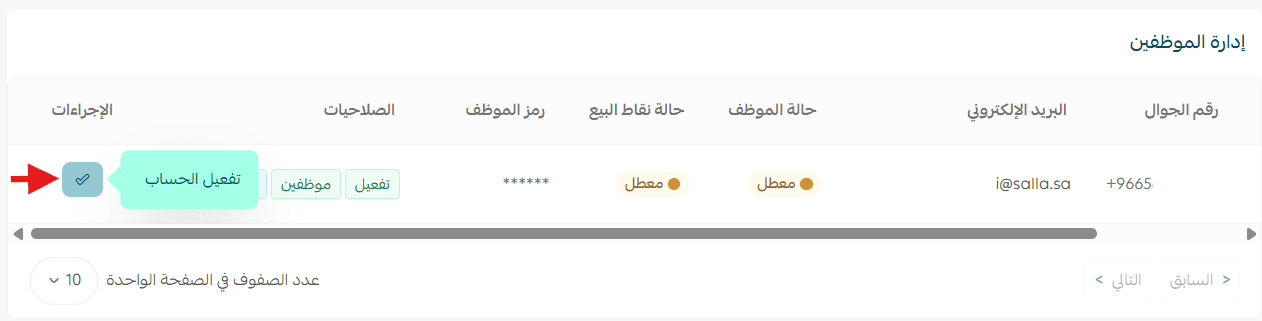
You can reactivate it at any time through Activation actions.
Return & exchange settings
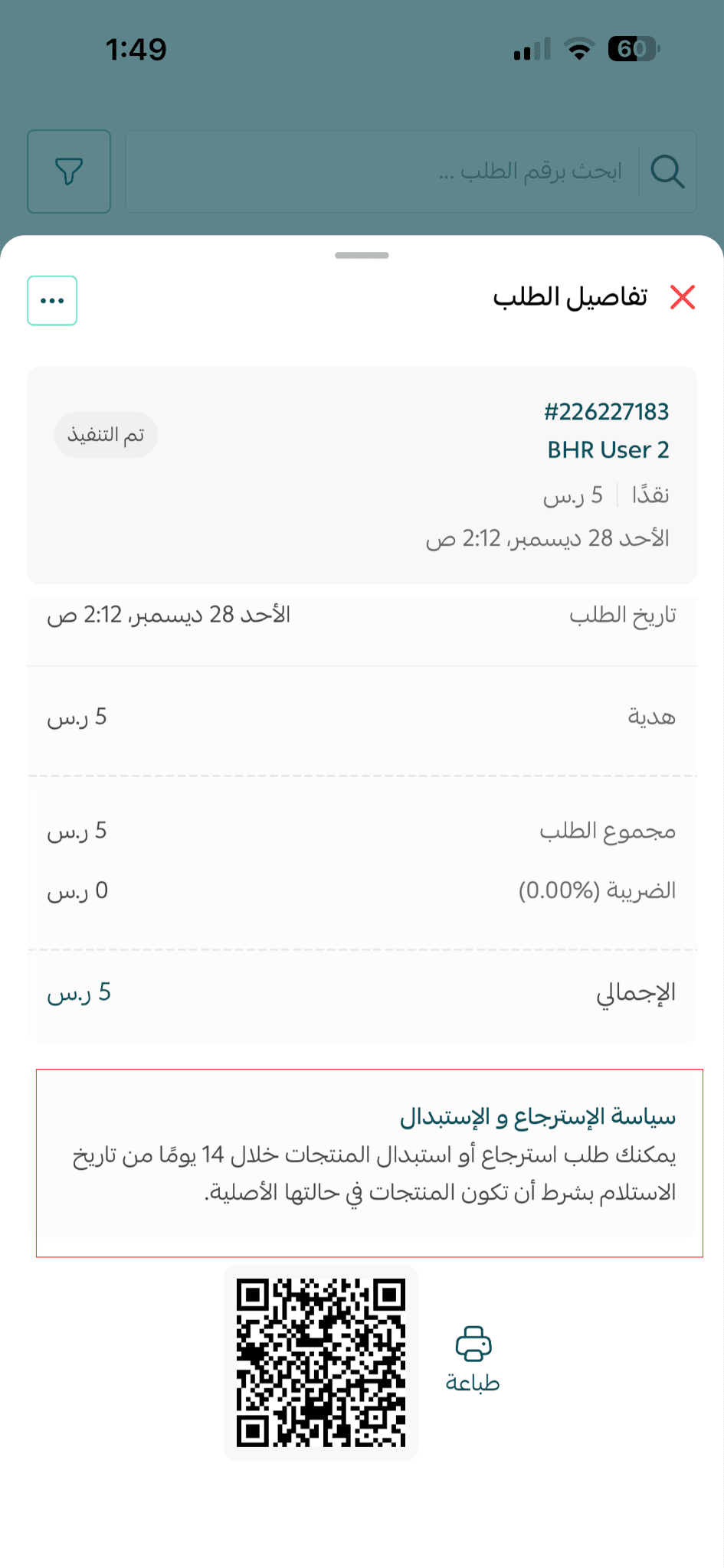
Add your store’s return and exchange policy so it appears on printed invoices.
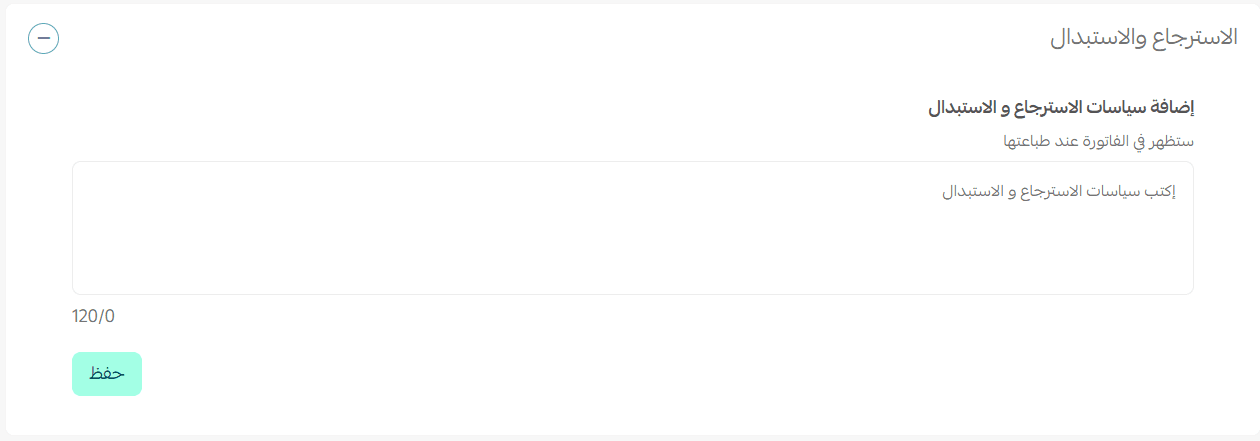
It will also be displayed on the customer’s order details page.
Setting Payment Methods
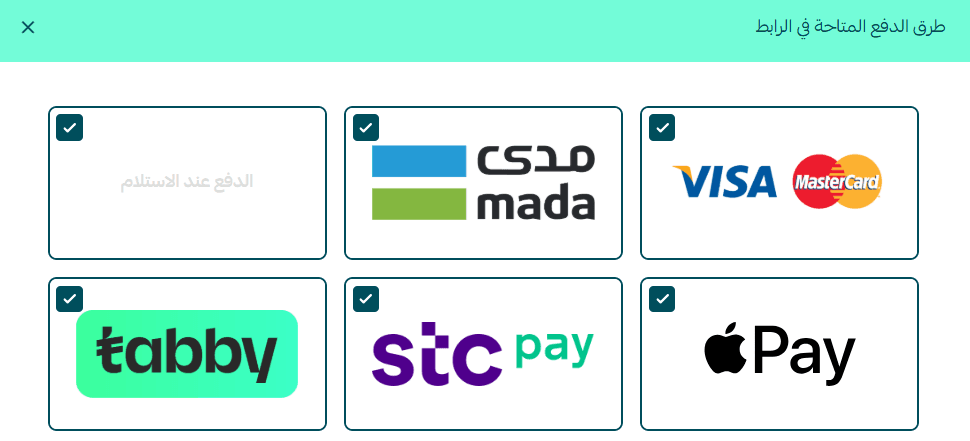
Make sure your payment gateways are activated so they appear to customers during checkout.

Select the payment methods you want to offer in your store.
Frequently asked questions
Why does an employee appear as having no permissions in Salla Point POS?
Please make sure the employee has the correct permissions assigned for Salla Point POS.
- Go to Manage employees
- Select the employee
- Ensure the appropriate Salla Point POS permissions are enabled
Why do I see the error “Salla Point is not activated or your request has not been approved” when logging in?
This message means that Salla Point is not activated for your store.
To resolve the issue:
- Go to your dashboard and confirm that Salla Point is activated
- Verify that the employee has the correct permissions
If the issue continues:
- Contact Salla customer support
- Request a review of your store status and Salla Point activation