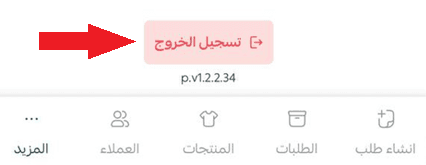
The Salla Point POS app provides a set of settings that allow you to manage your account and control your app experience. You can customize these settings to match your daily business needs.
📌 Article overview
- Profile
- Change branch
- Change password
- Change language
- Face ID
- Dark mode
- POS device
- Switch account
- Clear cache
- Log out
🚀 From the bottom navigation bar, under the More tab, you can access and manage several actions within the Salla Point app.

1. Profile
View and review your personal information.

🔔 You can only edit these details from the store dashboard.
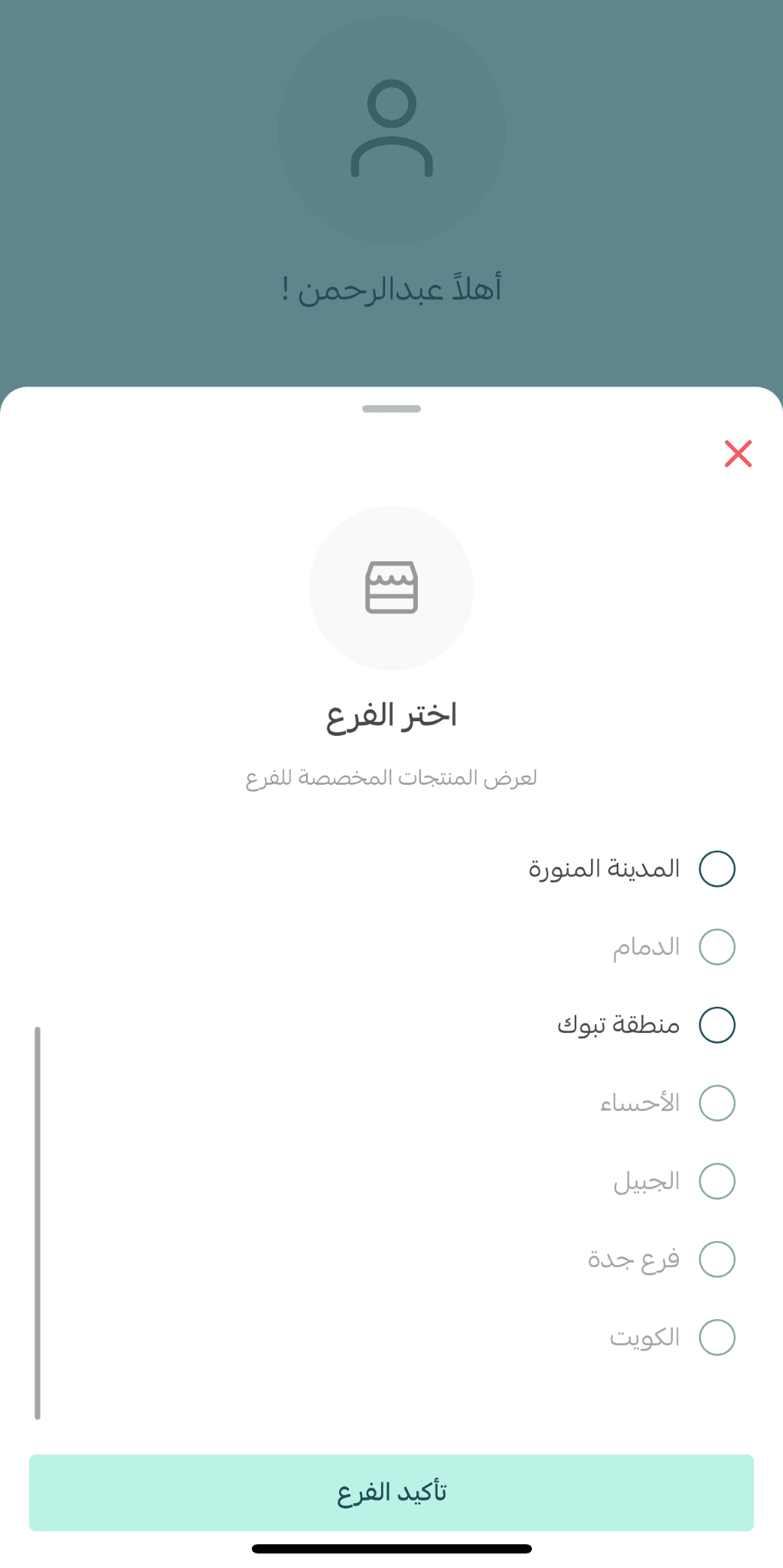
2. Select branch
Change the branch whose data you want to view.
3. Change password

Update your password by setting a new one. You will be redirected to the main login page.
4. Change language
To use the app in English, tap English, and the app language will switch immediately.

5. Face ID
Enable Face ID for faster and more seamless login.

6. Dark mode
Activate dark mode to reduce screen brightness and save battery, especially in low-light environments.

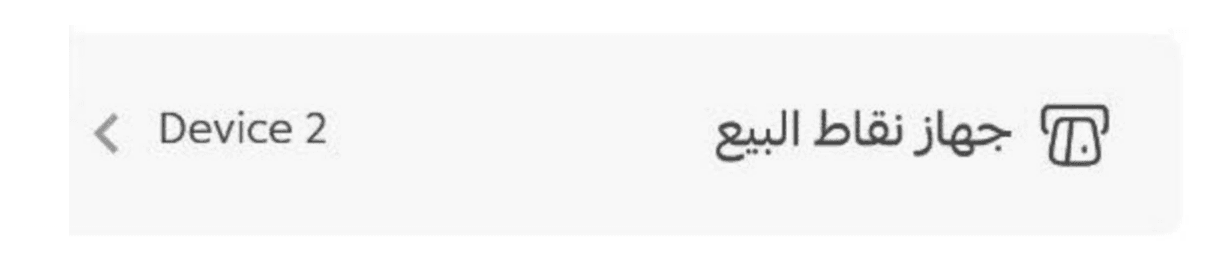
7. POS device
Modify the device used for point-of-sale operations.
8. Switch account
Quickly switch between employees by logging in and out using the employee code; no password required.

9. Clear cache
Helps ensure that the latest updates are reflected immediately in the app.

10. Log out
Log out of the app.