Do you have to take your digital products offline every time your app goes for review?
Not anymore. The new way of updating and launching apps for stores that sell digital products lets you send your app to Apple and Google for review without hiding anything from your customers. You add a small set of physical products that only the review teams can see, while your shoppers keep browsing and buying your digital products exactly as before. In this guide, you'll learn how to prepare your store for app review step by step.
To prepare a digital products store for app review, add at least five shippable physical products, place them in a Fixed products component in your mobile app theme, turn on the option to show the item only during app review, and add a manual shipping method that covers every city.
📌 Article overview
- What the new app update and launch mechanism gives you
- Steps to prepare your store for review
- An important notice before you submit your app
- Frequently asked questions
✅ What the new app update and launch mechanism gives you
✨ Sales keep running: there is no need to hide your digital products while the app is being reviewed.
👀 Products shown for review only: you can show physical products to the Apple and Google review teams alone, while keeping them hidden from your customers.
⚙️ Everything in one place: you prepare the app for review from the app customization settings inside your dashboard.
🚀 A more flexible experience: fewer steps to update the app and bring your store in line with what the app stores require.
👣 Steps to prepare your store for review
First: add physical products
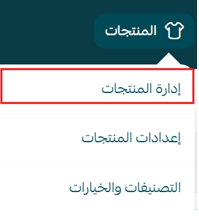
1. From the (Products) tab in the main menu, click (Manage products).
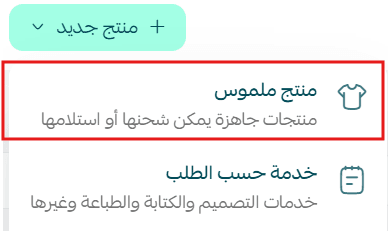
2. Add at least five physical products that can be shipped, and complete the details for each one: product images, price, quantity, and a product description if you have one.
Second: turn on "Show the item only during app review"
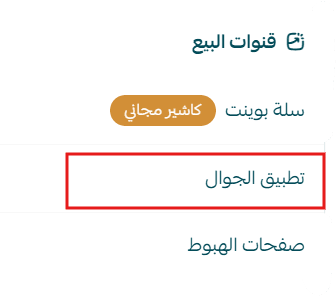
1. From the (Store and sales channels) tab, click (Mobile app).
2. Click (Customize) next to the active theme.
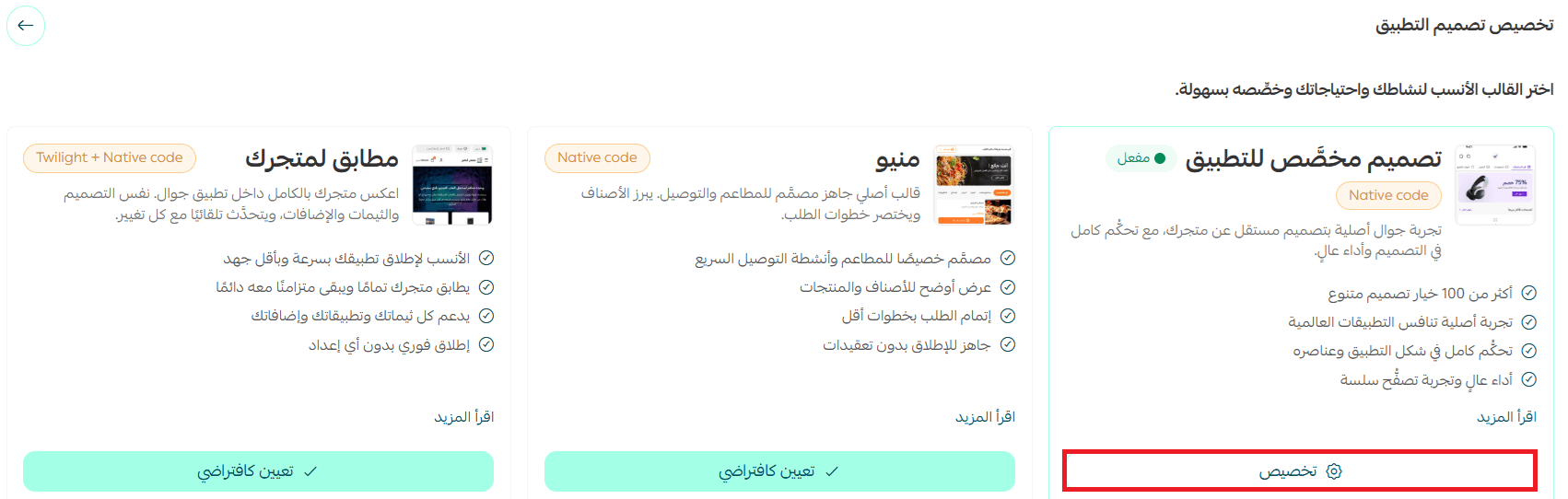
3. Add the (Fixed products) component, then select the physical products you added earlier.
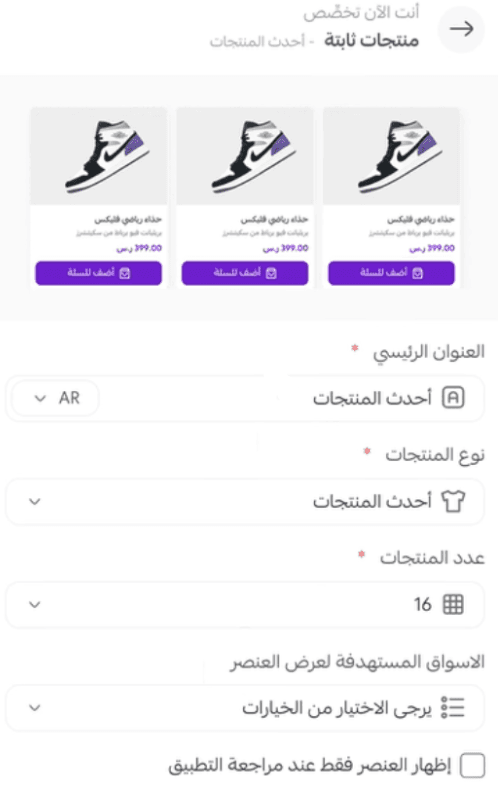
4. Turn on the (Show the item only during app review) option.
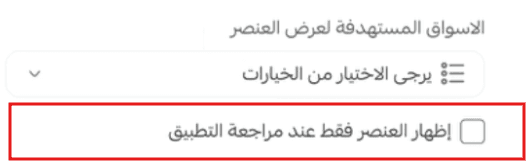
🔔 Once the option is on, these products are visible only to the app store review teams. Your customers will not see them.
Third: add a manual shipping method
1. From the (All) tab in the main menu, click (Shipping companies).

2. From the More menu, click (Store delivery agents).
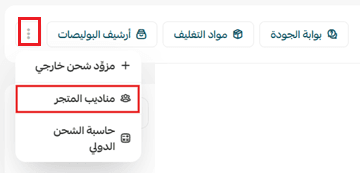
3. Click (+ New delivery agent) to add a manual shipping company.
4. Add a manual shipping company that covers every city in the Kingdom.

🔔 This shipping method appears only with the physical products set aside for review.
🚨 An important notice before you submit your app
The app stores (Apple and Google) apply their own policies to apps that display digital products, and approval or rejection decisions can differ under those policies. This mechanism helps you prepare the app for review in the way the stores expect, but whether the app is accepted, and any future action the app stores take, remains subject to their policies, and using it is the merchant's responsibility.
📝 Important notes
Keep the review-only products in place. If you delete them or turn the option off after submitting, reviewers may open your app and find nothing shippable to test.
❓ Frequently asked questions
Do I still have to hide my digital products during review?
No. That is the point of this mechanism. Your digital products stay visible and your customers keep buying while the review runs.
How many physical products do I need to add?
At least five, and each one must be shippable with its details completed: images, price, quantity, and a description if you have one.
Will my customers see the review-only products?
No. Once you turn on (Show the item only during app review) for the Fixed products component, those products are shown to the Apple and Google review teams only.
Why do I need a manual shipping method?
The review teams need a working shipping option for the physical products they test. The manual method you add appears only alongside those review-only products.
Does following these steps guarantee my app is approved?
No. It prepares your app the way the stores expect, but the final decision belongs to Apple and Google under their own policies for apps that display digital products.
Set this up once and your app review stops costing you sales. The store your reviewers see and the store your customers see can finally be two different things.