Did you know an abandoned cart can be a sales opportunity rather than a lost one?
Plenty of customers add products to their cart and then never finish paying. That is where you come in: Salla gives you a simple way to complete the order yourself, turning a stalled cart into a real order and lifting your store's sales.
This guide covers how to complete an order from an abandoned cart, what you need to fix before the customer can pay, and how to get the payment link into their hands. In this guide, you'll learn how to create the order, update its shipping and payment details, and send the customer a link that lets them finish the purchase in one step.
From the main menu, open Marketing, then Abandoned carts. Click the options icon next to the cart and choose Complete the order. Salla creates an order with the customer's details and products, set to Under review. Add the shipping and payment details, then send the customer the payment link.
📌 Article overview
- How to complete an order from an abandoned cart
- Update the shipping details
- Update the payment details
- Frequently asked questions
- Let customers complete the order themselves
👣 How to complete an order from an abandoned cart
1. From the main menu, click (Marketing).

2. From the marketing menu, click (Abandoned carts).
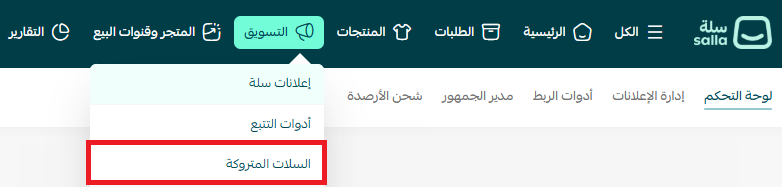
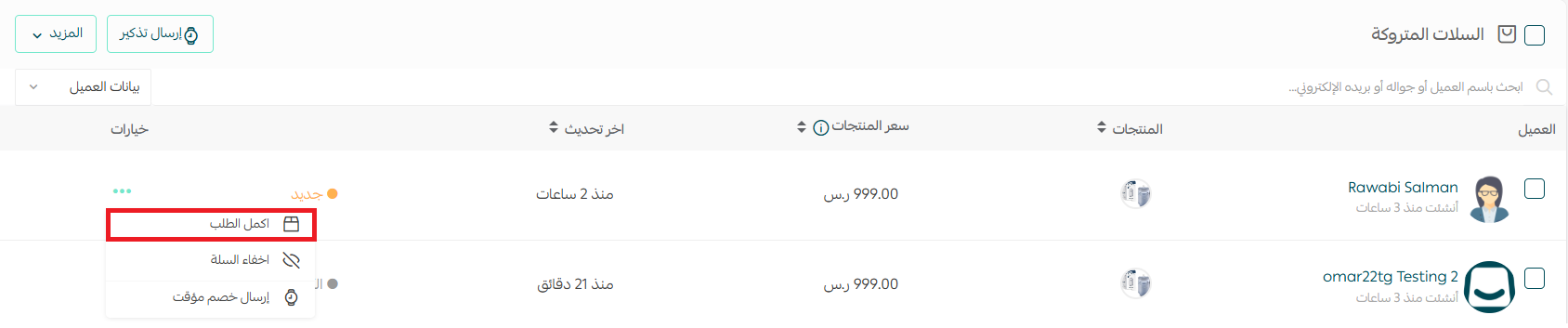
3. On the abandoned carts page, in the (Options) column, click (...) next to the cart you want to complete, then click (Complete the order) in the menu that opens.
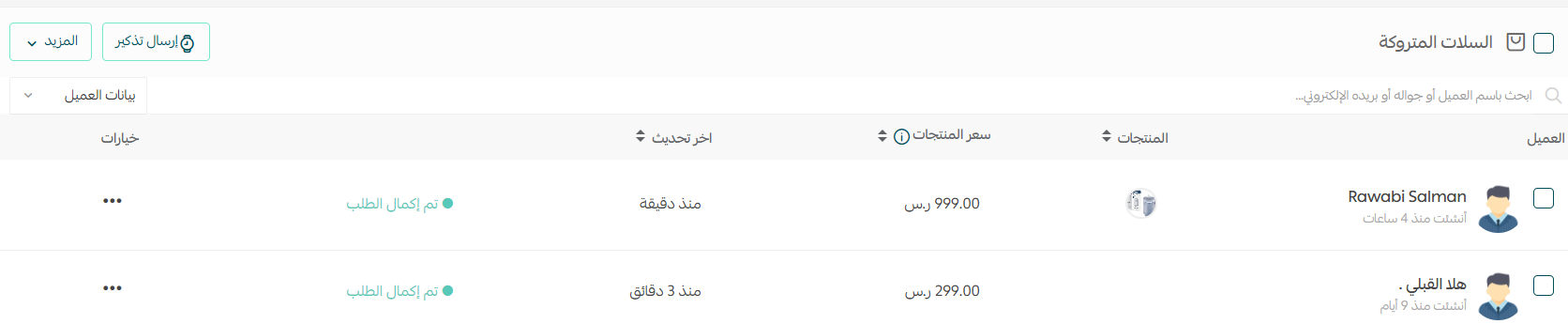
The cart's status changes to (Order completed).
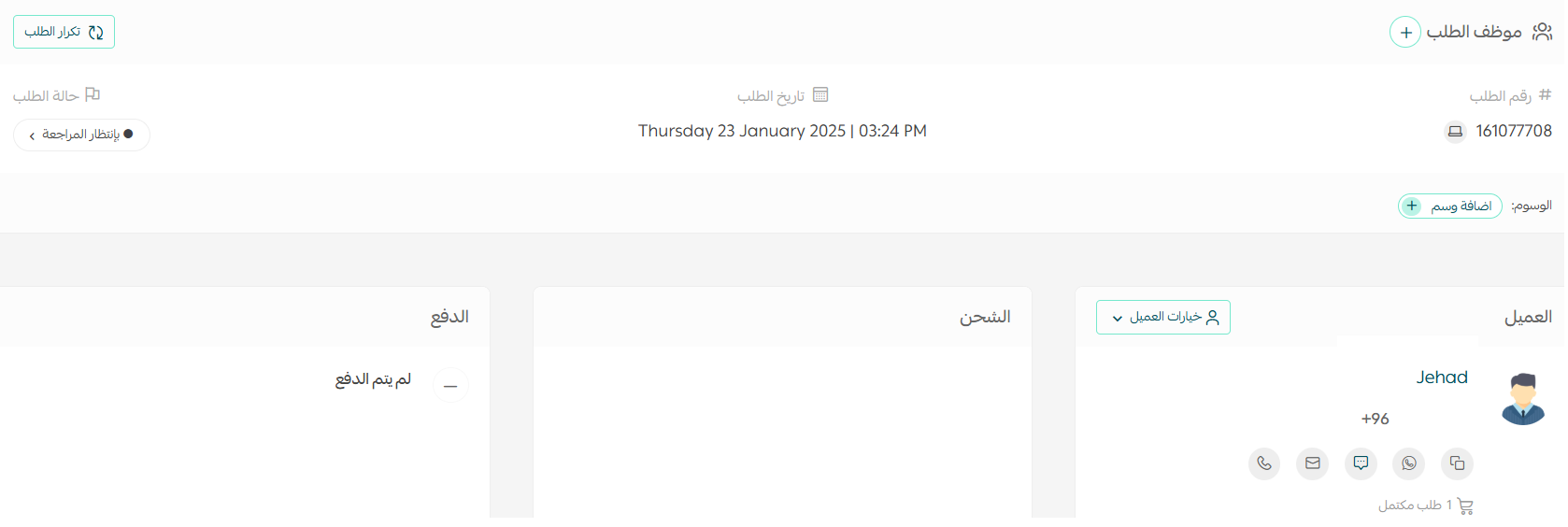
4. Salla takes you to the order page, carrying the same customer details and products from the abandoned cart, with the order status set to (Under review).
📦 Update the shipping details
Before you send the payment link, update the shipping details. Orders created from an abandoned cart don't carry any shipping information.
1. Scroll to the bottom of the order page, then click (Edit order).

2. In the Shipping section, click (Edit).
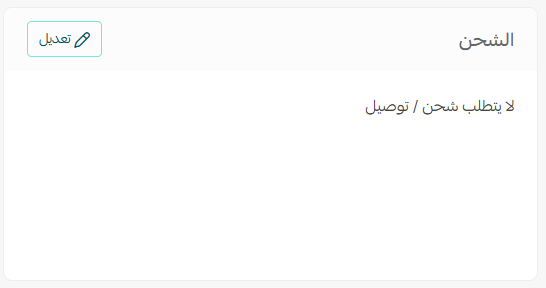
3. Choose whether the order needs shipping, then add all the required details, such as:
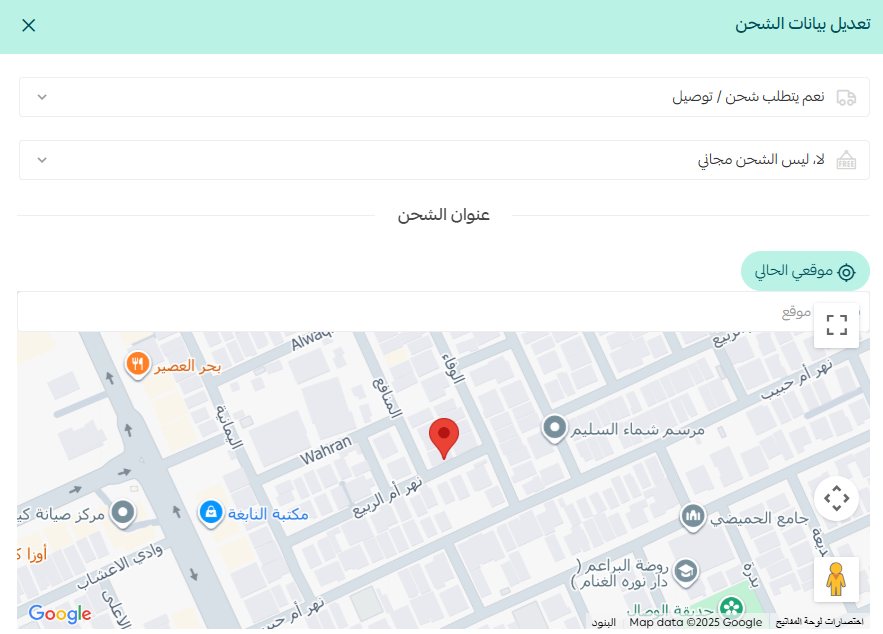
- The customer's address.
- The shipping company.
- The service type or delivery speed.
- The shipping cost.
Click Save once the details are updated, and check that the order total has been recalculated correctly.
💡 Note: If you don't update shipping before you create the payment link, the final amount can show without the correct shipping fees.
💳 Update the payment details
Once the shipping details are saved:
1. Go to the Payment section on the order edit page.
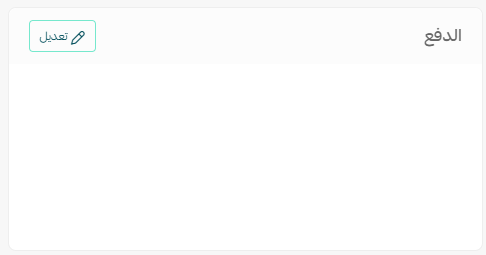
2. Confirm the payment method you want to use, such as online payment, then click (Save) to update the order once the payment details are in.
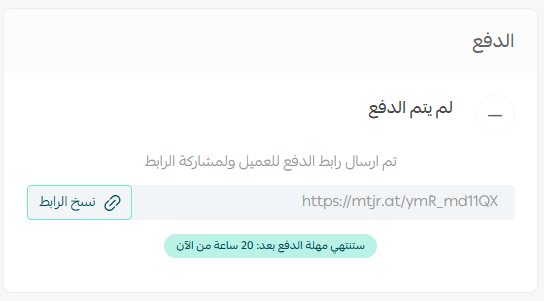
🔔 After you save, the payment link appears on the order page.
Copy the link and send it straight to the customer so they can pay and finish the purchase.
Frequently asked questions
❓ Why is the shipping information missing from the new order?
Orders created from an abandoned cart don't include shipping details, because the customer never reached that step. Add them yourself from (Edit order) before you create the payment link.
❓ What status does the new order get?
It arrives as (Under review), with the same customer details and products that were sitting in the abandoned cart.
❓ Where do I find the payment link?
On the order page, once you have saved the payment details. Copy it from there and send it to the customer.
❓ What happens to the cart in the abandoned carts list?
Its status changes to (Order completed) as soon as you choose (Complete the order), so you can tell at a glance which carts you have already handled.
🚀 Let customers complete the order themselves
You can also let customers finish the order on their own with a smart abandoned cart reminder. For more on that:
- Abandoned cart reminder with a discount
- Abandoned cart reminder without a discount
🔍 More learning resources
Every abandoned cart is a missed opportunity. Start turning those opportunities into wins with the abandoned carts course, which shows you how to win them back before they slip away.

🎯 Don't leave the opportunity on the table. Turn the abandoned carts in your store into real orders and grow your revenue.