Glary ERP
Running accounting in one system, inventory in another, and payroll in a third means reconciling three versions of the truth every month. Glary ERP is a complete cloud accounting system that lets you manage accounting, inventory, point of sale, and human resources from a single place. It provides accurate financial reports and integrates with government systems, which makes decisions easier and keeps you compliant. In this guide, you'll learn how to connect the Glary ERP app to your Salla store and how to remove it.
To connect Glary ERP on Salla, click the More tab in the main menu, then open Installed apps. From the Salla App Store banner, click Browse the Salla App Store, open the Glary ERP page, and click Install. Choose your plan, review the permissions, and complete the payment.
📌 Article overview
- How to connect the Glary ERP app
- How to remove the Glary ERP app
- Frequently asked questions
🚀 How to connect the Glary ERP app on Salla
1. From the main menu, click the (More) tab, then click (Installed apps).
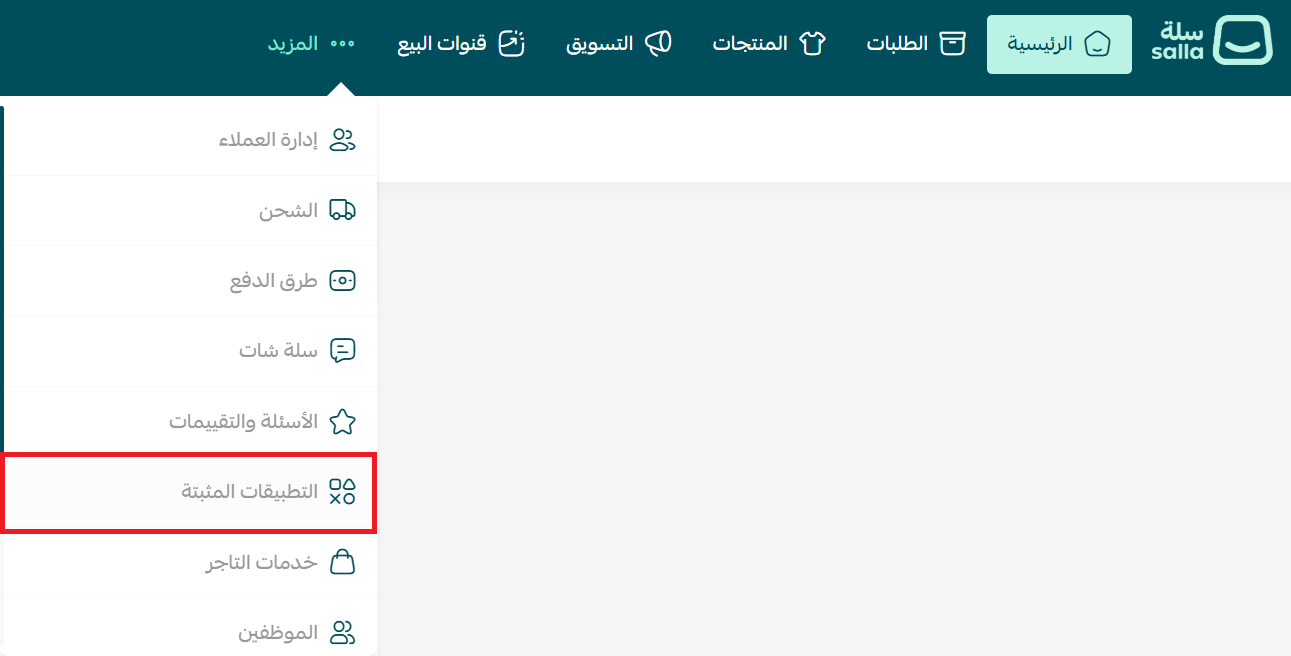
2. From the Salla App Store banner, click (Browse the Salla App Store).

3. From the Glary ERP page, click (Install).

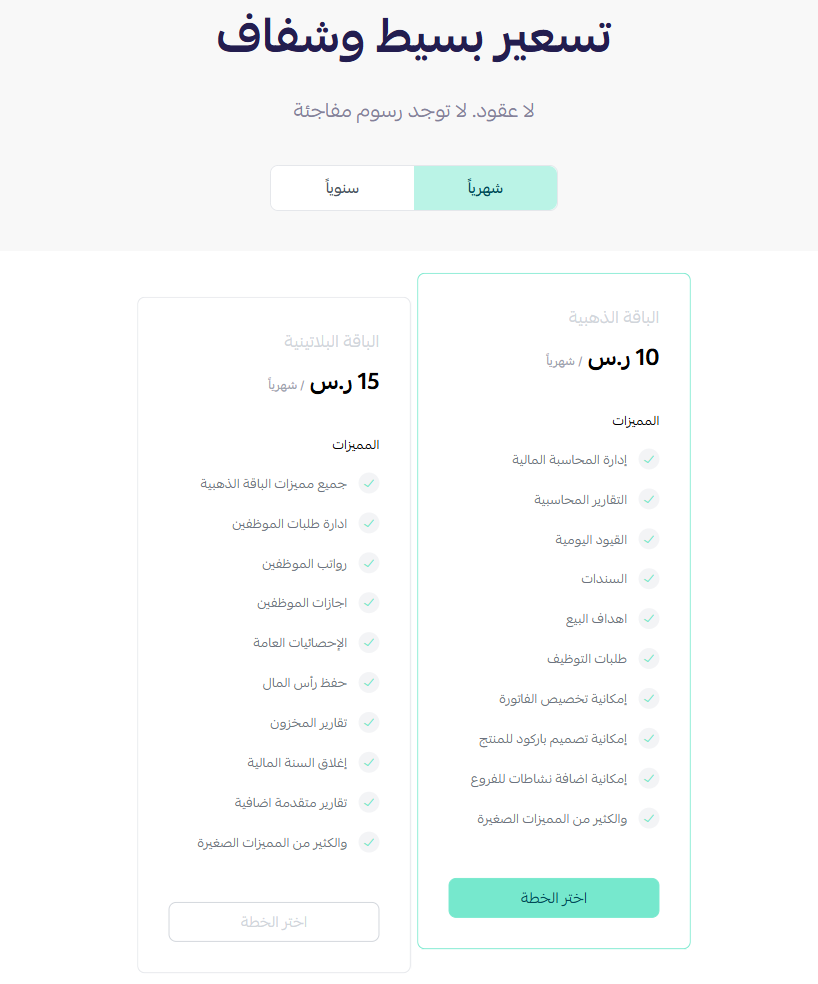
4. Choose the plan that fits your business to continue with the installation.
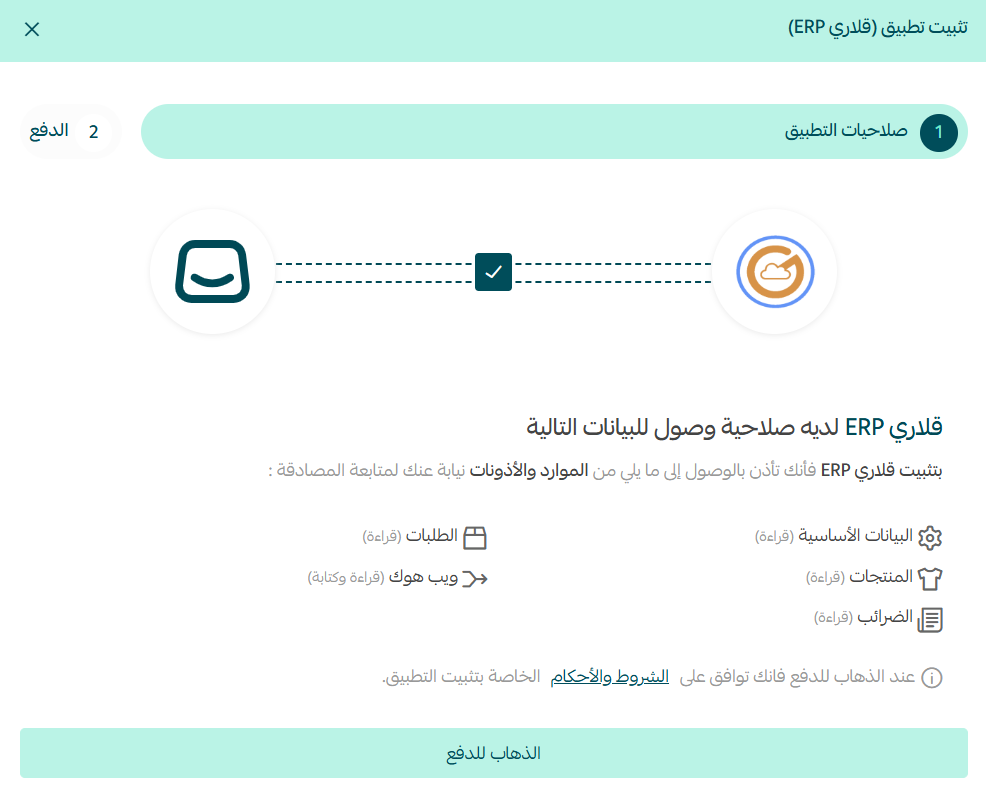
5. Review the requested permissions, then click (Go to payment).
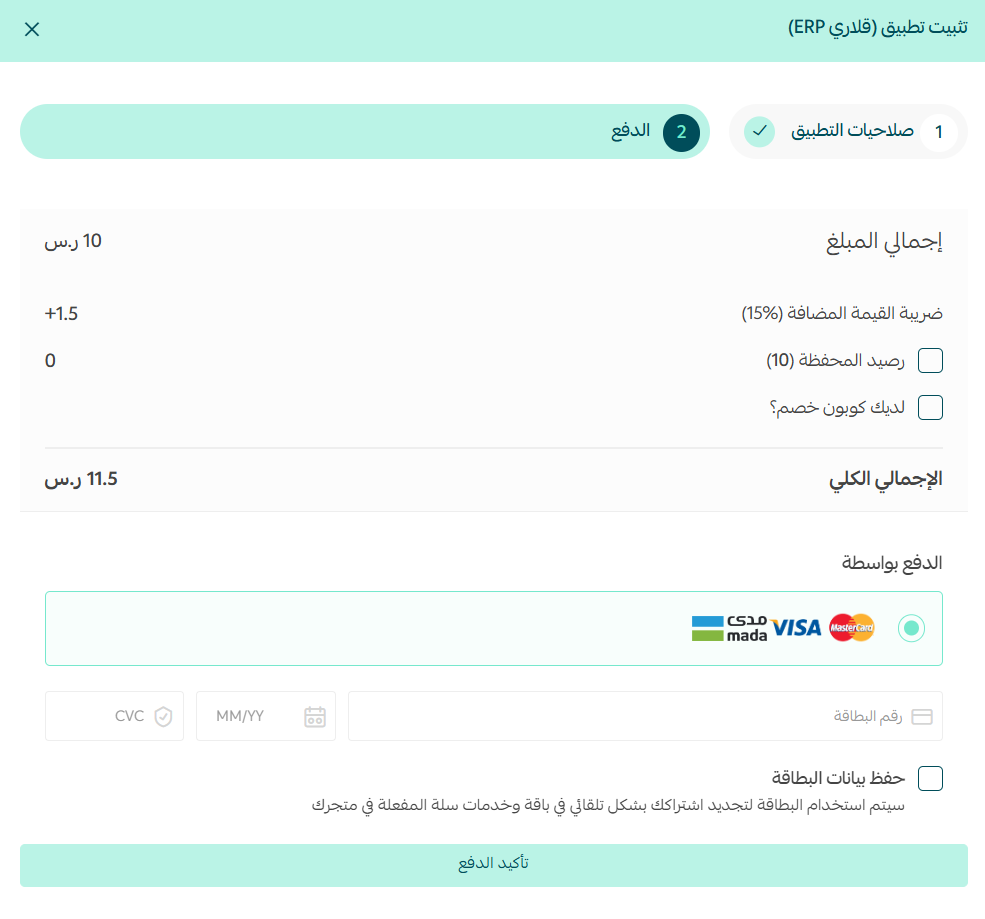
Complete the payment to activate the app's features.
The Glary ERP app is now installed on your store.
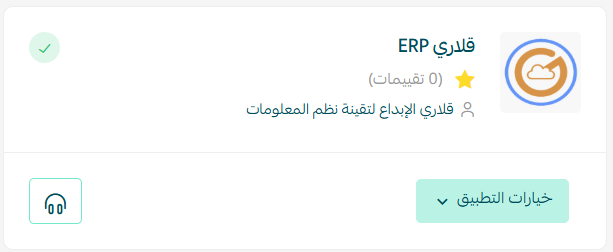
That's it — the connection is complete.
For more detail, see our guide to managing your store's apps.
🚀 How to remove the Glary ERP app
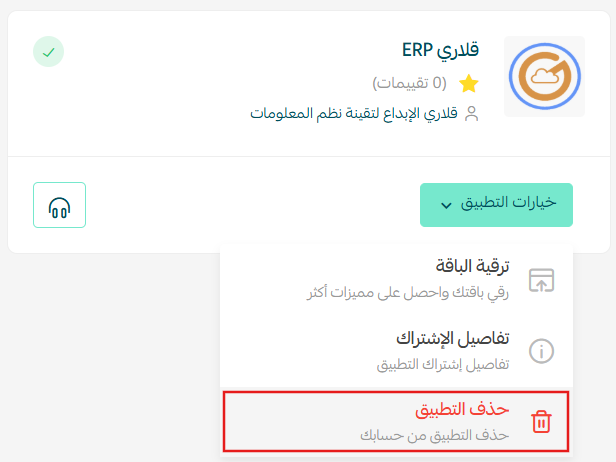
Click (App options), then click (Delete app).
Frequently asked questions
❓ What does Glary ERP cover?
Accounting, inventory, point of sale, and human resources, all managed from one cloud system.
❓ Does it help with regulatory compliance?
Yes. It provides accurate financial reports and integrates with government systems, which supports your compliance obligations.
❓ Where do I find the install option?
Under the More tab > Installed apps, then Browse the Salla App Store from the banner.
❓ How do I remove the app?
Click App options, then click Delete app.
Consolidating finance, stock, and payroll into one system pays off most at month-end, when the numbers only have to agree with themselves. Connect it once and the reconciliation work largely disappears.