Are the tabs at the bottom of your app helping customers find what they came for, or just sitting there in whatever order they were created?
The bottom tabs are the navigation your customers use most: they are on screen the entire time someone is browsing your app. In the default theme you control every part of that bar, from the display style and colors to the icon, name and order of each tab. Getting it right makes the app feel like your brand and makes browsing quicker, which shows up in engagement and sales. In this guide, you'll learn how to customize the bottom tabs step by step.
To customize the bottom tabs, open (Store and sales channels), click (Mobile app), then click (Customize) next to the default theme and open the (Top bar and tabs) section. From there you set the bar's display style, its colors, the icon and name of each tab, and the order they appear in.
📌 Article overview
- How to reach the bottom tabs settings
- Managing the bottom tabs
- Frequently asked questions
👣 How to reach the bottom tabs settings
1. From the main menu, click (Store and sales channels), then (Mobile app).

2. Next to the default theme, click (Customize).
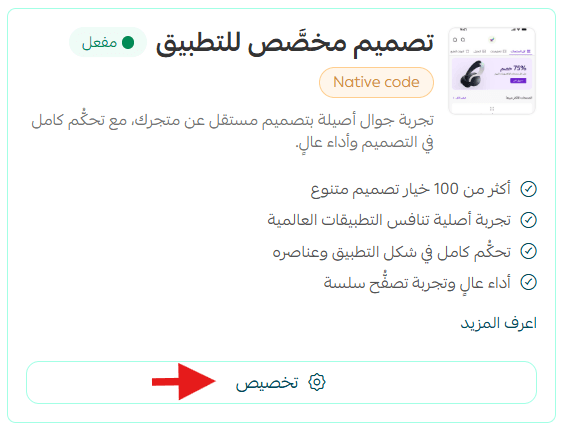
3. In the app design, choose the (Top bar and tabs) section.
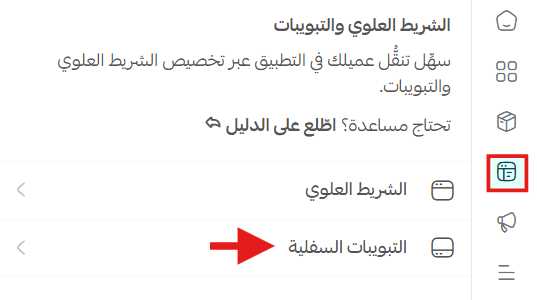
🚀 Managing the bottom tabs
Shape the bottom tab bar in your store's app so it matches your identity and gives customers a clearer, easier experience.
Set how the bottom bar is displayed
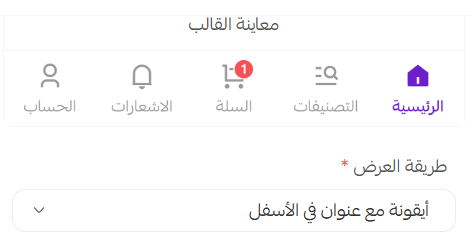
Choose how the bottom tabs are displayed, such as showing the icon together with the section name to make navigation easier for customers.

Here is how each bottom bar style looks:
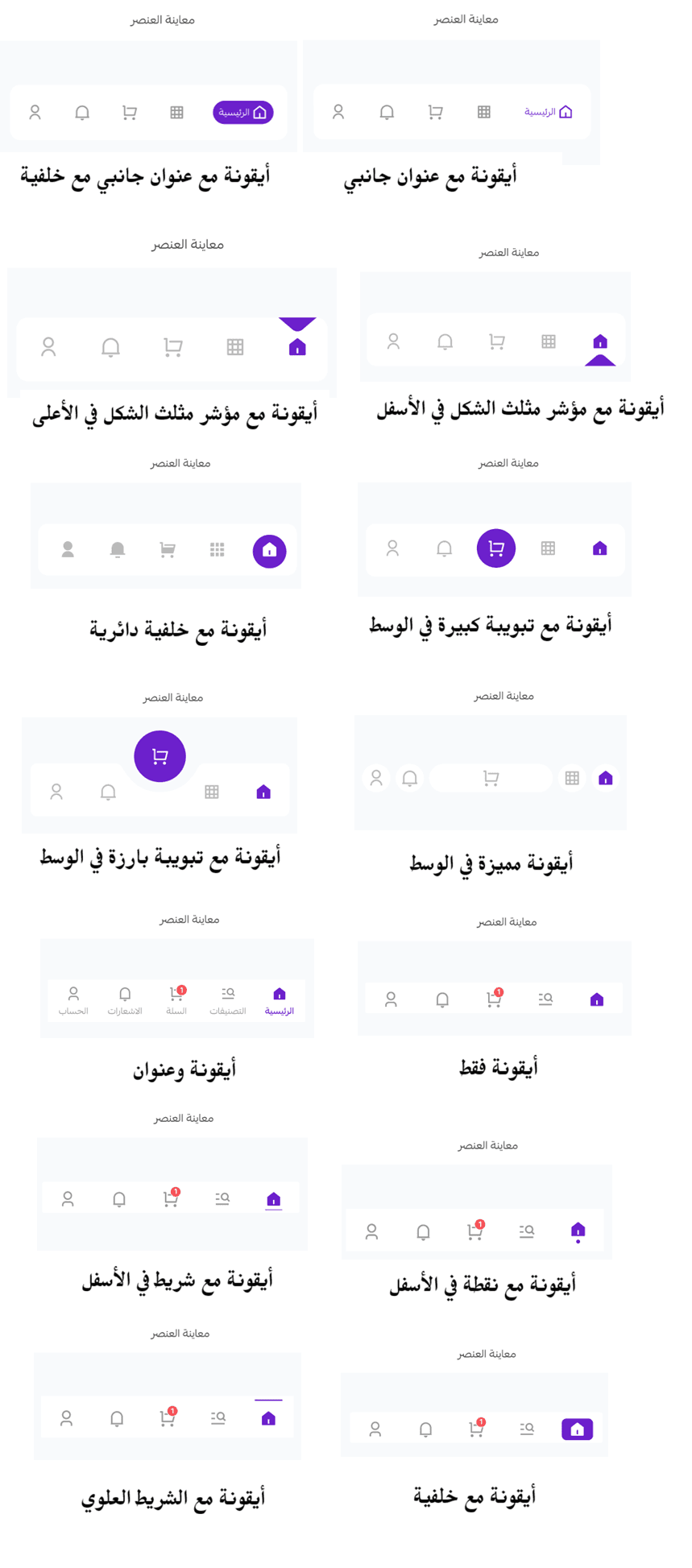
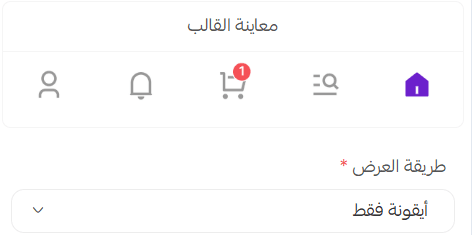
Your choice is reflected in the preview. For example, choosing the (Icon only) display shows up like this in the preview:
Set the bottom bar colors
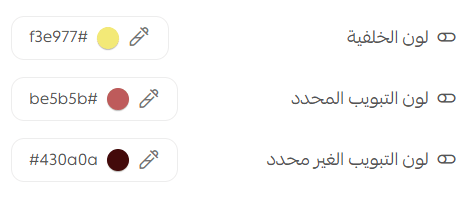
- Background color
Choose the background color of the bottom bar so it matches your store's identity.
- Selected tab color
Choose the color shown for the tab that is currently open, so customers can tell which section they are browsing.
- Unselected tab color
Set the color of the remaining tabs so they stay legible without pulling attention away from the current section.
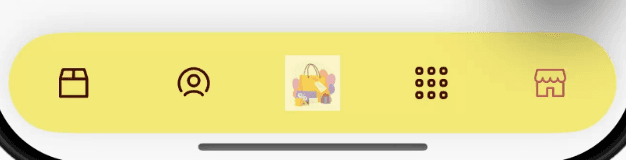
In your store, the result looks like this:
Turn on the Liquid Glass look for the tabs

Give the bottom tabs a modern glass finish, so the app looks more polished and in line with current designs.
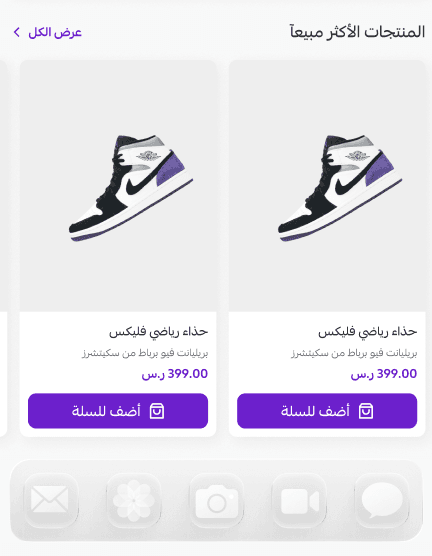
Turn on the Floating Navigation Bar look
Enable this option to display the bottom tabs as a floating navigation bar. [Verify: the Arabic source shows this setting without any description of its effect.]

Customize and reorder the tabs
Set the name and icon of each tab to suit your store's identity.
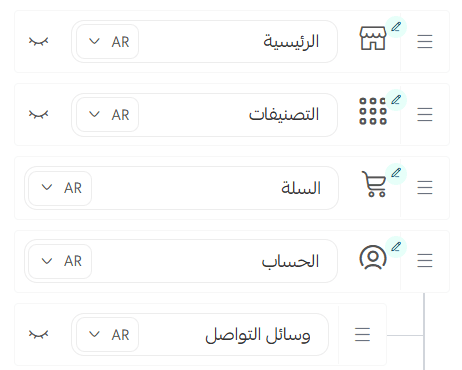
1. Change the icon type
Using the edit icon button, you can either pick a ready-made icon or upload an image to use as the icon.
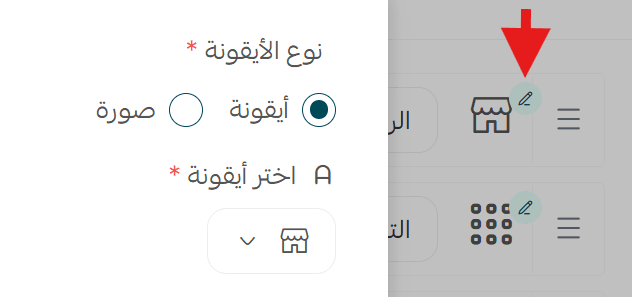
A ready-made icon appears like this:

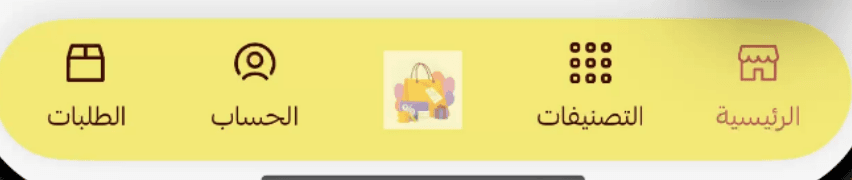
An uploaded icon image appears like this:
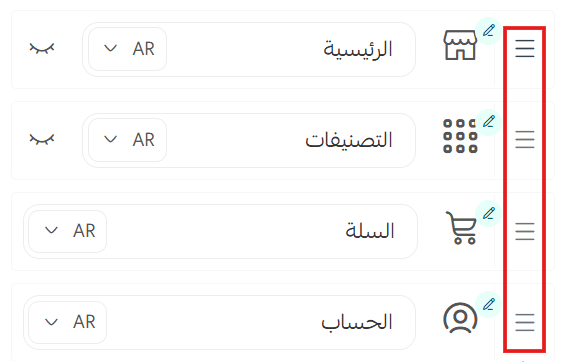
2. Reorder the bottom tabs
1. Change the order of the bottom tabs by dragging them into place.
2. Rename any of the bottom tabs.
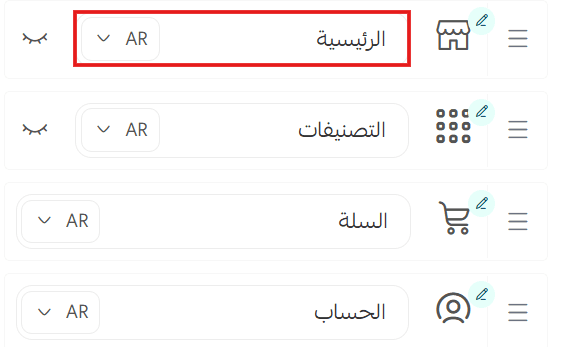
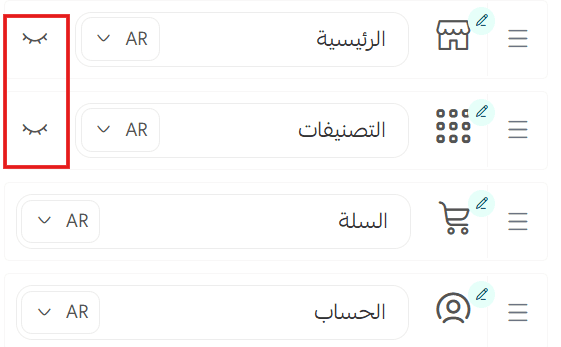
3. Hide or show any of the bottom tabs.
📝 Important notes
The preview updates as you change each setting, so check the bar there before you save.
Tab names are what customers read, so keep them short enough to fit under the icon.
❓ Frequently asked questions
Where do I find the bottom tabs settings?
From the main menu, click (Store and sales channels), then (Mobile app), then (Customize) next to the default theme, and open the (Top bar and tabs) section.
Can I use my own icon instead of the built-in ones?
Yes. From the edit icon button you can either choose a ready-made icon or upload your own image.
Can I change the order of the tabs?
Yes. Drag any tab to move it, and the new order applies to the bottom bar in your app.
Can I remove a tab I do not need?
You can hide it. Each bottom tab has a hide or show control in the same list.
How do customers know which tab they are on?
The selected tab uses the selected tab color you set, while the rest use the unselected tab color, so the current section stands out.
The bottom bar is the one part of your app customers touch on every visit. A few minutes spent on its style, colors and order pays back in how quickly people get to what they want to buy.