Would your visitors buy faster if they could see how many other people just bought the same product?
Rawaj is a sales-boosting tools app in the Salla App Store. It puts live alerts and updates on your storefront, showing shoppers things like how many orders a product has already received or how few units are left in stock. The idea is simple: visitors act on what other visitors are doing, so surfacing that activity lifts your conversion rate without touching your prices. In this guide, you'll learn how to install the Rawaj app, publish your first widget, and remove the app if you no longer need it.
Rawaj is a Salla App Store tool that displays live sales alerts on your storefront, such as how many people bought a product or how few units are left. Install it from the app store, choose a plan, then sign in to the Rawaj platform to customize and publish each widget.
📌 Article overview
- What the Rawaj app does
- How to install the Rawaj app
- How to manage the Rawaj app
- Frequently asked questions
🎯 What the Rawaj app does
Rawaj shows visitors real signals from your store while they browse. Those signals are drawn from visitor behavior and store activity data, and they answer the quiet questions a shopper asks before checking out: is anyone else buying this, and will it still be here tomorrow?
- Purchase alerts that tell shoppers how many people have bought a product.
- Stock alerts that show the quantity still available.
- Storefront notifications that keep browsing customers informed while they shop.
The result is a smoother experience inside the store and a higher conversion rate from traffic you already have.
🚀 How to install the Rawaj app
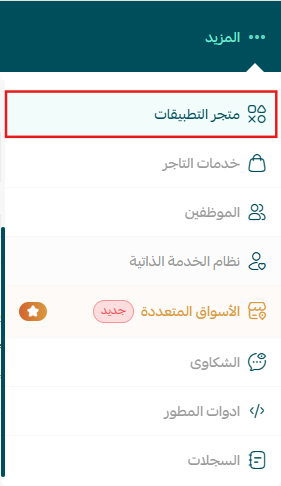
1. From the main menu, click the (More) tab, then click (App Store).
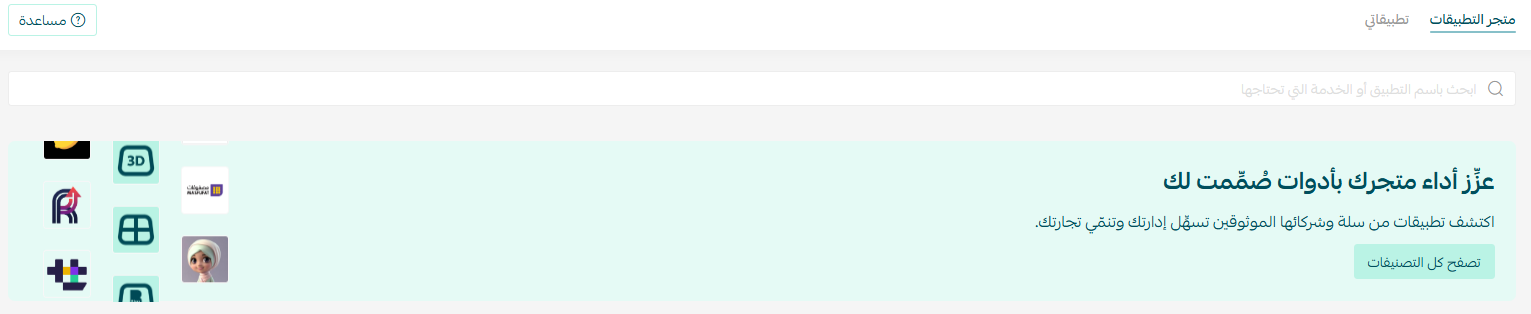
2. On the App Store tab, click (Browse all apps).
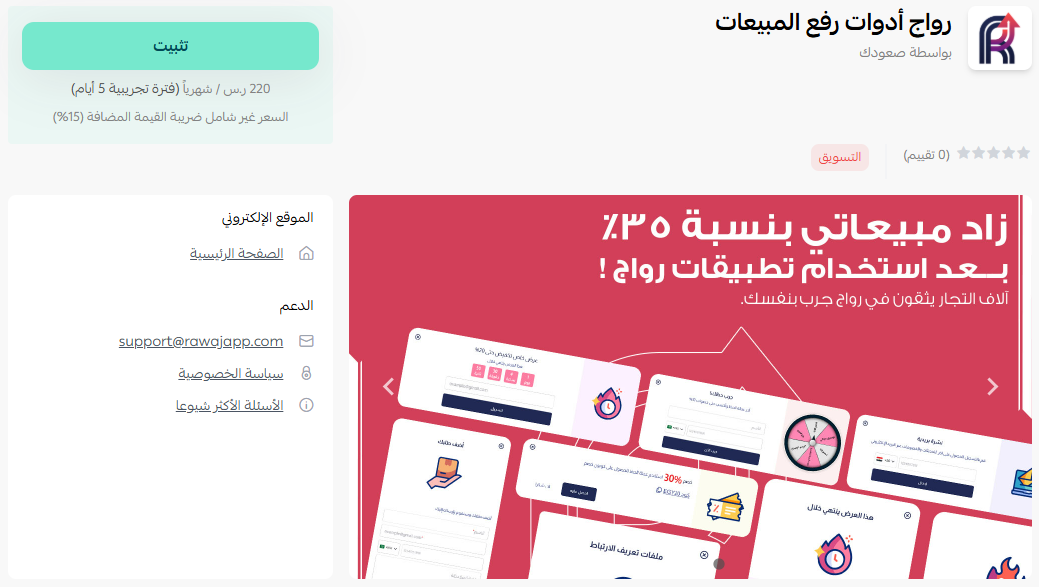
3. On the Rawaj sales tools app page, click (Install).
4. Choose the plan that fits your business to continue with the installation.
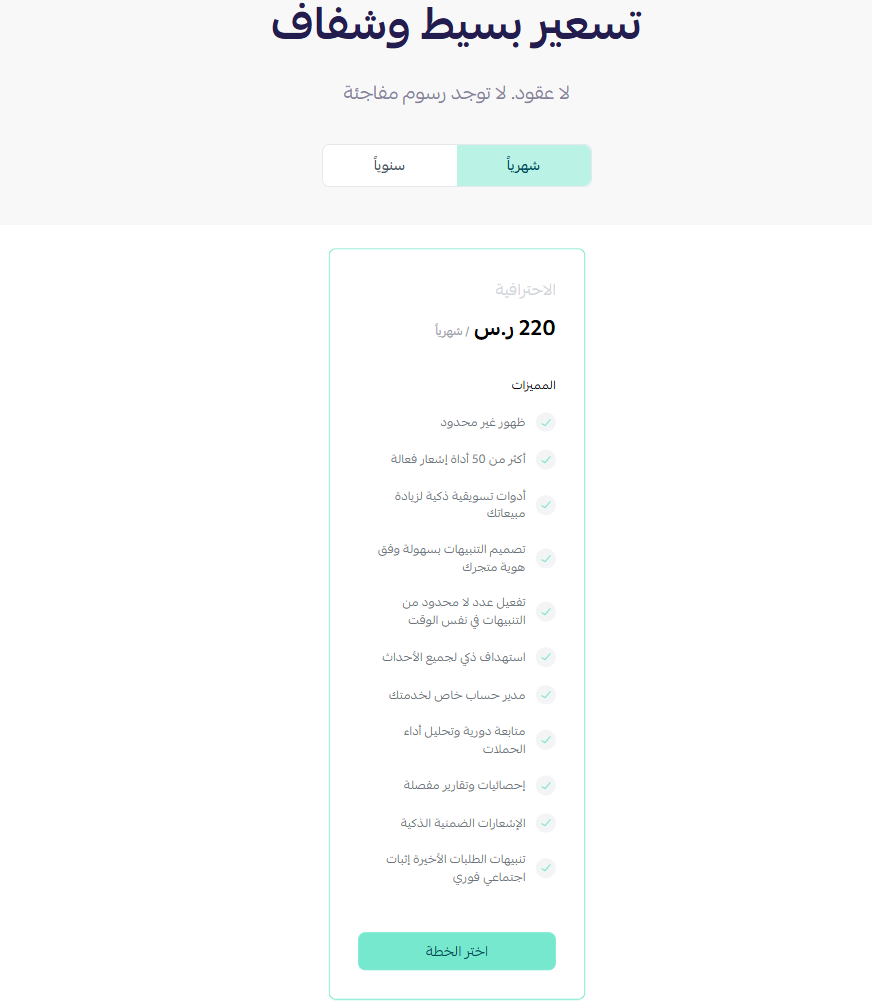
5. Complete the payment to unlock the app's features.
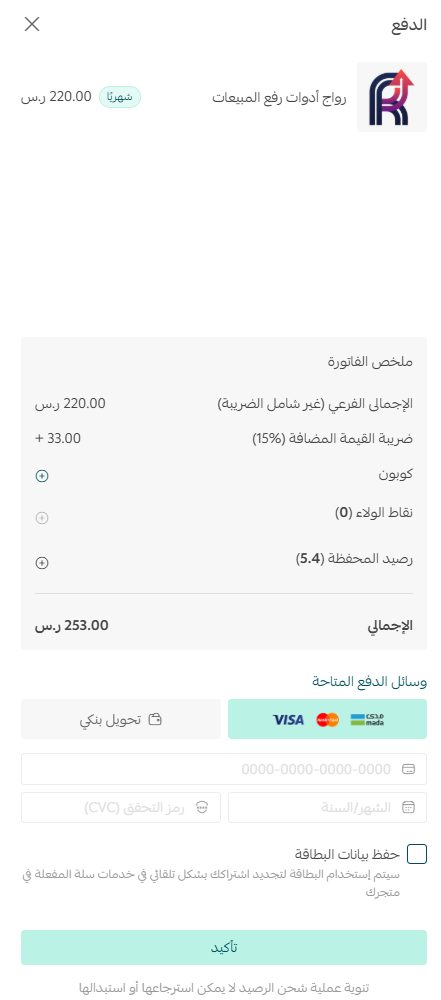
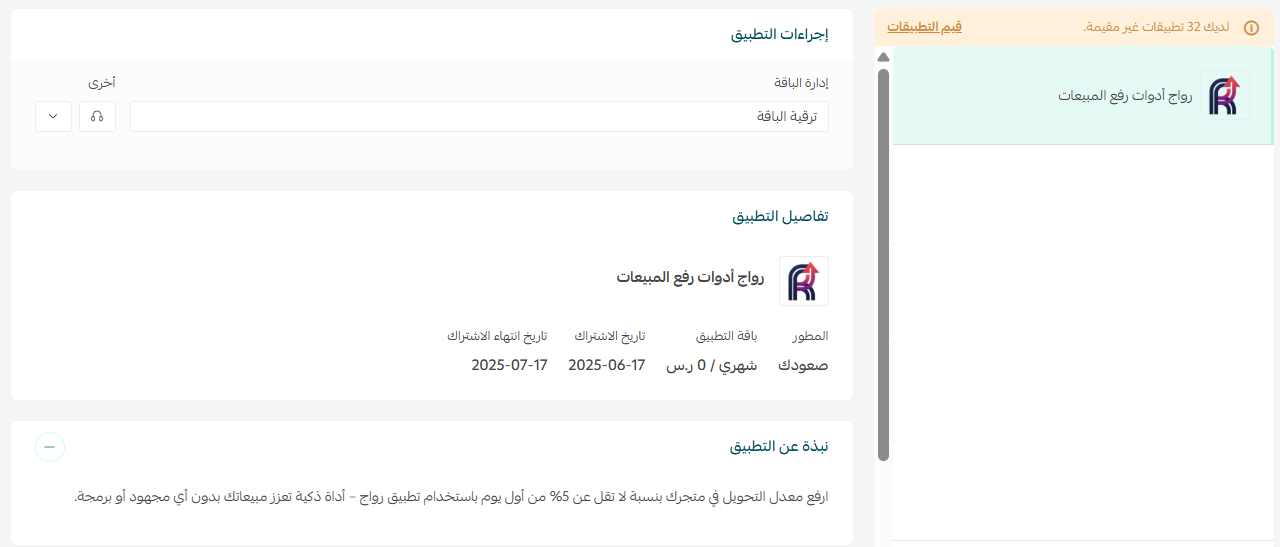
Rawaj is now installed on your store.
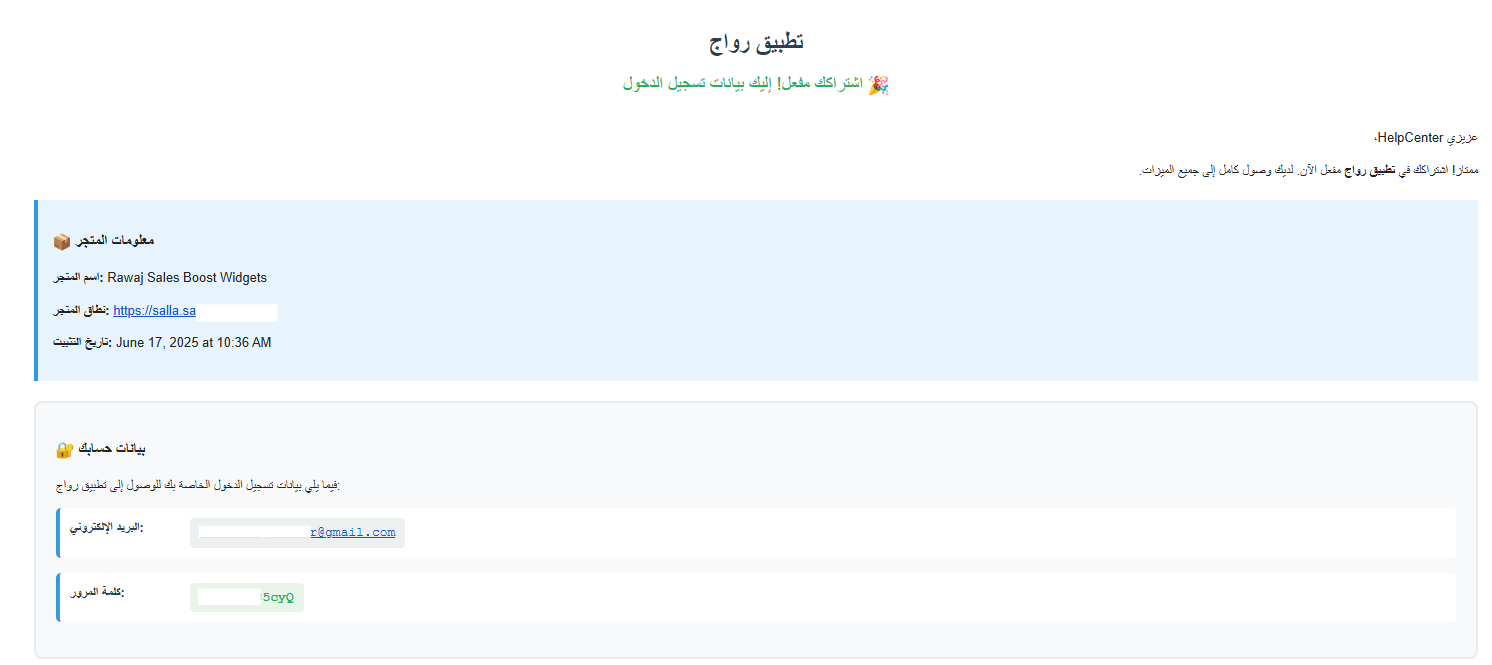
Right after the installation, Rawaj emails you your sign-in details. Open that email and click ( ).
).
🚀 How to manage the Rawaj app
Sign in to the Rawaj platform
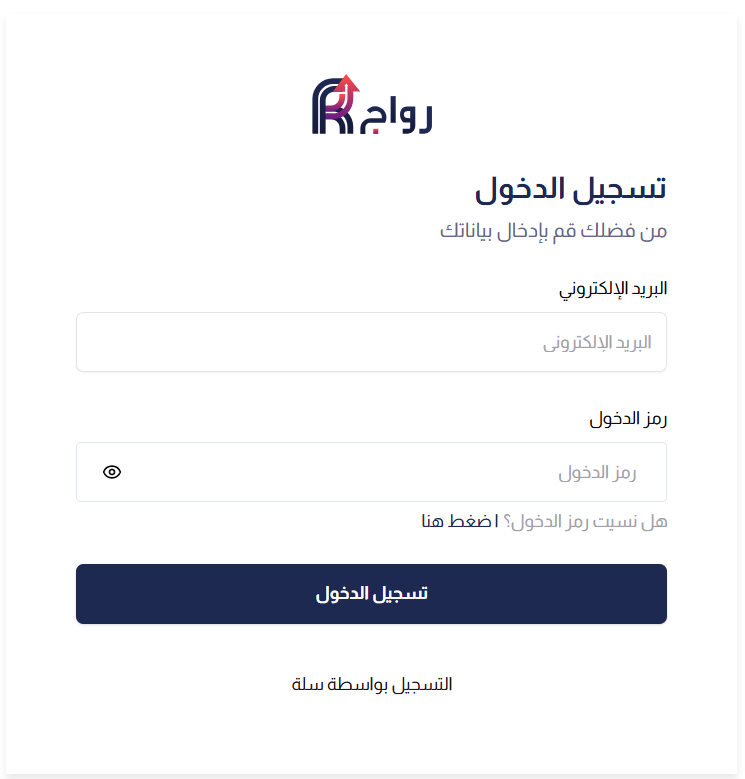
1. Sign in to the Rawaj platform using the credentials sent to your email.
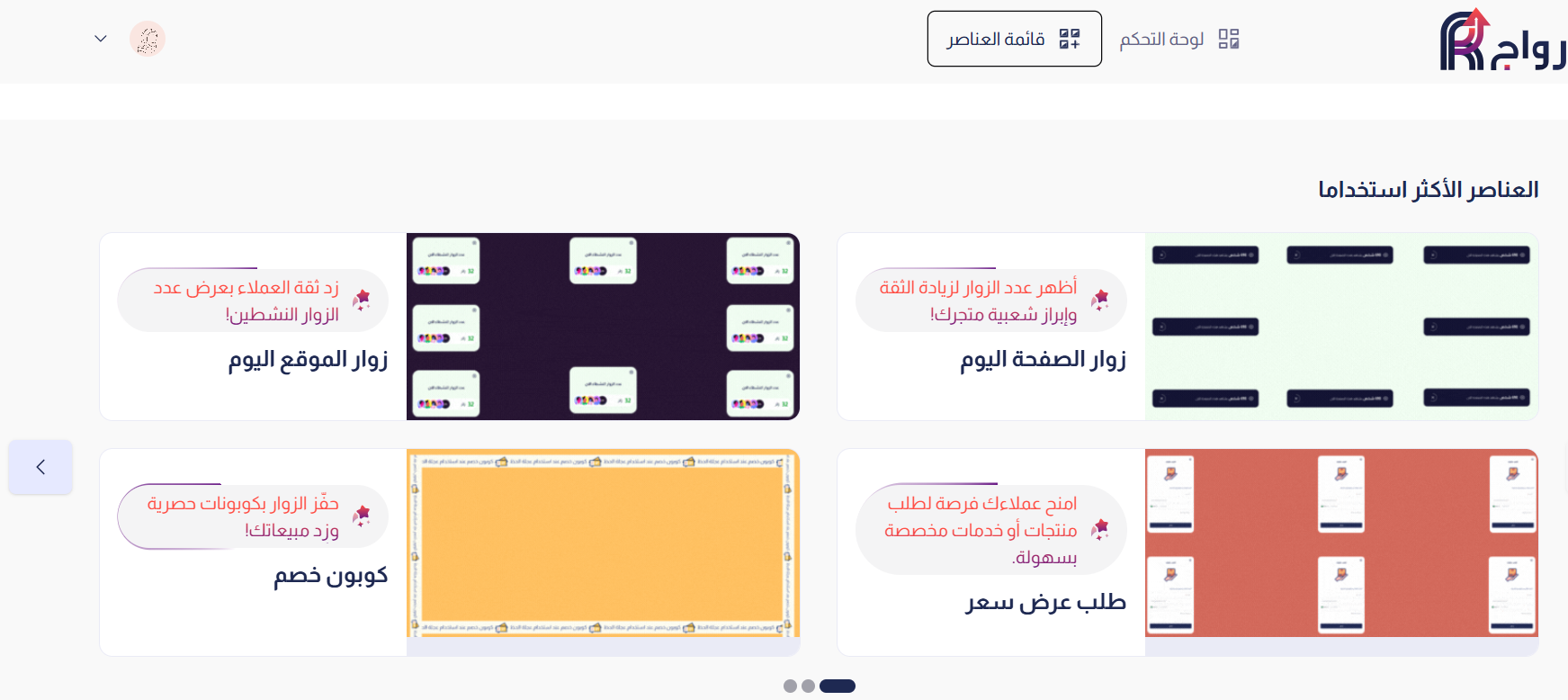
2. You land on the Rawaj home page. Click the element that matches your goal to add it to your store.
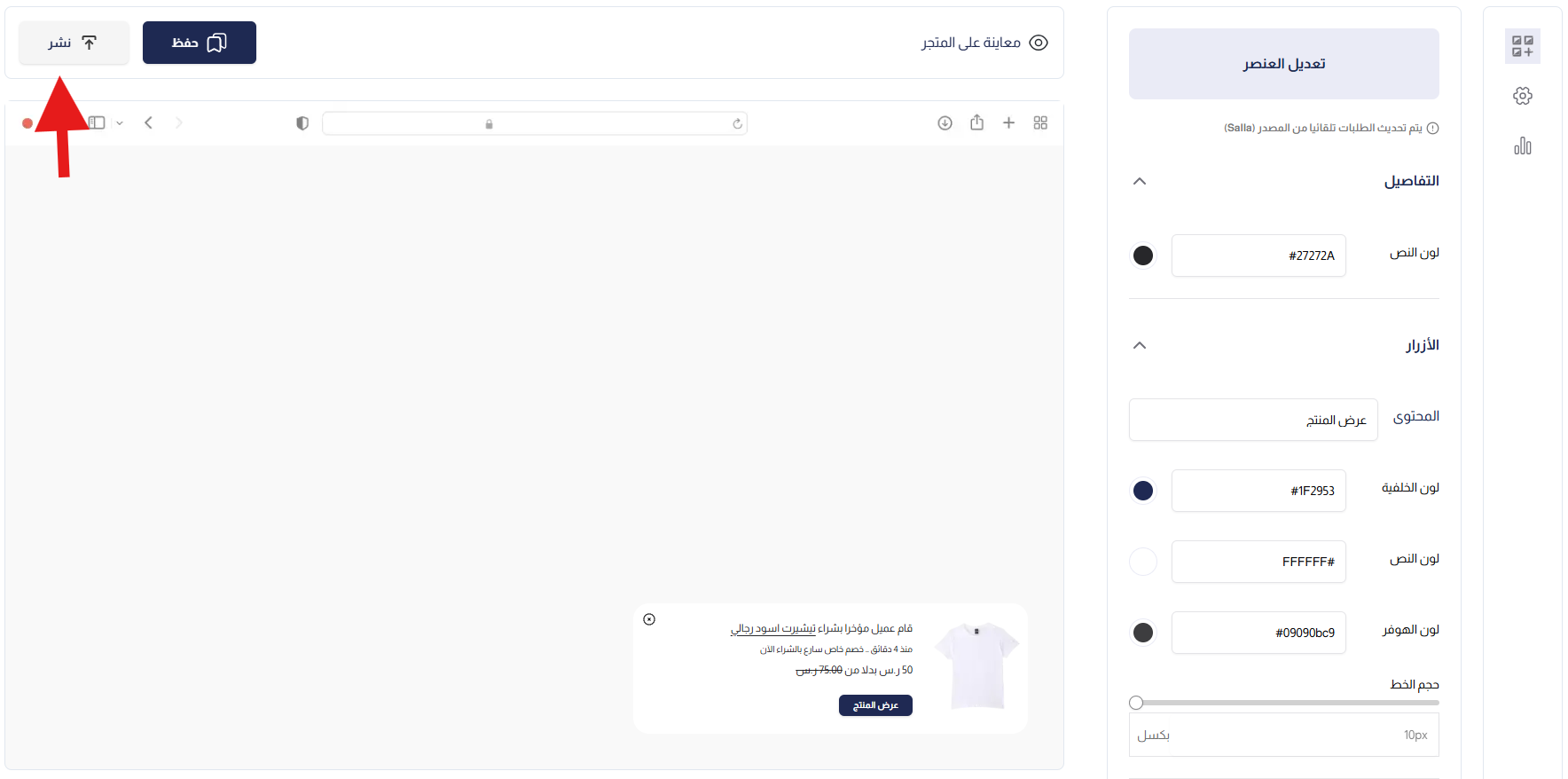
3. Customize the tool the way you want it, then click (Publish).
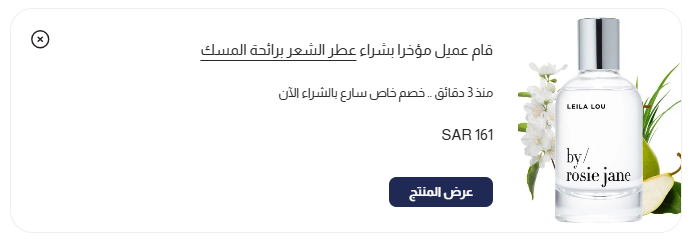
Here is how it appears to shoppers in your store:
Remove the app
From the Rawaj app in your installed apps, click ( ), then click (Delete app).

📝 Important notes
- Rawaj is a paid app. You pick a plan and complete payment as part of the installation.
- The widgets are configured on the Rawaj platform, not in your Salla dashboard. Your sign-in details arrive by email once the app is installed.
- A tool only appears on your storefront after you click (Publish).
❓ Frequently asked questions
❓ What kind of alerts can Rawaj show?
Alerts and updates aimed at shoppers while they browse, such as how many purchases a product has had and how much stock is left.
❓ Where do I customize the alerts?
On the Rawaj platform. Sign in with the credentials emailed to you, choose the element you want, adjust it, then click (Publish).
❓ I did not receive my Rawaj sign-in email. What now?
The email is sent to the address on your store account right after installation. Check your spam folder first, then contact Rawaj through the app's support channels.
❓ Can I remove Rawaj later?
Yes. Open the app in your installed apps, click the options icon, then click (Delete app).
Traffic you already paid for converts better when shoppers can see that other people are buying. Start with one alert on your best-selling product, watch what it does to that product's conversion rate, then expand. More details are available on the Rawaj app website.