Can you tell, right now, which of your sales channels is actually carrying the business?
Selling through several online marketplaces means the answer is usually spread across several logins. The Nasam app pulls it back together: one unified dashboard where you manage and follow your store's performance across multiple e-commerce sales channels, watch sales, products, and inventory, and compare how each channel is doing. In this guide, you'll learn how to install Nasam, set up your account, upgrade your plan, and remove the app.
Nasam gives Salla merchants a single dashboard for managing performance across several online sales channels. From one place you can monitor sales, products, and inventory, and analyze how each channel performs, which makes day-to-day operations easier to run than checking every marketplace account separately.
📌 Article overview
- What the Nasam app does
- How to install Nasam and set up your account
- How to upgrade your plan
- How to manage and remove the app
- Frequently asked questions
🎯 What the Nasam app does
- Brings several e-commerce sales channels into one unified dashboard.
- Tracks sales, products, and inventory in a single view.
- Analyzes the performance of each channel so you can compare them.
- Simplifies the daily operations work that comes with selling in more than one place.
👣 How to install the Nasam app
1. From the main menu, click (All), then under the helper tools section, click (App Store).

2. On the Nasam app page, click (Install).
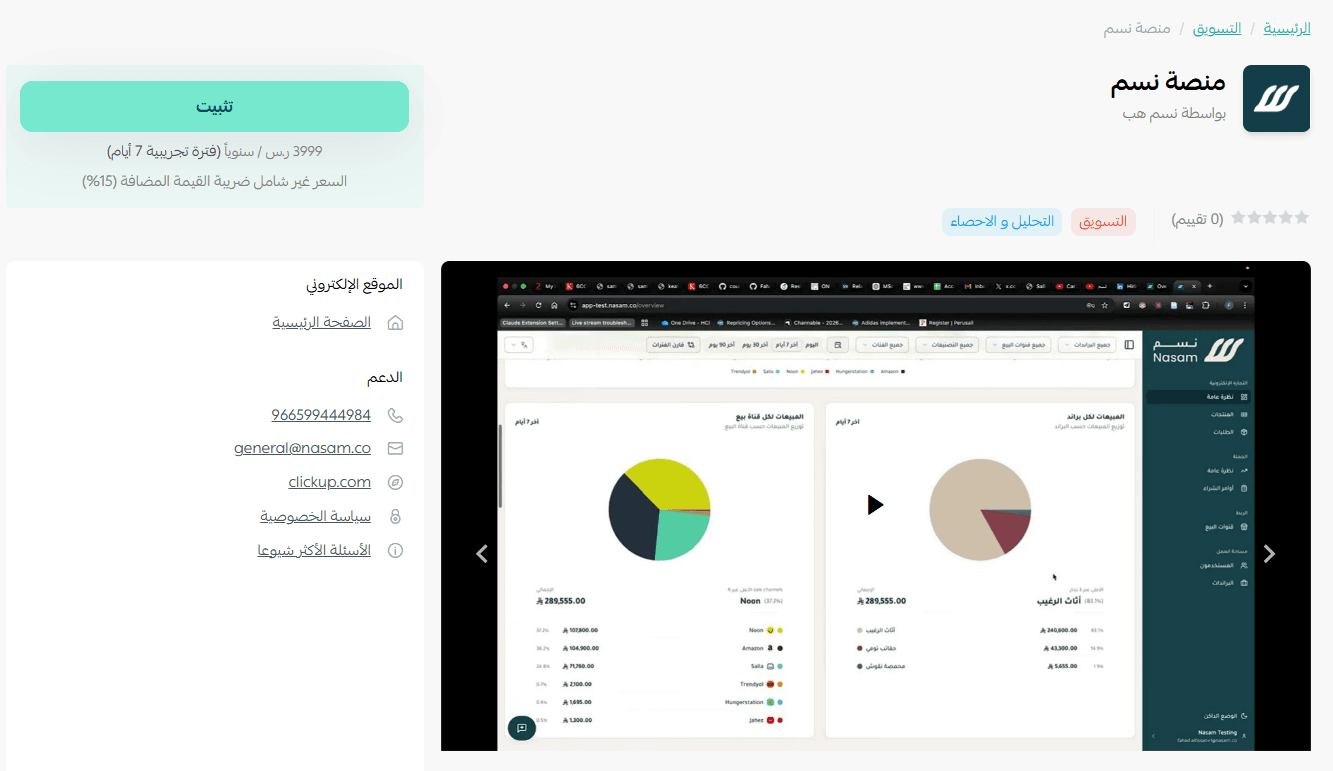
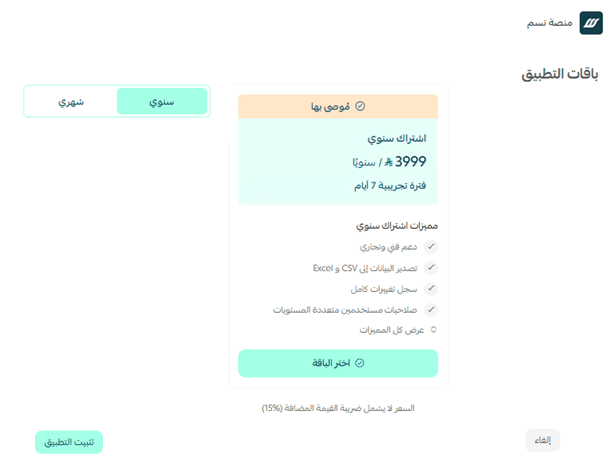
3. Choose the plan that fits your store, then click (Install app).
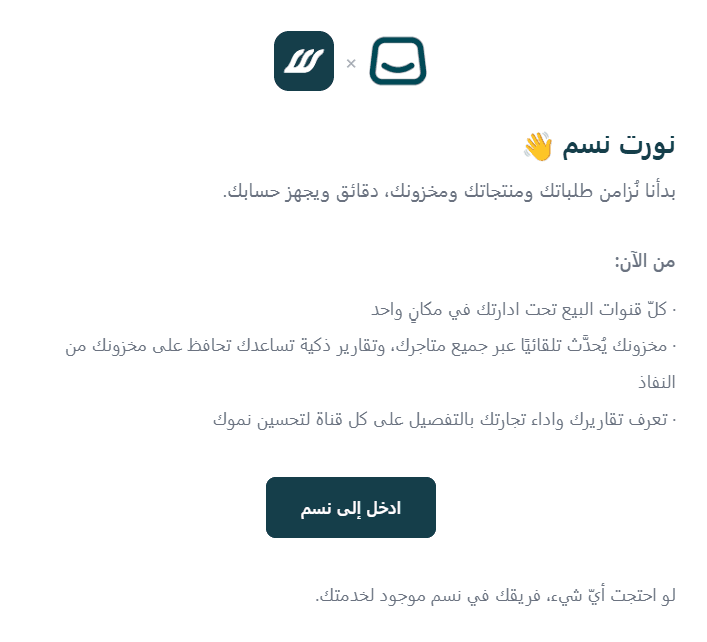
4. Open the email you receive and click (Go to Nasam).
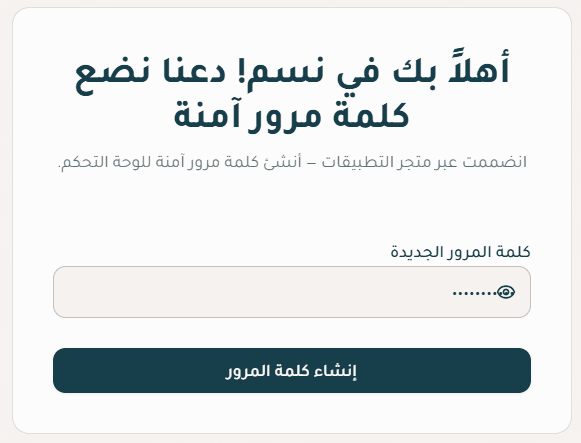
5. Enter a new password, then click (Create password).
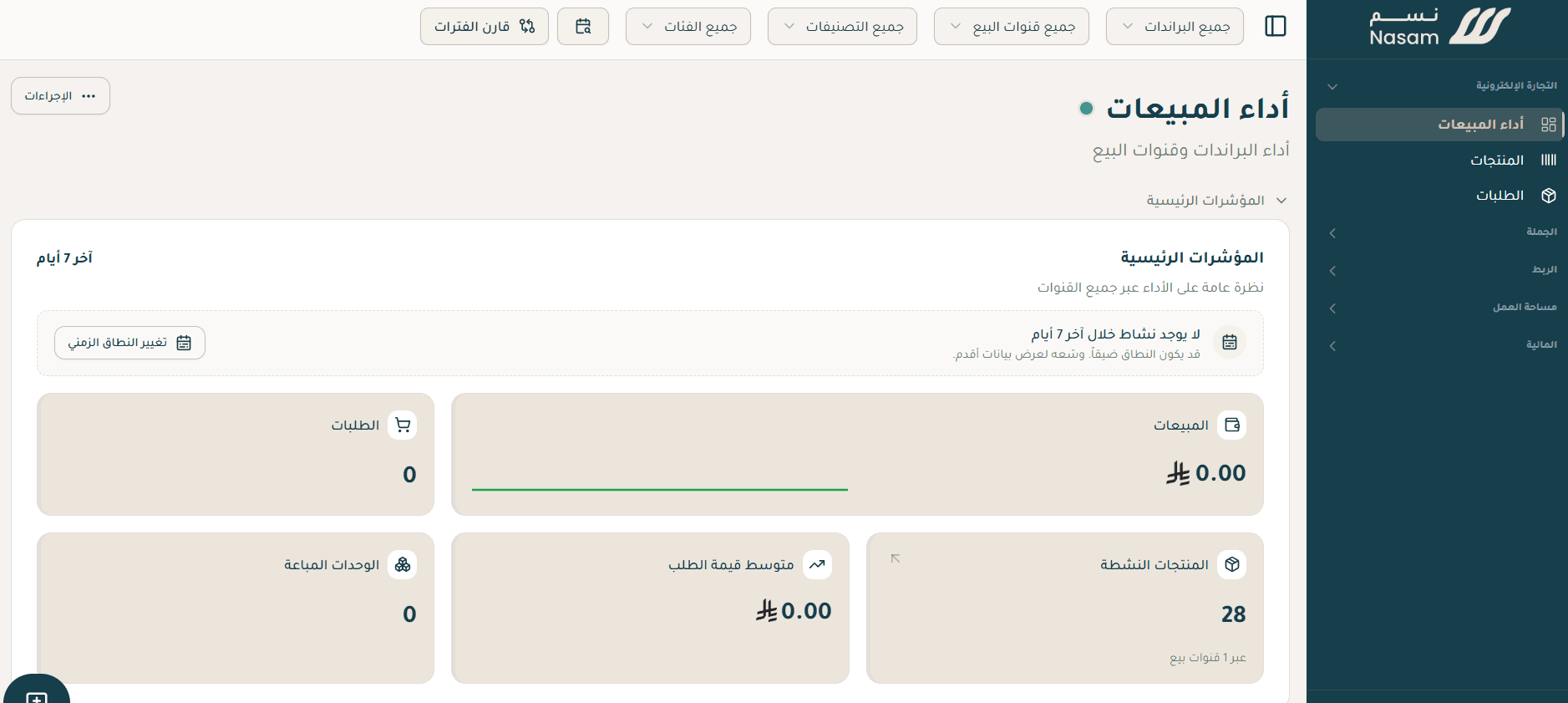
6. Your account home page opens on the Nasam site.
🚀 Managing the Nasam app
Upgrading your plan
1. On the app details page in your store, click (Upgrade plan).

2. Choose the plan you want, then click (Go to payment).

3. Fill in your payment details and click (Confirm) to complete the upgrade.

Customizing the app
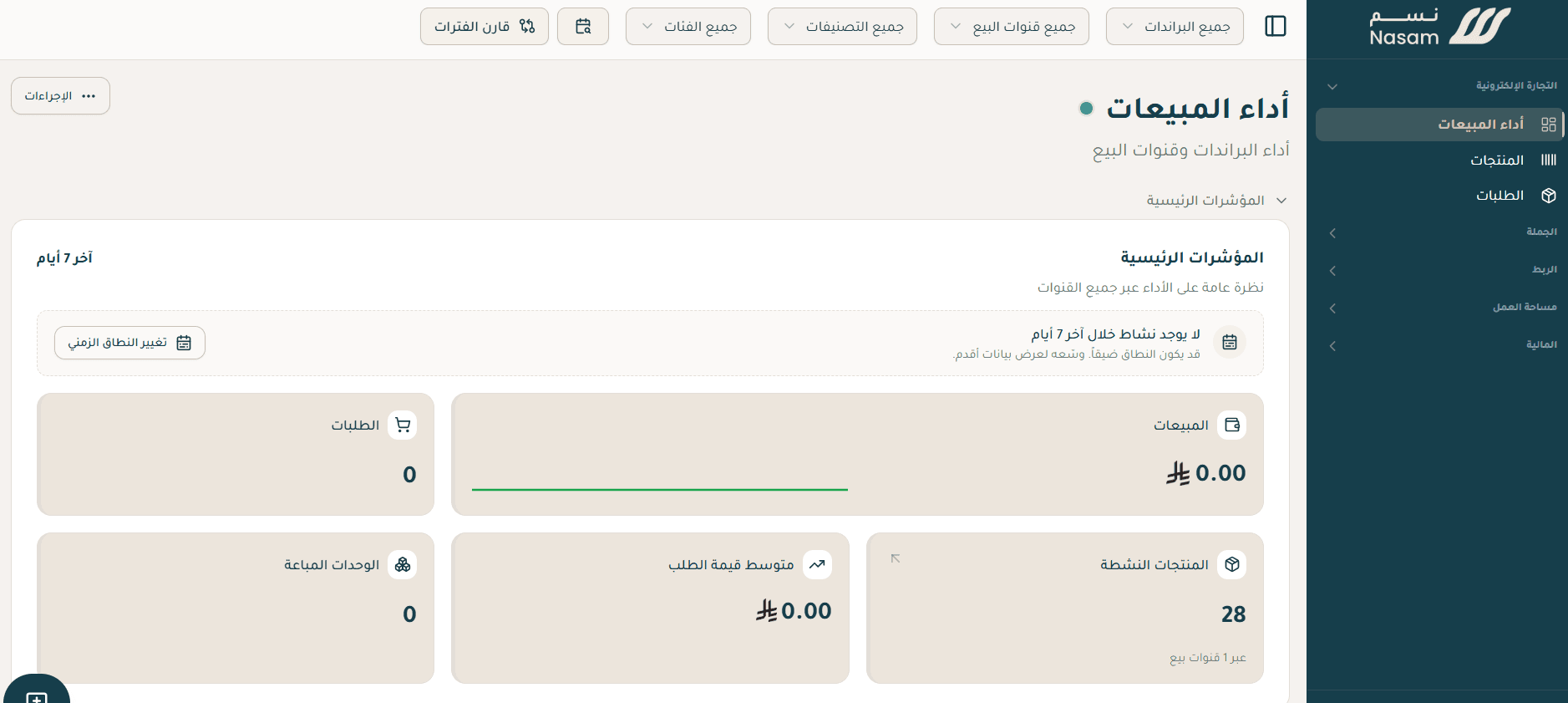
🎯 You manage the app from your account dashboard on the Nasam site.
Removing the app
1. From the app options menu, click (Cancel subscription) and choose your reason for cancelling.

2. From the app options menu, click (Delete app) and choose your reason for deleting it.

3. On the Deleted apps page, open the app options menu and click (Delete app permanently) to remove it from your store for good.

📝 Important notes
- Nasam runs on its own site with a separate login, so keep the activation email you receive after installing.
- Plan changes are handled from the app details page inside your store, while day-to-day work happens on the Nasam dashboard.
For more details, see the Nasam app page.
❓ Frequently asked questions
What can I track in the Nasam dashboard?
Sales, products, and inventory across your channels, plus performance analysis that shows how each channel is doing.
How do I set up my Nasam account?
After installing the app, open the email you receive, click (Go to Nasam), create a password, and your account home page opens.
Do I manage the app from my Salla dashboard?
Subscription and plan changes happen on the app details page in your store. Everything else is managed from your account dashboard on the Nasam site.
Can I upgrade my plan later?
Yes. From the app details page, click (Upgrade plan), pick the plan you want, and complete the payment.
Running more than one sales channel is only an advantage if you can see them side by side. One dashboard turns scattered numbers into a decision you can actually make.