Salla Point is a free point-of-sale (POS) app by Salla designed to simplify order creation and help merchants sell directly in branches or physical locations with ease and flexibility.
It allows merchants to create orders instantly for customers, with automatic syncing of inventory and orders to the online store—ensuring accurate data and smooth operations.
Salla Point provides an easy experience for employees, fast execution, and flexibility that suits various business types, including retail stores, restaurants, and service businesses.
🚀 A fully free POS system, synced with your store and supporting all payment methods—discover how it can simplify your daily operations.
📌Article overview
- Availability of Salla Point POS for stores
- Requirements and conditions for activating and using Salla Point POS
Availability of Salla Point POS for stores
The Salla Point app is available to merchants subscribed to Salla’s paid plans (Special, Pro, Plus).
Salla Point plans
Free plan: Includes all Salla Point features, except in-app card payments, and is selected automatically upon activation.
Monthly subscription: Includes all features, plus the ability to accept card payments inside of branches.
🔔 Important note: Merchants on the Special plan get full access to all Salla Point features without needing to subscribe to the paid add-on.
Requirements and conditions for activating and using Salla Point POS
1. Enable employee permissions
To ensure proper use of Salla Point, assign the appropriate permissions for each employee.
For more details, refer to the employee permissions for Salla Point article
2. Enable Cash on Delivery (COD) for branches
Activating Cash on Delivery (COD) is essential to enable:
- Cash payments inside branches
- Using payment links through the Salla Point app
Steps:
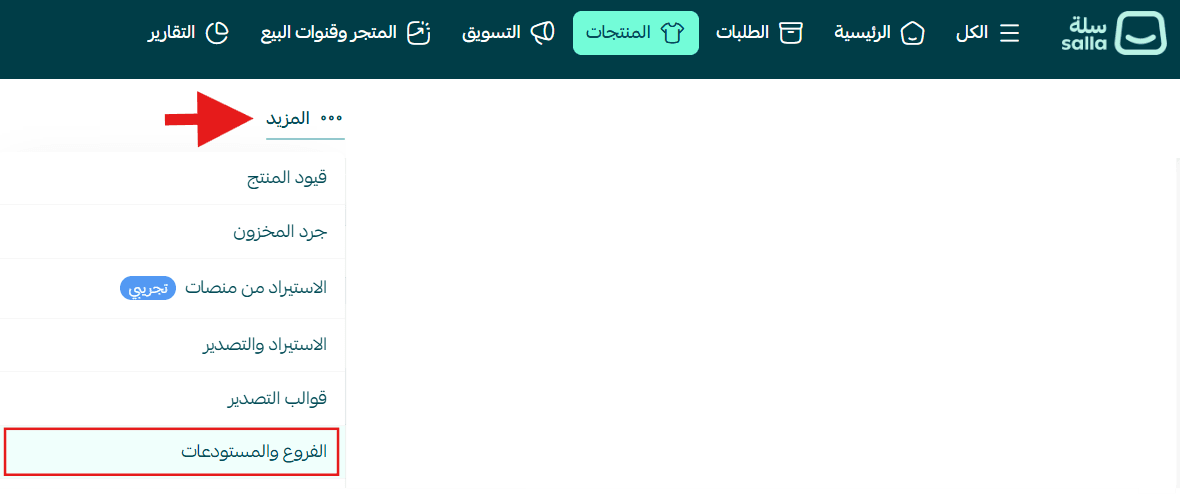
- From the dashboard, go to Products → More → Branches & warehouses
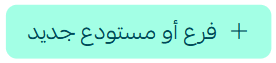
- From the Branches & Warehouses page, click Add new branch or warehouse
- Enable the Cash on Delivery option
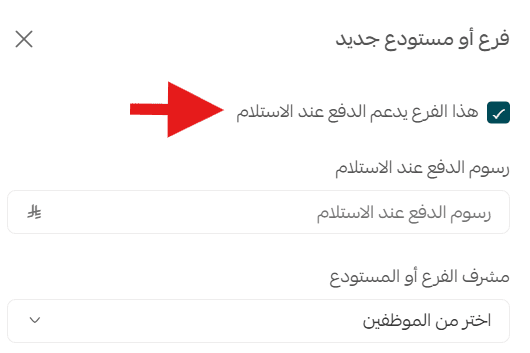
🔔 Without enabling this option, employees will not be able to complete payments correctly inside the app.
⚠️ Notes:
- Pro & Plus plans: Limited to the main branch only
- Special plan: Supports multiple branches, suitable for retail stores or multi-market setups
3. Display products in Salla Point
To make products visible in Salla Point, you must enable the product in Sales channels from the product page.
Steps:
- From the dashboard, go to Products
- From the product card (or multiple products), enable the Salla Point sales channel
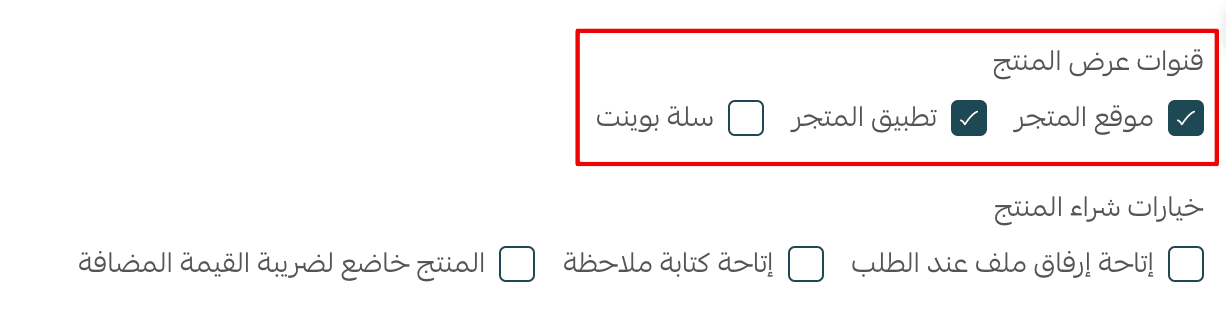
🌟 This applies to all supported product types in Salla Point:
- Physical products (require shipping)
- Product bundles
- On-demand service products