Managing product data through files may seem complex or even risky at first, especially when mistakes can impact your store’s performance. In reality, success comes down to understanding the import and update steps clearly and following them correctly.
In this guide, we walk you step by step through importing new products and updating existing ones, so you can manage your product data confidently, quickly, and without unnecessary complications.
📌 Article overview
- The difference between importing and updating products
- Import and update products page
- Steps to import new products
- Steps to update existing products
- Steps to update specific product data
What is the difference between importing and updating products?
Updating products
This option is used to modify data for products that already exist in your Salla store, in bulk, using an Excel file.
Example use cases:
- Updating prices by a fixed percentage
- Changing product categories
- Updating images or product descriptions
All of these changes can be applied at once through bulk product updates.
Importing products
This option is used to bring products from an external source into your Salla store by uploading an import file.
Example use case:
- You have a product file from a previous store or another platform and want to migrate all products into your Salla store.
Import and update products page
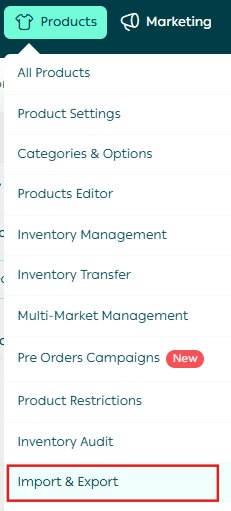
From the main menu, click Products, then select Import and Export.
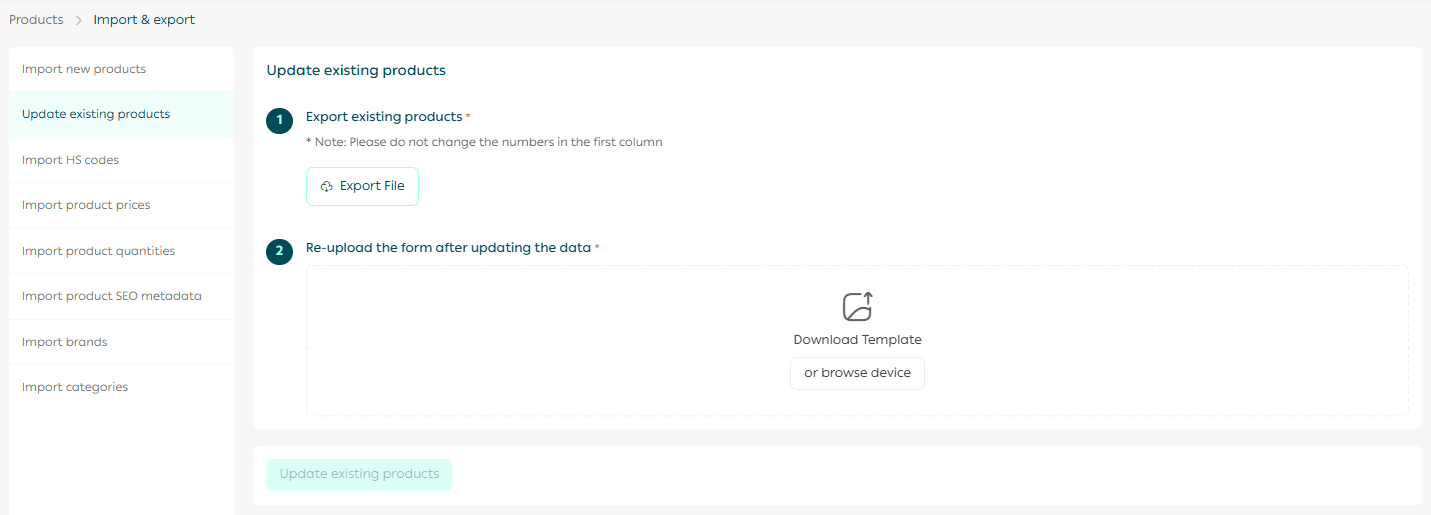
The Import and Update Products page will appear, containing the available import and update actions.
Steps to import new products
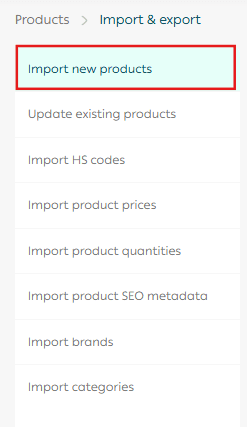
- From the Import page, select Import New Products from the actions list.
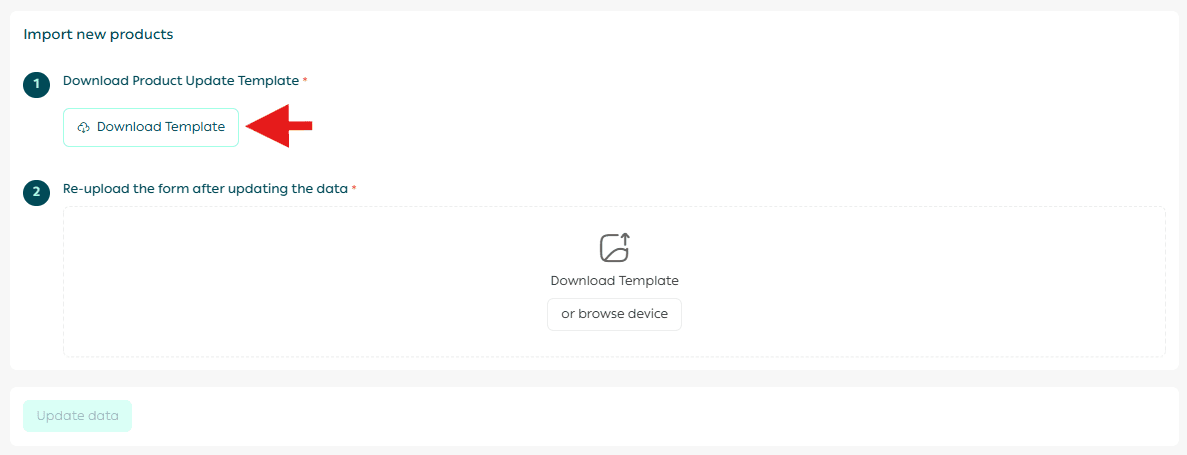
2. Download the import template.
3. Fill in the product data based on the required format, whether it is text, numbers, or links. Add product options if available.
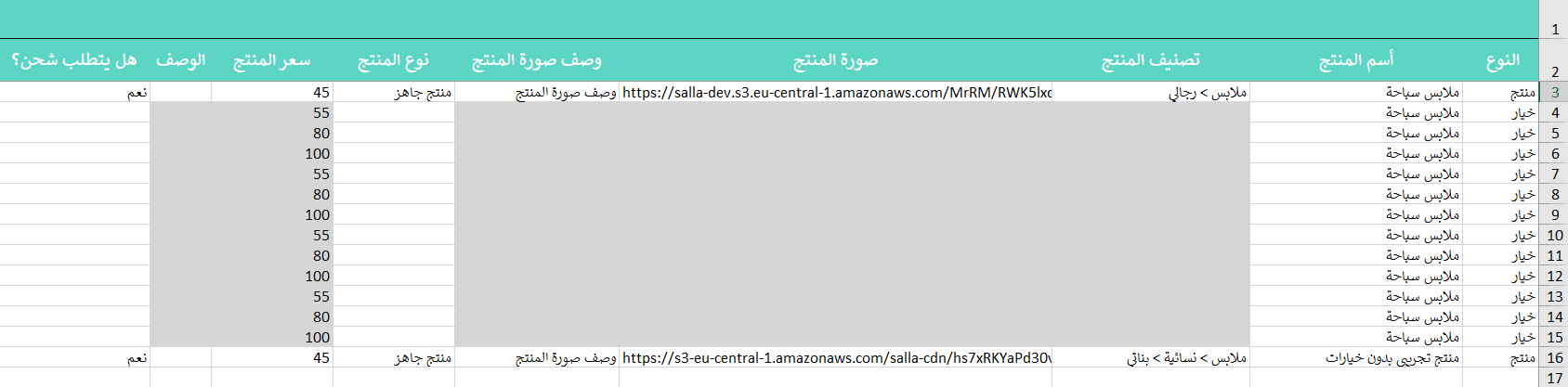
Important guidelines:
- If a product has multiple images, add image descriptions separated by commas.
- Do not delete any columns from the template, even if you do not need them.
- Do not edit cells shaded in gray.
📝 Note: You may need to remove certain classification tags, such as brand categories or product categories, before proceeding to the next step.

4. After completing the file, save it, upload it again, then click Update Data.
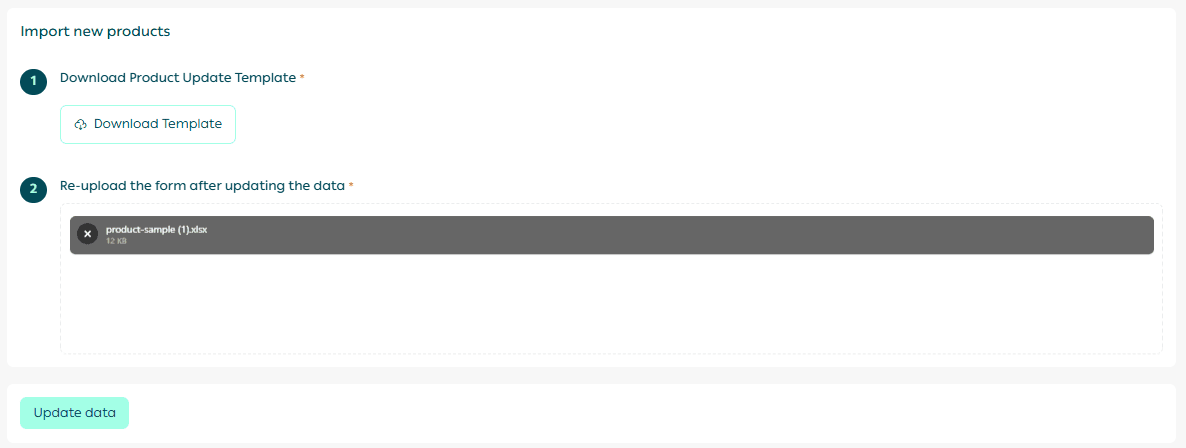
Please allow some time for the products to be processed and added successfully.
Steps to update existing products
- From the Import page, select Update Existing Products from the actions list.
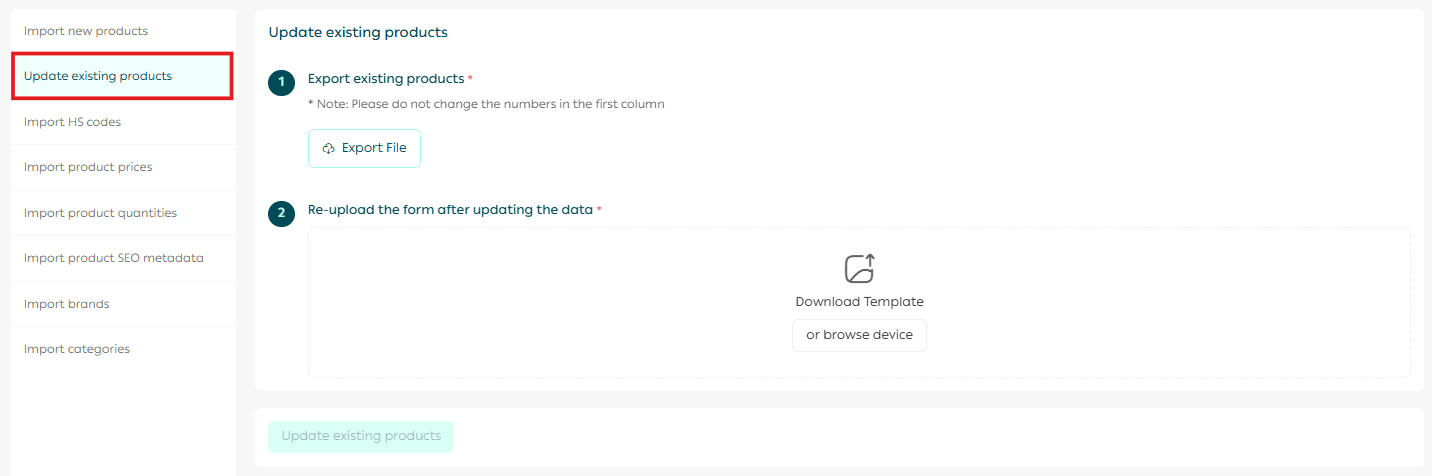
2. On the Update Existing Products page, click Export File.
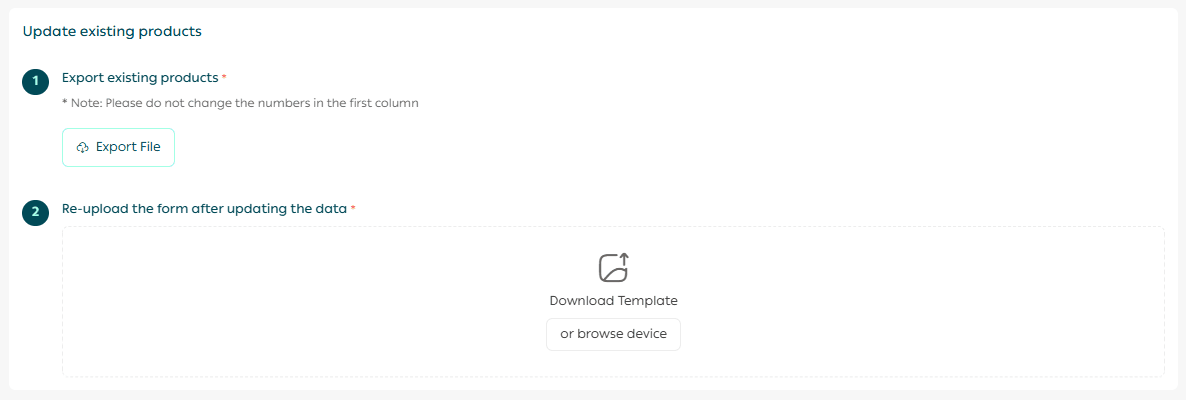
3. The product file will be sent to your store email address. Click Download File.

4. Edit the file based on your needs. You can:
- Add a reason for tax exemption
- Add or update product image descriptions
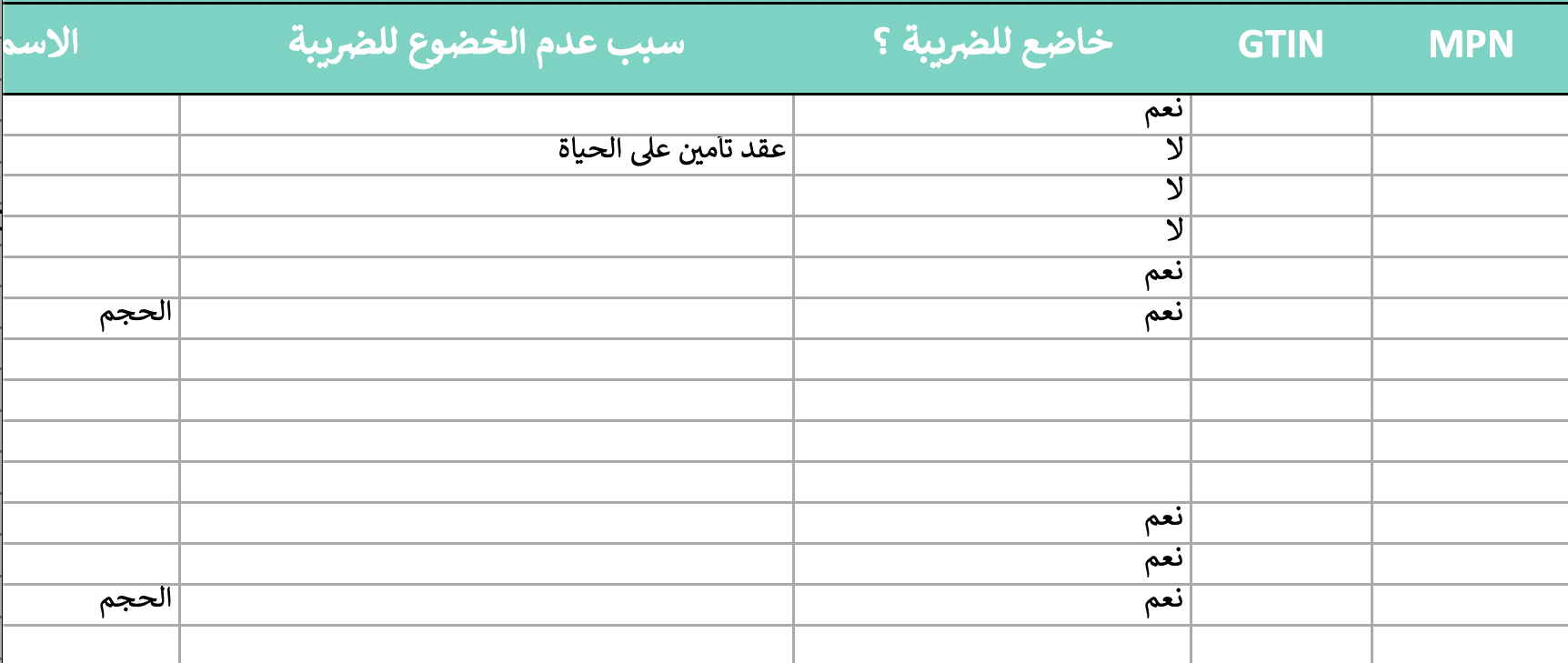
📝 Note: You may need to remove certain classification tags, such as brand categories or product categories, before continuing.
5. Upload the edited file on the Update Existing Products page, then click Update to apply the changes.
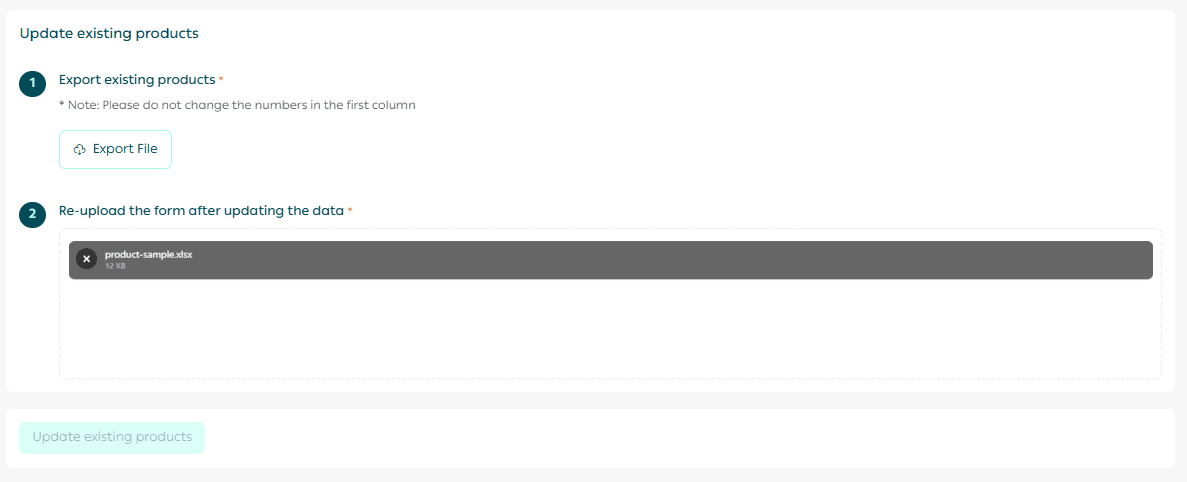
Please allow some time for the updates to be processed.
Steps to update specific product data
You can update specific parts of product data using dedicated update actions.
All update processes follow the same workflow: download the template, edit it, then upload it again.
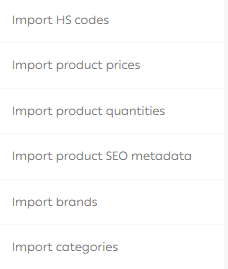
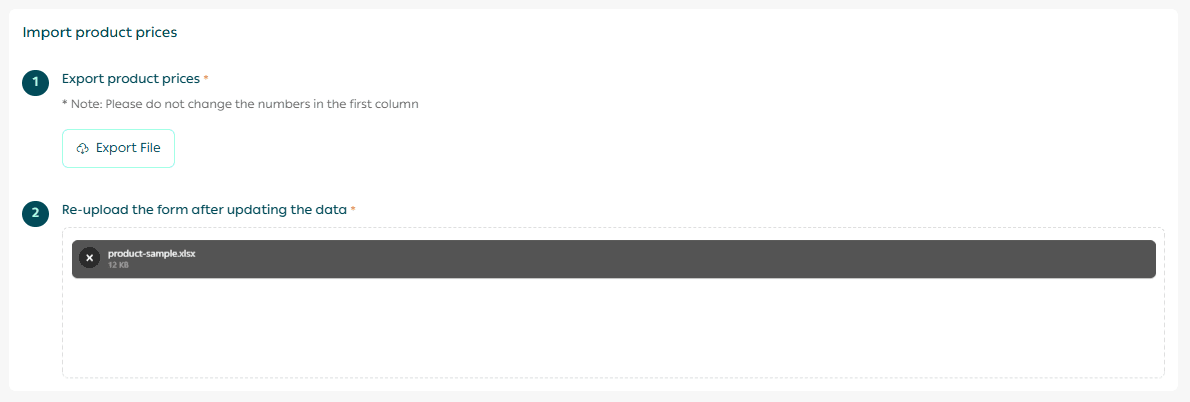
Example: Importing product prices
- From the Import page, select Import Product Prices, then click Export File.
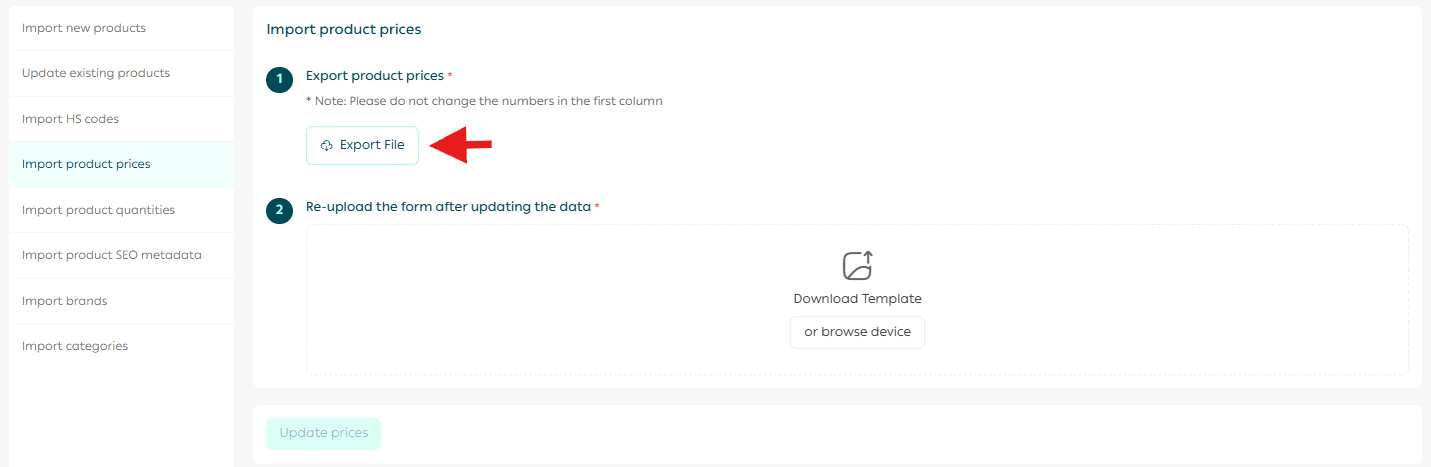
- The product file will be sent to your store email. Click Download File.

3. Edit the file based on your requirements.

Important guidelines:
- Fill in the template exactly as required, whether the field expects text, a number, or a link.
- Do not delete any columns from the template.
- Gray shaded cells must not be edited, as changes to them will not be applied.
- The item type field determines whether the row represents a product or a product option, such as color variations.
- Image fields must contain image URLs.
- Product colors must be entered as color codes, for example blue is entered as 0000FF#.
4. Upload the edited file, then click Update Prices to apply the changes.
Please allow some time for the updates to complete.
Frequently asked questions
Can I run more than one import at the same time?
No. You must wait 24 hours after completing one import before starting another import process.
Can errors occur during data import?
Yes. Errors may occur, and you can view the number of errors in the import completion report.
Is updating products different from importing them from another platform?
Yes. Importing brings new products into your store, while updating modifies products that already exist.
Manage your products in bulk with confidence and efficiency.
The import and update feature saves time, reduces manual effort, and gives you full control over your store’s product data.