Are your orders, invoices, and stock levels still living in three different places?
As a store grows, the finance sheet stops matching the warehouse count and the invoices fall behind the orders. An ERP system exists to end that. Alpha is an ERP that ties finance, sales, purchasing, and warehouses together in one view, and connects that view directly to your Salla store: orders sync across, statuses update on their own, and tax and simplified invoices are issued in line with e-invoicing requirements. In this guide, you'll learn how to install the Alpha app, connect it to your store, register with the Alpha team, upgrade your plan, and remove the app.
Alpha is an ERP system that links your Salla store to finance, sales, purchasing, and warehouse operations in one place. Install it from the Salla App Store, choose a plan, enter your connection details, then register on the Alpha site so their team completes the setup with you.
📌 Article overview
- How to connect the Alpha app to your store
- How to manage the Alpha app
- Frequently asked questions
👣 How to connect the Alpha app to your store
1. From the main menu, click (All), then under helper tools click (App Store).

2. On the Alpha app page, click (Install).
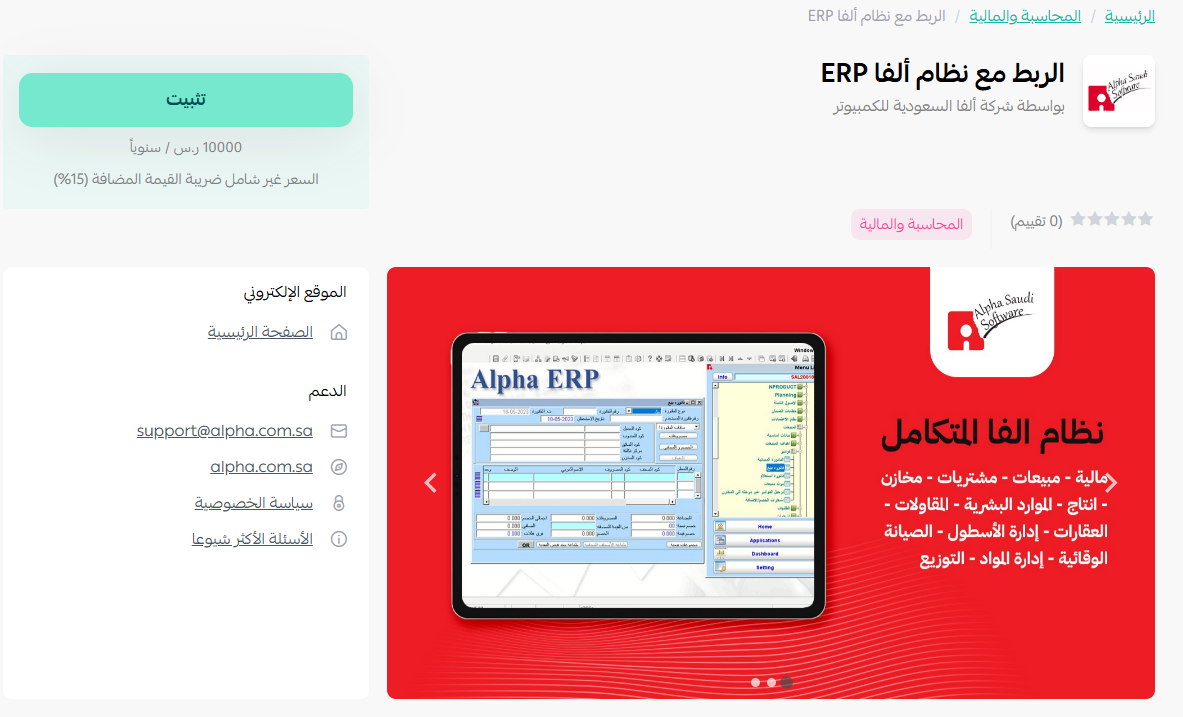
3. Choose the plan that suits you.
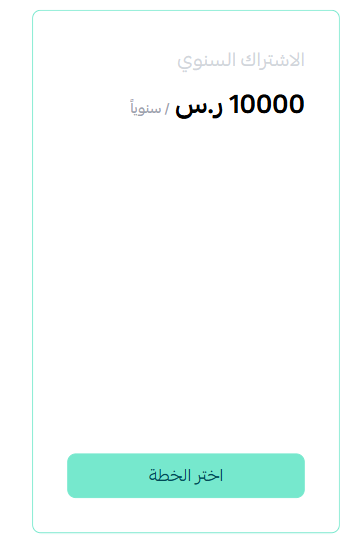
4. Complete the payment details, then click (Confirm).
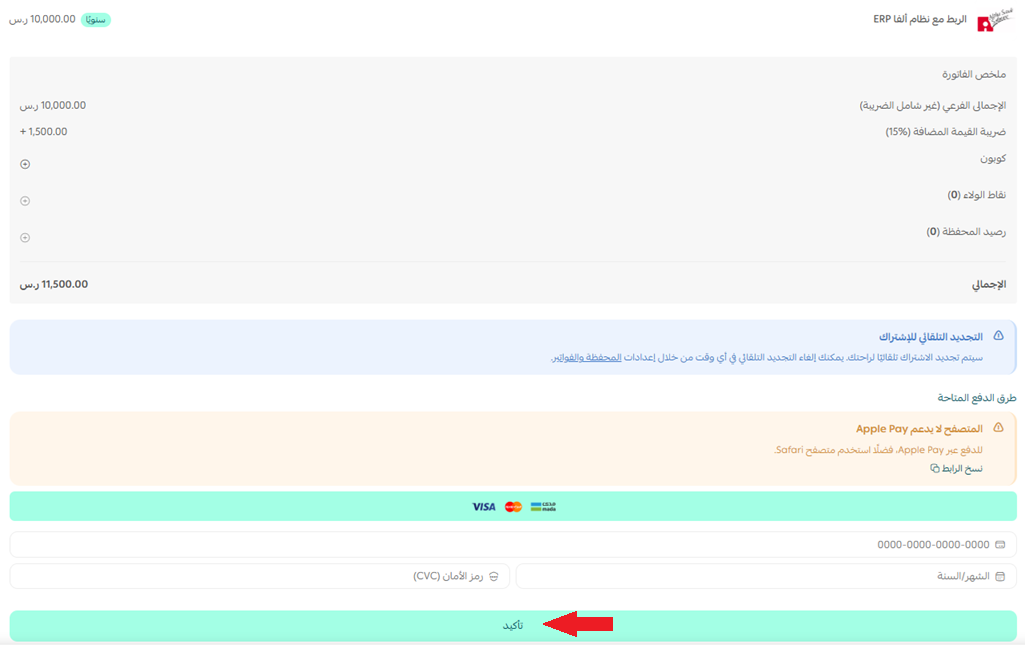
5. Enter your connection details, then click (Save).
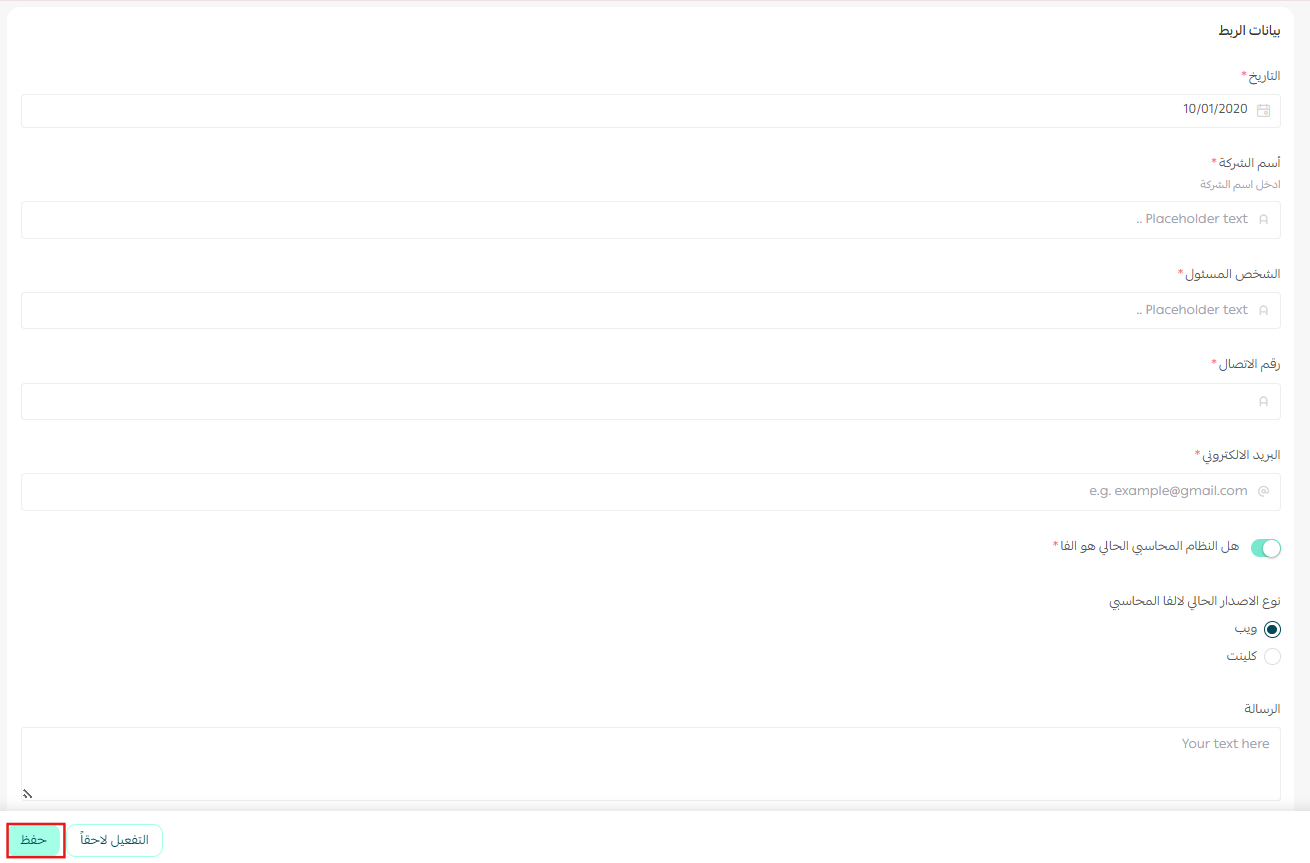
🎉 The app is now installed and appears on the My apps page in your store.
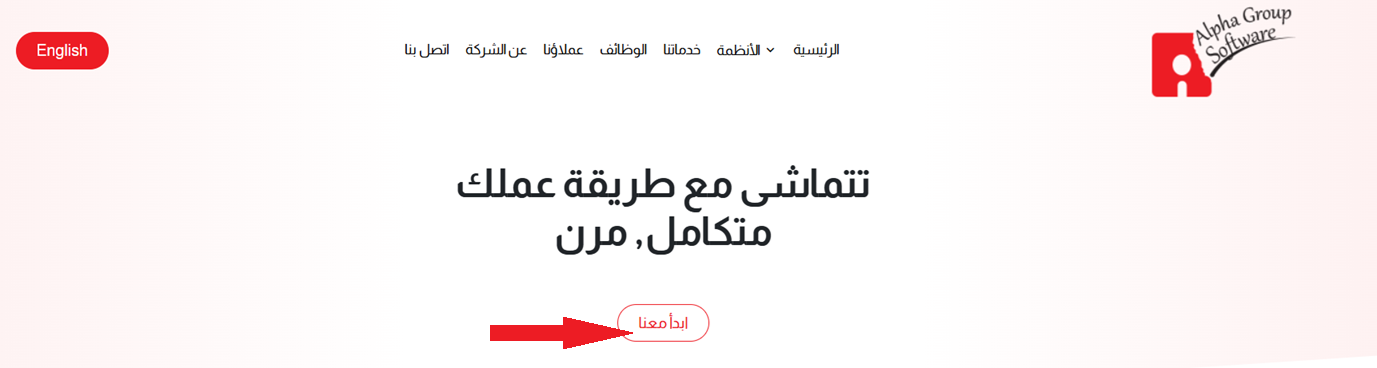
6. Register on the Alpha site through (Start with us). The site is where you manage your systems and control the app's settings.
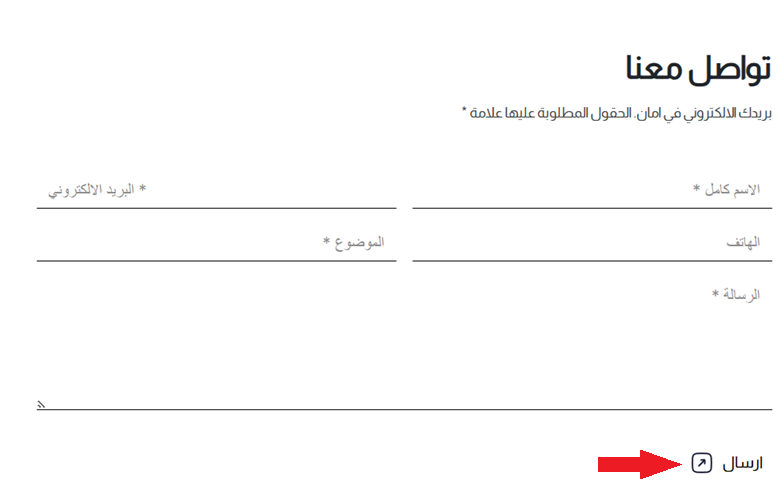
7. Enter your contact details, then click (Send). The Alpha team gets in touch to walk you through the rest of the connection.
🚀 How to manage the Alpha app
Upgrade your plan
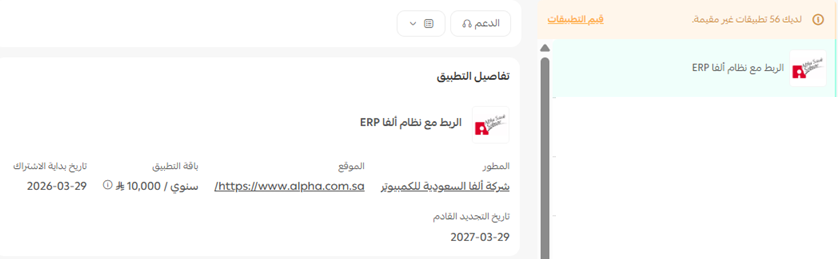
1. Open the app details page in your store, then click (Upgrade plan).

2. Select the plan you want, then click (Go to payment).

3. Complete the payment details and click (Confirm) to finish the upgrade.

Remove the app
1. From the app options menu, click (Cancel subscription) and pick a reason.

2. From the same options menu, click (Delete app) and pick a reason.

3. Open the Deleted apps page, then from the app options menu click (Delete app permanently) to remove it from your store for good.

❓ Frequently asked questions
What does the Alpha ERP system actually do for my store?
It brings finance, sales, purchasing, and warehouses into one system, syncs your Salla orders into it, updates order statuses automatically, and issues tax and simplified invoices in line with e-invoicing requirements.
Does installing the app finish the setup?
No. Installing the app and saving your connection details is the store-side half. You then register on the Alpha site and send your contact details, and the Alpha team completes the connection with you.
Where do I manage Alpha settings?
On the Alpha site. That is where you manage your systems and control the app's settings once your account is set up.
Can I change my plan after installing?
Yes. Open the app details page in your store, click (Upgrade plan), select the plan you want, and complete the payment.
What is the difference between canceling and deleting the app?
Canceling ends your subscription. Deleting moves the app to the Deleted apps page, where it stays until you choose (Delete app permanently).
An ERP pays off when every department is reading the same numbers. Get the Salla connection in place first, confirm that orders and invoices are flowing correctly, then bring the rest of your operation onto it. For more details, see the Alpha app page.