Are you looking for a reliable and secure online payment method that allows you to receive donations easily?
Integrating with the PayTabs payment gateway provides a trusted and seamless payment experience, ensuring financial transaction security and reducing fraud risks. It also offers fast integration that suits the needs of charities and small to medium-sized organizations.
📌 Article overview
- About the PayTabs payment gateway
- Steps to create a PayTabs account
- Steps to connect PayTabs with your store
About the PayTabs payment gateway
What is PayTabs?
PayTabs is a company that provides online payment solutions that allow businesses and individuals to process payments easily and securely.
Its services focus on supporting small and medium-sized businesses by simplifying payment gateway integration, reducing costs, and minimizing fraud risks.
The platform provides a secure payment system with built-in protection mechanisms and flexible payment options that enhance the user experience.
Requirements for activating PayTabs in Salla stores
To activate PayTabs in your store, the following requirements must be met:
- The entity must be a charitable organization.
- You must create an account on the PayTabs payment gateway.
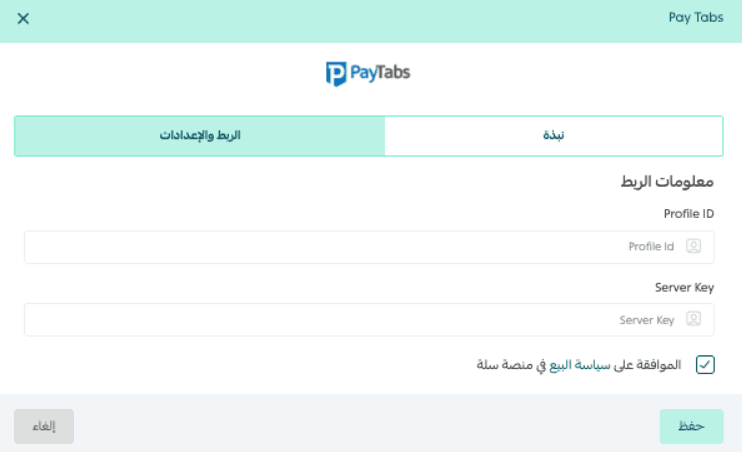
- You must obtain and add the Profile ID and Server Key from the PayTabs dashboard to complete the integration.
Steps to create a PayTabs account
Stage 1: Create a PayTabs account
- Go to the PayTabs registration page and enter the required registration details.
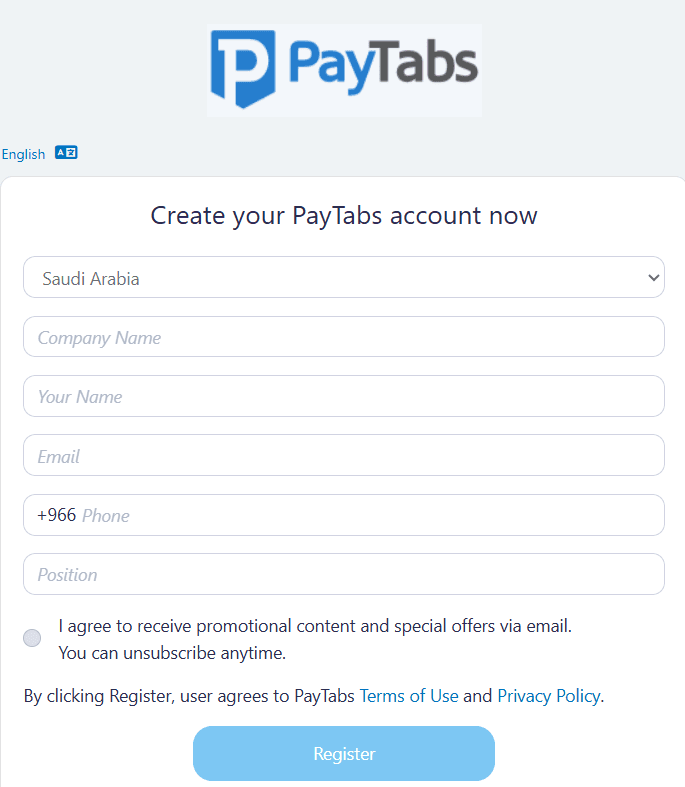
The information required includes:
- Country name
- Company name
- Account manager name
- Email address
- Phone number
- Job title of the account manager
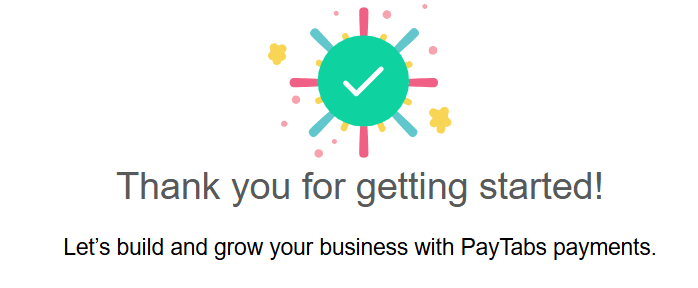
Then click Register to complete the registration and wait for the confirmation message.
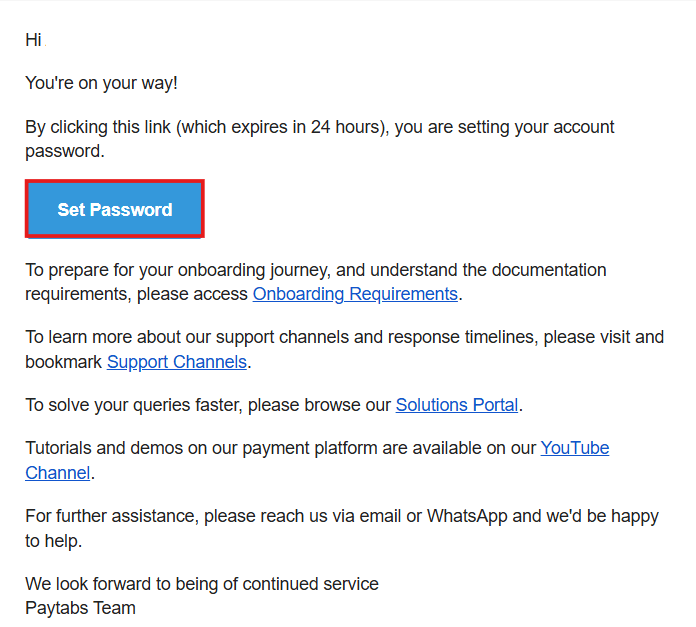
2. Check the email sent from PayTabs, then click Set password to create a password for your new account.
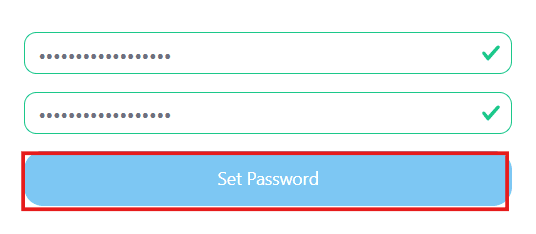
3. Enter your new password and click Set password again to confirm it.
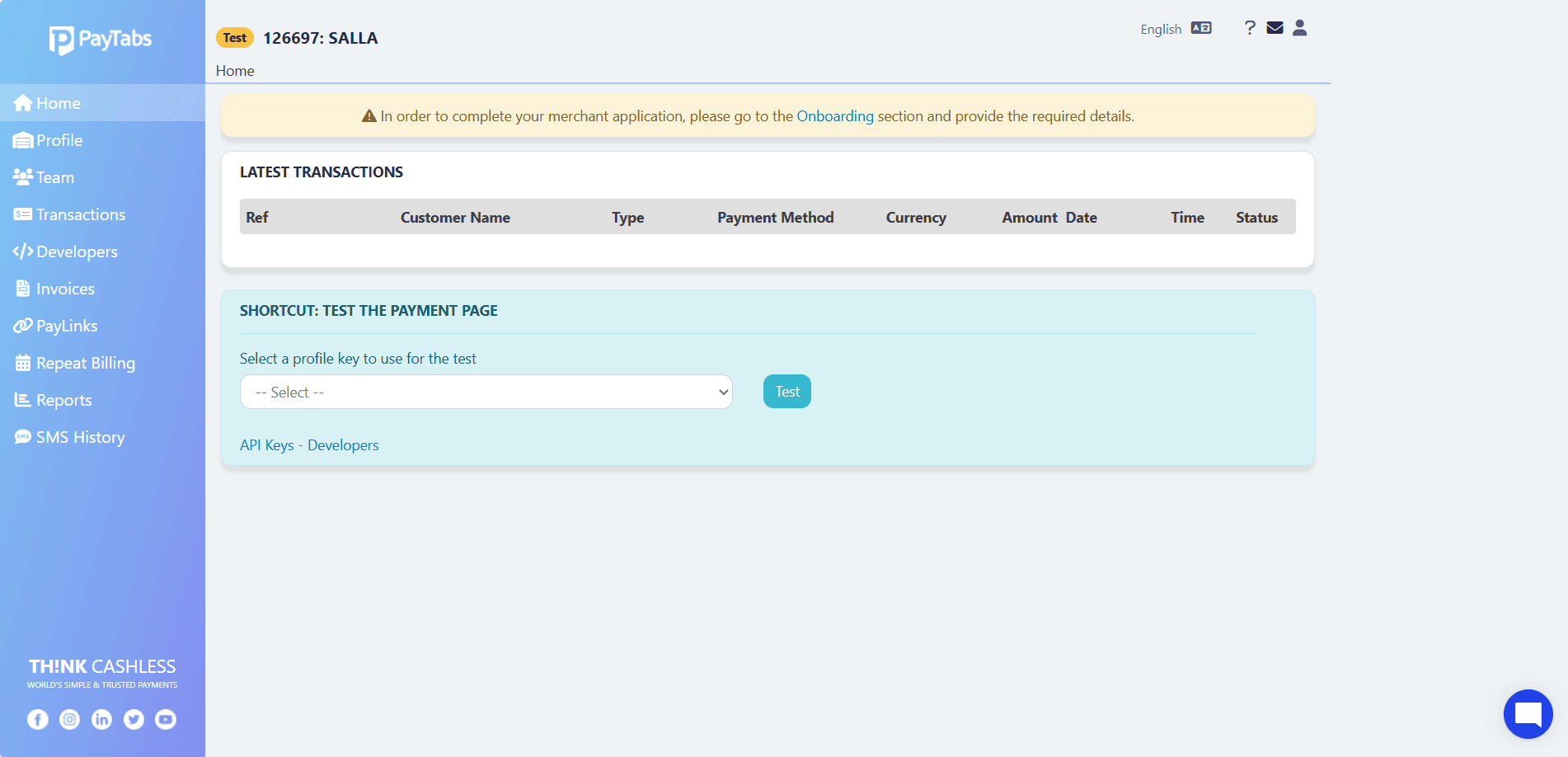
🎉 After completing these steps, the PayTabs dashboard will appear.
Stage 2: Obtain the Profile ID and Merchant Key
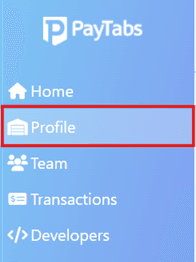
- Log in to your PayTabs account and click Profile from the dashboard.
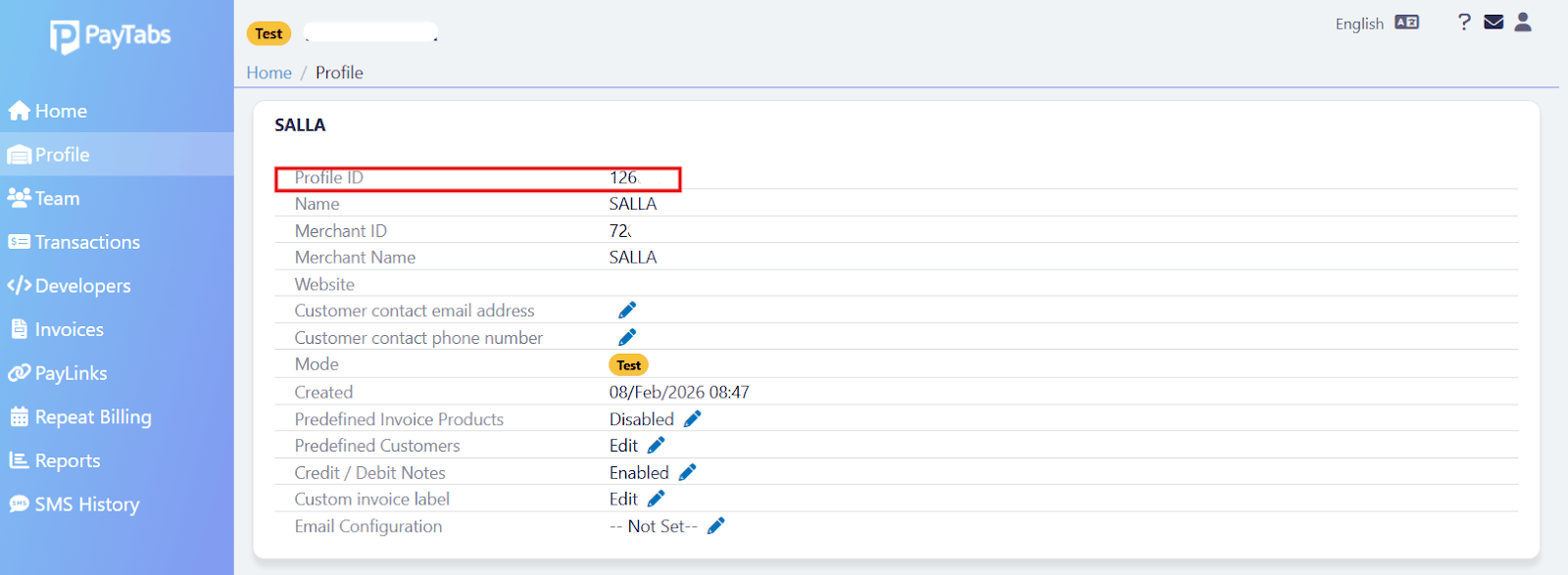
- From the Profile page, copy the Profile ID and save it for later use.
Stage 3: Obtain the Server Key
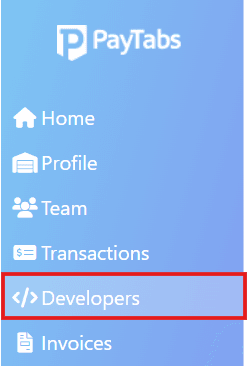
- Log in to your PayTabs account and click Developers from the dashboard.
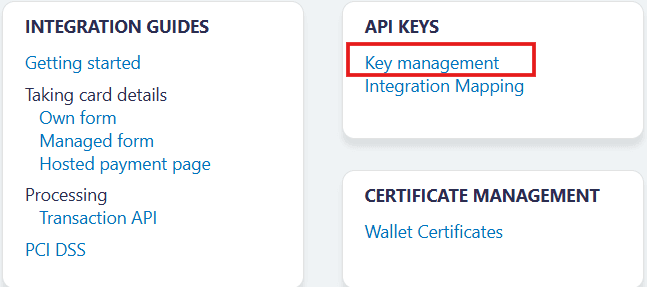
- From the Developers page, select Key Management.
- From the Key Management page, locate the Server Key and copy it.

Steps to connect PayTabs with your store
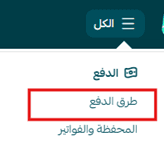
- From the All menu in the top dashboard bar, go to the Payments section and click Payment Methods.
- On the Payment Methods page, locate PayTabs and click Activate.
- Enter the required information, agree to the Salla platform sales policy, then click Save.

🎉 You have now successfully activated PayTabs in your store.
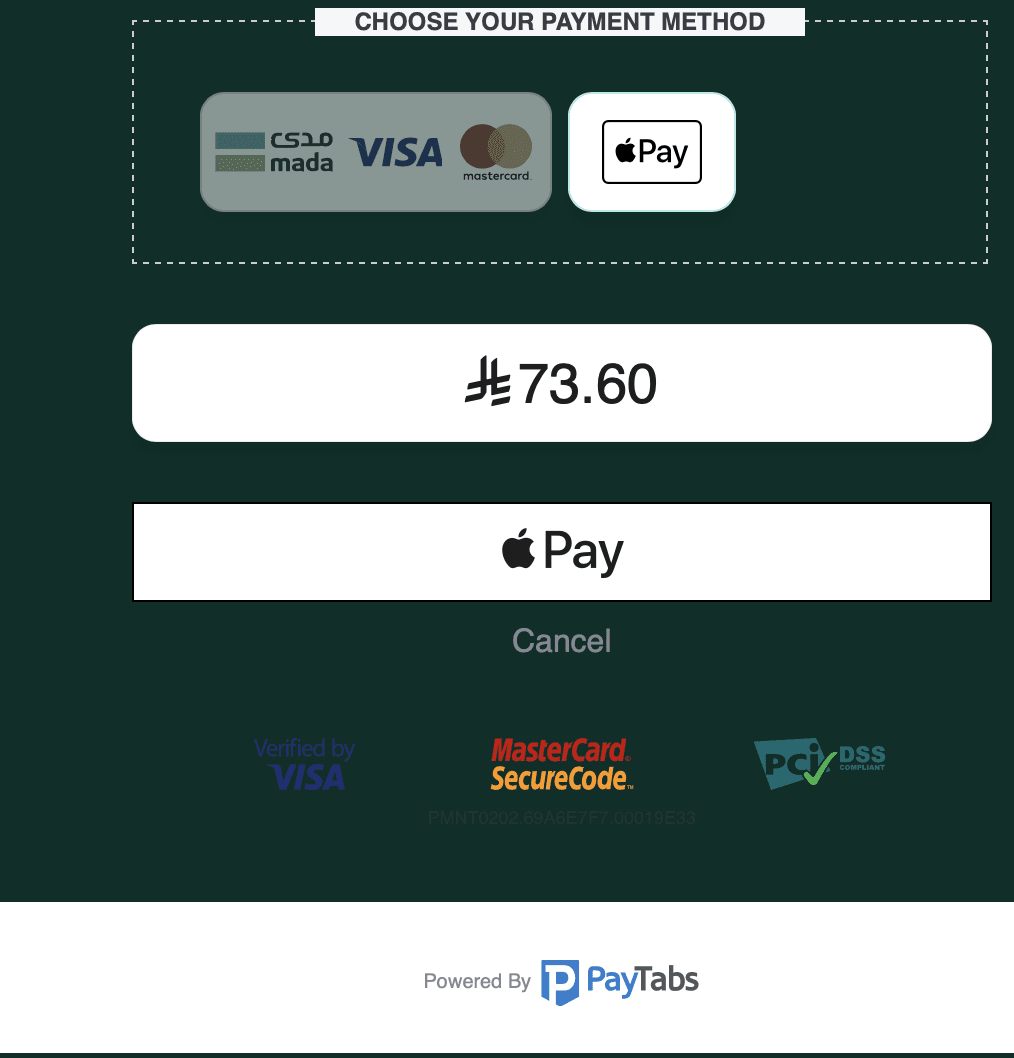
Note: Apple Pay activation with PayTabs for charitable organizations is configured directly from the PayTabs payment gateway website.
Connect your charity with PayTabs and provide donors with a secure and fast payment experience that builds trust and increases donation opportunities.