Special offers are one of the most powerful marketing strategies for attracting customers and encouraging purchases. By providing exclusive discounts or added benefits, you can enhance the customer experience, build loyalty, and increase sales in your store.
In this article, you will learn how to browse special offers, edit them, and create new promotions that match your customers’ needs and help drive stronger results.
📌 Article overview
- How special offers appear to customers
- The special offers page
- Step by step: Creating a new offer that grabs attention
- Managing special offers
- Customizing offer application settings
How do special offers appear to customers?
Once an offer is activated, it appears to the customer during checkout inside the cart summary. The discount details are shown clearly, whether it is a free product, a fixed discount amount, or a percentage discount.
You can also customize a short message that appears to customers explaining the offer benefits, helping motivate them to complete their purchase.
If the offer conditions are not met, the offer will not appear, ensuring a personalized shopping experience without unnecessary confusion.
Special offer: Fixed price
An offer on selected products with a fixed price of SAR/AED 15.
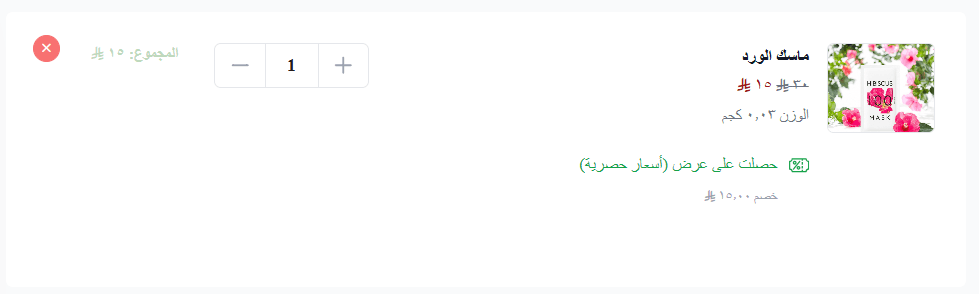
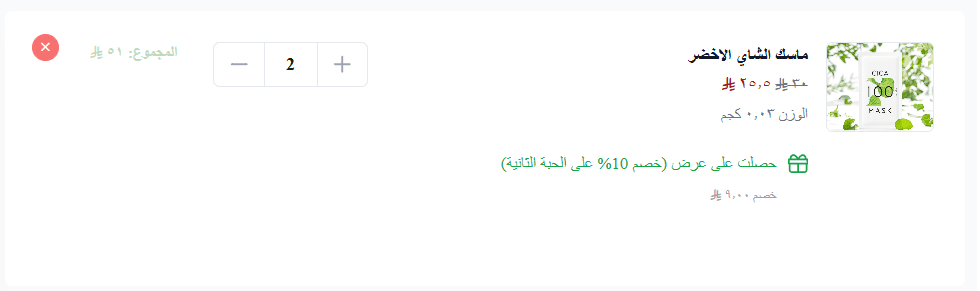
Special offer: Buy X Get Y
If the customer purchases from a specific category, they receive 30% off the second item from the same category.
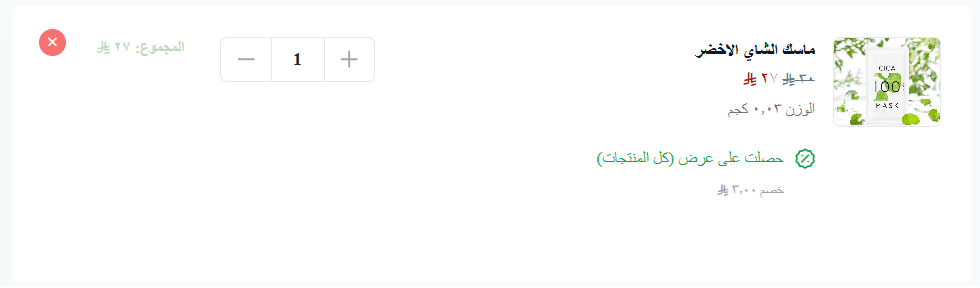
Special offer: Percentage discount on purchases
The customer receives a 10% discount applied across all products.
Special offers page
From the main menu, click (Marketing), then click (Special Offers).
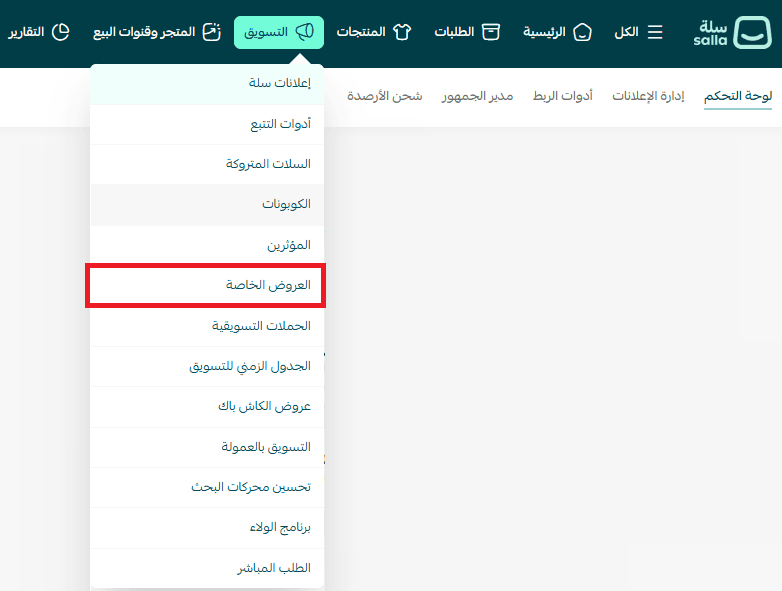
The Special Offers page will appear like this:
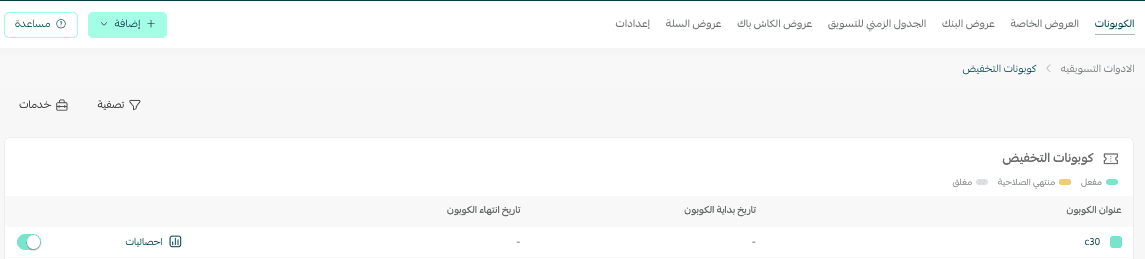
Main tabs in the special offers section
The main navigation bar includes the following tabs:
- Coupons: Displays all discount coupons available in the store.
- Special offers: Browse and manage special offers with full editing options.
- Bank offers: View all bank promotions with advanced editing tools (Special Plan only).
- Marketing timeline: A schedule of all upcoming marketing activities in your store.
- Cashback offers: Manage cashback rewards for customers.
- Cart offers: Create and edit offers based on cart value.
- Settings: Configure store-wide discount and offer settings.
Step by step: Creating a new offer that attracts customers
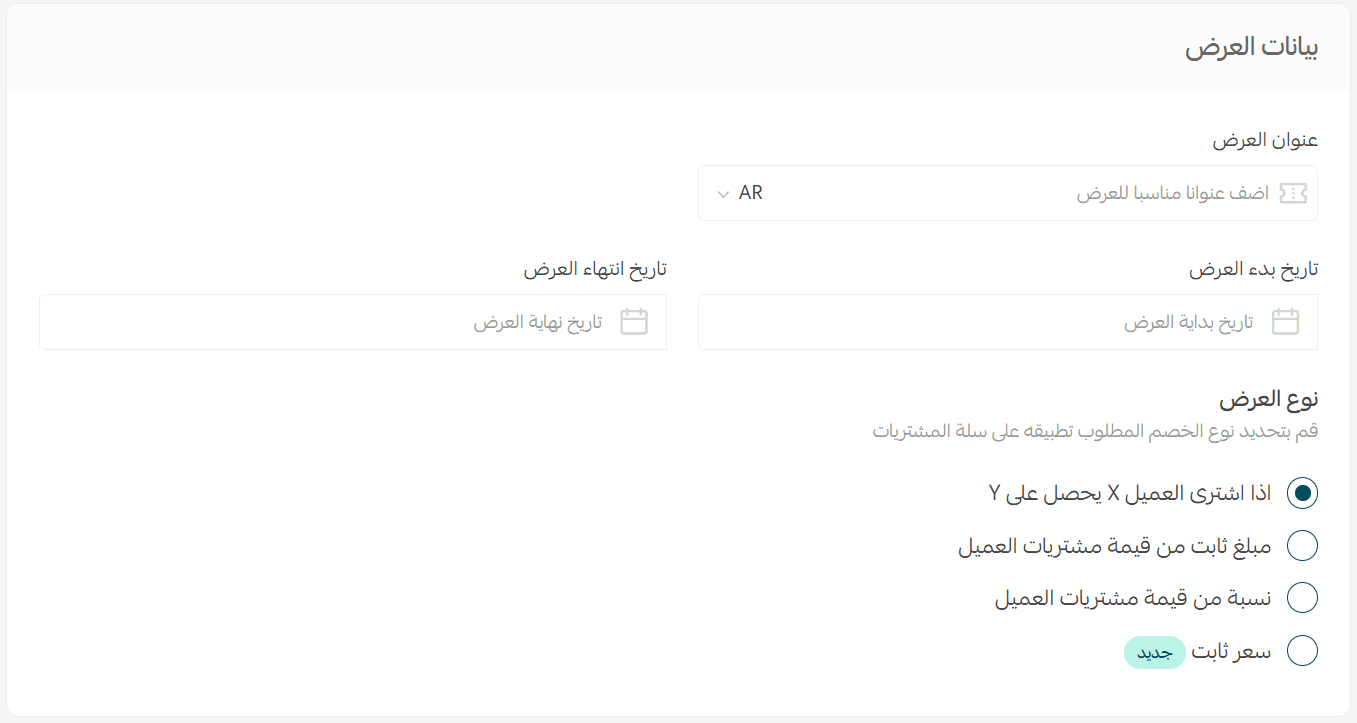
You can create a new offer by clicking (Create New Offer).

1. Enter offer details
Fill in the offer information, such as:
- Offer name (example: Ramadan Offers)
- Start date and end date
Then select the offer type you want to apply to the cart.
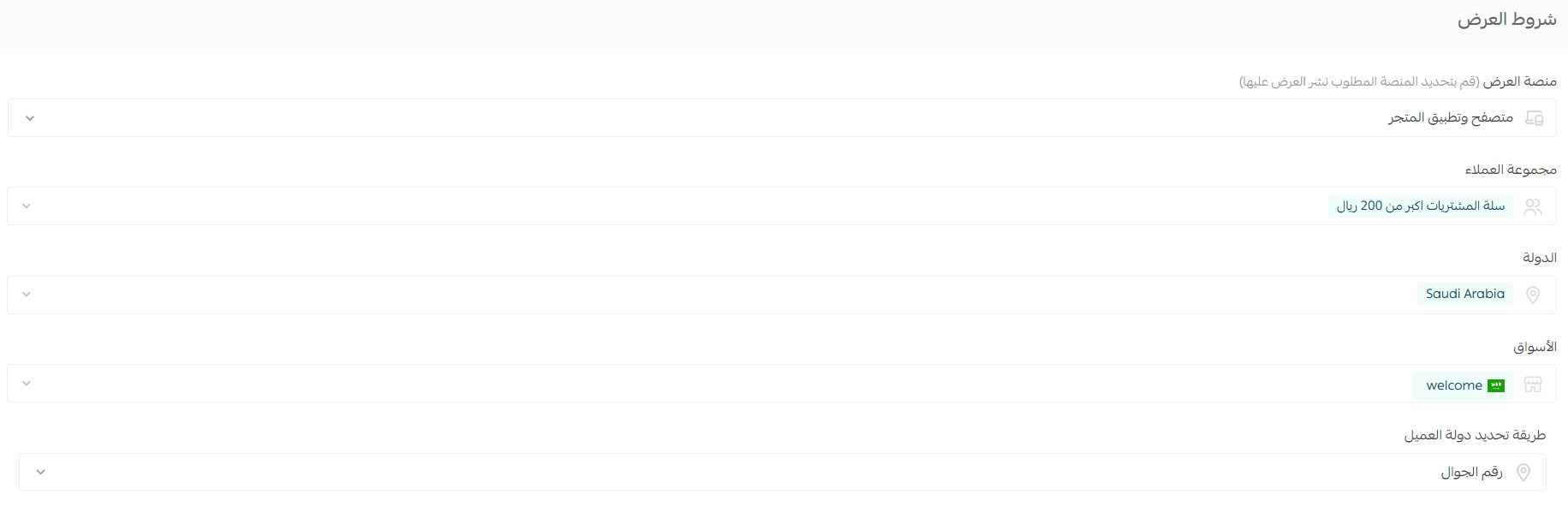
2. Define offer conditions
Set the criteria required for customers to benefit from the offer, such as:
- The platform where the offer will appear
- The customer group eligible for the offer
- The country and markets where the offer will apply
Note: The market selection option appears only for merchants using the multi-market feature. Stores without multi-market enabled will apply offers across the entire store by default.
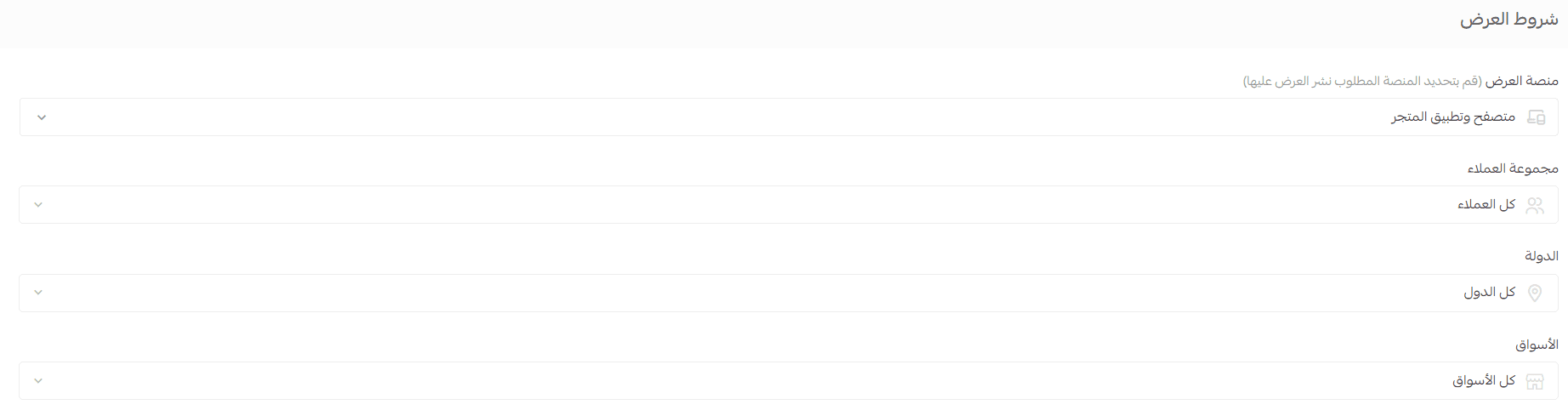
You can customize offer or coupon application for a specific country or market to support your expansion goals.
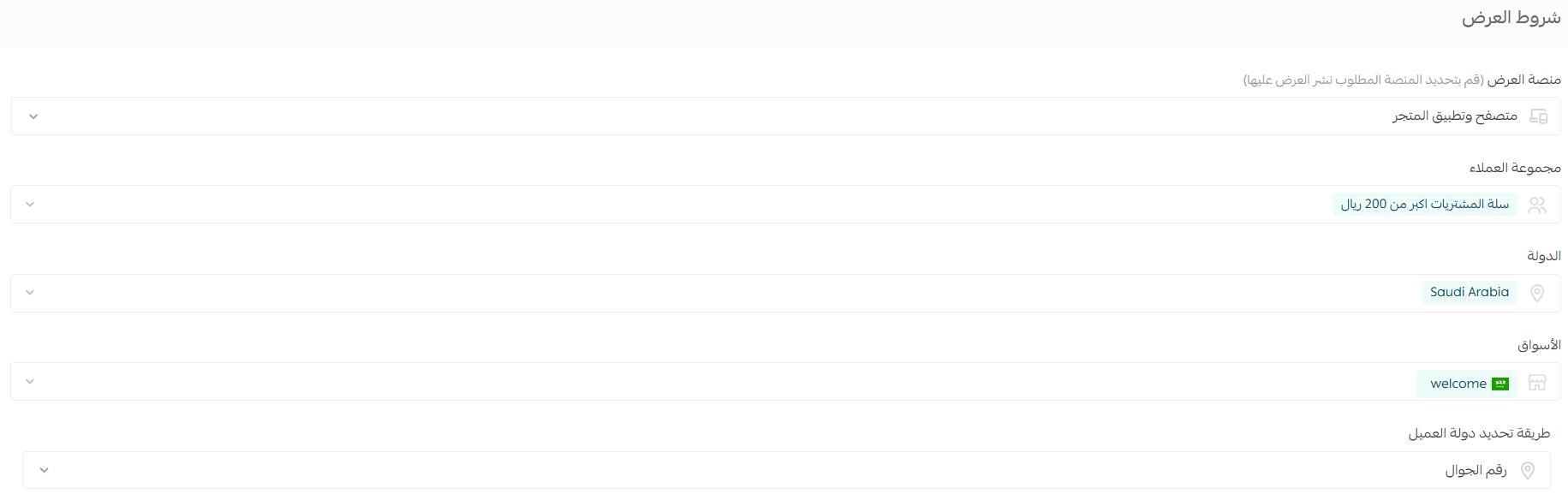
Note: Customer groups are available only in the Pro and Special plans.
Example
You can create an offer targeting customers who spend more than SAR/AED 200, visible through the store browser or app. You can also limit it to customers inside Saudi Arabia, specifically within the Saudi market.
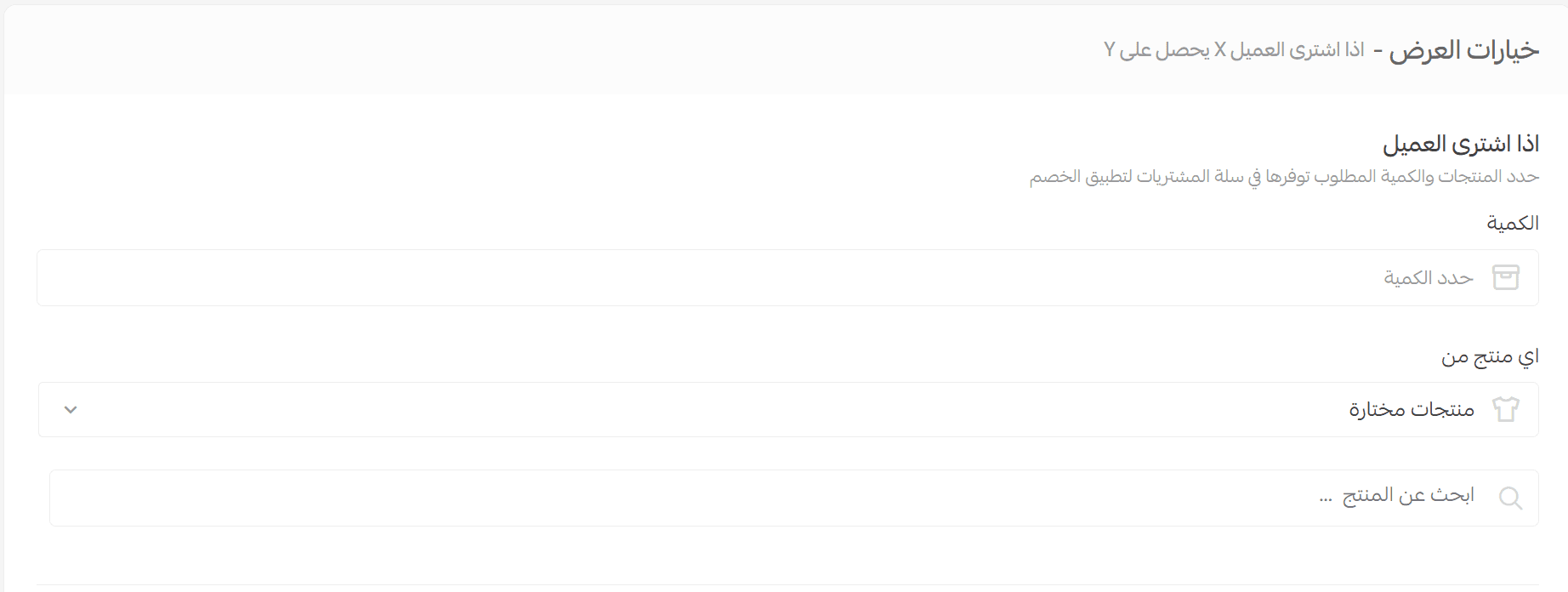
Offer type one: Buy product X get Y
1. Select what the customer must purchase
Define the quantity, products, or categories required.
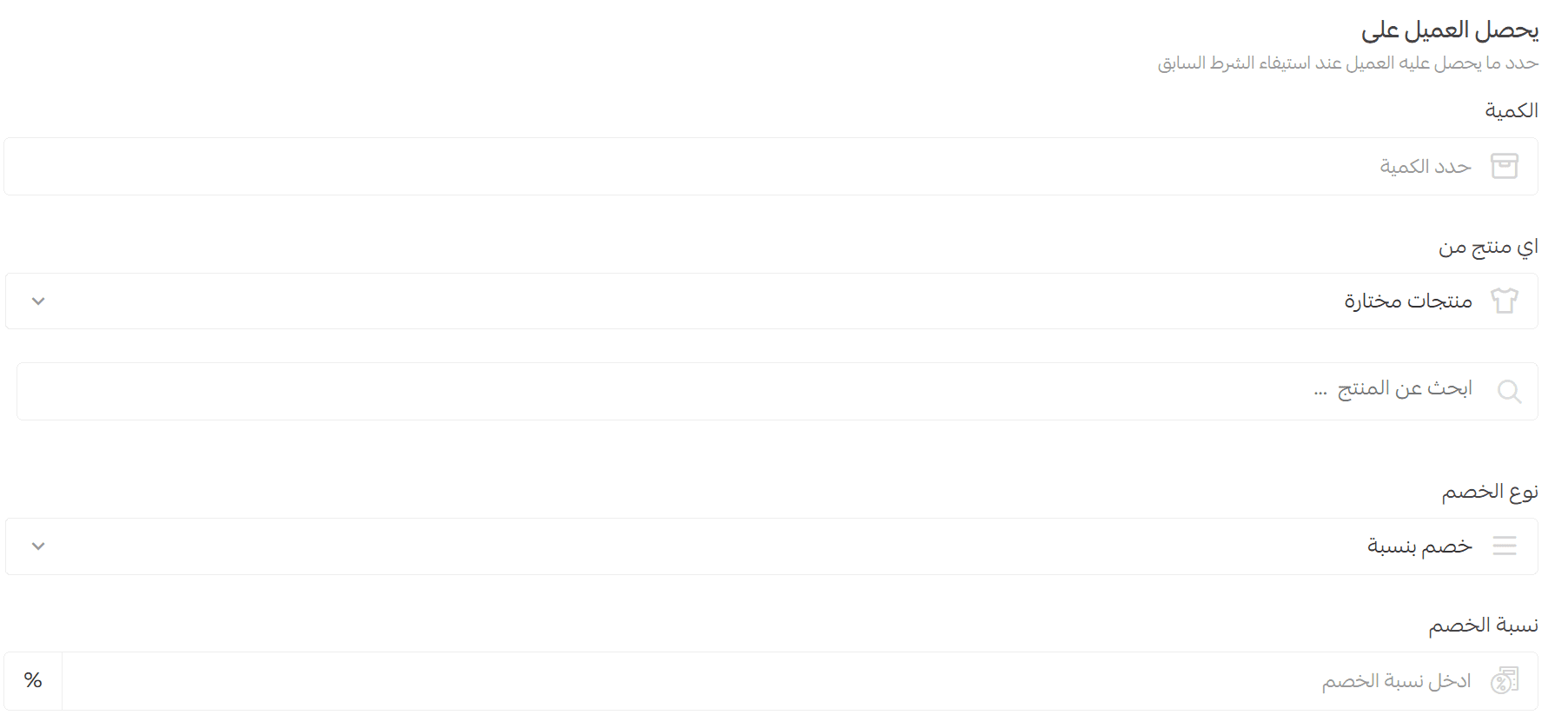
2. Define what the customer receives
Set the reward once conditions are met.
3. Enable offer with coupons
When allowing the offer to work alongside discount coupons, the offer will still apply even if a coupon is used. Offers and coupons can be combined.

Example:
When a customer buys Caldo Daqoos Original Plain 350g, they receive the same product for free (100% discount).
You can preview the offer before saving:

You can also write and preview the offer message:

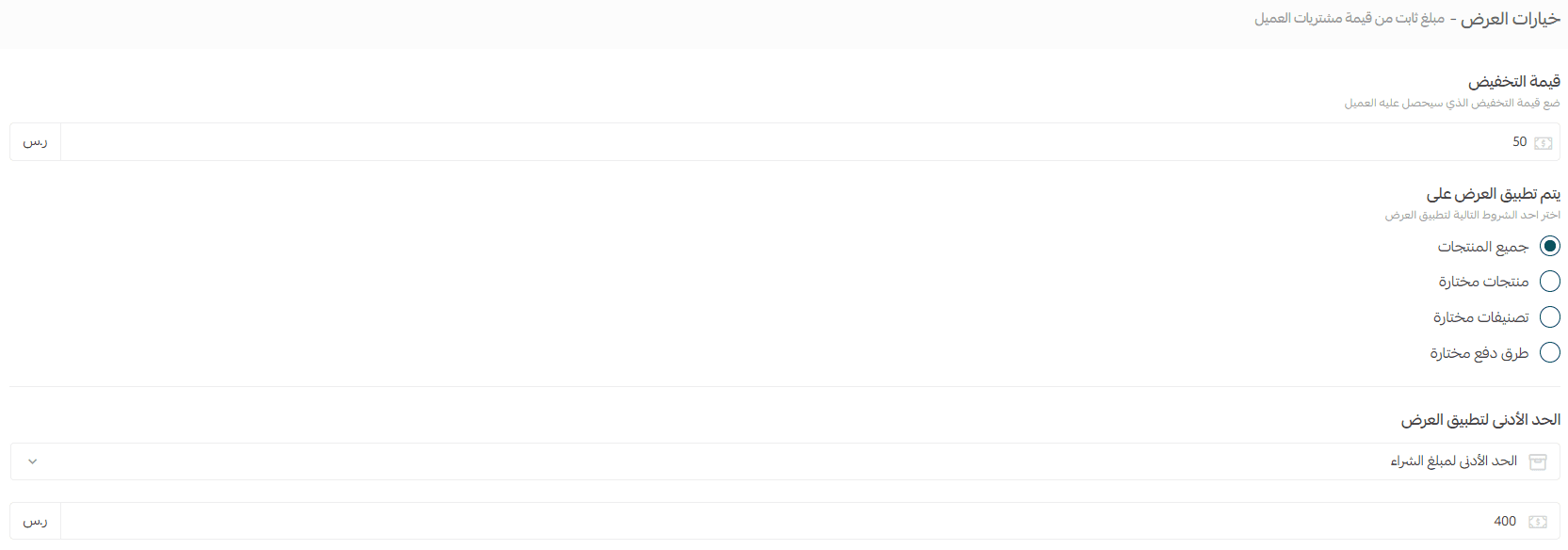
Offer type two: Fixed discount amount
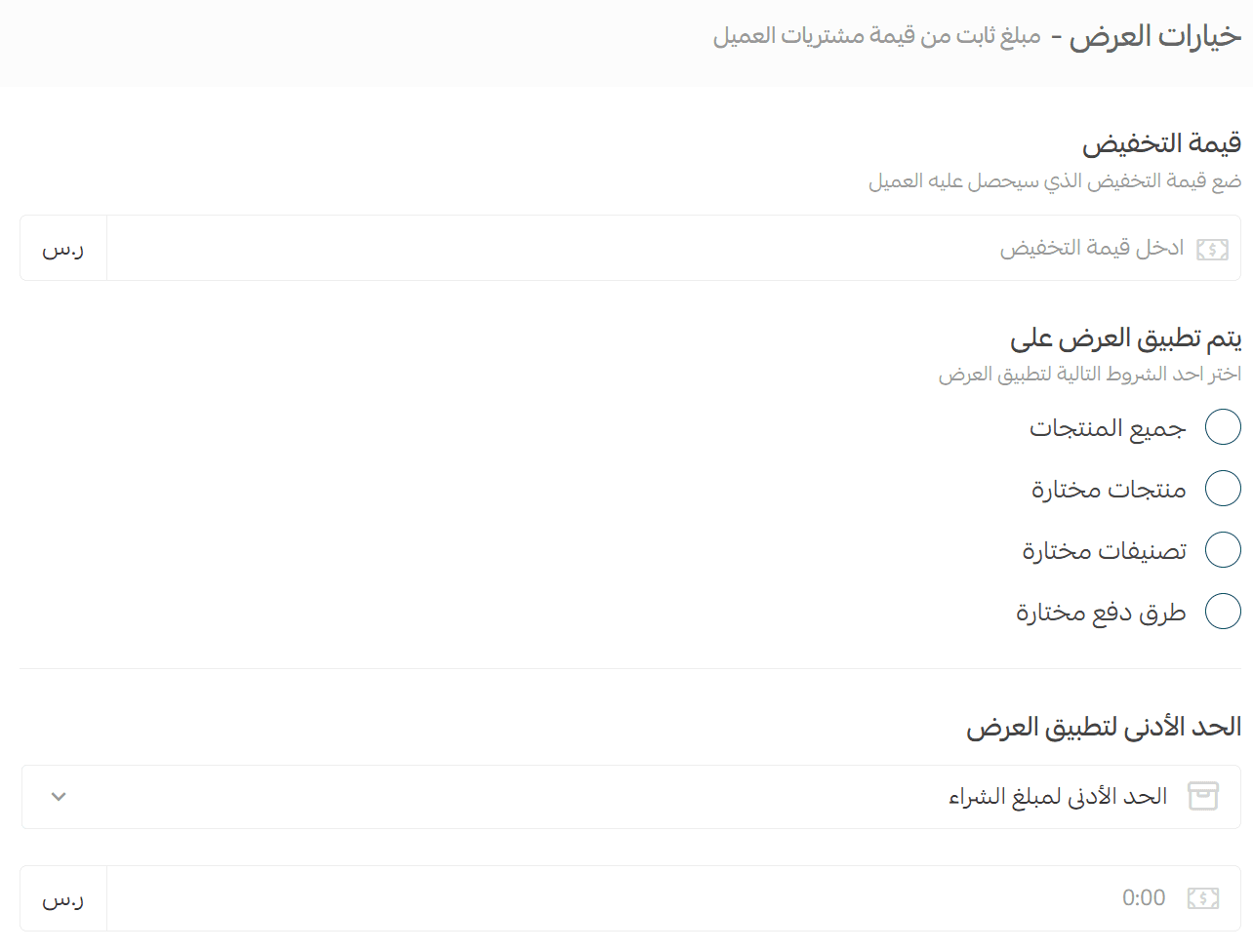
1. Enter the discount amount
2. Choose the condition for applying the offer:
- All products in the cart
- Selected products
- Selected categories
- Selected payment methods (bank transfer, cash on delivery, Tamara, etc.)
Update: You can now select up to 50 categories or 50 products, giving you more flexibility when building offers.
3. Set the minimum purchase amount or product quantity
Example:
If the customer spends at least SAR/AED 400, they receive SAR/AED 50 SAR.
Coupons can also be supported with fixed amount or percentage offers.

You can write the offer message before saving:

Offer type three: Percentage discount
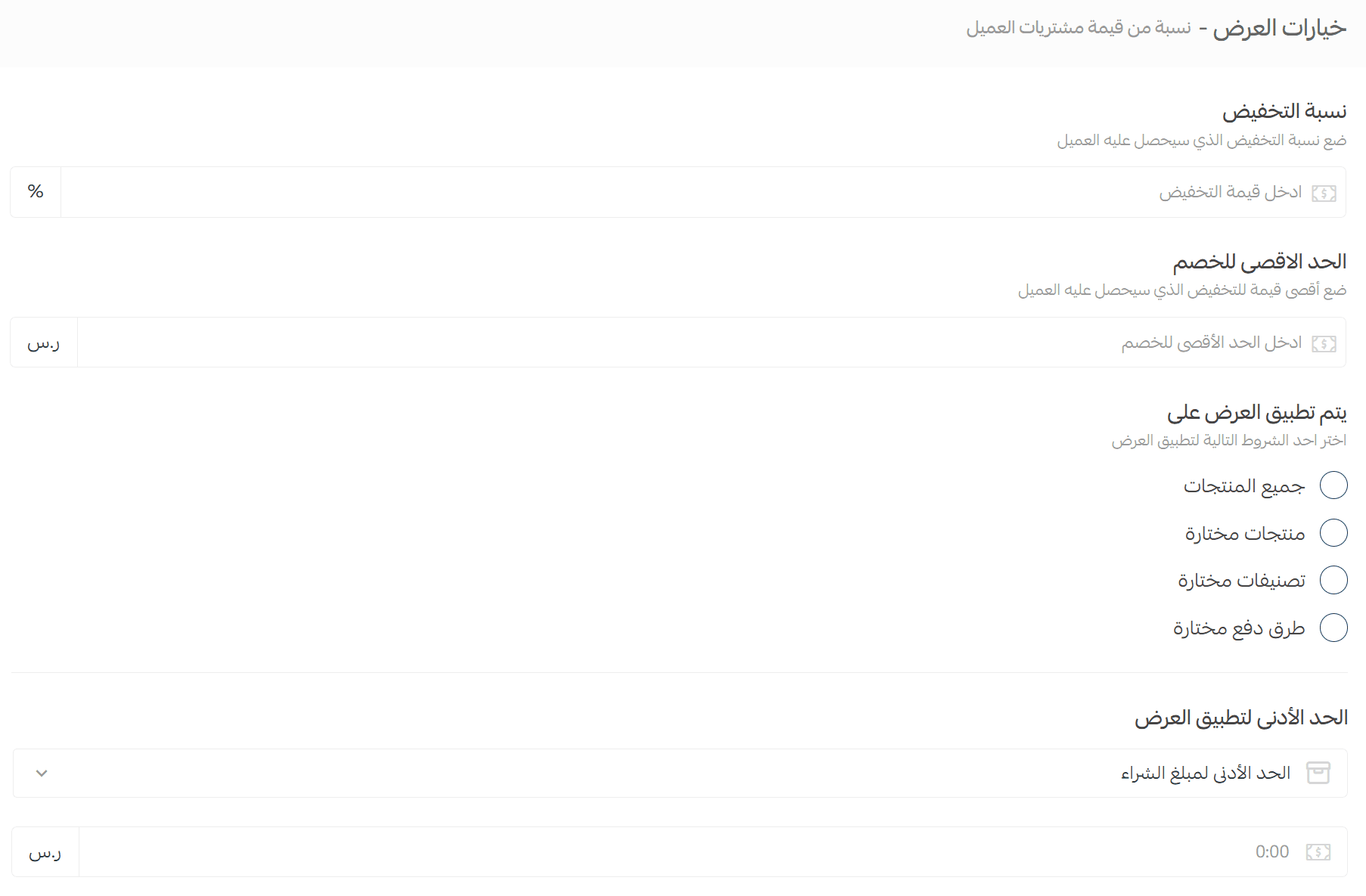
1. Enter the discount percentage
2. Enter the maximum discount cap
3. Choose the condition:
- All cart products
- Selected products
- Selected categories
- Selected payment methods
Update: You can select up to 50 categories or 50 products.
4. Set the minimum purchase amount or quantity
5. Decide whether coupons can be applied alongside the offer
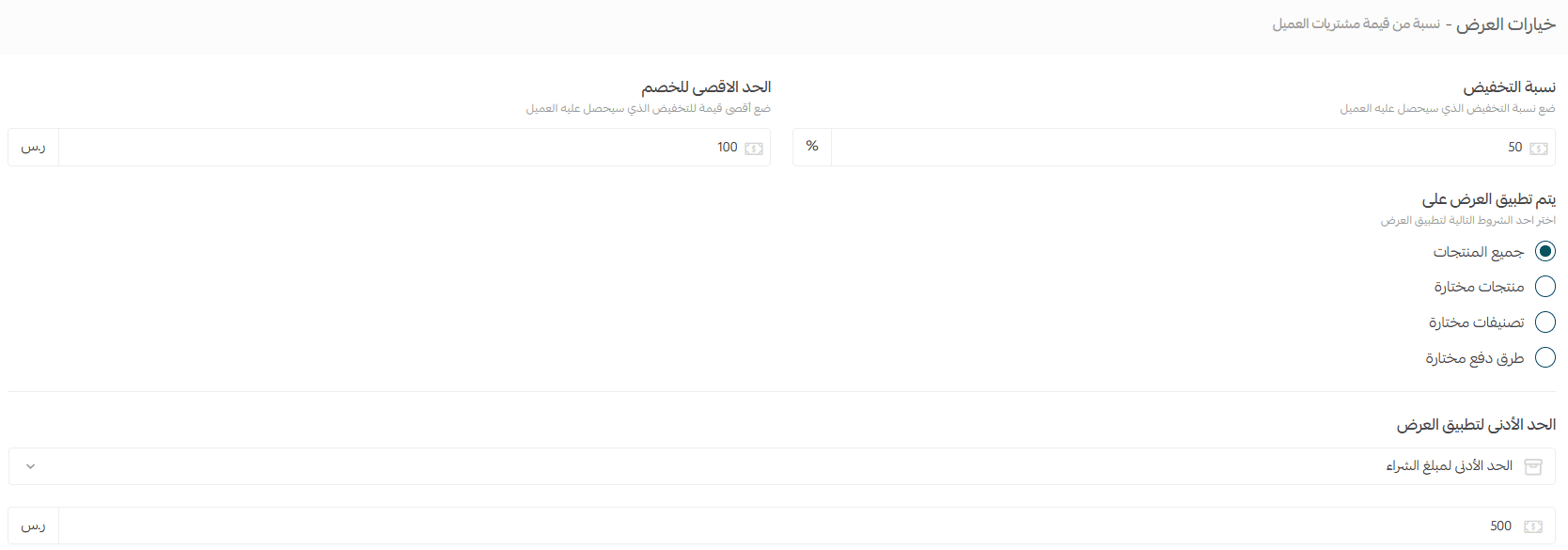
Example:
If the customer spends at least SAR/AED 500, they receive 50% off, with a maximum discount of SAR/AED 100.
You can write the offer message before saving:

Offer type four: Fixed price offer
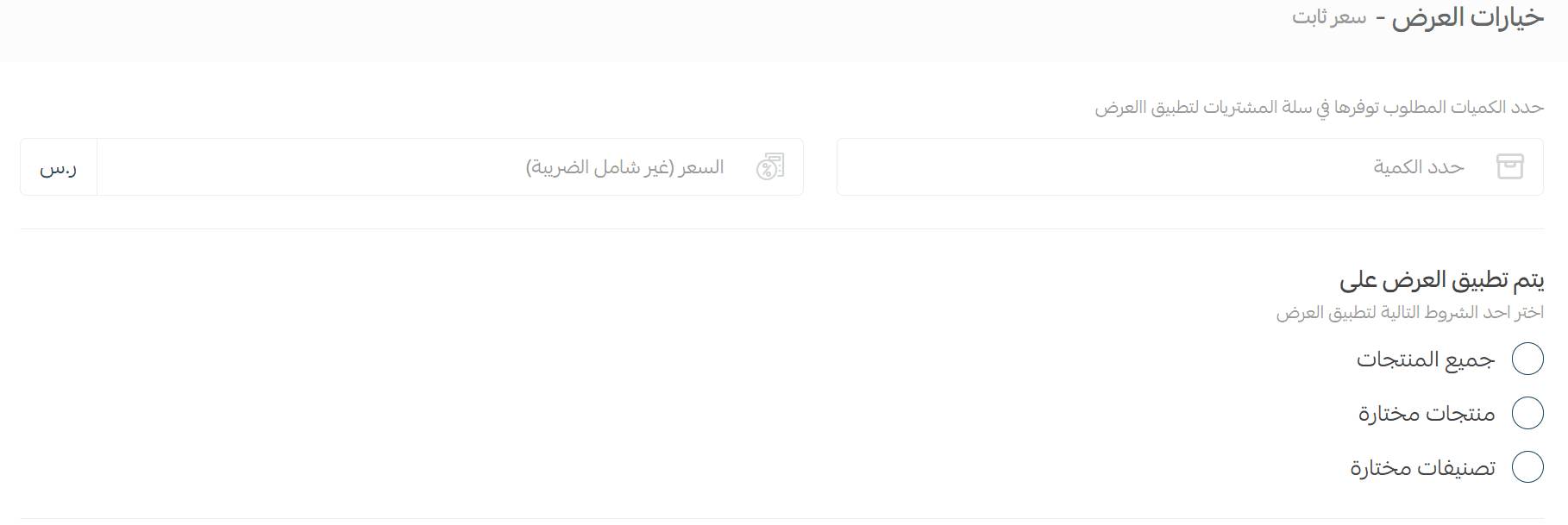
1. Set the required quantity
2. Choose the condition:
- All cart products
- Selected products
- Selected categories
Update: Up to 50 categories or 50 products can be selected.
3. Enable coupon support
4. Write the offer message
Example:
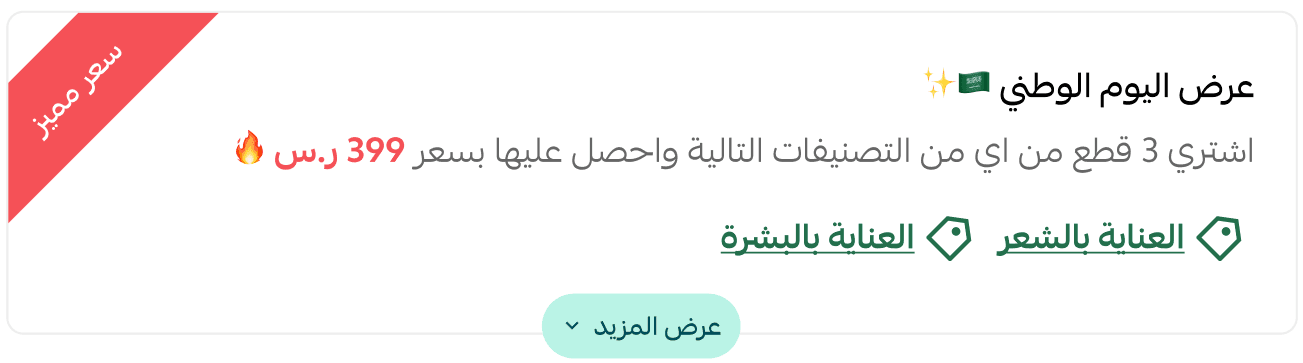
When the customer buys 3 products, they get a special price where 4 products cost only SAR/AED 399, regardless of the original price.
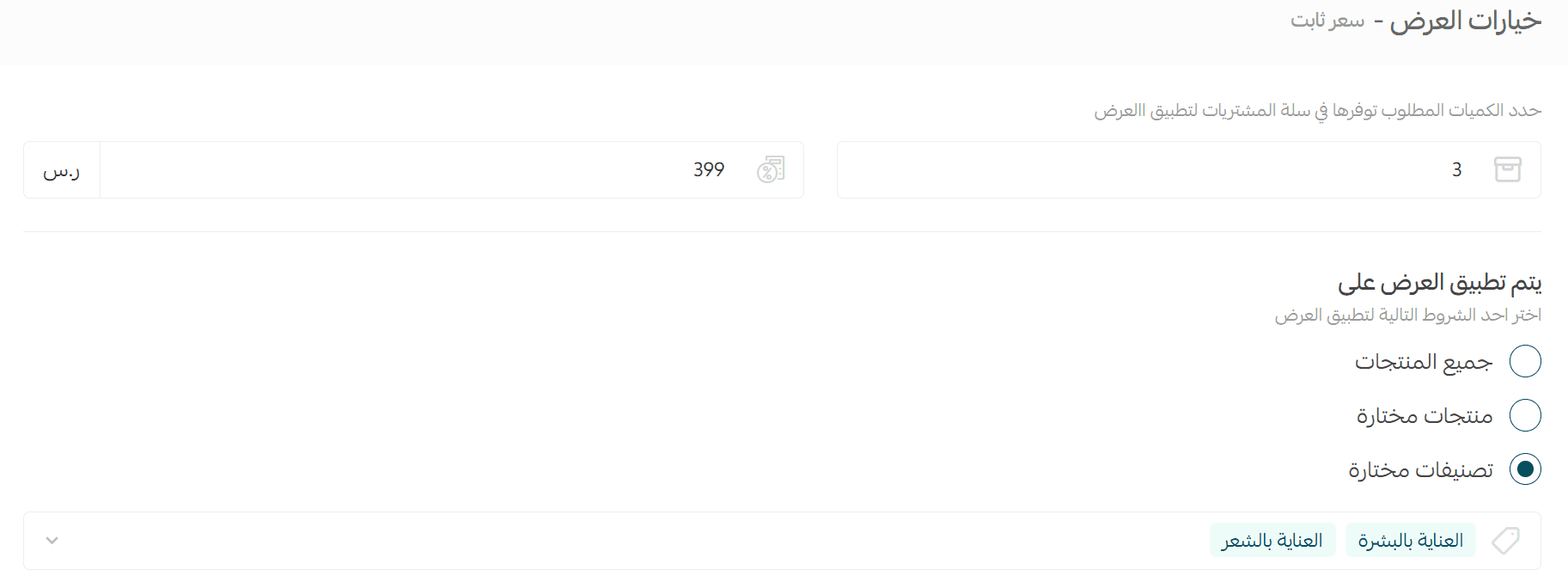
The offer may appear to customers like this:
For more details, see the FAQ about special offers.
Managing special offers
Important note: Special offers allow you to:
- Apply up to 5 offers in one cart
- Combine multiple offers or repeat them
- Use cart-level discounts more than once
Viewing and editing offer details
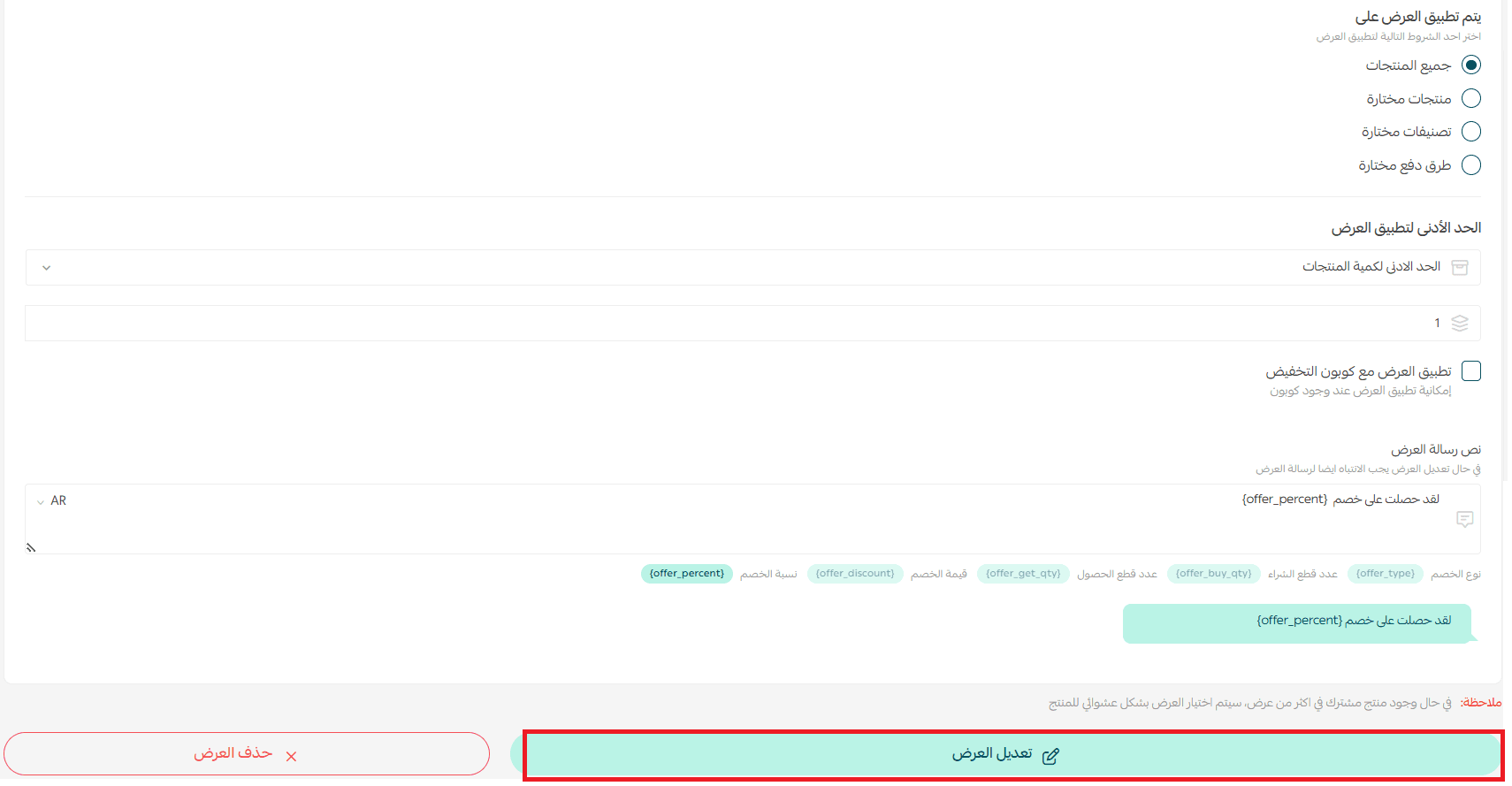
From the Special Offers page, click any offer to view its details and edit it.
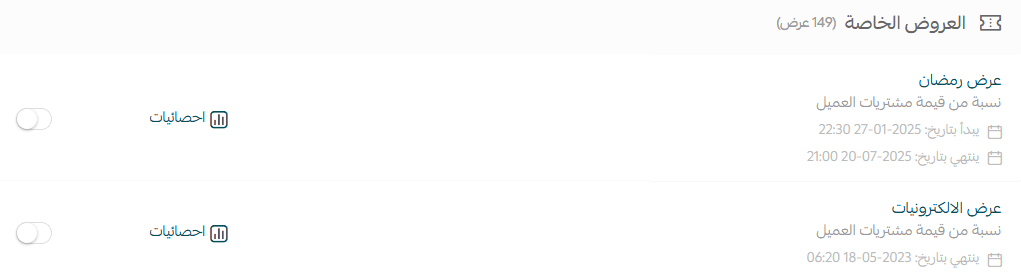
Example: Reviewing the Ramadan Offer
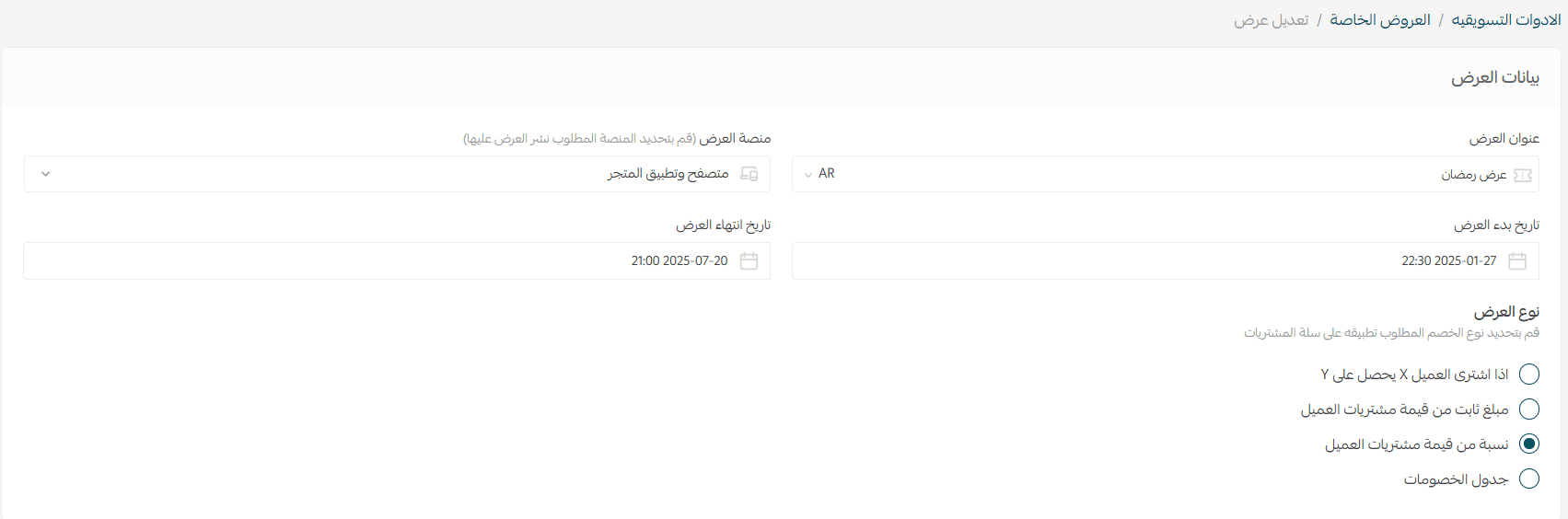
You can edit the offer and click (Edit Offer) to save changes, or choose (Delete Offer) to remove it.
Analyzing offer performance
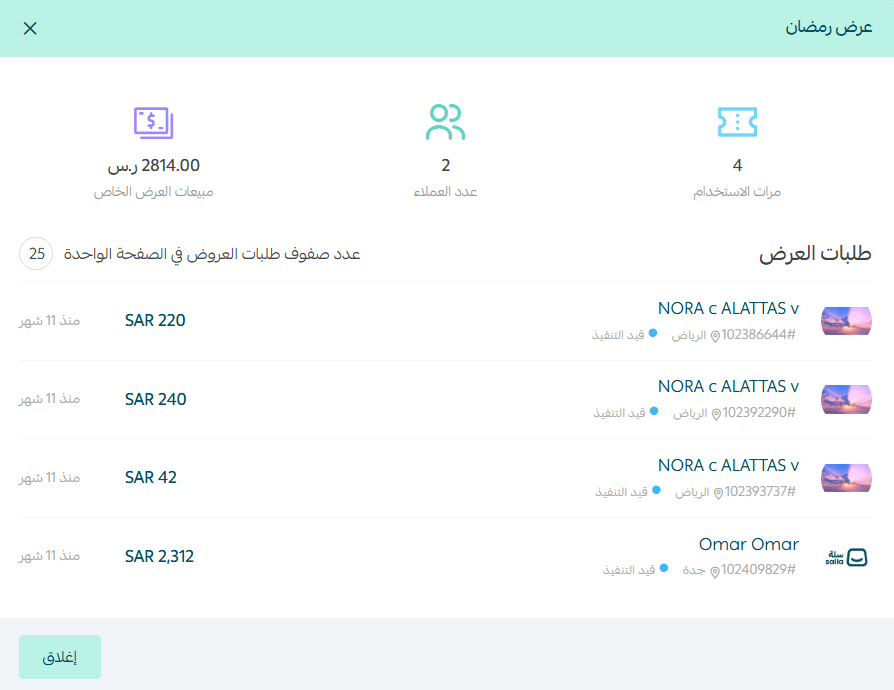
Click (Statistics) to view offer insights.

You will see metrics such as:
- Number of uses
- Number of customers
- Offer sales
- Offer-related orders
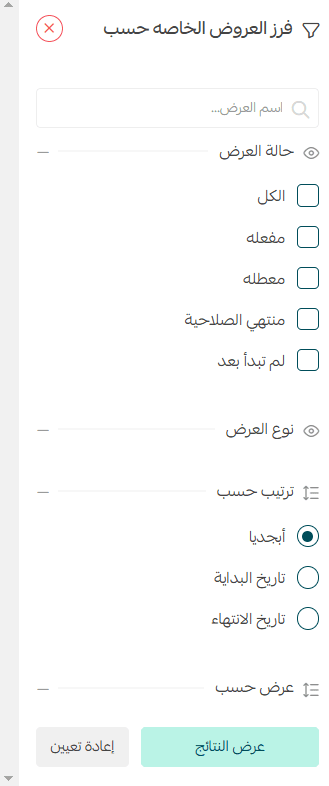
Filtering special offers
To filter offers, click (Filter).

Select the desired filters, then click (Show Results).
Customizing offer application settings
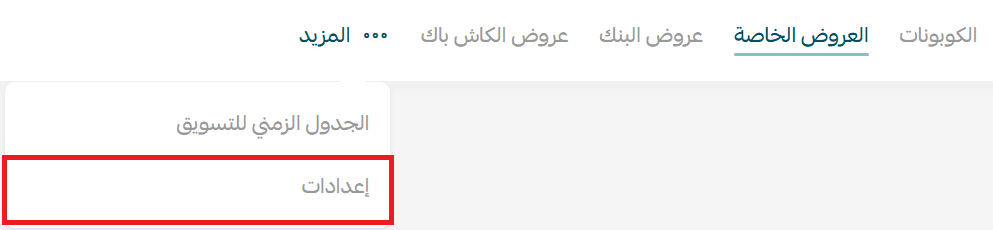
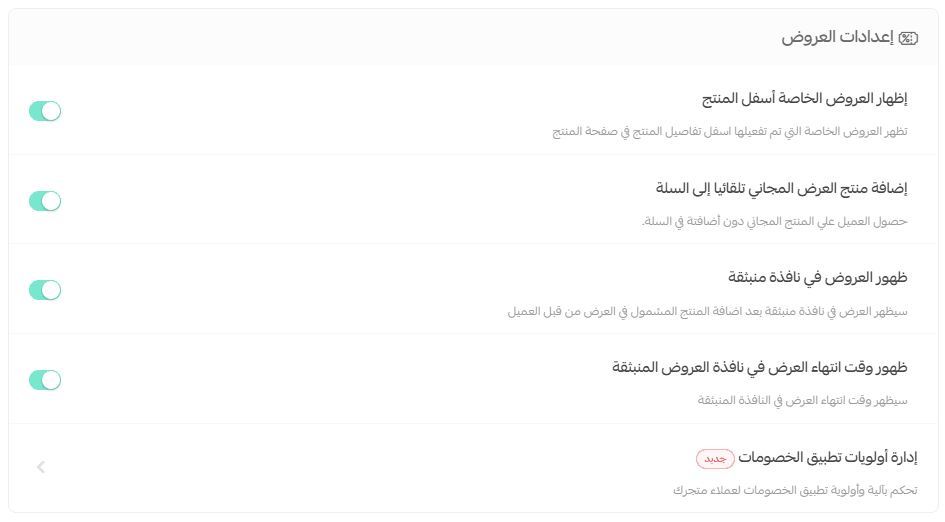
1. From the Discounts page, open the More menu and click (Settings).
2. Choose options to control offer pop-ups.
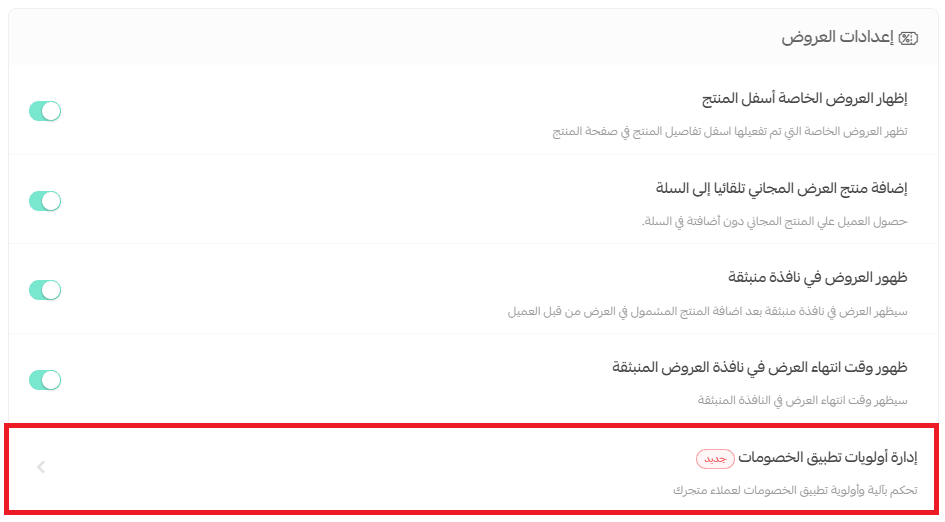
Setting offer priority order
- Click (Manage Discount Priority)
2. Arrange offers by drag and drop.
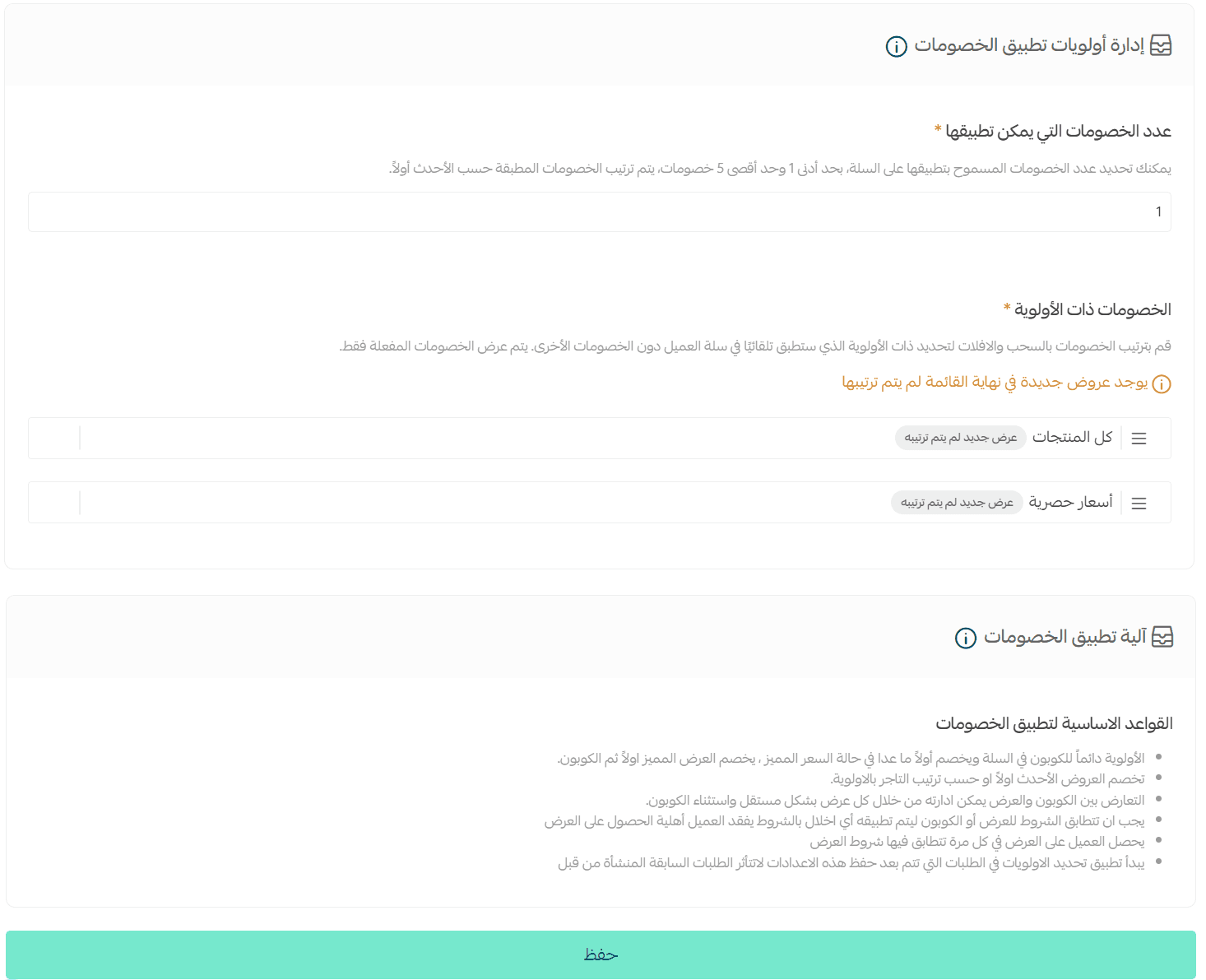
Basic rules for applying discounts
- Coupons are always applied first in the cart and deducted before other discounts—except when a special price is available. In that case, the special price is applied first, followed by the coupon.
- Newer offers are deducted before older ones, unless the merchant has set a custom priority order.
- Coupon and offer conflicts can be managed separately for each offer. (Coupon settings are handled independently.)
- An offer or coupon will only apply if all of its terms and conditions are met. If the customer does not meet the requirements, the discount will not be applied.
- Customers can receive the offer every time they meet its conditions.
- Prioritization rules apply only to orders placed after these settings are saved. Orders created before the update are not affected.
- Important note: When selecting products or categories for an offer, you can choose up to 50 products or 50 categories, giving you more flexibility in designing promotions.
Additional learning resources
Design smart offers and coupons for every customer segment, and make every shopping experience feel personal to increase sales and loyalty.
Discover how to boost engagement and achieve better results through customized offers and advanced coupon management in Salla in this article.
🚀 Want to increase your average order value?
Read the article to learn how Salla’s smart offers can double your sales and deliver a more personalized shopping experience for every customer.