Struggling to capture customer attention and convert visitors into buyers in a highly competitive digital market? Without a focused and professional landing page, you risk losing valuable sales opportunities and failing to create a strong first impression.
In this guide, you will learn how to create and manage effective product landing pages in Salla to increase conversions, boost sales, and build customer trust.
📌Article overview
- What are Salla product landing pages
- How to add product landing pages to your store
- How to manage product landing pages
🎯What are product landing pages in Salla?
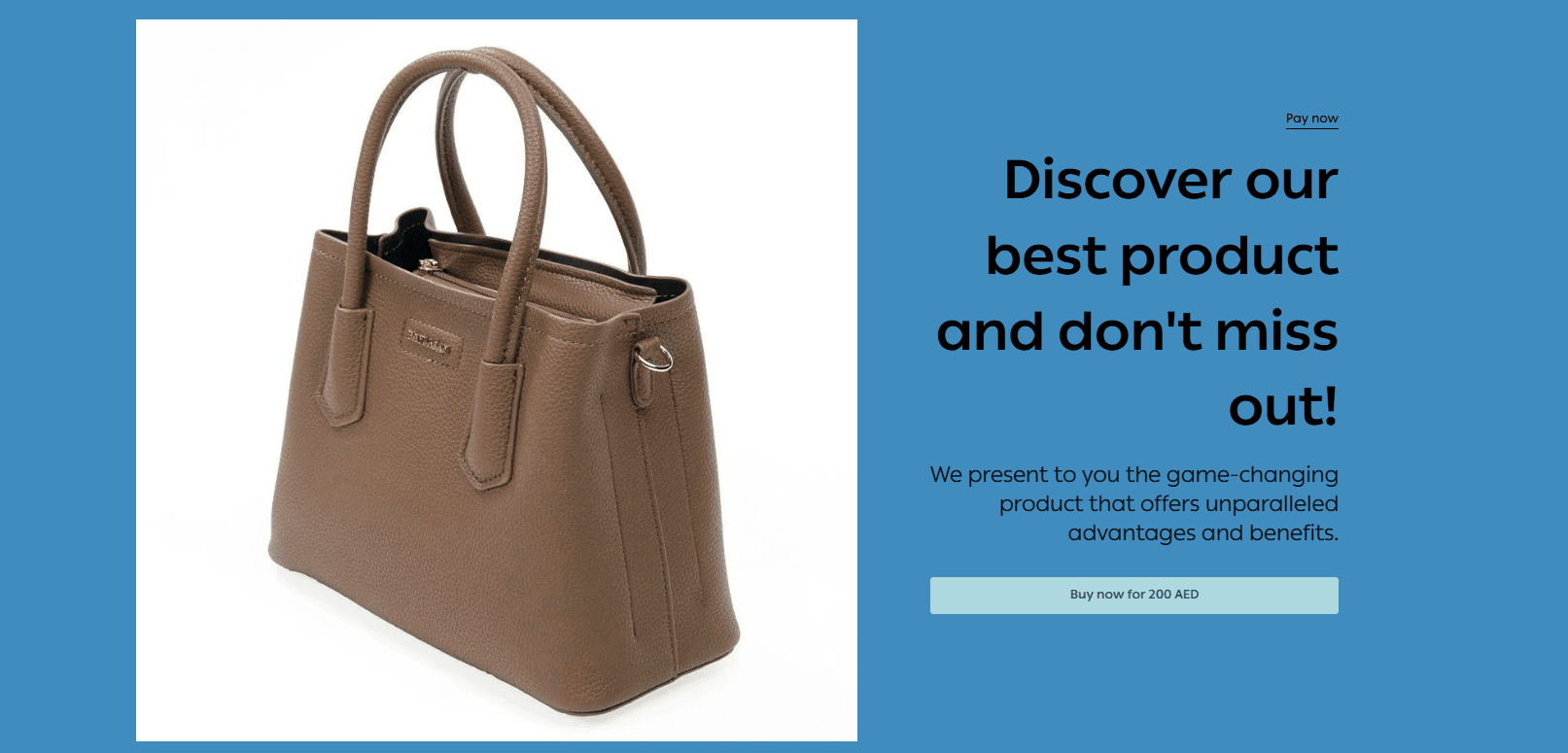
Product landing pages are a marketing feature that allows merchants to create a dedicated page with a unique design to promote a specific product.
Each landing page includes customizable content such as product descriptions, promotional text, discounts, or offers. Every landing page has a unique shareable link that you can use in advertising campaigns, social media, or direct messaging, allowing customers to purchase the product directly from that page.
How to add product landing pages to your store
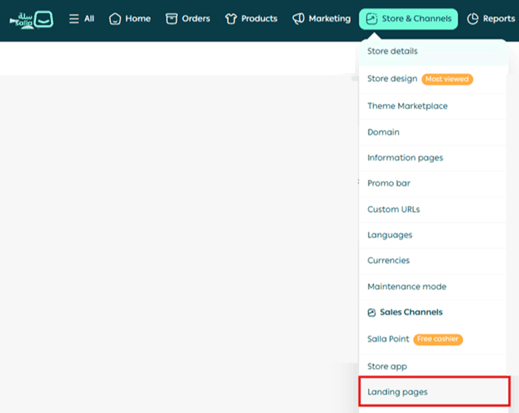
- From the main navigation menu, click Store & Channels, then select Landing Pages.
2. Click create a landing page.

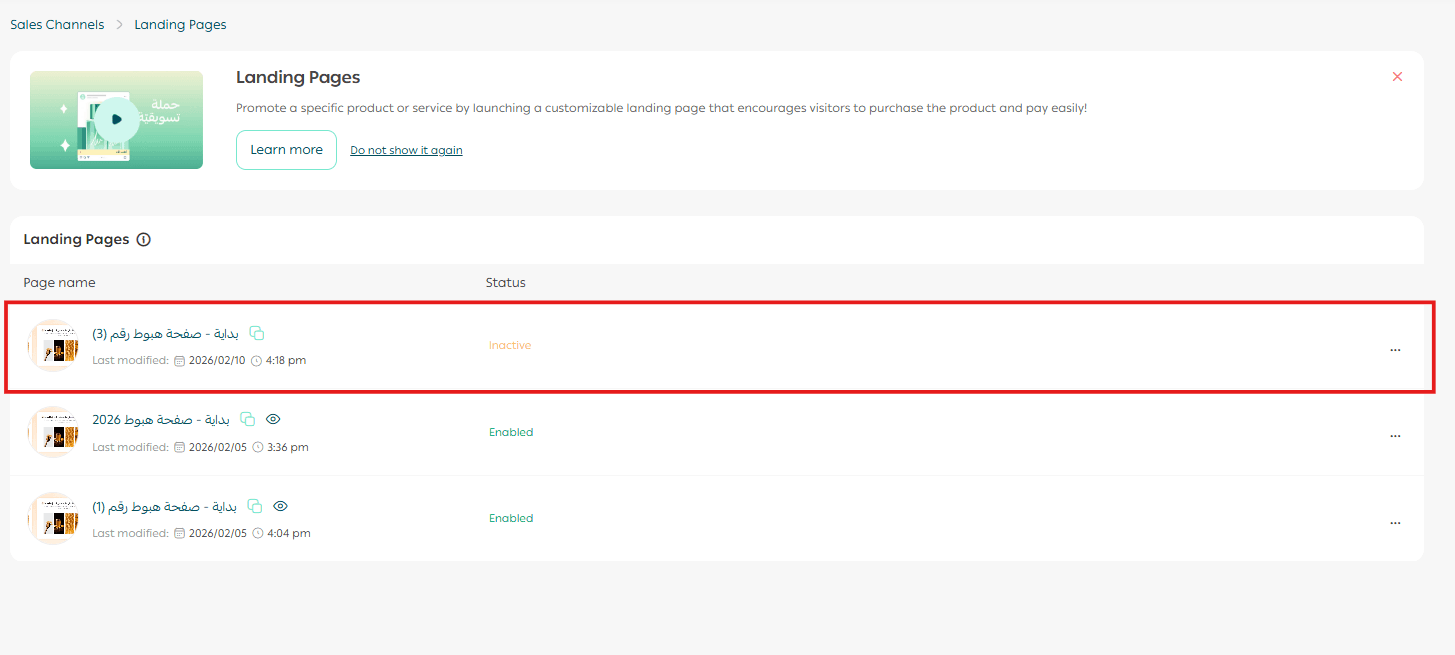
3. A landing page will be created with a default name.
Customize the landing page
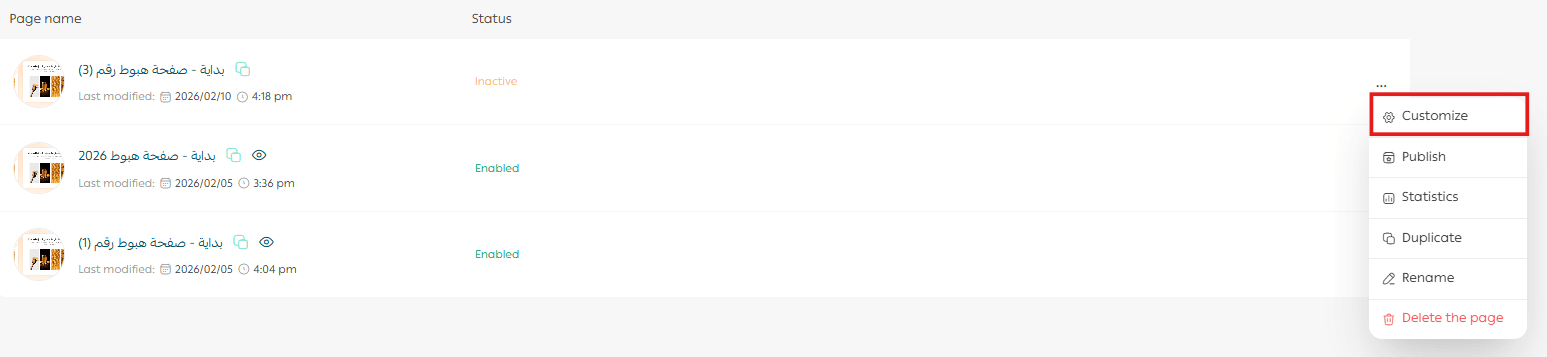
From the landing page control menu, click Customize.
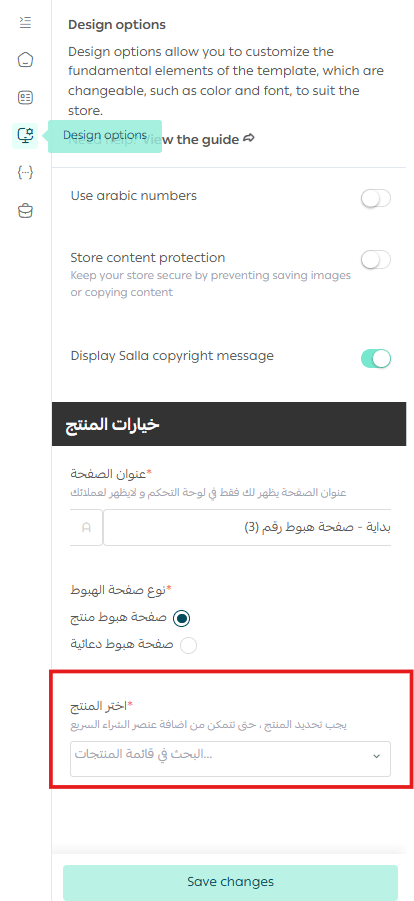
From the Design Options tab, enter a name for the landing page, select the product as a required first step, then click Save.
Supported product types:
- Ready products
- Digital cards
- Digital products
- Product bundles
Unsupported product types:
- Made to order products
- Bookings
- Food products
- Donations
Note: If no product is selected, a warning message will appear on the main landing page screen.
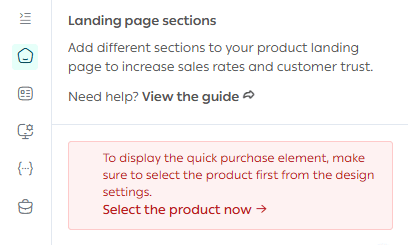
Customize page content
The new landing page will be preloaded with default content and elements.
You can edit existing elements or add new ones to fully customize the page based on your marketing goals.
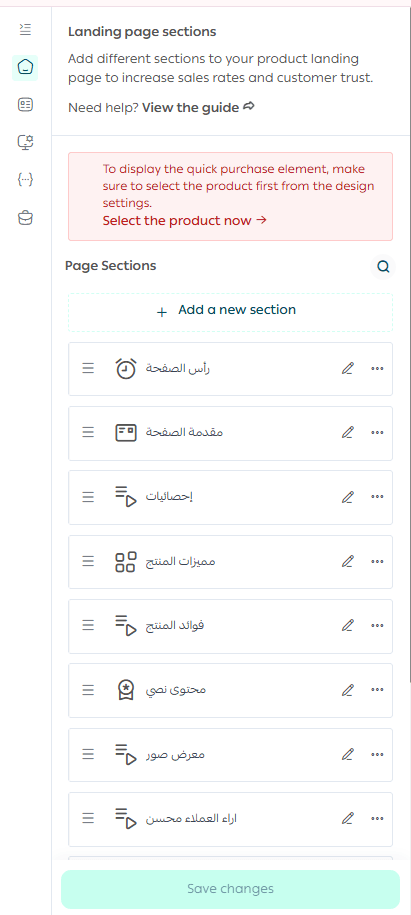
For detailed customization options, refer to the product landing page customization guide.
Managing Product Landing Pages
Rename a Landing Page
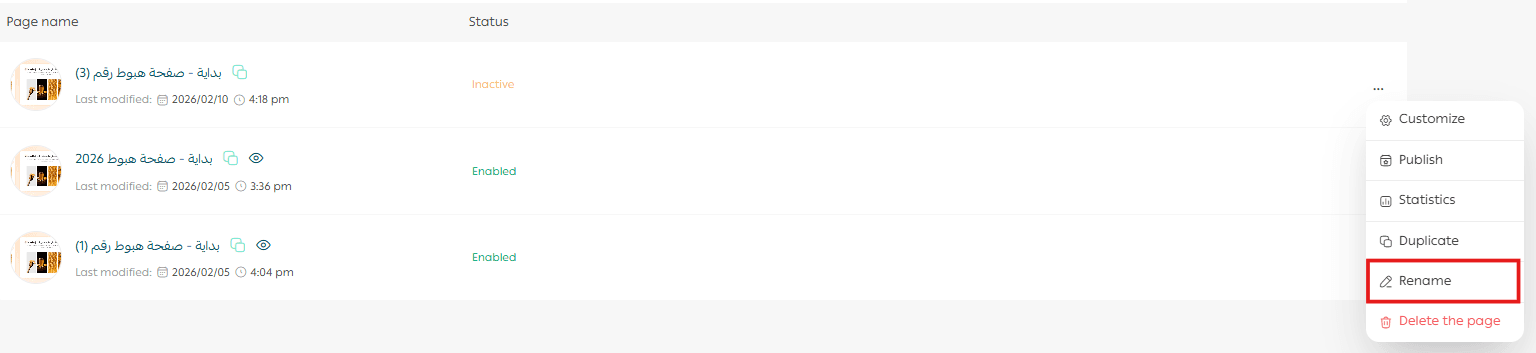
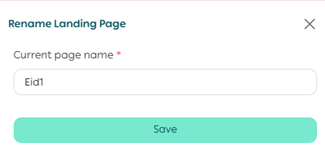
You can rename a landing page for internal organization purposes. The name is only visible to you and not to customers.
From the landing page control menu, click Rename, enter the new name, then click Save.
Edit a Landing Page
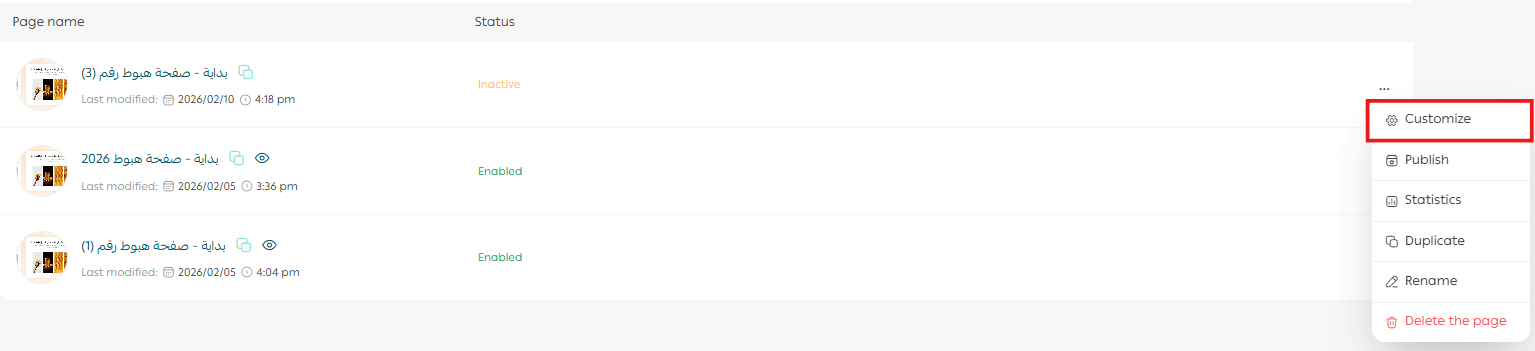
From the landing page management screen, open the landing page options and click Customize Page.
Publish or Unpublish a Landing Page
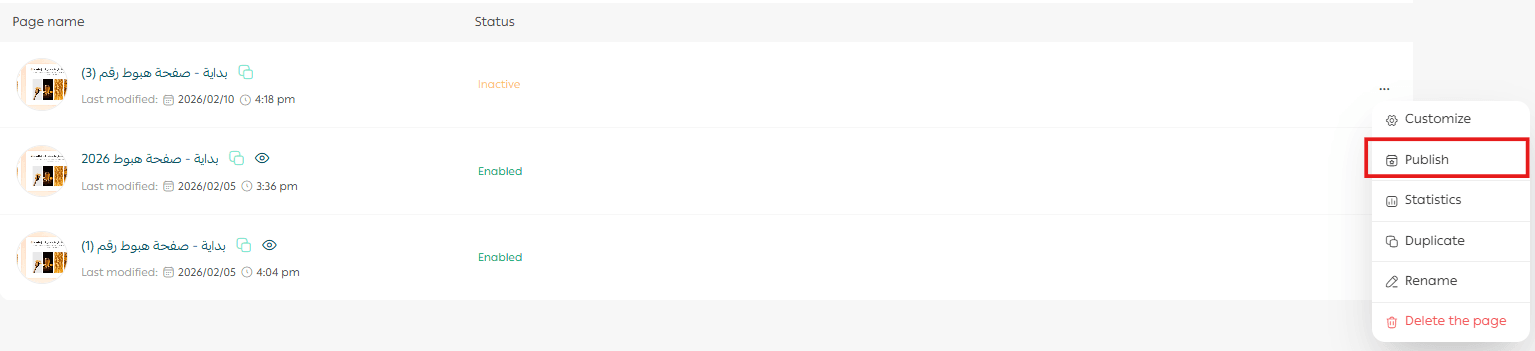
From the landing page options menu, click Publish.
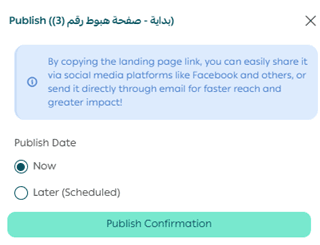
You can choose to publish the page immediately or schedule it for a later date.
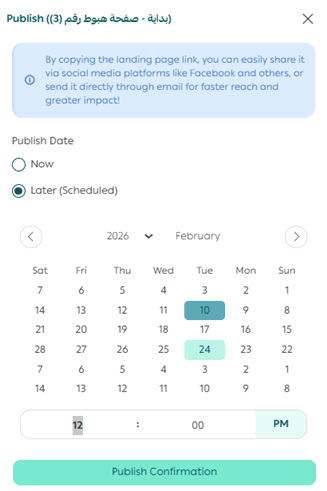
When scheduled, the publish date will appear below the page status.
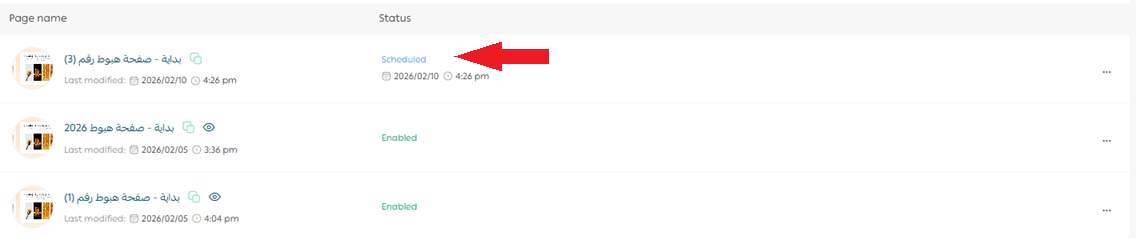
To unpublish or modify a scheduled page, click Unpublish or adjust the schedule as needed.
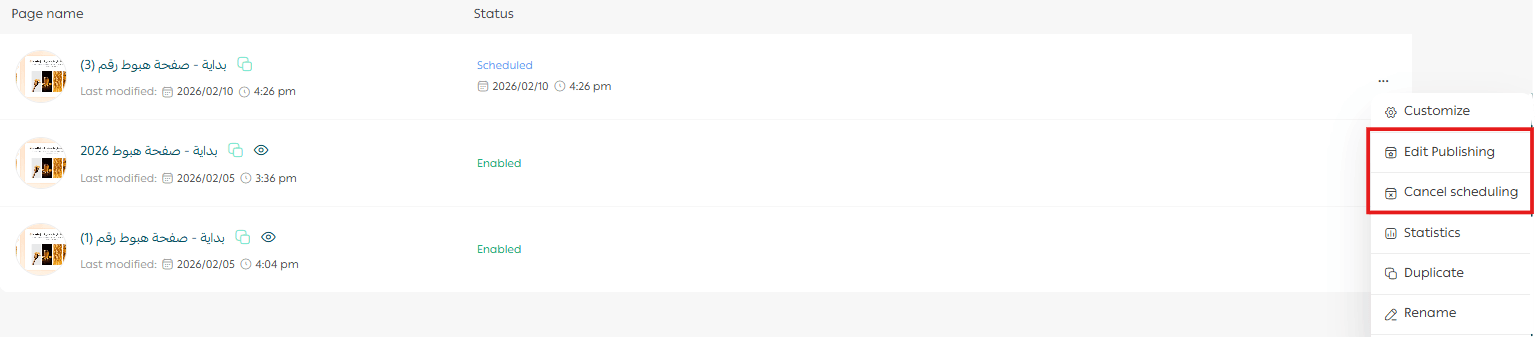
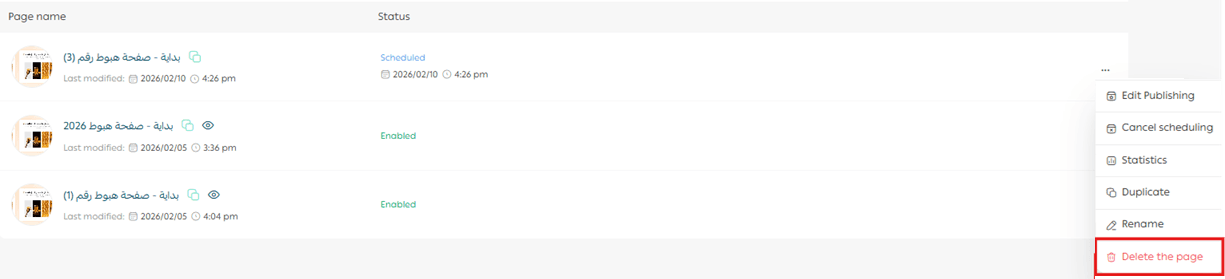
Delete a Landing Page
From the landing page options menu, click Delete.
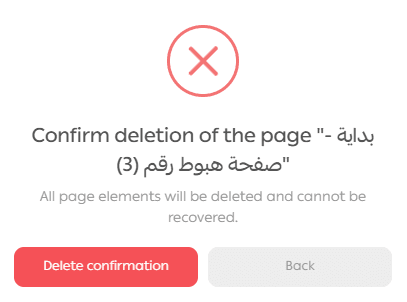
Confirm deletion by clicking Yes.
Preview a Landing Page
You can preview only published landing pages.
From the landing page card, click Preview Landing Page to open the page in a new window.
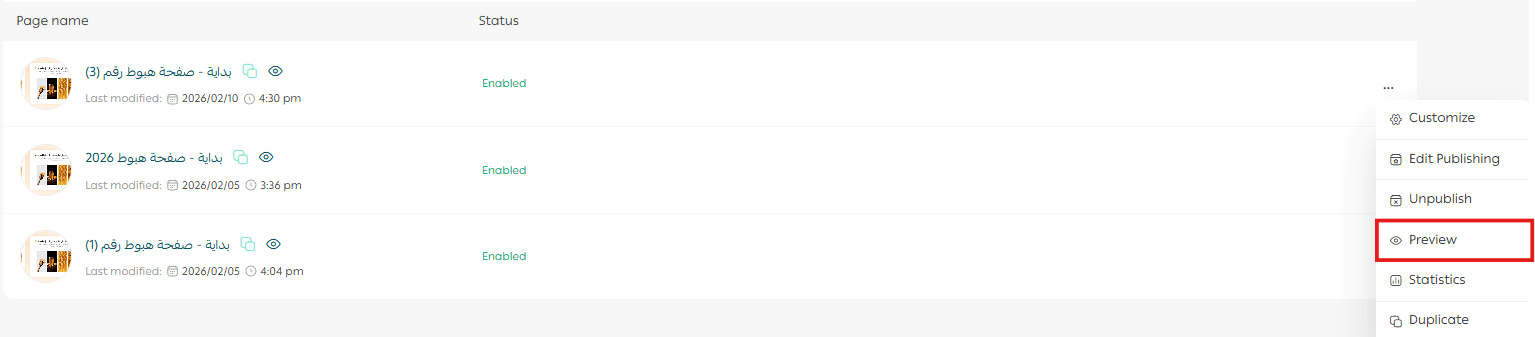
Note: The preview button does not appear for unpublished or scheduled pages.
Copy the Landing Page Link
From the landing page card, click Copy Page Link.

You can now share the landing page link across social media platforms, advertisements, or direct customer messages.
Turn Visitors Into Customers Faster
Product landing pages help your products stand out, increase conversion rates, and reduce advertising costs by focusing customer attention on a single goal.
Learn how to design high converting landing pages that sell directly without distraction, using practical steps and proven examples.
Want a Professional Landing Page Without the Effort?
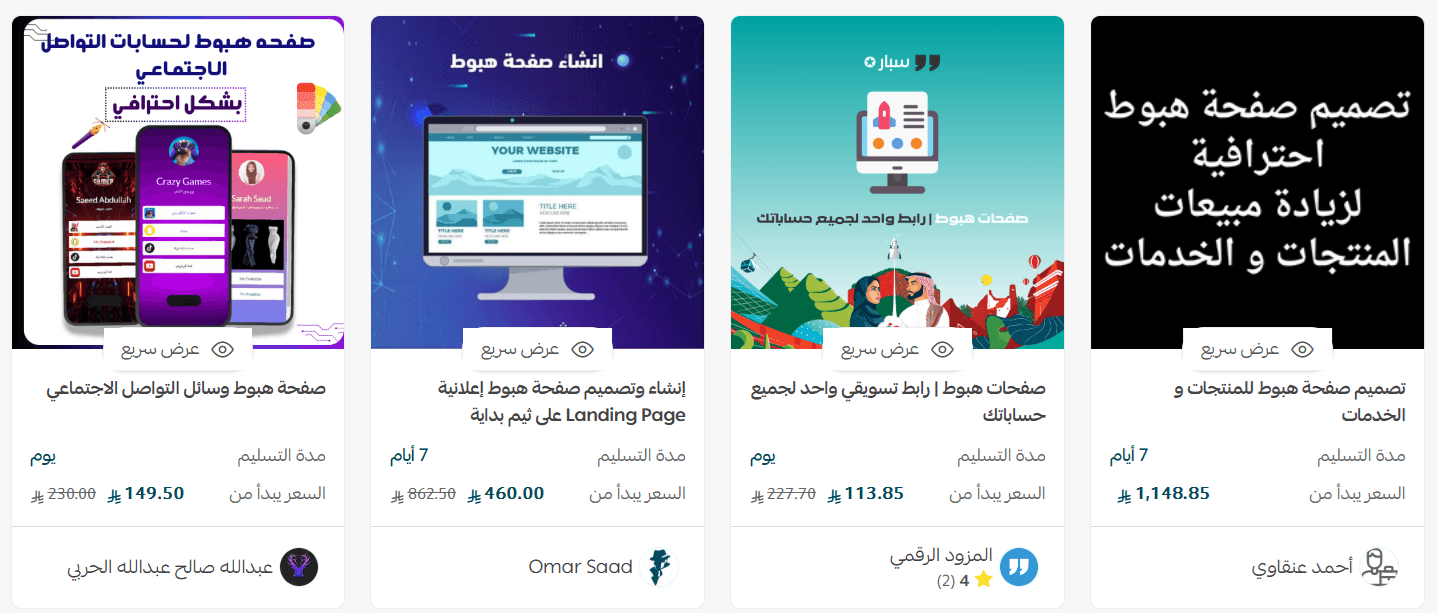
Order a landing page expert from the Merchant Services section to design a custom landing page focused on your product, attract customers, and maximize conversion rates.
Make every visitor count.