If you are using WooCommerce and want to switch to Salla, you can import your products using the store's export file. This feature helps you transfer product data easily and reduces the effort required to set up the store.
📌 Main topics of the article:
- Import products from WooCommerce
Import products from WooCommerce
1. From the main menu, click (Products).

2. Click (Import from platforms).

3. Select WooCommerce, then click (Next).

4. Add your WooCommerce store link.

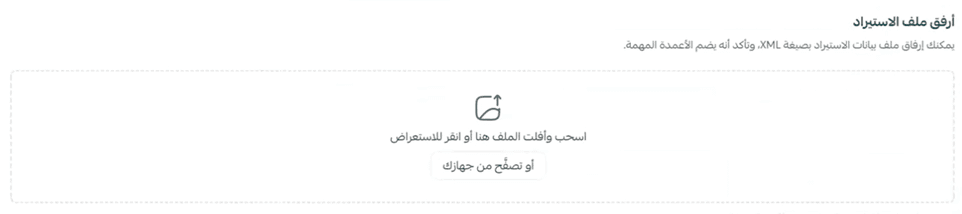
5. Add the product file from your WooCommerce store.
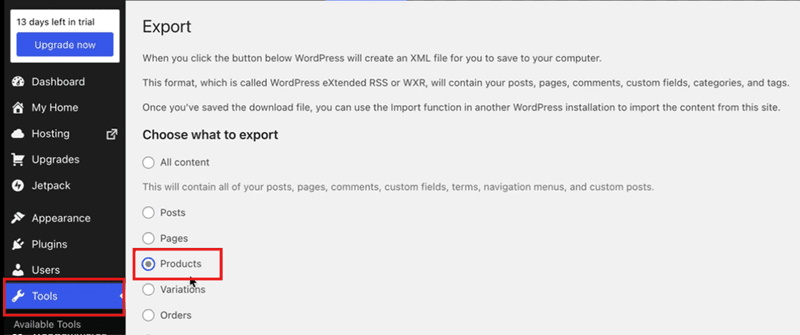
🔔You can get the product file from your WooCommerce store through the Export page in the (Tools) tab, select (Products).
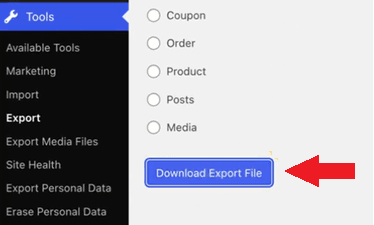
Then at the bottom of the page, click (Download Export File) to download the file to your device.
Add the file to the designated field in your store, then click (Next).

6. Wait until the file is fully uploaded, and the products will appear on the product management page in your store after the import is complete.

Frequently asked questions
If I have more than one branch or warehouse, where will the imported products from another platform be?
The imported products from other platforms will be in the default branch, so make sure to check the default branch before starting the import process.
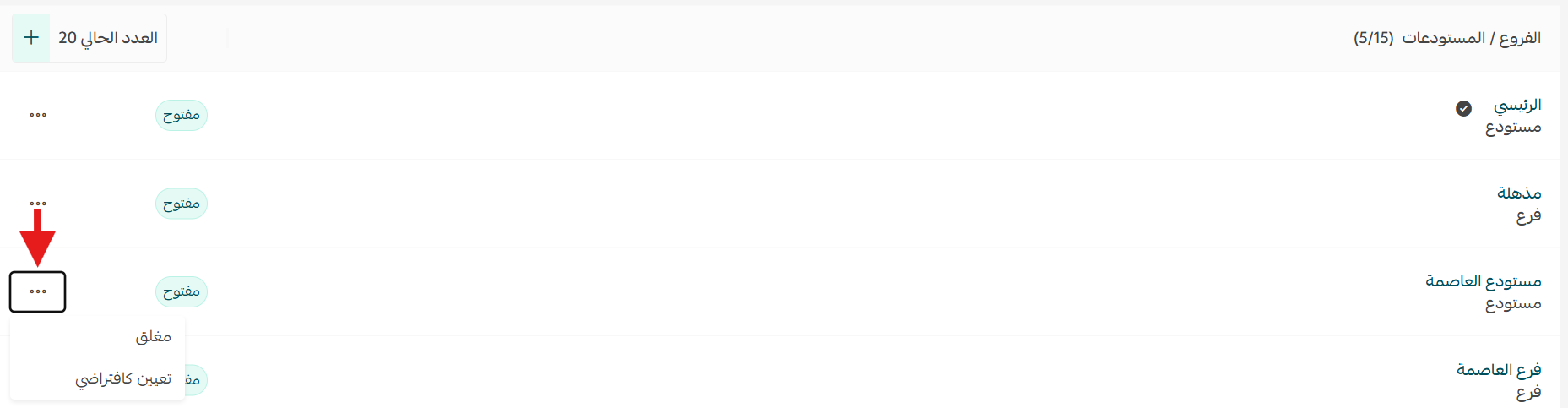
For more details on adding and managing branches and warehouses
Are digital product contents like codes and PDF files imported?
Currently, the import system only supports importing tangible products from external platforms.
Digital products or any other type of intangible products are not supported in the import process.
💪 Import your products from WooCommerce with simple steps, saving time and effort.