Your best seller just sold out, or the product everyone is waiting for hasn't landed yet. That is exactly the moment you don't want to lose their interest.
Pre-order campaigns let customers reserve a product before it is available, which turns waiting into a confirmed future sale. Customers who get in first feel like insiders, and the campaign builds real anticipation around what's coming next. In this guide, you'll learn how to create a pre-order campaign, how to set up its dates and messaging, how to manage your campaigns, and how to find and fulfill pre-orders.
A pre-order campaign links one product to a start date, an end date, and a promotional message, then opens that product for reservation before you have stock. Create it from (Products) then (Pre-order campaigns), add the campaign details, and Salla shows the product with an expected availability date and an optional countdown.
📌 Article overview
- How to create a pre-order campaign in your store
- How to manage your pre-order campaigns
- How to manage pre-orders
- Frequently asked questions
🚀 How to create a pre-order campaign in your store
1. From the main menu, click (Products), then choose (Pre-order campaigns).
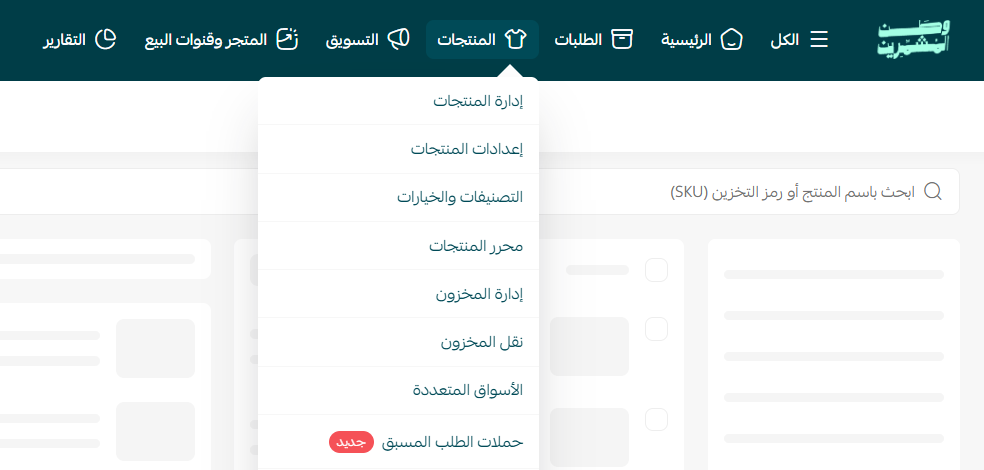
Add a pre-order campaign
1. From the (Pre-order campaigns) page, click (+ New campaign).

2. Add the campaign's basic information, then click (Create campaign).
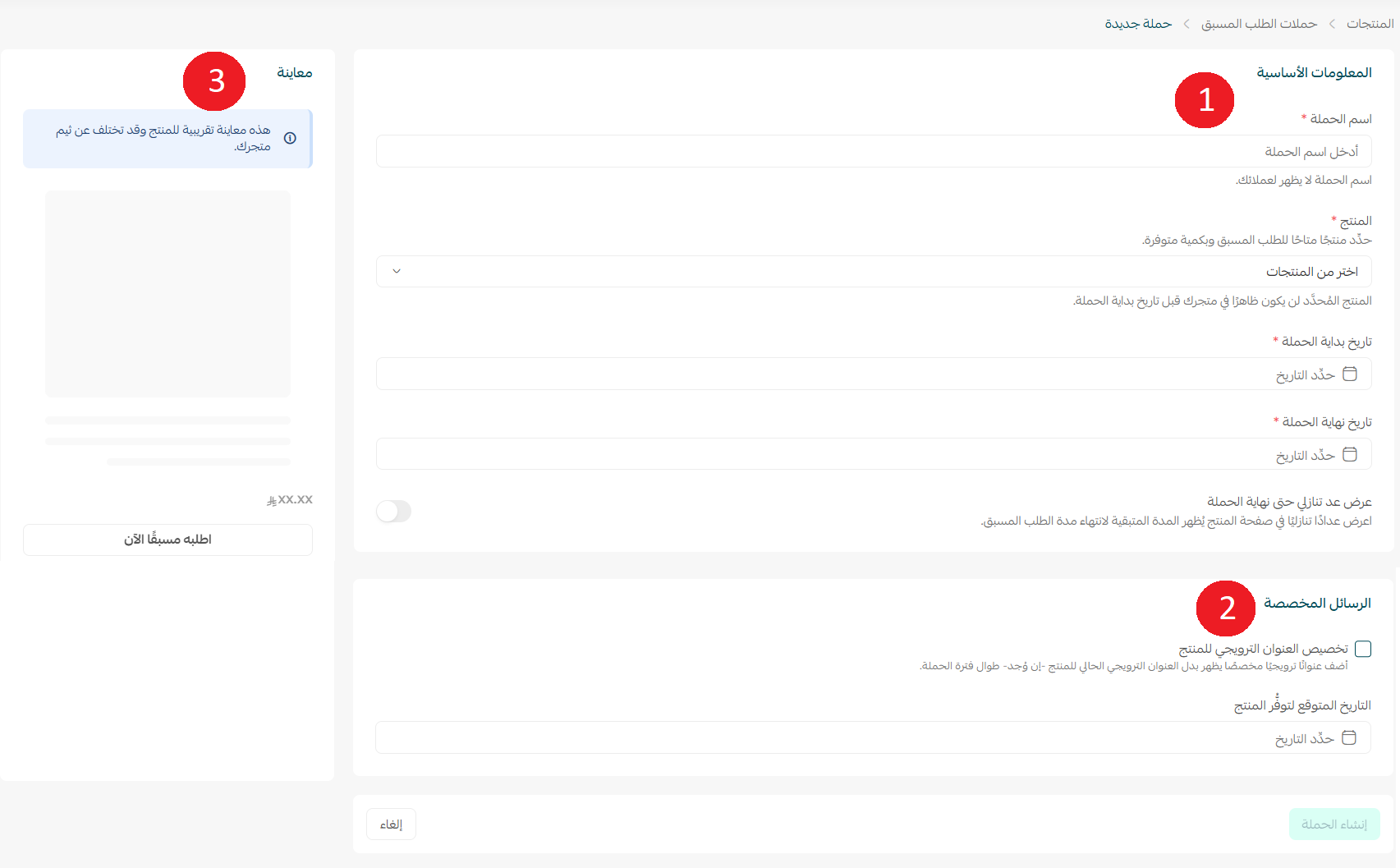
Campaign setup in detail
1. Basic campaign information
- Campaign name: visible to you only, never to the customer. It is there so you can tell your campaigns apart.
- Product available for pre-order: one product per campaign.
📝 Important notes
The same product cannot be linked to more than one campaign at a time.
- Campaign start date: when the product appears in your store and starts accepting orders.
- Campaign end date: when the store stops accepting pre-orders.
📝 Important notes
If the product's quantity runs out before the end date, the campaign counts as finished and the product returns to normal. Add stock again and the campaign resumes automatically.
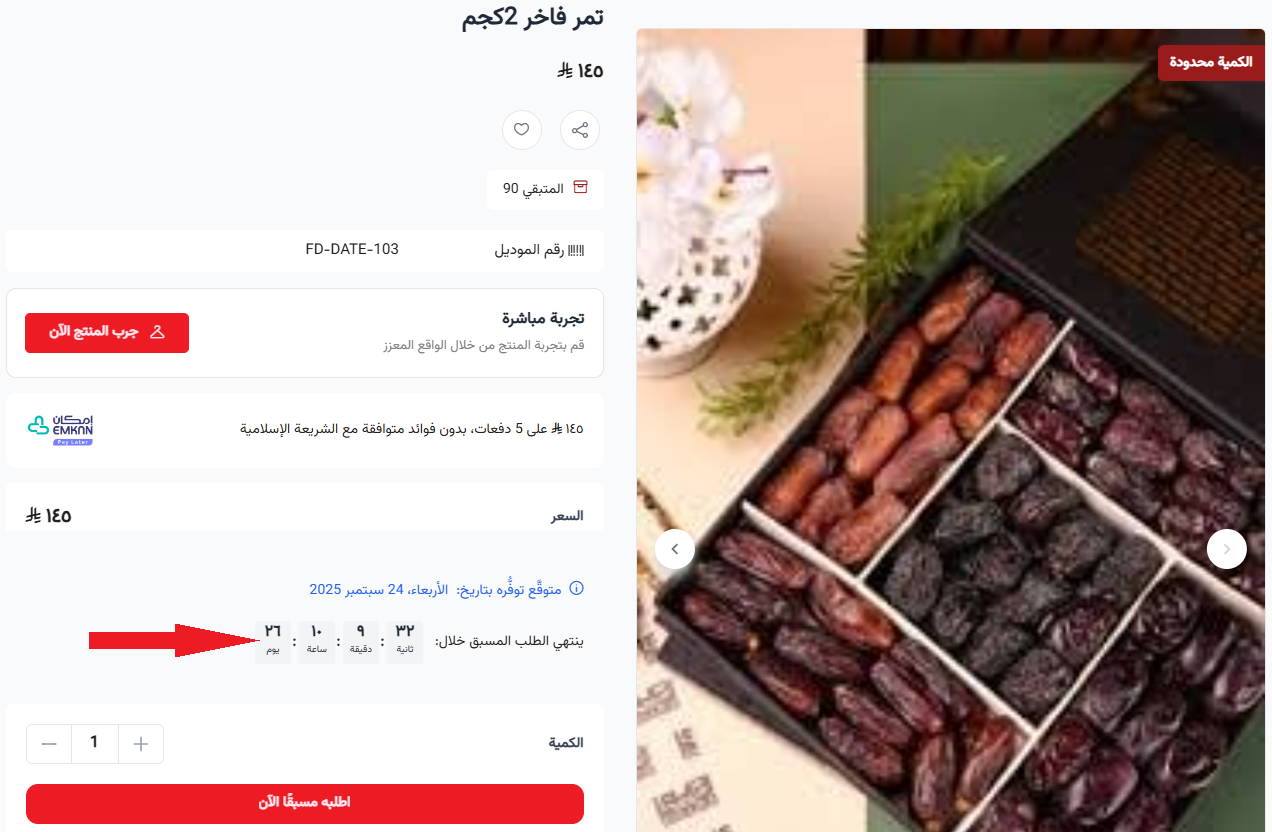
💡 You can turn on a countdown for the campaign from its icon. It appears on the product page automatically, so customers can see how long they have left to pre-order.
2. Custom messages
- Add a promotional title for the product: a marketing headline written for this campaign. It disappears automatically when the campaign ends.
📝 Important notes
If you don't add a promotional title, customers see a default title of (Pre-order).
- Set the expected availability date: shown to the customer so they know when the product should be available.
3. Product preview
- An approximate preview of the product. It may look different from your store's theme.
A worked example
💡 Basic information for the pre-order campaign:
Campaign name: National Day giveaways
Product available for pre-order: National Day giveaway box (limited edition)
Campaign start date: September 1
Campaign end date: September 15
Countdown: enabled, to build anticipation
Custom messages:
Promotional title: "Order it now before pre-ordering closes"
Expected availability date: October 1
The campaign then appears in your store like this:
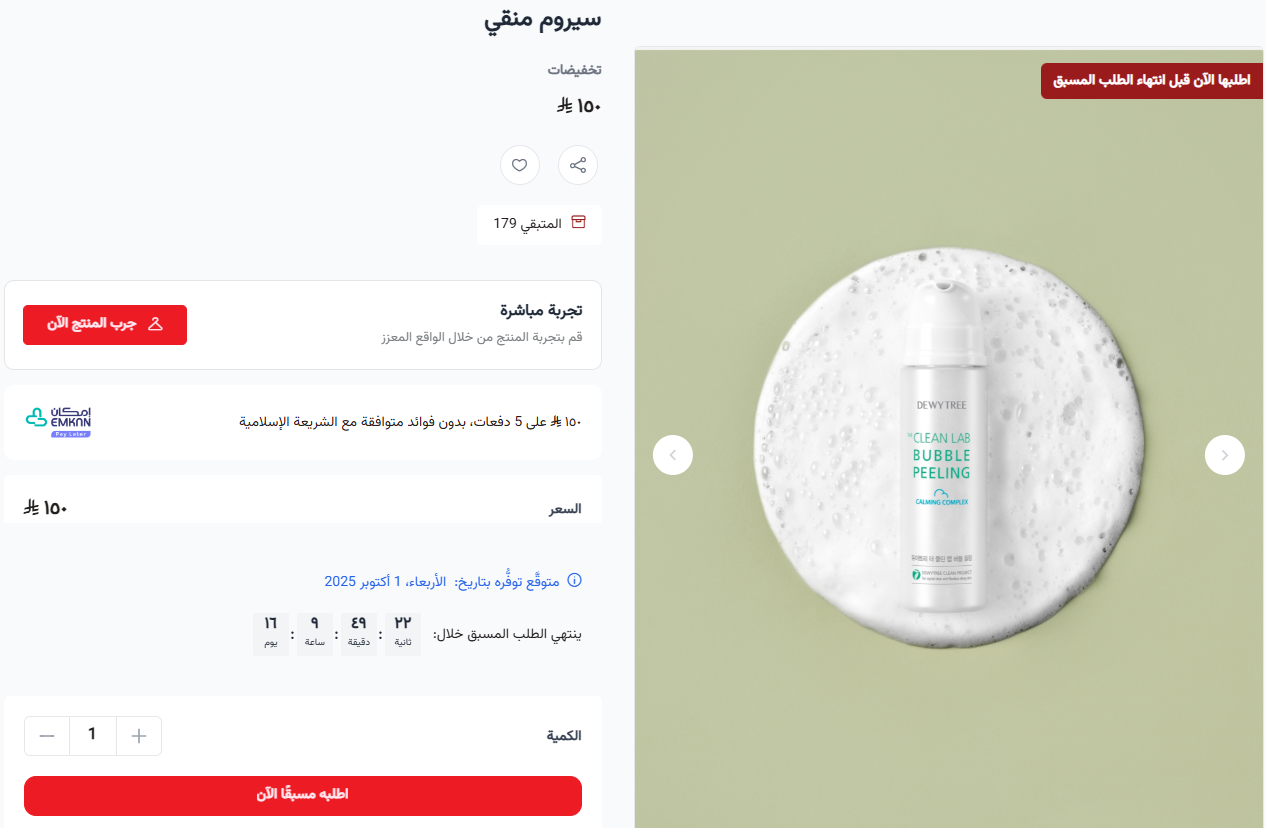
🔍 How to manage your pre-order campaigns
The (Pre-order campaigns) page shows every campaign in your store in one place.
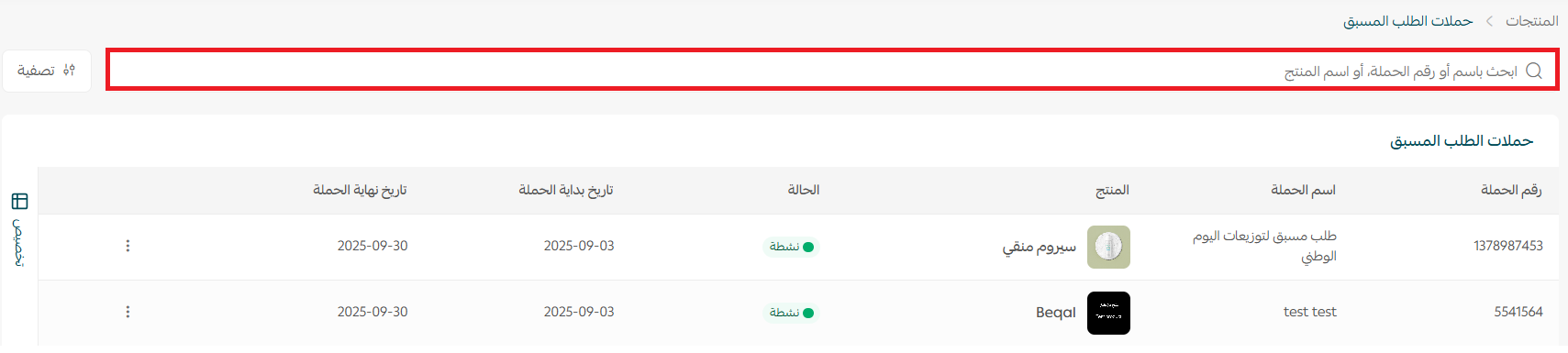
1. Search
Search for a campaign by campaign name, campaign number, or product name.
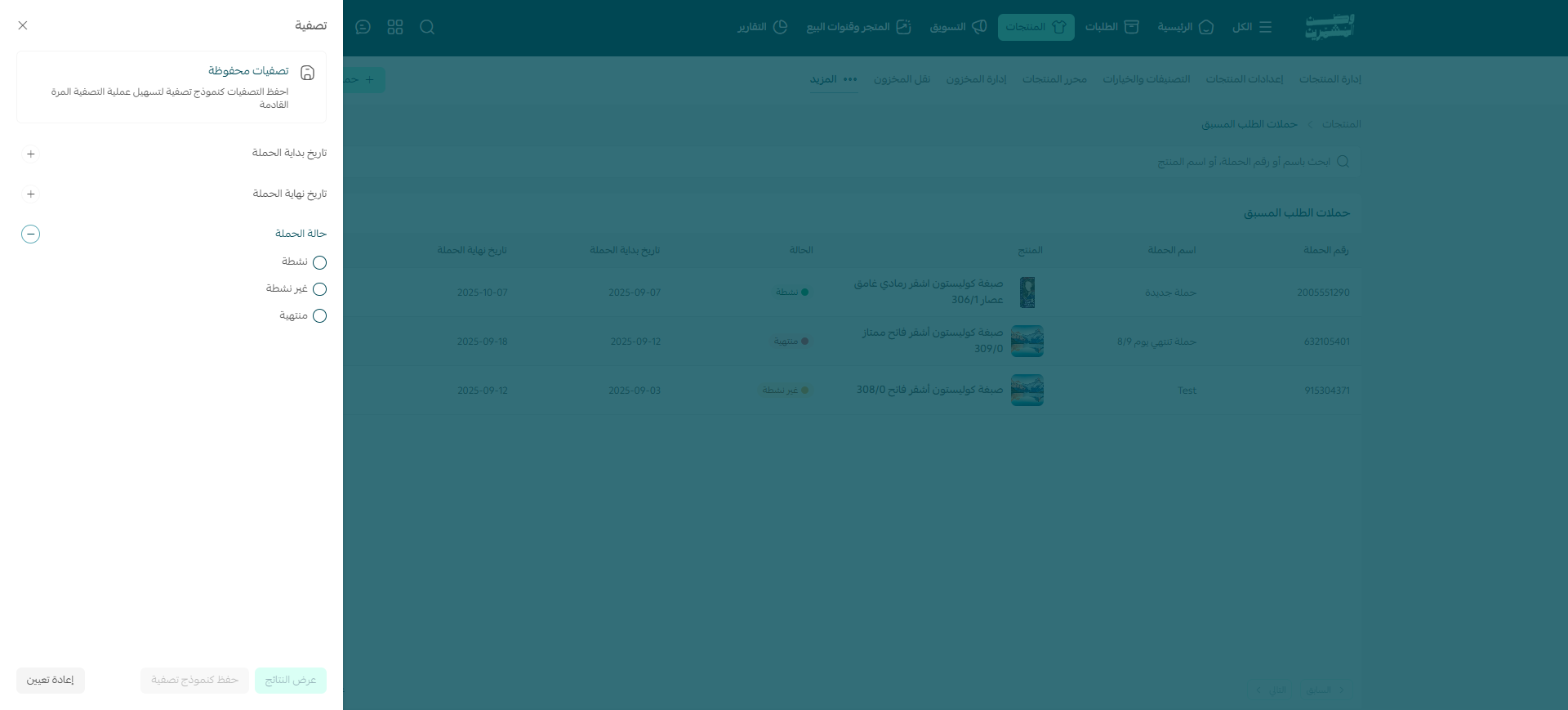
2. Filter
Use the filters to narrow the list by criteria such as the campaign's start and end dates, or the campaign status.
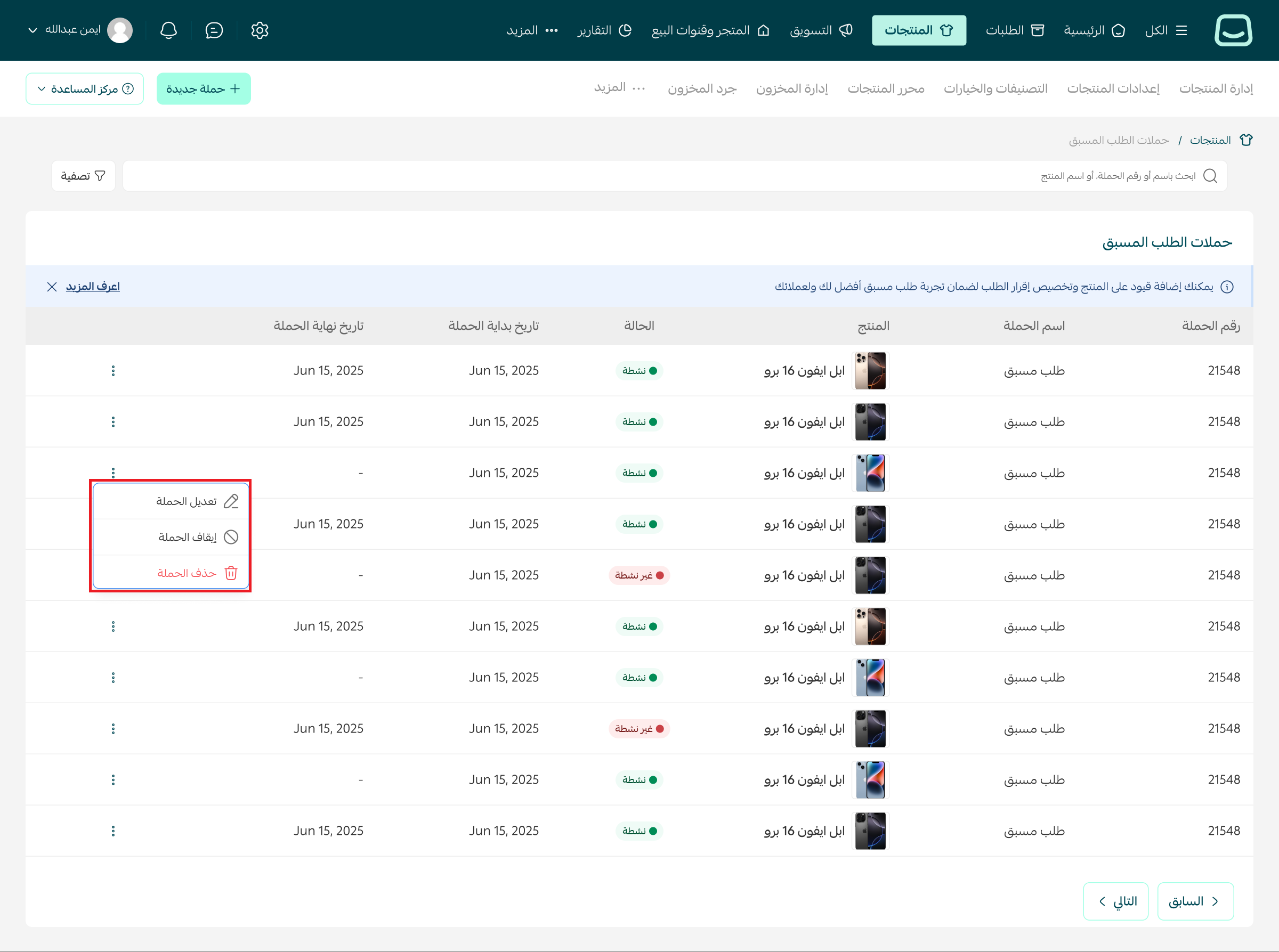
3. Campaign settings
Manage each campaign on its own from the three dots next to the campaign name, where you can edit the campaign, pause it, or delete it.
📝 Important notes
You can add restrictions to the product and customize the order declaration to make the pre-order experience better for you and for your customers.
Read more about creating and managing product restrictions.
Read more about setting up a declaration before an order is submitted, an effective way to cut returns.
👣 How to manage pre-orders
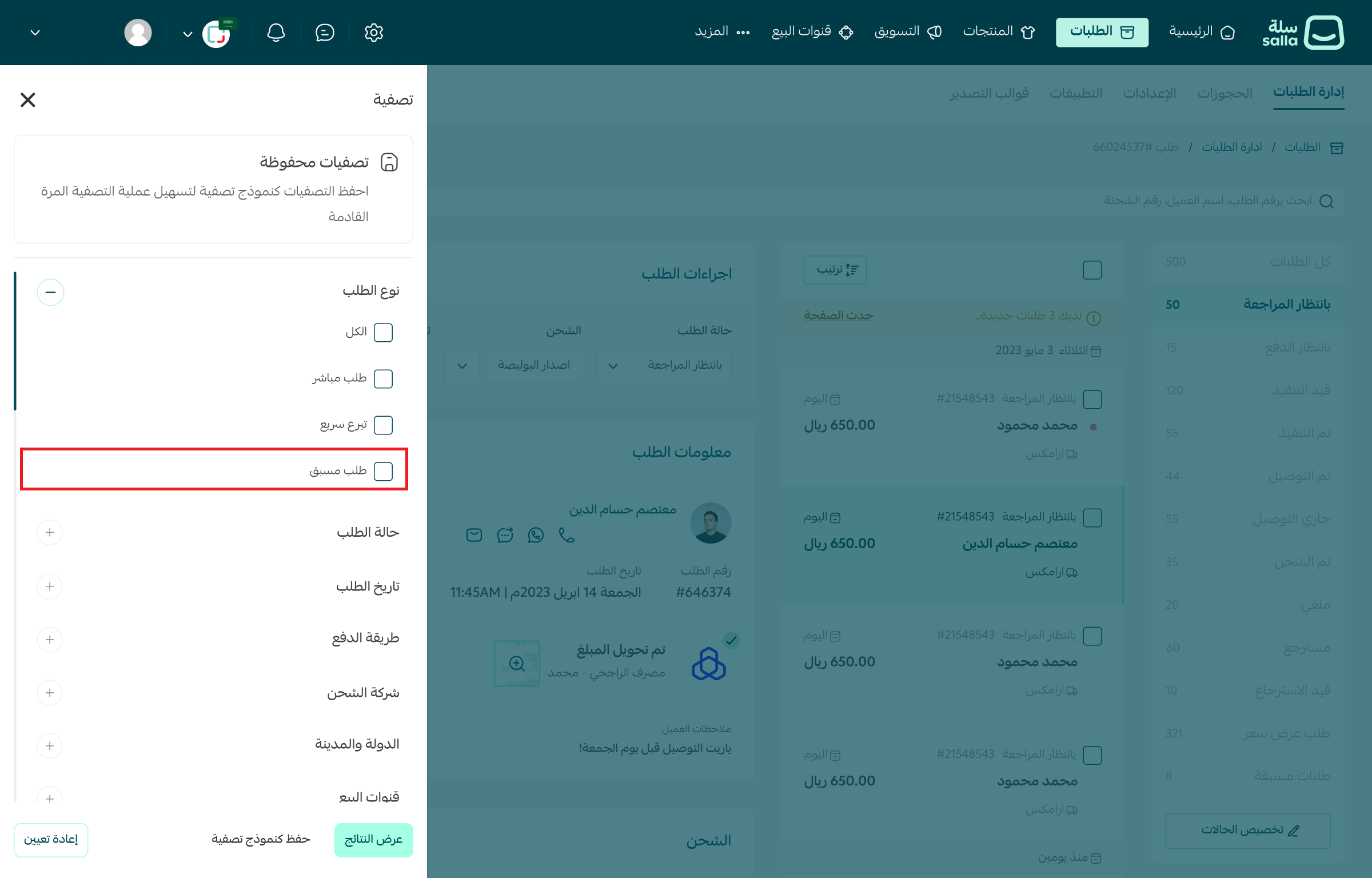
1. From the main menu, choose (Orders), then click (Manage orders).
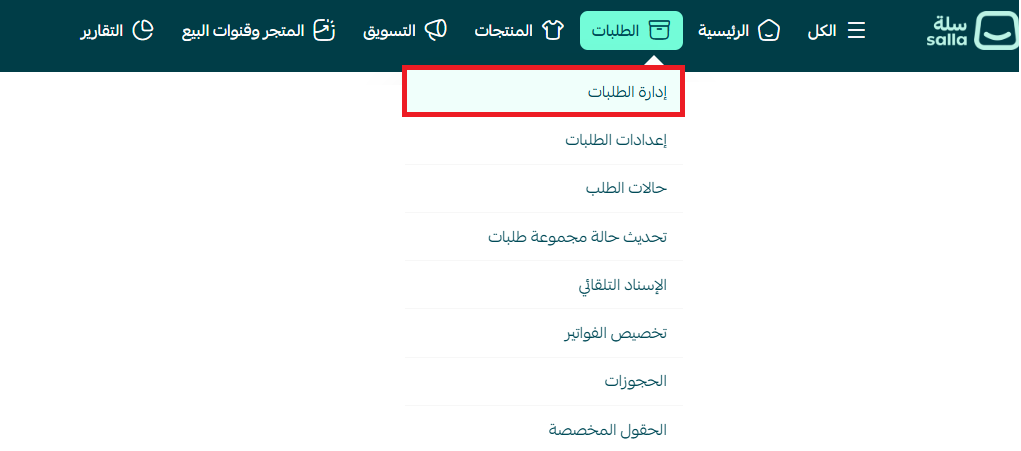
2. On the manage orders page, click (Filter).

3. The filter options open. Choose (Pre-order) to show only pre-orders.
Frequently asked questions
❓ Which product types can be used in pre-order campaigns?
Pre-order campaigns can only be enabled on these supported product types:
Ready product: physical products shipped once stock is available.
Service on demand: services delivered after the purchase is complete.
Food product: food items prepared in advance or in specific seasons.
📝 Important notes
Pre-order cannot be enabled on unsupported products, such as digital products or products whose settings don't meet the campaign's requirements.
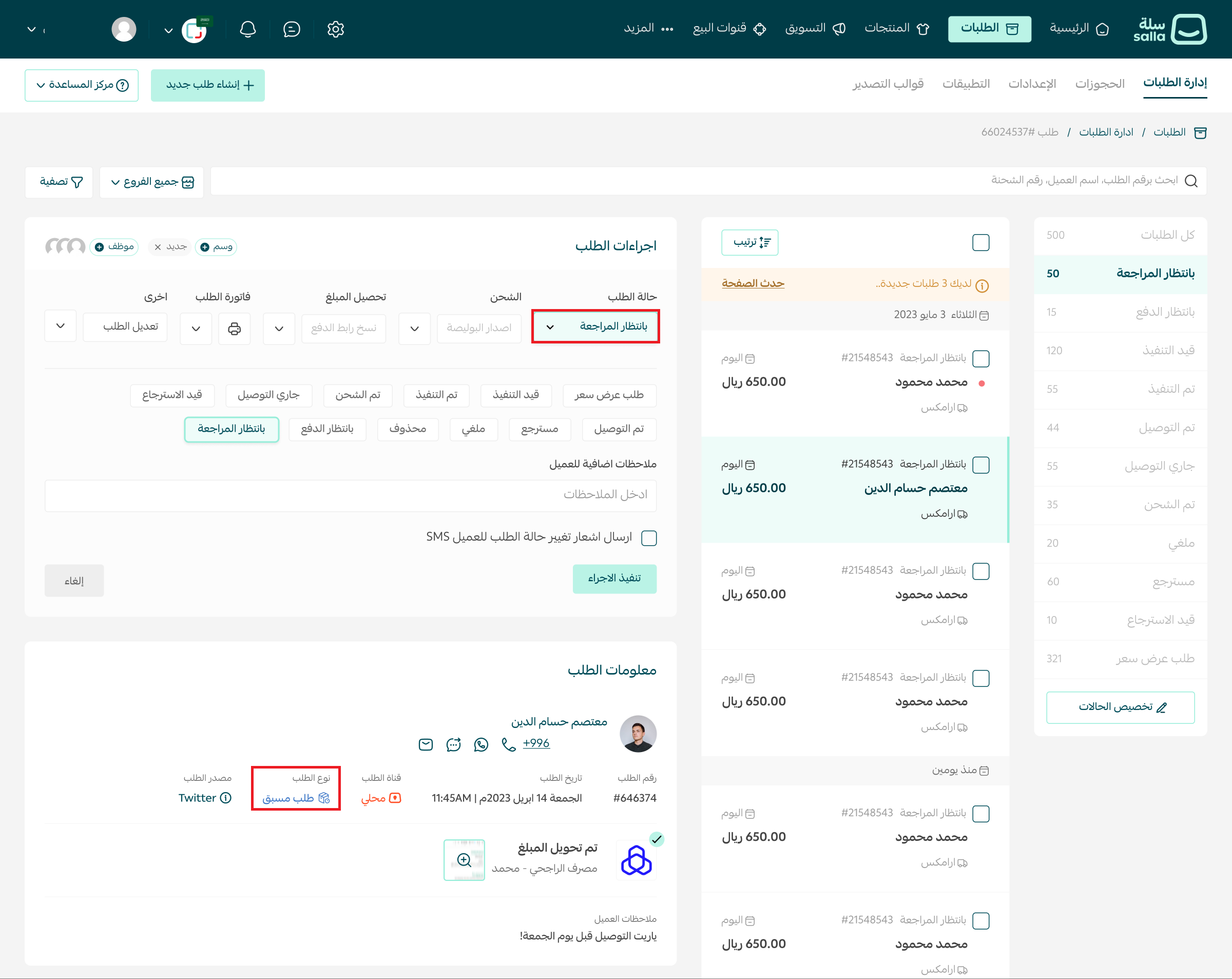
❓ How does a pre-order appear on the orders page?
A pre-order is marked out from the rest: its order type reads (Pre-order).
⚠️ Note: once the product is available, you need to update the order status manually to start fulfilling it as normal. When you change the status, a pop-up asks you to confirm the action or go back.
❓ Can a pre-order product go in the same cart as another product type?
Yes. Different products can share one cart, so a pre-order product can sit alongside a digital product or any other type.
❓ Is the feature available on all plans?
No. Pre-order campaigns are available on the Salla Pro and Salla Special plans only.
A pre-order campaign turns an out-of-stock moment into a sale you have already banked. Set the dates honestly, say when the product lands, and the wait works in your favor.