You can already picture your storefront: a section that shows customer reviews, a banner for a seasonal campaign, a highlighted block for your best sellers.
The hard part is building it. Until now that meant editing the theme yourself, hiring a designer or developer, or settling for whatever components the theme already ships with. Mushammir from Salla for store design removes that step: describe the component you want in plain words and it appears inside your store, ready to preview and customize. In this guide, you'll learn what Mushammir can build, how to write a prompt that gets a good result, and how to create, edit, and reuse components inside the store editor.
Mushammir from Salla is an AI tool inside the store editor. You describe the component you want in plain words, and Mushammir builds it and shows a live preview. You can then refine it in the same chat, add it to your homepage or a landing page, and reuse it later.
📌 Article overview
- What is Mushammir from Salla
- How to write a great prompt
- How Mushammir works inside the store editor
- Frequently asked questions
🎯 What is Mushammir from Salla for store design?
Mushammir from Salla is an AI-powered tool that lets you create design components for your storefront through a conversation. You describe the component you want, and Mushammir builds it directly inside the store editor with an instant preview.
💡 Example: an interactive scratch-and-reveal card.
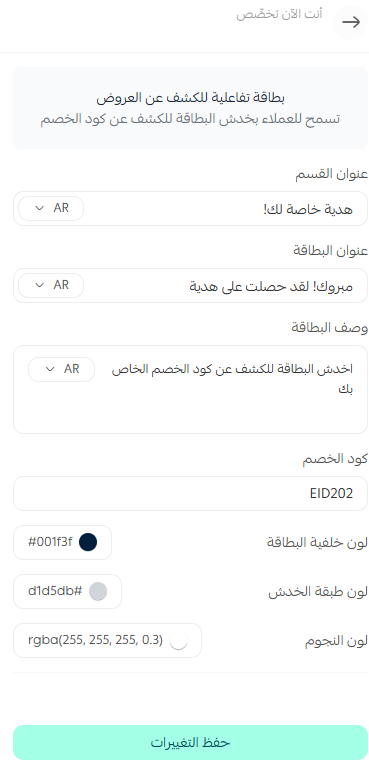
The prompt: "Design an interactive card that says 'Scratch and win with us!' on a light background. Put the card in the middle of the screen with rounded corners and a navy background with faint stars. Add a gray scratch layer that reveals a discount code (EID202) next to a gift icon. Keep the style modern and simple, and support Arabic and RTL."

The result: a section where customers scratch the card and reveal the coupon for themselves.
Key features
✅ Prompt-to-component: describe any component in words and get a finished design back.
✅ Instant preview in the store editor: see the result as you design.
✅ Edits through the chat: change a component without generating it again from scratch.
✅ Reusable components: add the same component to your store homepage and to landing pages.
What you can build with Mushammir
Mushammir is not limited to static blocks. It can build smart, interactive sections such as:
🎯 Product finder - a section that asks the customer a few simple questions, then shows the products that match.
🎁 Bundle builder - a section where the customer picks several products and sees the bundle total update as they go.
⭐ Product of the week - one product given a large image, a list of benefits, and a clear buy button.
🧭 Shop by use case - products grouped by occasion or use, such as work, travel, or sport.
🧵 Product journey - a visual section that walks the customer from how the product is made to how it reaches their door.
🚀 All of it from a plain written description.
What the current release does not cover
Right now, Mushammir focuses on design components for your storefront and landing pages. It does not yet:
- Build a complete store theme
- Generate images automatically
- Write the full text content of a section
- Build core store elements such as the header and the footer
- Build core system pages such as the product page, the cart, and checkout
⏳ Mushammir's capabilities will expand in future releases to cover more of the store experience.
📝 Important notes
- Mushammir is rolling out gradually, so some features may differ depending on your plan or on what is already available in your store.
- AI-generated components need to be reviewed and tested before you publish them.
- You are responsible for checking each component for how it displays on mobile and desktop, how it affects performance and load speed, and how its customization settings behave inside the editor.
- Some creative components may need to be simplified when they go live, so that load speed stays good - especially on mobile.
💡 How to write a great prompt
The quality of the component follows the quality of the description. The more precise your prompt, the closer the first result will be to what you had in mind.
1. Write at least five words - a single noun is never enough.
2. Name the design elements you want: images, text, buttons.
3. Describe the layout: grid, carousel, horizontal, vertical.
4. Add the interaction you expect: hover, click, scroll.
5. Spell out any customization you want to control later.
💡 Example:
- Instead of: "a products section"
- Write: "a grid section showing 4 products, a large image for each one, the name, the price, and a buy button, with a hover effect that enlarges the image, responsive on mobile, and an option to change the number of products from the settings."
📖 Explore worked examples of turning an idea into a live design component in your store, and use them as a starting point for your own.
👣 How Mushammir works inside the store editor
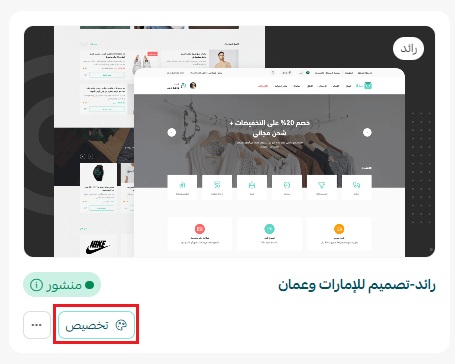
1. Open the Store design page, find the theme you want to add the component to, and click (Customize).
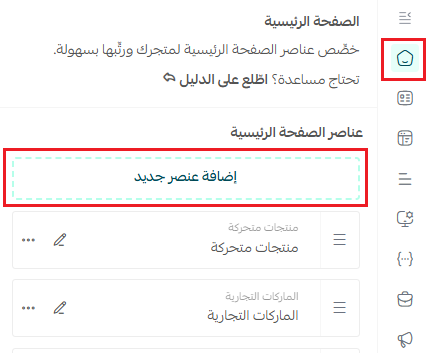
2. From the homepage components tab, click (Add new component).
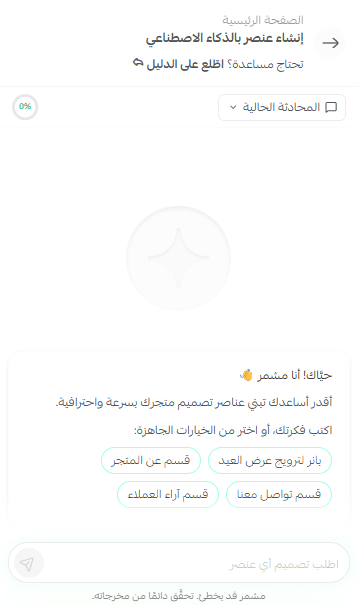
3. Click (Create component with AI).

4. Type your request in the chat window and describe the component you want.
🚀 As soon as you send the request, Mushammir starts building the component.
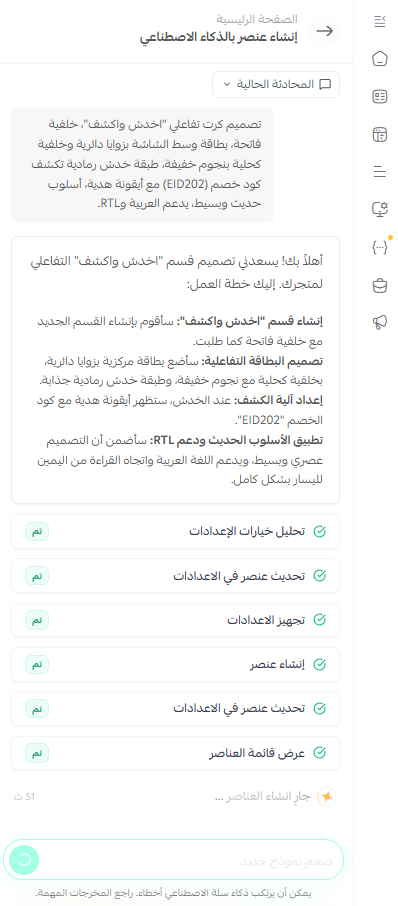
5. When the component is ready it appears inside the chat with a (Use) button, so you can add it to your store right away.
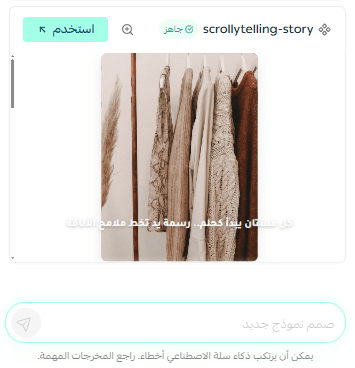
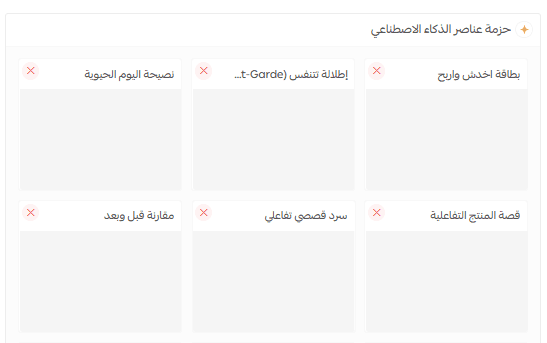
6. Go back to the components list in the theme editor at any time to find everything you have created before. Every output is saved automatically.
7. Customize the component from the editor settings.
8. Here is how the component looks in the live store.

Edit a component through the chat
If you want to change a component you have already created, you don't need to start over. Stay in the same conversation and ask Mushammir for the change, such as:
- Change the colors
- Reorder the elements
- Add a call-to-action button
- Add extra images or text
Mushammir updates the component right away.
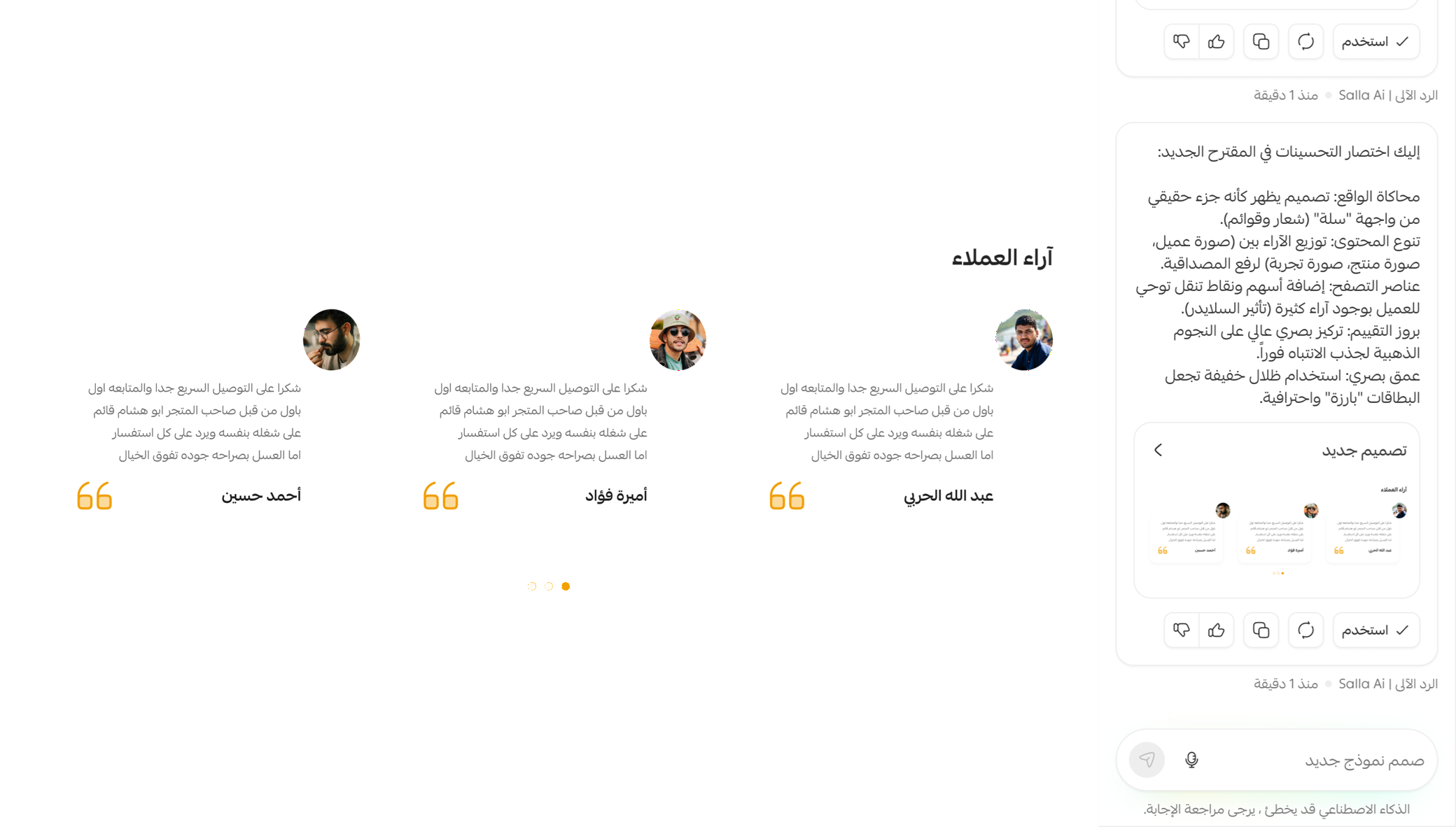
You can also open any earlier conversation and keep editing its output. Editing a component from a different conversation works too - just name the component clearly in your request, and Mushammir updates it without rebuilding it from scratch.
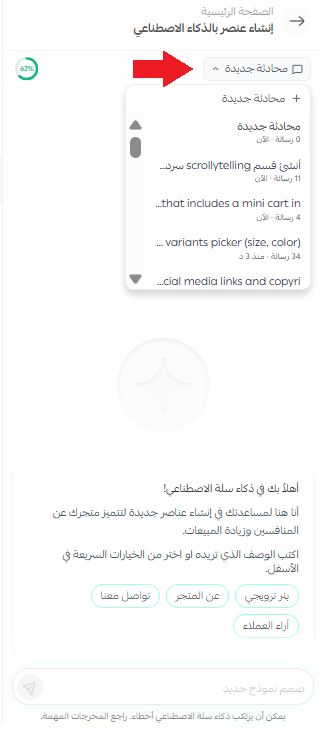
Reuse components across your store
Once a component exists, it belongs to your store, not to one page. You can:
- Add it to other pages in your store
- Use it on landing pages
- Reuse it in different designs
That is what makes building a full storefront with Mushammir fast: you design a component once and place it wherever it earns its keep.
How to add an AI component
Click (Add new component) and a list of your AI components appears. From there you can preview any of them, add one to your theme design or to a landing page, or delete a component from the list permanently.
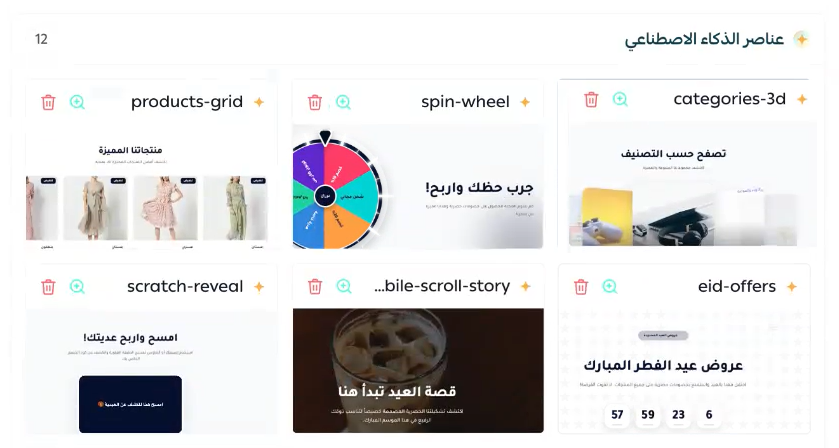
💡 In short: if you can describe the component in words, Mushammir from Salla can turn it into a real design component inside your store.
❓ Frequently asked questions
Do I need technical experience to use Mushammir?
No. All you need to do is describe what you want in words. Mushammir handles the rest.
Can I edit a component after it has been created?
Yes. You edit components directly through the chat, without generating them again.
Can I use the same component on other pages?
Yes. Components can be reused on any other page or design inside your store, including landing pages.
Do the components work with every Salla theme?
The components are fully compatible with the Salla Twilight theme engine, so they run smoothly across themes built on it.
Is there a usage limit on Mushammir?
Yes. Each merchant has a weekly usage limit, so that the service stays fair and responsive for everyone. Once you reach it, Mushammir pauses until the weekly reset. 📅 The limit resets automatically on the date shown in the system. [Verify: the Arabic does not state the size of the weekly limit or where in the dashboard the reset date appears.]
Try Mushammir from Salla now and turn your ideas into real design components in seconds. ✨