The Text Editor allows you to manually edit and customize translations for any language in your store. This gives you full control over wording, tone, and clarity, so your content truly fits your audience rather than relying on automated translations.
📌 Article overview
- How to manually translate your store using the Text Editor
- Frequently asked questions
How to manually translate your store using the text editor
- From the main menu, go to Store & Channels, then click Languages to manage multilingual settings.
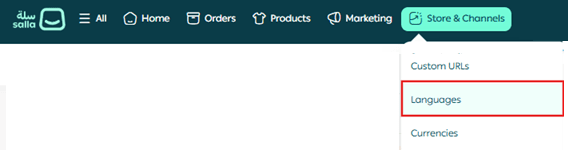
2. On the Languages page, click the three dots ( … ) next to the language you want to translate, then select Text Editor.

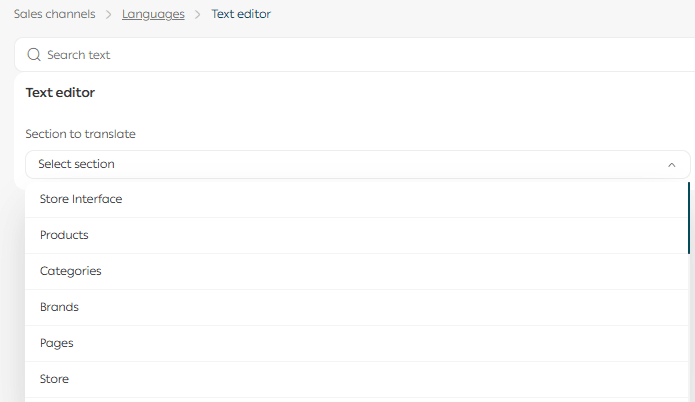
3. Choose the section you want to translate.
For example, select Products.
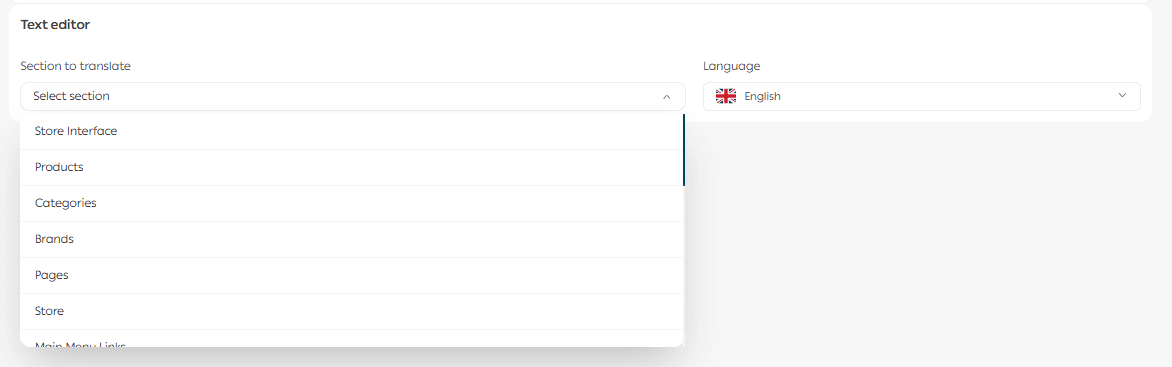
4. Enable Show untranslated texts only if you want to focus on content that has not yet been translated.
You can also leave this option disabled to view both translated and untranslated content.

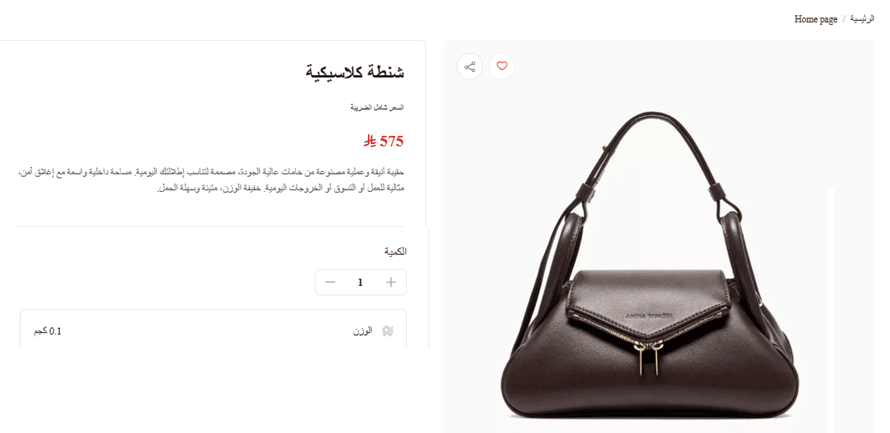
5. On the right side, you will see the default language content.
This is the reference language used as the base for translation.
In this example, Arabic is set as the default language.
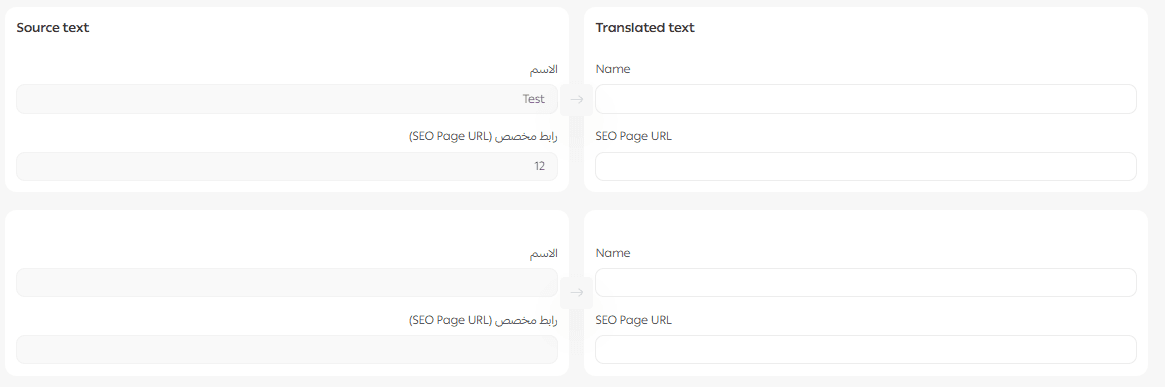
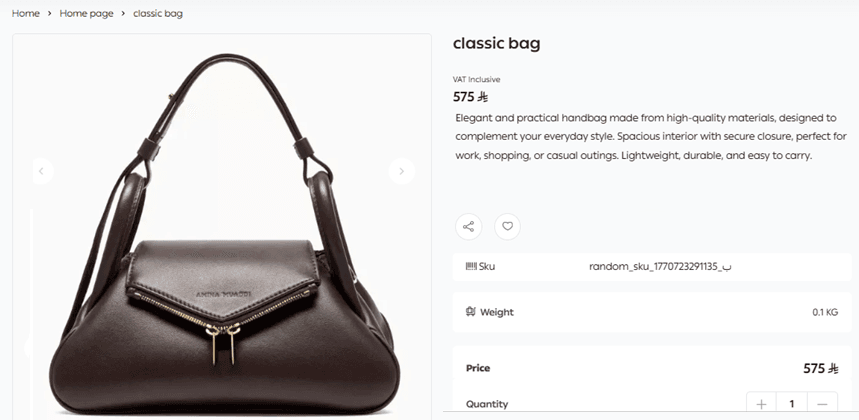
6. Enter the translated content in the left side for the selected language.
For example, enter English text if you are manually translating into English.
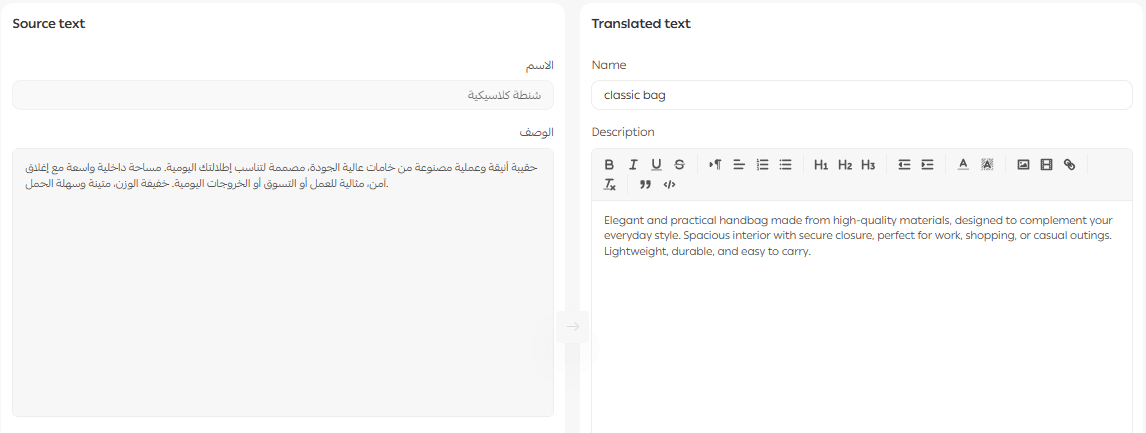
The product will appear in the default language as originally written, and in the selected language with your custom translation.
Frequently asked questions
Does the translated content have to match the default language exactly?
No. You can write content that better suits the target audience, even if it is not a direct translation of the default language text.
Can I translate customer emails and system messages?
Yes.
From the language you want to translate, open the Text Editor

Then select Customer Communications.

From there, you can translate:
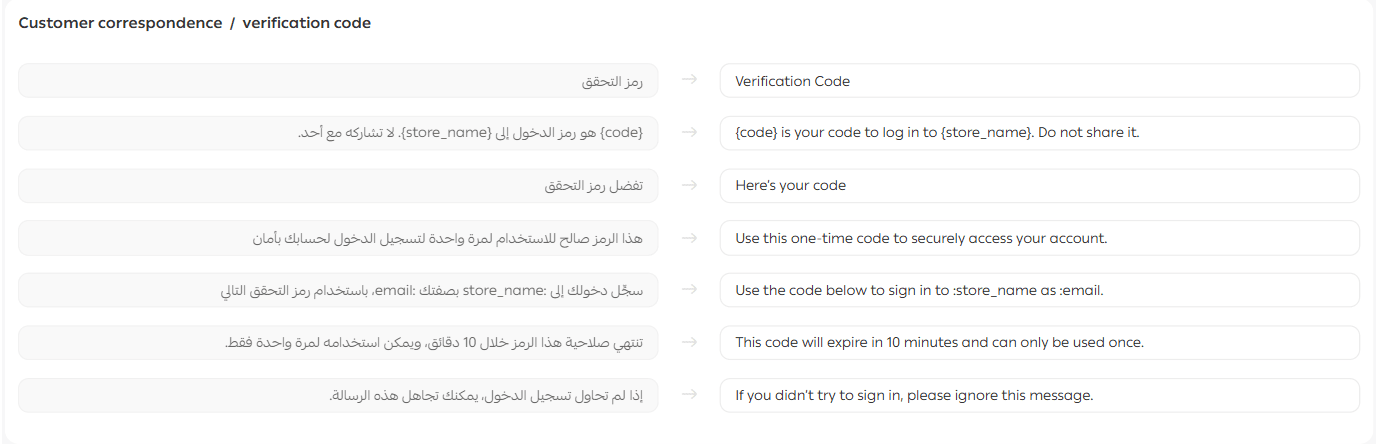
Verification code email
When selecting an item such as "Verification code” then there you can translate the email sent to customers when they receive a login or verification code.
Questions and reviews messages
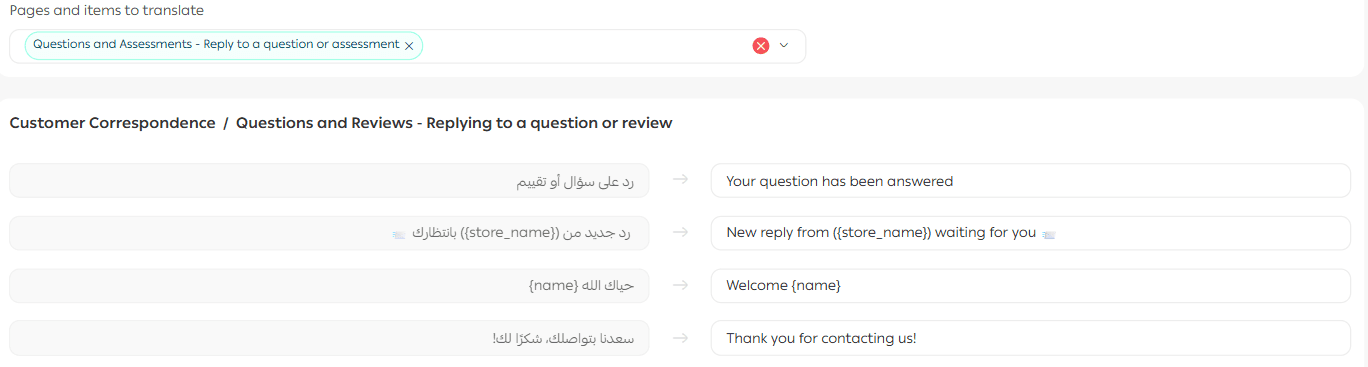
Translate automated messages sent when:
- A customer asks a question
- A merchant replies to a question
- A review receives a response
Examples include messages such as “Your question has been answered.”
This ensures clear and professional communication across all supported languages.
You can translate multiple items at once, or remove selected items if needed.

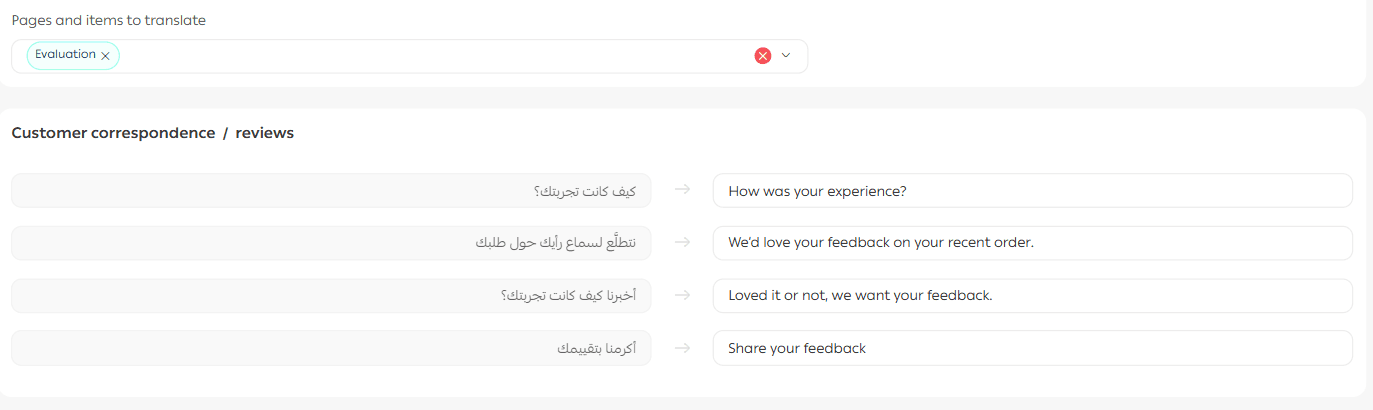
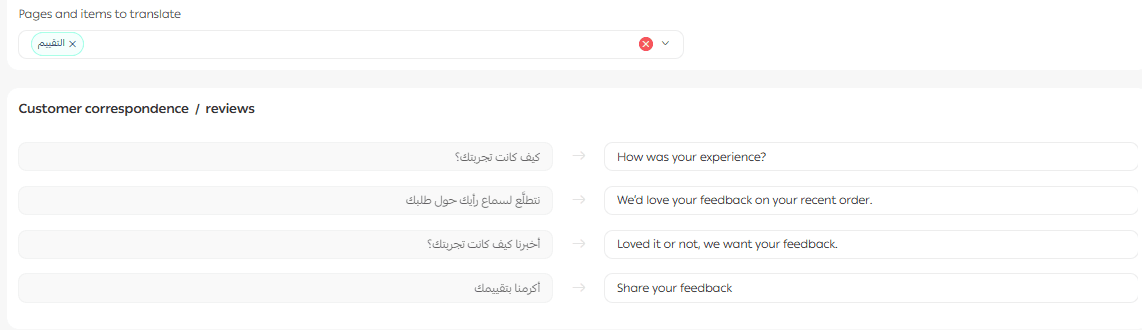
Can I translate review-related content?
Yes. You can edit and translate review content into all supported store languages to maintain consistent and professional communication.
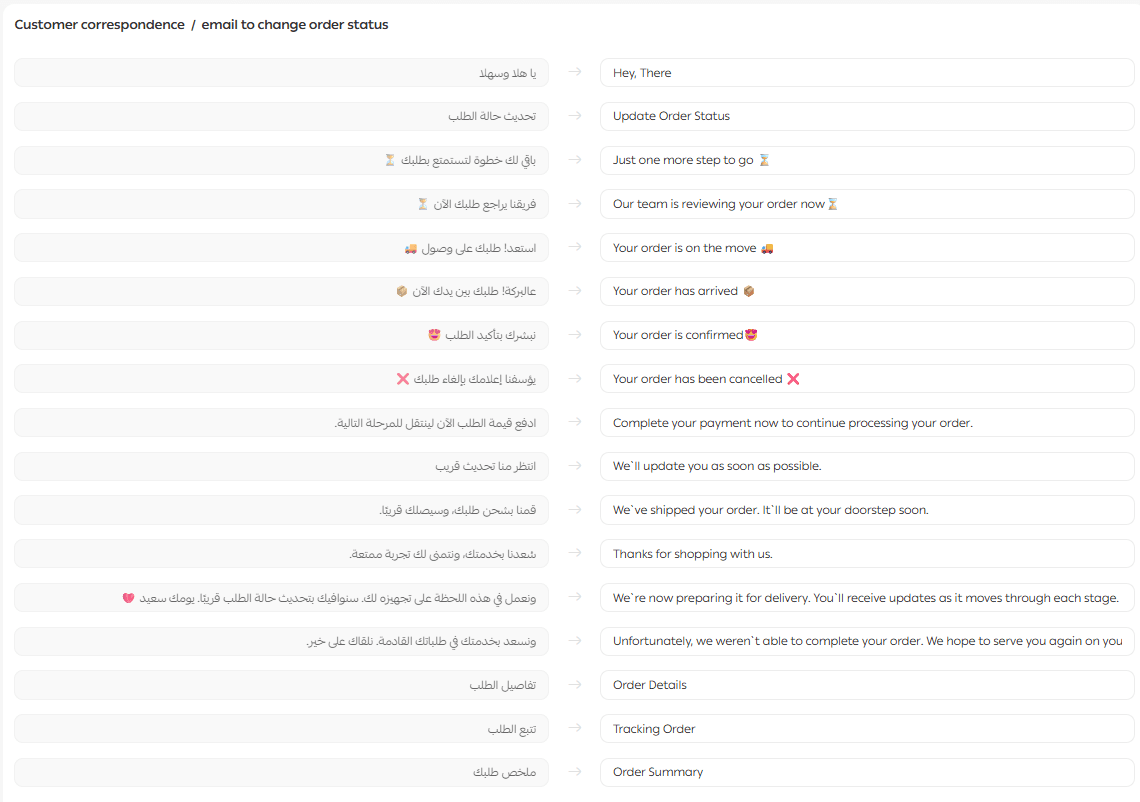
Can I translate order status emails?
Yes.

You can fully customize and translate all phrases included in order status update emails.
What does the review request email template look like?
The review request email template has been updated with a modern, clean design.
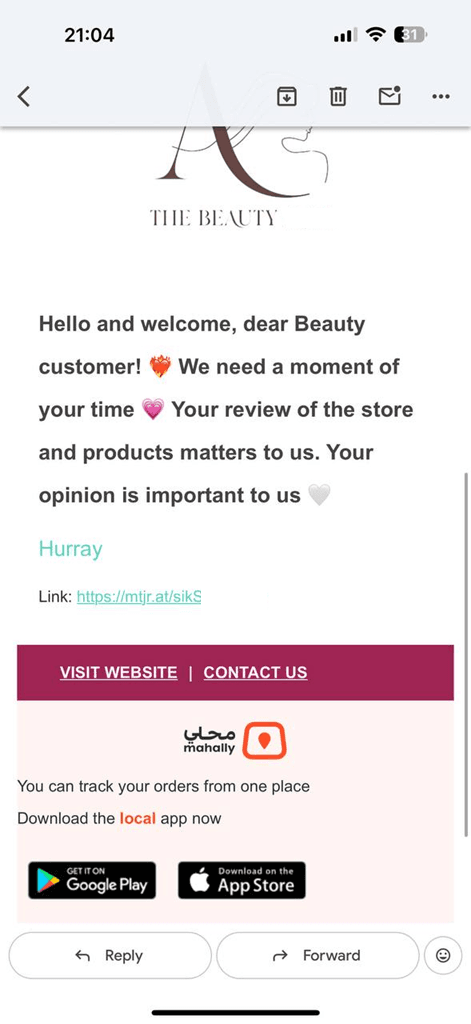
You can now fully edit and translate this template into all supported languages to ensure professional customer communication.
Can I write a custom review request message instead of using the default template?
Yes.
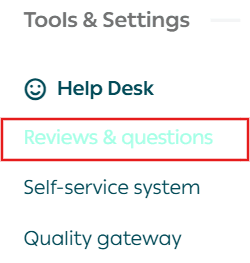
- From the main menu, go to Questions & Reviews.
2. Open the Review Settings tab.
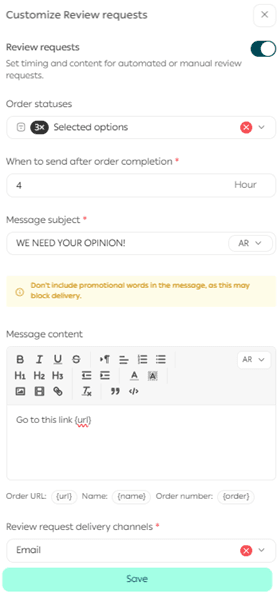
3. Click Customize review request messages.

4. Enable review request messages.
5. Select the order statuses that trigger the message.
6. Choose when the message is sent after order completion.
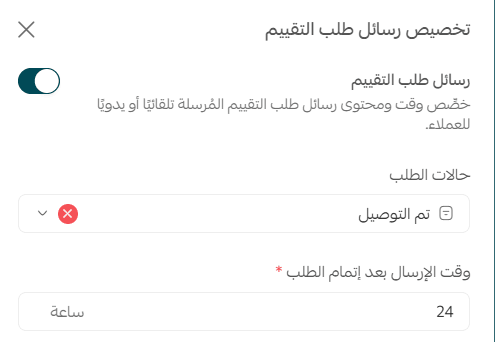
7. Write your custom email subject and message content.
8. Click Save.
Can I edit content in the default language from the Text Editor?
No. To edit content in the default language, you must return to its original page.
For example, to edit product details in the default language, open the product page itself and make changes there.
Which sections can I translate manually?
You can manually translate more than 20 store sections that are visible to customers, including products, categories, interface text, emails, and more.
Can I translate one section into all languages before moving to another section?
Yes. Select the section you want to translate, then choose a language from the language list.
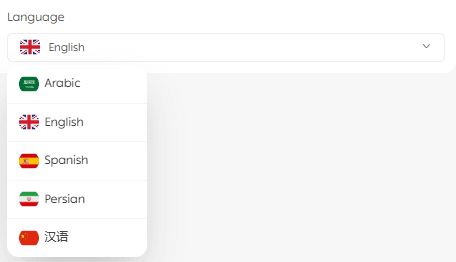
After saving your translation, switch to the next language and continue translating the same section.
How do I manually translate the store interface?
From the Text Editor:
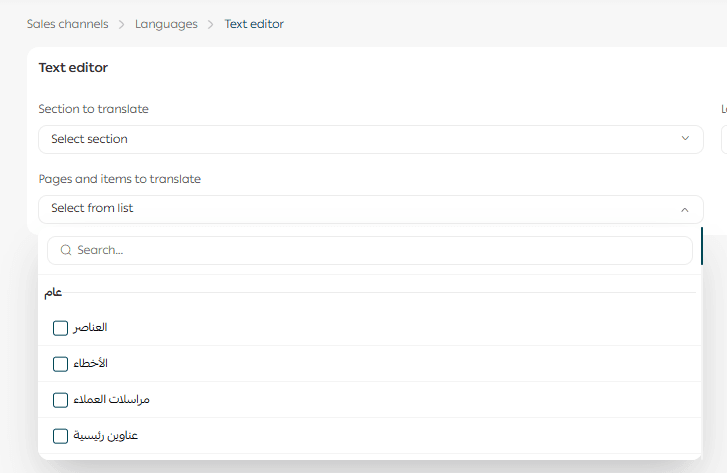
- Select Store Interface.
- Choose the language you want to translate into.

3. Select the interface elements you want to translate.
You can select multiple elements at once.
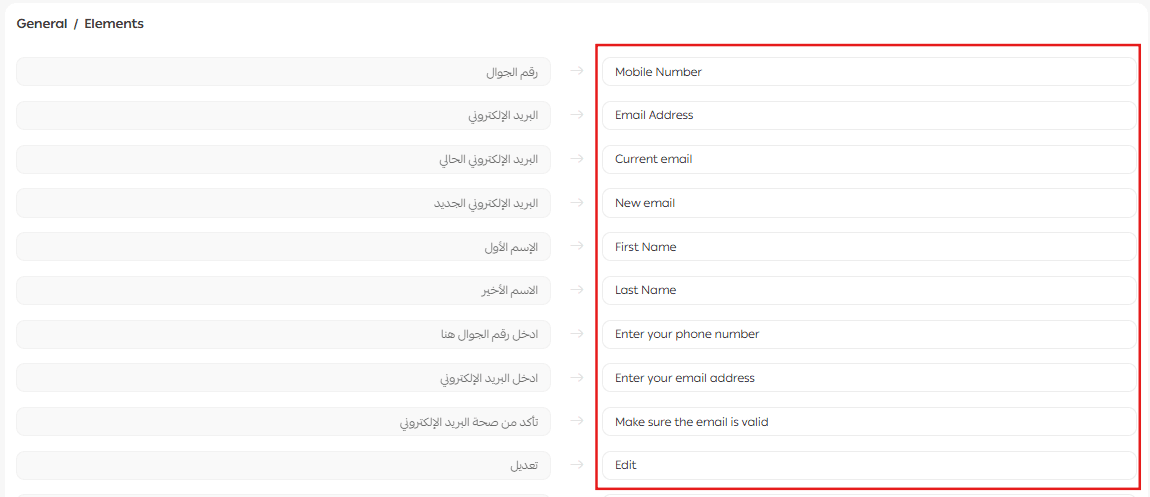
Text highlighted in red indicates Salla’s default system translations.
You can overwrite these with your own wording if needed.
How should I handle special symbols or code in translated text?
Some texts include special symbols or code snippets, such as:
</span>
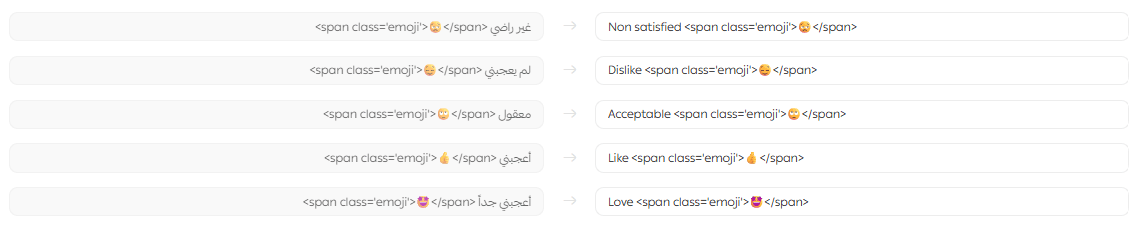
These are formatting elements that control how the text appears.
It is best to leave these symbols unchanged and translate only the visible text around them.