How many WhatsApp messages does your store leave unanswered after hours?
Most customers ask before they buy — about sizes, stock, delivery times, where their order is — and the store that replies first usually gets the sale. Whats Store is a Salla app that puts an AI agent on your WhatsApp number: it reads your product catalog, answers questions instantly, chases abandoned carts, and confirms orders before they ship. In this guide, you'll learn how to install the Whats Store app and link it to your WhatsApp account.
Whats Store is a Salla app that connects your store to WhatsApp and answers customers automatically. It understands your products, replies to inquiries around the clock, recovers abandoned carts, confirms orders to cut returns, and sends shipment tracking updates. Install it from the App Store, then link your WhatsApp number by scanning a QR code.
What Whats Store handles for you:
- Instant product understanding, so replies are based on what you actually sell.
- Smart automated answers — a digital employee on duty around the clock.
- Abandoned cart recovery, sent straight to the customer on WhatsApp.
- Automatic order confirmation, which filters out unserious orders and lowers your return rate.
- Shipment tracking replies and other automated messages.
📌 Article overview
- How to install the Whats Store app
- How to sign in and link WhatsApp
- Frequently asked questions
🚀 How to install the Whats Store app
1. From the main menu, click (All), then under helper tools click (App Store).

2. Search for the app using the search field.

3. On the Whats Store app page, click (Install).
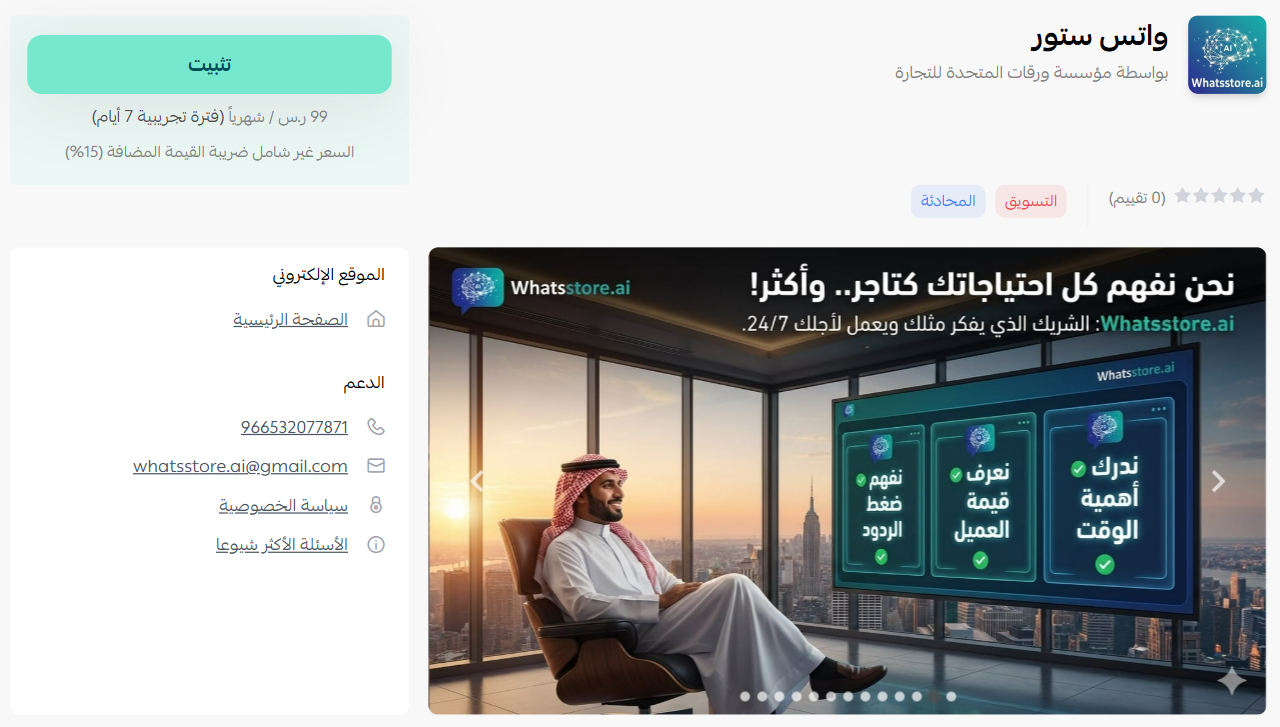
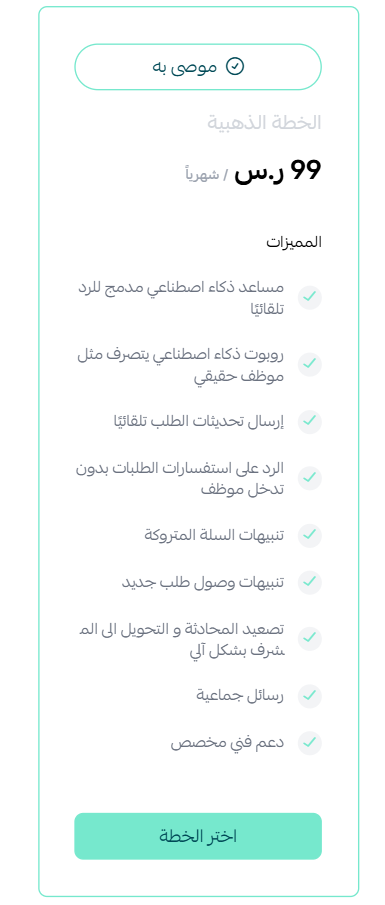
4. Choose the package that fits your business to continue with the installation.
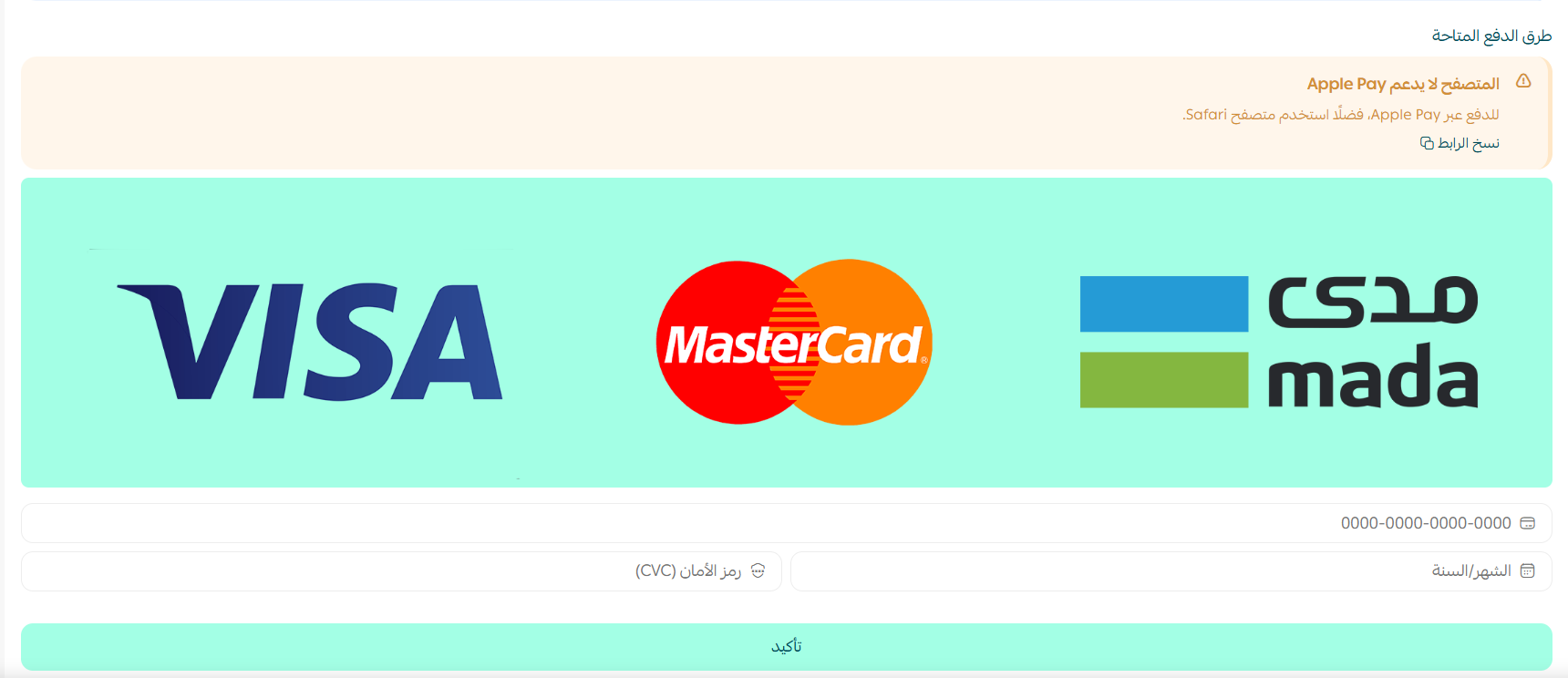
5. Complete the payment to unlock the app's features.
Whats Store is now installed on your store.
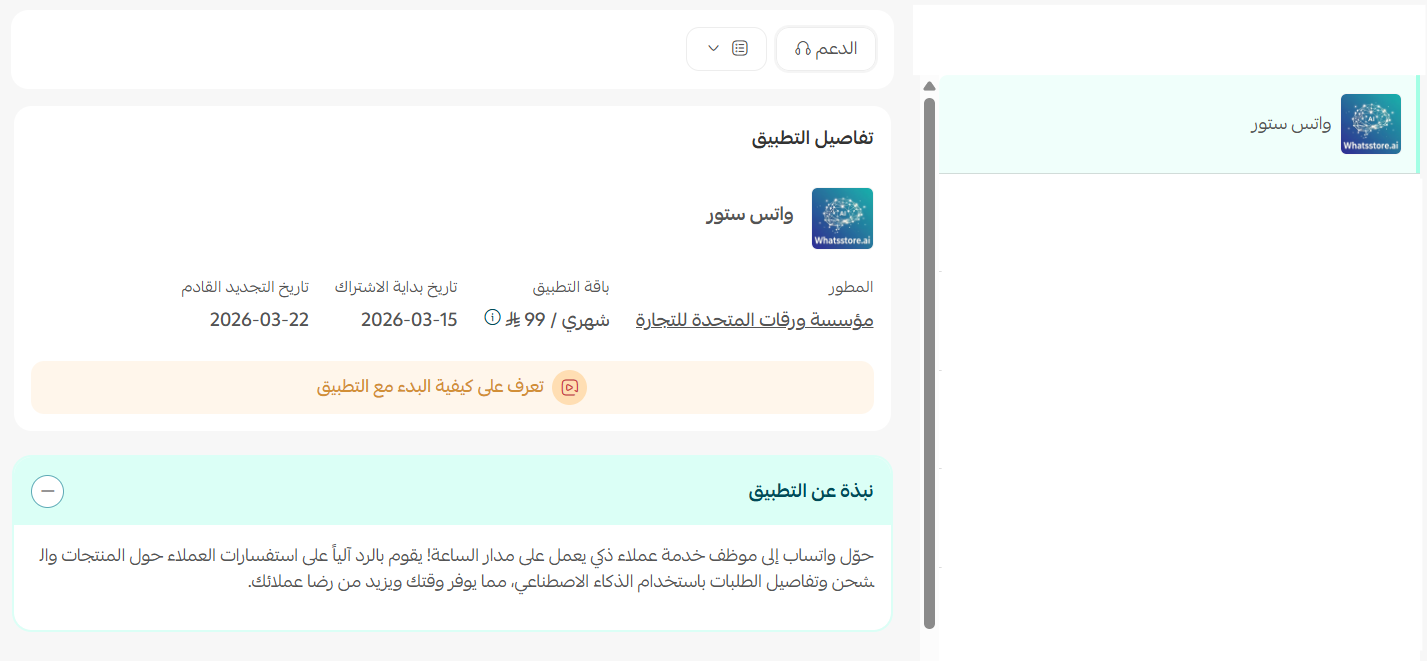
Once the app is installed, you'll receive an email with your login details. Click (Sign in).
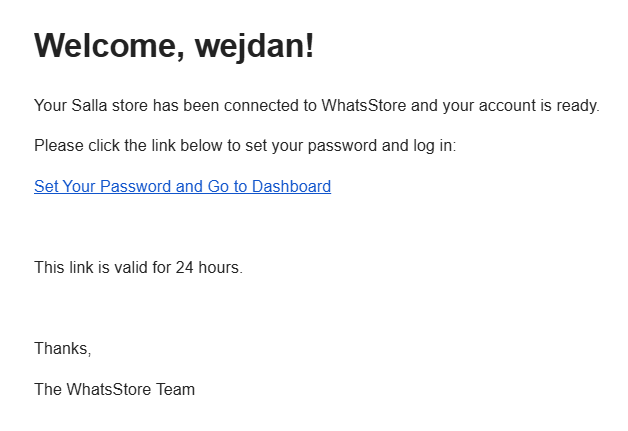
👣 How to sign in and link WhatsApp
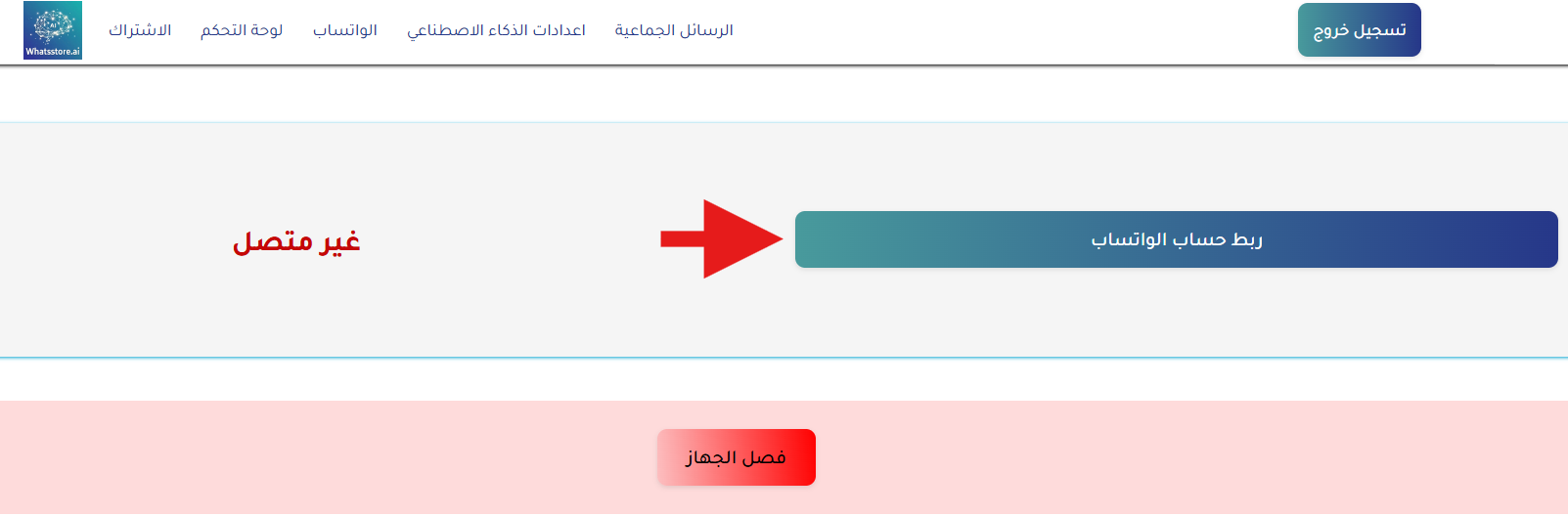
1. Sign in to the Whats Store platform with the login details sent to your email, then click (Link WhatsApp).
2. Scan the QR code with the WhatsApp account you want to connect.
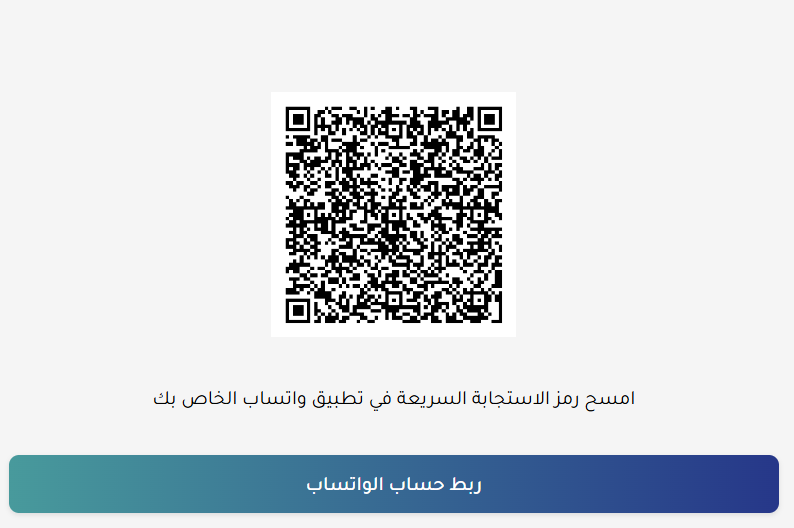
Your store and your WhatsApp number are now connected, and the app can start replying to customers.
📝 Important notes
- Your login details arrive by email after installation, not from your store dashboard.
- Scan the QR code with the WhatsApp number your customers already message, so conversations stay in one place.
❓ Frequently asked questions
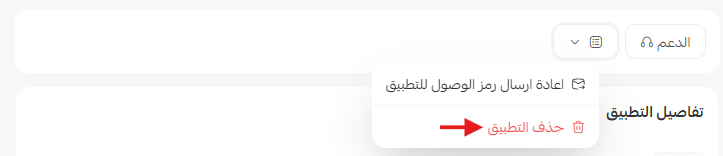
How do I remove the Whats Store app from my store?
From the Whats Store app page, click ( ), then click (Cancel subscription).
Do I need a paid package to use the app?
Yes. You choose a package during installation and complete the payment before the app's features become available.
Can the app help with abandoned carts?
Yes. It messages customers who left items behind and can confirm orders automatically, which reduces returns from unserious orders.
Does it answer customers when my team is offline?
Yes. The app replies around the clock using what it knows about your products, so questions don't sit unanswered overnight.
Where do I sign in to the app?
On the Whats Store platform, using the credentials emailed to you right after installation.
For more details, visit Whats Store.