Do you want to collect customer data and turn your visitors into a powerful marketing list?
A customer might visit your store and leave without sharing any contact details, meaning you lose the opportunity to retarget them or reach out later with new offers.
So what’s the solution?
Connect your store with Klaviyo to display subscription forms (pop-ups) and collect customer data in a professional and organized way.
With this integration, you can display subscription forms in your store and automatically collect customer data directly into your Klaviyo account.
📌 Article overview
- Why connect your store with Klaviyo?
- Steps to connect with Klaviyo
- Managing operations in Klaviyo
What is Klaviyo?
Klaviyo is a marketing platform built for e-commerce, allowing you to:
- Send professional email campaigns
- Send targeted SMS messages
- Create engaging subscription forms
- Manage and analyze customer data
Current integration with Salla supports:
✅ Displaying pop-ups (forms)
✅ Collecting customer data into Klaviyo
❌ Does not currently support abandoned cart syncing
Why connect your store with Klaviyo?
Once connected, you’ll be able to:
- Easily collect visitor data through forms
- Build a ready-to-use email list for campaigns
- Customize subscription forms to match your store identity
- Track user engagement with your forms
Steps to connect with Klaviyo
The integration is completed in two main stages:
- Create a Klaviyo account
- Install and activate the app on your store
Stage one: Create a Klaviyo account
Skip this step if you already have a Klaviyo account.
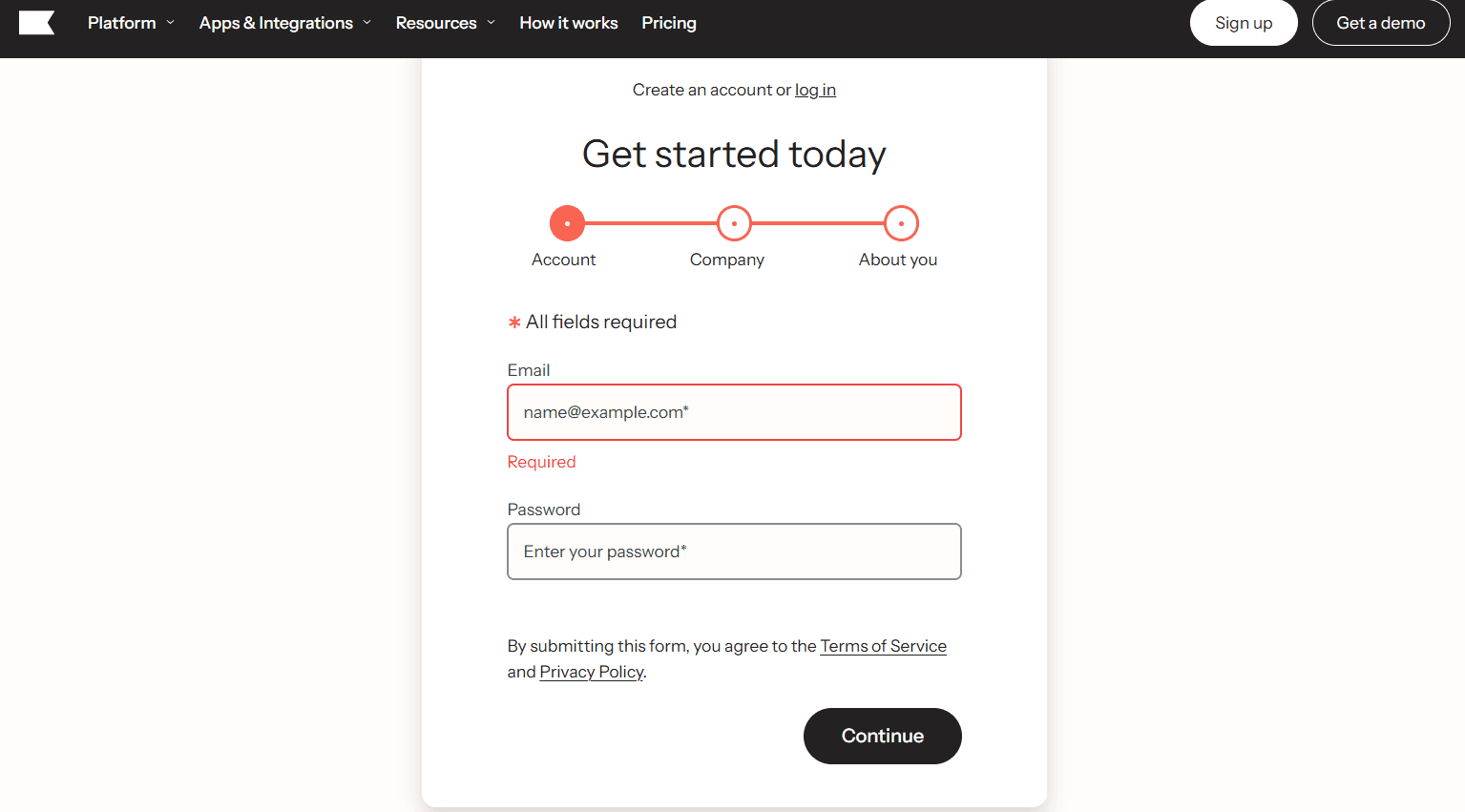
- On the Klaviyo sign-up page, enter the required details:
- Email address
- Password
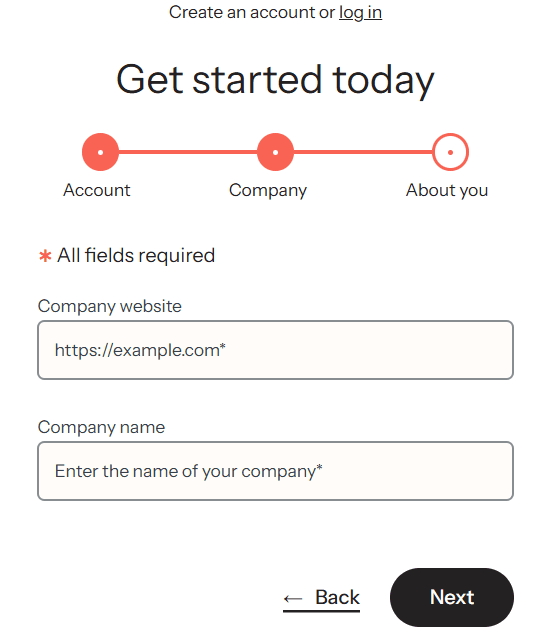
- Enter your store domain and store name
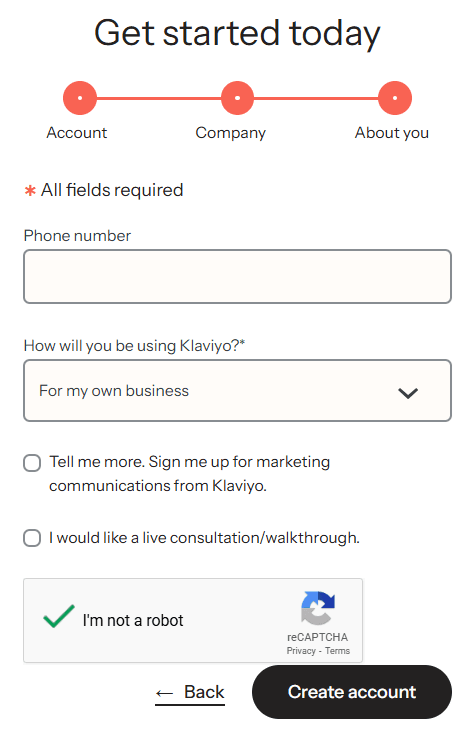
- Enter your phone number and how you plan to use Klaviyo, then click Create account
- Complete the setup steps, including contact count, company address, and other details

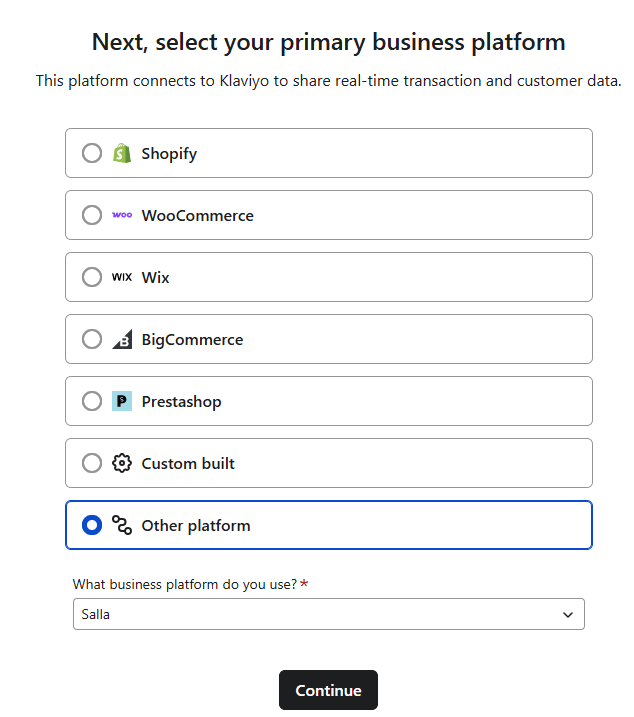
- Select the platform you are using
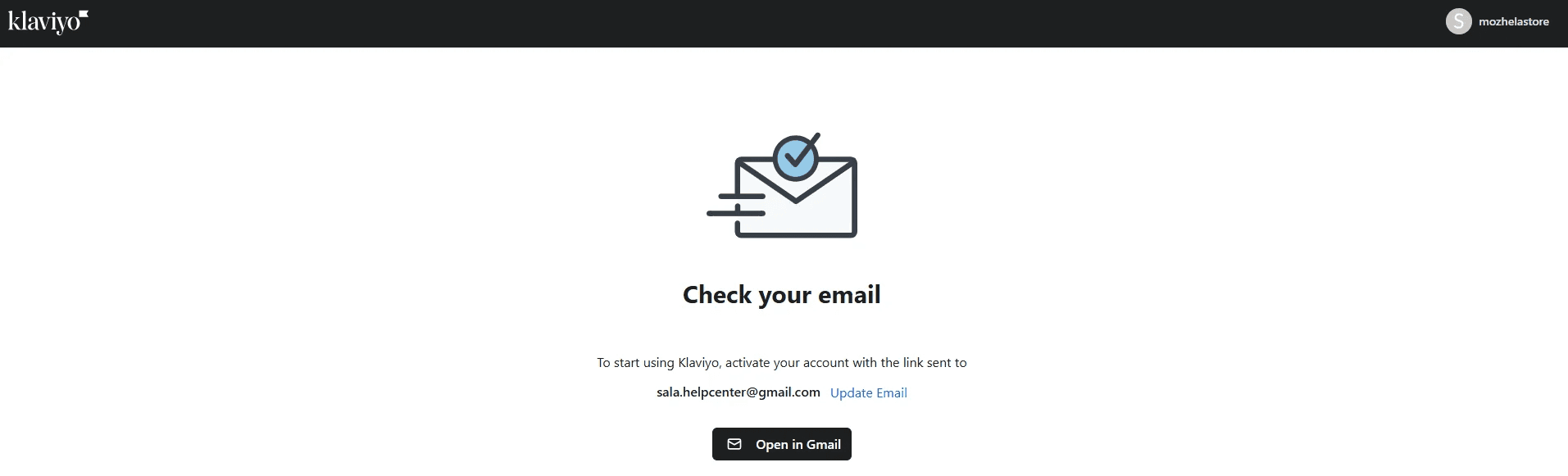
- Verify your email address
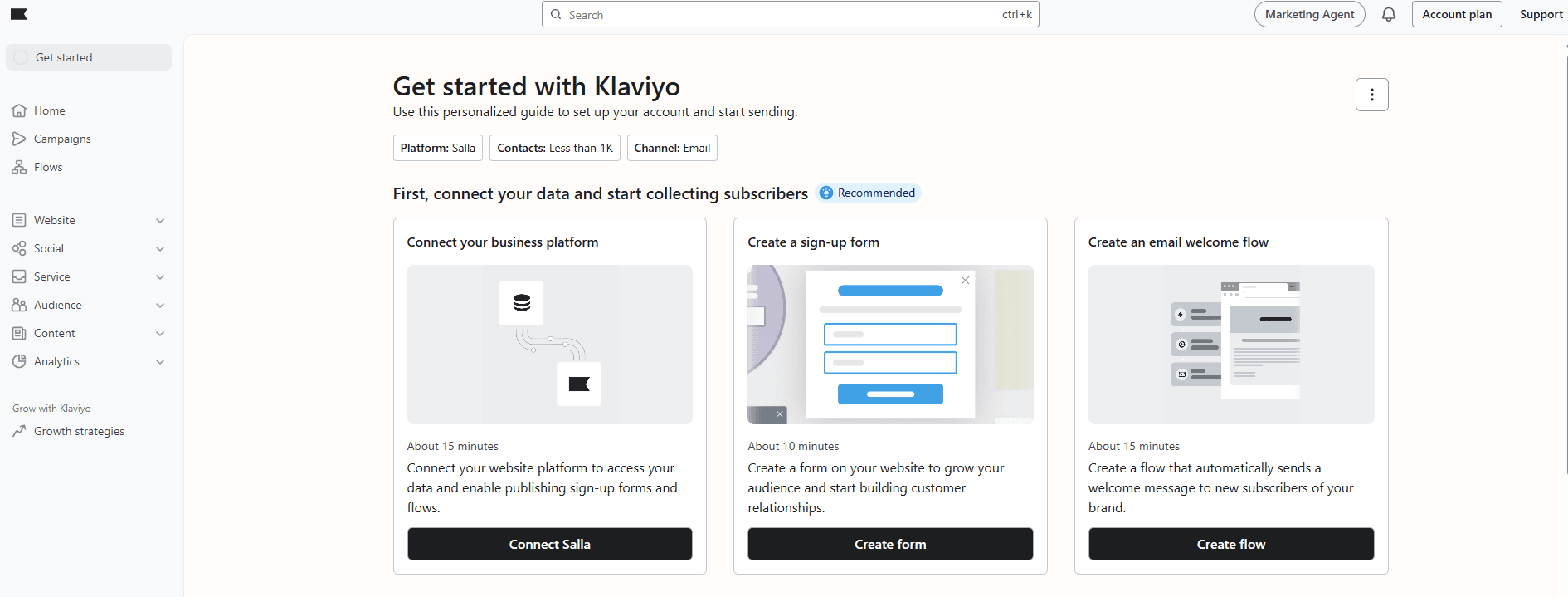
🎉 Your Klaviyo account is now ready, and you’ll see the dashboard.
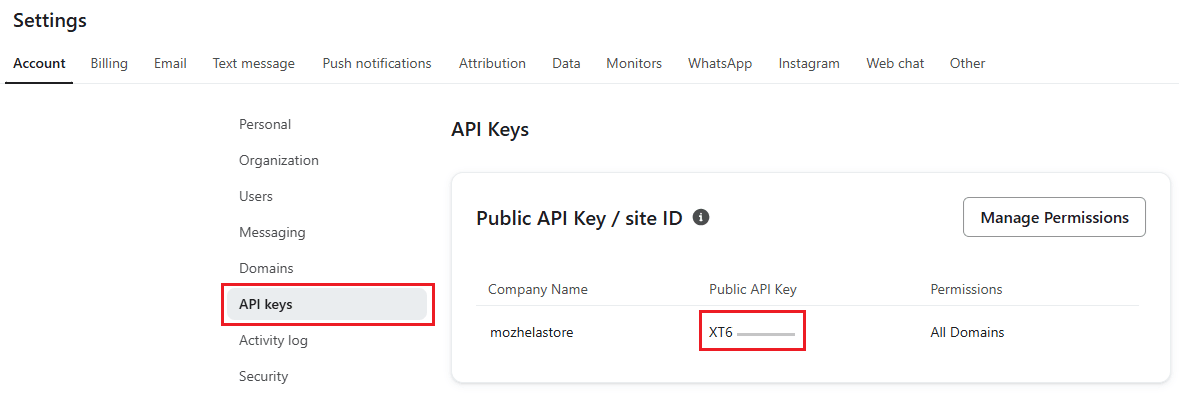
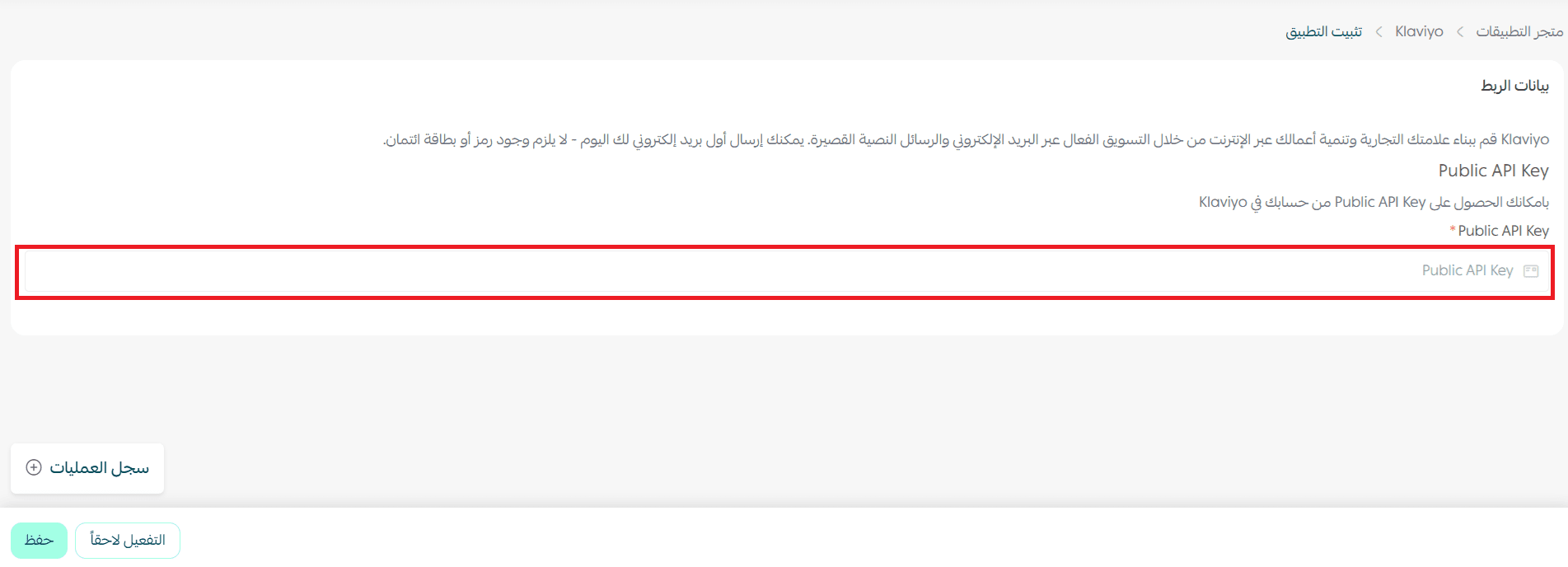
- Copy your Public API key from your Klaviyo account:
- From the bottom of the sidebar, click Settings

- Select API keys
- Locate the Public API key and copy it
Stage two: Install and activate the Klaviyo app
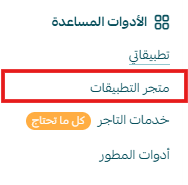
- From the main menu, go to All, then under Tools, click App Store
- Search for the app using the search bar

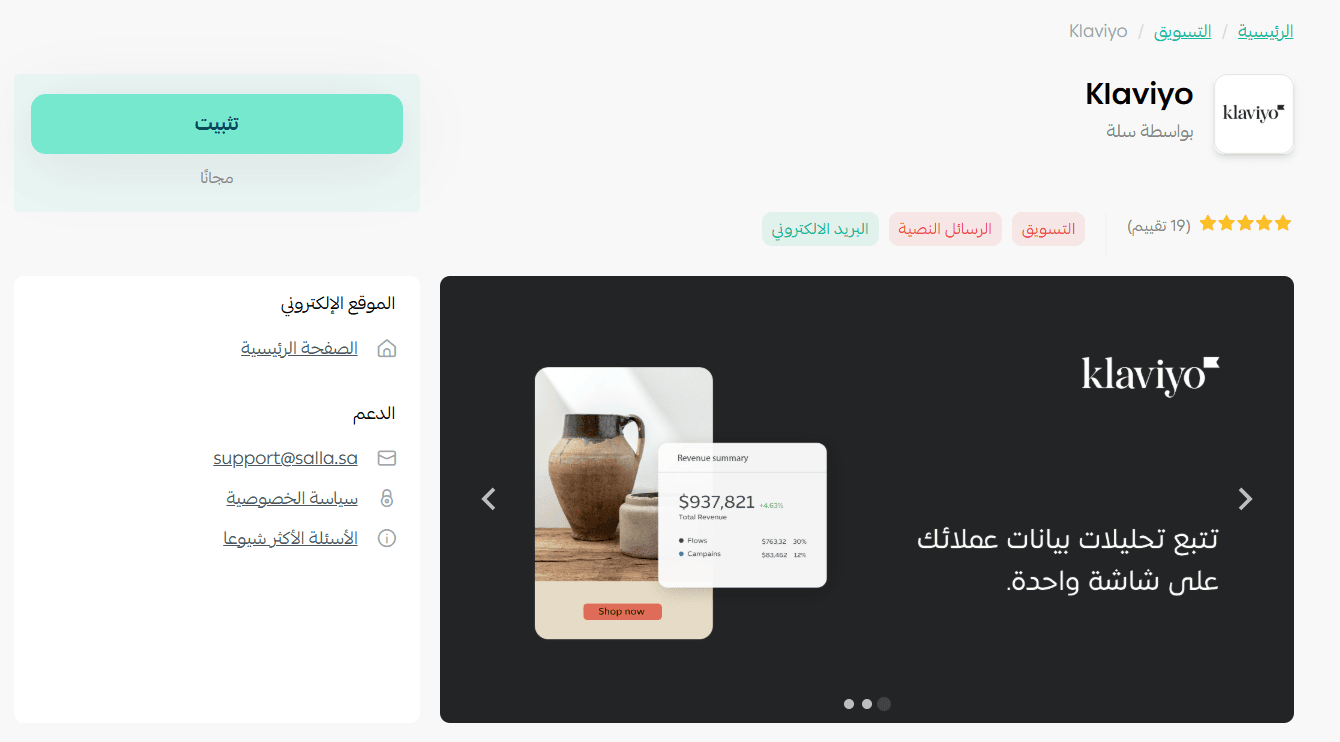
- Open the Klaviyo app and click Install
- The app will be installed successfully. The final step is to activate it by pasting the Public API key you copied earlier from your Klaviyo account
Managing operations in Klaviyo
Creating a subscription form (Pop-up) in Klaviyo
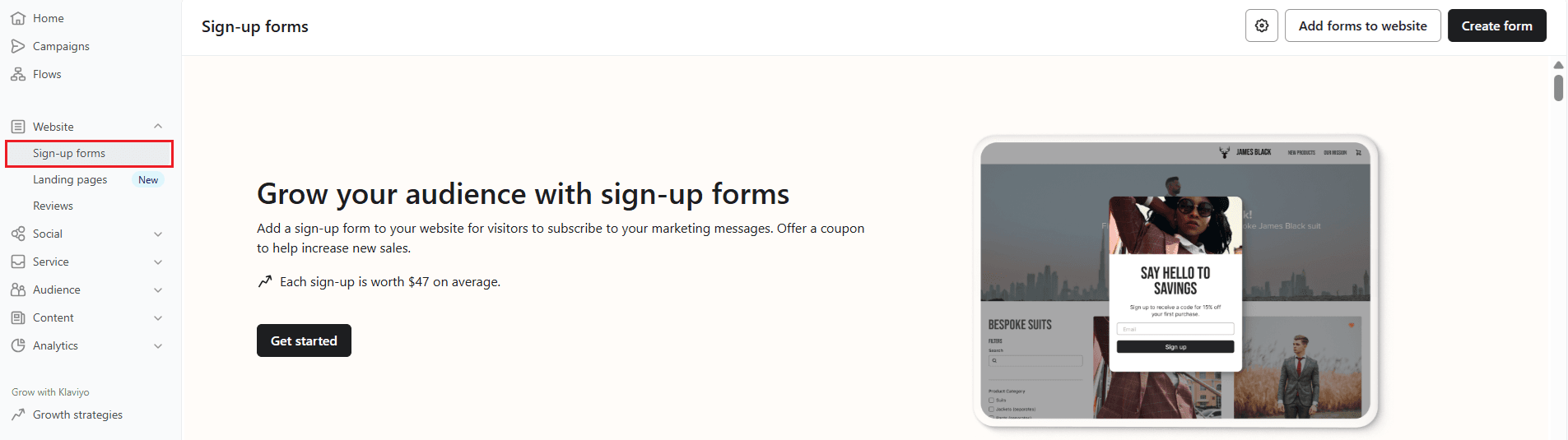
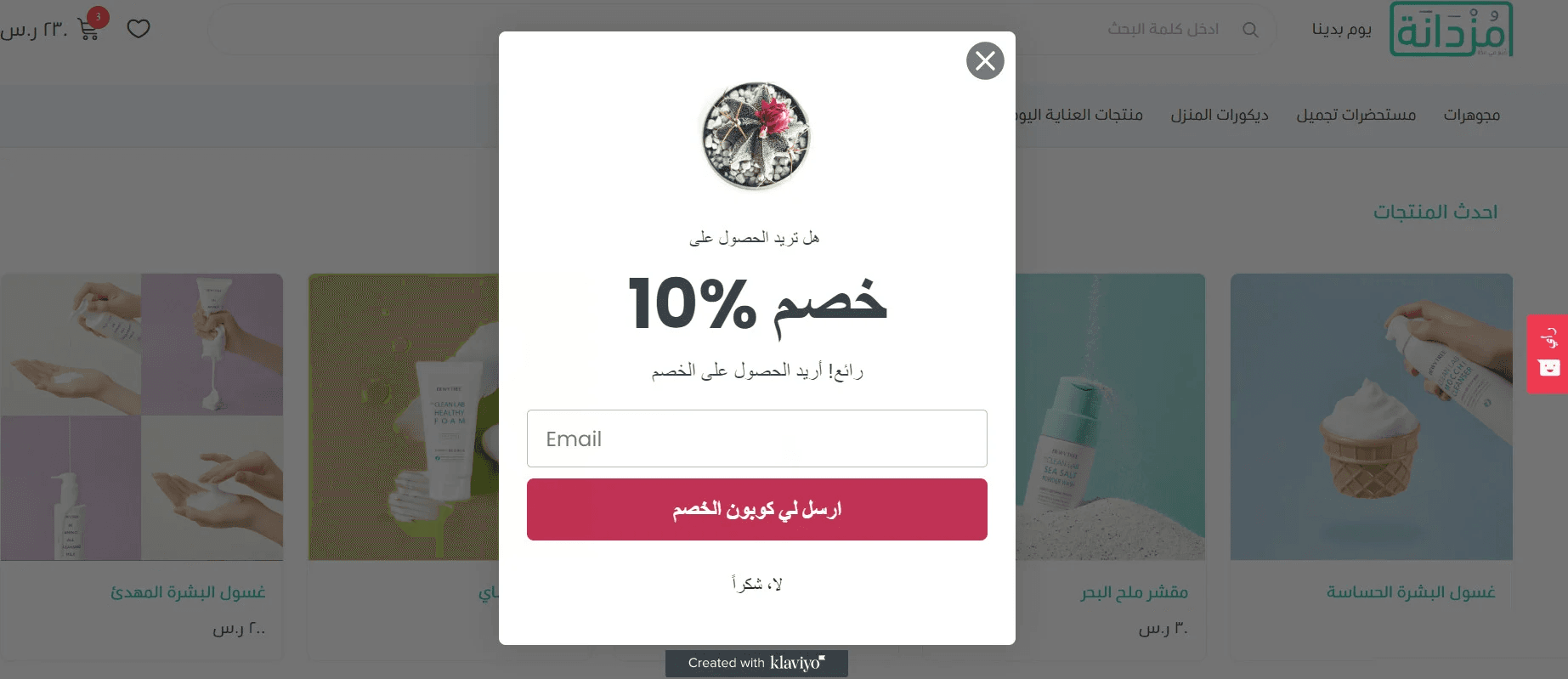
- From the Signup forms page in your Klaviyo account, choose a form template that you can customize to match your store
- Choose how the form will appear on your website
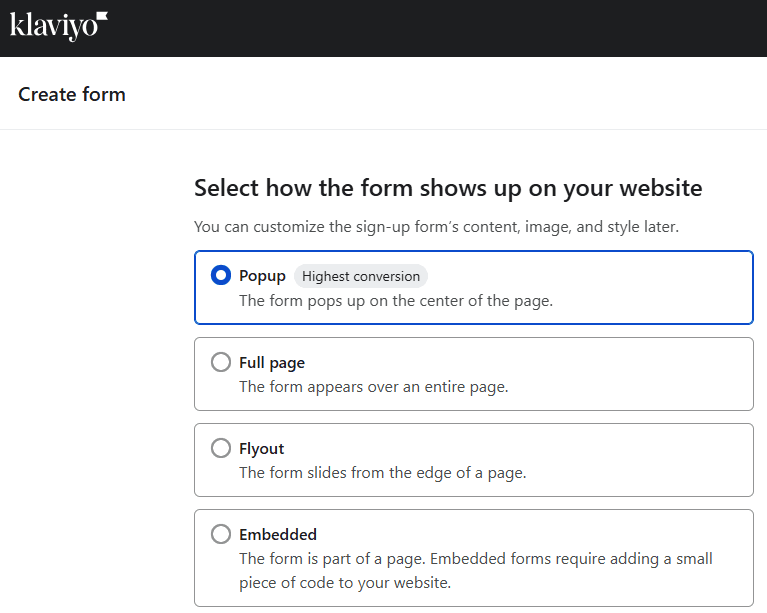
- Add a compelling message to your form
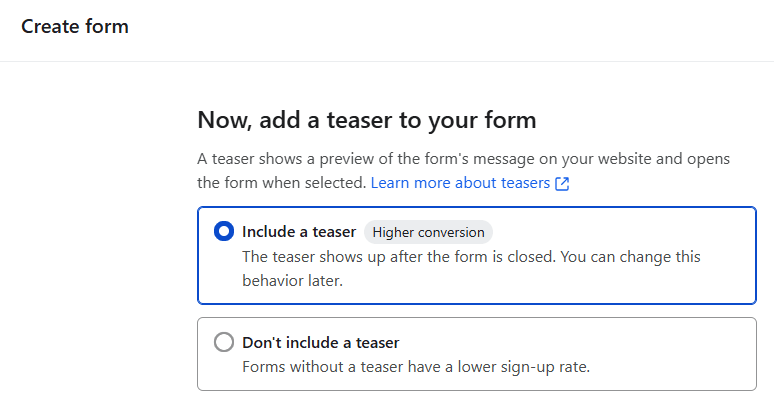
- Define how and when the form should appear
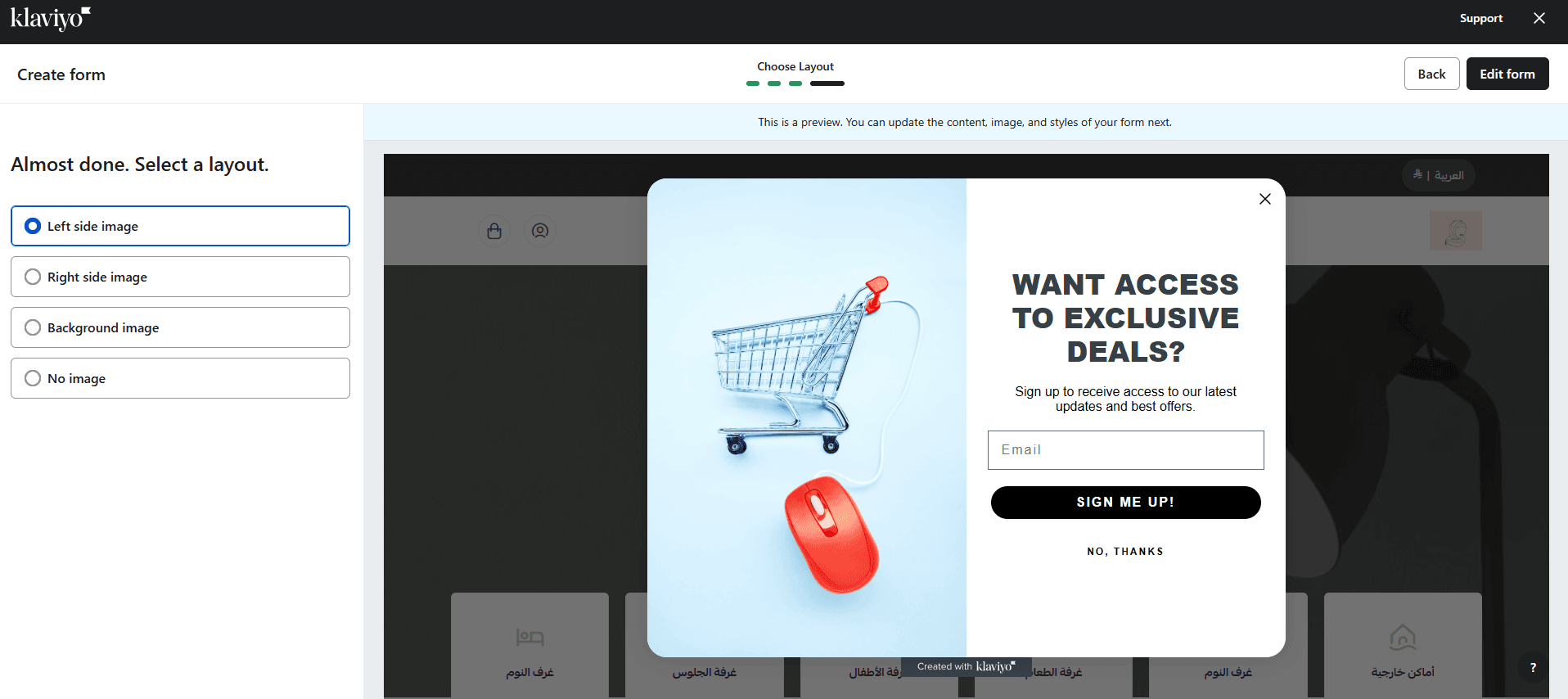
- Customize the form as needed, then click Publish (top right) to activate it
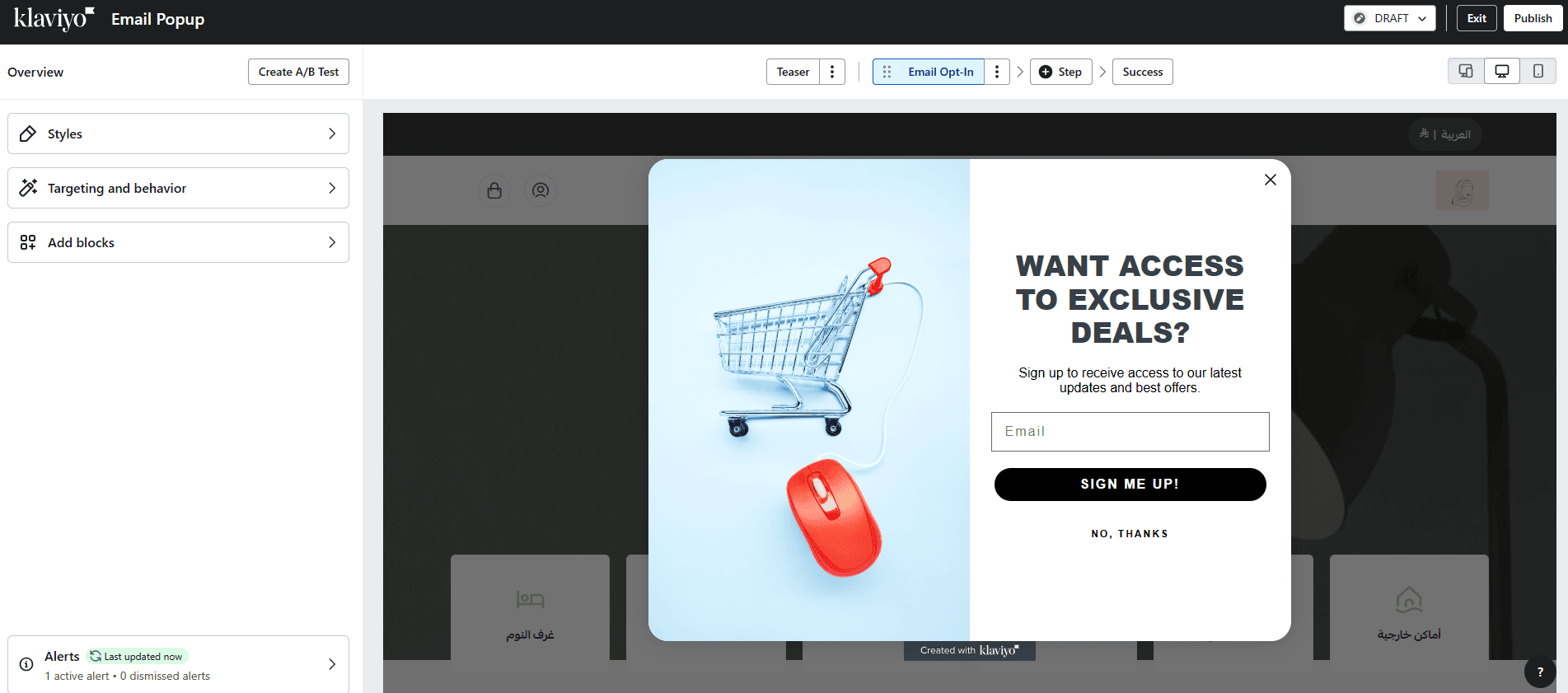
The form will then appear on your store based on your customization.
Tracking customer engagement with Forms
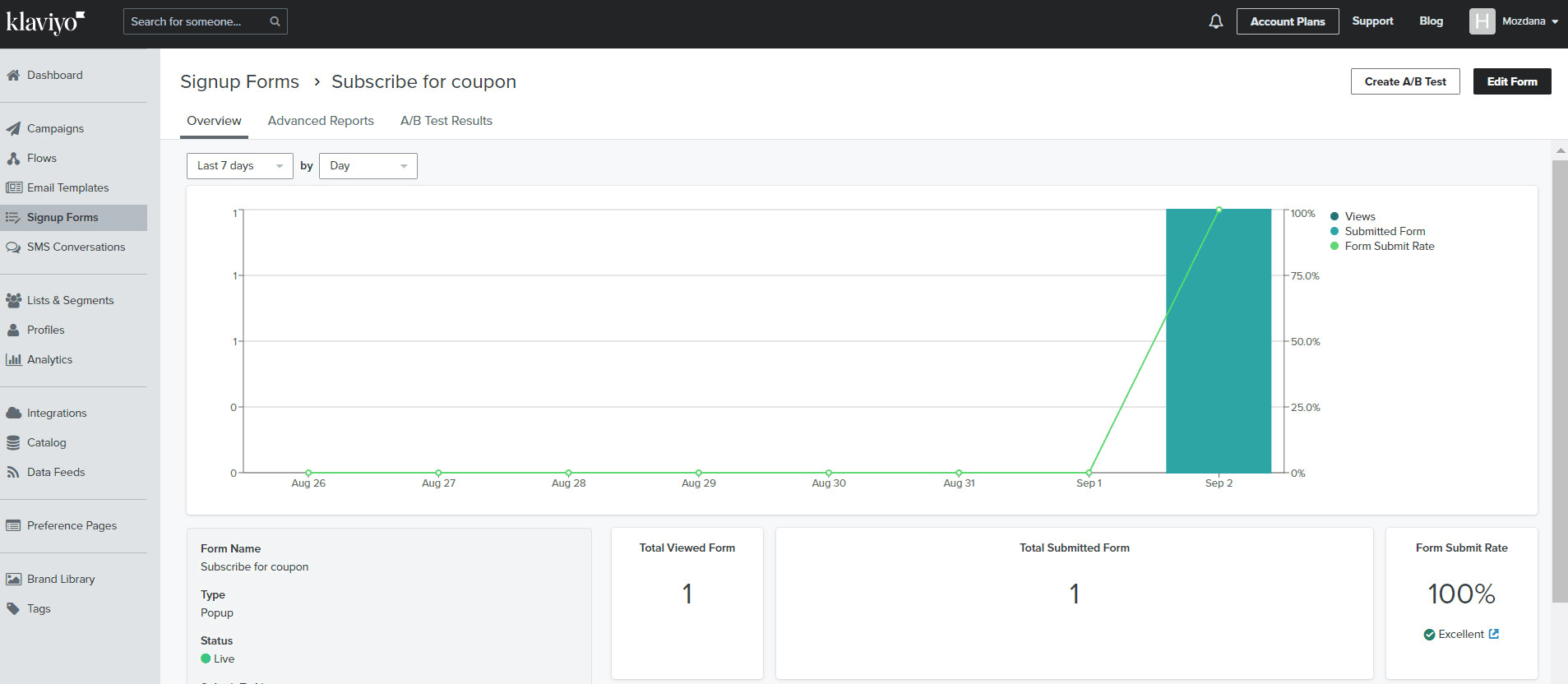
From the Signup forms page in Klaviyo, click View analytics for the form you want to review.

You’ll see detailed insights about how users interact with your form.
Removing the app
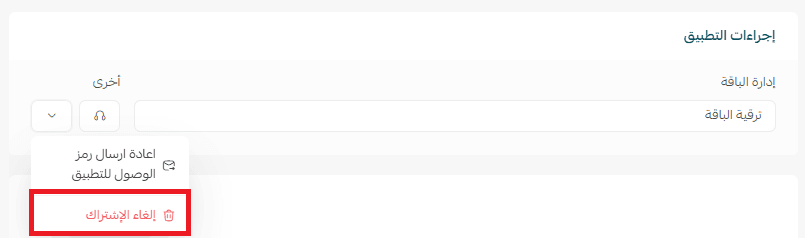
- From the app options menu, click Unsubscribe, then select a reason
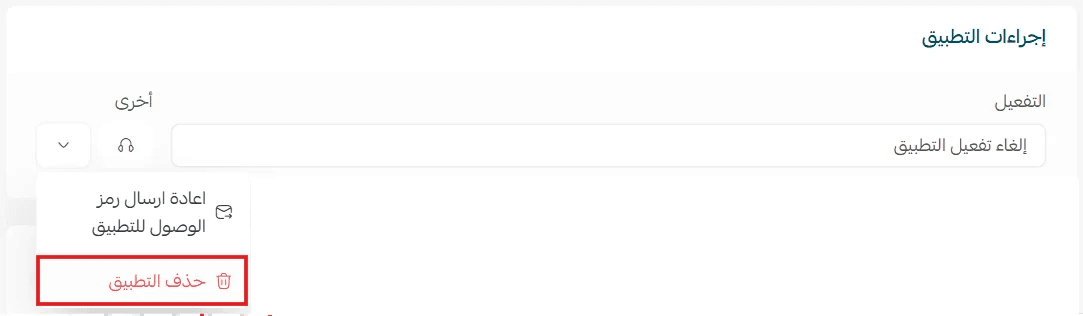
- From the app options menu, click Delete app, then select a reason
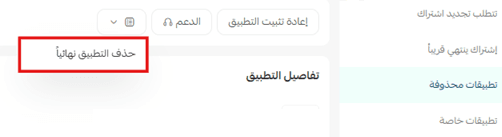
- From the deleted apps page, go to the app options and click Delete app permanently to remove it completely from your store