How many orders go quiet simply because the customer never got an update?
WhatsApp is where most shoppers actually read their messages, and Whats DL connects that channel straight to your Salla store. Once the Whats DL WhatsApp app is installed, your store can send order updates and automated notifications, reply to common questions on its own, push marketing campaigns, and nudge shoppers who left something behind in their cart. In this guide, you'll learn how to install Whats DL, activate it with your WhatsApp number, customize the messages it sends, and remove the app if you no longer need it.
To set up Whats DL, install it from the Salla App Store, choose a plan, and complete the payment. Then open (App options) and click (Activate app), link your WhatsApp number, sign in to the Whats DL platform, add your WhatsApp account, and return to the app settings to enable and save your messages.
📌 Article overview
- How to install and activate Whats DL
- How to remove Whats DL
- Frequently asked questions
🚀 How to install and activate Whats DL
1. From the main menu, click the (More) tab, then click (Installed apps).
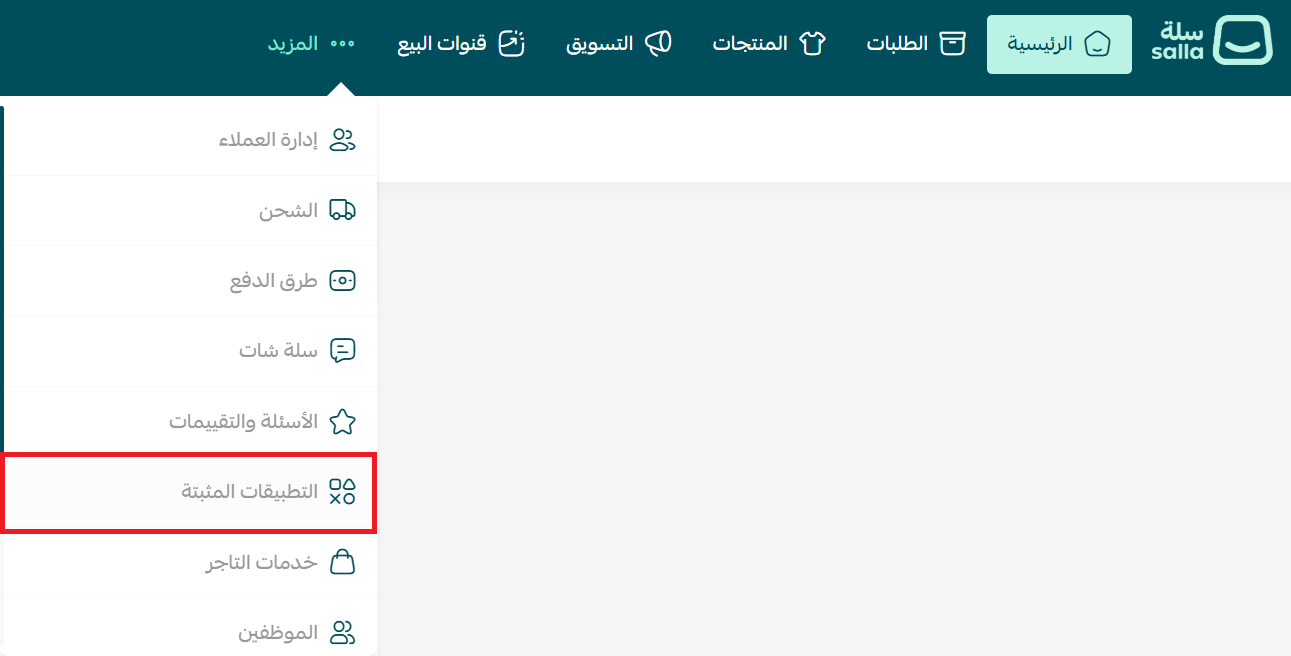
2. On the Salla App Store banner, click (Browse the Salla App Store).

3. On the Whats DL app page, click (Install).
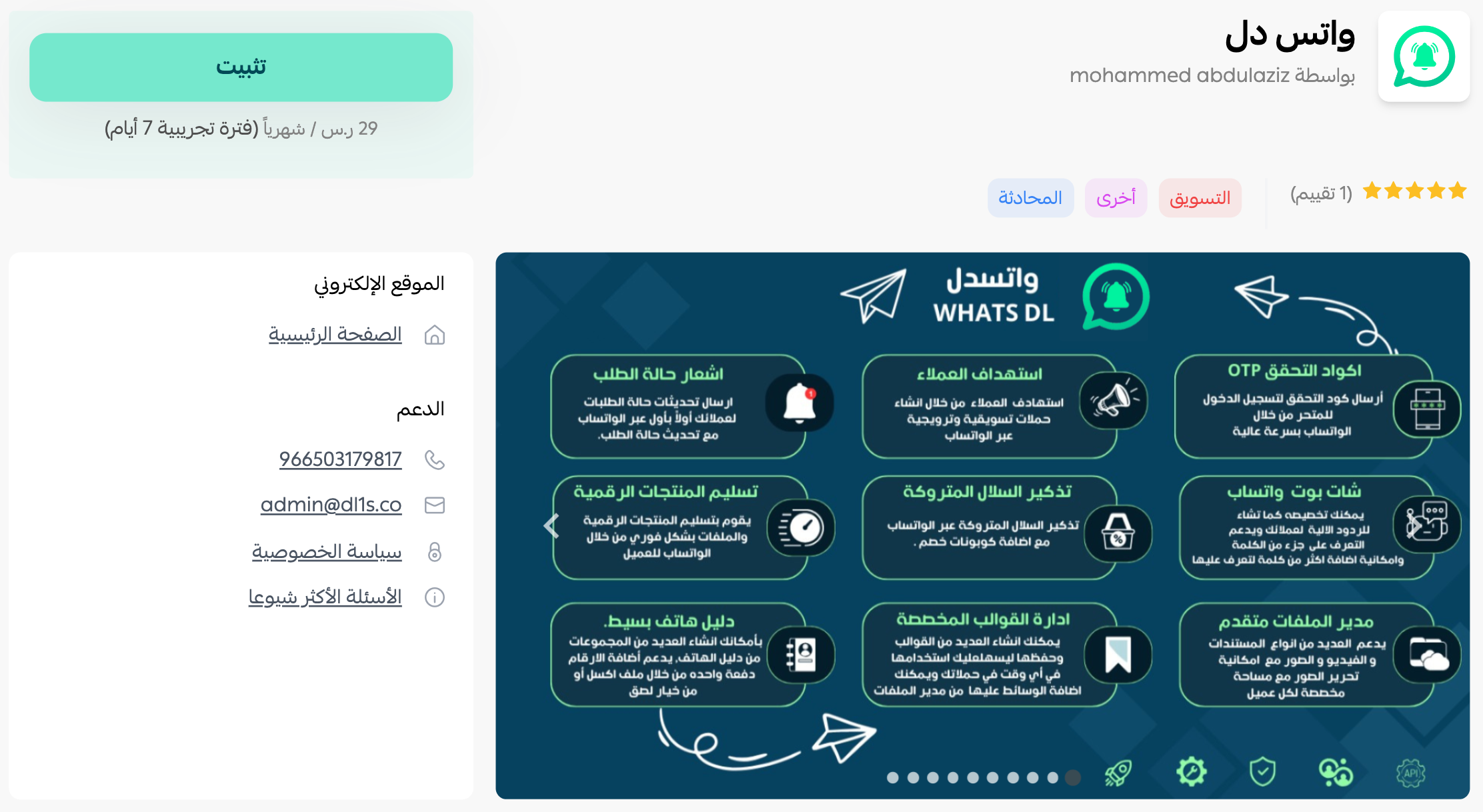
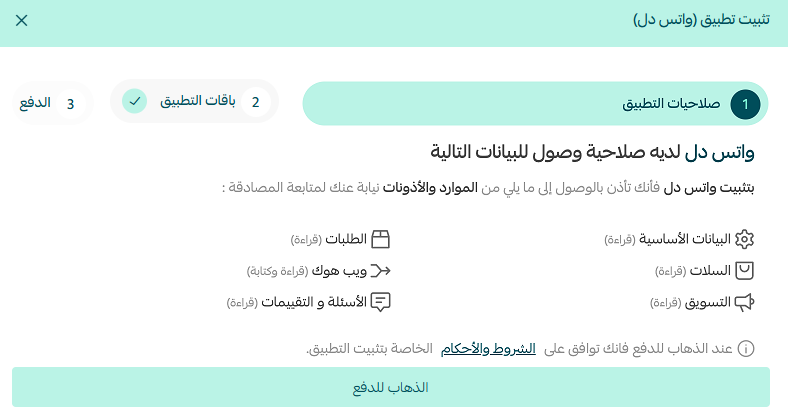
4. Review the permissions the app requests, then click (Go to payment).
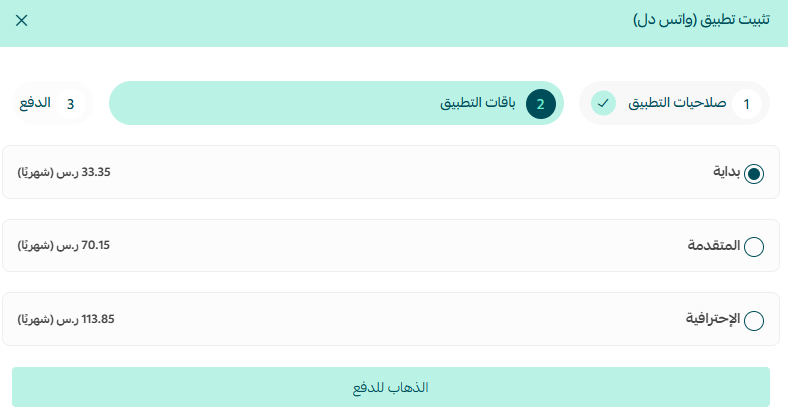
5. Choose the plan that fits your business to continue with the installation.
6. Complete the payment to unlock the app's features.
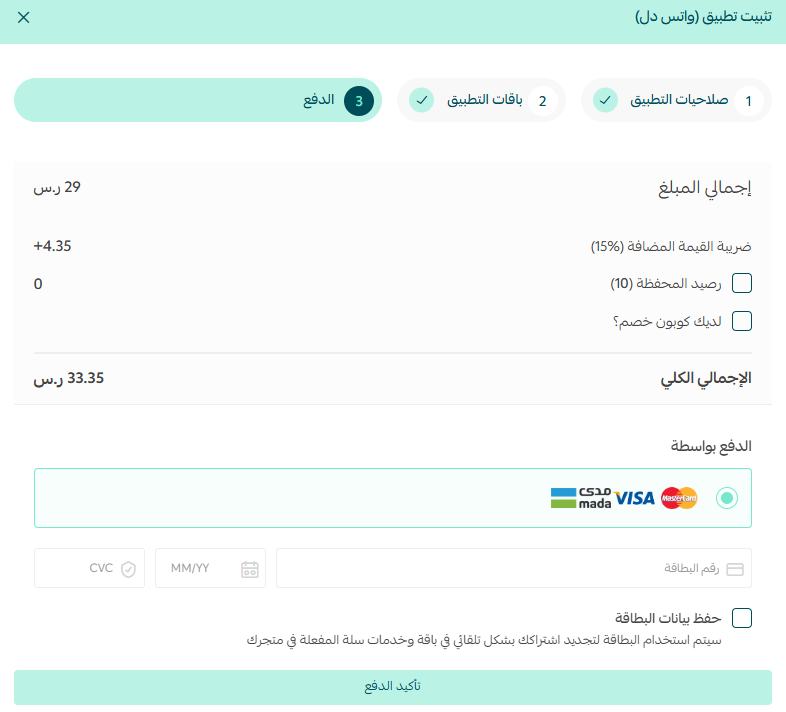
Whats DL is now installed on your store.
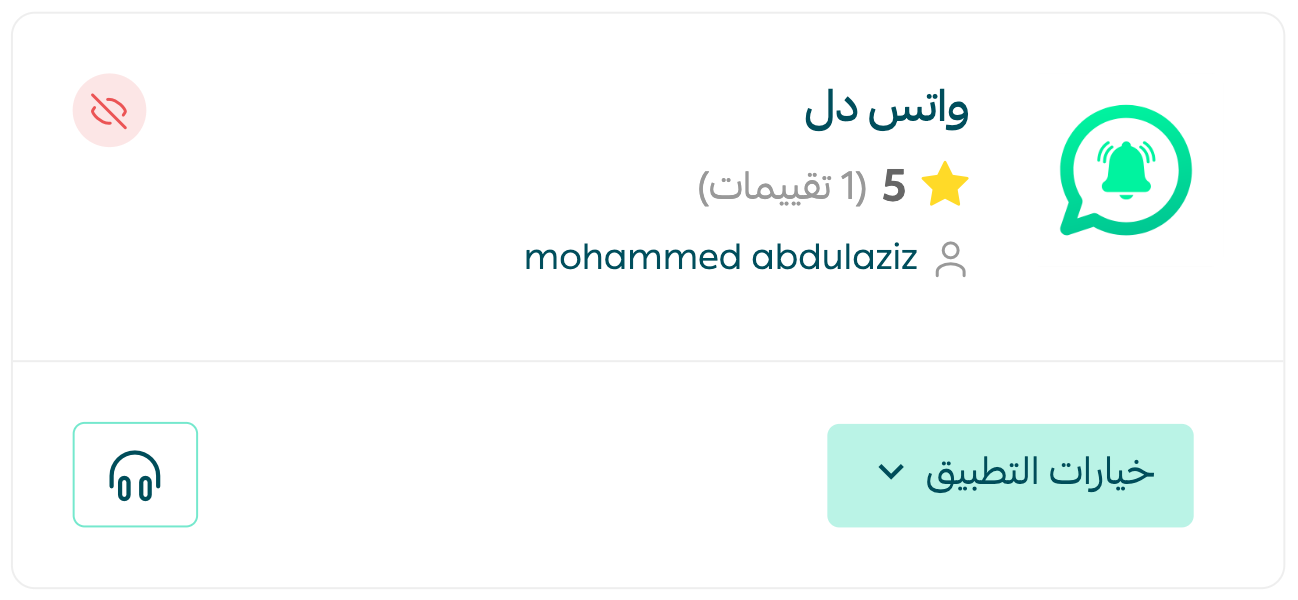
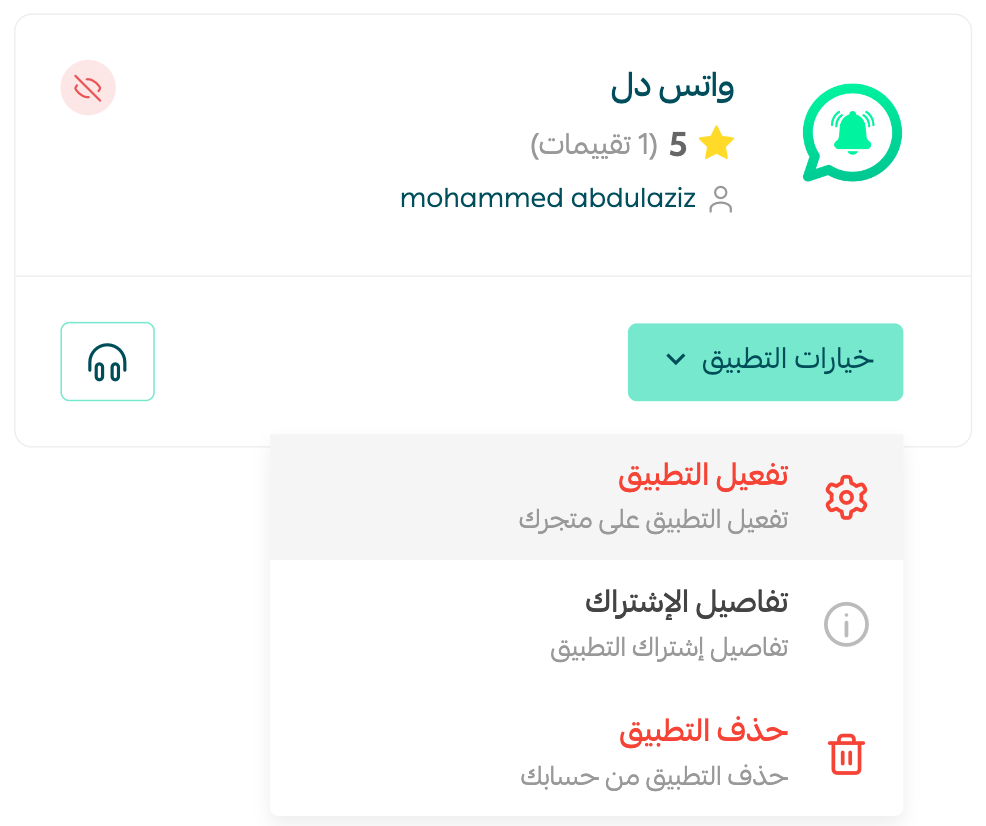
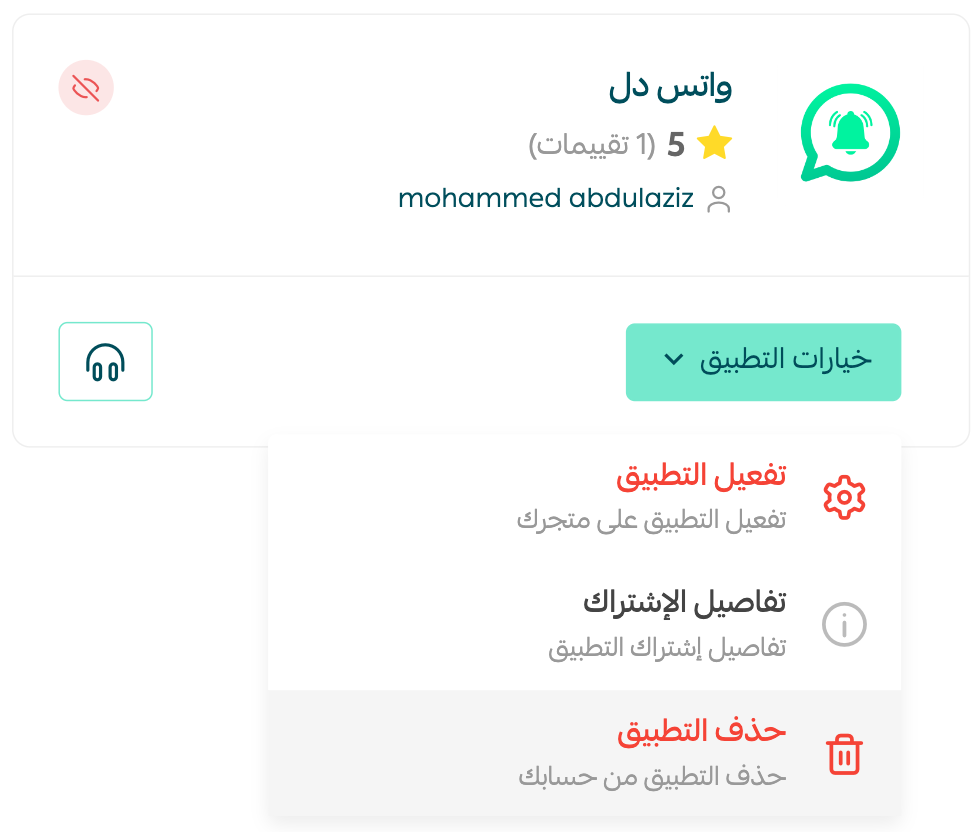
7. To turn the app on, open the (App options) menu and click (Activate app).
8. Click (Go) to link your WhatsApp number.
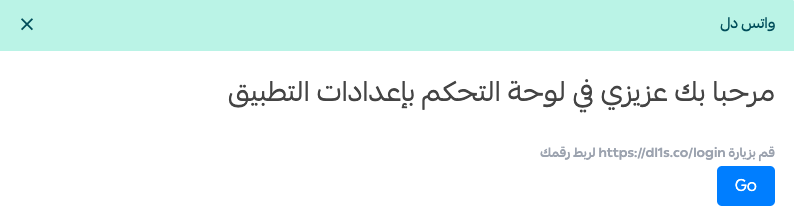
You'll receive a WhatsApp message containing your username and password.
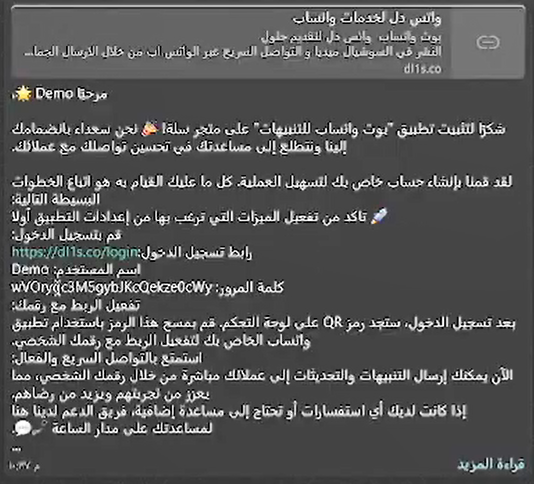
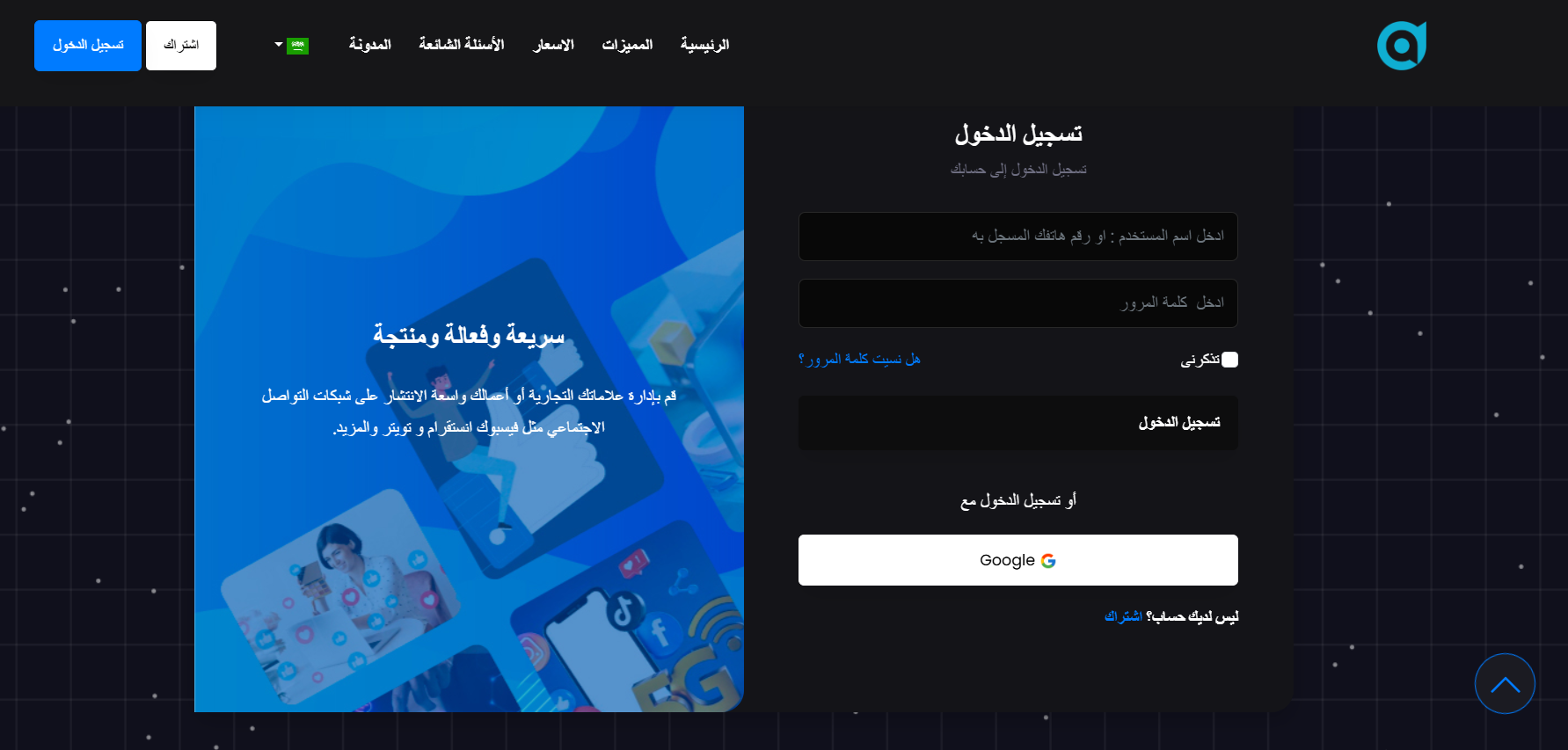
9. Sign in to your account on Whats DL using those credentials.
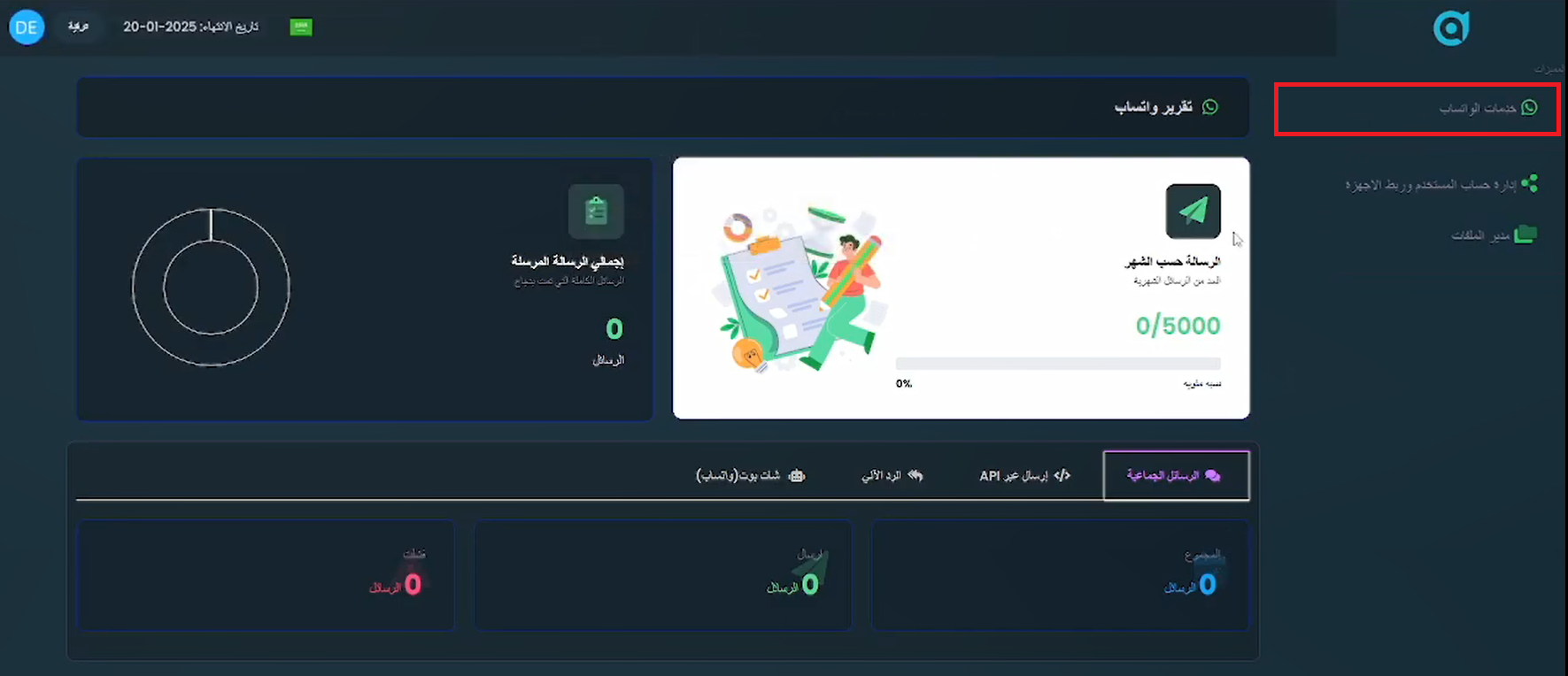
10. Open the (WhatsApp services) tab and click (Create account).
11. Add your WhatsApp account.
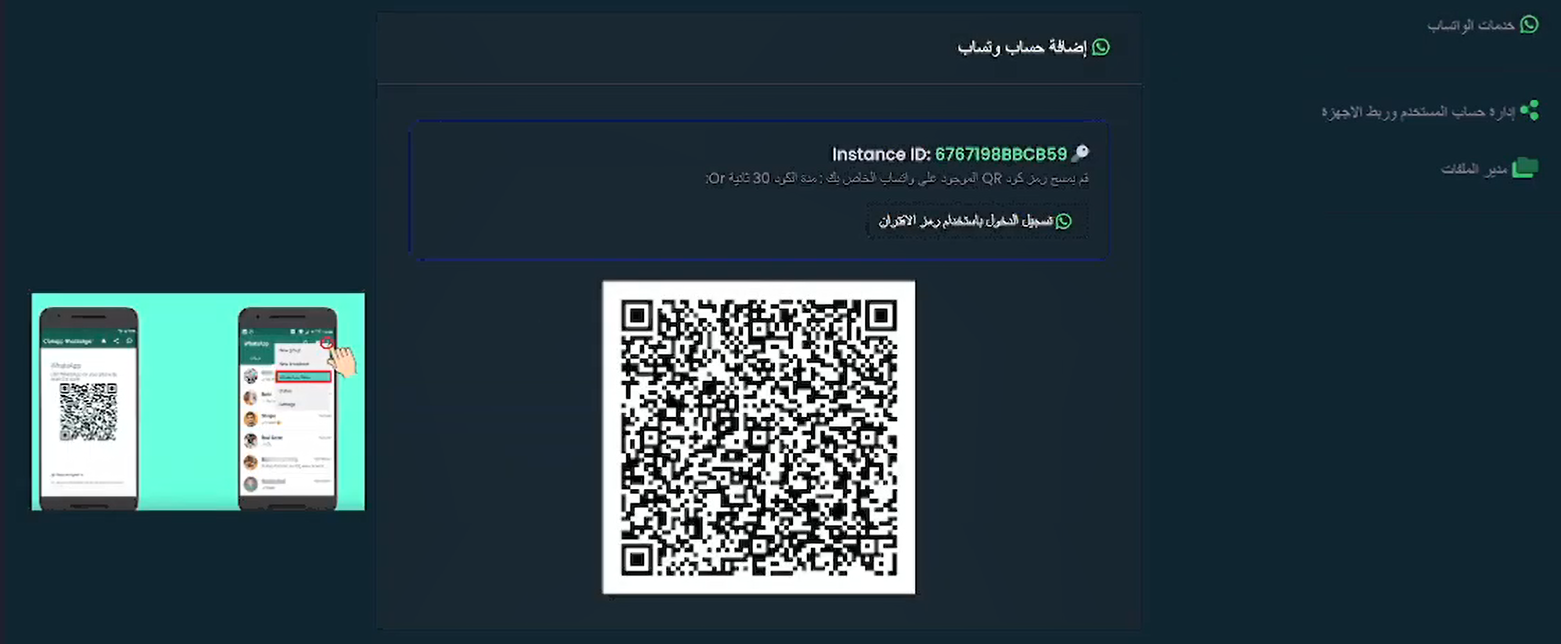
Check that the account shows as connected before moving on.
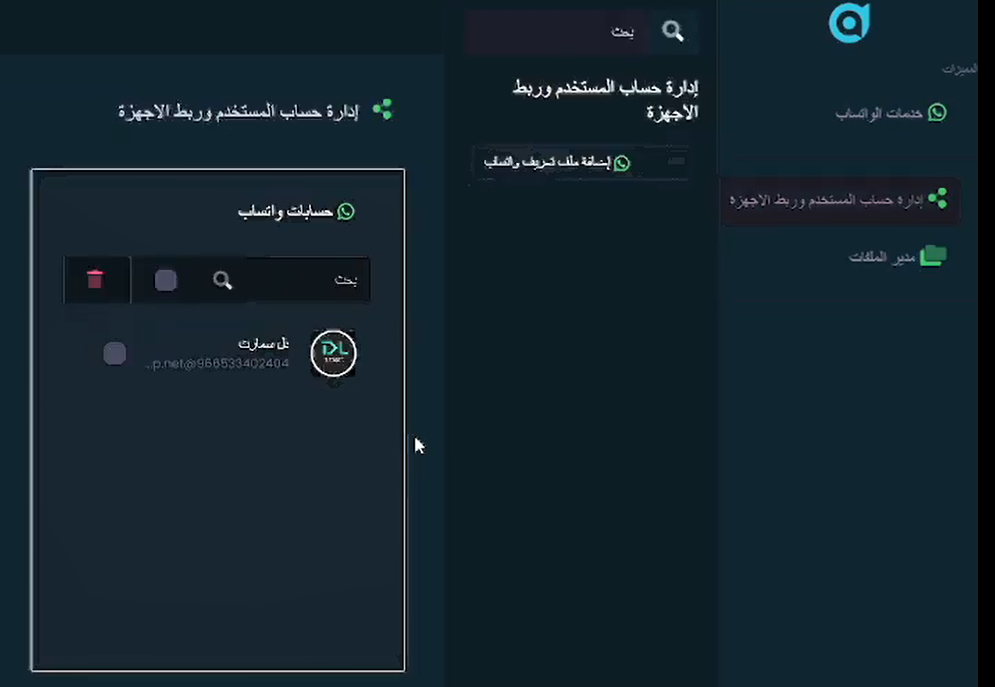
12. Go back to the app settings, enable the WhatsApp messages you want to send, edit their wording, then click (Save).
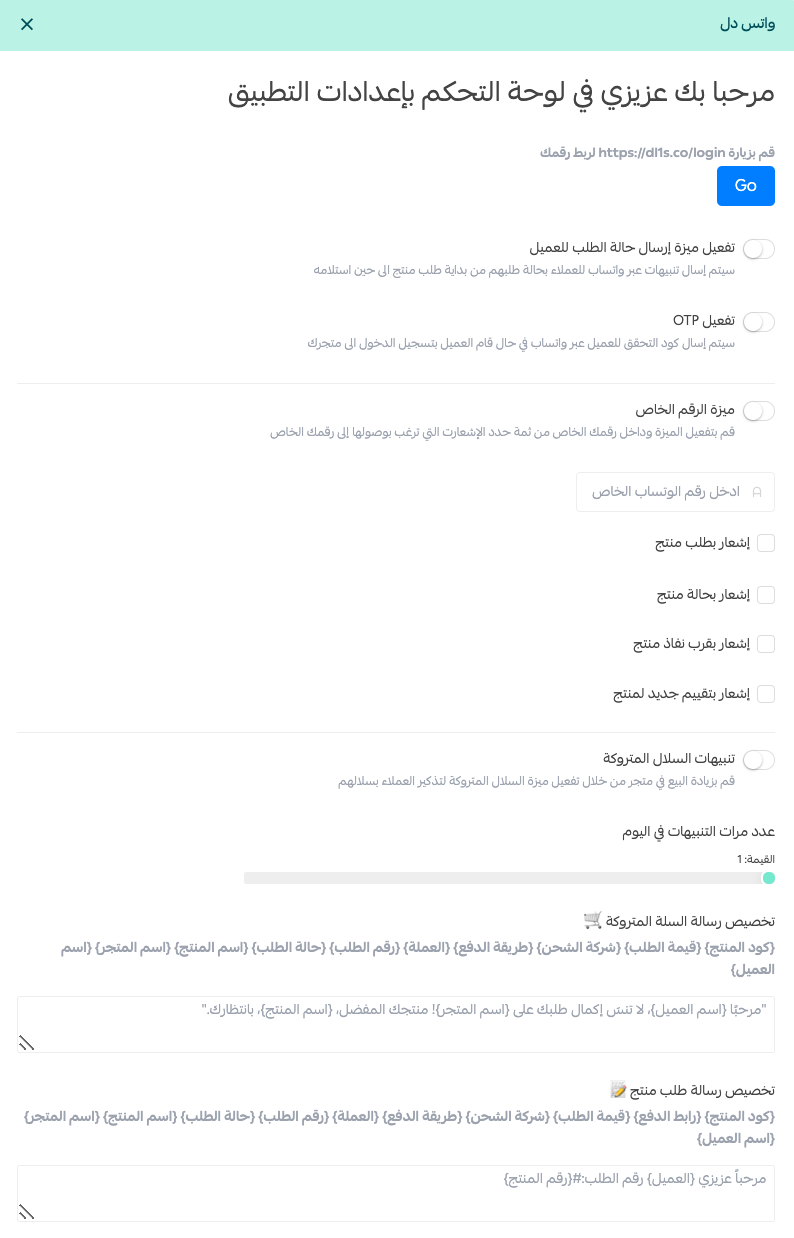
The app is now active and messaging your customers.
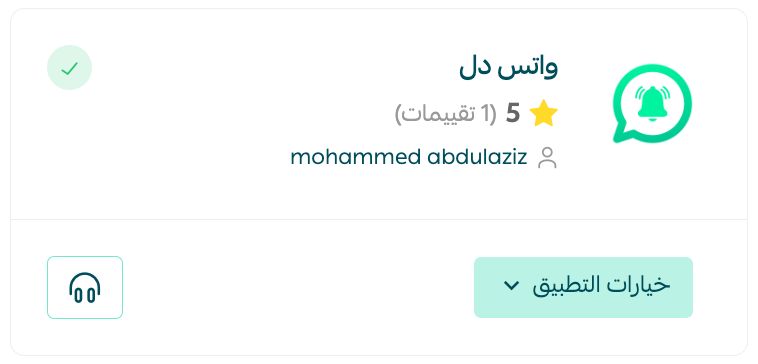
Prefer to watch instead? See the setup video covering installation and activation.
👣 How to remove Whats DL
Open the Whats DL app, click (App options), then click (Delete app).
📝 Important notes
- Installing Whats DL requires choosing a paid plan first. The app only becomes available after the payment goes through.
- Your login details arrive by WhatsApp, not by email, so link a number you can access.
- Deleting the app stops every automated message it was sending, including abandoned cart reminders.
- For more details, see the Whats DL FAQ.
❓ Frequently asked questions
What can Whats DL send to my customers?
Order updates and automated notifications, smart replies to common questions, marketing campaigns, and reminders for carts that were left behind.
Where do my Whats DL login details come from?
After you click (Go) to link your number, Whats DL sends your username and password in a WhatsApp message.
Do I set up the messages in Salla or on the Whats DL platform?
Both. You create and connect the WhatsApp account on the Whats DL platform, then enable and customize the individual messages in the app settings inside your Salla dashboard.
Can I edit the wording of the automated messages?
Yes. In the app settings you can turn each message on or off and adjust its text before saving.
A customer who gets a WhatsApp update the moment their order moves is a customer who does not need to ask where it is.