Would a shopper learn more about your product from a photo, or from a video they can click through?
Product images and plain videos only go so far. Qumqum is a Salla app that turns an ordinary clip into an interactive video: you layer text, images, clickable hotspots, and buttons over the footage, and shoppers can even ask questions inside the video and get answers without leaving your store. In this guide, you'll learn what interactive videos from Qumqum can do, how to install the app, and how to place a finished video on a product or category page.
Qumqum is a Salla app for building interactive videos. You install it, log in to the Qumqum dashboard with the account created for you, upload a video or pull one from YouTube, add elements like hotspots and buttons, publish it, then paste the video ID into the product or category page that should show it.
📌 Article overview
- What Qumqum can do
- How to install and set up Qumqum
- Frequently asked questions
✅ What Qumqum can do
- Drop in a ready video from YouTube or upload one from your own device.
- Add several kinds of interactive elements:
- Explanatory text
- Images
- Clickable hotspots
- Buttons and multiple-choice options
- Improve the buying experience by turning a flat product display into a rich, interactive one.
- Use built-in AI inside the video, so a visitor can ask a question and get an answer in the same video without leaving your store.
🚀 How to install and set up Qumqum
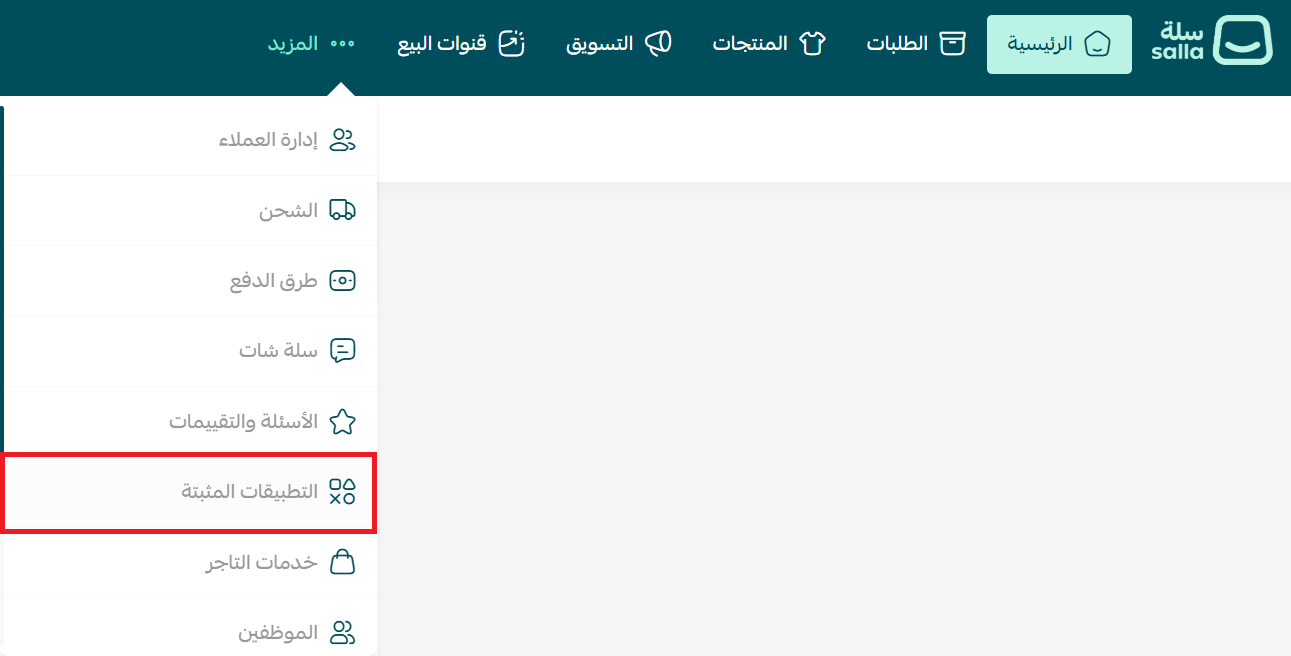
1. From the main menu, click the (More) tab, then click (Installed apps).
2. On the Salla App Store banner, click (Browse the Salla App Store).

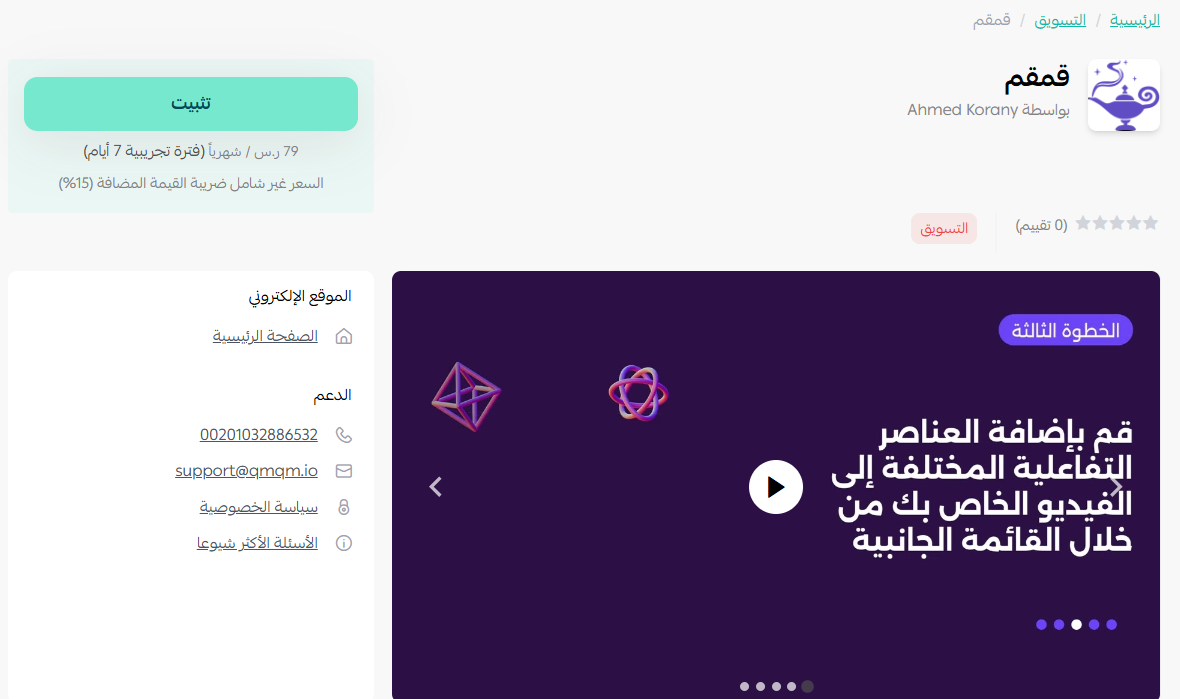
3. On the Qumqum app page, click (Install).
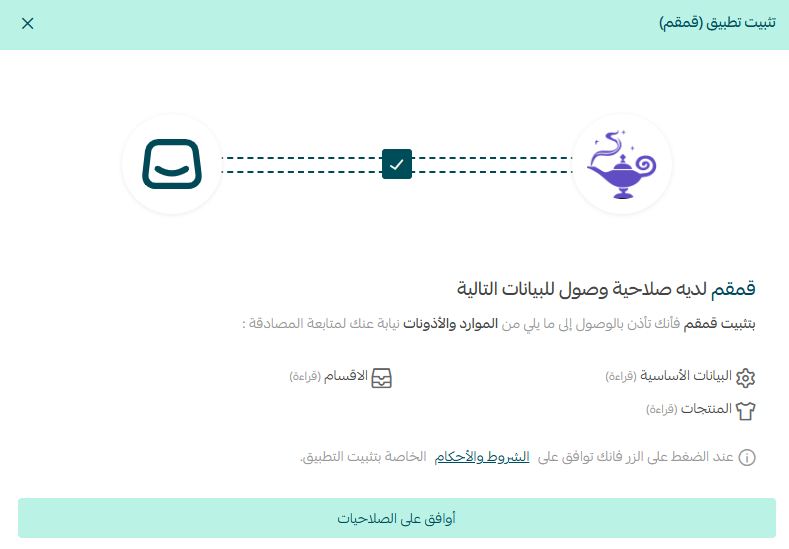
4. Review the permissions the app requests, then click (I agree to the permissions).
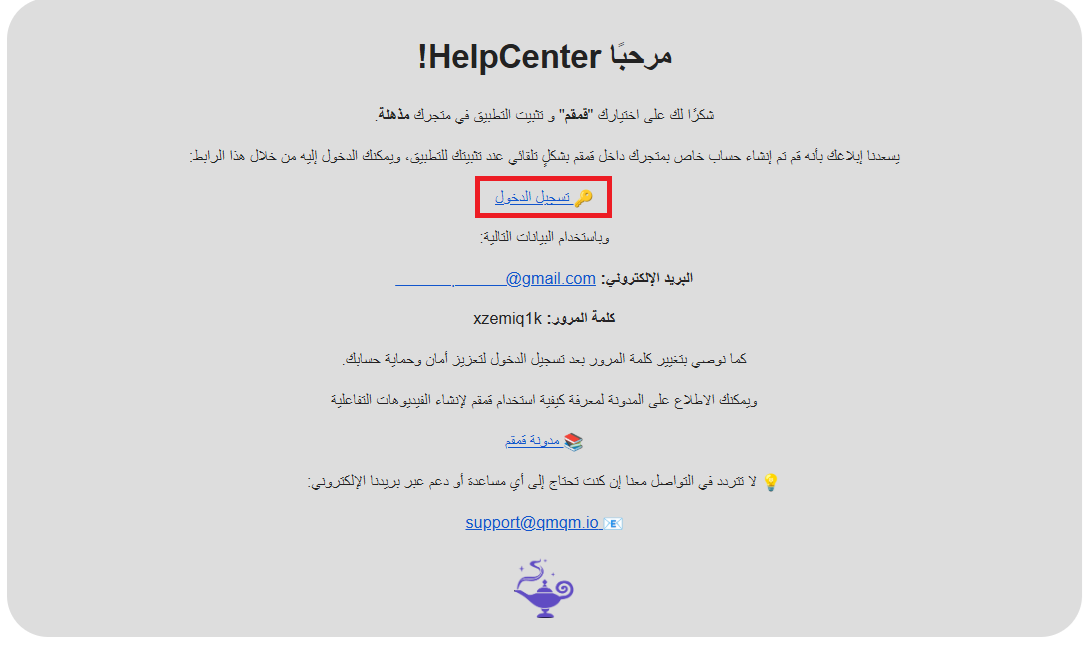
5. A Qumqum account is created for you automatically and the login details are emailed to you. Open that email, then sign in to the main Qumqum dashboard with those details.
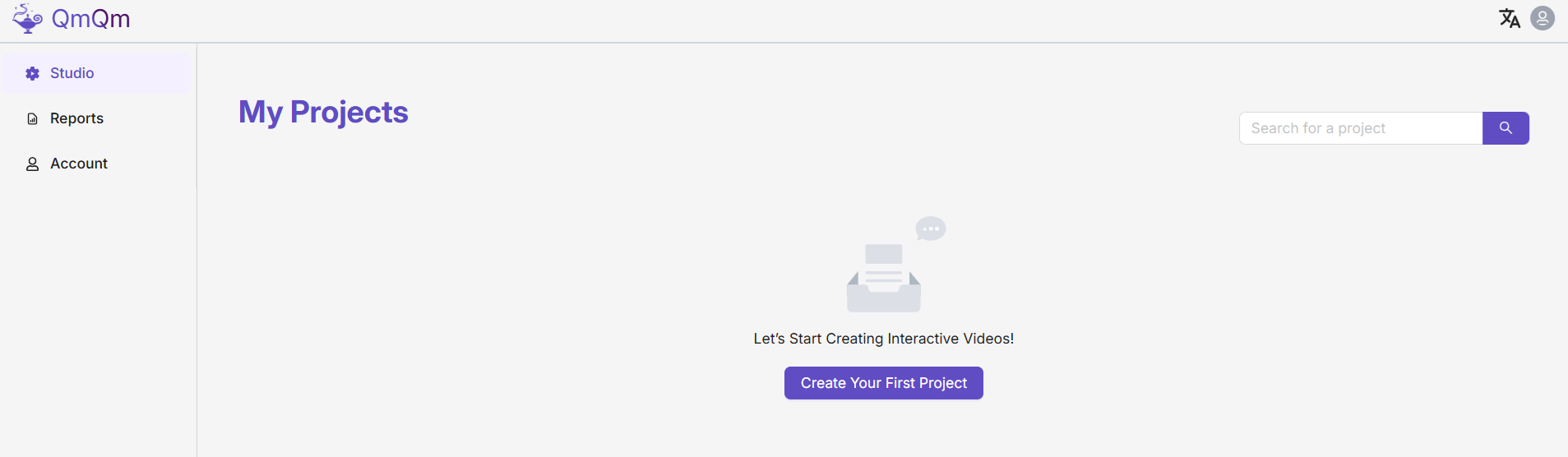
6. Create your store's first interactive video by clicking (Create Your First Project).
Add your interactive elements from the side menu, then adjust the settings and appearance of each one until the video looks the way you want.
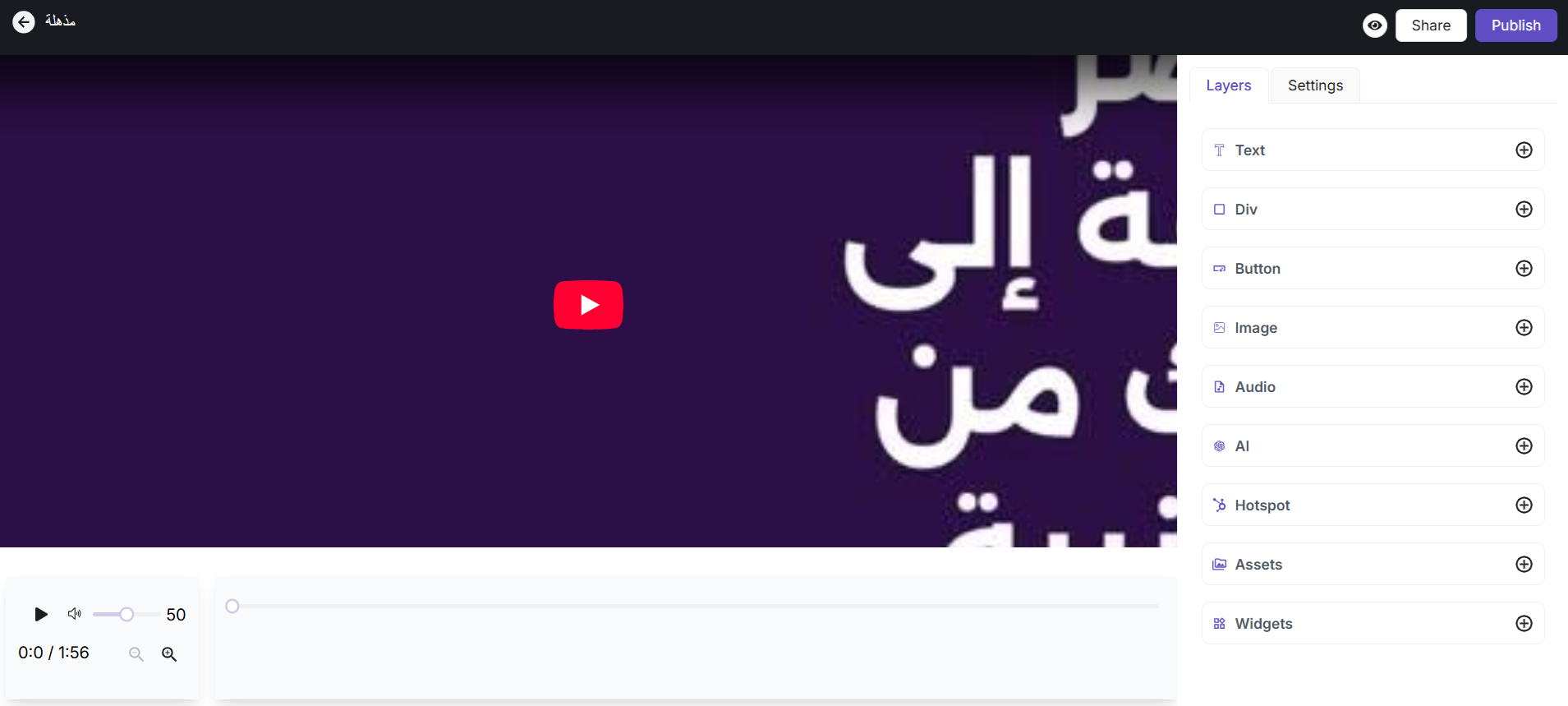
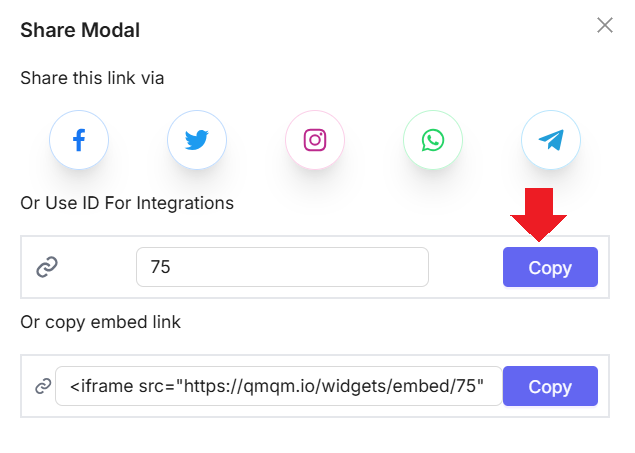
7. When the video is ready, click (Publish), then click (Share).

Copy the video ID.
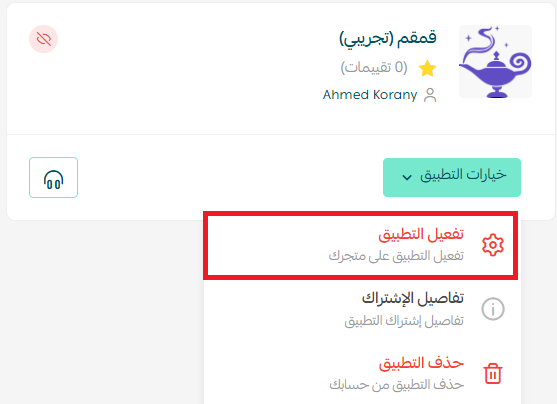
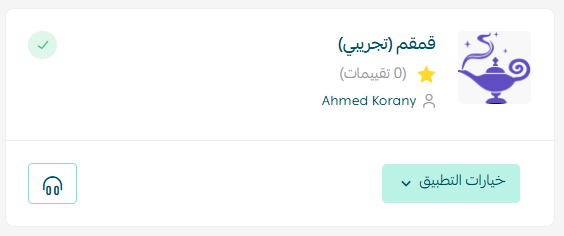
8. Go back to the installed apps page in your store dashboard, open the Qumqum app options, then click (Activate app).
9. Choose the product page or category you want the interactive video to appear on, then paste the video ID you just copied from Qumqum.
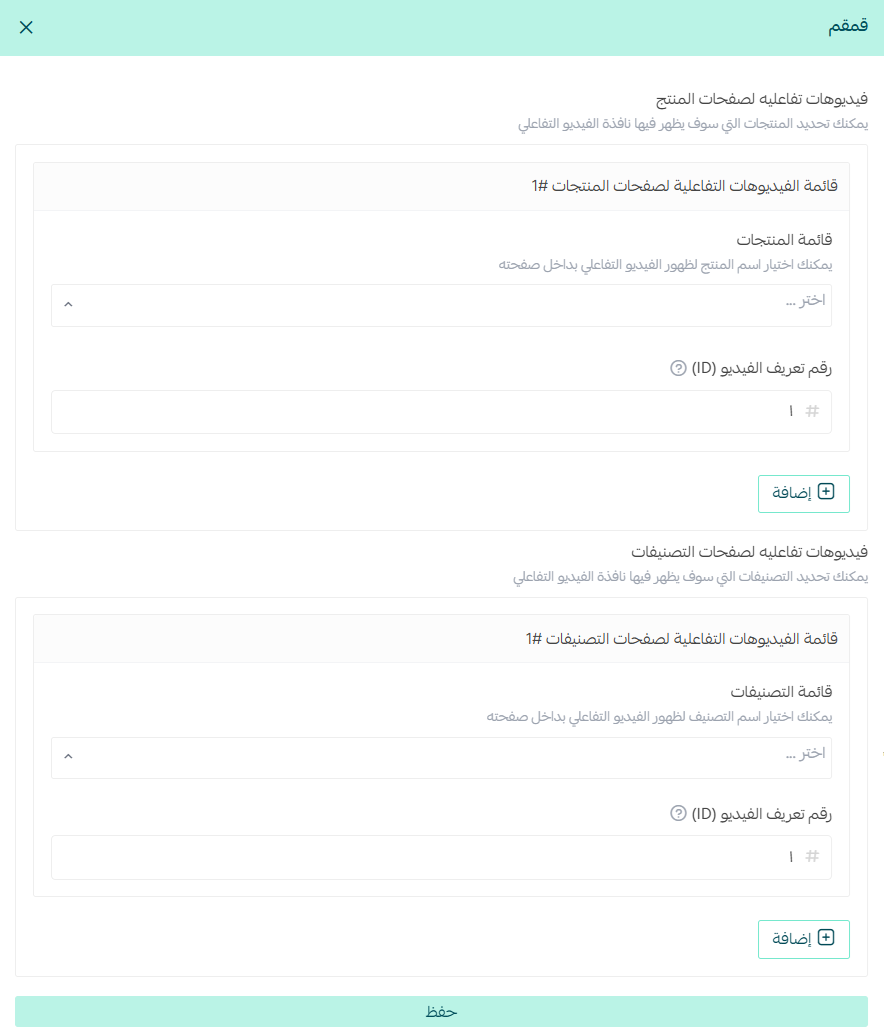
Open the product page to check that the video displays correctly. Qumqum is now installed and active on your store.
📝 Important notes
- Each video has its own ID. To show a different video on another page, publish it in Qumqum and paste its ID against that page.
- For more on installation and features, see the Qumqum app page.
❓ Frequently asked questions
Where do the videos come from?
You can upload a video from your own device or bring in a ready video from YouTube.
What interactive elements can I add to a video?
Explanatory text, images, clickable hotspots, and buttons with multiple options. You control the settings and appearance of each element.
Do I need to create a Qumqum account separately?
No. An account is created for you when you install the app, and the login details arrive by email.
Where does the interactive video appear in my store?
On the product page or category you select when you activate the app and paste the video ID.
Can shoppers ask questions while watching?
Yes. Qumqum has AI built into the video, so a visitor can ask a question and get an answer inside the video without leaving your store.
An interactive video answers the questions a product photo leaves open. Start with your most-viewed product, add a few hotspots where shoppers usually hesitate, and see how the page performs before rolling it out further.