What happens to the products your customers save but never buy?
Every wishlist in your store is a list of products someone already wants. Wishlist notifications turn that intent into revenue by nudging the customer at the right moment: when the price drops, when the item is back in stock, or when stock is about to run out. Instead of hoping shoppers come back on their own, you give them a reason to. In this guide, you'll learn how to set up wishlist notifications on Salla, choose the channels they are sent through, and exclude the products you don't want included.
Wishlist notifications are automated messages Salla sends to customers who saved a product to their wishlist. From your dashboard settings you can turn on reminders, price-drop alerts, back-in-stock alerts and low-stock alerts, choose whether they go out by email, SMS or WhatsApp, and exclude specific products from the whole system.
📌 Article overview
- How to open the wishlist notification settings
- Turning on each type of wishlist notification
- Choosing the delivery channels
- Excluding products from wishlist notifications
- Frequently asked questions
⚙️ How to open the wishlist notification settings
1. From the main menu of your dashboard, click the settings icon.

2. From the side menu, choose (Products), then click (Wishlist notifications).
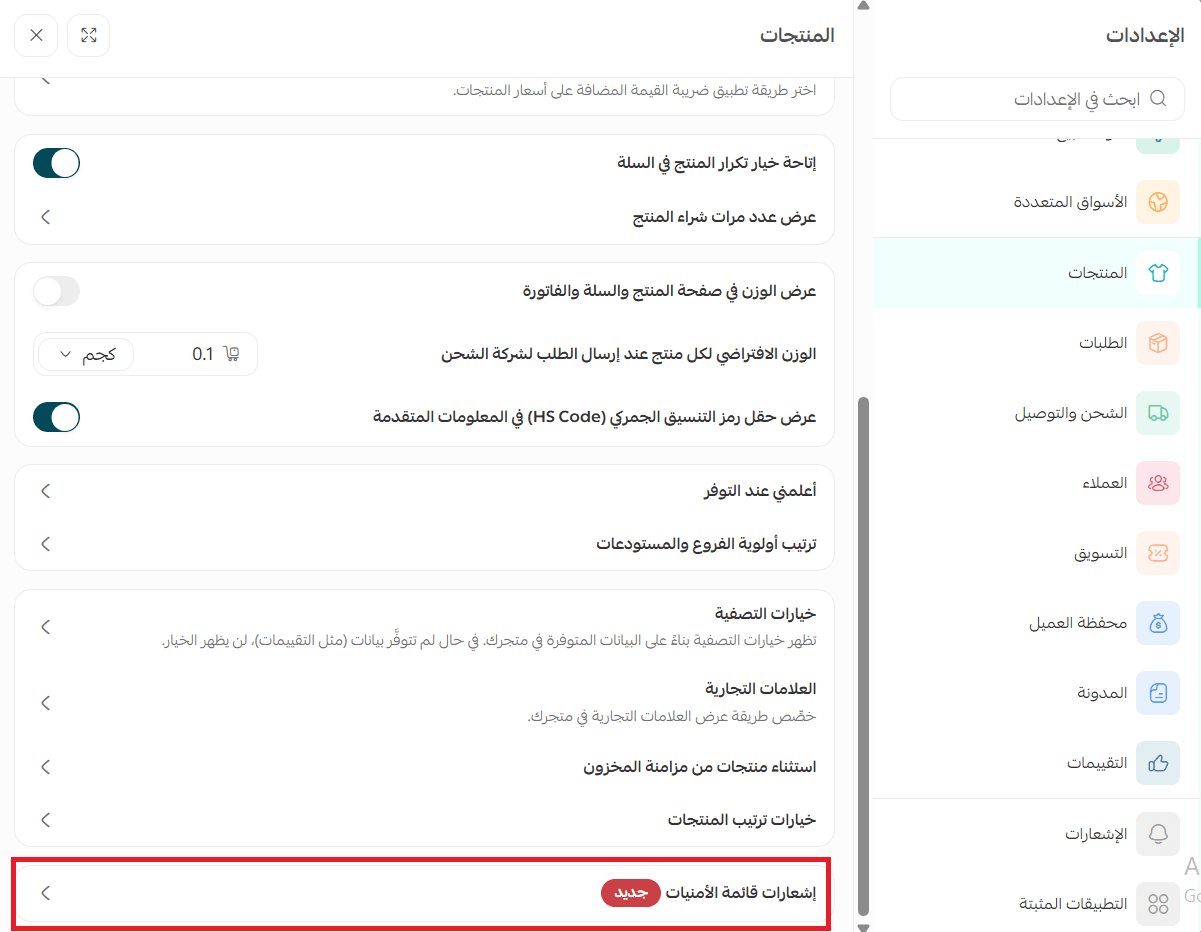
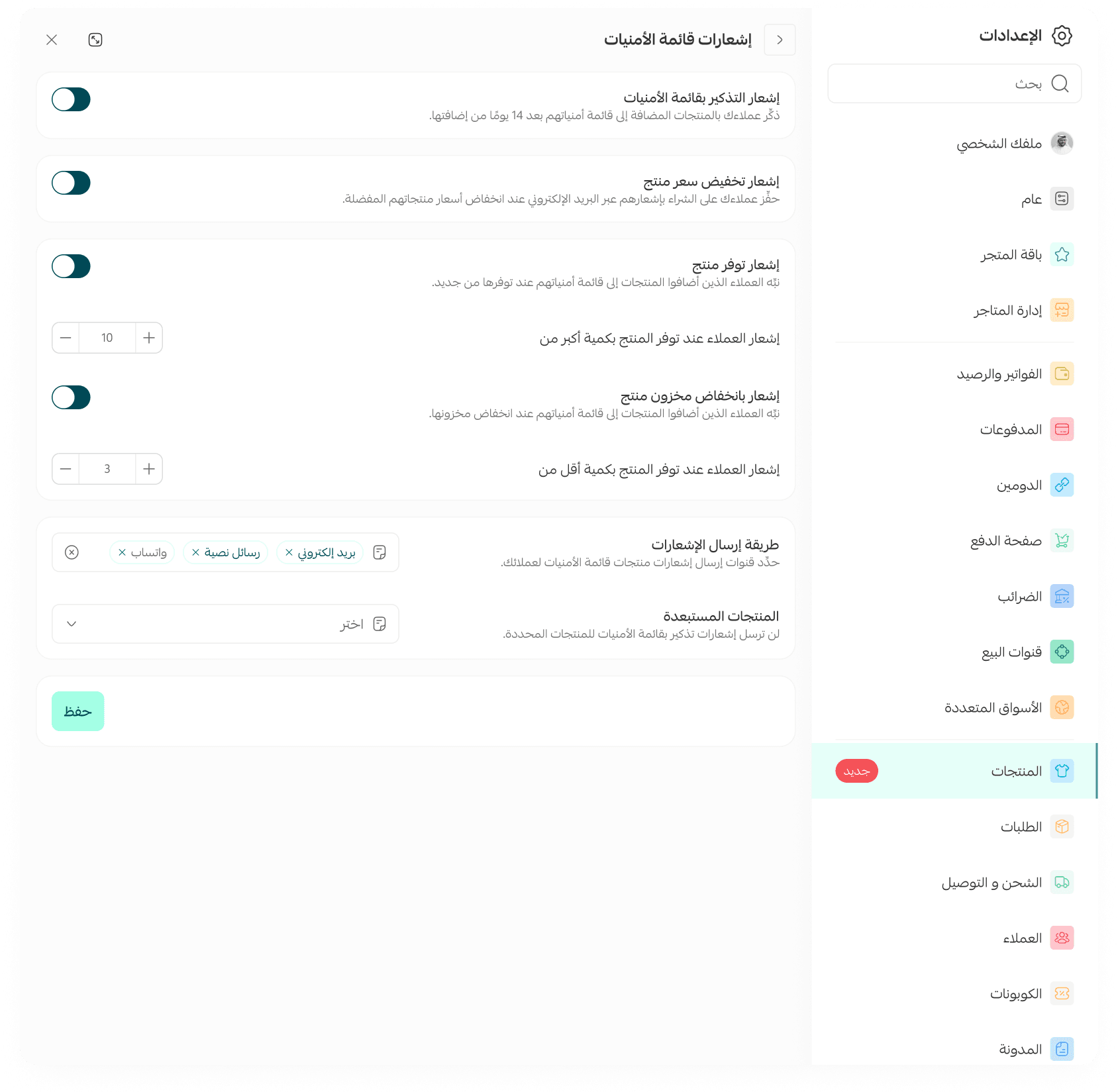
🔔 Turn on wishlist notifications
From the notification settings page, you can switch on and customize each of the following:
- Wishlist reminder notification.
- Price drop notification.
- Back in stock notification.
- Low stock notification.
You can also set the minimum or maximum quantity at which the notification is sent to customers.
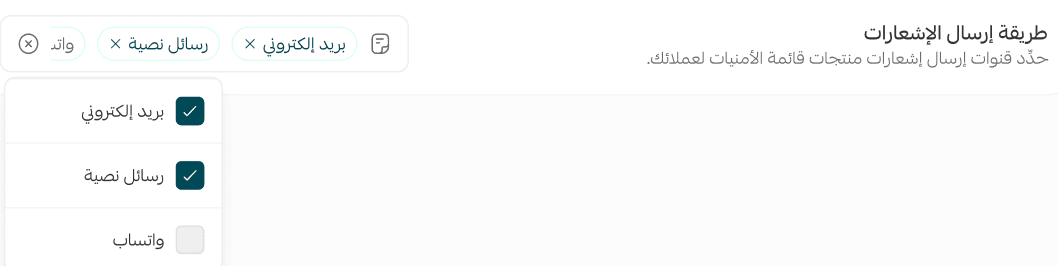
📩 Choose the delivery channels
Decide which channels your store uses to send wishlist notifications to customers:
- Email.
- SMS.
- WhatsApp.
🚫 Exclude products from wishlist notifications
If there are products you would rather leave out, such as clearance items or products you are about to discontinue, add them to the excluded products list.
1. In the excluded products section, click the selection field.
2. Search for the product you want and select it from the list.
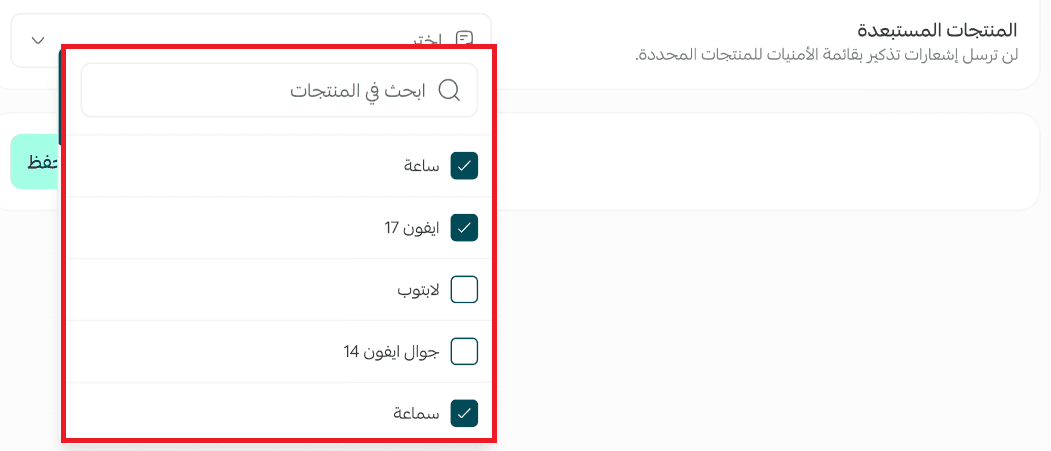
3. Click (Save) to apply your changes.
📝 Important notes
Notifications are only sent for products customers have actually added to their wishlist, so an empty wishlist produces nothing to send.
An excluded product stays excluded from every wishlist notification type, not just one.
❓ Frequently asked questions
❓ Do I need to create a new wishlist link every time?
No. Once a wishlist link has been generated, it can be shared with others and reused to open the same shared list.
❓ Can other people edit a shared wishlist?
No. Anyone the list is shared with can only browse the products. Managing the list and making changes stays with the account owner.
❓ Can I exclude certain products from wishlist notifications?
Yes. Use the excluded products section to choose the products you don't want wishlist notifications sent for.
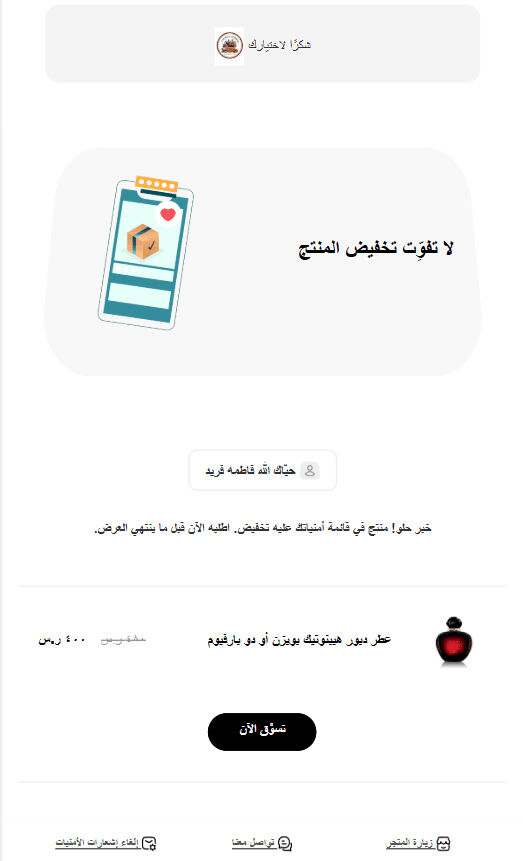
❓ What does the wishlist notification look like to the customer?
This is the email a customer receives with the products from their wishlist.
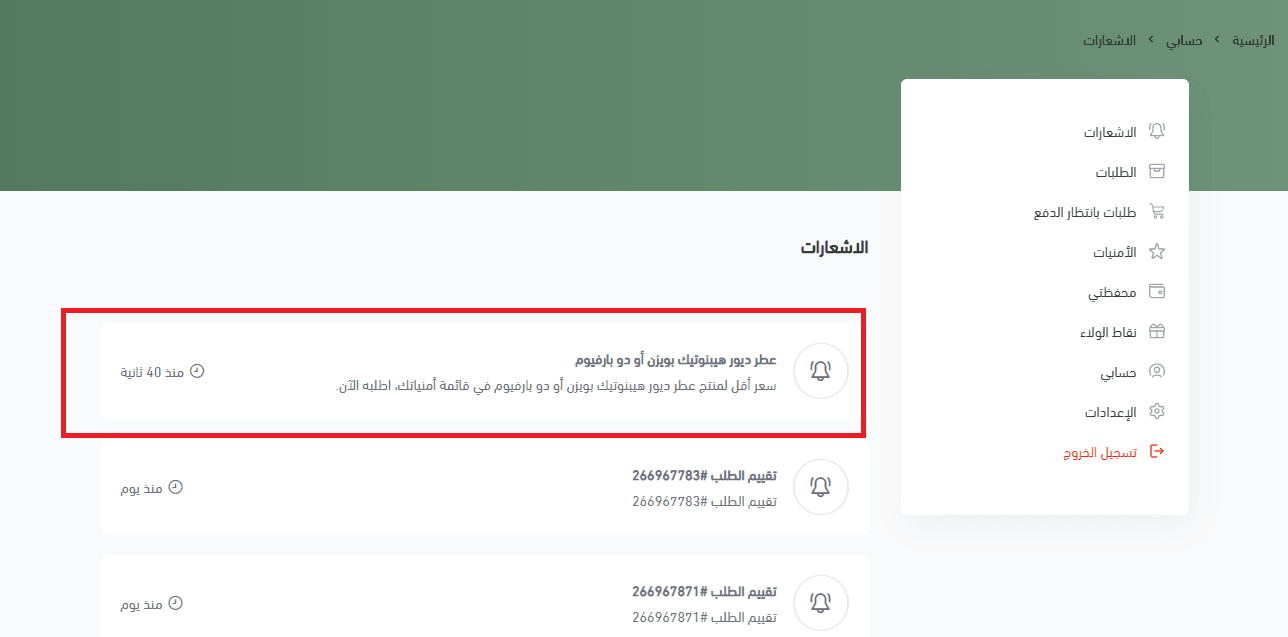
Customers can also see their wishlist notifications inside their store account, under the notifications tab.
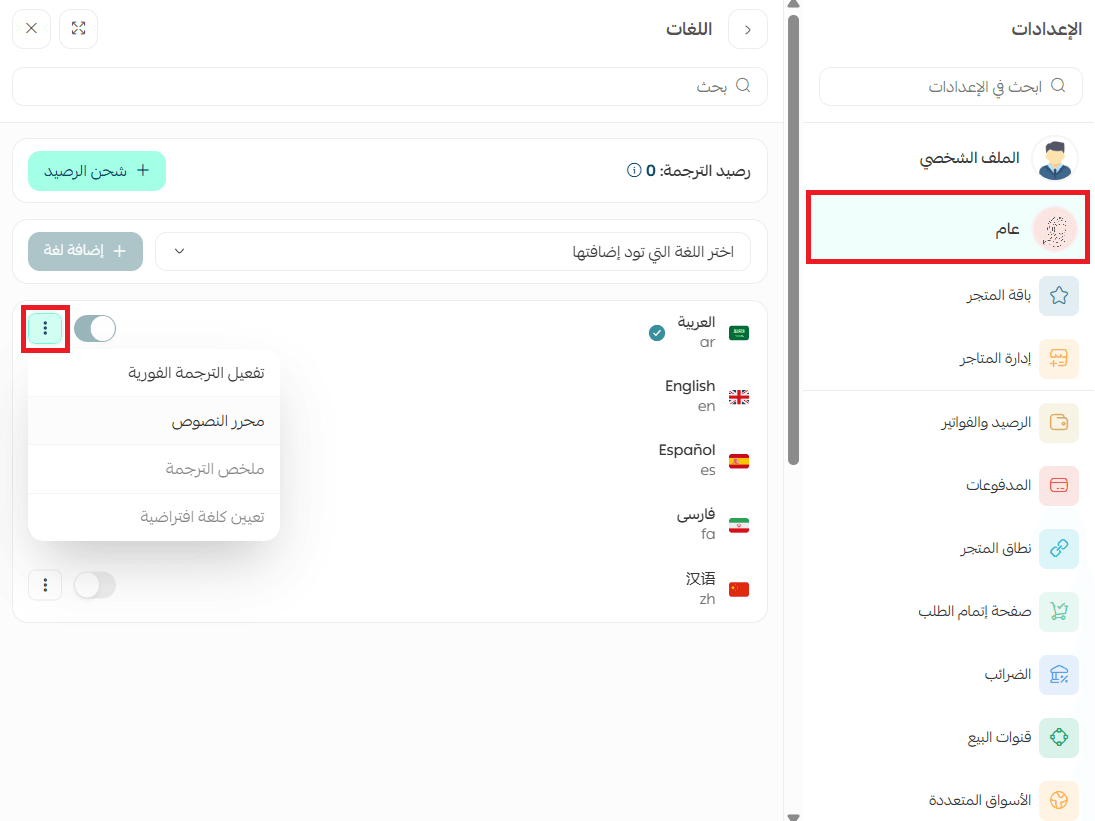
❓ Can I customize the wording of the wishlist email or notification?
Yes. From your store settings, click (General), then click (Languages), and from the language you want, click (Text editor).
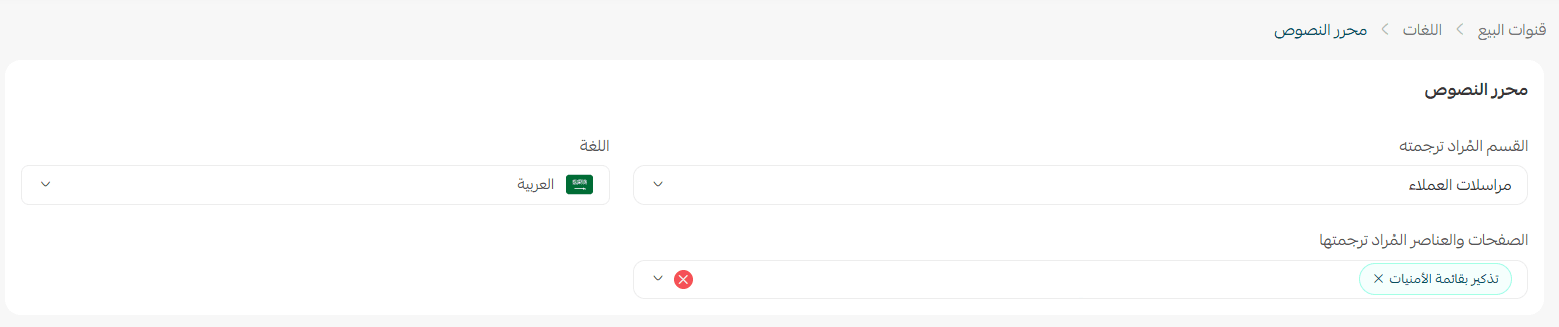
Then select the pages whose content you want to edit, such as the wishlist reminder.
For more details, see translating your store manually with the text editor.
Wishlist notifications cost you nothing to run and speak only to customers who already picked the product. Switch them on, pick the channels your audience actually reads, and let saved items turn into orders on their own.