Shipping settings can directly impact your customers’ checkout experience and your store’s operational efficiency. From free shipping and cash on delivery to warehouse mapping and smart shipping rules, Salla gives you flexible tools to customize shipping based on your business needs.
In this guide, you’ll learn how to manage shipping company settings, customize shipping options, and improve delivery workflows inside your Salla store.
📌 Article overview
- Access shipping settings
- Configure free shipping
- Set up cash on delivery
- Manage shipping company permissions
- Allow shipping companies to update order statuses
- Verify recipient phone numbers based on destination
- Create shipping routes and restrictions
📝 Important note: Shipping applications are not available for stores subscribed to the Plus plan.
🎯Access shipping settings
1. From the main menu, click (Shipping Settings) then choose (Shipping).
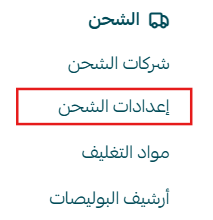
2. The shipping settings page will appear, where you can customize options based on your store requirements.
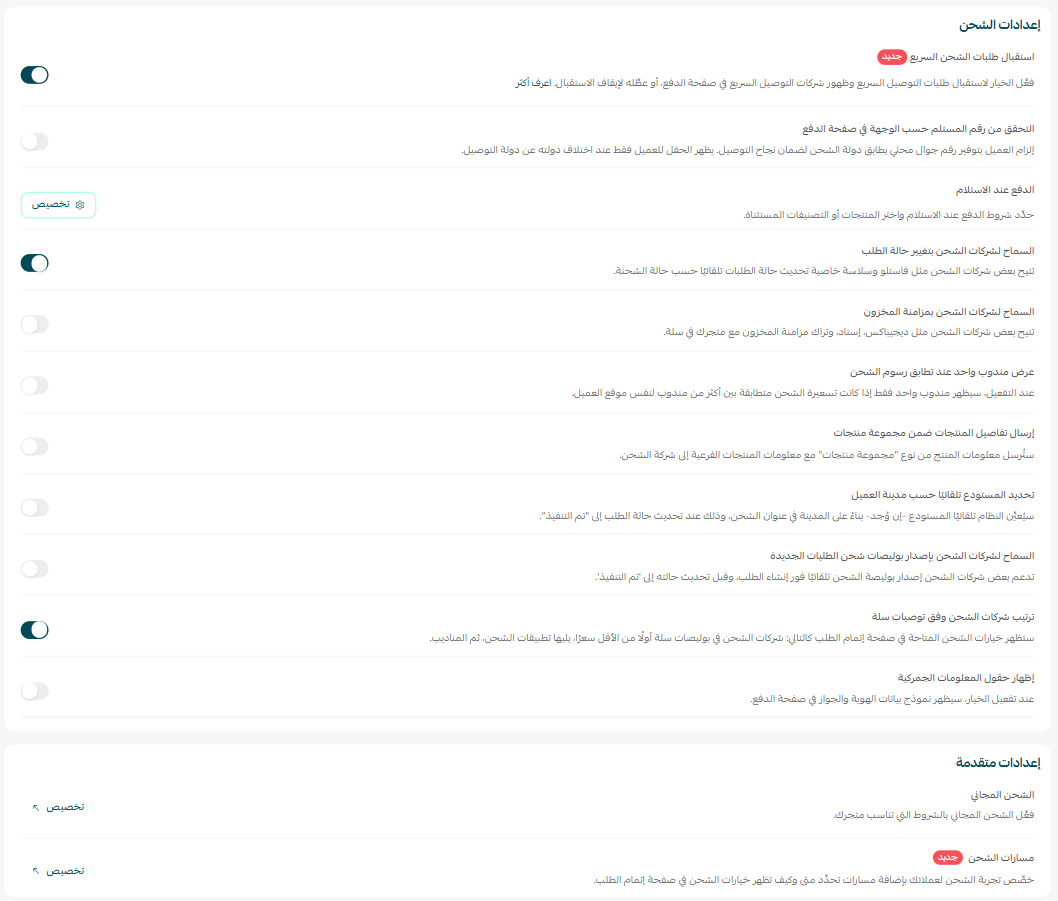
Configure free shipping
To add conditions for free shipping:
- From the Free Shipping section, click Customize.

You can configure free shipping rules based on your business strategy to encourage larger orders and improve customer satisfaction. Learn in this article how to set up Free Shipping and customize it to align with your business strategy.
For example, you can:
- Set a minimum order amount
- Limit free shipping to specific regions
- Apply free shipping to selected products or categories
Well-planned free shipping campaigns can help increase conversion rates and improve the customer experience.
Set up cash on delivery
To enable cash on delivery:
- From the Cash on Delivery section, click Customize.

2. Configure the available conditions, including:
- Minimum order amount
- Maximum order amount
- Additional payment settings
3. After updating the settings, click Save.
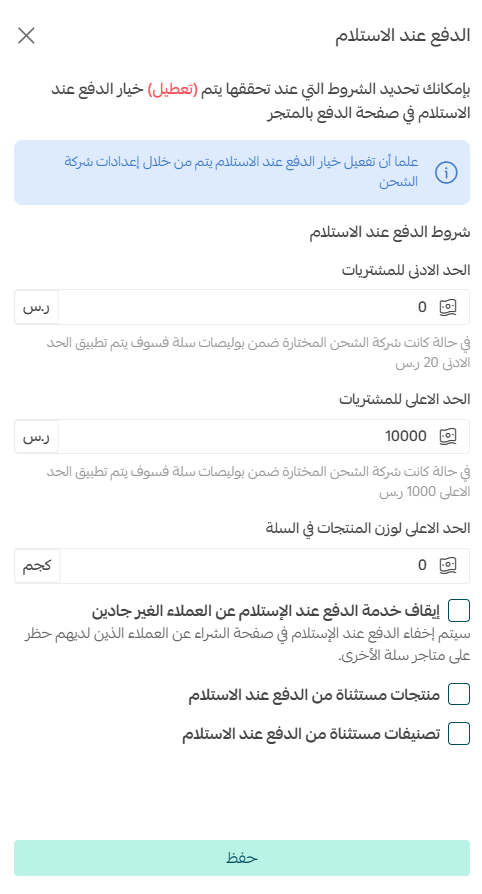
Customizing cash on delivery settings helps you control operational costs while offering customers more payment flexibility.
Manage shipping company options
Shipping company options allow you to grant shipping providers additional permissions to improve automation and operational efficiency.
The available options include:
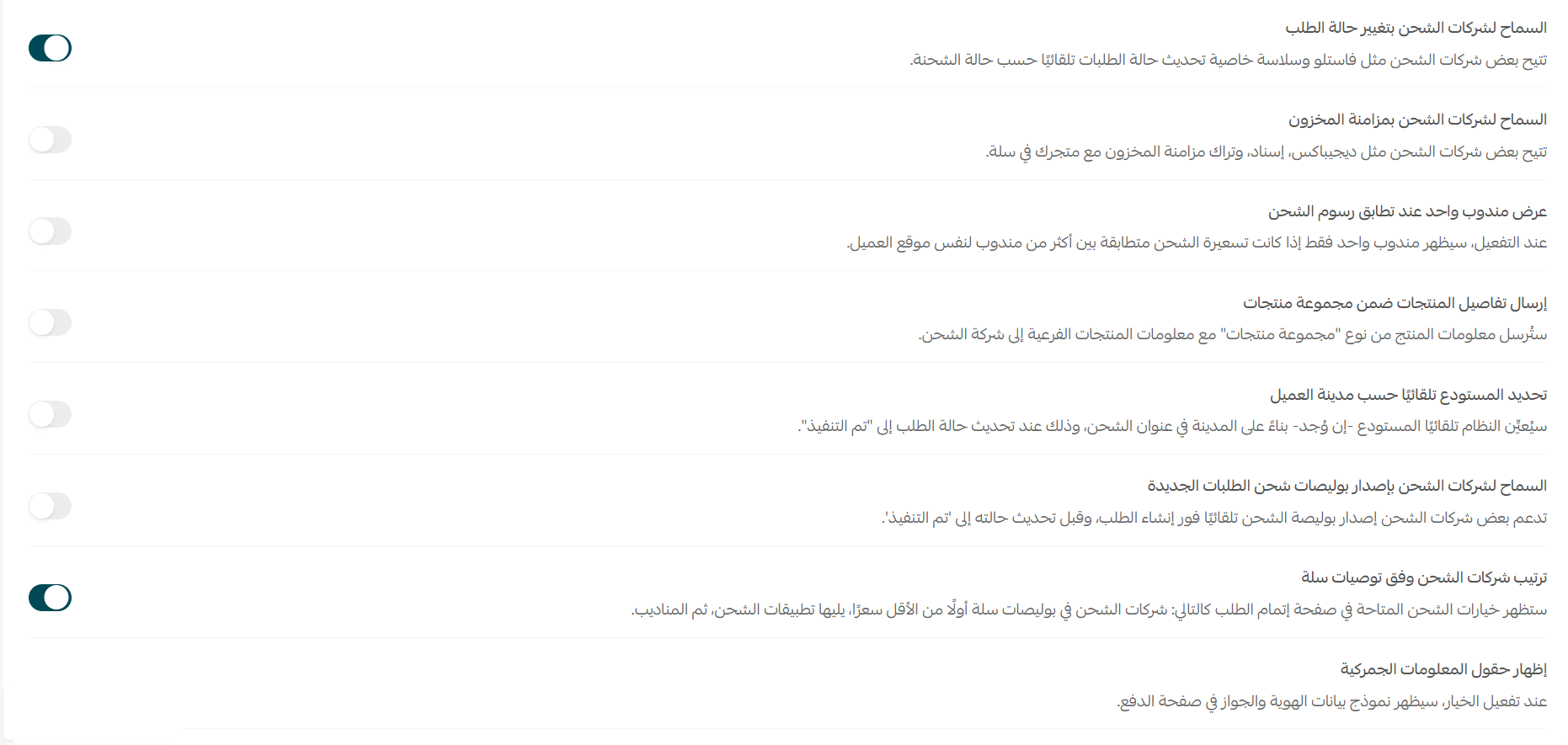
🔁 Automatically update order status
Allows shipping companies to update order statuses automatically without manual intervention, helping streamline order tracking.
📦 Quantity synchronization
Enables shipping companies to access real-time inventory quantities, reducing shipping and fulfillment errors.
🏷️ Show one shipping company when custom fees apply
If multiple shipping companies have special pricing conditions, the system displays only the most suitable option to avoid confusing customers during checkout.
📤 Send sub-product details
If a product includes multiple components or variations, all related details are shared with the shipping company to ensure accurate fulfillment.
🏢 Link customer city to shipping warehouse
The system automatically selects the nearest warehouse based on the customer’s shipping address to help reduce delivery time.
🚫 Prevent shipping for incomplete orders
Prevents shipping labels from being issued unless the order status is marked as Fulfilled, helping avoid operational issues.
These settings help create a smoother integration between your store and shipping providers while improving delivery workflows and customer experience.
Allow shipping companies to update order statuses
You can allow shipping companies to update order statuses automatically by enabling two separate settings.
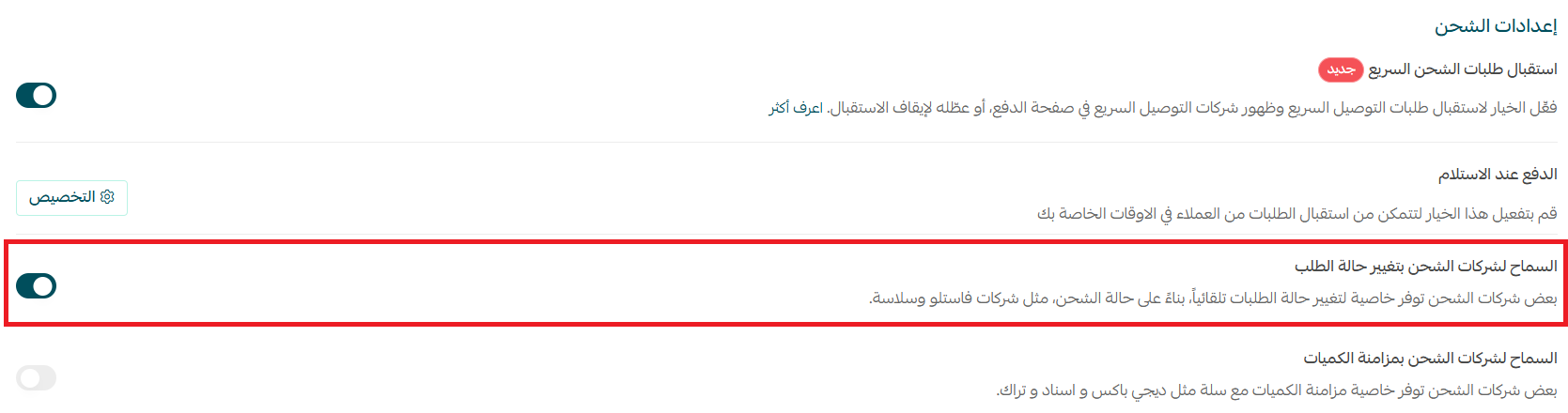
Step 1: Enable the global setting
1. From the shipping settings page, enable: Allow shipping companies to change order status.
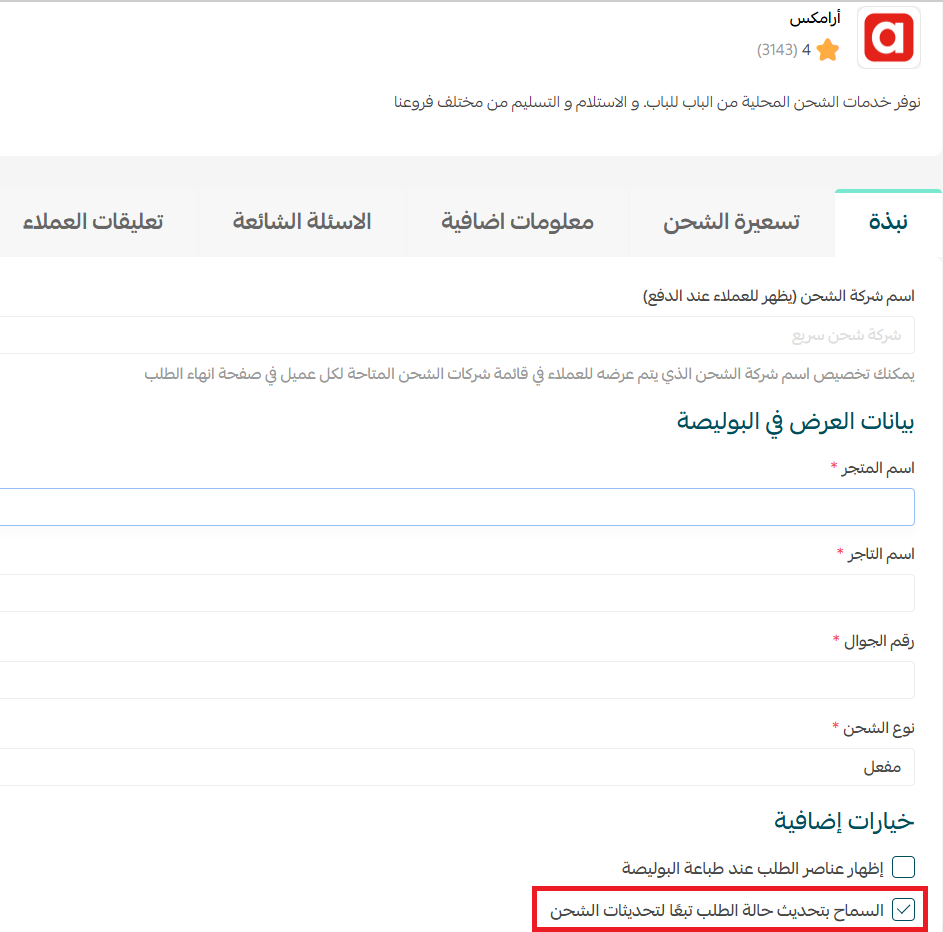
Step 2: Enable the setting for each shipping company
1. Open each shipping company individually.
2. From the Overview tab, enable: Allow updating order status based on shipping updates.
📝 Important note: Shipping companies will not be able to update order statuses unless both settings are enabled together.
Verify recipient phone number based on destination
This feature helps reduce shipping errors and improve delivery success rates by ensuring the customer enters a valid local phone number that matches the destination country.
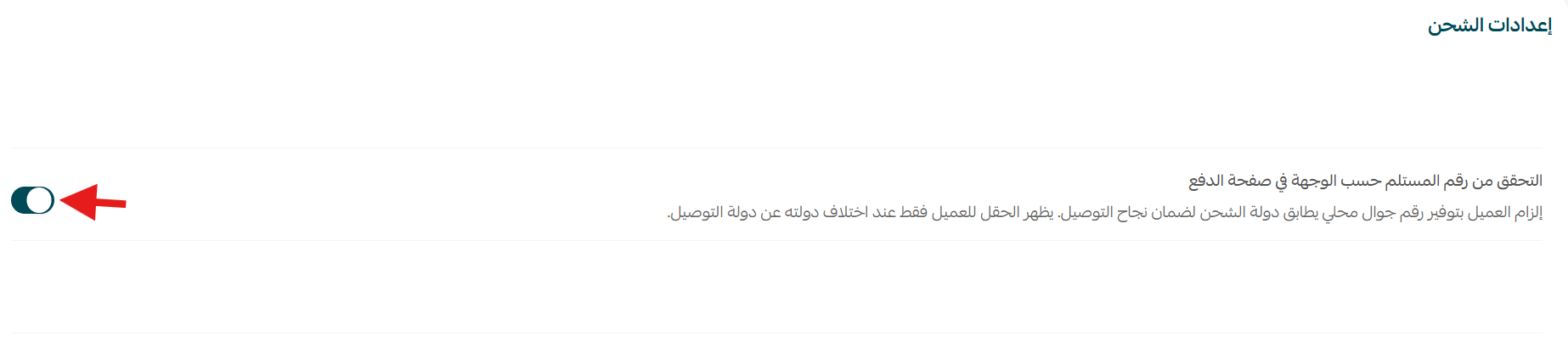
The system automatically checks the customer’s phone number during checkout:
- If the number matches the shipping destination country, it will be accepted automatically.
- If not, the customer will be required to enter a valid local mobile number with the correct country code before completing payment.
This helps improve delivery accuracy and reduces failed shipment attempts.
Configure shipping routes
Shipping routes allow you to apply specific conditions to orders and display selected shipping companies based on those conditions.
To create a shipping restriction:
- From the Shipping Routes section, click Customize.
- Select the condition you want to apply.

Learn in this article how to restrict the display of shipping companies to suit your products' nature and enhance your customers' experience.
Once configured, only the selected shipping companies will appear to customers when the defined condition is met.
This feature helps you:
- Reduce unexpected shipping costs
- Avoid delivery issues for specific products or regions
- Improve the checkout experience
- Offer more accurate shipping options to customers
Smart shipping rules give you greater control over how shipping providers appear during checkout, helping create a more efficient and reliable delivery experience for your customers.