Your TikTok videos are doing the selling. Are they anywhere near your product pages?
Short video is where shoppers decide what they want, but that content usually lives on TikTok while the buy button lives somewhere else. TikToCart closes that gap. It embeds your TikTok videos inside your Salla store, links each video to the products it features, and refreshes the feed automatically so you are not re-uploading clips every week. In this guide, you'll learn how to install TikToCart, connect your TikTok account, upgrade your plan, and remove the app if you no longer need it.
TikToCart is a Salla app that displays your TikTok videos inside your store and links each one to the products it features. Videos refresh automatically, so you never manage them by hand. Install it from the Salla App Store, add your TikTok username, and connect your account.
📌 Article overview
- How to install and connect TikToCart
- How to manage TikToCart
- Frequently asked questions
👣 How to install and connect TikToCart
1. From the main menu, click (All), then under helper tools, click (App Store).

2. Search for the app using the search field.

3. On the TikToCart app page, click (Install).

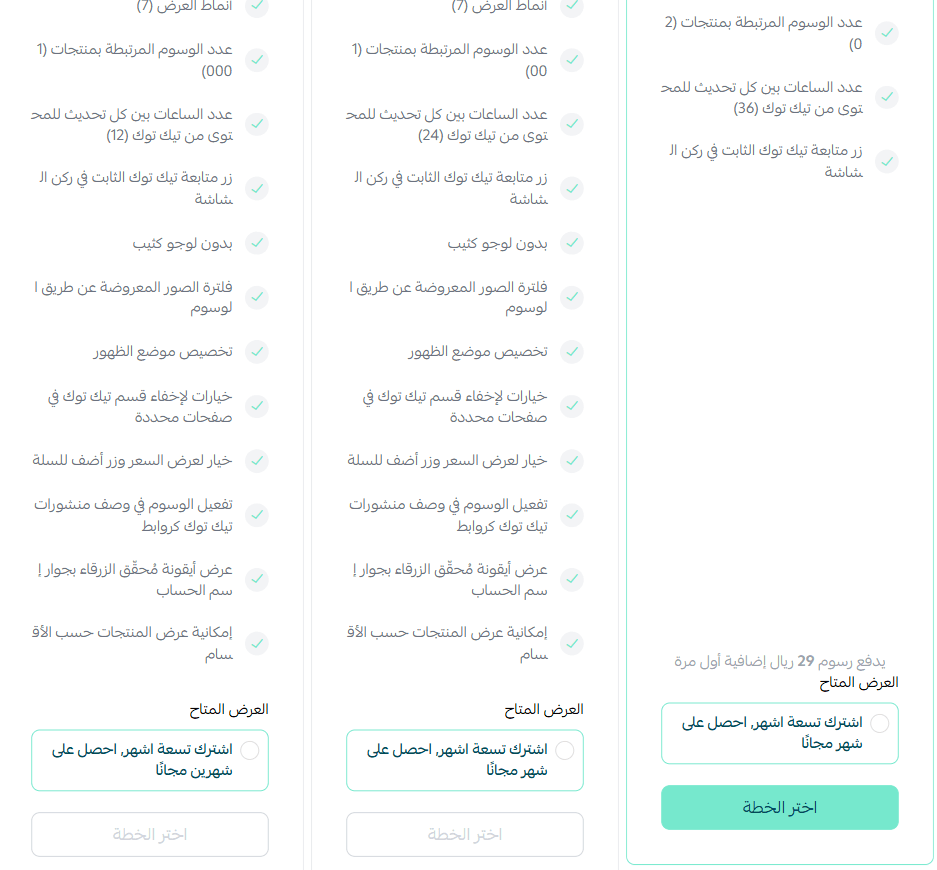
4. Choose the plan that suits you.
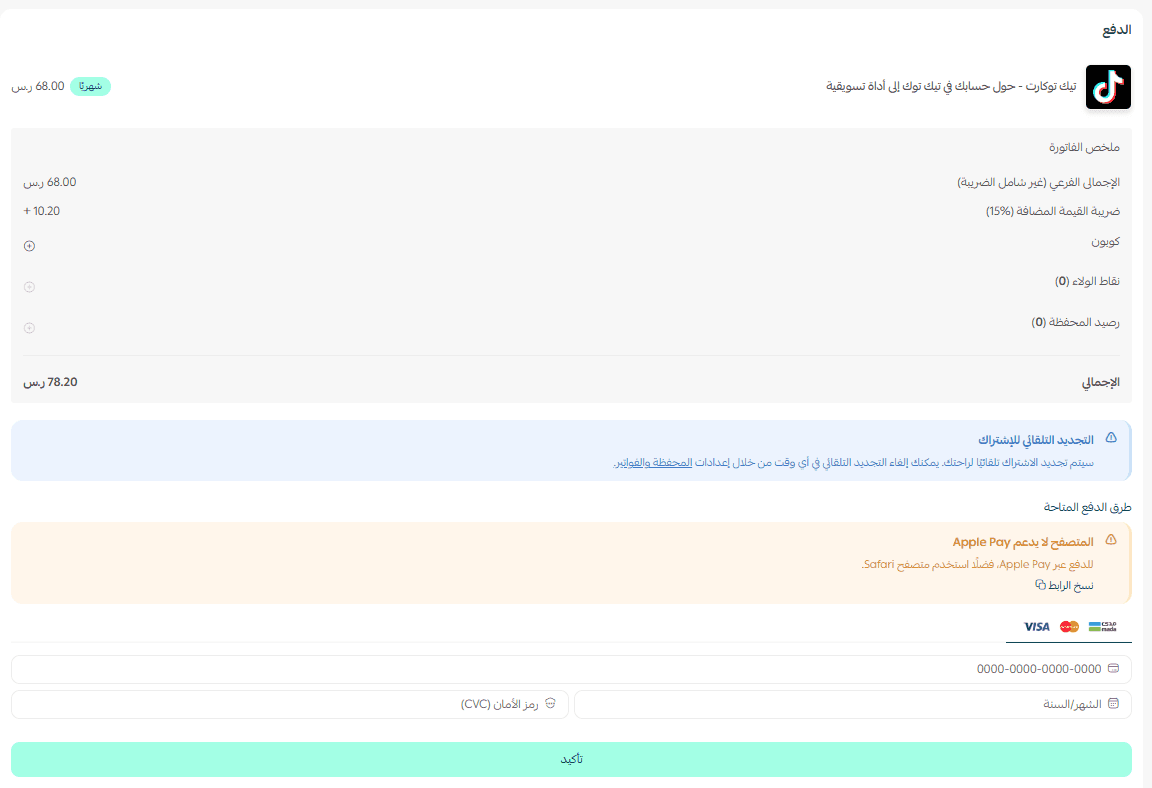
5. Enter your payment details, then click (Confirm).
6. Add your TikTok account username, then click (Let's start).

7. Click (Next step) to continue.

8. Add your contact details, then click (Next step).

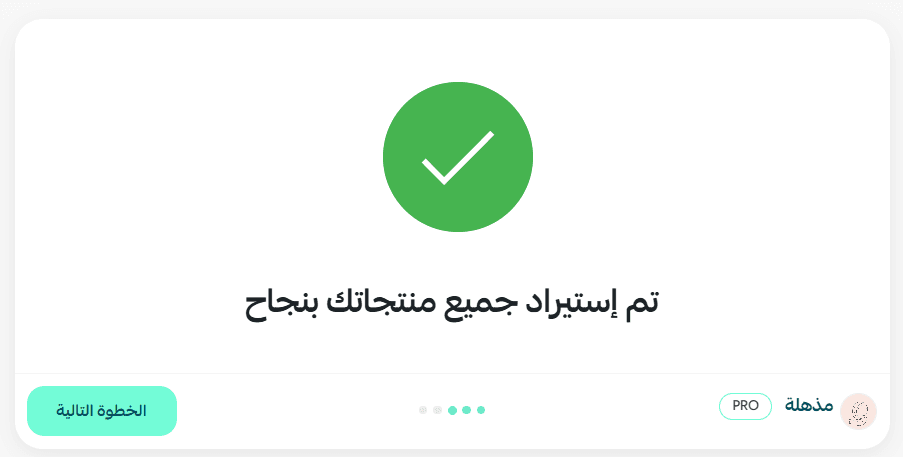
9. Wait for your products to import, then click (Next step).
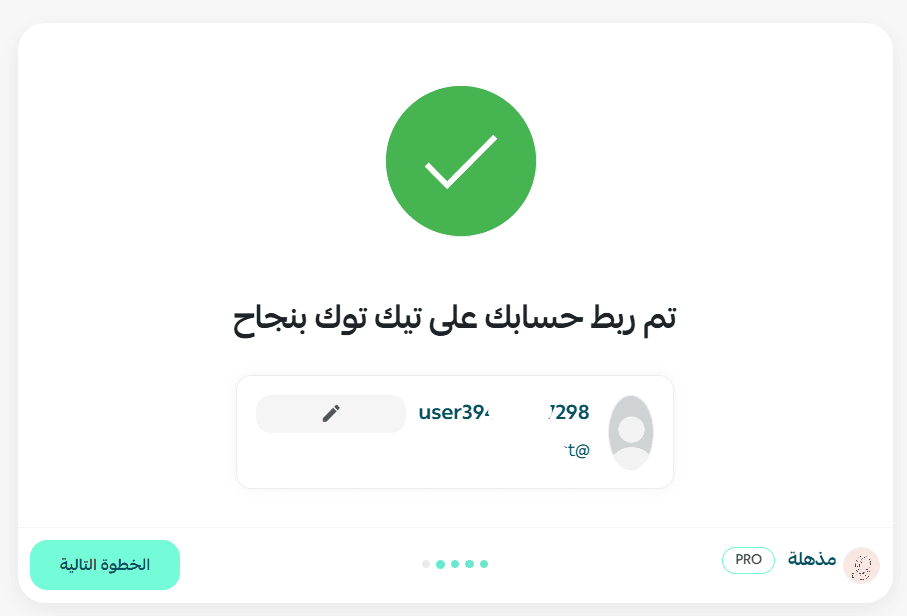
10. Once your account is connected, click (Next step).
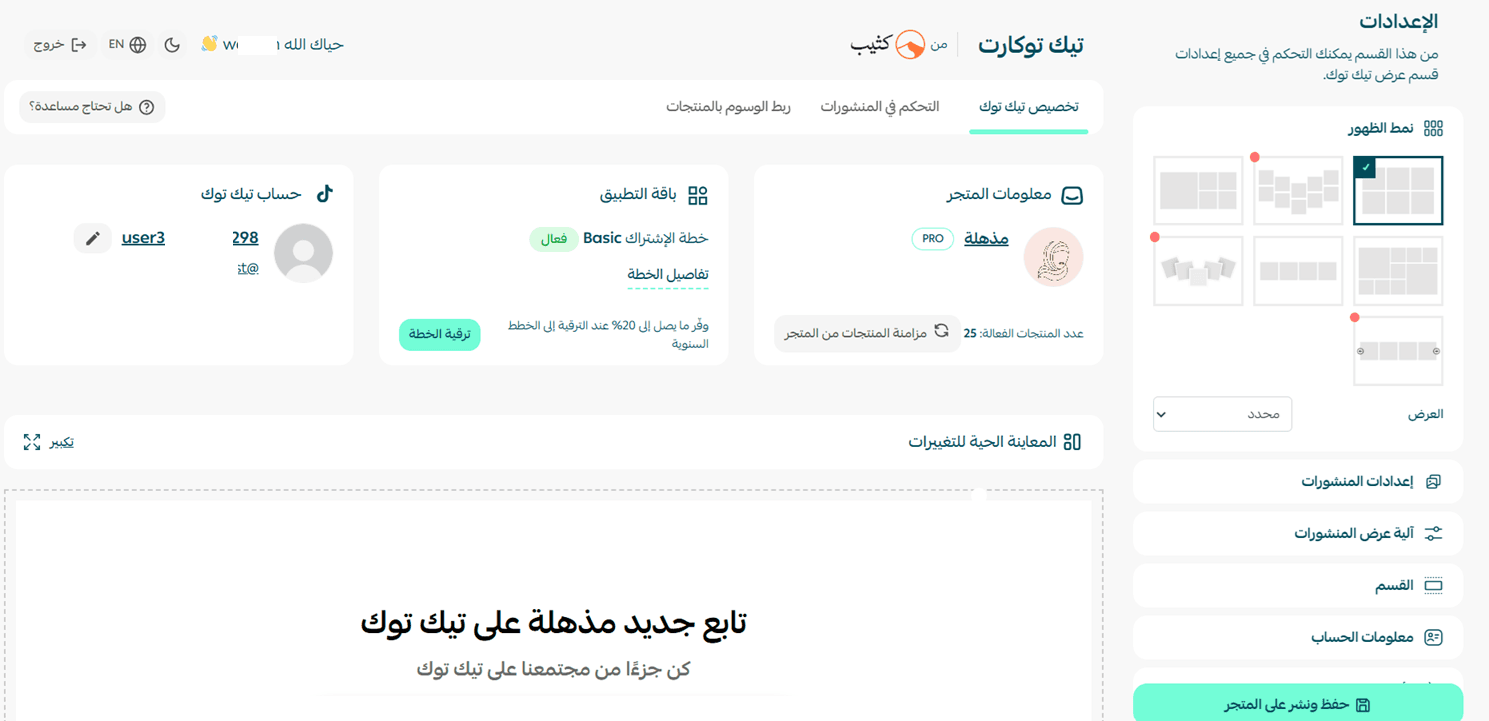
11. Your account dashboard opens on the TikToCart site.
🚀 How to manage TikToCart
Upgrade your plan
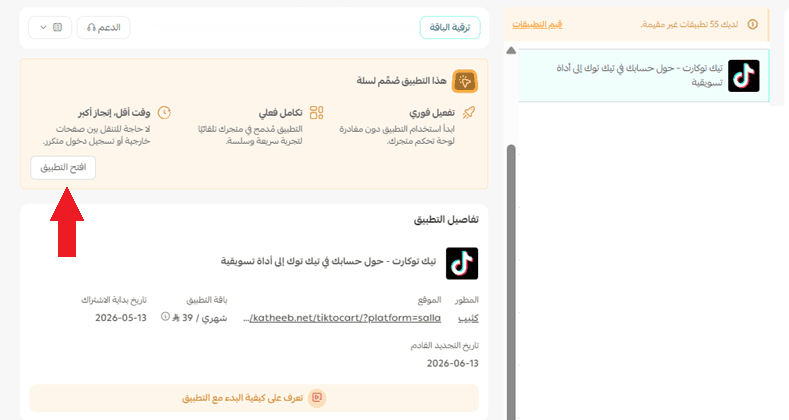
1. From the app details page in your store, click (Upgrade plan).

2. Select the plan you want, then click (Go to payment).

3. Enter your payment details, then click (Confirm) to finish the upgrade.

Customize the app
🎯 You can manage the app from the app details page in your store.
Remove the app
1. From the app options menu, click (Cancel subscription) and choose a reason for cancelling.

2. From the app options menu, click (Delete app) and choose a reason for deleting.

3. From the deleted apps page, open the app options menu and click (Delete app permanently) to remove it from your store for good.

📝 Important notes
- Your TikTok account is connected by username during setup, so make sure you enter the account whose videos you want shown in your store.
- Videos update automatically once the account is connected, so new posts appear in your store without any manual work.
❓ Frequently asked questions
What does TikToCart show in my store?
It displays your TikTok videos inside your store as an interactive feed, with each video linked to the products it features so shoppers can go straight from watching to buying.
Do I have to upload each video myself?
No. Once your TikTok account is connected, the app keeps the videos updated automatically, with no manual management on your side.
Where do I manage my videos and products?
Setup finishes on the TikToCart site, where your account dashboard opens. Inside your store, you manage the app itself from the app details page.
Does deleting the app remove it completely?
Not on its own. After you cancel the subscription and delete the app, open the deleted apps page and click (Delete app permanently) to fully remove it.
For more details, see the TikToCart app page.
Video is already how people shop. Putting the clips that sell next to a buy button is the shortest route from watching to ordering.