Want AI to write your product descriptions, analyze your sales, or draft your marketing copy - but not sure how to ask for it?
Writing a prompt that actually returns something usable takes practice, and most merchants don't have time to experiment. That's what the AI prompts library in Salla is for: a set of ready-made prompts written specifically for online stores, so you can paste one straight into a tool like ChatGPT or Claude instead of writing it yourself. In this guide, you'll learn how to open the library, how to search and filter it, and how to run the prompt you picked.
Salla's AI prompts library is a free collection of ready-made prompts built for online stores. Open it from Merchant tools, search or filter for the task you need, then click (Use this prompt) and open it directly in ChatGPT or Claude. No store account is required.
📌 Article overview
- How to open the AI prompts library
- How to search and filter the prompts
- How to use a prompt from the library
- Frequently asked questions
🚀 How to open the AI prompts library
1. From the Help Center, go to (Merchant tools).
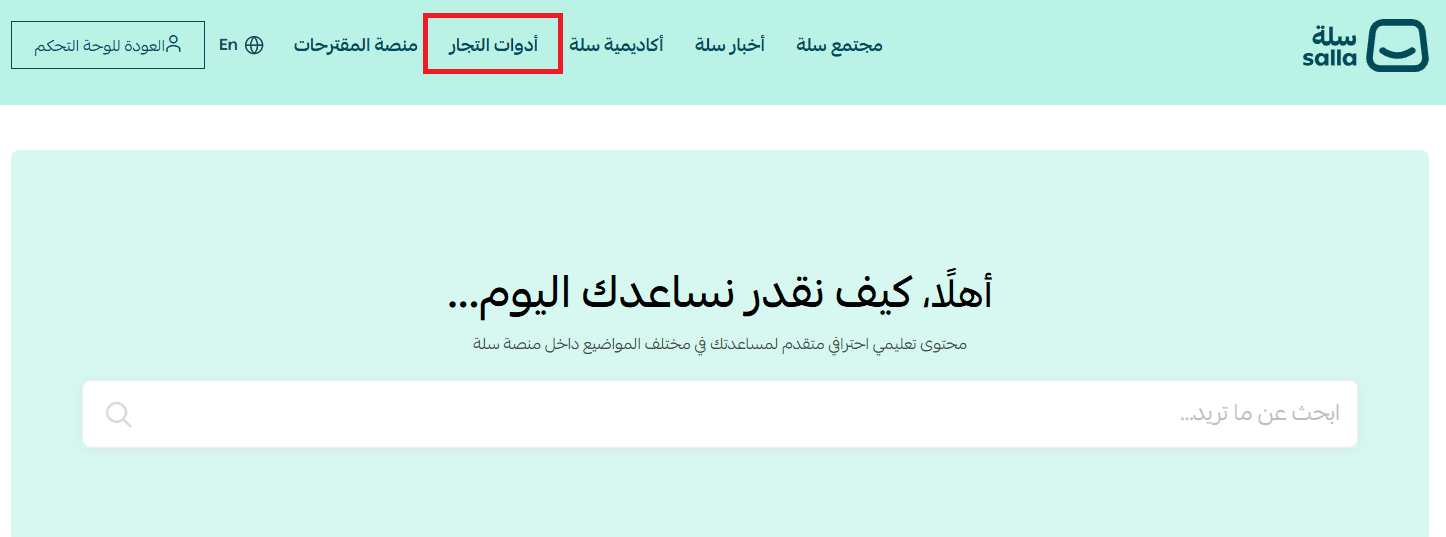
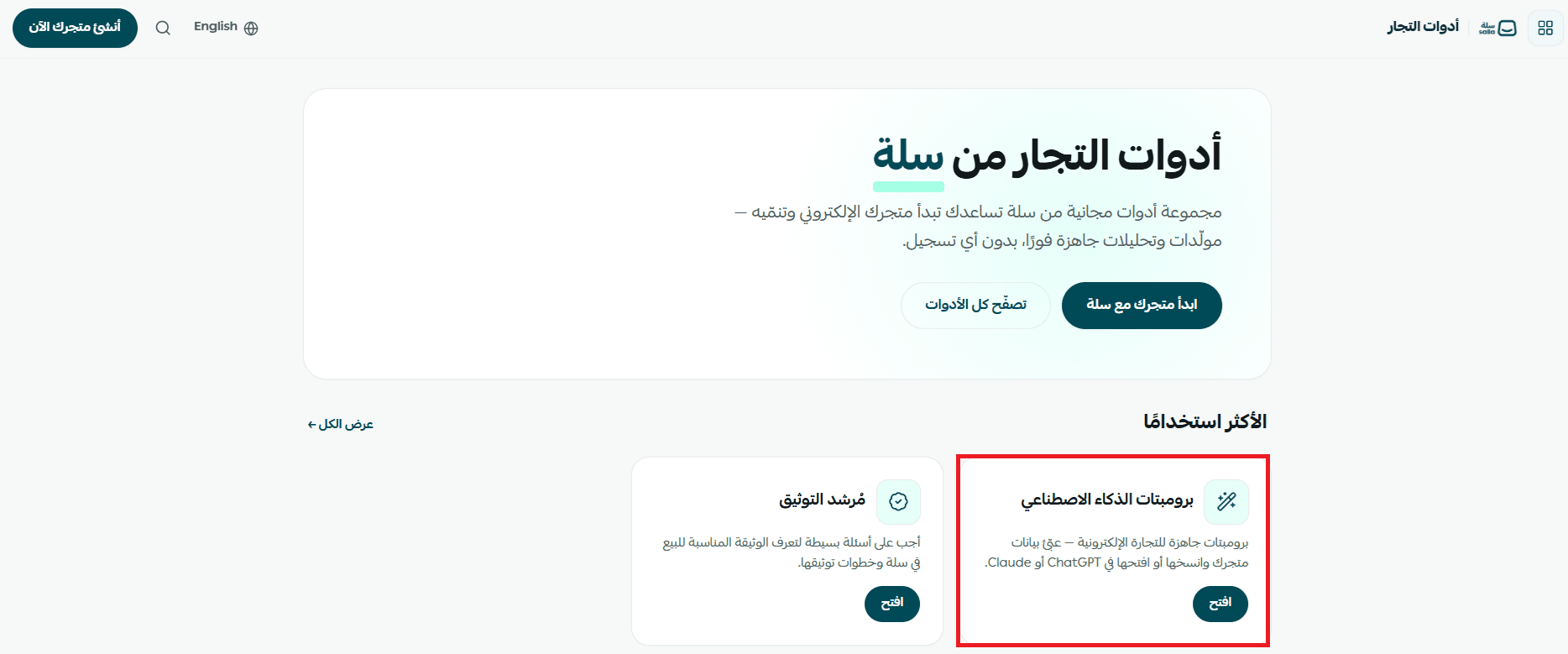
2. On the main page, choose (AI prompts).
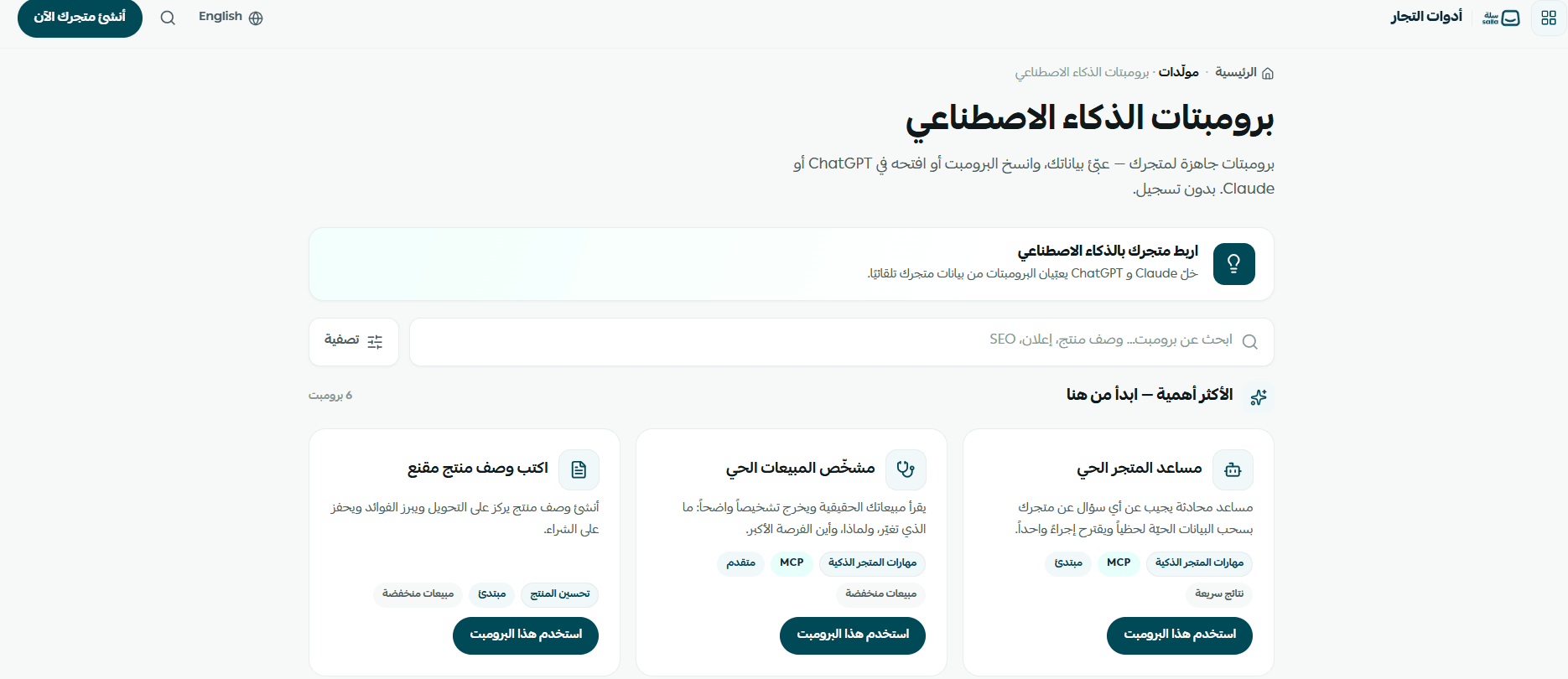
3. The prompts library opens. From here you can browse the ready-made prompts, search them, and use them right away.
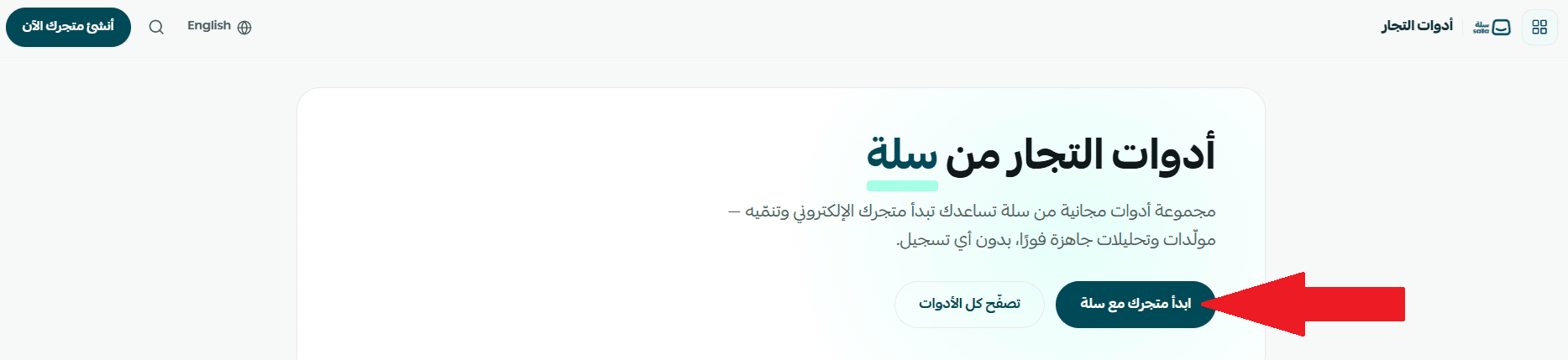
If you don't have a store yet, click (Start your store with Salla) to create one. Existing merchants can browse and use the prompts library directly, with no sign-in.
🔍 How to search and filter the prompts
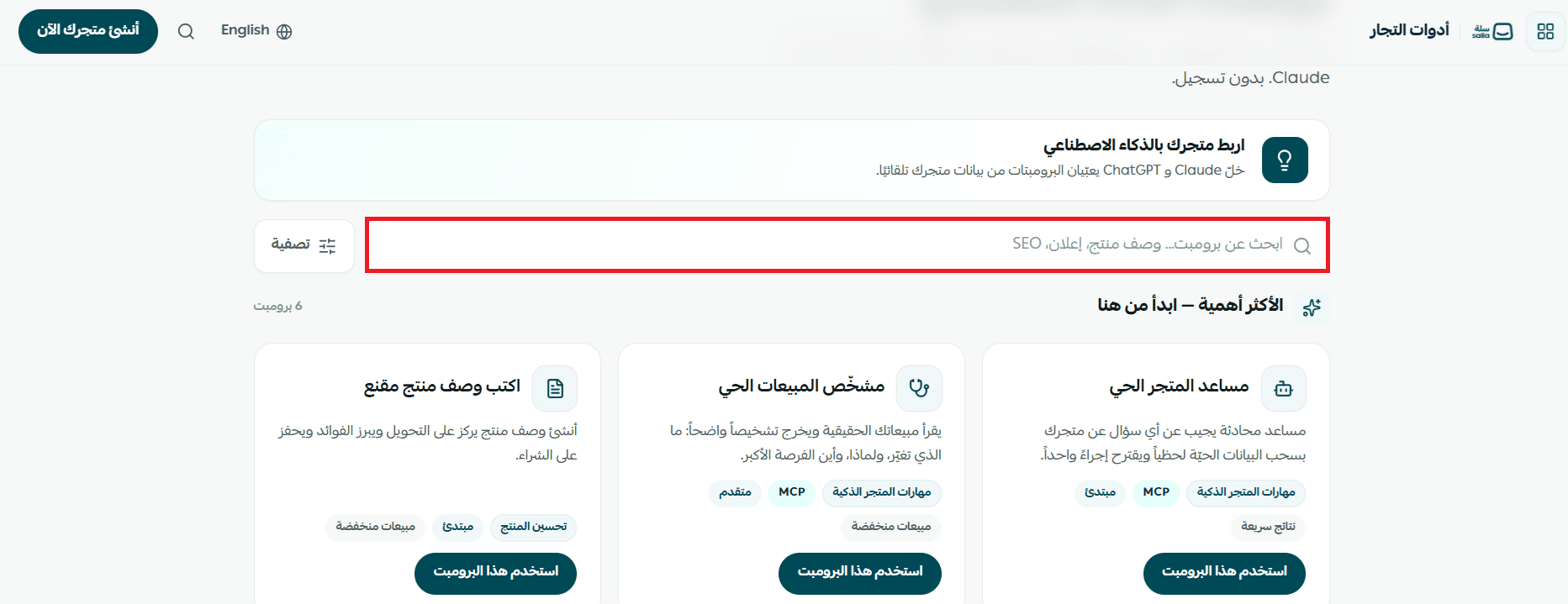
1. Type a keyword for what you need into the (search box) - for example SEO, ad, or product description.
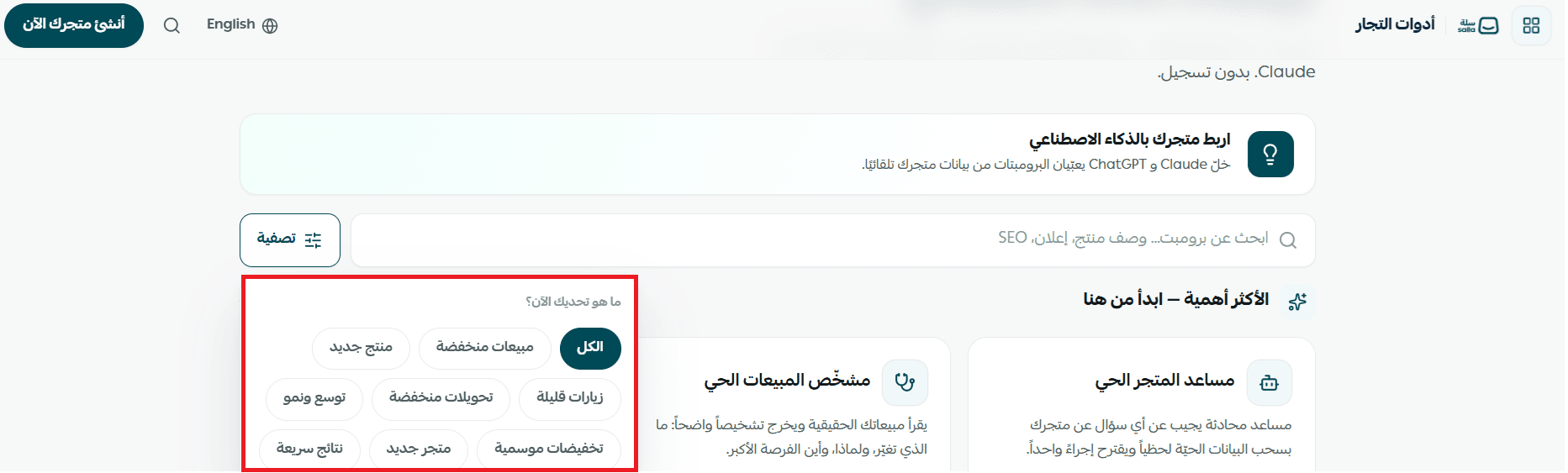
2. Or click (Filter) to narrow the list down to the challenge you're facing or the goal you want to reach.
💡 Tip: the (Most important - start here) section at the top of the page collects the prompts merchants use most. It's a good place to begin if this is your first visit to the library.
🤖 How to use a prompt from the library
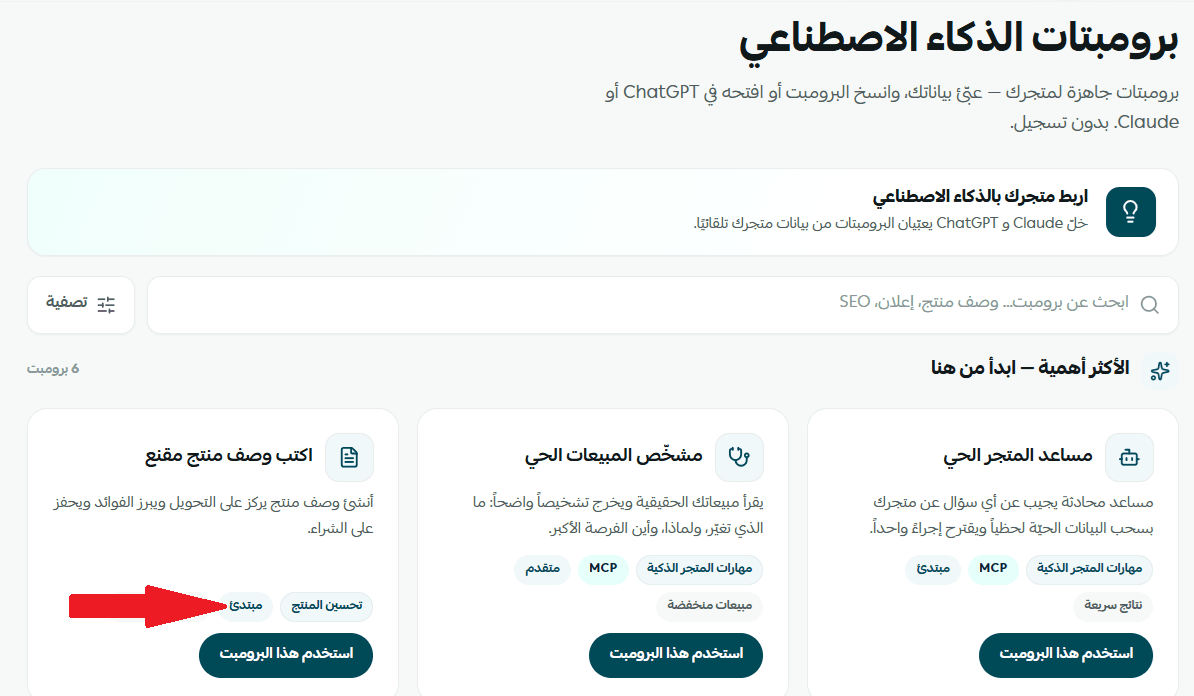
1. Browse the prompt cards and check the tags at the bottom of each one - Beginner, Advanced, or MCP. They tell you how difficult the prompt is and what it expects from you.
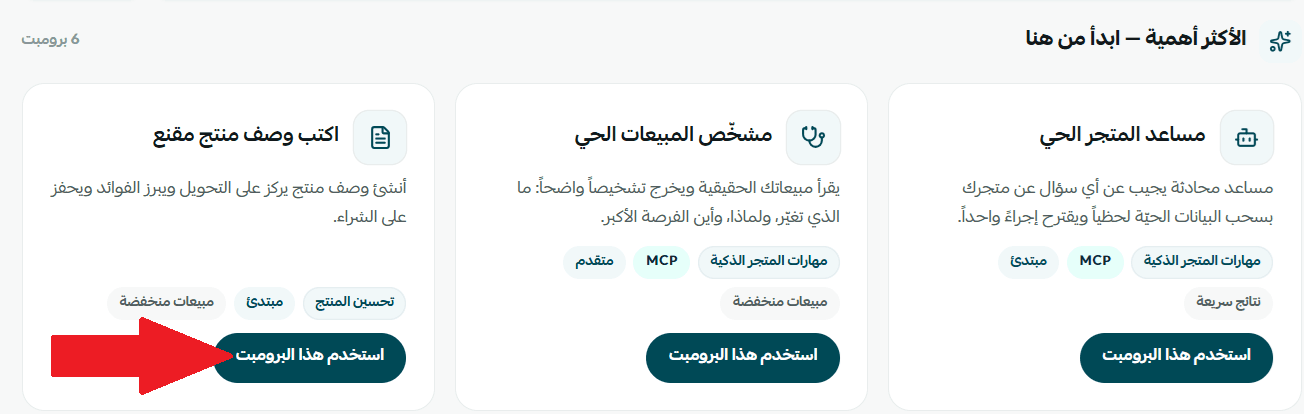
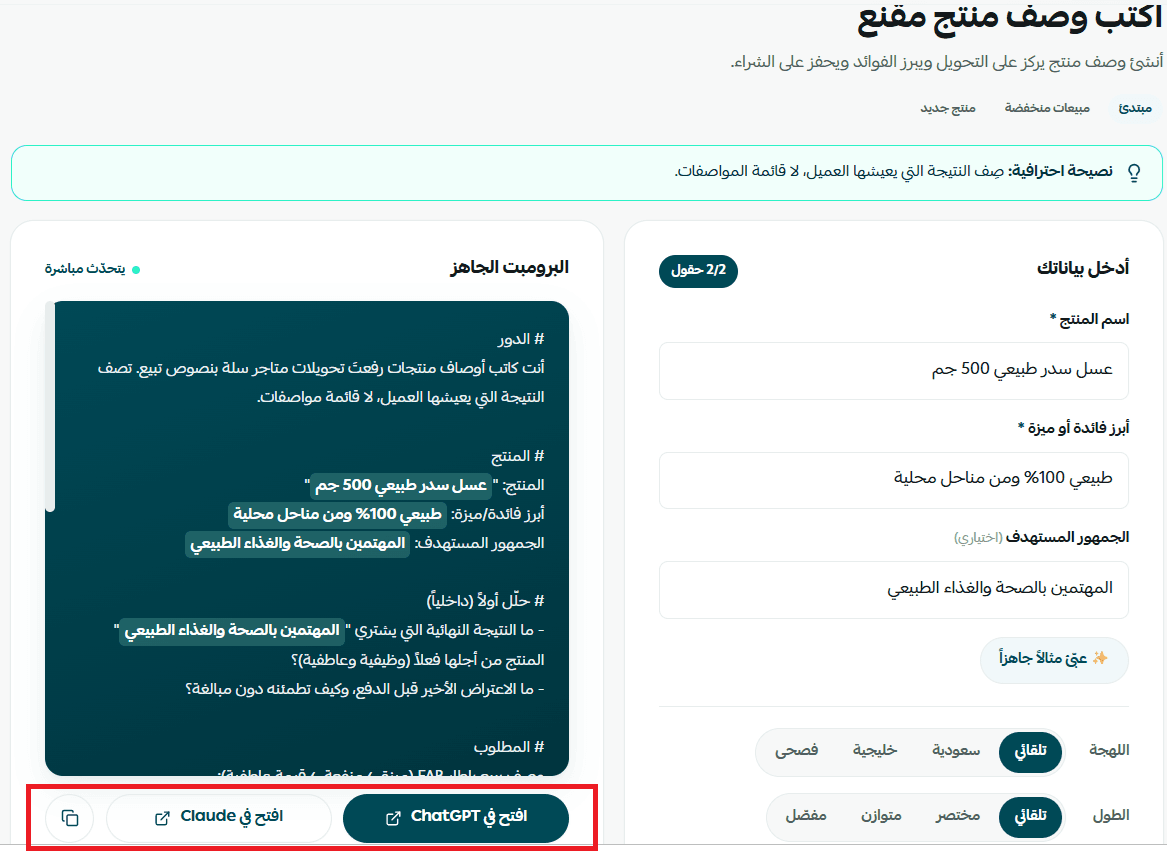
2. Once you've found the right prompt, click (Use this prompt) at the bottom of the card.
3. Click (Open in ChatGPT) or (Open in Claude) to run the prompt. If your store is already connected to the AI tool, the prompt is filled in with your store's own data, so the result comes back tailored to you.
📝 Important notes
- Prompts tagged (MCP) need your store connected to the AI tool first. Use the (Connect your store to AI) button, and the prompt can then read your store data automatically instead of you typing it in.
- Every other prompt works without connecting anything.
- Browsing and using the library is free, with or without a Salla store.
❓ Frequently asked questions
Is the prompts library free to use?
Yes. Browsing and using the prompts is completely free, even if you don't have a store registered with Salla.
Do I have to connect my store to Claude or ChatGPT to use every prompt?
No. Only prompts tagged (MCP) need the connection, because they read your real store data. Everything else you can use right away.
What do the difficulty tags on the cards mean?
Tags such as (Beginner) and (Advanced) tell you how complex the output is and how much data the prompt expects, so you can pick one that matches your needs and your experience.
Can I edit a prompt after copying it?
Yes. A copied prompt is plain, fully editable text - adjust it to fit your store before you send it to Claude or ChatGPT.
🔍 More learning resources
To learn more about connecting your store to AI tools such as Claude and ChatGPT, watch these two tutorials:
- Tutorial: connect your store to AI tools
- Tutorial: using the prompts library