Managing different types of customers: engaged, inactive, or high-risk, can be challenging without the right tools. You might miss sales opportunities or face losses from returns and failed orders.
With Salla, you now have full control over the customer card. From adjusting wallet balances to blocking risky customers and sending messages, all in one place with smart insights to help maintain a secure and reliable store environment.
Customer card actions
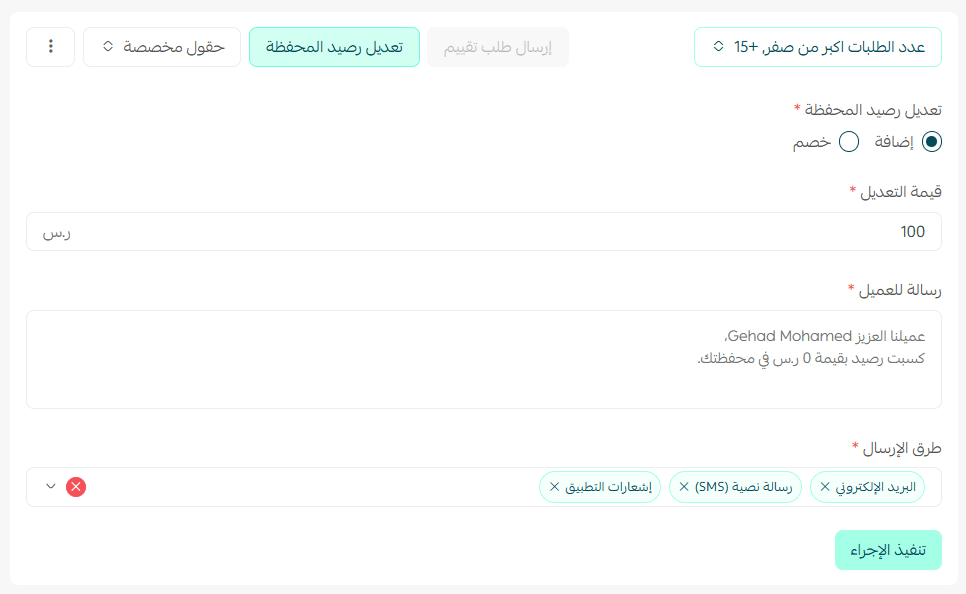
- Edit customer wallet balance
From the Customer Details page → Customer Actions → click Edit Wallet Balance

- Increase or decrease wallet points
- Customize the message sent to the customer
- Choose the notification channels
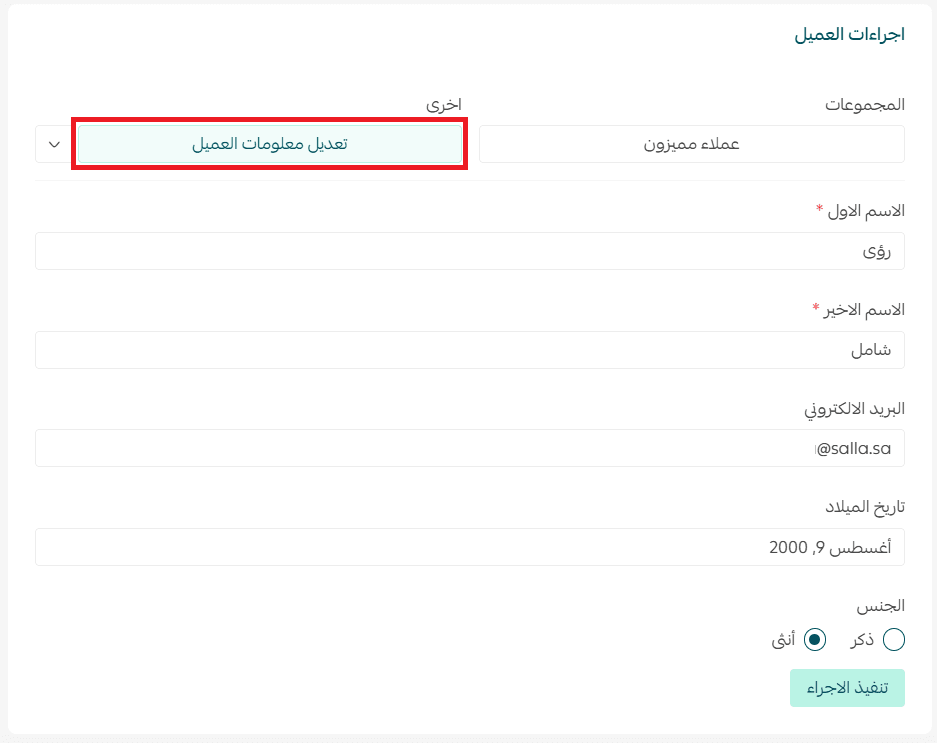
2. Edit customer information
You can update customer details directly from the customer card.
3. Send SMS to the customer
- Use one of the supported SMS providers in Salla
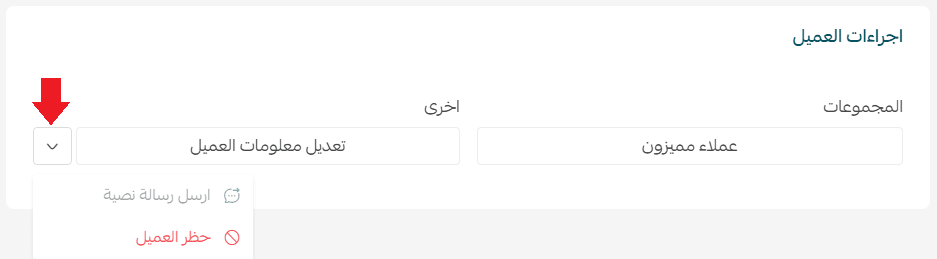
Note: A sender name must be configured
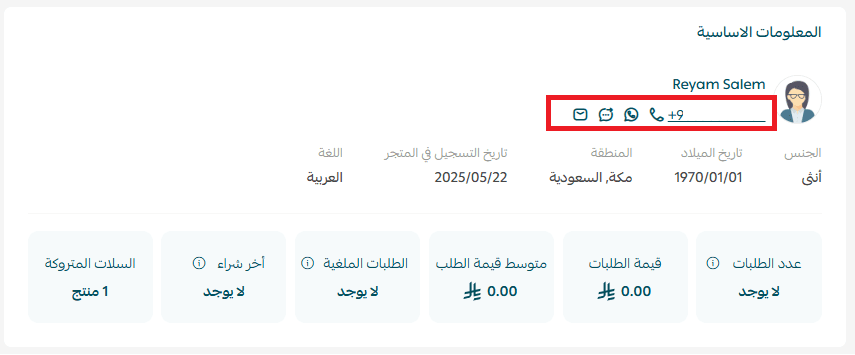
You can also contact the customer via the available communication channels from their profile.
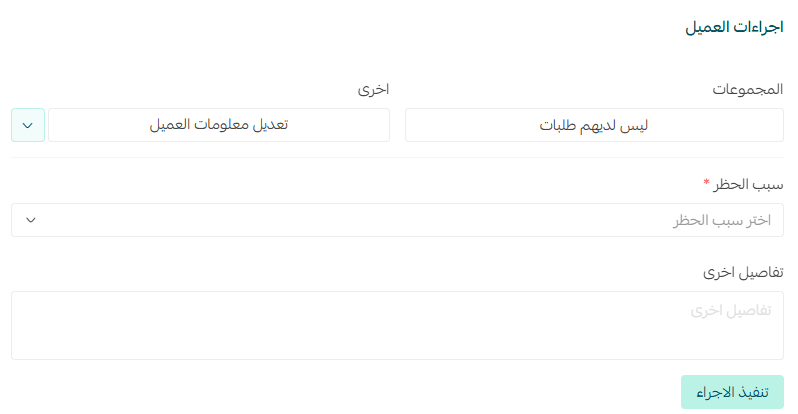
4. Block a customer
From Customer Management:
- Select the customer
- Click the arrow next to edit options
- Choose Block Customer

4. Select a reason and add details
5. Click Apply
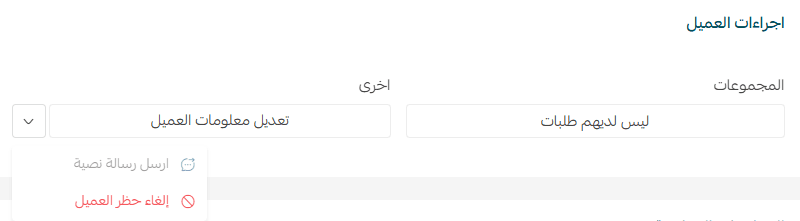
Unblock customer:
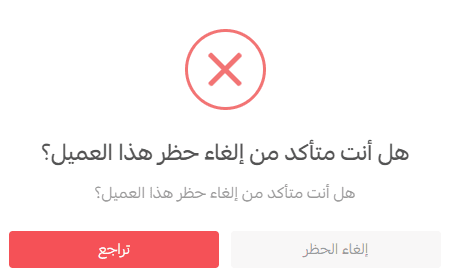
- Go to customer actions → Unblock Customer
- Confirm the action
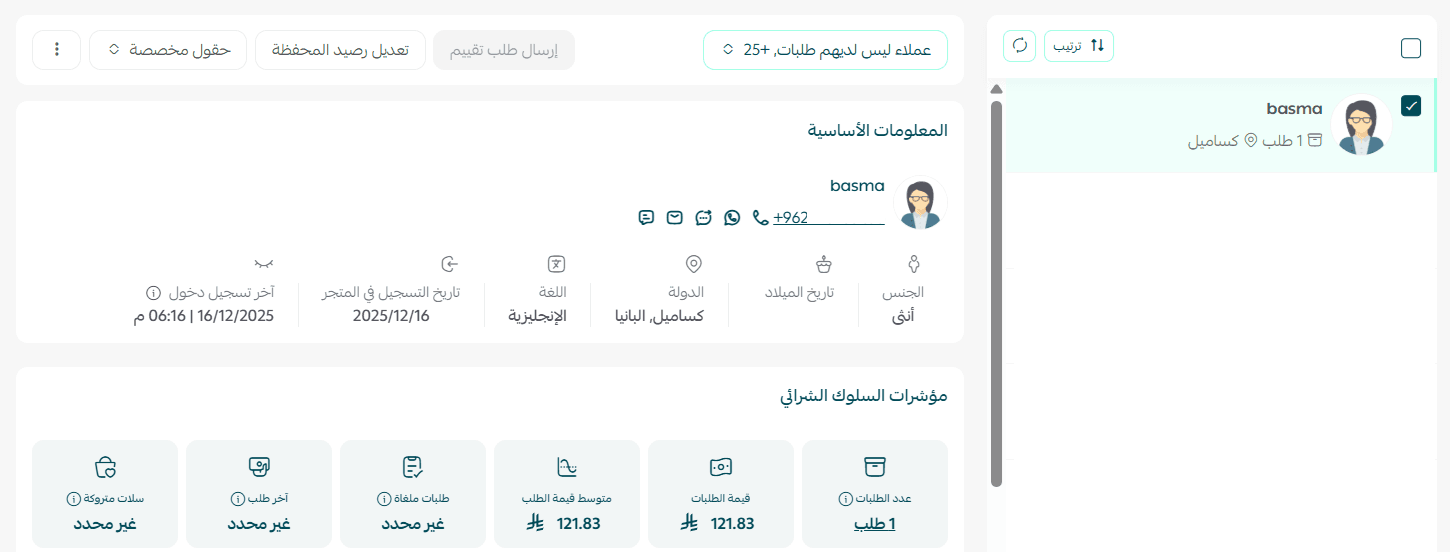
Fraud detection note
- A “Blocked Customer” tag appears next to the customer name
- Powered by AI-based fraud detection across Salla stores
- Helps identify suspicious or non-serious buyers
💡 Even if an order looks valid, this tag alerts you to double-check before shipping, reducing return losses.
You can also:
- Restrict risky customers
- Hide Cash on Delivery (COD) from them via shipping/payment settings
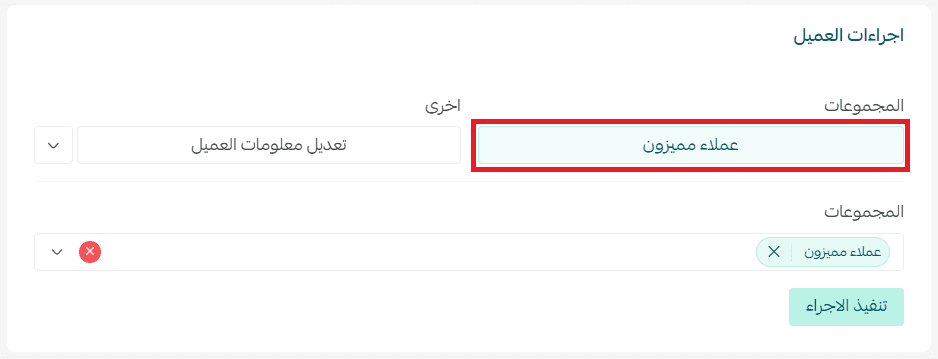
5. Add customer to groups
From Customer Actions → Groups
- Assign the customer to one or more groups
6. View customer orders
From the customer list:
- Open the customer profile
- In Behavior Indicators, click the number of orders

You’ll be redirected to the orders page with full details
7. Manage wishlist
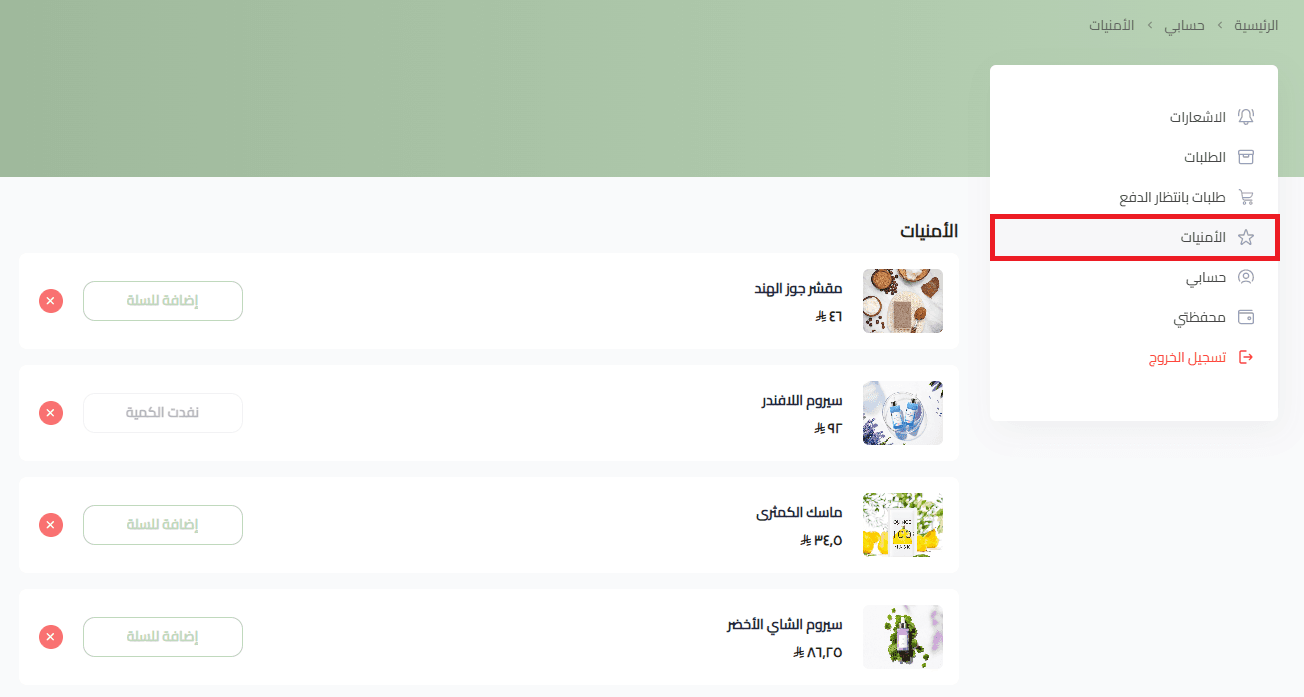
From customer side:
- Customer can view wishlist from their account
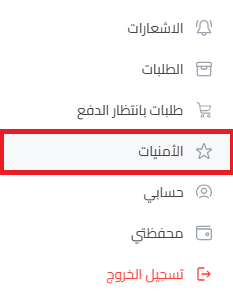
- Add items to cart or remove them
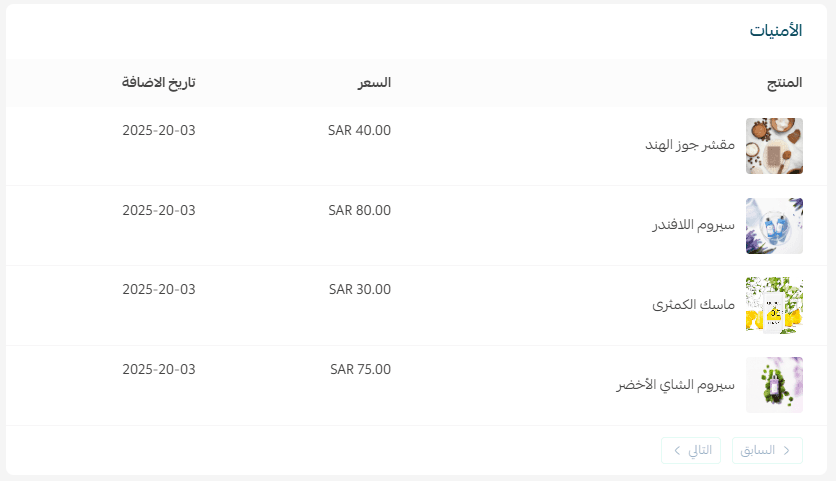
From merchant side:
- View wishlist in customer details
- See product names, prices, and added dates
Use cases:
- Send products as gifts
- Offer discounts on wished items
- Identify popular products to restock
8. Send review request
If the customer has unreviewed orders, you can manually resend a review request.
Note: Available on Pro & Special plans only
Steps:
- Go to Customer Actions
- Click Review Request → Send Review Request
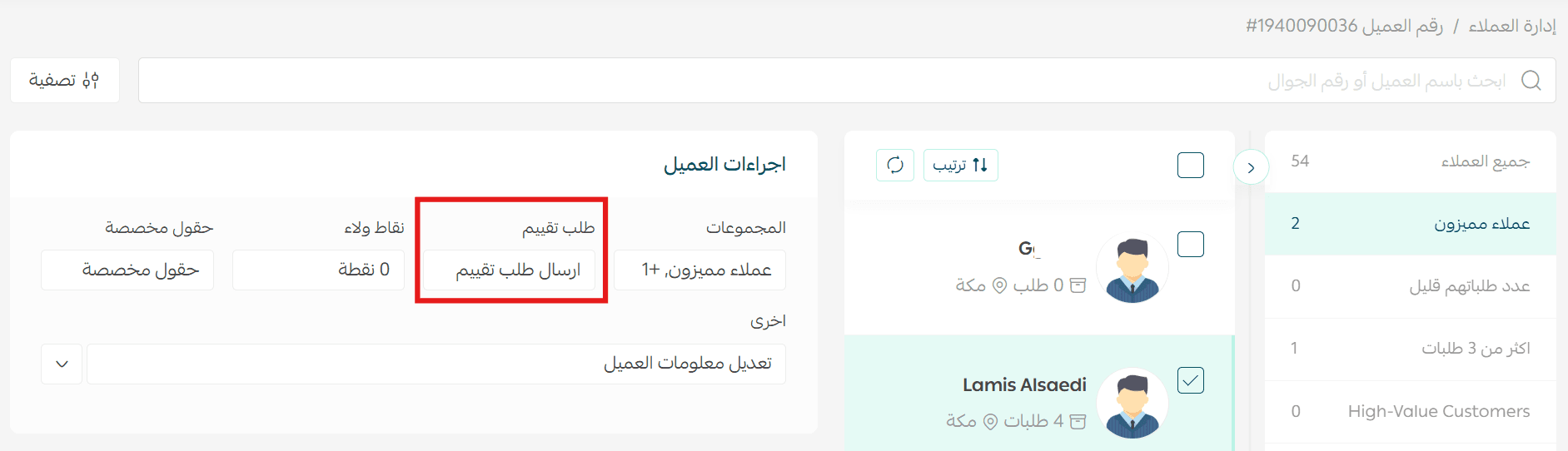
Notes:
- You can only send requests for unreviewed orders
- The message is sent via your configured notification channel
After receiving the message, the customer is redirected to a page showing only their unreviewed orders.
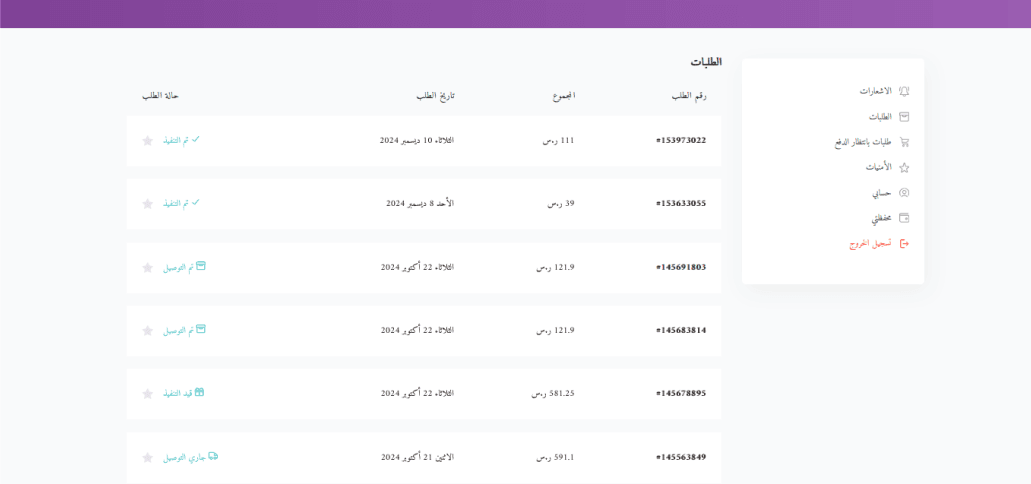
Tip
Use customer actions to optimize operations, reduce risks, and boost engagement, from managing wallet balances to blocking risky users and collecting reviews for continuous improvement.