No more wasting time on one by one edits. The Product Edit Table allows you to update prices, quantities, and key product attributes for multiple products at once, quickly and efficiently. This feature is designed to save time, reduce errors, and give you full control over bulk product management.
In this guide, you will learn how to filter products, customize editable fields, and apply bulk updates in an organized and seamless way.
📌 Article overview
- Filter products that require updates only
- Customize which fields you want to edit
- Update product data efficiently
Product Edit Table
Accessing the Product Edit Table
- From the main menu, click Products.

2. From the product sections, click Product Editor.

3. Follow the steps below to start editing your products.
Filter products before editing
There are several ways to select the products you want to update. The most common methods are outlined below.
Method one: Use the search bar

To quickly find specific products, use the search bar to search by:
- Product name
- SKU
- Specific branches
This method is ideal when you already know which products need updating.
Method two: Use the filter button
- From the Product Edit Table page, click Filter.

2. Select the filtering conditions from the list, then click Show results.
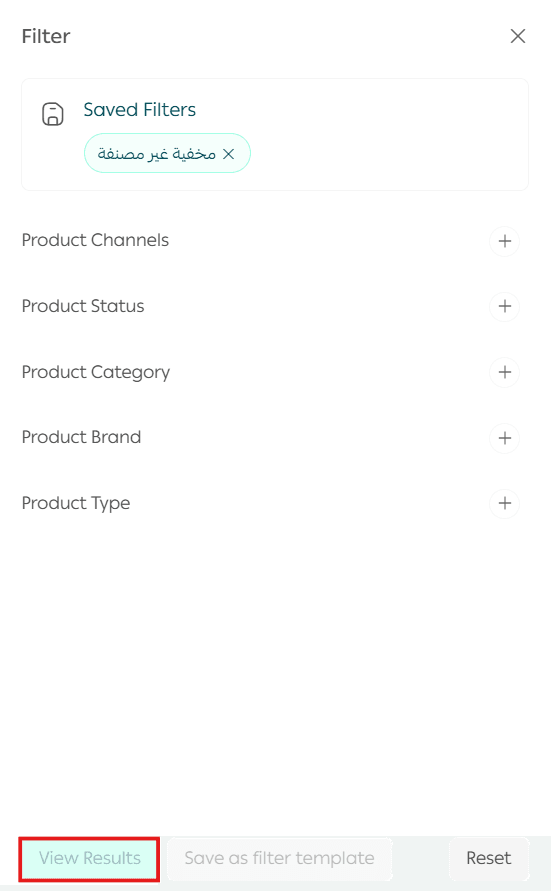
Filtering helps you narrow down large product catalogs and focus only on relevant items.
Method three: Use saved filter templates
You can save frequently used filter conditions as a reusable filter template.
- After selecting the desired filter conditions, click Save as filter template.

2. Enter a name for the filter template, then click Save template.
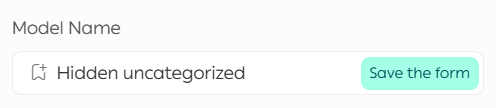
Next time, you can apply the saved filter instantly by selecting it from the saved filters bar.

To remove the currently applied filter, click Cancel.
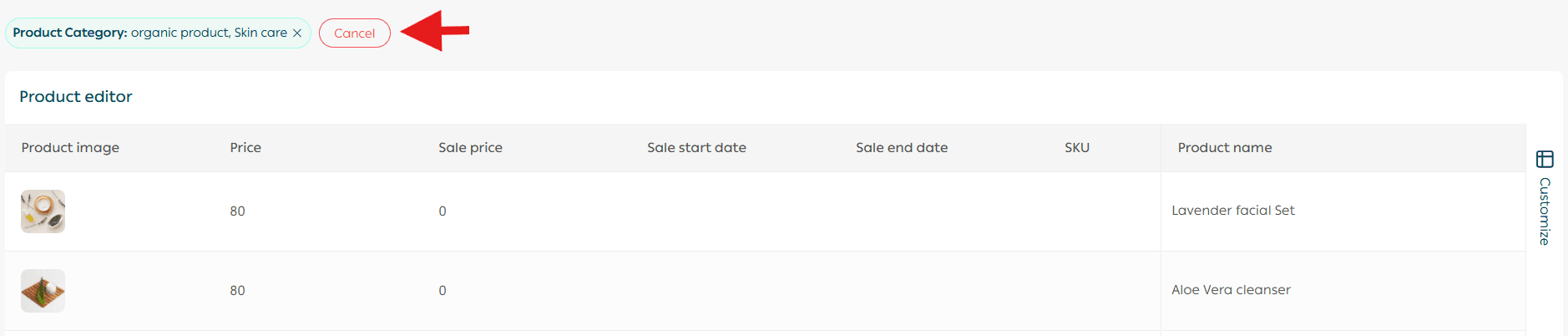
Customize the fields you want to edit
- From the side of the Product Edit Table page, click Customize.
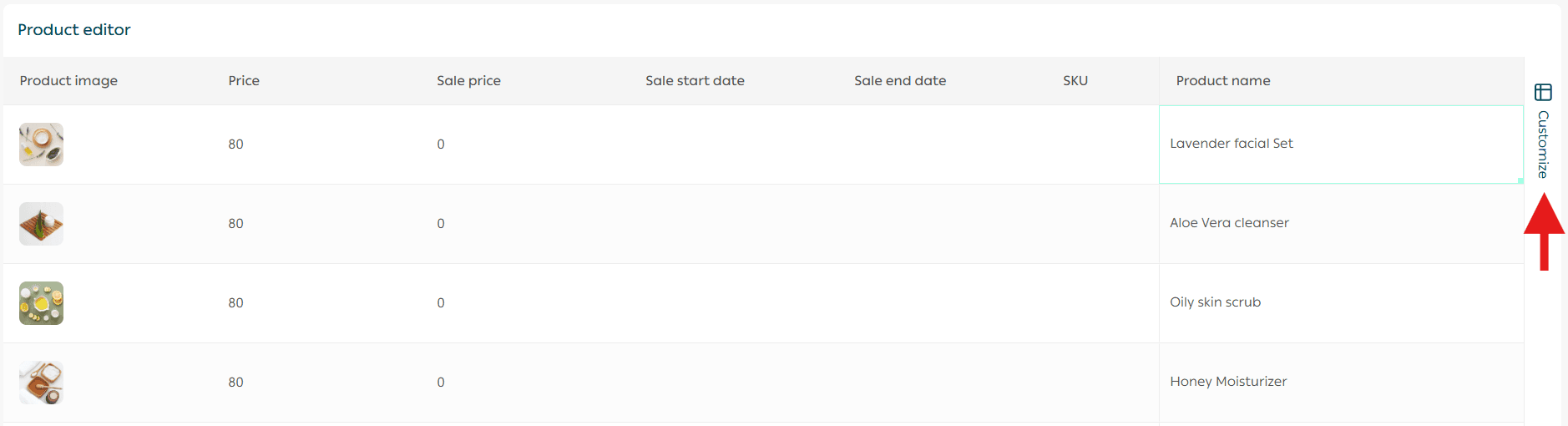
2. Select the fields you want to display and edit.
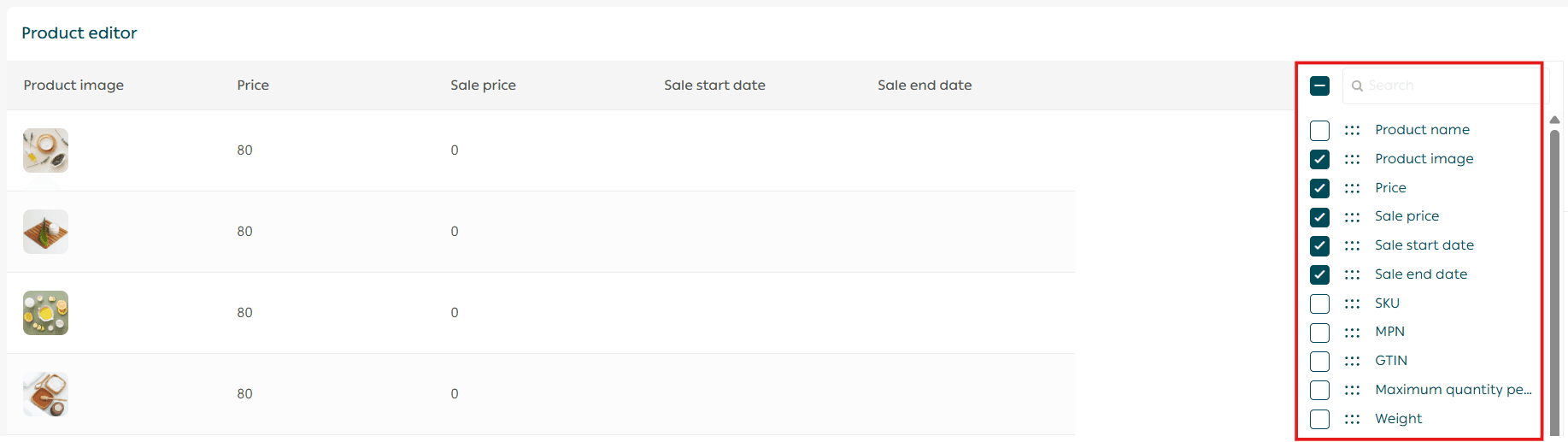
This allows you to focus only on the data you intend to modify, such as prices, quantities, or costs.
Edit the selected product data
After selecting the products and fields, you can begin editing product data directly inside the table.
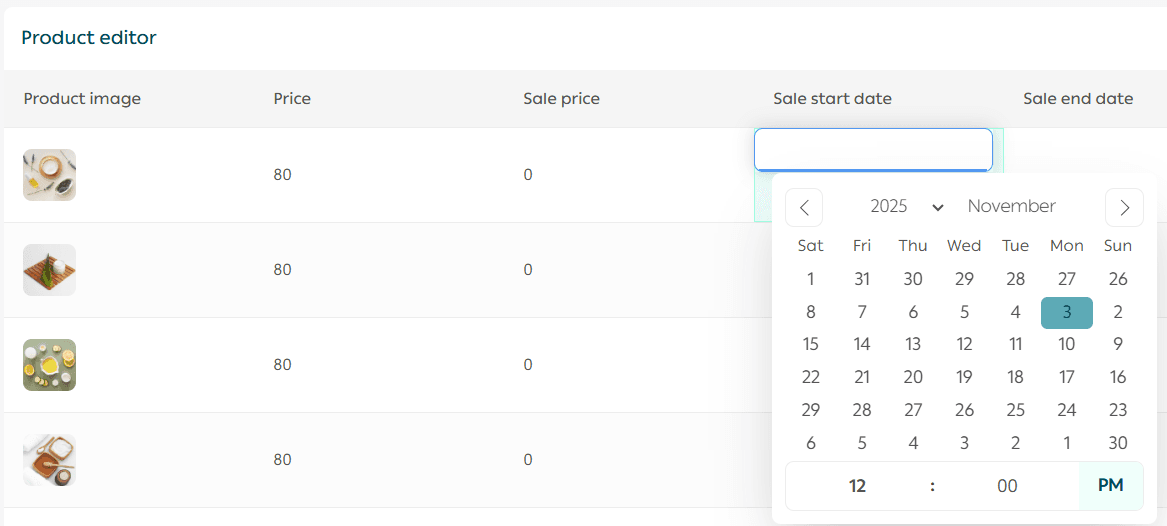
Important notes
- Editing works similar to an Excel sheet. After entering a new value such as selling price, cost price, or discounted price, press Enter to save the value and move to the next cell.
- You can select multiple cells and update them at once, just like working in Excel.
- Some field types, such as date fields, must be edited individually and do not support bulk input.
- Product images are displayed in the table to help you visually confirm that you are editing the correct product, especially when product names are similar.
- Discount start and end dates apply to all product types except donation and sponsorship products.
Using the Product Edit Table helps you manage large product catalogs faster, reduce manual work, and maintain accurate pricing and inventory across your store.
Frequently asked question
What can you modify using the Product Edit Table?
The Product Edit Table allows you to modify a wide range of product data directly from the table interface, including:
✅ Product Name
✅ Product Price
✅ Cost Price
✅ Discount Price
✅ Discount Start Date
✅ Discount End Date
✅ Available Quantity
✅ SKU (Stock Keeping Unit)
✅ Product Availability Status
✅ Product Visibility in the Store
✅ Branch assigned to the product
✅ Weight or Dimensions (if these fields are enabled)
You can also edit any additional fields displayed through the Customize Fields option.
Note: The available fields may vary depending on the product type and the features enabled in your store settings.