Are you struggling with uploading tax invoices manually? Or worried about errors, delays, and compliance issues when reporting to ZATCA?
The ZATCA Integration app allows you to connect your store’s tax invoices and submit them electronically; directly and automatically through Salla.
With a simple setup, you can ensure higher accuracy, faster compliance, and a smoother tax reporting process.
📌 Article overview
- What is the ZATCA Integration app?
- Requirements to enable ZATCA integration
- Steps to connect your store with ZATCA
- Frequently asked questions
What is the ZATCA Integration App?
The ZATCA Integration app enables merchants to link their store’s tax invoices and submit them electronically to the Zakat, Tax and Customs Authority (ZATCA) in a direct and automated way through Salla.
This helps you meet official tax requirements without the need for manual uploads or external processes.
Important note: This feature is currently available only for stores in Saudi Arabia.
Requirements to enable ZATCA Integration
- To activate the integration, make sure the following conditions are met:
- You are registered with ZATCA and have an active account on their portal
- You have a valid commercial registration approved by the Authority
- Your store is verified through Salla
- Your main (default) branch information is fully completed, including:
- Street name
- District
- Building number
- Additional number
- Postal code
- City
- Country
For more details, refer to the following articles:
- Preparing your store for e-commerce compliance
- Store verification
- Branch and warehouse settings
Steps to connect your store with ZATCA
The ZATCA integration process includes two main stages:
- Installing the app
- Activating the integration
Stage one: Install the ZATCA Integration App
You can install the app using one of the following methods:
Method 1: Through the App Store
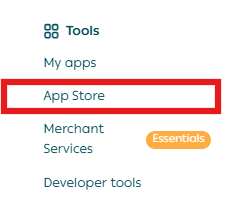
- From the main menu, click All
Under Tools, select App Store.
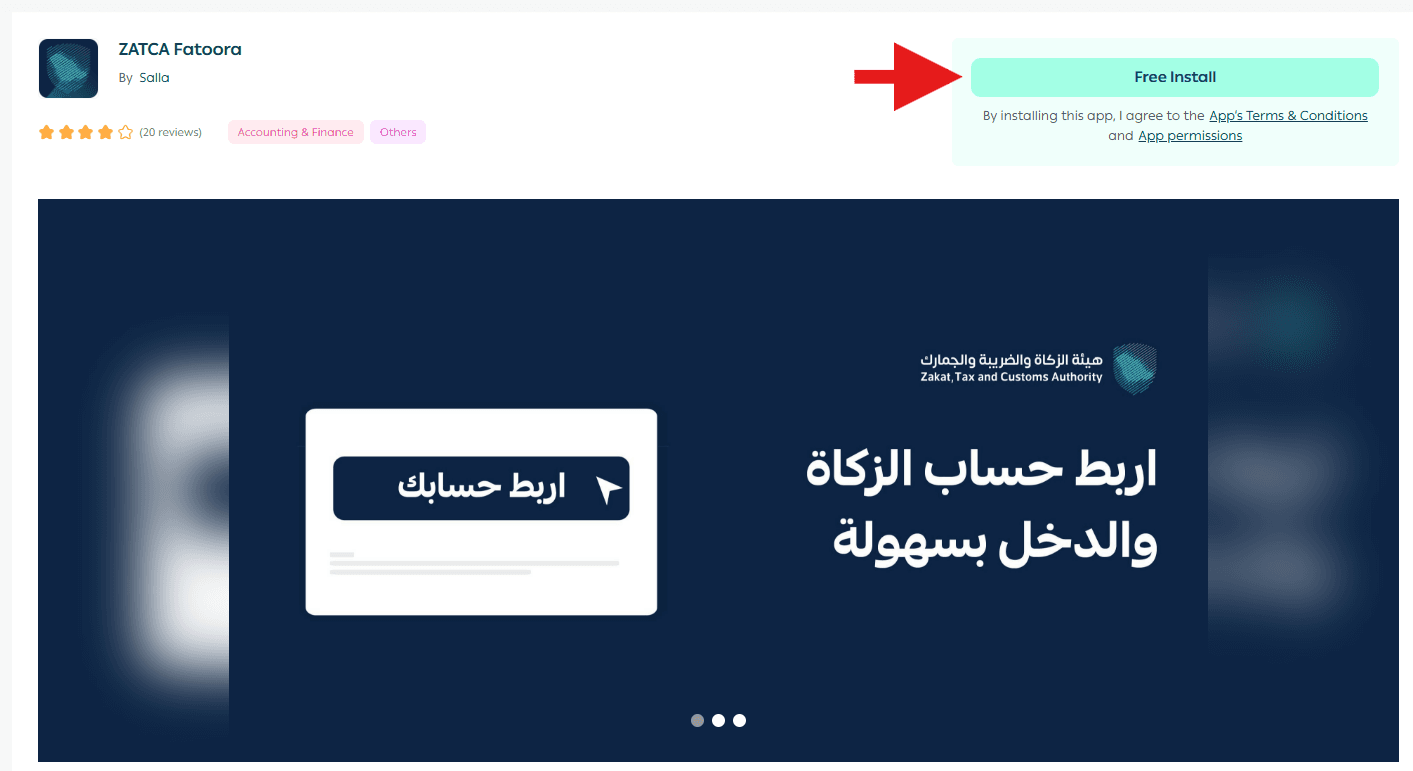
- Search for ZATCA Integration, then click Install for Free.
Method 2: Through VAT Settings
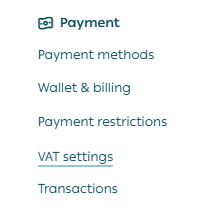
- From the main menu, go to All
- Under Payments, click VAT (Value Added Tax).
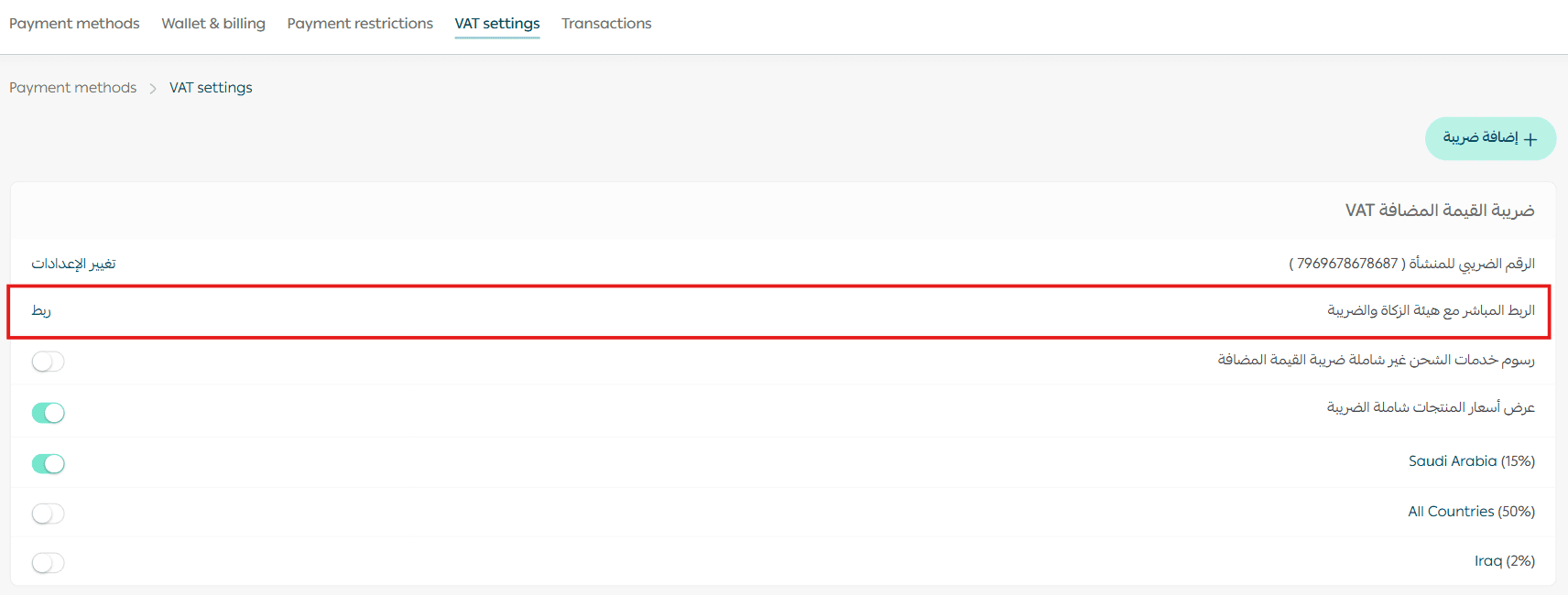
3. On the VAT page, click Direct Integration with ZATCA.
Stage two: Activate the ZATCA Integration
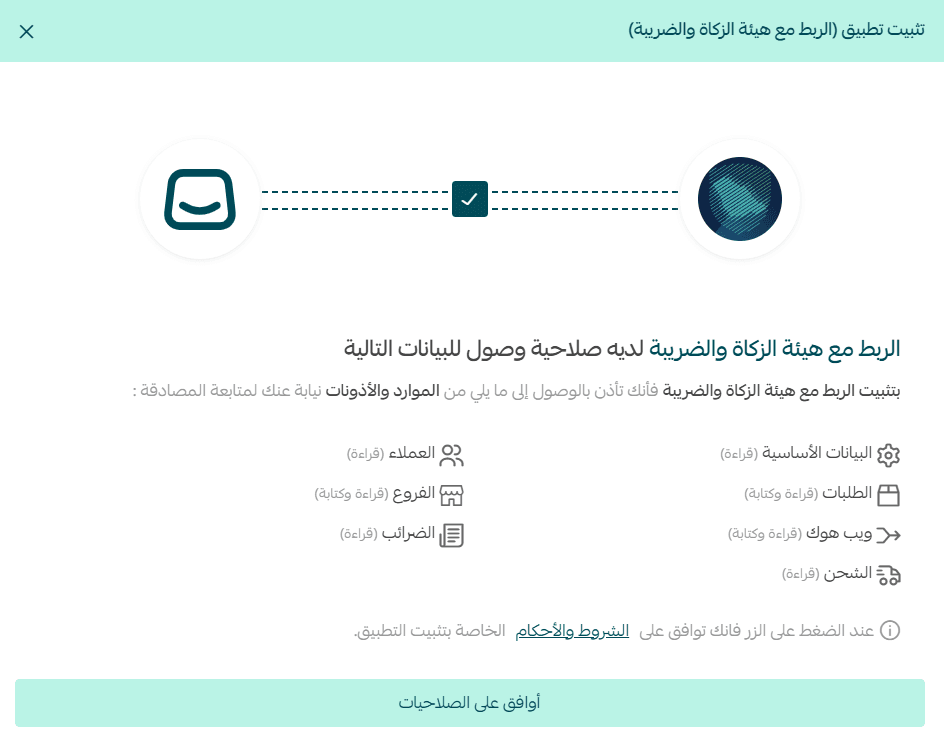
Review the required permissions, then click Grant Access.
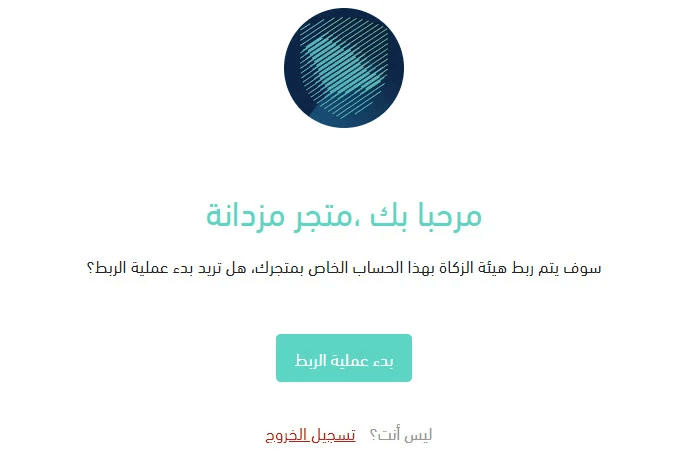
- Click Start Integration Process.
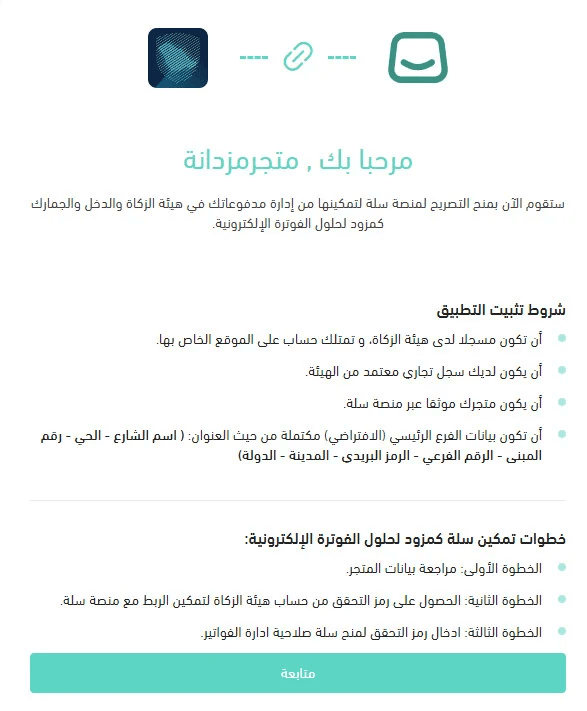
3. Carefully review the activation requirements and confirm your store meets them, then click Continue.
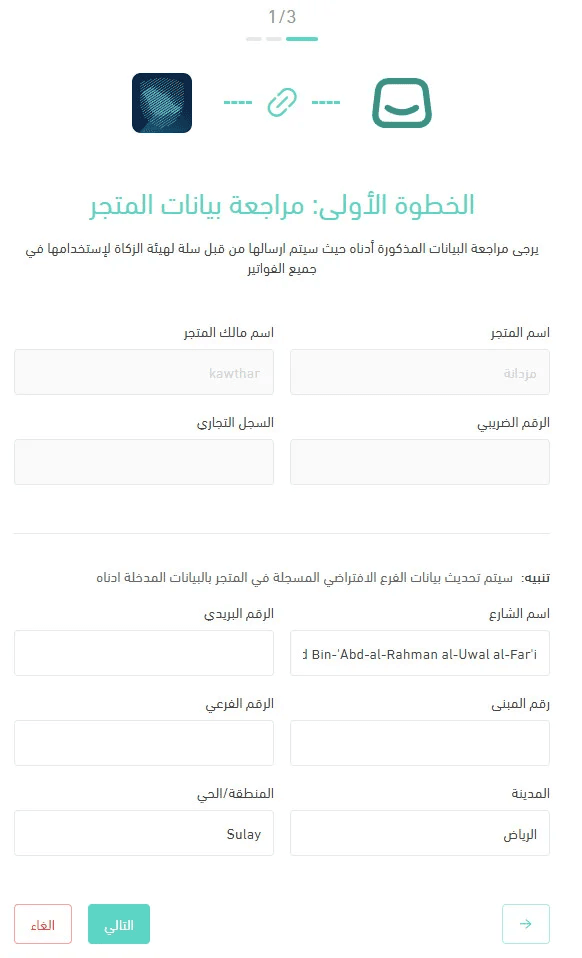
Step 1: Review Store Information
Verify your store details and the default branch information, then click Next.
Step 2: Generate a Verification Code from Your ZATCA Account
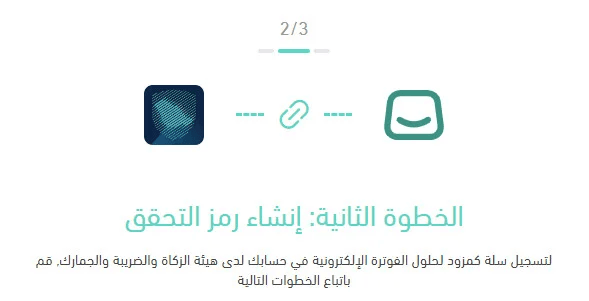
To obtain the activation code:
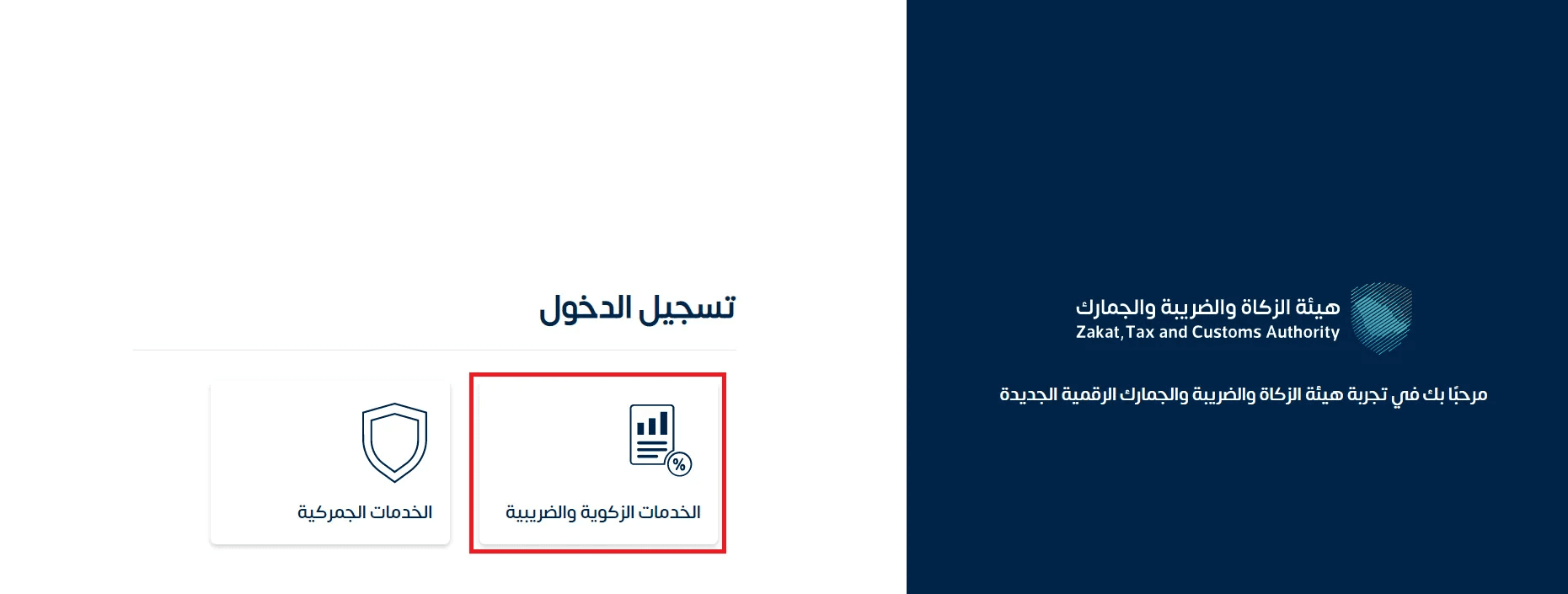
- Log in to your ZATCA account and click Zakat & Tax Services.
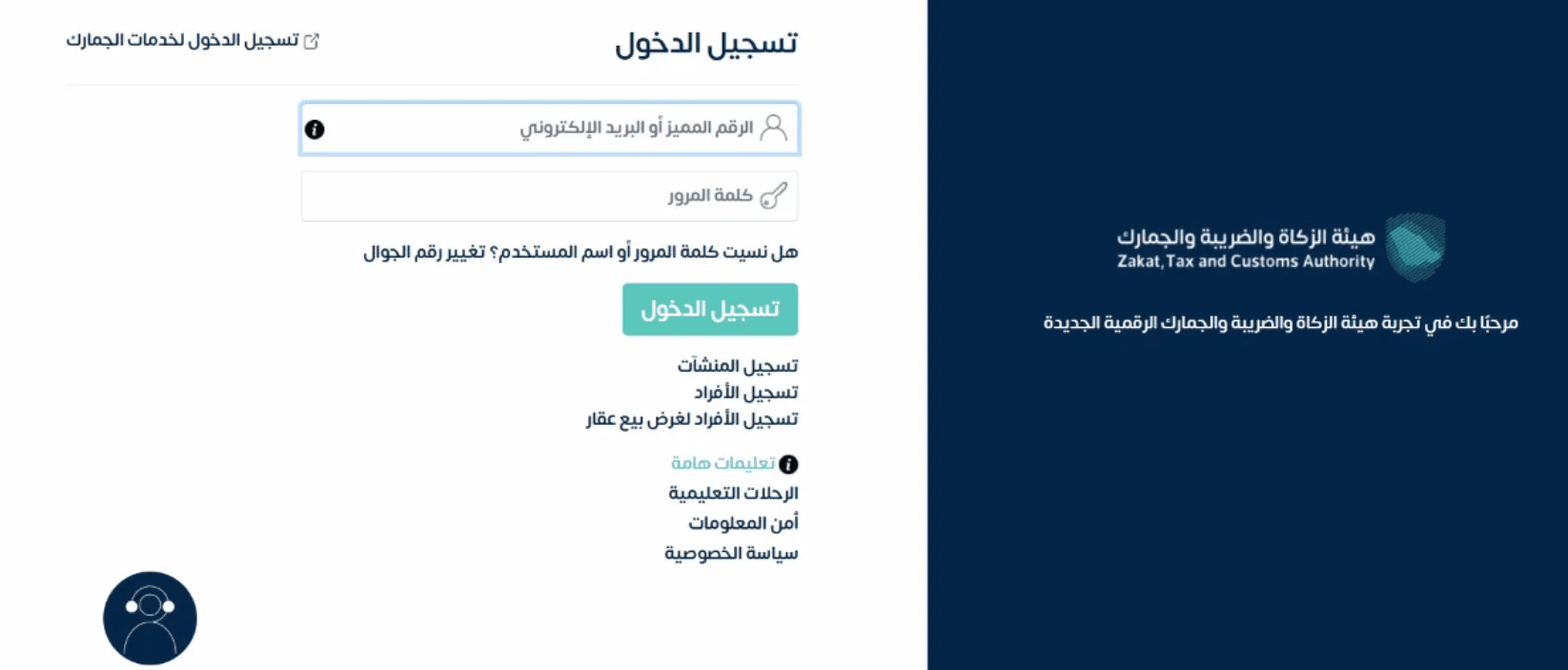
2. Enter your unique account ID and password, then click Login.
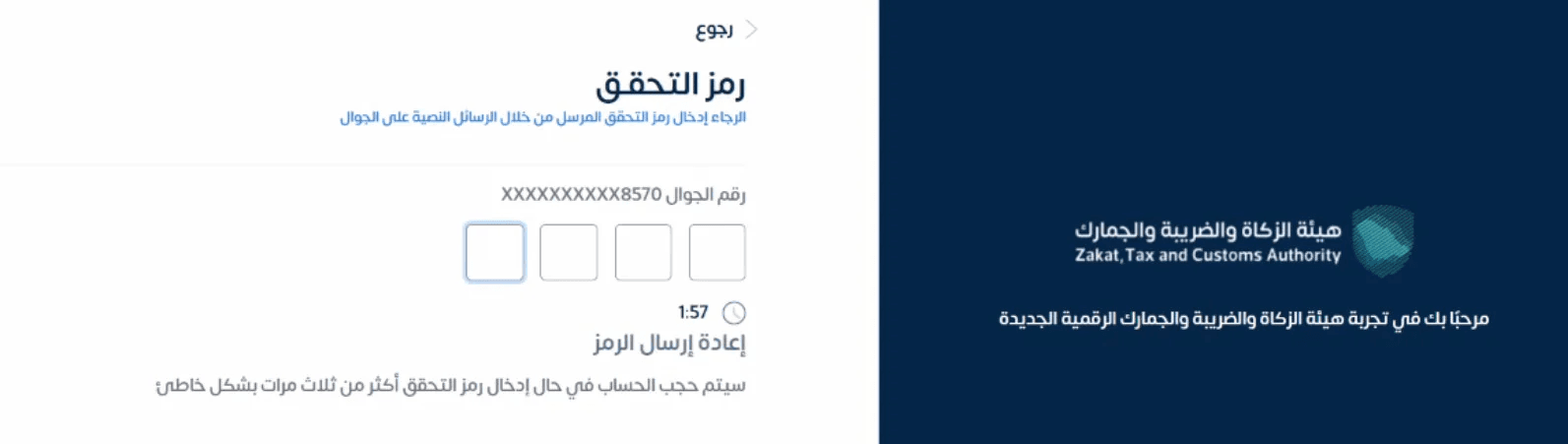
3. Enter the verification code sent to your registered mobile number.
4. Click Configure a New Unit/Device.

5. Confirm you are not a robot, then request a one-time activation code.
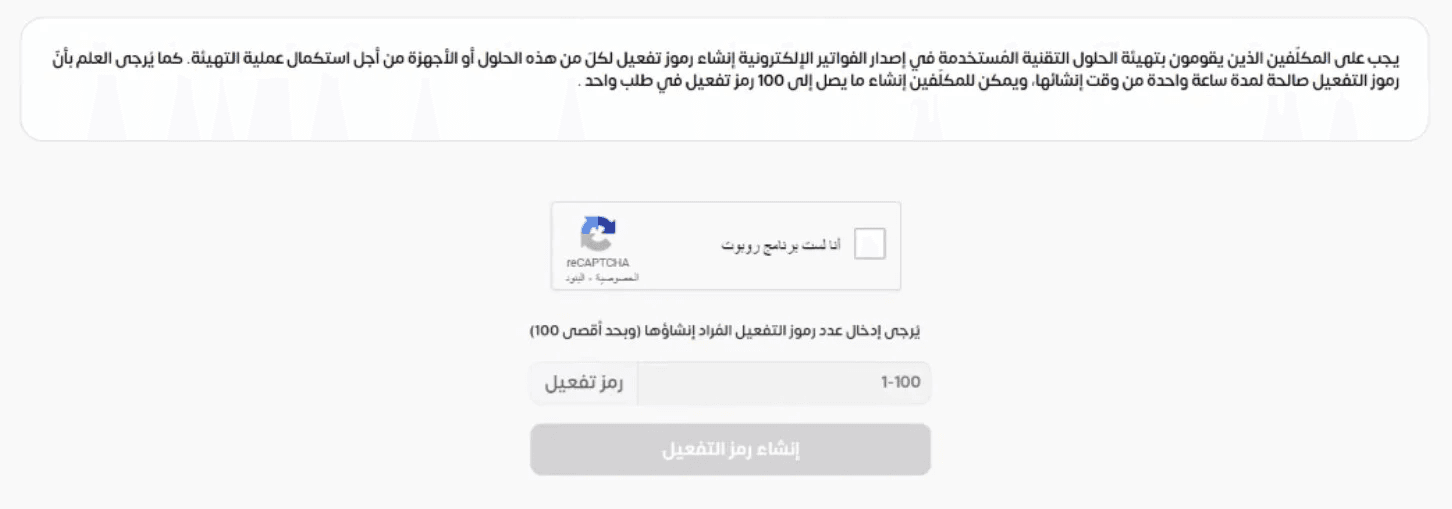
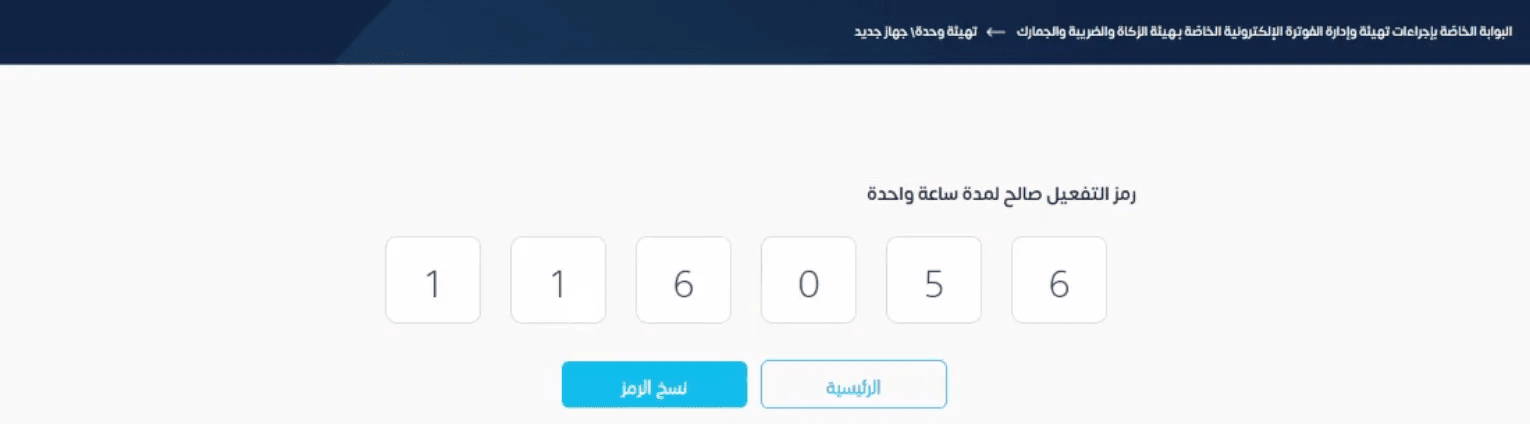
6. A code will be generated and will remain valid for one hour only—copy it and keep it ready.
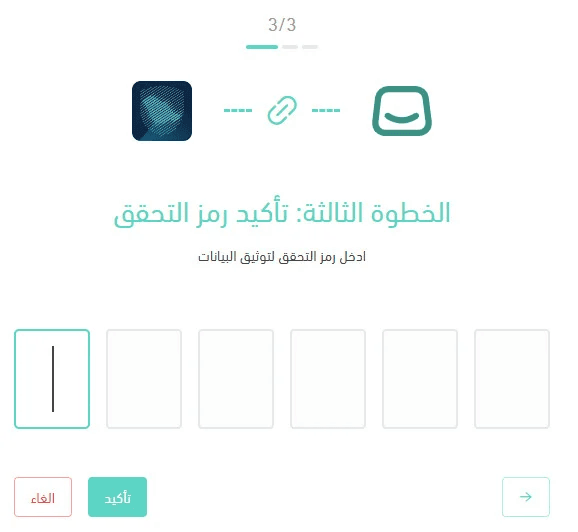
Step 3: Enter the Code in Salla
Return to the ZATCA Integration activation page in Salla and enter the verification code you received.
✅ Congratulations! The integration has been successfully completed.
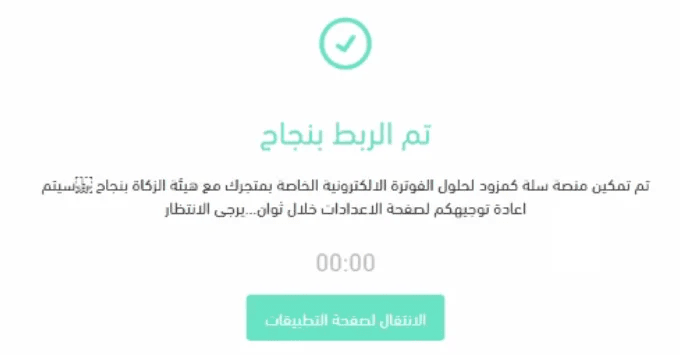
The ZATCA Integration app is now installed and activated in your store, and your tax invoices can be submitted electronically with ease.
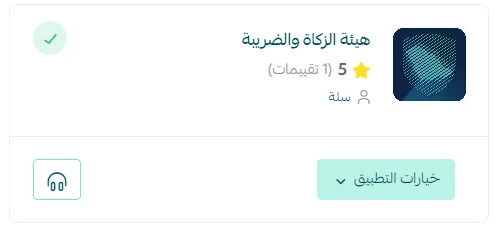
Frequently asked questions
After installing the app, can I complete the integration later?
Yes. If your store data is incomplete or you need to postpone the process, you can click Cancel and finish the integration later.
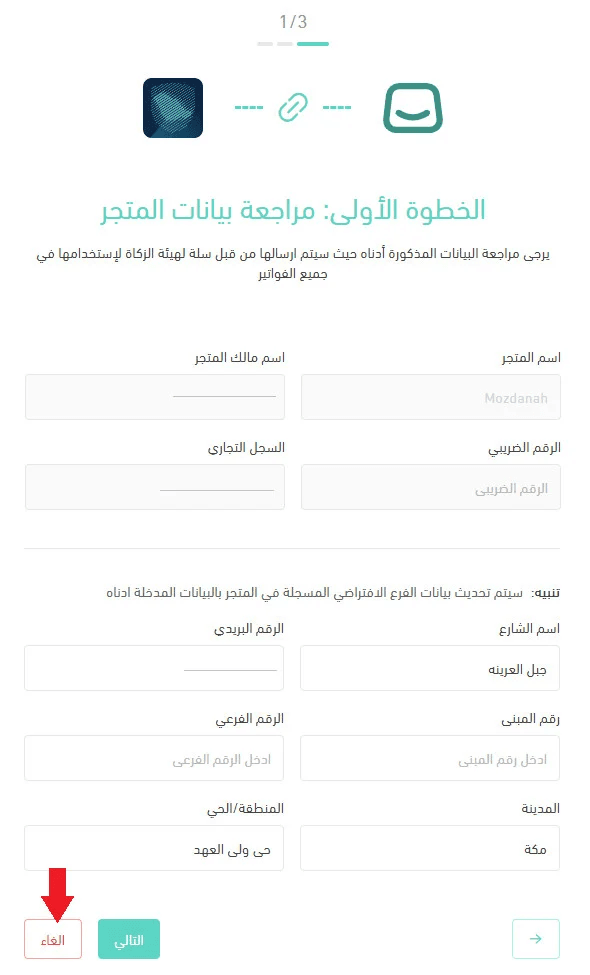
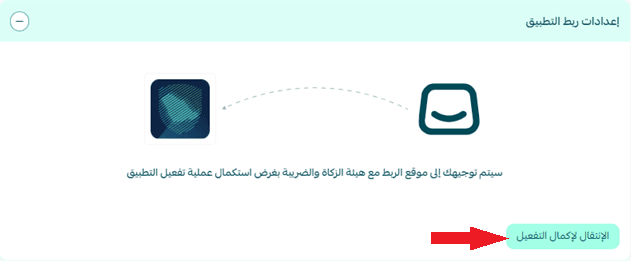
To resume at any time:
- Go to My Apps, open the ZATCA Integration app, then click Continue Activation.
How can I create a ZATCA account?
Registering with ZATCA requires:
- Registering your business with the Ministry of Commerce
- A company establishment contract (for companies only)
Steps:
- Complete registration with the Ministry of Commerce
- You will receive login credentials via SMS or email
- Log in to the ZATCA portal
- Navigate to Zakat & Income Tax
- Complete the Zakat/Tax registration form
- You will receive a notification once approved
For more details, see the full guide on creating a ZATCA account.
Is the app free?
Yes, the app is completely free.
Is the integration available for all plans?
No. This feature is available only for Pro and Special plans.
💪 Start Integrating Today
Connect your store with ZATCA now and submit your tax invoices electronically; directly, securely, and without complexity.