You can fully manage your orders from your mobile device, with quick access to view, track, and create orders. This helps speed up order processing and deliver a more efficient and professional sales experience.
📌 Article overview
- Viewing and browsing orders
- Performing actions on orders
- Processing order refunds
- Creating tax invoices for orders
Viewing and browsing orders
- From the bottom navigation bar, tap Orders.

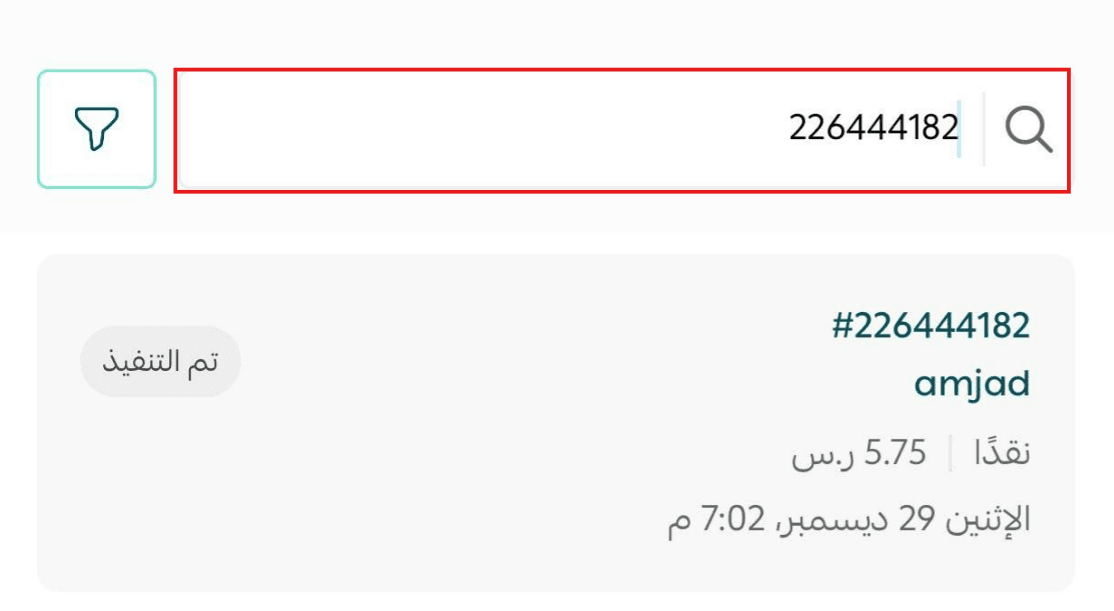
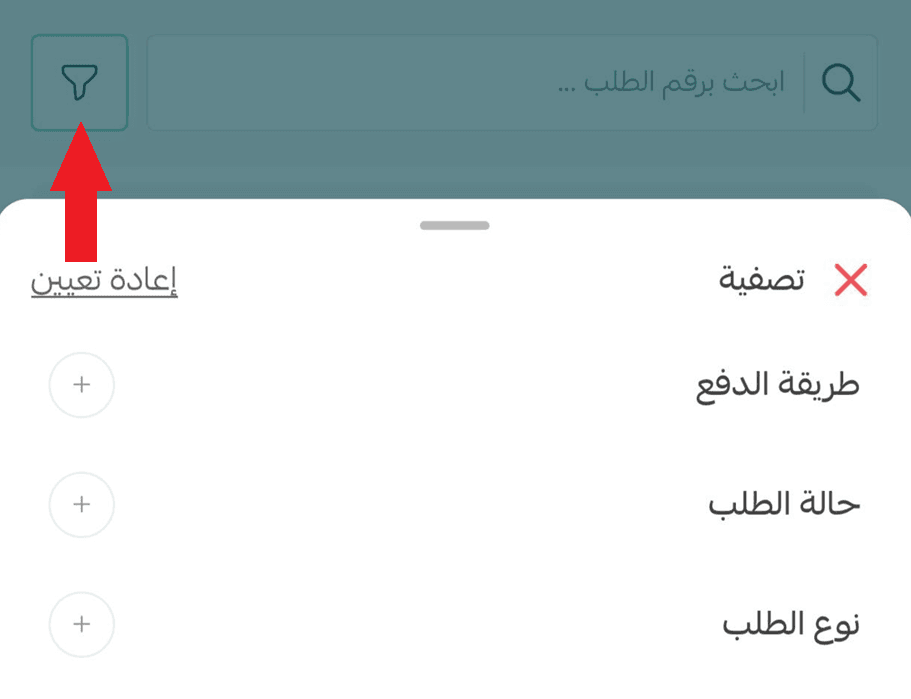
- Search for an order using one of the following methods:
- Search bar: Enter the order number or customer name
- Filters: Select the filter type that suits your needs
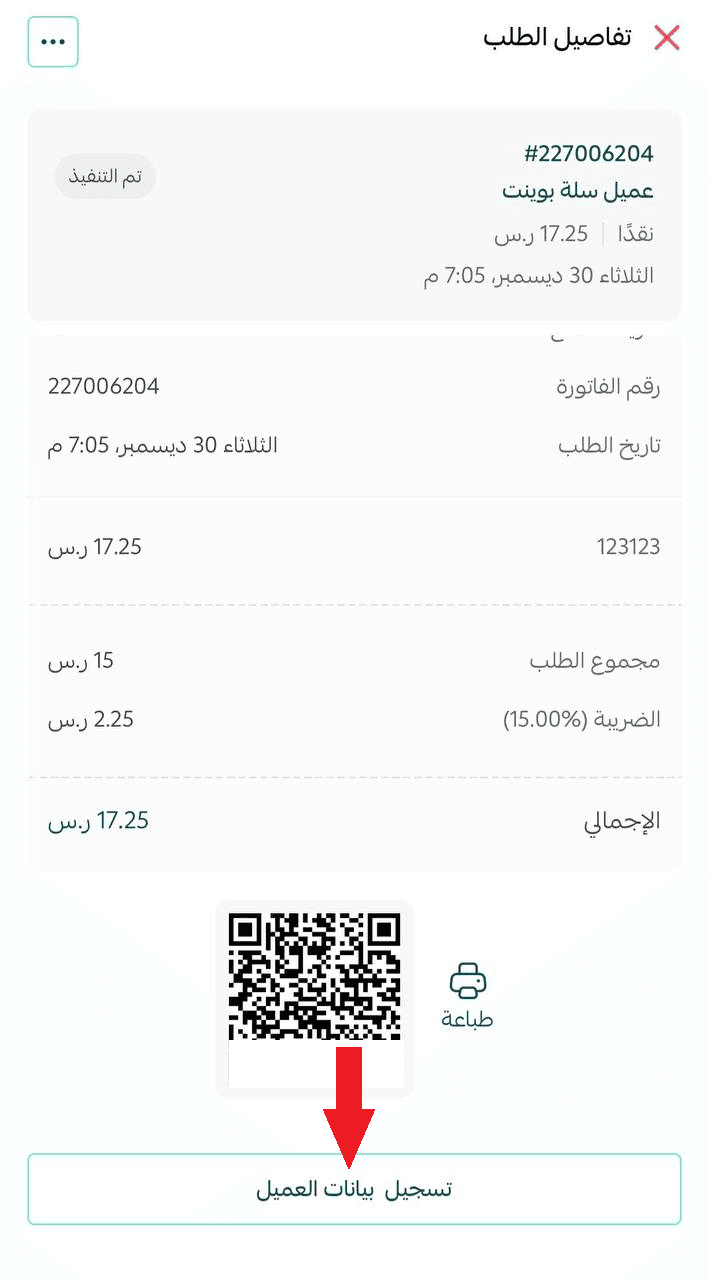
- Tap on an order to view its details.
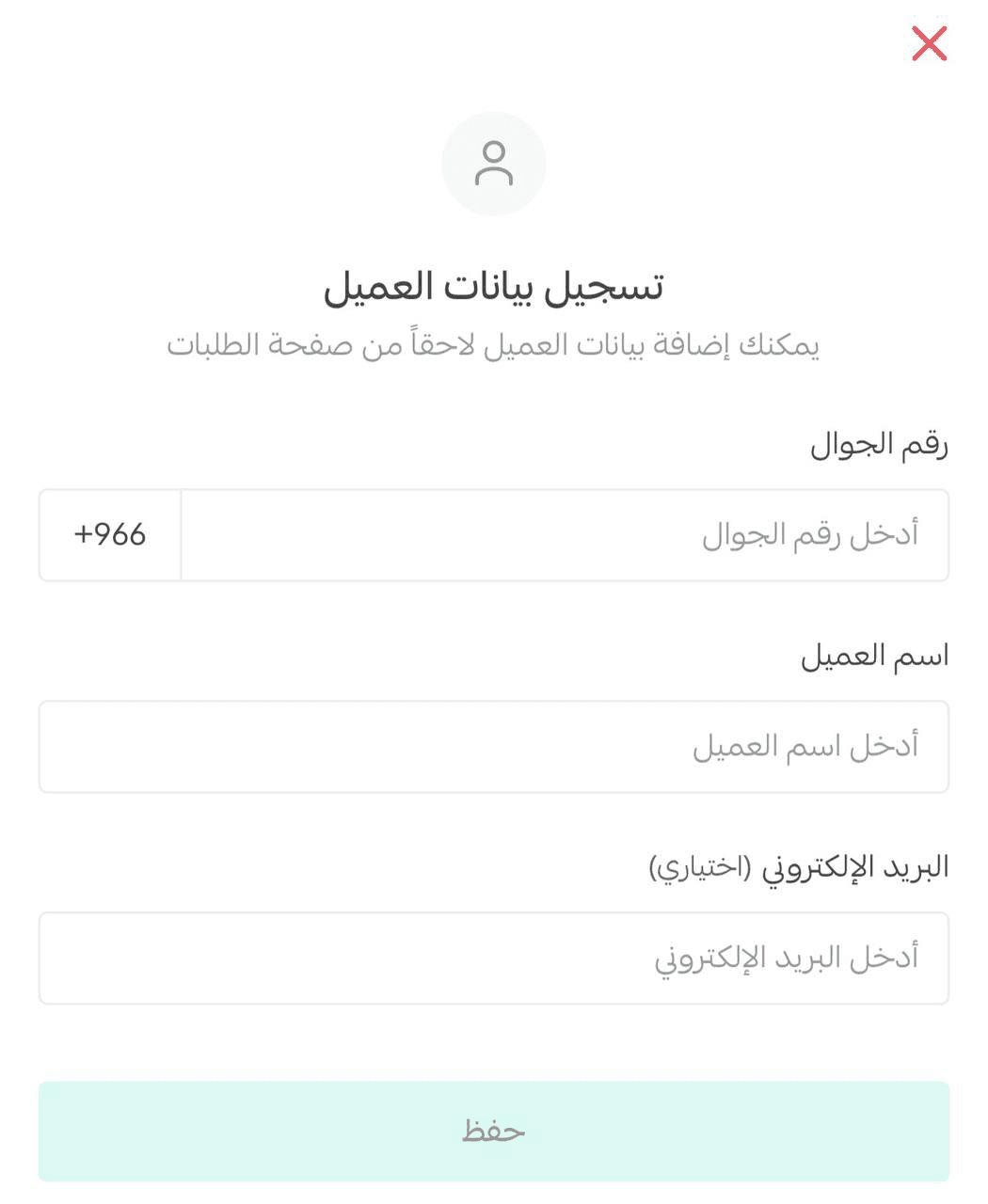
📝 If the order was previously created as a guest order, you can register the customer’s details by selecting Add customer details inside the order page.
Enter the customer information, then tap Save.
Performing actions on orders
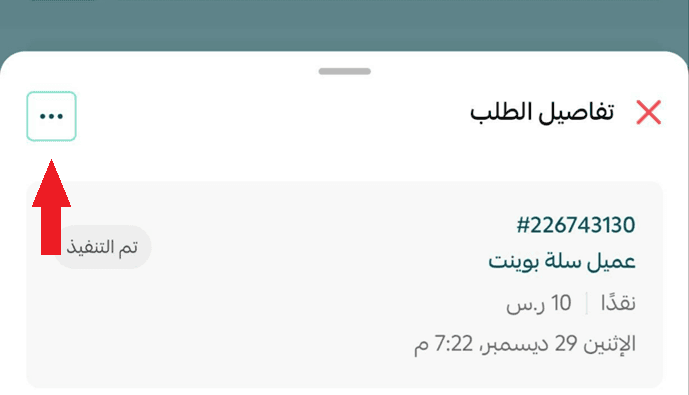
From the order details page, tap the ... button to access the available actions.
Processing order refunds
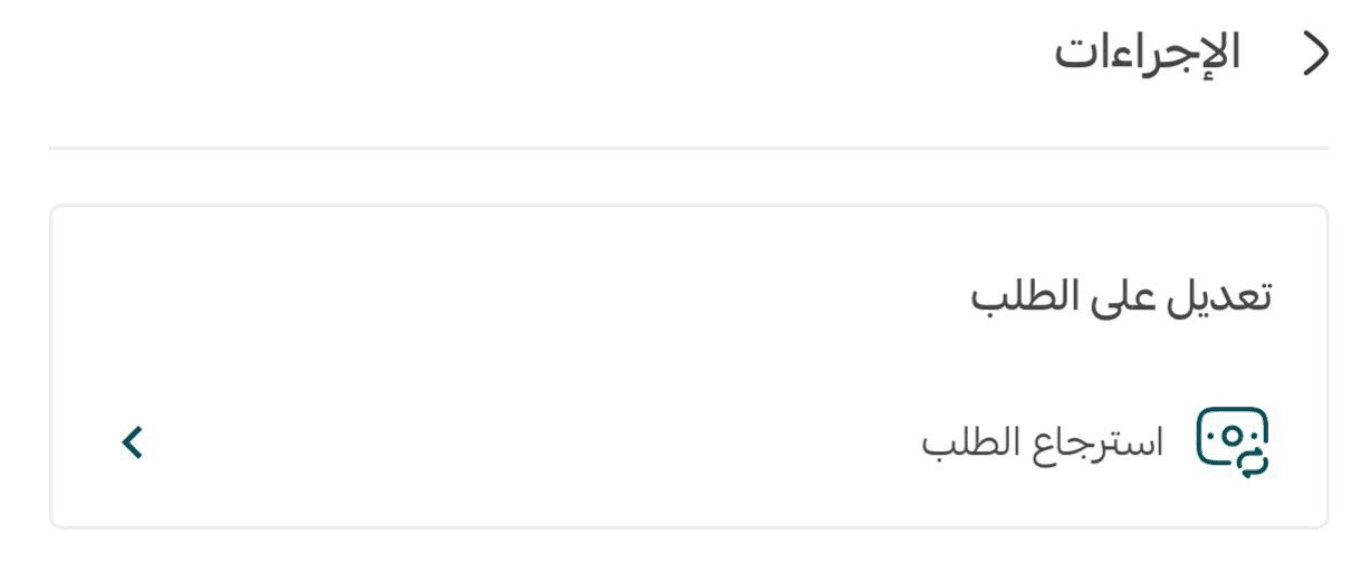
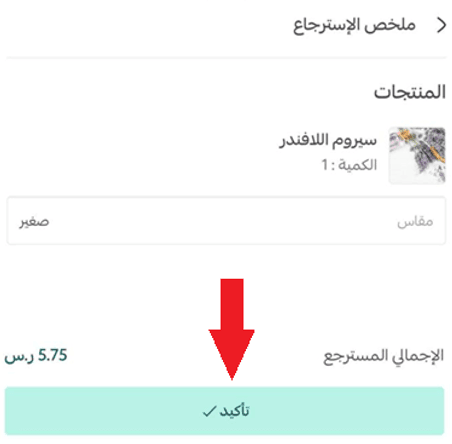
- From the actions page, tap Refund order to view the refund summary.
- Tap Confirm to proceed with the refund.
🔔 For electronically paid orders, the refund must be processed manually by the merchant through the dashboard.
Creating a tax invoice for orders
- From the actions page, tap Invoices to proceed with invoice creation.
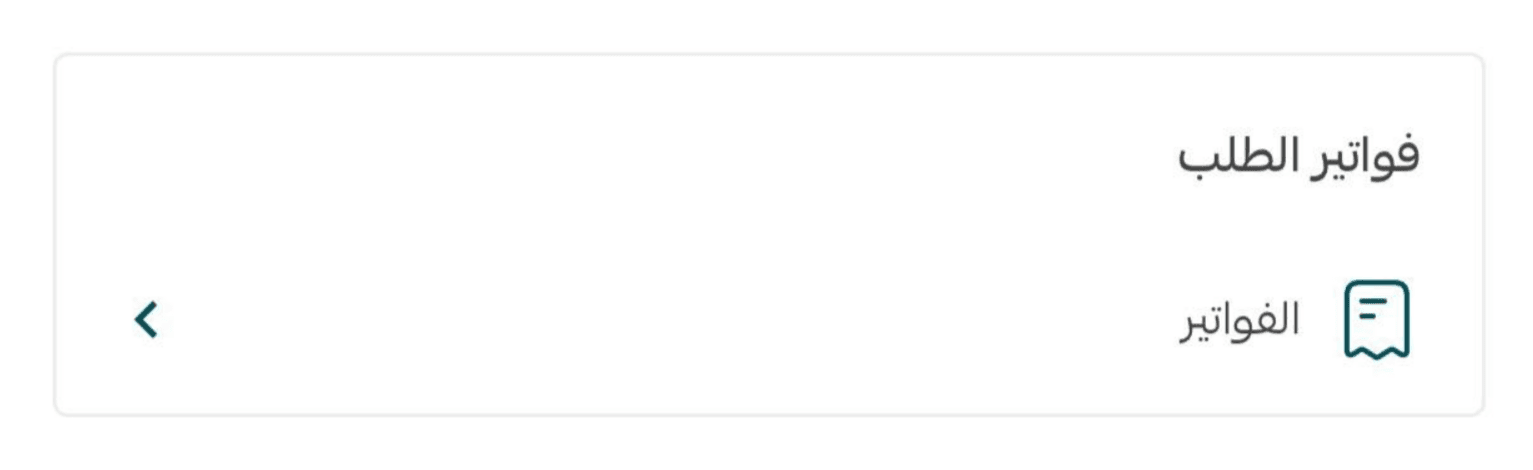
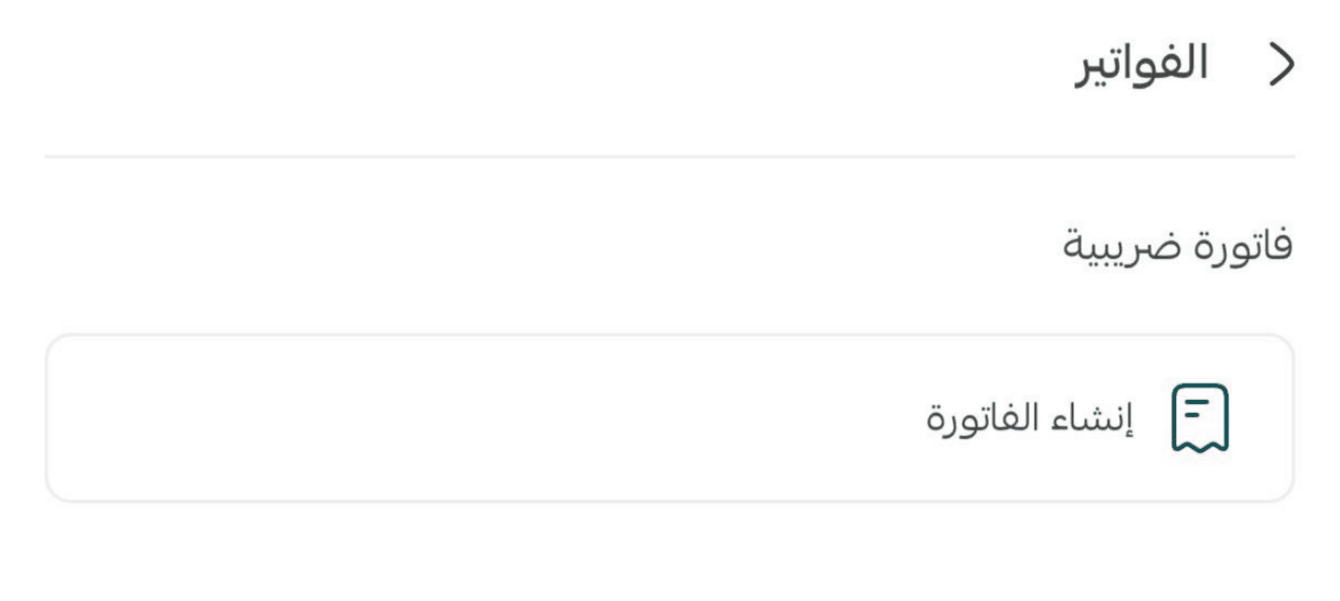
- Tap Create invoice to generate a ZATCA-compliant invoice.
- Tap View invoice to view the order invoice.
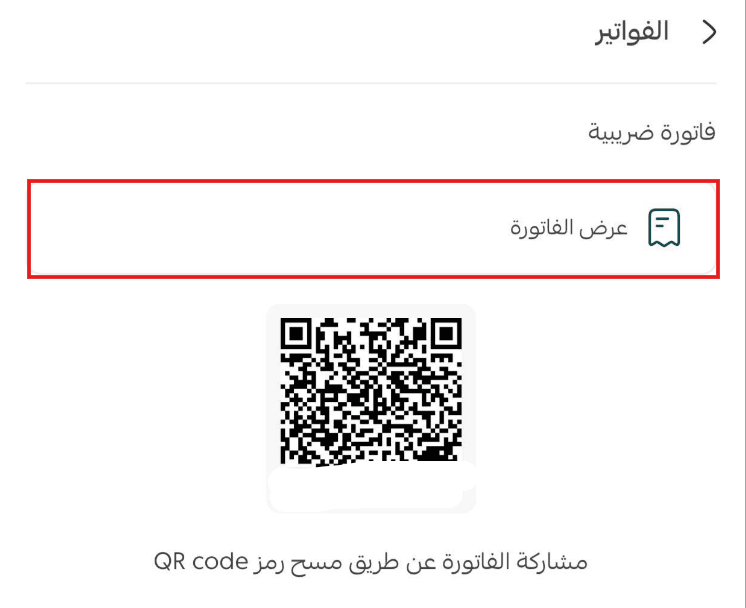
🚀 You can share and display the invoice to the customer by scanning the QR code.