Your customer is no longer just a shopper. They are part of an ongoing journey: every click, every review, and every order equals points that bring them closer to a reward they can actually use.
In the new customer experience of the Salla loyalty system, the customer doesn't just see a points program. They get a complete experience that covers:
- A clear, direct view of their points
- Several ways to earn points
- Rewards they can redeem straight away
- Interaction inside the store, the cart, and the product page
All of it inside an interface rebuilt to be clearer and more interactive.
Points a customer can't see, understand, or spend do nothing for your store. That is exactly what the customer side of the Salla loyalty system is built to fix: the customer opens one page and immediately knows what their balance is, what earns more points, and what they can claim right now. In this guide, you'll learn what customers see on the loyalty page, how they redeem rewards on the checkout page, and how a free product reward appears on the product page.
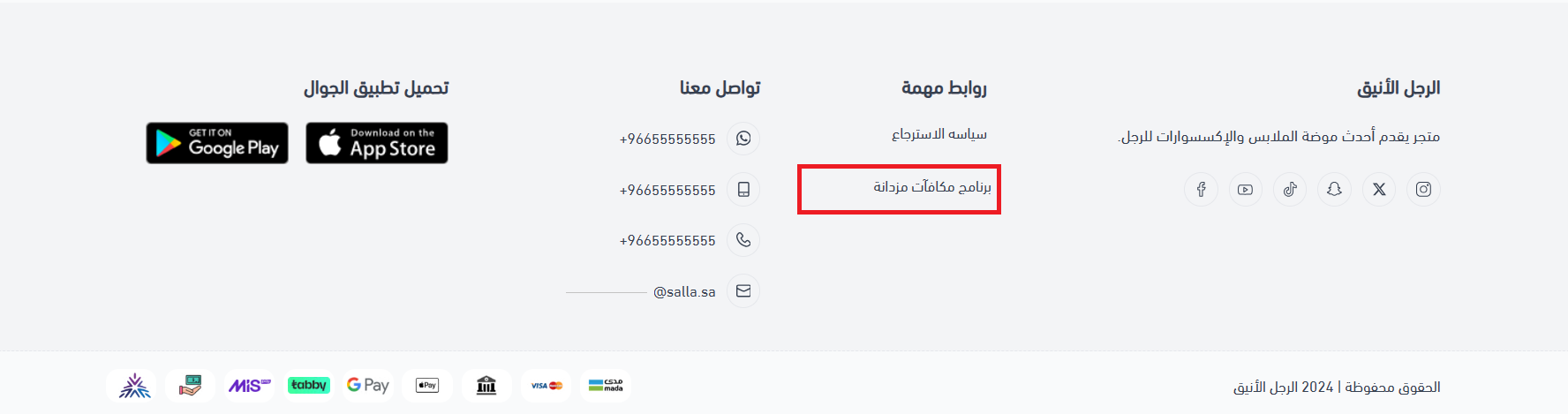
Customers reach the loyalty page from the store footer, or from the (My account) page in the app. There they see their points balance, every way to earn points, and the rewards they can claim. Points are redeemed from that page, from the checkout page, or directly on a product page.
📌 Article overview
- The customer's loyalty page: points balance, earning methods, and rewards
- Redeeming points on the checkout page
- Redeeming loyalty points on the product page
- Frequently asked questions
🚀 The customer's loyalty page
Customers reach your store's loyalty page from the store footer. In the app, they find it on the (My account) page.
The page helps the customer do three things.
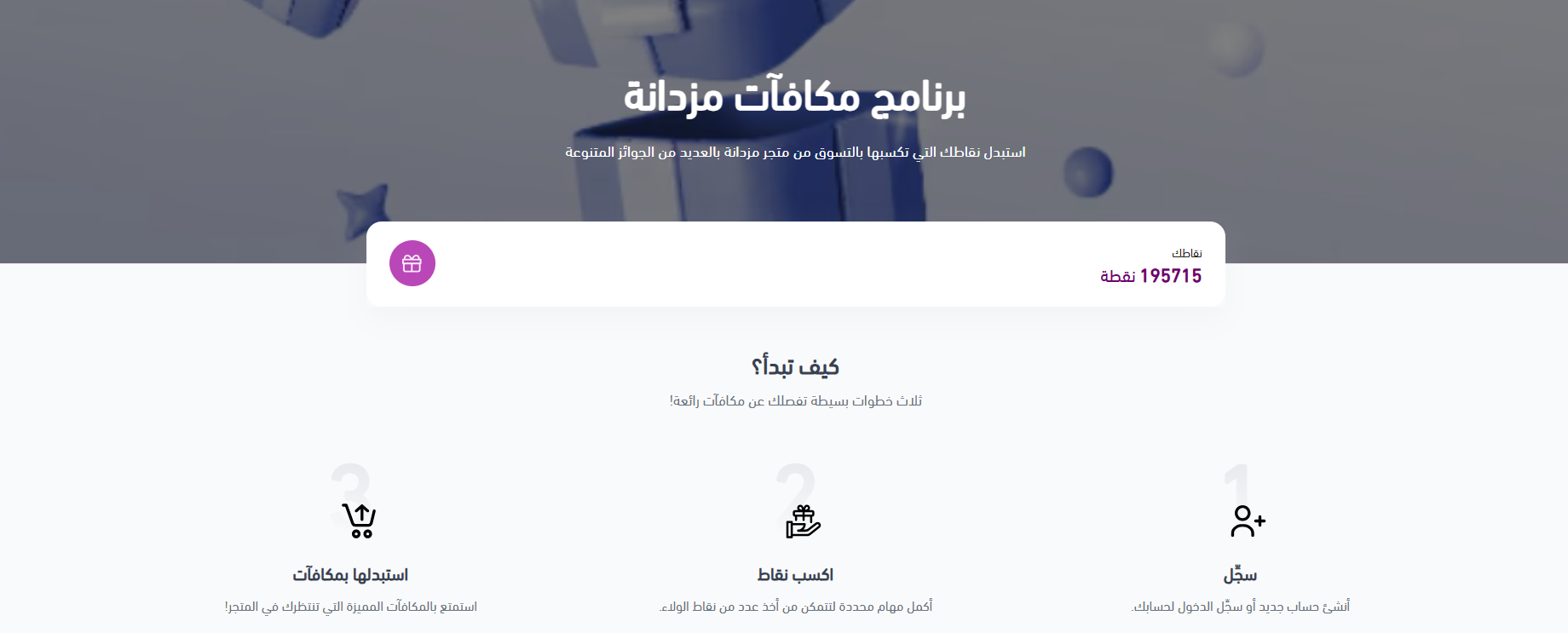
1. Check their points balance
Depending on your store's theme, the balance can appear in the browser like this:
2. See the ways to earn points, and how to get them
The customer can see every way to earn points in your store.
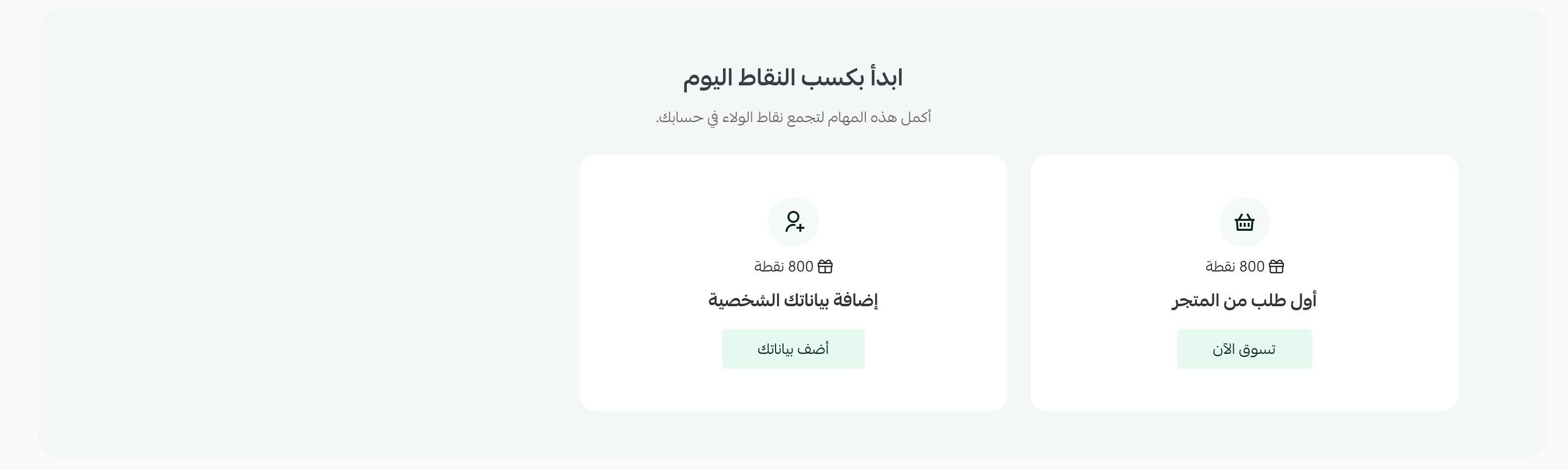
To see more detail about any earning method, the customer clicks the method itself.
💡 Example: the store review earning method.
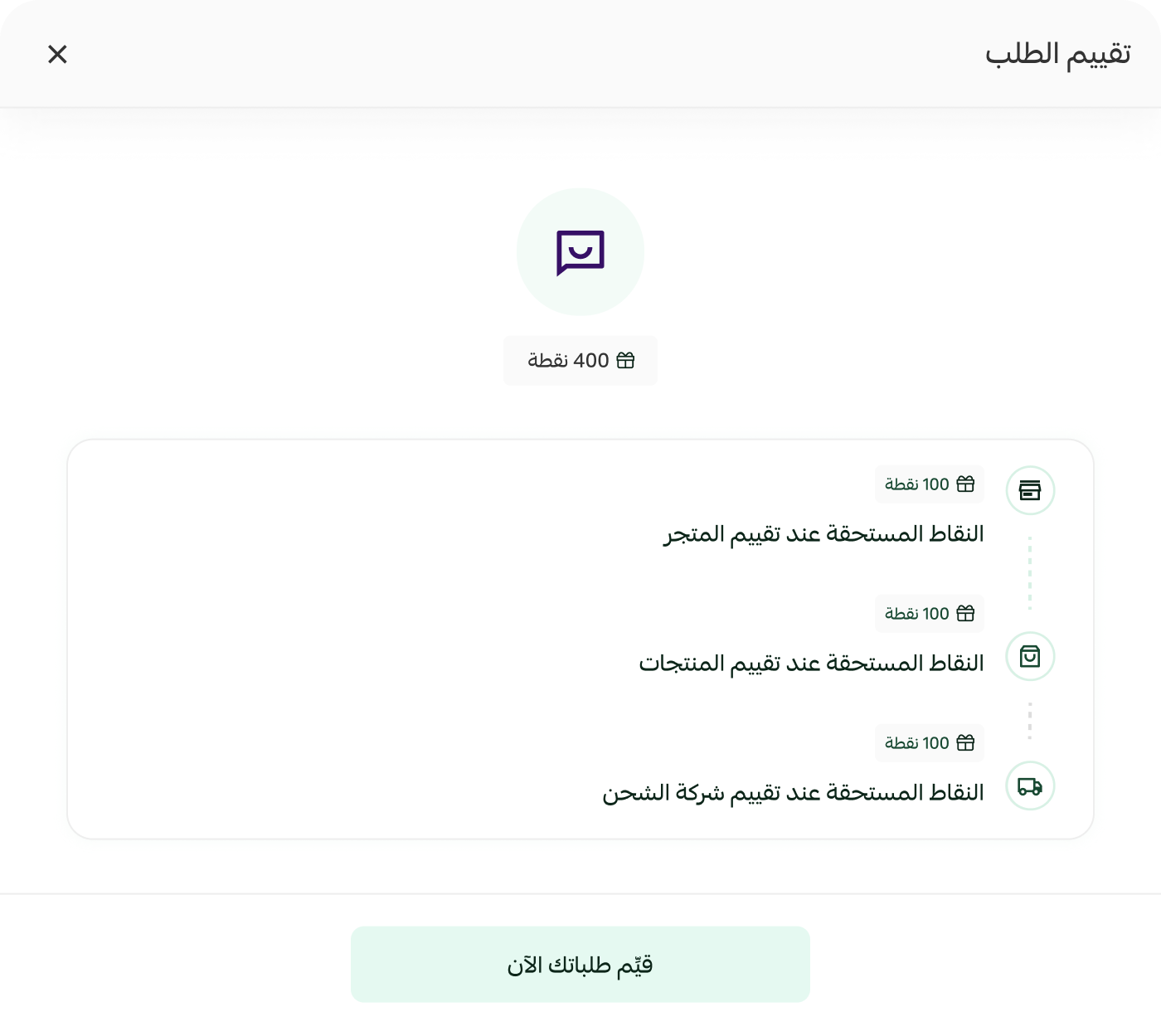
From there, the customer can go straight to reviewing their orders by clicking (Review your orders now) and earn more points.
3. Browse the rewards they can claim
The page shows the rewards the customer can exchange their points for. The customer can filter the rewards by what interests them, or view all of them.
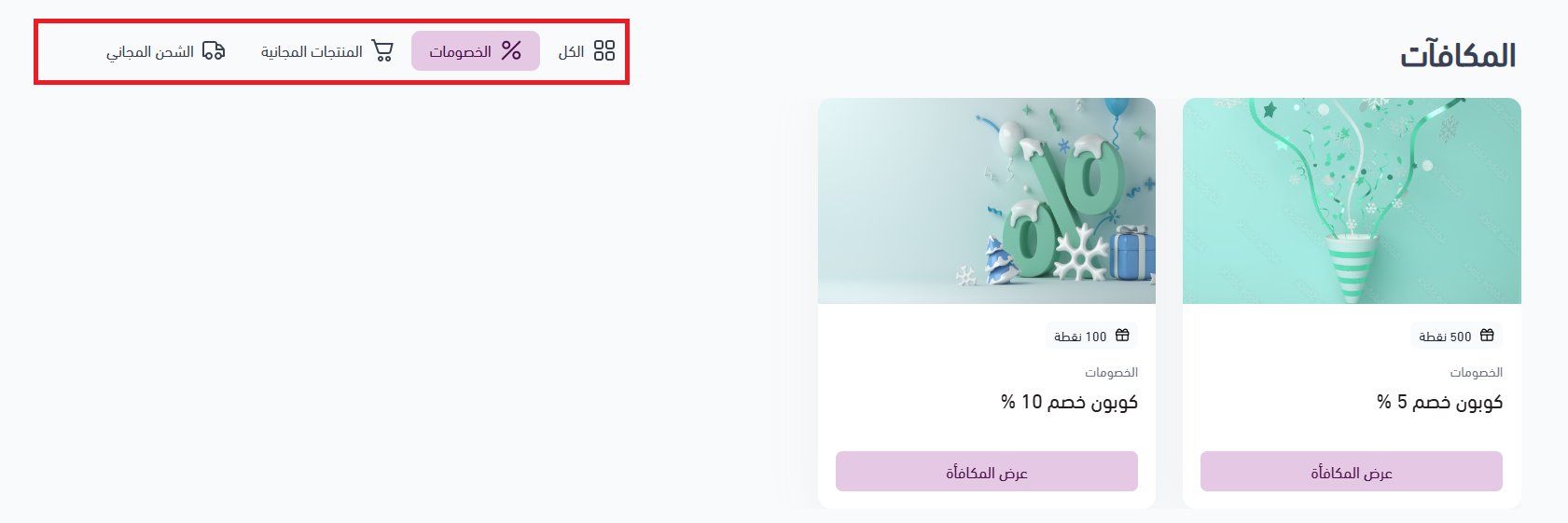
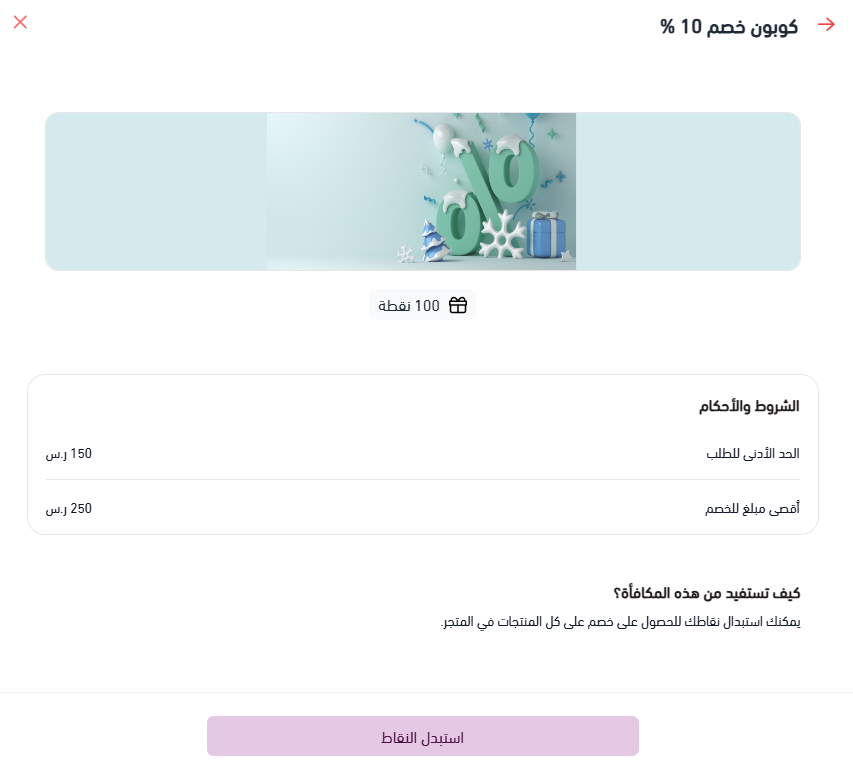
To find out how a reward works, along with its terms and conditions, the customer clicks (View reward).
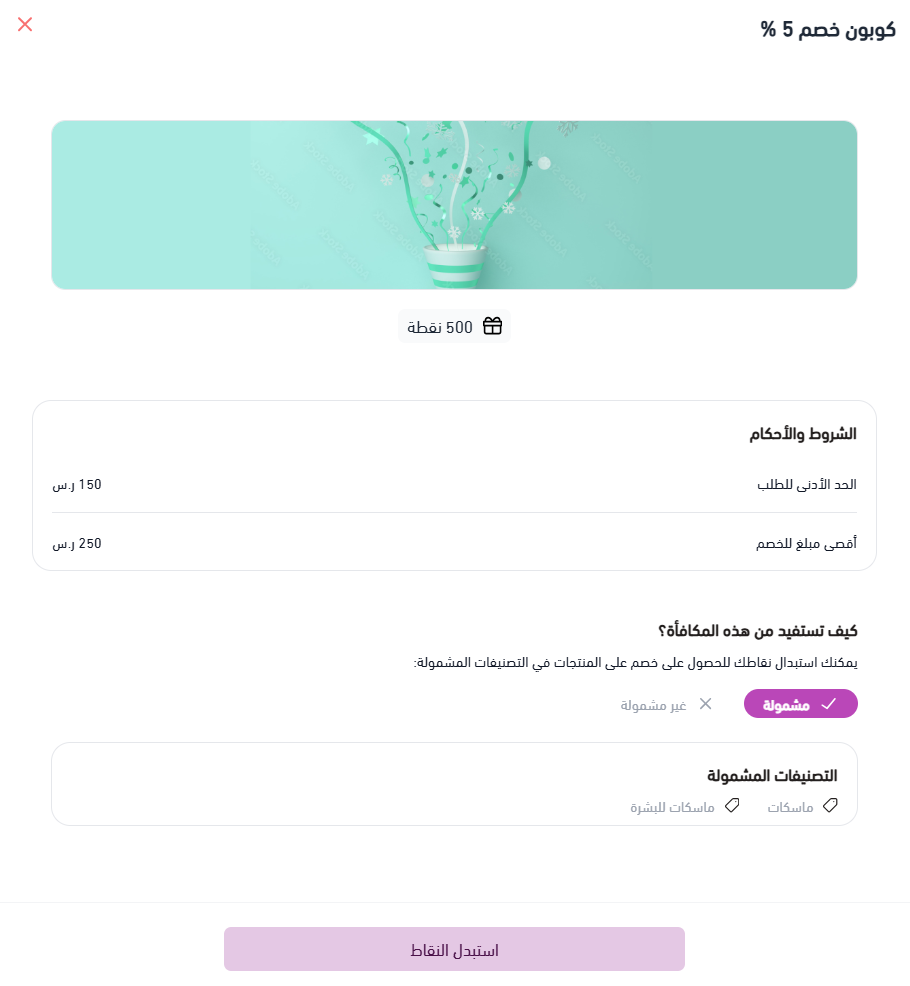
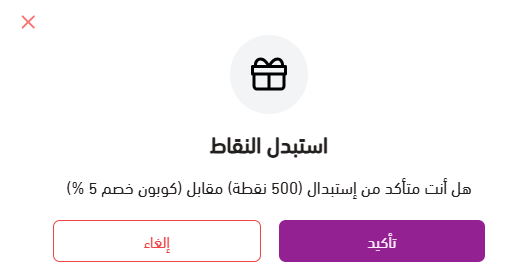
To claim it, they click (Redeem points).
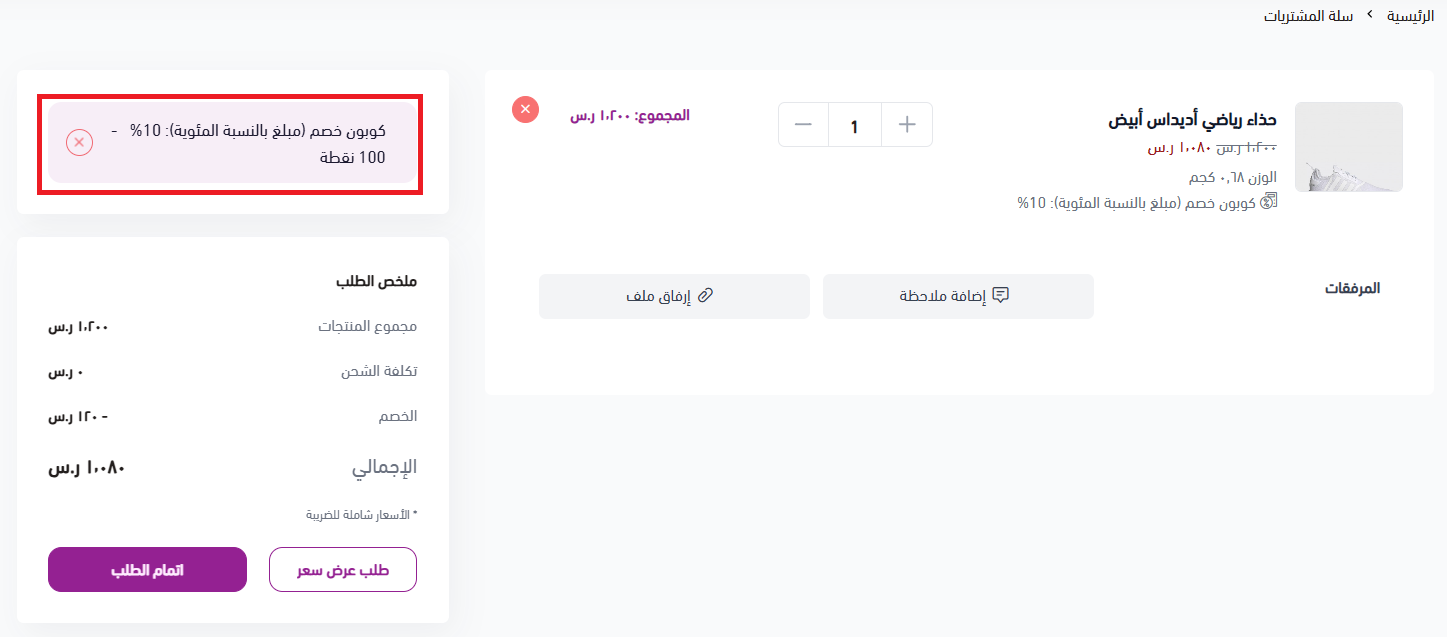
The coupon is then applied to the order:
📝 Important notes
- The earning methods and rewards a customer sees are the ones you have added in your store's loyalty system. If the page looks empty, add them first.
- The exact layout of the loyalty page and the points balance depends on your store's theme, so it may not look identical to the screenshots above.
🎁 Redeeming points on the checkout page
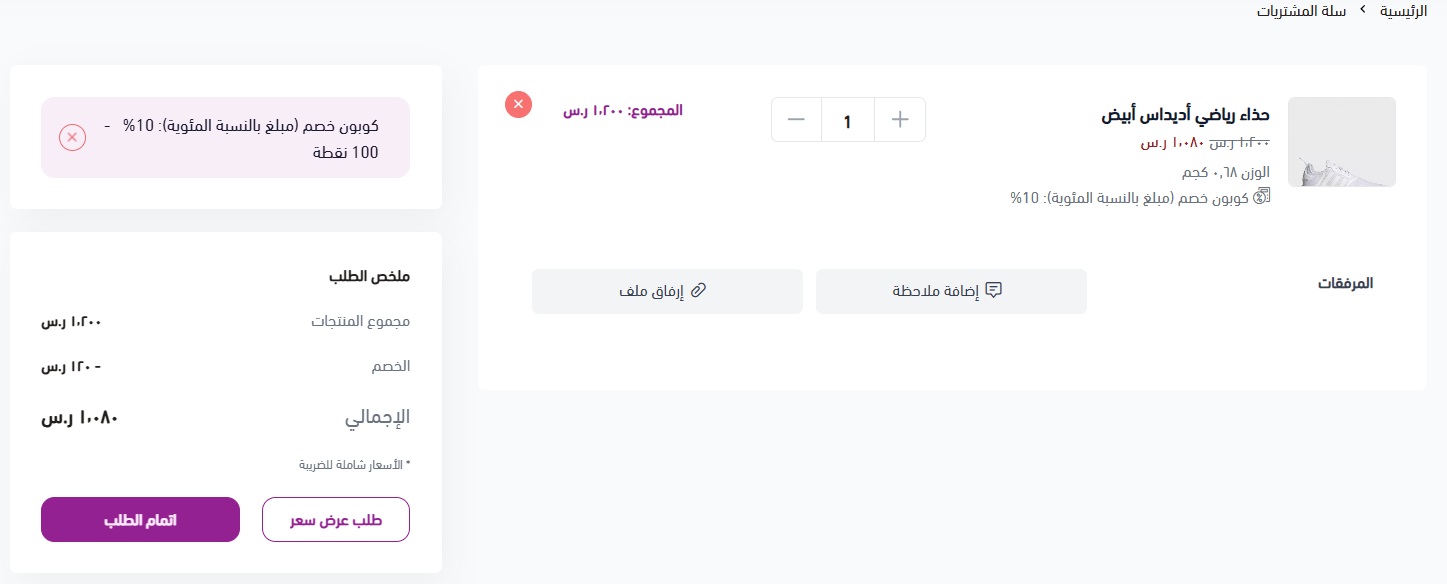
Customers don't have to go back to the loyalty page to use their points. The rewards they qualify for are waiting on the checkout page too:
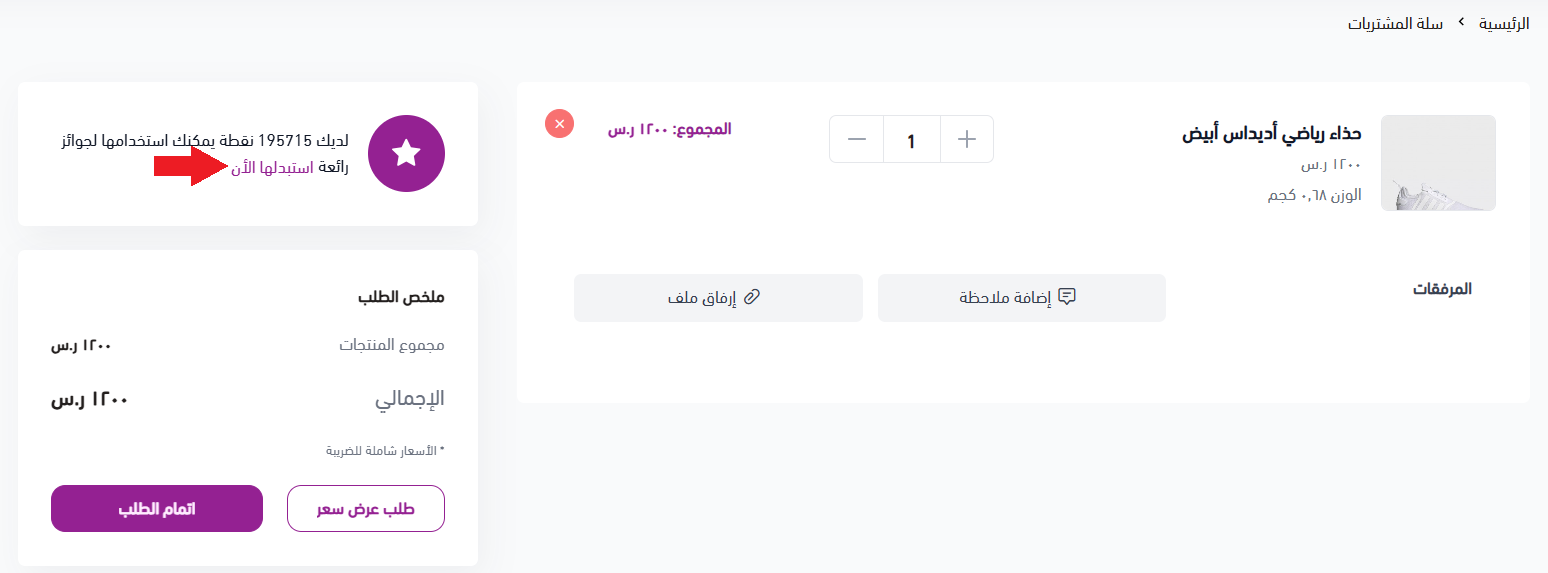
The customer picks the reward they want by clicking (View reward).
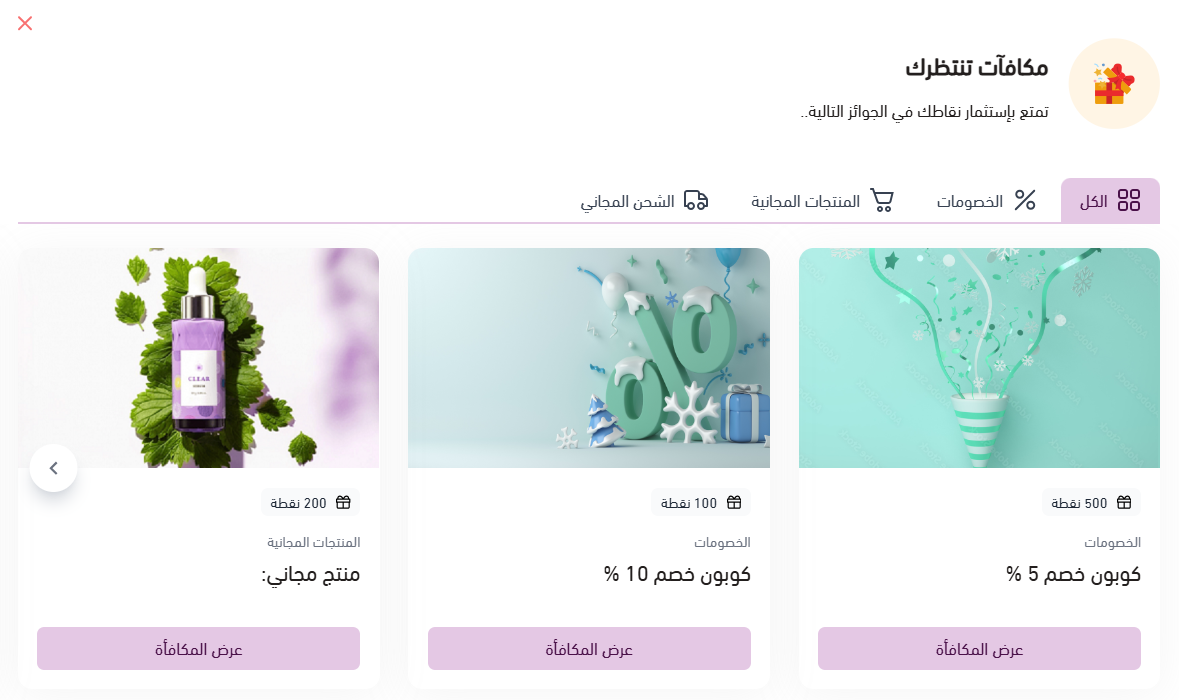
Then they click (Redeem points).
Then they click (Confirm).
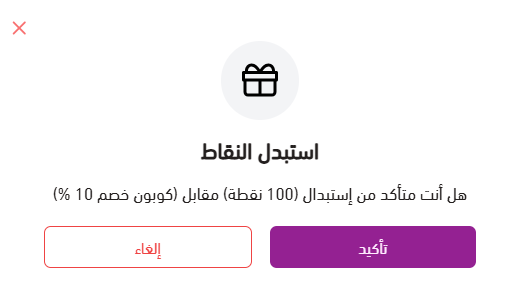
The discount is applied to the cart.
🏆 Redeeming loyalty points on the product page
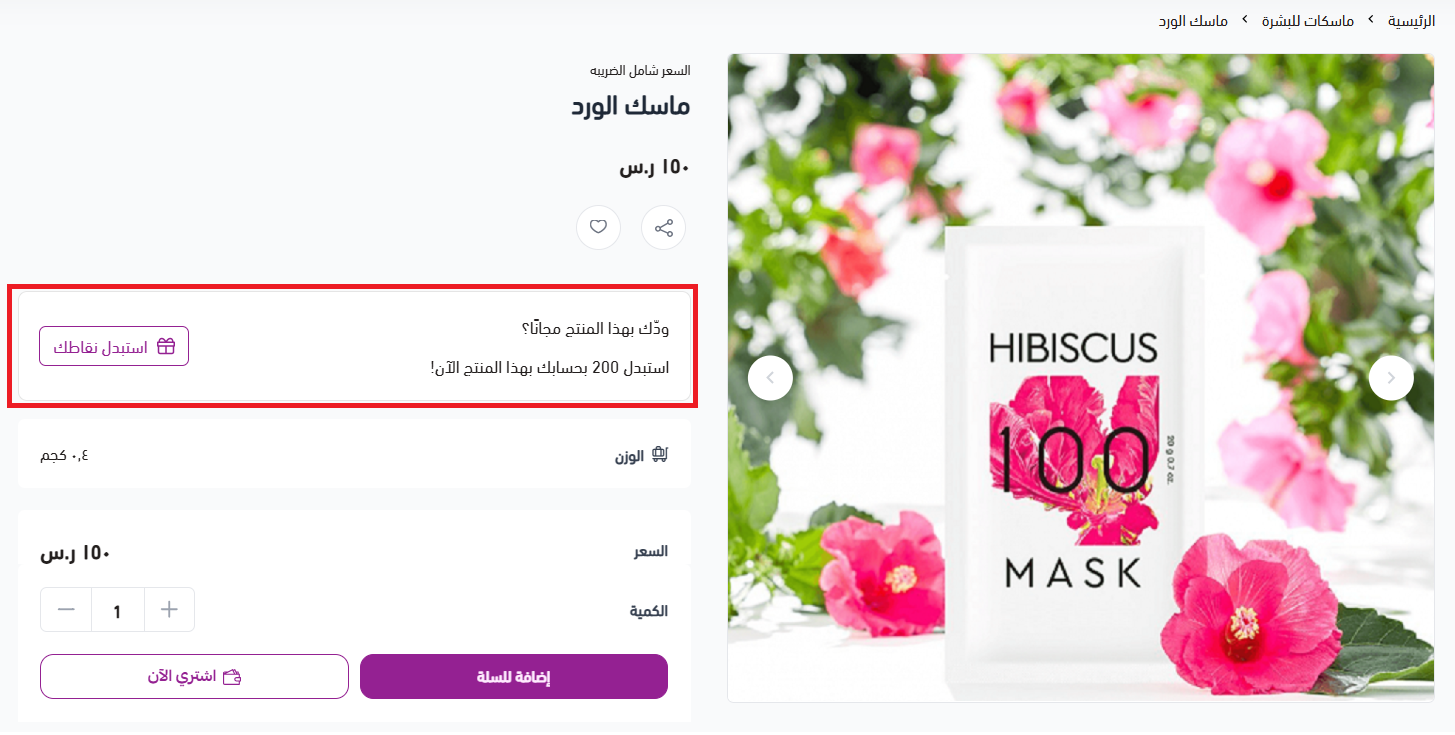
When a product qualifies for a free product reward, the product details page shows a section where the customer can redeem the set number of points and get that product for free.
💡 Example: claiming a free product.
It starts on your side, as the merchant, when you add a free product reward in exchange for a set number of points.
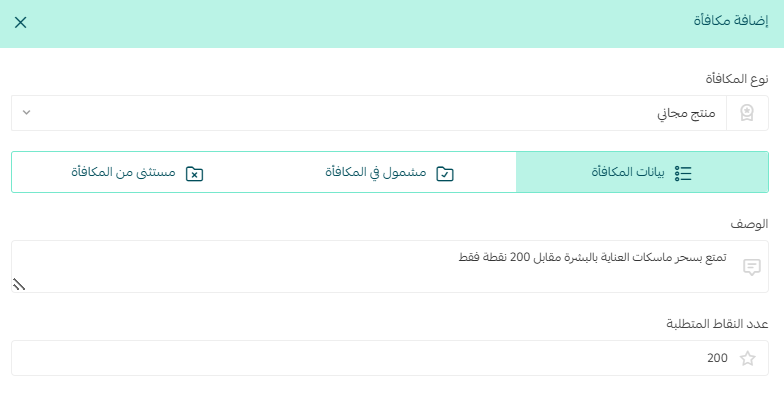
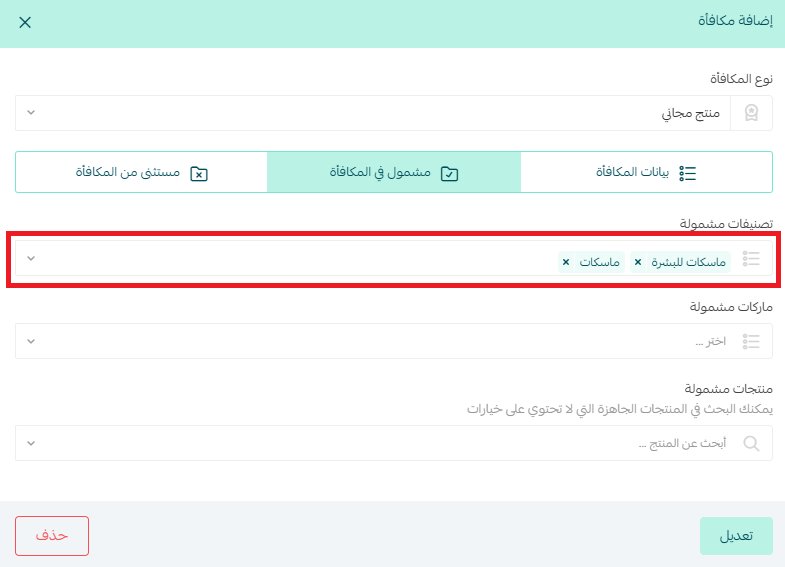
And when you choose which products are included in that reward and which are excluded.
On the page of any included product, the customer clicks (Redeem your points) to get the product in exchange for points from their balance.
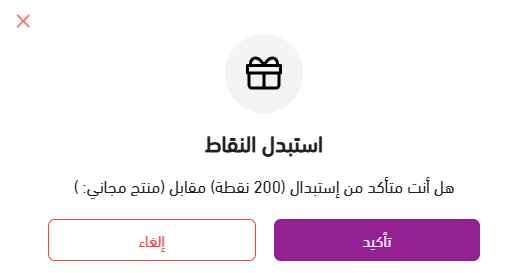
Then they click (Confirm).
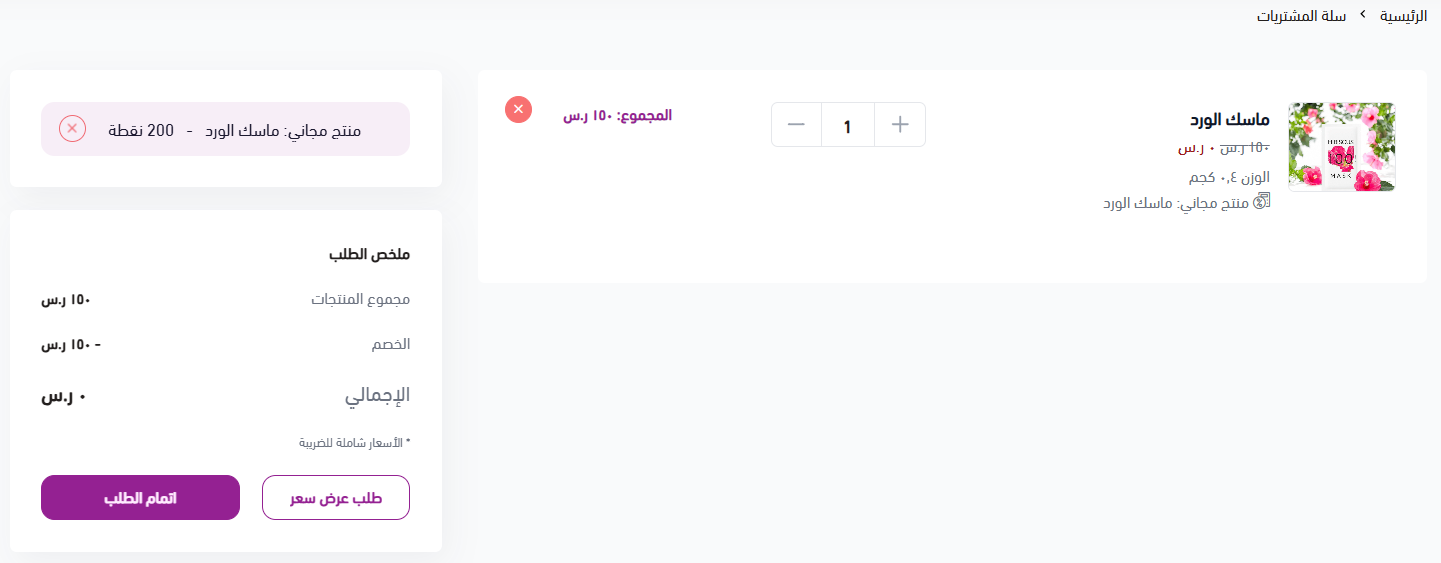
100% of the product's value is then discounted in exchange for the number of points set in the reward.
❓ Frequently asked questions
❓ Where do customers find the loyalty page?
In the browser, at the bottom of the store. In the app, on the (My account) page.
❓ How does a customer know which actions earn points?
The loyalty page lists every earning method available in your store. Clicking one opens its details, such as how the customer earns points for reviewing the store and where to do it.
❓ Can customers redeem points without leaving the checkout page?
Yes. The rewards they qualify for appear on the checkout page. They click (View reward), then (Redeem points), then (Confirm), and the discount is applied to the cart.
❓ How does a customer get a free product with their points?
If the product is included in a free product reward, its product page shows a (Redeem your points) button. Once the customer confirms, 100% of the product's value is discounted in exchange for the number of points set in the reward.
❓ Can customers see what a reward includes before they redeem it?
Yes. Clicking (View reward) opens the reward's details along with its terms and conditions, so the customer knows what they are getting before they spend their points.
Turn on the new loyalty experience in your store, and give your customers a reason to keep coming back for the next reward instead of just visiting once.
Every interaction today is loyalty tomorrow.