Google Play Console is the official platform developers use to manage their applications on the Google Play Store. It provides a comprehensive environment for publishing apps, managing releases, monitoring performance, and engaging with users, all from one centralized dashboard.
This guide walks you through how to access Google Play Console and explains its core features to help you manage your apps efficiently.
📌 Article overview
- How to access Google Play Console
- Key features of the Google Play Console dashboard
How to access Google Play Console
1️⃣ Open Google Play Console
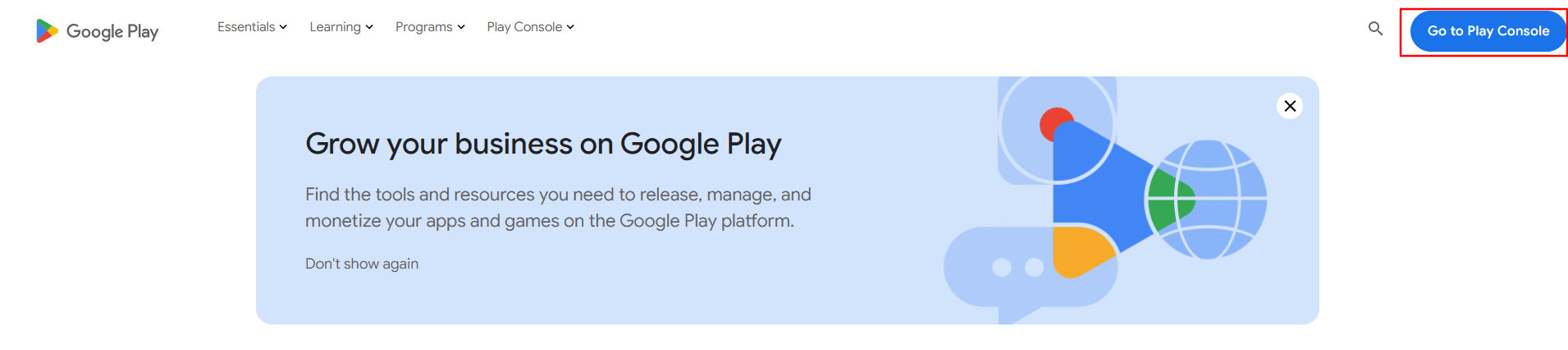
Go to Google Play Console, then click Go to Play Console.
2️⃣ Select your developer account
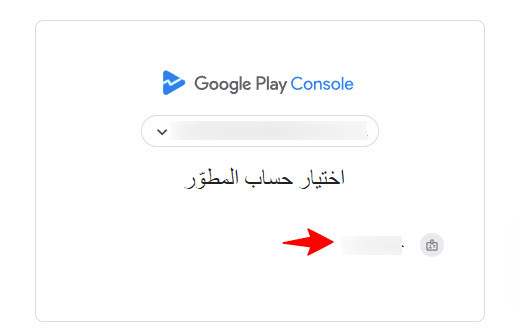
Choose the developer account associated with your email address.
For more details, see: How to purchase a Google Play Developer account
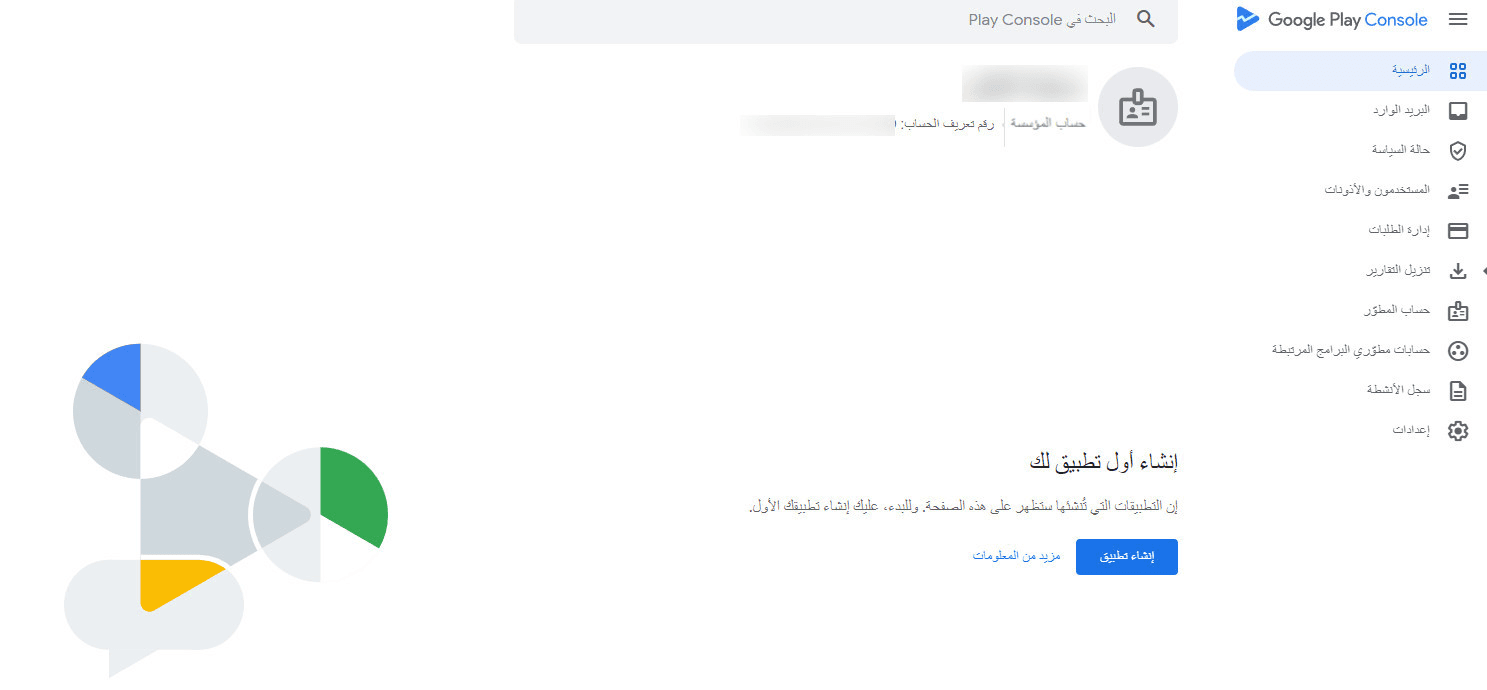
Once logged in, you’ll see the account home page, which provides a snapshot of your apps and account status. Below, we’ll explore the most important sections of the console.
Key features of Google Play Console
Home Dashboard
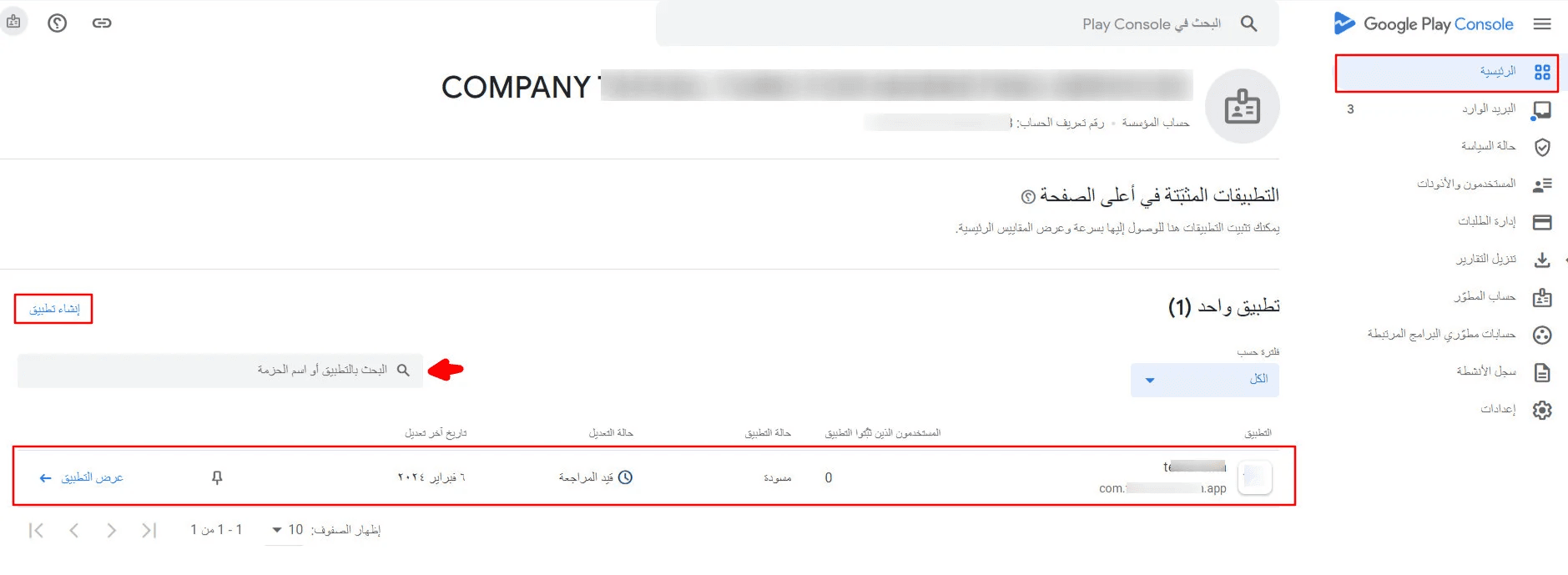
The Home page gives you a high-level overview of all your apps and their current status.
From here, you can:
- View all apps and their status
(Published, Suspended, Draft, etc.)
- See the last update date and user count
- Search for a specific app using:
- App name
- Package name
- Create a new app
(Quick access to the app creation flow)
- Open and manage an existing app
(Edit store listing, releases, and settings)
Inbox & policy status
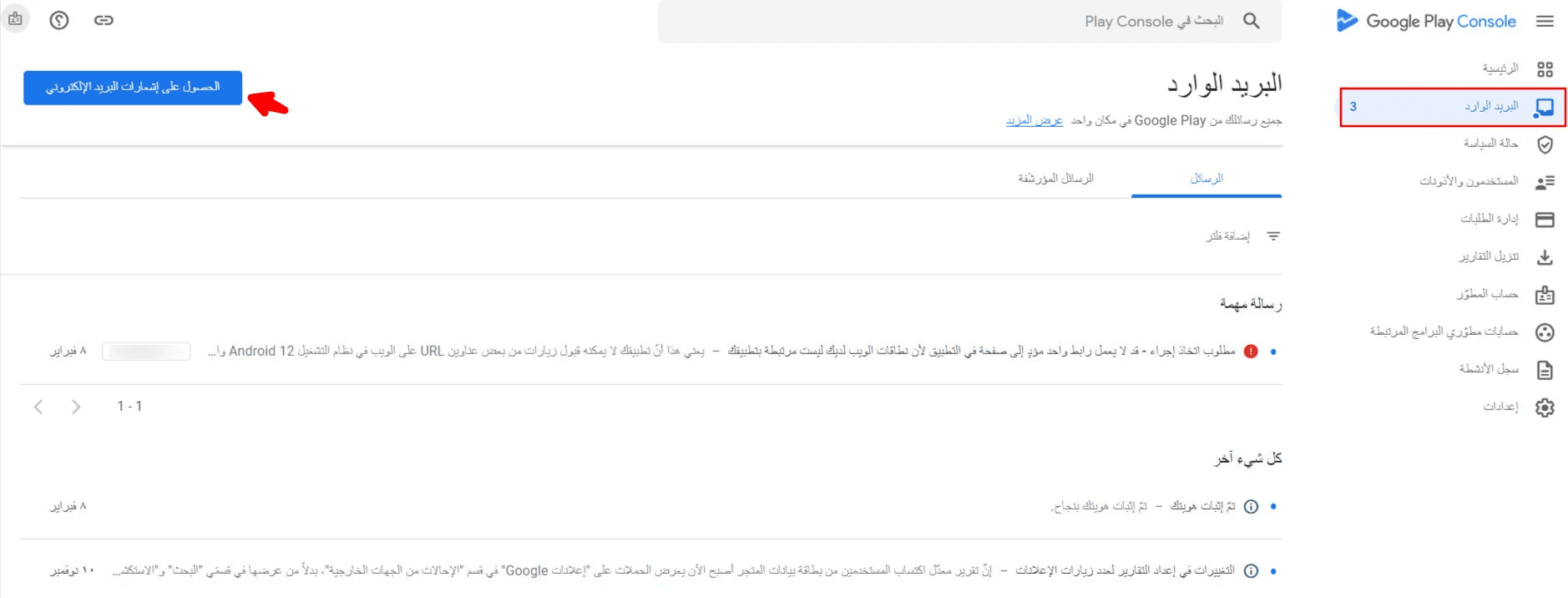
This section displays all important messages from Google, including:
- App update reviews
- Publishing status notifications
- Performance-related messages
You can also:
- Enable email notifications to receive updates directly in your inbox
- Monitor policy status, including:
- Account-level violations
- App-specific compliance issues
Users & permissions
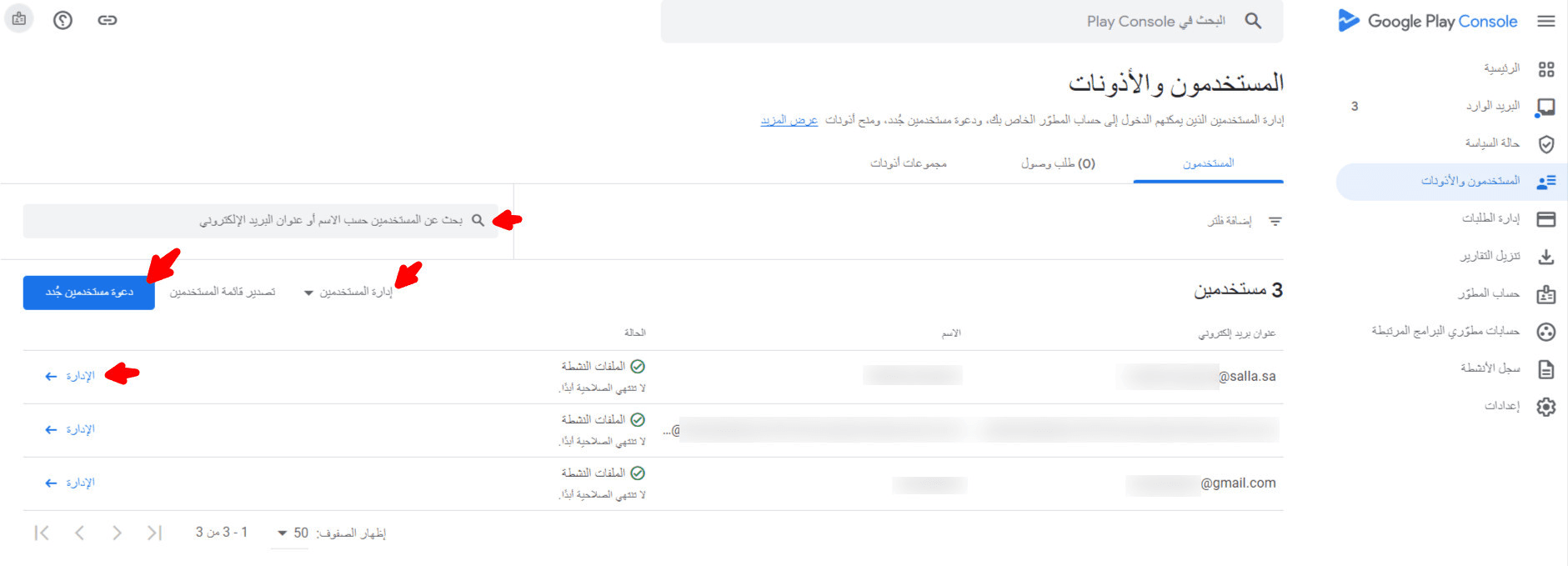
This section allows you to manage access control for your developer account.
You can:
- View all users with access to your apps
- Search for users by name or email
- Invite new users and assign permissions
- Edit or revoke access for existing users as needed
This is essential for teams working collaboratively on app management.
Developer account information
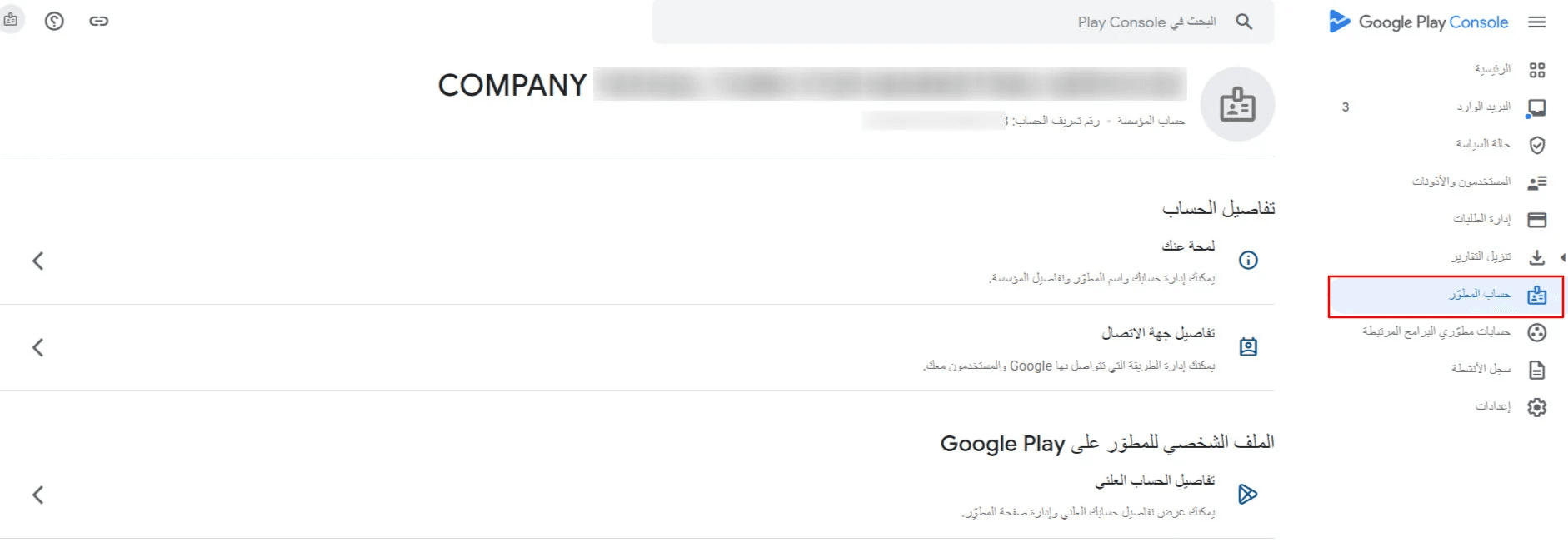
Provides a complete overview of your developer account profile, including:
- Developer name and account details
- Public contact information
- Developer profile as shown on Google Play
- Management of your public developer page
This section controls how your brand appears to users on the Play Store.
Account settings management
From here, you can manage global account settings, such as:
- Notification preferences
- Service integrations
- App transfers
- Performance analytics settings
- Mailing lists and communication preferences
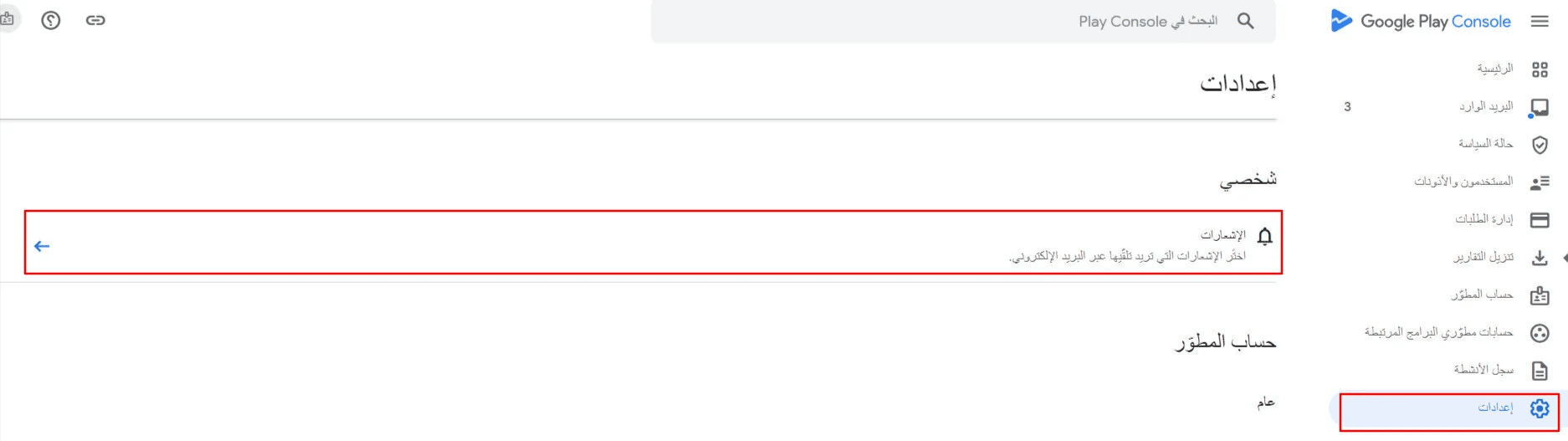
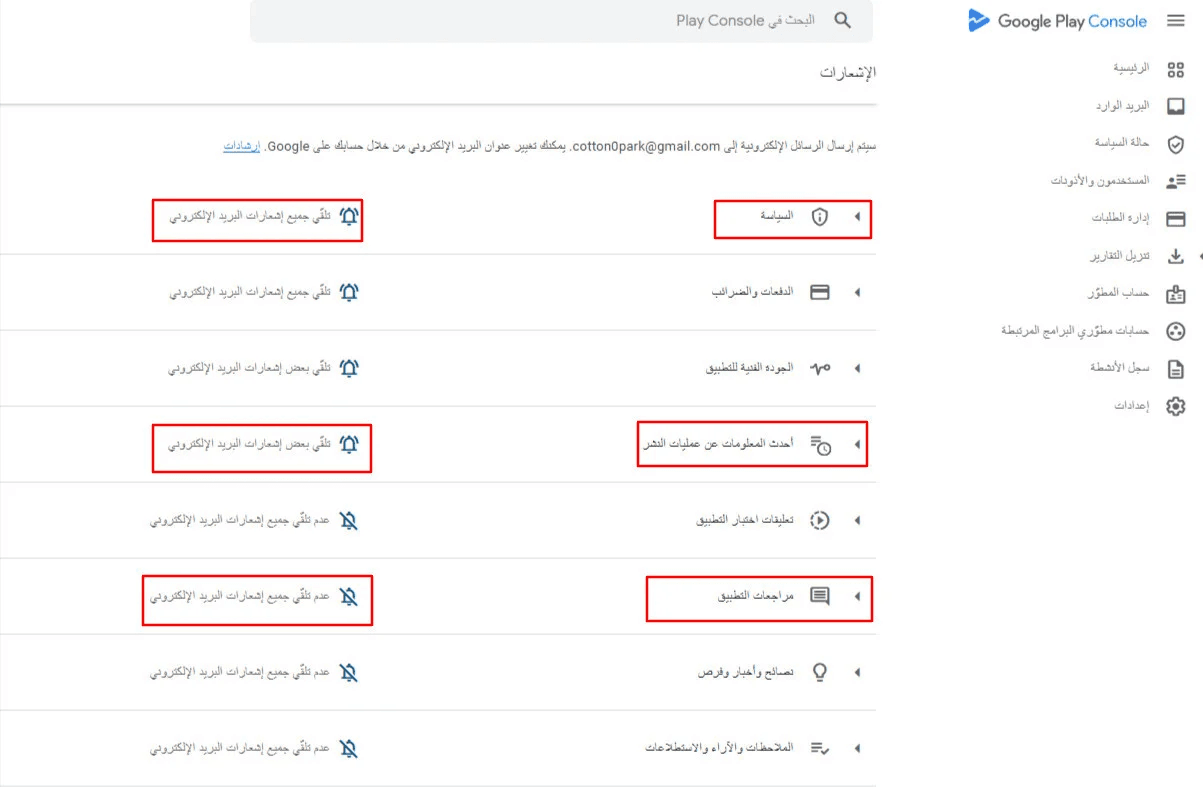
📢 Recommended notifications to enable:
- Policy updates
- Publishing status alerts
- App reviews and user comments
🔔 Important note: Some notifications—such as app reviews—only become available after at least one app is published on the account.
Frequently asked questions
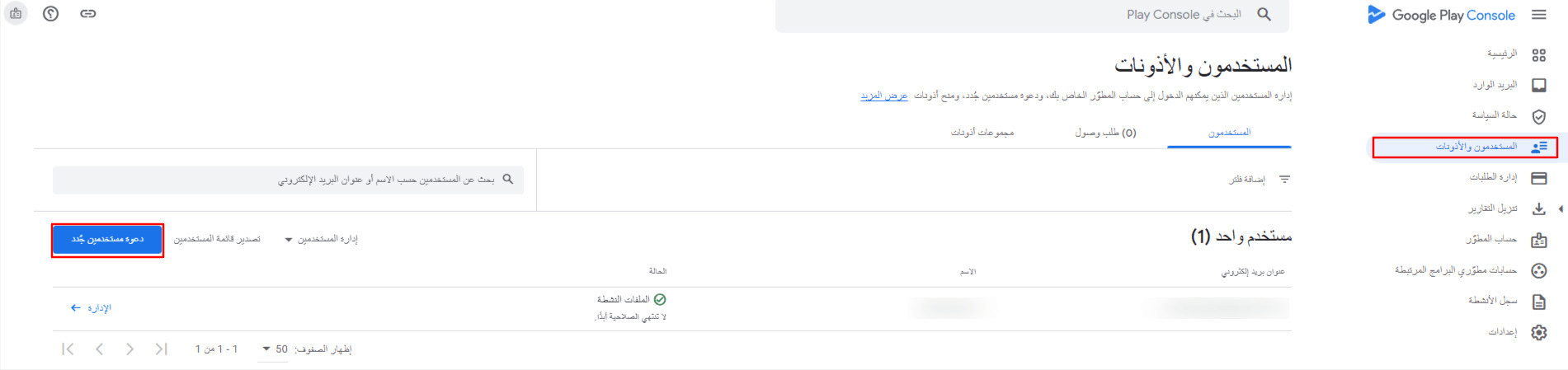
How do I add a user to manage my apps on Google Play Console?
- Go to Users & Permissions
- Click Invite new users
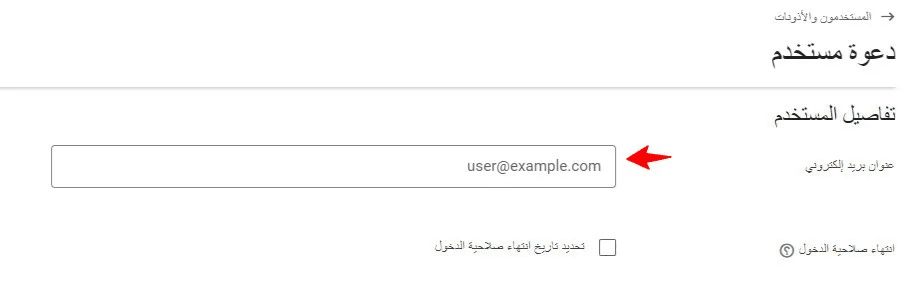
3. Enter the user’s email
(A Google account is recommended)
4. Optionally set an invitation expiry date
(Or leave it open-ended)
Assign app permissions
From App permissions:
- Grant access to one or more apps
- Click Add app to select the apps the user can manage
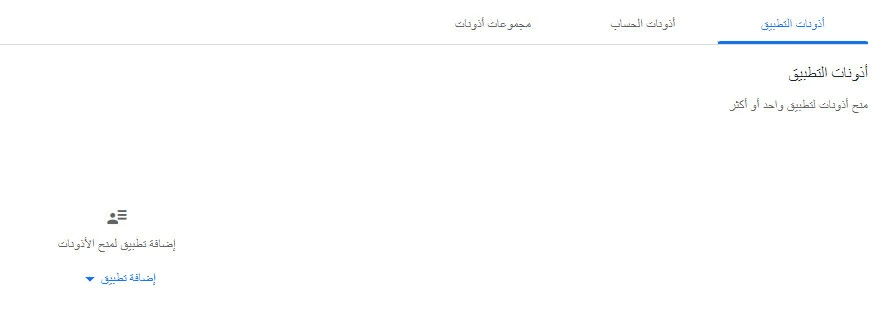
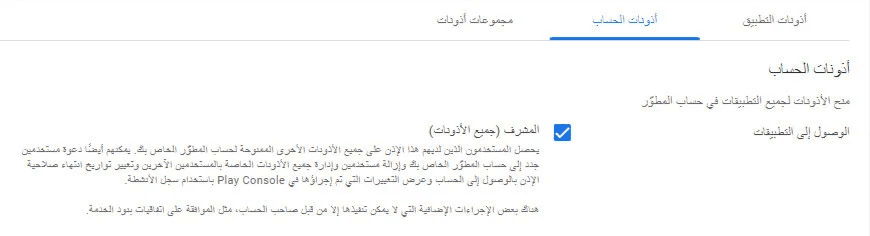
Assign account-level permissions
From Account permissions:
- Choose the appropriate role
- Example: Administrator grants full access to the entire account
5. Click Invite user
6. Confirm the invitation
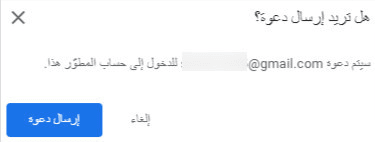
The invited user can now accept the invitation via email and start managing the account.
How do I remove a user from Google Play Console?
- Go to Users & Permissions
- Select Manage users
- Choose the user you want to remove
- Confirm removal

How can I change my public developer information on Google Play?
From the Developer account section, you can update:

Developer profile overview
Change the developer name shown to users on Google Play
Organization details
- Update company information linked to D-U-N-S
- Modify organization type, size, phone number, website
- Edit details originally provided during account creation

Contact details
You can update:
- Contact information used by Google
- Public contact details shown to users on Google Play

Public developer page
Manage content displayed on your Google Play Developer page, including:
- Developer profile image
- Promotional developer text
- Developer banner
- Website link
This page helps users learn more about your brand and apps.
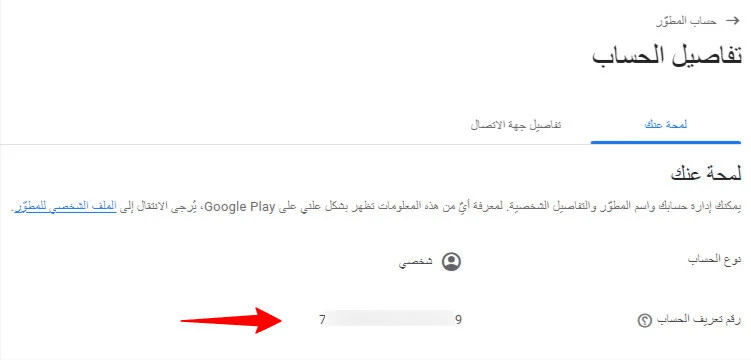
How do I find my Google Play Developer Account ID?
- Go to Developer account
- Open Profile overview
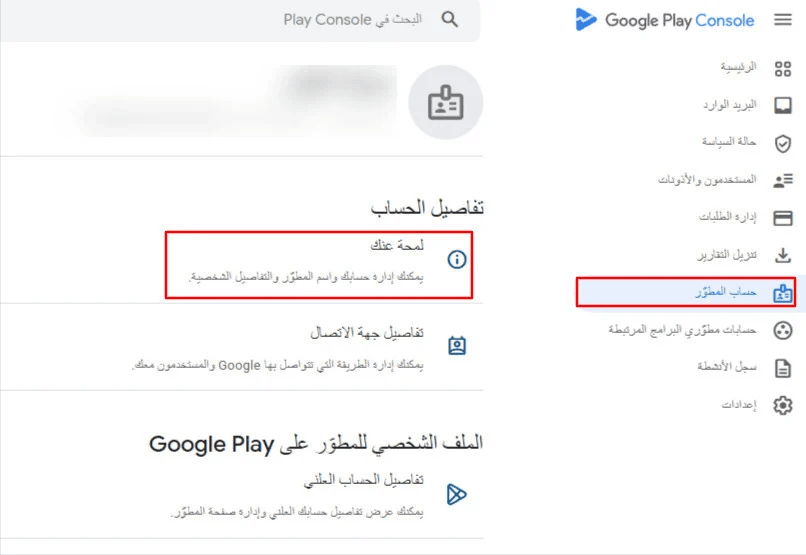
You’ll find your Developer Account ID there.
Use this ID when contacting Google Play Developer Support.